> ## Documentation Index
> Fetch the complete documentation index at: https://docs.wandb.ai/llms.txt
> Use this file to discover all available pages before exploring further.
# UI guide
> Access Serverless Inference models through the web interface
Learn how to use the Serverless Inference service through the web UI. This guide shows you how to access the service, try models in the Playground, compare models side by side, and monitor billing and usage. Use the UI when you want to experiment with models interactively without writing code.
Before you use the UI, complete the [prerequisites](/inference/prerequisites).
## Access the Inference service
The following sections describe three ways to access the Inference service. Choose whichever entry point best matches your current workflow.
### Direct link
Navigate to [https://wandb.ai/inference](https://wandb.ai/inference).
### From the Inference tab
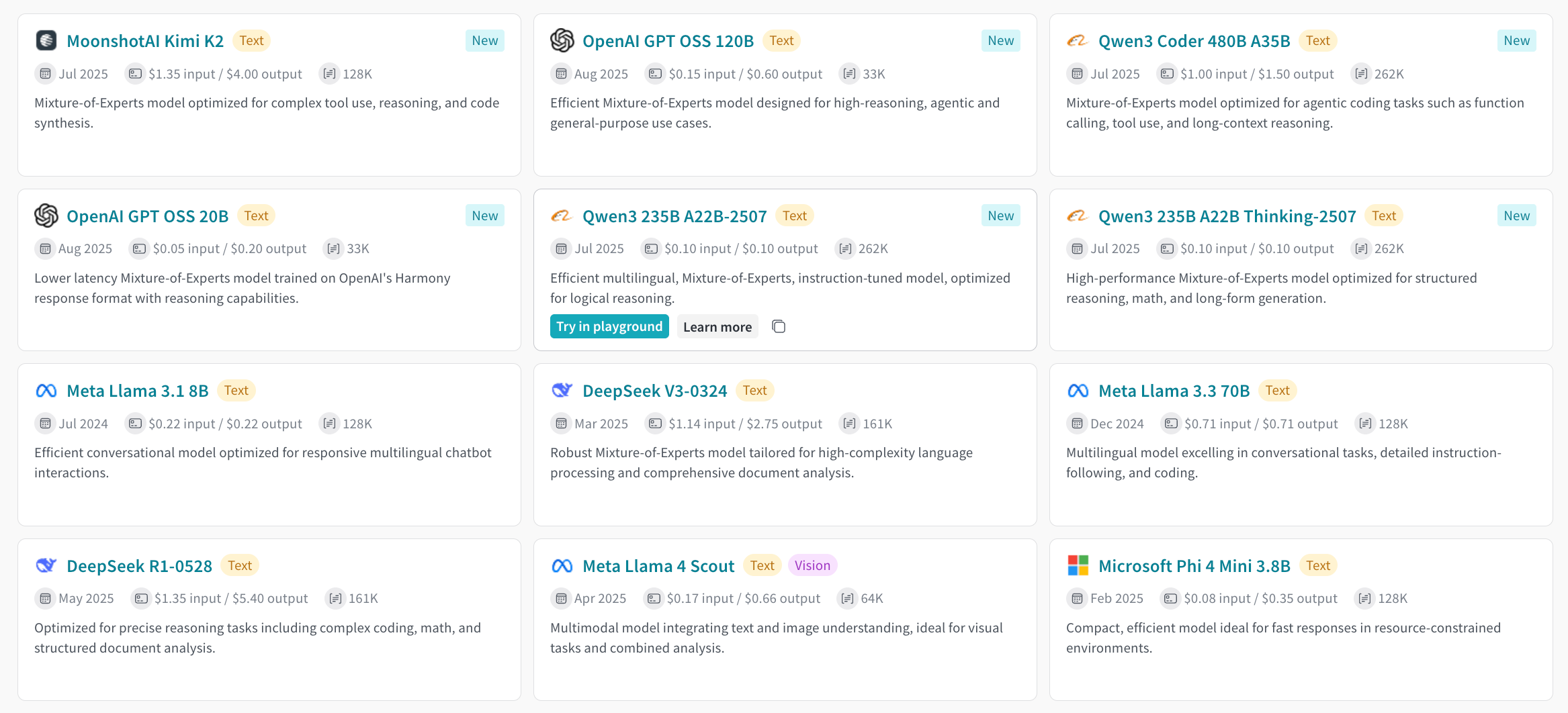
1. Navigate to your W\&B account at [https://wandb.ai/](https://wandb.ai/).
2. Select **Inference** from the project sidebar. A page appears with available models and model information.
 ### From the Playground tab
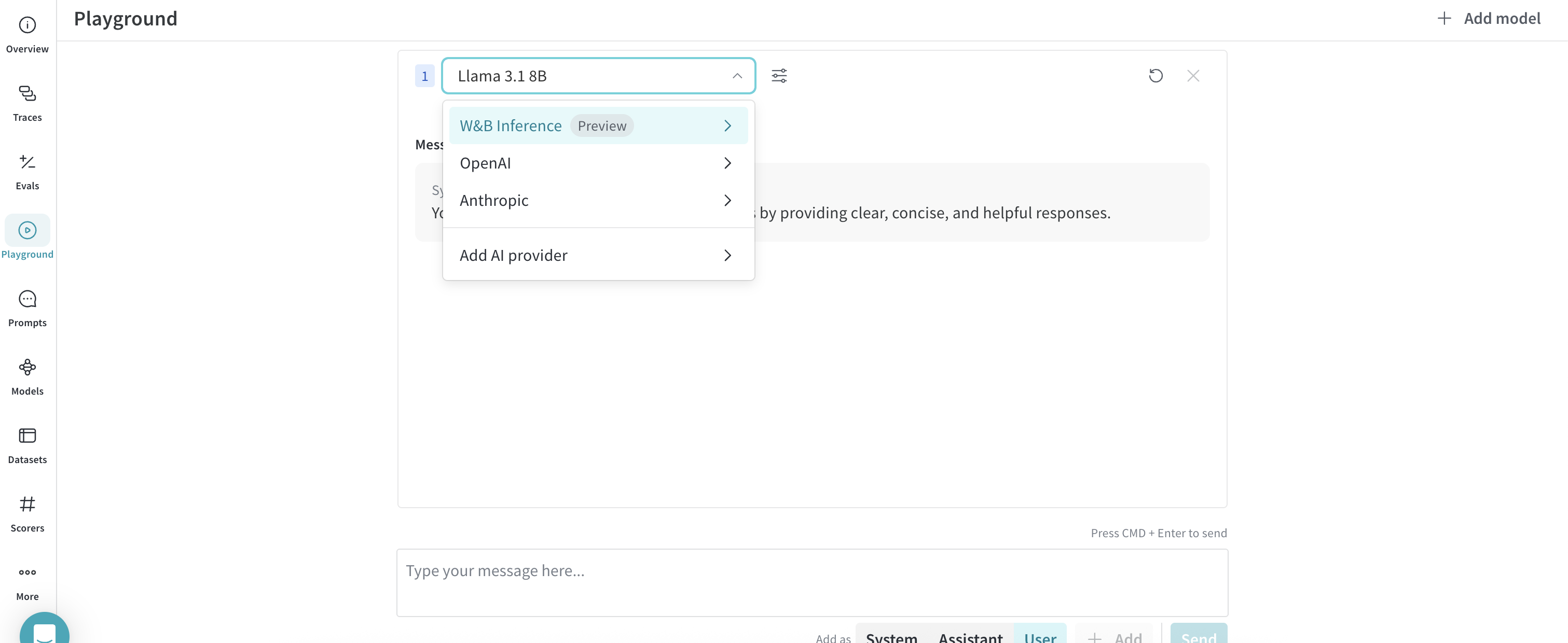
1. Select **Playground** from the project sidebar. The Playground chat UI appears.
2. Hover over **Serverless Inference** in the LLM dropdown list. A dropdown with available models appears on the right.
3. From the models dropdown, you can:
* Click any model name to [try it in the Playground](#try-a-model-in-the-playground).
* [Compare multiple models](#compare-multiple-models)
### From the Playground tab
1. Select **Playground** from the project sidebar. The Playground chat UI appears.
2. Hover over **Serverless Inference** in the LLM dropdown list. A dropdown with available models appears on the right.
3. From the models dropdown, you can:
* Click any model name to [try it in the Playground](#try-a-model-in-the-playground).
* [Compare multiple models](#compare-multiple-models)
 ## Try a model in the Playground
After you [select a model](#access-the-inference-service), you can test it in the Playground to evaluate its responses and tune its behavior before you integrate it elsewhere. Available actions include:
* [Customize model settings and parameters](/weave/guides/tools/playground#customize-playground-settings).
* [Add, retry, edit, and delete messages](/weave/guides/tools/playground#message-controls).
* [Save and reuse a model with custom settings](/weave/guides/tools/playground#saved-models).
* [Compare multiple models](#compare-multiple-models).
## Compare multiple models
You can compare Inference models side by side in the Playground to evaluate quality, latency, and output style for the same prompt. You can access the Compare view from two places, described in the following sections.
### From the Inference tab
1. Select **Inference** from the project sidebar. The available models page appears.
2. Click anywhere on a model card (except the model name) to select it. The card is highlighted to show it's selected.
3. Repeat for each model you want to compare.
4. Click **Compare \[N] models in the Playground** on any selected card, where `[N]` is the number of models you selected. The comparison view opens.
Now you can compare models and use all features from [Try a model in the Playground](#try-a-model-in-the-playground).
## Try a model in the Playground
After you [select a model](#access-the-inference-service), you can test it in the Playground to evaluate its responses and tune its behavior before you integrate it elsewhere. Available actions include:
* [Customize model settings and parameters](/weave/guides/tools/playground#customize-playground-settings).
* [Add, retry, edit, and delete messages](/weave/guides/tools/playground#message-controls).
* [Save and reuse a model with custom settings](/weave/guides/tools/playground#saved-models).
* [Compare multiple models](#compare-multiple-models).
## Compare multiple models
You can compare Inference models side by side in the Playground to evaluate quality, latency, and output style for the same prompt. You can access the Compare view from two places, described in the following sections.
### From the Inference tab
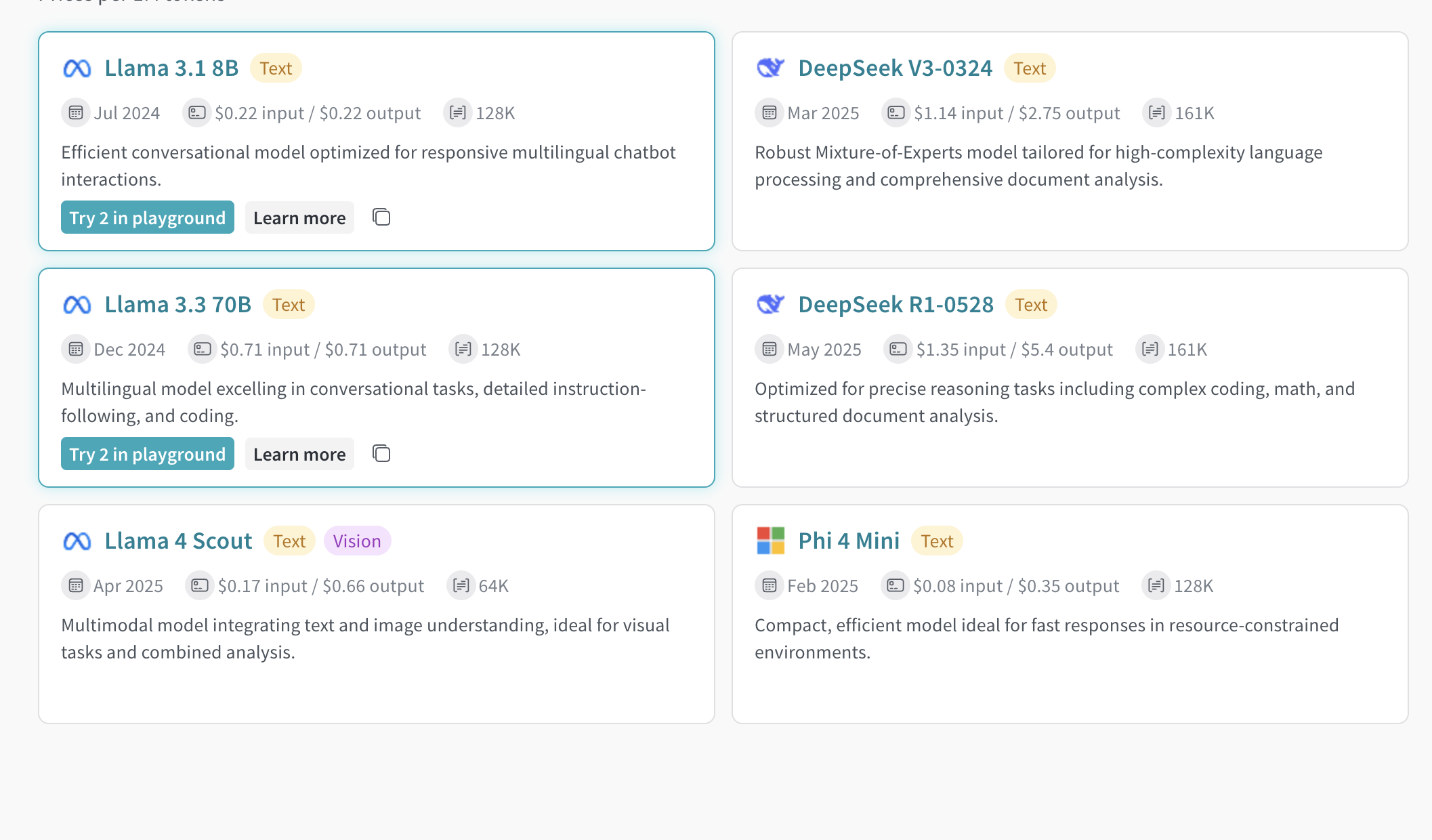
1. Select **Inference** from the project sidebar. The available models page appears.
2. Click anywhere on a model card (except the model name) to select it. The card is highlighted to show it's selected.
3. Repeat for each model you want to compare.
4. Click **Compare \[N] models in the Playground** on any selected card, where `[N]` is the number of models you selected. The comparison view opens.
Now you can compare models and use all features from [Try a model in the Playground](#try-a-model-in-the-playground).
 ### From the Playground tab
1. Select **Playground** from the project sidebar. The Playground chat UI appears.
2. Hover over **Serverless Inference** in the LLM dropdown list. The models dropdown appears on the right.
3. Select **Compare** from the dropdown. The **Inference** tab appears.
4. Click anywhere on a model card (except the model name) to select it. The card is highlighted to show it's selected.
5. Repeat for each model you want to compare.
6. Click **Compare \[N] models in the Playground** on any selected card. The comparison view opens.
Now you can compare models and use all features from [Try a model in the Playground](#try-a-model-in-the-playground).
## View billing and usage information
Organization admins can track credit balance, usage history, and upcoming bills from the W\&B UI. Use this view to monitor spend and forecast upcoming charges.
1. Navigate to the W\&B **Billing** page in the UI.
2. Find the **Inference** billing information card.
3. From here you can:
* Click **View usage** to see your usage over time.
* View upcoming inference charges (for paid plans).
Visit the [Inference pricing page](https://wandb.ai/site/pricing/inference) for per-model pricing details.
## Next steps
* Review [available models](/inference/models) to find the best one for your needs.
* Try the [API](/inference/api-reference/) for programmatic access.
* See [usage examples](/inference/examples/) for code samples.
### From the Playground tab
1. Select **Playground** from the project sidebar. The Playground chat UI appears.
2. Hover over **Serverless Inference** in the LLM dropdown list. The models dropdown appears on the right.
3. Select **Compare** from the dropdown. The **Inference** tab appears.
4. Click anywhere on a model card (except the model name) to select it. The card is highlighted to show it's selected.
5. Repeat for each model you want to compare.
6. Click **Compare \[N] models in the Playground** on any selected card. The comparison view opens.
Now you can compare models and use all features from [Try a model in the Playground](#try-a-model-in-the-playground).
## View billing and usage information
Organization admins can track credit balance, usage history, and upcoming bills from the W\&B UI. Use this view to monitor spend and forecast upcoming charges.
1. Navigate to the W\&B **Billing** page in the UI.
2. Find the **Inference** billing information card.
3. From here you can:
* Click **View usage** to see your usage over time.
* View upcoming inference charges (for paid plans).
Visit the [Inference pricing page](https://wandb.ai/site/pricing/inference) for per-model pricing details.
## Next steps
* Review [available models](/inference/models) to find the best one for your needs.
* Try the [API](/inference/api-reference/) for programmatic access.
* See [usage examples](/inference/examples/) for code samples.