> ## Documentation Index
> Fetch the complete documentation index at: https://docs.wandb.ai/llms.txt
> Use this file to discover all available pages before exploring further.
# アーティファクトバージョンをコレクションにリンクする
> 組織全体で共有できるように、W&B Registry のコレクションにアーティファクトバージョンをリンクします。
アーティファクトバージョンを組織で利用できるようにするには、W\&B Registry の
[コレクション](/ja/models/registry/create_collection) に *リンク* します。リンクすると、そのバージョンは [プロジェクトレベルのプライベートなスコープから、組織レベルの共有スコープへ](/ja/models/registry/create_registry#visibility-types) 移動します。アーティファクトバージョンは、[W\&B Python SDK を使ってプログラムから、または W\&B App でインタラクティブに](/ja/models/registry/link_version#link-an-artifact-to-a-collection) リンクできます。
アーティファクトをリンクすると、W\&B はソースアーティファクトとコレクションのエントリの間に参照を作成します。リンクされたバージョンは、プロジェクト内の run にログされたソースアーティファクトバージョンを参照します。コレクション内のリンクされたバージョンと、それがログされたプロジェクト内のソースバージョンの両方を表示できます。
## artifact をコレクションにリンクする
ユースケースに応じて、artifact バージョンをリンクするには、以下のタブに記載されている手順に従ってください。
始める前に、次の点を確認してください。
* コレクションで許可されている artifact のタイプ。コレクションのタイプの詳細については、[コレクションを作成する](./create_collection)内の「コレクションのタイプ」を参照してください。
* コレクションが属するレジストリがすでに存在していること。レジストリが存在することを確認するには、[Registry App にアクセスして検索し](/ja/models/registry/search_registry)、そのレジストリの名を確認してください。
{/*
バージョンをリンクする方法を紹介する[動画](https://www.youtube.com/watch?v=2i_n1ExgO0A)をご覧ください(8 分)。
*/}
Programmatically link an artifact version to a collection with [`wandb.Run.link_artifact()`](/ja/models/ref/python/experiments/run#link_artifact) or
[`wandb.Artifact.link()`](/ja/models/ref/python/experiments/artifact#method-artifactlink).
Use `wandb.Run.link_artifact()` to link an artifact version [within the context of a run](#link-an-artifact-version-within-the-context-of-a-run). Use `wandb.Artifact.link()` to link an *existing artifact version* [outside the context of a run](#link-an-artifact-version-outside-the-context-of-a-run).
{/*
`wandb.Artifact.link()` does not require you to initialize a run with `wandb.init()`. `wandb.Run.link_artifact()` requires you to initialize a run with `wandb.init()`.
*/}
どちらのアプローチでも、artifact の名前 (`wandb.Artifact(name=""`)、artifact のタイプ (`wandb.Artifact(type=""`)、およびリンク先のコレクションと Registry の `target_path` (`wandb.Artifact(target_path="")`) を指定してください。
ターゲットパスは、プレフィックス `"wandb-registry"`、Registry名、コレクション名をスラッシュで区切って構成されます。
{/* Use the `target_path` parameter to specify the collection and registry you want to link the artifact version to. The target path consists of the prefix "wandb-registry", the name of the registry, and the name of the collection separated by a forward slashes: */}
```text theme={null}
wandb-registry-{REGISTRY_NAME}/{COLLECTION_NAME}
```
### runのコンテキスト内でartifactバージョンをリンクする
`wandb.Run.link_artifact()` を使用して、runのコンテキスト内でartifactバージョンをコレクションにリンクします。そのためには、まず `wandb.init()` でrunを初期化します。次に、artifactオブジェクトを作成してファイルを追加します。最後に、`wandb.Run.link_artifact()` メソッドを使用して、artifactバージョンをコレクションにリンクします。
このアプローチを使用すると、W\&B project に run が作成されます。artifact バージョンはコレクションにリンクされ、その run に関連付けられます。
以下のコードスニペットをコピー&ペーストしてください。`<>` で囲まれた値はご自身の値に置き換えてください。
```python theme={null}
import wandb
entity = "" # チーム entity
project = "" # artifactが含まれるprojectの名前
# runを初期化する
with wandb.init(entity = entity, project = project) as run:
# artifactオブジェクトを作成する
# typeパラメーターはartifactオブジェクトのタイプと
# コレクションのタイプの両方を指定する
artifact = wandb.Artifact(name = "", type = "")
# artifactオブジェクトにファイルを追加する。
# ローカルマシン上のファイルのパスを指定する。
artifact.add_file(local_path = "")
# artifactをリンクするコレクションとregistryを指定する
REGISTRY_NAME = ""
COLLECTION_NAME = ""
target_path=f"wandb-registry-{REGISTRY_NAME}/{COLLECTION_NAME}"
# artifactをコレクションにリンクする
run.link_artifact(artifact = artifact, target_path = target_path)
```
### runのコンテキスト外でartifactバージョンをリンクする
`wandb.Artifact.link()` を使用して、runのコンテキスト外で既存のartifactバージョンをリンクします。この方法では、
`wandb.init()` でrunを初期化する必要はありません。つまり、W\&B project にrunは作成されません。言い換えると、
artifactバージョンはrunに関連付けられることなくコレクションにリンクされます。
まず、artifact オブジェクトを作成してファイルを追加します。次に、`wandb.Artifact.link()` メソッドを使用して、artifact バージョンをコレクションにリンクします。
以下のコードスニペットをコピー&ペーストしてください。`<>` で囲まれた値はご自身の値に置き換えてください。
```python theme={null}
import wandb
# artifactオブジェクトを作成する
# typeパラメーターはartifactオブジェクトのタイプと
# コレクションのタイプの両方を指定する
artifact = wandb.Artifact(name = "", type = "")
# artifactオブジェクトにファイルを追加する
# ローカルマシン上のファイルのパスを指定する
artifact.add_file(local_path = "")
# artifactをリンクするコレクションとレジストリを指定する
REGISTRY_NAME = ""
COLLECTION_NAME = ""
target_path=f"wandb-registry-{REGISTRY_NAME}/{COLLECTION_NAME}"
# artifactをコレクションにリンクする
artifact.link(target_path = target_path)
```
1. Navigate to the W\&B Registry.
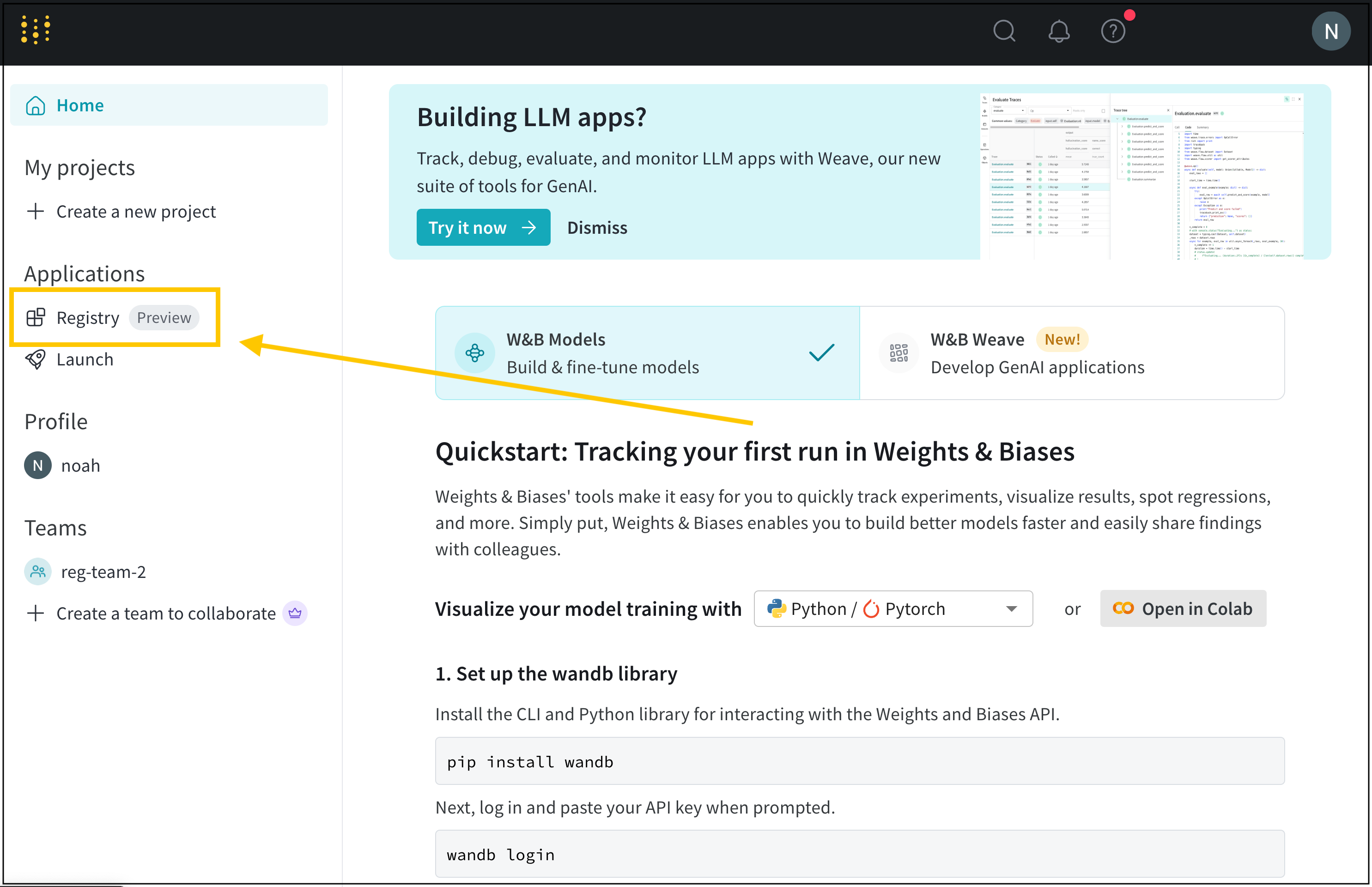 2. Hover your mouse next to the name of the collection you want to link an artifact version to.
3. Select the **action ()** menu next to **View details**.
4. From the dropdown, select **Link new version**.
5. From the sidebar that appears, select the name of a team from the **Team** dropdown.
6. From the **Project** dropdown, select the name of the project that contains your artifact.
7. From the **Artifact** dropdown, select the name of the artifact.
8. **Version** ドロップダウンから、コレクションにリンクするアーティファクト バージョンを選択します。
{/* TODO GIFを挿入 */}
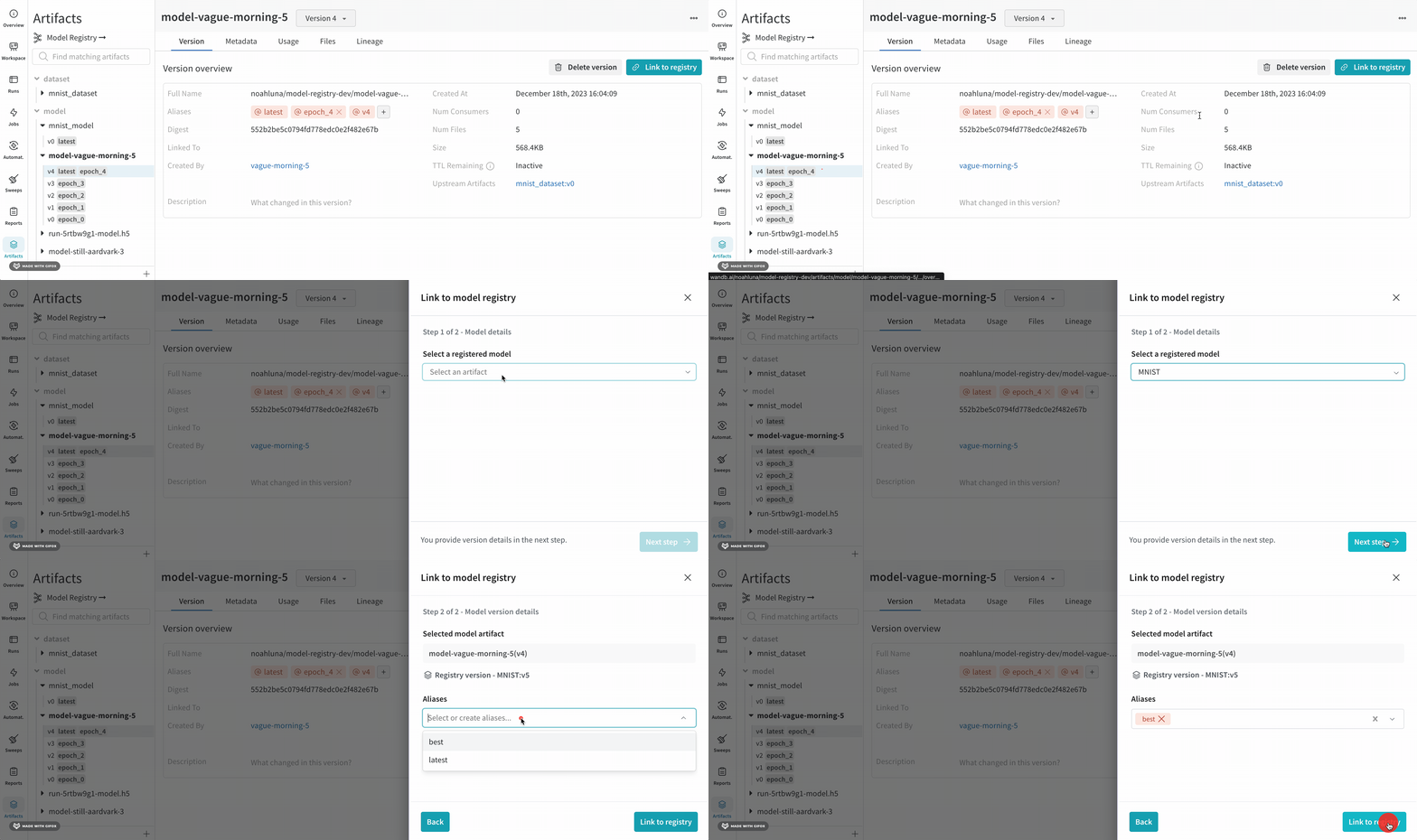
1. W\&B App のプロジェクトの artifact ブラウザー (`https://wandb.ai///artifacts`) にアクセスします。
2. プロジェクトのサイドバーで Artifacts アイコンを選択します。
3. レジストリにリンクしたい artifact バージョンをクリックします。
4. **Version overview** セクションで、**Link to registry** ボタンをクリックします。
5. 画面右側に表示されるモーダルで、**Select a register model** メニューのドロップダウンから artifact を選択します。
6. **Next step** をクリックします。
7. (任意) **Aliases** ドロップダウンからエイリアスを選択します。
8. **Link to registry** をクリックします。
{/* この GIF を更新 */}
{/*
2. Hover your mouse next to the name of the collection you want to link an artifact version to.
3. Select the **action ()** menu next to **View details**.
4. From the dropdown, select **Link new version**.
5. From the sidebar that appears, select the name of a team from the **Team** dropdown.
6. From the **Project** dropdown, select the name of the project that contains your artifact.
7. From the **Artifact** dropdown, select the name of the artifact.
8. **Version** ドロップダウンから、コレクションにリンクするアーティファクト バージョンを選択します。
{/* TODO GIFを挿入 */}
1. W\&B App のプロジェクトの artifact ブラウザー (`https://wandb.ai///artifacts`) にアクセスします。
2. プロジェクトのサイドバーで Artifacts アイコンを選択します。
3. レジストリにリンクしたい artifact バージョンをクリックします。
4. **Version overview** セクションで、**Link to registry** ボタンをクリックします。
5. 画面右側に表示されるモーダルで、**Select a register model** メニューのドロップダウンから artifact を選択します。
6. **Next step** をクリックします。
7. (任意) **Aliases** ドロップダウンからエイリアスを選択します。
8. **Link to registry** をクリックします。
{/* この GIF を更新 */}
{/*
 */}
Registry App では、[リンクされたアーティファクトのメタデータ、バージョンデータ、使用状況、リネージ情報](/ja/models/registry/link_version#view-linked-artifacts-in-a-registry") などを確認できます。
*/}
Registry App では、[リンクされたアーティファクトのメタデータ、バージョンデータ、使用状況、リネージ情報](/ja/models/registry/link_version#view-linked-artifacts-in-a-registry") などを確認できます。
## Registry 内のリンクされた artifact を表示する
W\&B Registry で、メタデータ、リネージ、利用状況情報など、リンクされた artifact に関する情報を表示します。
1. W\&B Registry にアクセスします。
2. artifact をリンクした registry の名を選択します。
3. collection の名を選択します。
4. collection の artifact がメトリクスをログしている場合は、**Show metrics** をクリックして、バージョン間でメトリクスを比較します。
5. artifact バージョンの一覧から、アクセスしたいバージョンを選択します。バージョン番号は `v0` から始まり、リンクされた各 artifact バージョンに段階的に割り当てられます。
6. artifact バージョンの詳細を表示するには、そのバージョンをクリックします。このページのタブから、そのバージョンのメタデータ (ログされたメトリクスを含む) 、リネージ、利用状況情報を表示できます。
**Version** タブ内の **Full Name** フィールドに注目してください。リンクされた artifact の完全名は、registry、collection 名、および artifact バージョンの alias またはインデックスで構成されます。
```text title="Full name of a linked artifact" theme={null}
wandb-registry-{REGISTRY_NAME}/{COLLECTION_NAME}:v{INTEGER}
```
artifact のバージョンにプログラムからアクセスするには、リンクされた artifact のフルネームが必要です。
## トラブルシューティング
artifact をリンクできない場合は、以下の一般的な確認項目を再度確認してください。
### 個人アカウントから Artifacts をログする
個人の entity で W\&B にログされた Artifacts は、レジストリにリンクできません。Artifacts は、組織内のチーム entity を使用してログしてください。組織のレジストリにリンクできるのは、組織内のチームでログされた Artifacts のみです。
artifact をレジストリにリンクする場合は、チーム entity でその artifact をログしてください。
#### チーム entity を確認する
W\&B では、チーム名がそのチームの entity として使用されます。たとえば、チーム名が **team-awesome** の場合、チーム entity は `team-awesome` です。
次の手順でチーム名を確認できます。
1. チームの W\&B プロフィールページにアクセスします。
2. サイトの URL をコピーします。形式は `https://wandb.ai/` です。ここで `` はチーム名であり、同時にチームの entity でもあります。
#### チーム entity でログする
1. [`wandb.init()`](/ja/models/ref/python/functions/init) で run を初期化するときに、entity としてチームを指定します。run の初期化時に `entity` を指定しない場合、run にはデフォルトの entity が使用されます。これはチーム entity の場合もあれば、そうでない場合もあります。
```python theme={null}
import wandb
with wandb.init(entity='', project='') as run:
# ここでアーティファクトをログします
```
2. `wandb.Run.log_artifact()` を使用するか、Artifact object を作成してから次のようにファイルを追加して、アーティファクト を run にログします。
```python theme={null}
artifact = wandb.Artifact(name="", type="")
```
アーティファクト をログする方法については、[アーティファクト を構築する](/ja/models/artifacts/construct-an-artifact/)を参照してください。
3. アーティファクト が個人の entity にログされている場合は、組織内の entity に再度ログする必要があります。
### W\&B App UI で Registry のパスを確認する
W\&B App UI で Registry のパスを確認するには、空のコレクションを作成します。手順は次のとおりです。
1. [https://wandb.ai/registry/](https://wandb.ai/registry/) の W\&B Registry にアクセスします。
2. アーティファクト をリンクする対象のレジストリをクリックします。
3. 空のコレクションをクリックします。空のコレクションが存在しない場合は、新しいコレクションを作成します。
4. 表示されたコードスニペット内で、`.link_artifact()` にある `target_path` フィールドを特定します。
5. (任意) コレクションを削除します。
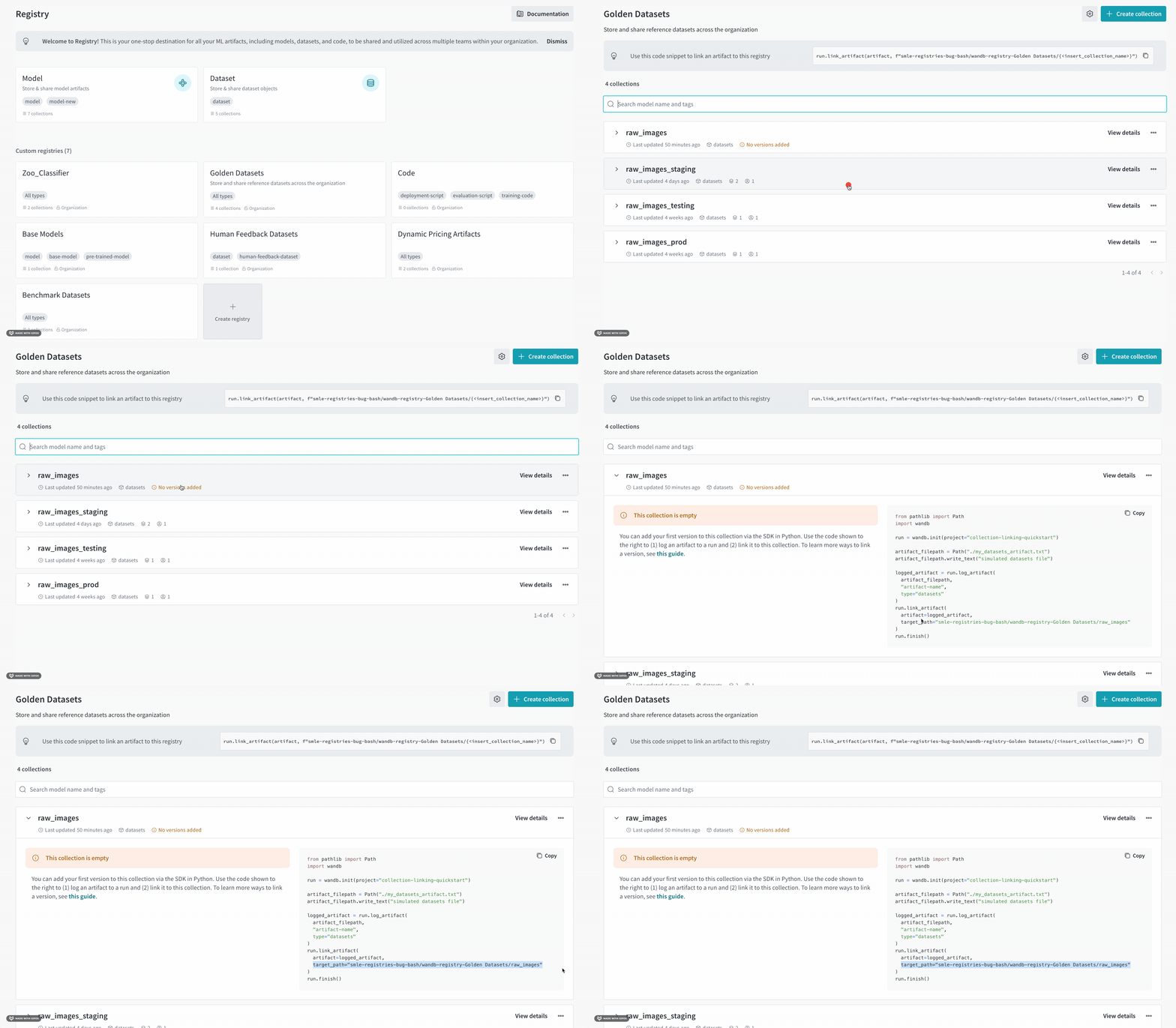 たとえば、上記の手順を完了すると、`target_path` パラメーターを含むコードブロックが表示されます。
```python theme={null}
target_path =
"smle-registries-bug-bash/wandb-registry-Golden Datasets/raw_images"
```
これを構成要素に分解すると、アーティファクト をプログラムから リンク するためのパスを作成するのに何が必要かがわかります。
```python theme={null}
ORG_ENTITY_NAME = "smle-registries-bug-bash"
REGISTRY_NAME = "Golden Datasets"
COLLECTION_NAME = "raw_images"
```
一時コレクションの名を、アーティファクト をリンクする先のコレクションの名に置き換えてください。
たとえば、上記の手順を完了すると、`target_path` パラメーターを含むコードブロックが表示されます。
```python theme={null}
target_path =
"smle-registries-bug-bash/wandb-registry-Golden Datasets/raw_images"
```
これを構成要素に分解すると、アーティファクト をプログラムから リンク するためのパスを作成するのに何が必要かがわかります。
```python theme={null}
ORG_ENTITY_NAME = "smle-registries-bug-bash"
REGISTRY_NAME = "Golden Datasets"
COLLECTION_NAME = "raw_images"
```
一時コレクションの名を、アーティファクト をリンクする先のコレクションの名に置き換えてください。