> ## Documentation Index
> Fetch the complete documentation index at: https://docs.wandb.ai/llms.txt
> Use this file to discover all available pages before exploring further.
# Serverless Inference
> Weave で Serverless Inference を使用すると、OpenAI互換API経由でオープンソースの基盤モデル呼び出しをトレースして監視できます。
# Serverless Inference
*Serverless Inference* は、W\&B Weave と OpenAI 準拠 API を通じて、オープンソース基盤モデルにアクセスできるようにする機能です。このガイドでは、API と Weave UI から Serverless Inference を呼び出す方法、およびそれらの Call を Weave でトレース、評価、監視する方法について説明します。Serverless Inference では、次のことができます。
* ホスティングプロバイダーに登録したりモデルをセルフホストしたりすることなく、AI アプリケーションやエージェントを開発する。
* Weave Playground でサポート対象モデルを試す。
Serverless Inference のクレジットは、期間限定で Free、Pro、Academic プランに含まれています。Enterprise での提供状況は異なる場合があります。クレジットを使い切ると、次のようになります。
* Free アカウントは、Inference の使用を継続するために Pro プランへアップグレードする必要があります。
* Pro プランのユーザーには、モデルごとの料金に基づき、Inference の超過分が毎月請求されます。
詳細は、[料金ページ](https://wandb.ai/site/pricing/) と [Serverless Inference のモデル料金](https://wandb.ai/site/pricing/inference) を参照してください。
Weave を使用すると、Serverless Inference を利用したアプリケーションのトレース、評価、監視、改善の反復を行えます。
| モデル | モデル ID (API 使用時) | タイプ | コンテキストウィンドウ | パラメーター | 説明 |
| ---------------- | ----------------------------------------- | ---------- | ----------- | ----------------------- | ------------------------------------------------------------- |
| DeepSeek R1-0528 | deepseek-ai/DeepSeek-R1-0528 | テキスト | 161K | 37B - 680B (アクティブ - 合計) | 複雑なコーディング、数学、構造化ドキュメント分析など、精度が求められる推論タスク向けに最適化されています。 |
| DeepSeek V3-0324 | deepseek-ai/DeepSeek-V3-0324 | テキスト | 161K | 37B - 680B (アクティブ - 合計) | 高度に複雑な言語処理と包括的なドキュメント分析向けに調整された、堅牢な Mixture-of-Experts モデルです。 |
| Llama 3.1 8B | meta-llama/Llama-3.1-8B-Instruct | テキスト | 128K | 8B (合計) | 応答性の高い多言語チャットボットとのやり取り向けに最適化された、効率的な対話モデルです。 |
| Llama 3.3 70B | meta-llama/Llama-3.3-70B-Instruct | テキスト | 128K | 70B (合計) | 対話タスク、詳細な指示追従、コーディングに優れた多言語モデルです。 |
| Llama 4 Scout | meta-llama/Llama-4-Scout-17B-16E-Instruct | テキスト, ビジョン | 64K | 17B - 109B (アクティブ - 合計) | テキストと画像の理解を統合したマルチモーダルモデルで、視覚タスクや複合的な分析に適しています。 |
| Phi 4 Mini | microsoft/Phi-4-mini-instruct | テキスト | 128K | 3.8B (アクティブ - 合計) | リソースが限られた環境で高速な応答を実現する、コンパクトで効率的なモデルです。 |
このガイドでは、次の情報を提供します。
* [前提条件](#prerequisites)
* [Python 経由で API を使用するための追加の前提条件](#additional-prerequisites-for-using-the-api-via-python)
* [API 仕様](#api-specification)
* [エンドポイント](#endpoint)
* [利用可能な method](#available-methods)
* [Chat completions](#chat-completions)
* [サポート対象モデルを一覧表示する](#list-supported-models)
* [使用例](#usage-examples)
* [UI](#ui)
* [Inference サービスにアクセスする](#access-the-inference-service)
* [Playground でモデルを試す](#try-a-model-in-the-playground)
* [複数のモデルを比較する](#compare-multiple-models)
* [請求と使用状況の情報を表示する](#view-billing-and-usage-information)
* [利用に関する情報と制限](#usage-information-and-limits)
* [API エラー](#api-errors)
## 前提条件
API または Weave UI を介して Serverless Inference サービスにアクセスするには、事前に以下を用意する必要があります。
1. W\&B アカウント。[アカウントを作成](https://app.wandb.ai/login?signup=true&_gl=1*1yze8dp*_ga*ODIxMjU5MTk3LjE3NDk0OTE2NDM.*_ga_GMYDGNGKDT*czE3NDk4NDYxMzgkbzEyJGcwJHQxNzQ5ODQ2MTM4JGo2MCRsMCRoMA..*_ga_JH1SJHJQXJ*czE3NDk4NDU2NTMkbzI1JGcxJHQxNzQ5ODQ2MTQ2JGo0NyRsMCRoMA..*_gcl_au*MTE4ODk1MzY1OC4xNzQ5NDkxNjQzLjk1ODA2MjQwNC4xNzQ5NTgyMTUzLjE3NDk1ODIxNTM.)してください。
2. W\&B APIキー。[User Settings](https://wandb.ai/settings) で APIキーを作成してください。
3. W\&B プロジェクト。
4. Python 経由で Inference サービスを使用する場合は、[Python 経由で API を使用するための追加の前提条件](#additional-prerequisites-for-using-the-api-via-python)を参照してください。
### Python 経由で API を使用するための追加の前提条件
Python 経由で Inference API を使用するには、まず一般的な前提条件を完了してください。次に、ローカル環境に `openai` と `weave` ライブラリをインストールしてください。`openai` ライブラリは、Inference エンドポイントの呼び出しに使用する OpenAI 互換クライアントを提供し、`weave` ライブラリはそれらの Call をトレースして評価できるようにします。
```bash theme={null}
pip install openai weave
```
LLM アプリケーションのトレースに Weave を使用する場合にのみ、`weave` ライブラリが必要です。Weave の利用を開始する方法については、[Weave クイックスタート](/ja/weave/quickstart)を参照してください。
Weave で Serverless Inference サービスを使用する方法を示す API の使用例については、[API の使用例](#usage-examples)を参照してください。
## API 仕様
以下のセクションでは、API 仕様に関する情報と API の利用例を紹介します。これにより、独自のアプリケーションやスクリプトから Inference サービス をプログラムで呼び出すことができます。
* [エンドポイント](#endpoint)
* [利用可能な method](#available-methods)
* [使用例](#usage-examples)
### エンドポイント
以下のエンドポイントから Inference サービスにアクセスしてください。
```plaintext theme={null}
https://api.inference.wandb.ai/v1
```
このエンドポイントにアクセスするには、Inference サービスのクレジットが割り当てられた W\&B アカウント、有効な W\&B APIキー、そして W\&B entity (「team」とも呼ばれます) および project が必要です。このガイドのコード例では、entity (team) と project を `/` と表記しています。
### 利用可能な method
Inference サービスは、以下の API method をサポートします。
* [Chat completions](#chat-completions)
* [サポート対象モデルの一覧](#list-supported-models)
#### Chat completions
利用可能な主要な API method は `/chat/completions` です。これは、サポートされるモデルにメッセージを送信して補完を受け取るための OpenAI 互換の Request 形式をサポートします。Weave で Serverless Inference サービスを使用する方法を示す使用例については、[API の使用例](#usage-examples)を参照してください。
チャット補完を作成するには、次が必要です。
* Inference サービスのベース URL `https://api.inference.wandb.ai/v1`
* W\&B APIキー ``
* W\&B entity 名とproject名 `/`
* 使用するモデルの ID。以下のいずれかです。
* `meta-llama/Llama-3.1-8B-Instruct`
* `deepseek-ai/DeepSeek-V3-0324`
* `meta-llama/Llama-3.3-70B-Instruct`
* `deepseek-ai/DeepSeek-R1-0528`
* `meta-llama/Llama-4-Scout-17B-16E-Instruct`
* `microsoft/Phi-4-mini-instruct`
```bash theme={null}
curl https://api.inference.wandb.ai/v1/chat/completions \
-H "Content-Type: application/json" \
-H "Authorization: Bearer " \
-H "OpenAI-Project: /" \
-d '{
"model": "",
"messages": [
{ "role": "system", "content": "You are a helpful assistant." },
{ "role": "user", "content": "Tell me a joke." }
]
}'
```
```python lines theme={null}
import openai
client = openai.OpenAI(
# custom ベース URL は Serverless Inference を指します
base_url='https://api.inference.wandb.ai/v1',
# APIキー は https://wandb.ai/settings で作成します
# 安全のため、代わりに環境で OPENAI_API_KEY として設定することを検討してください
api_key="",
# 使用状況のトラッキングには チーム と project が必須です
project="/",
)
# は次のいずれかの値に置き換えてください:
# meta-llama/Llama-3.1-8B-Instruct
# deepseek-ai/DeepSeek-V3-0324
# meta-llama/Llama-3.3-70B-Instruct
# deepseek-ai/DeepSeek-R1-0528
# meta-llama/Llama-4-Scout-17B-16E-Instruct
# microsoft/Phi-4-mini-instruct
response = client.chat.completions.create(
model="",
messages=[
{"role": "system", "content": ""},
{"role": "user", "content": ""}
],
)
print(response.choices[0].message.content)
```
#### サポート対象モデルを一覧表示
APIを使用して、利用可能なすべてのモデルとそのIDをクエリします。これは、モデルを動的に選択したり、環境で利用可能なモデルを確認したりするのに役立ちます。
```bash theme={null}
curl https://api.inference.wandb.ai/v1/models \
-H "Content-Type: application/json" \
-H "Authorization: Bearer " \
-H "OpenAI-Project: /" \
```
```python lines theme={null}
import openai
client = openai.OpenAI(
base_url="https://api.inference.wandb.ai/v1",
api_key="",
project="/"
)
response = client.models.list()
for model in response.data:
print(model.id)
```
## 使用例
以下のセクションでは、Weave で Serverless Inference を使用する方法を示す、いくつかの例を紹介します。まずは基本例で 1 回のモデル呼び出しをトレースし、次に応用例で複数のモデルを評価して比較します。
* [基本例: Weave で Llama 3.1 8B をトレースする](#basic-example-trace-llama-31-8b-with-weave)
* [応用例: Inference サービスで Weave の評価とリーダーボードを使用する](#advanced-example-use-weave-evaluations-and-leaderboards-with-the-inference-service)
### 基本例: Weave で Llama 3.1 8B をトレースする
以下の Python コードサンプルは、Serverless Inference API を使用して **Llama 3.1 8B** モデルにプロンプトを送信し、その呼び出しを Weave でトレースする方法を示しています。トレースを使用すると、LLM の呼び出しの完全な入出力を取得し、パフォーマンスを監視し、Weave UI で結果を分析できます。
[Weave でのトレース](../tracking/tracing.mdx)の詳細をご覧ください。
この例では、次のことを行います。
* OpenAI 互換クライアントを使用して chat completion リクエストを行う、`@weave.op()` でデコレートされた関数 `run_chat` を定義します。
* Weave はトレースを記録し、それらを W\&B の entity とproject `project="/"` に関連付けます。
* Weave はこの関数を自動的にトレースし、その入力、出力、レイテンシー、メタデータ (モデル ID など) をログします。
* 結果はターミナルに出力され、トレースは指定したproject配下の [https://wandb.ai](https://wandb.ai) の **Traces** タブに表示されます。
この例を使用するには、[一般的な前提条件](#prerequisites) と [Python 経由で API を使用するための追加の前提条件](#additional-prerequisites-for-using-the-api-via-python) を完了している必要があります。
```python lines theme={null}
import weave
import openai
# トレース用の Weave チームとプロジェクトを設定する
weave.init("/")
client = openai.OpenAI(
base_url='https://api.inference.wandb.ai/v1',
# https://wandb.ai/settings でAPIキーを作成する
api_key="",
# W&B inference の使用状況トラッキングに必要
project="wandb/inference-demo",
)
# Weave でモデルの呼び出しをトレースする
@weave.op()
def run_chat():
response = client.chat.completions.create(
model="meta-llama/Llama-3.1-8B-Instruct",
messages=[
{"role": "system", "content": "You are a helpful assistant."},
{"role": "user", "content": "Tell me a joke."}
],
)
return response.choices[0].message.content
# トレースされた呼び出しを実行してログする
output = run_chat()
print(output)
```
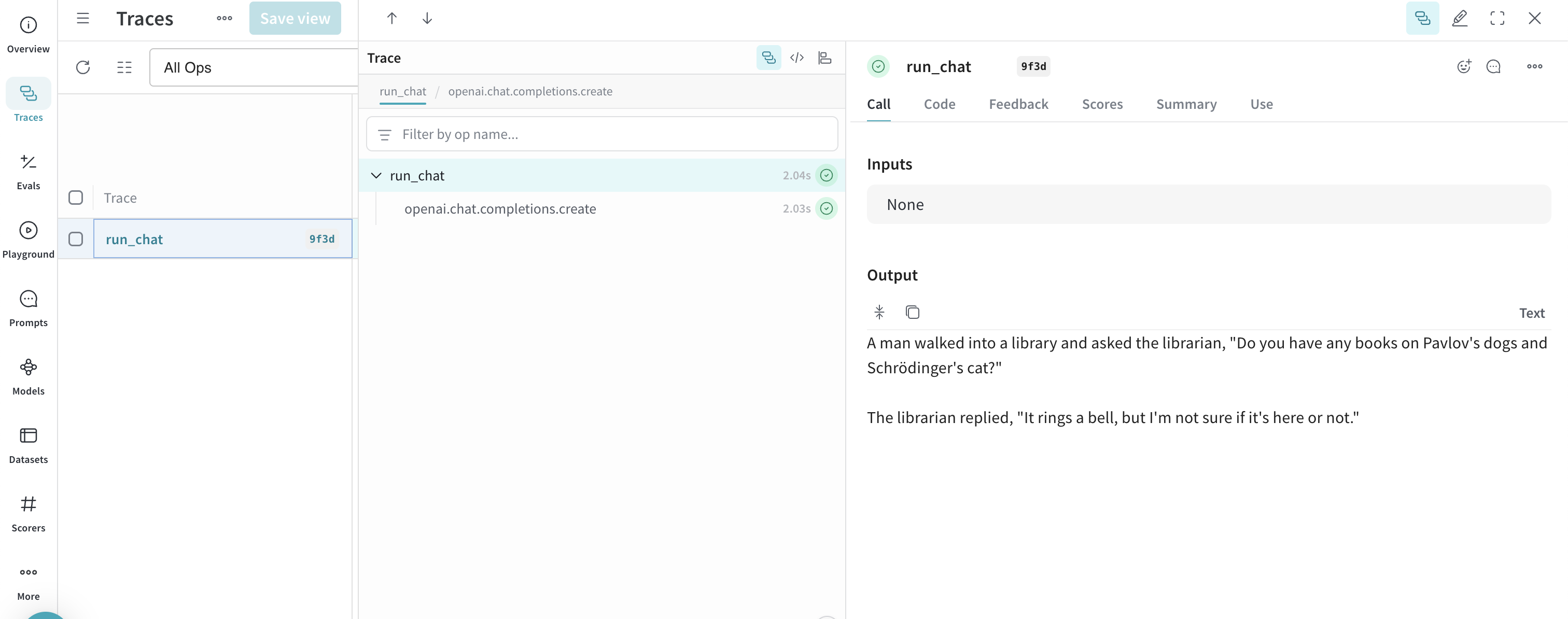
コードサンプルを実行すると、モデルのレスポンスがターミナルに出力され、その呼び出しは Weave のトレースとしてログされます。Weave でトレースを確認するには、ターミナルに出力されたリンク (たとえば、`https://wandb.ai///r/call/01977f8f-839d-7dda-b0c2-27292ef0e04g`) をクリックします。あるいは、次の手順でも確認できます。
1. [https://wandb.ai](https://wandb.ai) にアクセスします。
2. **Traces** タブを選択して、Weave のトレースを表示します。
次に、[高度な例](#advanced-example-use-weave-evaluations-and-leaderboards-with-the-inference-service)を試して、複数のモデルを評価して比較してください。
### 高度な例: Inference サービス で Weave の評価とリーダーボードを使用する
また、Inference サービス で Weave を使用して[モデル Call をトレース](../tracking/tracing.mdx)し、[パフォーマンスを評価](../core-types/evaluations.mdx)し、[リーダーボードを公開](../core-types/leaderboards.mdx)することもできます。次の Python コードサンプルでは、質問応答データセットで 2 つのモデルを比較します。
この例を使用するには、[一般的な前提条件](#prerequisites)と[Python 経由で API を使用するための追加の前提条件](#additional-prerequisites-for-using-the-api-via-python)を満たしている必要があります。
```python lines theme={null}
import os
import asyncio
import openai
import weave
from weave.flow import leaderboard
from weave.trace.ref_util import get_ref
# トレース用の Weave チームとプロジェクトを設定する
weave.init("/")
dataset = [
{"input": "What is 2 + 2?", "target": "4"},
{"input": "Name a primary color.", "target": "red"},
]
@weave.op
def exact_match(target: str, output: str) -> float:
return float(target.strip().lower() == output.strip().lower())
class WBInferenceModel(weave.Model):
model: str
@weave.op
def predict(self, prompt: str) -> str:
client = openai.OpenAI(
base_url="https://api.inference.wandb.ai/v1",
# https://wandb.ai/settings で API キーを作成する
api_key="",
# W&B inference の使用状況トラッキングに必須
project="/",
)
resp = client.chat.completions.create(
model=self.model,
messages=[{"role": "user", "content": prompt}],
)
return resp.choices[0].message.content
llama = WBInferenceModel(model="meta-llama/Llama-3.1-8B-Instruct")
deepseek = WBInferenceModel(model="deepseek-ai/DeepSeek-V3-0324")
def preprocess_model_input(example):
return {"prompt": example["input"]}
evaluation = weave.Evaluation(
name="QA",
dataset=dataset,
scorers=[exact_match],
preprocess_model_input=preprocess_model_input,
)
async def run_eval():
await evaluation.evaluate(llama)
await evaluation.evaluate(deepseek)
asyncio.run(run_eval())
spec = leaderboard.Leaderboard(
name="Inference Leaderboard",
description="Compare models on a QA dataset",
columns=[
leaderboard.LeaderboardColumn(
evaluation_object_ref=get_ref(evaluation).uri(),
scorer_name="exact_match",
summary_metric_path="mean",
)
],
)
weave.publish(spec)
```
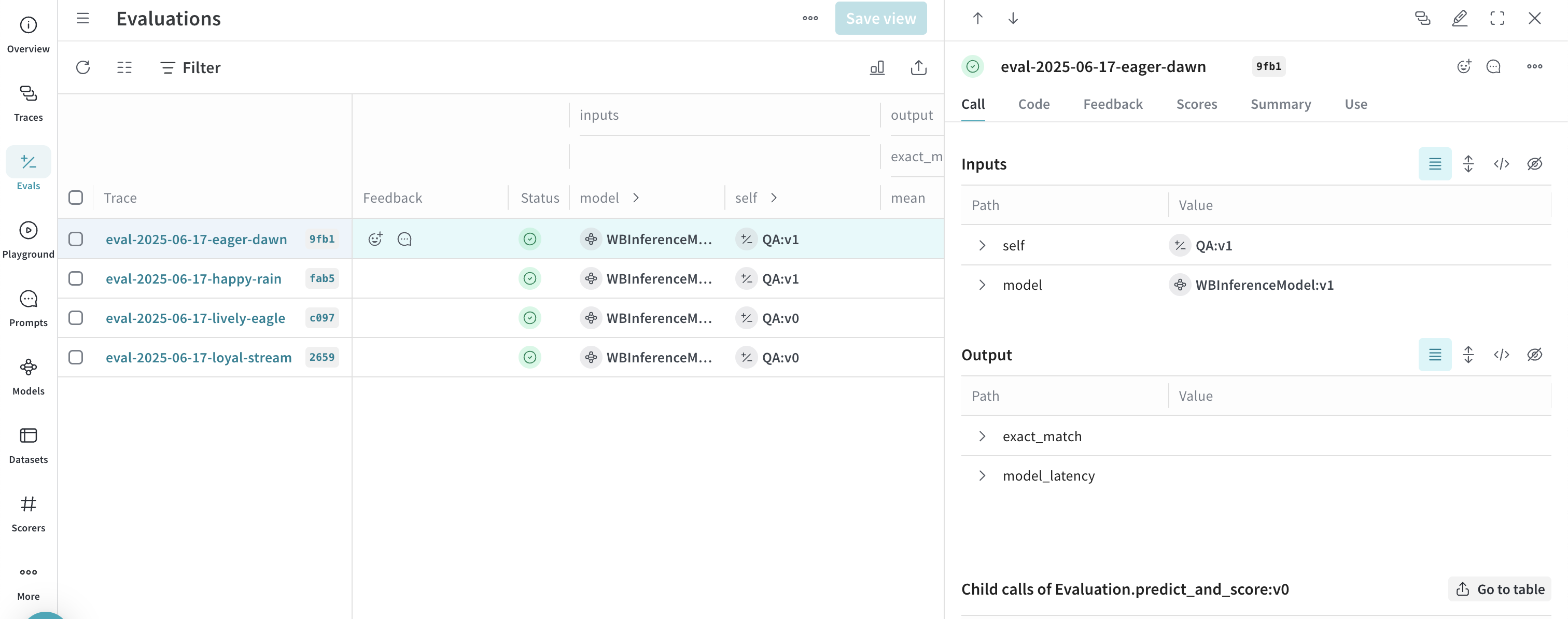
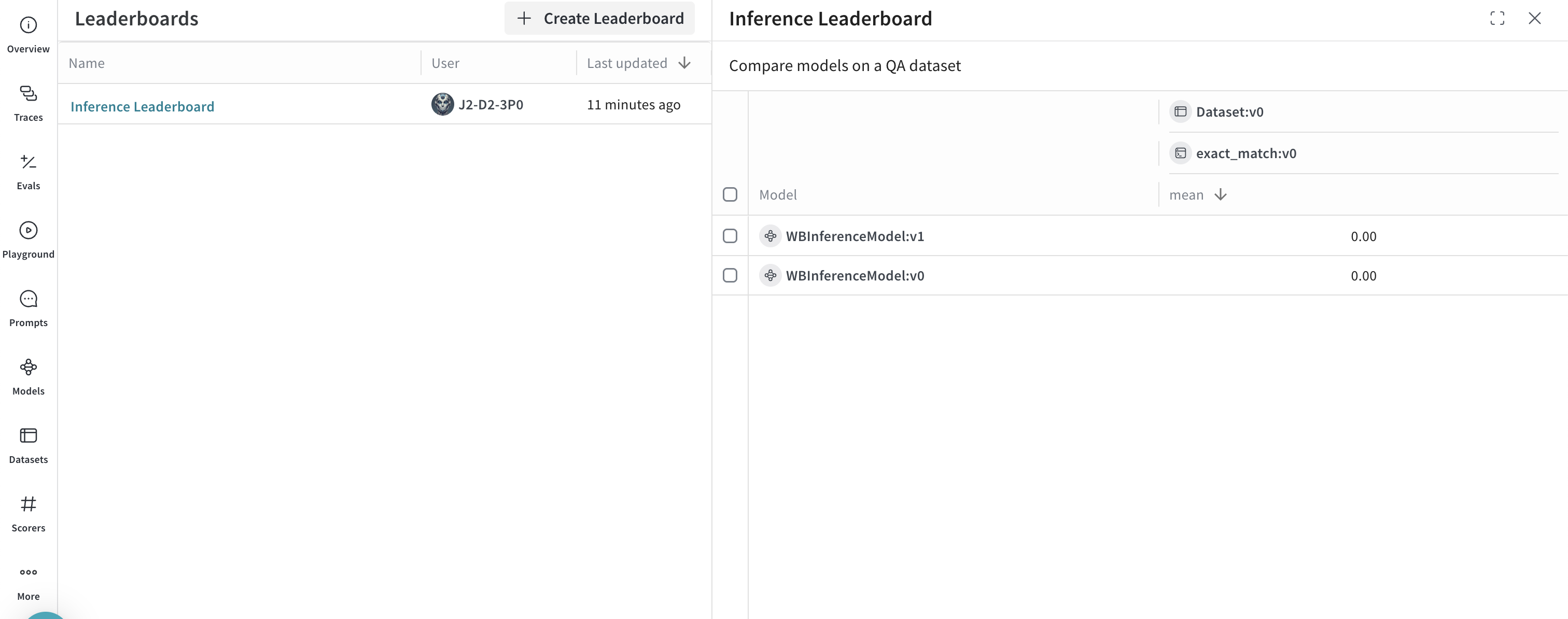
前述のコードサンプルを実行すると、Weave は評価結果、トレース、および 2 つのモデルを比較するリーダーボードを W\&B project に公開します。公開された結果を表示するには、[https://wandb.ai/](https://wandb.ai/) の W\&B アカウントにアクセスし、次の操作を行ってください。
* **Traces** タブにアクセスして、[トレースを表示します](../tracking/tracing.mdx)。
* **Evals** タブにアクセスして、[モデルの評価を表示します](../core-types/evaluations.mdx)。
* **Leaders** タブにアクセスして、[生成されたリーダーボードを表示します](../core-types/leaderboards.mdx)。
## UI
以下のセクションでは、W\&B UI で Inference サービスを使用する方法を説明します。UI で Inference サービスにアクセスする前に、[前提条件](#prerequisites)を満たしてください。
### Inference サービスにアクセスする
Weave UI では、以下の場所から Inference サービスにアクセスできます。
* [直接リンク](#direct-link)
* [Inference タブから](#from-the-inference-tab)
* [Playground タブから](#from-the-playground-tab)
#### 直接リンク
[https://wandb.ai/inference](https://wandb.ai/inference) にアクセスします。
#### Inference タブから
1. W\&B アカウントにアクセスするには、[https://wandb.ai/](https://wandb.ai/) を開きます。
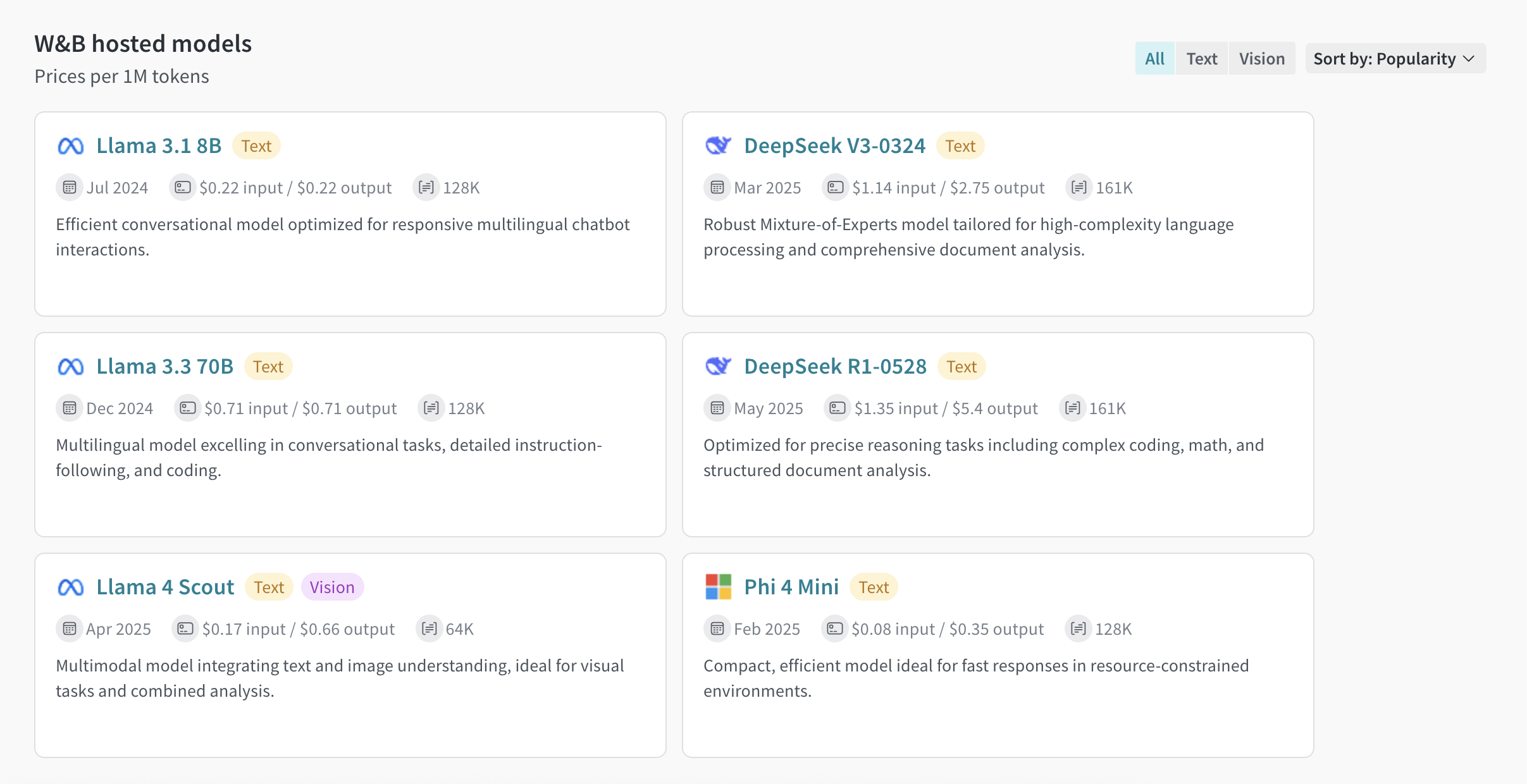
2. 左サイドバーから **Inference** を選択します。利用可能なモデルとその情報が表示されます。
#### Playground タブから
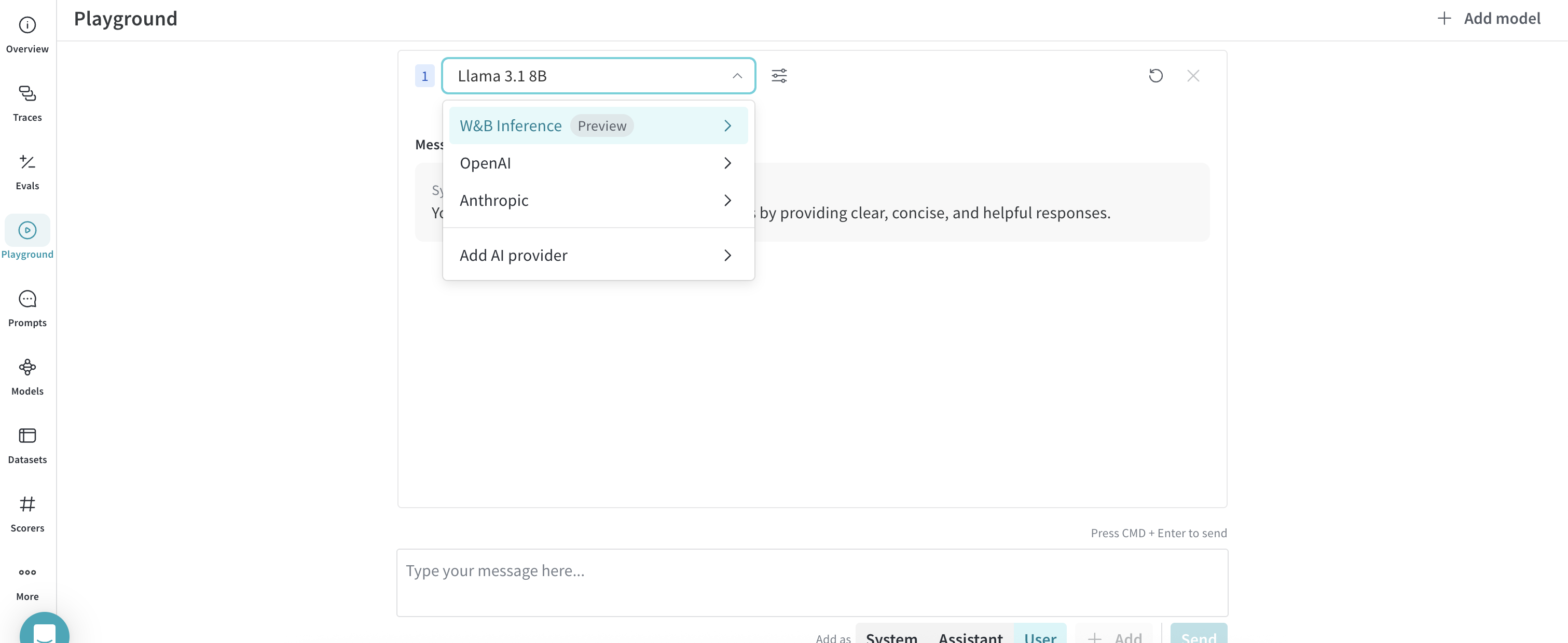
1. 左サイドバーで **Playground** を選択します。Playground のチャット UI が表示されます。
2. LLM のドロップダウンリストで **Serverless Inference** にカーソルを合わせます。右側に、使用可能な Serverless Inference モデルのドロップダウンが表示されます。
3. Serverless Inference モデルのドロップダウンから、次の操作を行えます。
* 使用可能な任意のモデルの名をクリックして、[Playground で試す](#try-a-model-in-the-playground)ことができます。
* [Playground で複数のモデルを比較する](#compare-multiple-models)。
### Playground でモデルを試す
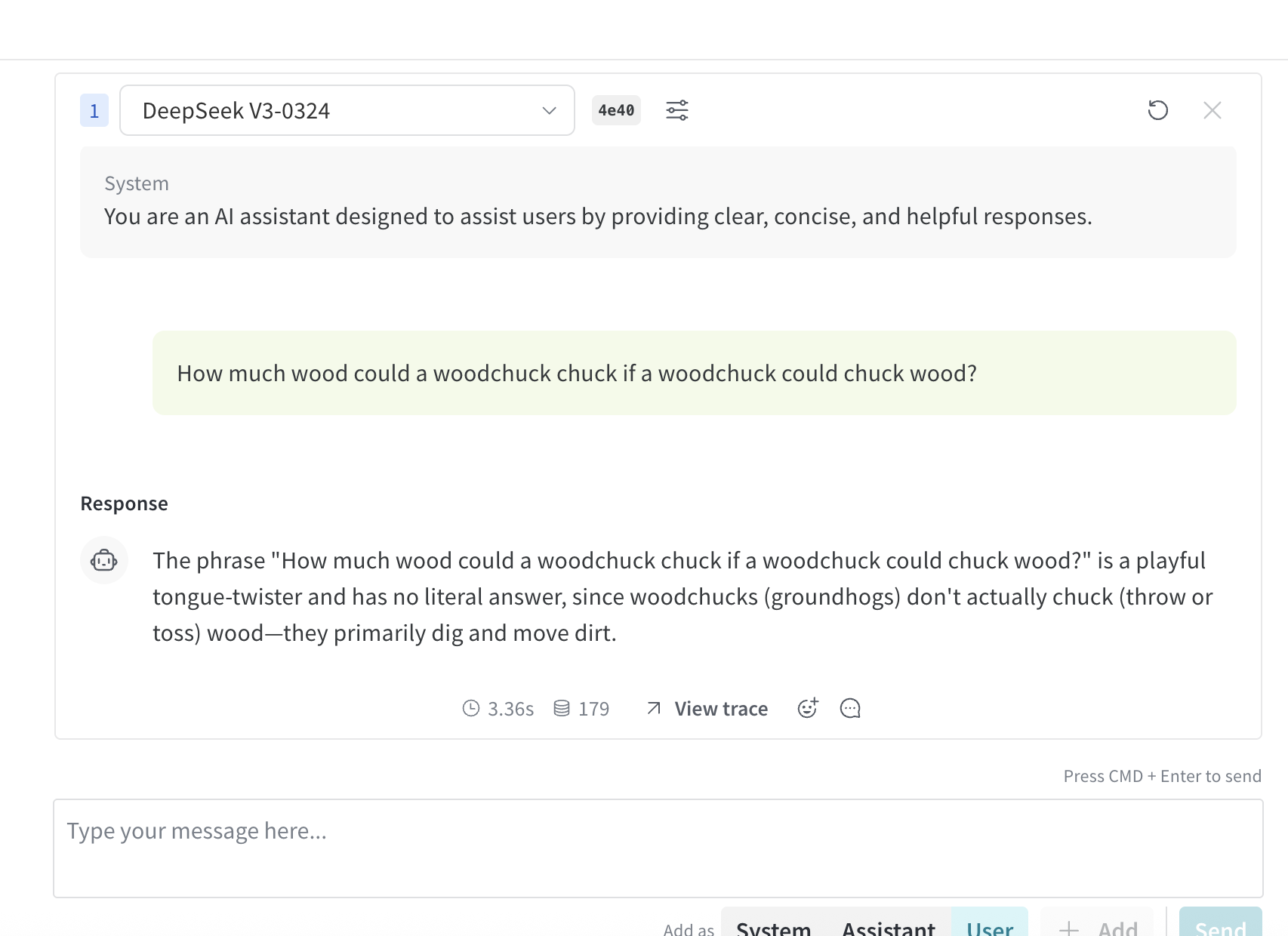
[いずれかのアクセス方法でモデルを選択](#access-the-inference-service)したら、Playground でそのモデルを試せます。利用可能な操作は次のとおりです。
* [モデルの設定とパラメーターをカスタマイズする](../tools/playground#customize-settings)
* [メッセージを追加、再試行、編集、削除する](../tools/playground#message-controls)
* [カスタム設定のモデルを保存して再利用する](../tools/playground#saved-models)
* [複数のモデルを比較する](#compare-multiple-models)
### 複数のモデルを比較する
Playground では、複数の Inference モデルを比較できます。Compare ビューには、次の 2 か所からアクセスできます。
* [Inference タブから Compare ビューにアクセスする ](#access-the-compare-view-from-the-inference-tab)
* [Playground タブから Compare ビューにアクセスする](#access-the-compare-view-from-the-playground-tab)
#### Inference タブから Compare ビューにアクセスする
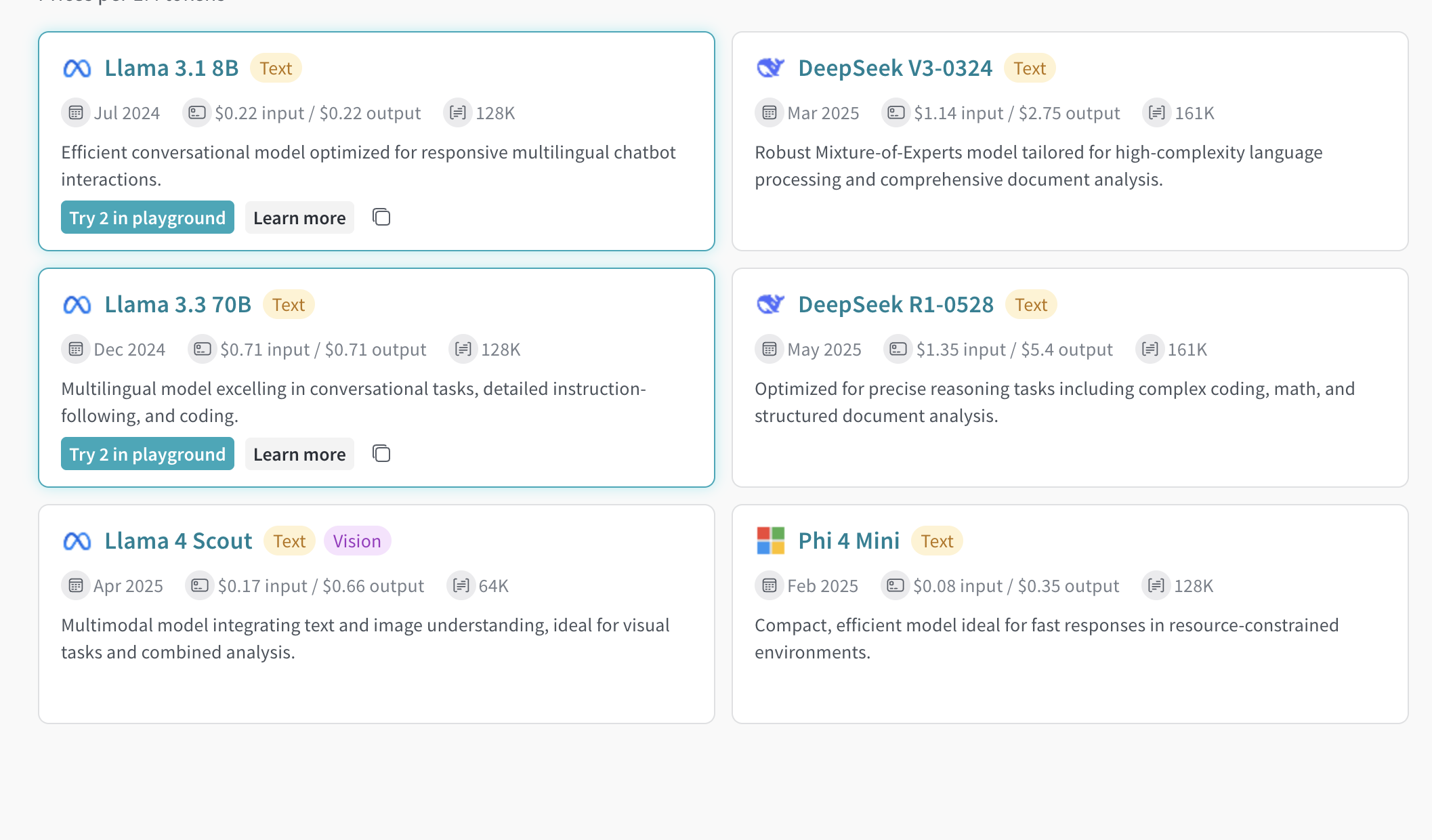
1. 左サイドバーで **Inference** を選択します。利用可能なモデルとモデル情報が表示されたページが開きます。
2. 比較するモデルを選択するには、モデルカード上の任意の場所 (モデル名を除く) をクリックします。選択されると、モデルカードの枠線が青色で強調表示されます。
3. 比較したい各モデルについて、step 2 を繰り返します。
4. 選択したいずれかのカードで、**Compare N models in the Playground** ボタンをクリックします (`N` は比較するモデル数です。たとえば、3 つのモデルを選択した場合、ボタンには **Compare 3 models in the Playground** と表示されます)。比較ビューが開きます。
これで、Playground でモデルを比較し、[Playground でモデルを試す](#try-a-model-in-the-playground) で説明されている各機能を使用できます。
#### Playground タブから Compare ビュー にアクセスする
1. 左サイドバーで **Playground** を選択します。Playground のチャット UI が表示されます。
2. LLM のドロップダウンリストで **Serverless Inference** にマウスオーバーします。右側に、利用可能な Serverless Inference モデルを含むドロップダウンが表示されます。
3. ドロップダウンから **Compare** を選択します。**Inference** タブが表示されます。
4. 比較するモデルを選択するには、モデルカード上の任意の場所 (モデル名を除く) をクリックします。選択されると、モデルカードの枠線が青色で強調表示され、選択されていることを示します。
5. 比較する各モデルに対して step 4 を繰り返します。
6. 選択したいずれかのカードで、**Compare N models in the Playground** ボタンをクリックします (`N` は比較するモデル数です。たとえば、3 つのモデルを選択した場合、ボタンには **Compare 3 models in the Playground** と表示されます) 。comparison view が開きます。
これで、Playground でモデルを比較し、[Playground でモデルを試す](#try-a-model-in-the-playground) で説明されている機能を使用できます。
### 請求と使用状況の情報を表示する
組織管理者は、現在の Inference クレジット残高、使用履歴、今後の請求額 (該当する場合) を W\&B UI から直接確認できます。
1. W\&B UI で、W\&B の **Billing** ページにアクセスします。
2. 画面右下に Inference の請求情報カードが表示されます。ここでは、次のことができます。
* Inference の請求情報カードにある **View usage** ボタンをクリックして、経時的な使用状況を確認します。
* 有料プランをご利用の場合は、今後の Inference の請求額を確認します。
モデルごとの料金内訳については、[Inference pricing page](https://wandb.ai/site/pricing/inference)を参照してください。
## 利用に関する情報と制限
以下のセクションでは、地理的制限、同時実行制限、料金など、利用に関する重要な情報と制限について説明します。サービスを利用する前に、この情報をあらかじめ確認してください。
### 地理的制限
Inference サービスは、サポート対象の地域からのみ利用できます。詳細は、[Terms of Service](https://docs.coreweave.com/docs/policies/terms-of-service/terms-of-use#geographic-restrictions)を参照してください。
### 同時実行制限
公平な利用と安定したパフォーマンスを確保するため、Serverless Inference API では、ユーザー単位および project 単位でレート制限を設けています。これらの制限には、次の目的があります。
* 不正利用を防ぎ、API の安定性を保つ
* すべてのユーザーが利用できるようにする
* インフラストラクチャーの負荷を効果的に管理する
レート制限を超えると、API は `429 Concurrency limit reached for requests` レスポンスを返します。このエラーを解消するには、同時リクエスト数を減らしてください。
### 料金
モデルの料金については、[https://wandb.ai/site/pricing/inference](https://wandb.ai/site/pricing/inference)を参照してください。
## API エラー
次の表は、Inference API が返すエラーと、その原因および推奨される解決策を示しています。
| Error Code | Message | Cause | Solution |
| ---------- | --------------------------------------- | ------------------------------------------------ | ------------------------------------------------------------- |
| 401 | 無効な認証 | 認証情報が無効であるか、W\&B のprojectの entity または名が正しくありません。 | 正しいAPIキーを使用していること、または W\&B のproject名と entity が正しいことを確認してください。 |
| 403 | 国、地域、または領域はサポートされていません | サポート対象外の地域からAPIにアクセスしています。 | [Geographic restrictions](#geographic-restrictions)を参照してください。 |
| 429 | リクエストの同時実行制限に達しました | 同時リクエストが多すぎます。 | 同時リクエスト数を減らしてください。 |
| 429 | 現在のクォータを超過しています。プランとbillingの詳細を確認してください | クレジット不足、または月間支出上限に達しています。 | クレジットを追加購入するか、制限を引き上げてください。 |
| 500 | リクエストの処理中にサーバーエラーが発生しました | サーバー内部エラーです。 | 少し待ってから再試行し、解消しない場合はサポートに連絡してください。 |
| 503 | 推論エンジンは現在過負荷状態です。後でもう一度お試しください | サーバーへのトラフィックが増加しています。 | 少し待ってからリクエストを再試行してください。 |