> ## Documentation Index
> Fetch the complete documentation index at: https://docs.wandb.ai/llms.txt
> Use this file to discover all available pages before exploring further.
# 작업 입력 관리
> 하이퍼파라미터 및 파일 기반 설정과 같은 작업 입력을 W&B Launch 작업에서 프로그래밍 방식으로 관리하고 구성합니다.
Launch의 핵심 사용 방식은 하이퍼파라미터와 데이터셋 같은 다양한 작업 입력을 실험하고, 이러한 작업을 적절한 하드웨어로 라우팅하는 것입니다. 작업을 생성한 후에는 원래 작성자 외의 사용자도 W\&B UI 또는 CLI를 통해 이러한 입력을 조정할 수 있습니다. CLI 또는 UI에서 작업을 시작할 때 작업 입력을 설정하는 방법에 대한 자세한 내용은 [작업을 큐에 추가하기](./add-job-to-queue) 가이드를 참조하세요.
이 가이드에서는 작업에서 조정할 수 있는 입력을 프로그래밍 방식으로 제어하여, 최종 사용자가 변경하도록 하려는 매개변수만 노출하는 방법을 설명합니다.
기본적으로 W\&B 작업은 전체 `Run.config`를 작업 입력으로 캡처하지만, Launch SDK는 run config에서 특정 키만 제어하거나 JSON 또는 YAML 파일을 입력으로 지정할 수 있는 함수를 제공합니다.
Launch SDK 함수를 사용하려면 `wandb-core`가 필요합니다. 자세한 내용은 [`wandb-core` README](https://github.com/wandb/wandb/blob/main/core/README)를 참조하세요.
## `Run` 객체 재구성하기
작업에서 `wandb.init()`이 반환하는 `Run` 객체는 기본적으로 재구성할 수 있습니다. Launch SDK는 작업을 시작할 때 `Run.config` 객체의 어느 부분까지 재구성할 수 있을지 사용자 지정할 수 있는 방법을 제공하므로, 최종 사용자에게 중요한 매개변수는 노출하면서 내부 설정은 숨길 수 있습니다.
```python theme={null}
import wandb
from wandb.sdk import launch
# Required for launch sdk use.
wandb.require("core")
config = {
"trainer": {
"learning_rate": 0.01,
"batch_size": 32,
"model": "resnet",
"dataset": "cifar10",
"private": {
"key": "value",
},
},
"seed": 42,
}
with wandb.init(config=config):
launch.manage_wandb_config(
include=["trainer"],
exclude=["trainer.private"],
)
# 기타 등등.
```
함수 `launch.manage_wandb_config()`는 작업이 `Run.config` 객체의 입력값을 받도록 설정합니다. 선택적 `include` 및 `exclude` 옵션은 중첩된 설정 객체 내 경로 접두사를 받습니다. 예를 들어, 작업에서 사용하는 라이브러리의 옵션 중 최종 사용자에게 노출하고 싶지 않은 항목이 있을 때 유용합니다.
`include` 접두사를 제공하면 설정에서 `include` 접두사와 일치하는 경로만 입력값을 받을 수 있습니다. `exclude` 접두사를 제공하면 `exclude` 목록과 일치하는 경로는 입력값에서 제외됩니다. 경로가 `include`와 `exclude` 접두사 모두와 일치하면 `exclude` 접두사가 우선 적용됩니다.
앞선 예제에서 `["trainer.private"]` 경로는 `trainer` 객체의 `private` 키를 필터링하고, `["trainer"]` 경로는 `trainer` 객체 아래에 있지 않은 모든 키를 필터링합니다.
이름에 `.`이 포함된 키를 필터링하려면 `.` 앞에 `\`를 붙여 이스케이프해서 사용하세요.
예를 들어, `r"trainer\.private"`는 `trainer` 객체 아래의 `private` 키가 아니라 `trainer.private` 키를 필터링합니다.
앞선 예제의 `r` 접두사는 raw string을 의미합니다.
앞선 코드를 패키징해 작업으로 실행하면 작업의 입력 유형은 다음과 같습니다.
```json theme={null}
{
"trainer": {
"learning_rate": "float",
"batch_size": "int",
"model": "str",
"dataset": "str",
},
}
```
W\&B CLI 또는 UI에서 작업을 실행할 때 사용자는 `trainer` 매개변수 4개만 재정의할 수 있습니다.
### run config 입력값에 액세스하기
run config 입력값으로 실행된 작업은 `Run.config`를 통해 입력값에 액세스할 수 있습니다. 작업 코드에서 `wandb.init()`이 반환하는 `Run`에는 입력값이 자동으로 설정됩니다. 작업 코드 어디에서나 run config 입력값을 불러오려면 `launch.load_wandb_config()`를 사용하세요:
```python theme={null}
from wandb.sdk import launch
run_config_overrides = launch.load_wandb_config()
```
## 파일 재구성하기
Launch SDK는 작업 코드의 설정 파일에 저장된 입력 값을 관리할 수도 있습니다. 이는 많은 딥러닝 및 대규모 언어 모델 사용 사례에서 흔히 쓰이는 패턴이며, [torchtune](https://github.com/meta-pytorch/torchtune/blob/main/recipes/configs/llama3/8B_lora.yaml) 예제나 [Axolotl config](https://github.com/OpenAccess-AI-Collective/axolotl/blob/main/examples/llama-3/qlora-fsdp-70b.yaml)에서 확인할 수 있습니다.
[Launch의 Sweeps](/ko/platform/launch/sweeps-on-launch/)는 설정 파일 입력을 sweep 파라미터로 사용하는 기능을 지원하지 않습니다. sweep 파라미터는 `Run.config` 객체를 통해 제어해야 합니다.
`launch.manage_config_file()` 함수를 사용해 설정 파일을 Launch 작업의 입력으로 추가할 수 있습니다. 이렇게 하면 작업을 시작할 때 설정 파일 내의 값을 수정할 수 있습니다.
기본적으로 `launch.manage_config_file()`을 사용하면 run config 입력값은 캡처되지 않습니다. `launch.manage_wandb_config()`를 호출하면 이 동작이 재정의됩니다.
다음 예제를 살펴보겠습니다:
```python theme={null}
import yaml
import wandb
from wandb.sdk import launch
# launch sdk 사용에 필요합니다.
wandb.require("core")
launch.manage_config_file("config.yaml")
with open("config.yaml", "r") as f:
config = yaml.safe_load(f)
with wandb.init(config=config):
# 기타 작업.
pass
```
코드를 같은 디렉터리에 있는 `config.yaml` 파일과 함께 실행한다고 가정해 보겠습니다:
```yaml theme={null}
learning_rate: 0.01
batch_size: 32
model: resnet
dataset: cifar10
```
`launch.manage_config_file()` 호출은 `config.yaml` 파일을 작업의 입력으로 추가하므로, W\&B CLI 또는 UI에서 실행할 때 다시 구성할 수 있게 됩니다.
`include` 및 `exclude` 키워드 인수를 사용하여 `launch.manage_wandb_config()`와 같은 방식으로 설정 파일에서 허용되는 입력 키를 필터링하세요.
### 설정 파일 입력값에 액세스
Launch에서 생성된 run에서 `launch.manage_config_file()`을 호출하면 `launch`가 입력값을 사용해 설정 파일 내용을 패치합니다. 패치된 설정 파일은 작업 환경에서 사용할 수 있습니다.
입력값이 반영되도록 작업 코드에서 설정 파일을 읽기 전에 `launch.manage_config_file()`을 호출하세요.
## 작업의 Launch drawer UI 맞춤 설정
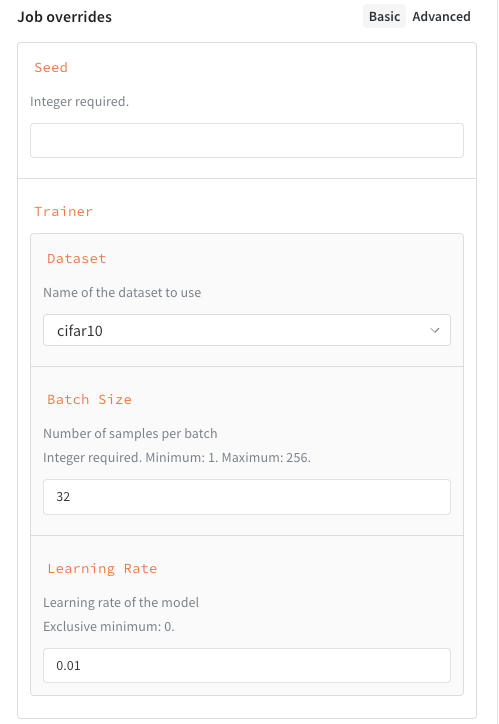
노출할 입력을 필터링하는 것 외에도, 작업 입력용 스키마를 정의하면 작업을 시작할 때 사용할 맞춤형 UI를 만들 수 있습니다. 이렇게 하면 자유 입력 텍스트 항목 대신 Launch drawer에 구조화된 필드, 검증 힌트, 드롭다운이 표시됩니다. 작업 스키마를 정의하려면 `launch.manage_wandb_config()` 또는 `launch.manage_config_file()` call에 스키마를 포함하세요. 스키마는 [JSON 스키마](https://json-schema.org/understanding-json-schema/reference) 형태의 Python `dict`이거나 Pydantic 모델 클래스일 수 있습니다.
작업 입력 스키마는 입력값을 검증하지 않습니다. Launch drawer에서 UI를 정의할 뿐입니다.
다음 예제는 다음 속성을 포함하는 스키마를 보여줍니다.
* `seed`: 정수.
* `trainer`: 일부 키가 지정된 딕셔너리
* `trainer.learning_rate`: 0보다 커야 하는 부동소수점 수.
* `trainer.batch_size`: 16, 64, 256 중 하나여야 하는 정수.
* `trainer.dataset`: `cifar10` 또는 `cifar100` 중 하나여야 하는 문자열.
```python theme={null}
schema = {
"type": "object",
"properties": {
"seed": {
"type": "integer"
}
"trainer": {
"type": "object",
"properties": {
"learning_rate": {
"type": "number",
"description": "Learning rate of the model",
"exclusiveMinimum": 0,
},
"batch_size": {
"type": "integer",
"description": "Number of samples per batch",
"enum": [16, 64, 256]
},
"dataset": {
"type": "string",
"description": "Name of the dataset to use",
"enum": ["cifar10", "cifar100"]
}
}
}
}
}
launch.manage_wandb_config(
include=["seed", "trainer"],
exclude=["trainer.private"],
schema=schema,
)
```
일반적으로 다음 JSON 스키마 속성을 지원합니다.
| 속성 | 필수 | 참고 |
| ------------------ | --- | -------------------------------------------------- |
| `type` | 예 | `number`, `integer`, `string`, `object` 중 하나여야 합니다 |
| `title` | 아니요 | 속성의 표시 이름을 재정의합니다 |
| `description` | 아니요 | 속성에 대한 도움말 텍스트를 제공합니다 |
| `enum` | 아니요 | 자유 입력 텍스트 항목 대신 드롭다운 선택 항목을 만듭니다 |
| `minimum` | 아니요 | `type`이 `number` 또는 `integer`인 경우에만 허용됩니다 |
| `maximum` | 아니요 | `type`이 `number` 또는 `integer`인 경우에만 허용됩니다 |
| `exclusiveMinimum` | 아니요 | `type`이 `number` 또는 `integer`인 경우에만 허용됩니다 |
| `exclusiveMaximum` | 아니요 | `type`이 `number` 또는 `integer`인 경우에만 허용됩니다 |
| `properties` | 아니요 | `type`이 `object`이면 중첩된 설정을 정의하는 데 사용됩니다 |
다음 예제는 다음 속성을 포함하는 스키마를 보여줍니다.
* `seed`: 정수.
* `trainer`: 일부 하위 속성이 지정된 스키마
* `trainer.learning_rate`: 0보다 커야 하는 부동소수점 수.
* `trainer.batch_size`: 1 이상 256 이하의 정수.
* `trainer.dataset`: `cifar10` 또는 `cifar100` 중 하나여야 하는 문자열.
```python theme={null}
class DatasetEnum(str, Enum):
cifar10 = "cifar10"
cifar100 = "cifar100"
class Trainer(BaseModel):
learning_rate: float = Field(gt=0, description="Learning rate of the model")
batch_size: int = Field(ge=1, le=256, description="Number of samples per batch")
dataset: DatasetEnum = Field(title="Dataset", description="Name of the dataset to use")
class Schema(BaseModel):
seed: int
trainer: Trainer
launch.manage_wandb_config(
include=["seed", "trainer"],
exclude=["trainer.private"],
schema=Schema,
)
```
클래스 인스턴스를 사용할 수도 있습니다.
```python theme={null}
t = Trainer(learning_rate=0.01, batch_size=32, dataset=DatasetEnum.cifar10)
s = Schema(seed=42, trainer=t)
launch.manage_wandb_config(
include=["seed", "trainer"],
exclude=["trainer.private"],
input_schema=s,
)
```
작업 입력 스키마를 추가하면 작업을 시작하는 사용자를 위해 Launch drawer에 구조화된 양식이 생성됩니다.