> ## Documentation Index
> Fetch the complete documentation index at: https://docs.wandb.ai/llms.txt
> Use this file to discover all available pages before exploring further.
# Weave로 컴퓨터 비전 파이프라인 트레이스 및 평가하기
> W&B Weave로 컴퓨터 비전 파이프라인을 트레이스하고 평가하는 방법을 알아보세요
이 노트북은 대화형 노트북입니다. 로컬에서 실행하거나 아래 링크를 사용할 수 있습니다:
* [Google Colab에서 열기](https://colab.research.google.com/github/wandb/docs/blob/main/weave/cookbooks/source/ocr-pipeline.ipynb)
* [GitHub에서 소스 보기](https://github.com/wandb/docs/blob/main/weave/cookbooks/source/ocr-pipeline.ipynb)
이 튜토리얼에서는 손으로 쓴 환자 정보 이미지에서 개체명 인식(NER)을 수행하는 컴퓨터 비전 파이프라인을 구축하고, 트레이스하고, 평가하는 방법을 보여드립니다. 마지막에는 비전-언어 모델(VLM)을 기반으로 하는 작동하는 광학 문자 인식(OCR) 파이프라인과, 파이프라인이 이미지에서 구조화된 필드를 얼마나 정확하게 추출하는지 측정하는 W\&B Weave Evaluation을 완성하게 됩니다. 이 가이드는 프롬프트를 반복적으로 개선하고 멀티모달 추출 파이프라인의 품질을 체계적으로 측정하기 위해 Weave를 사용하려는 개발자를 위한 것입니다.
다음 섹션에서는 다섯 단계에 걸쳐 안내합니다. 프롬프트 생성 및 반복 개선, 데이터셋 가져오기, NER 파이프라인 구축, Scorer 정의, 평가 실행입니다.
## 사전 요구 사항
시작하기 전에 필요한 라이브러리를 설치 및 임포트하고, W\&B API 키를 확인한 다음, Weave 프로젝트를 초기화하세요. 이 단계를 완료하면 환경이 W\&B에 인증하고 Weave 프로젝트에 트레이스를 기록할 수 있습니다.
```python lines theme={null}
# 필요한 의존성 설치
!pip install openai weave -q
python
import json
import os
from google.colab import userdata
from openai import OpenAI
import weave
python
# API 키 조회
os.environ["OPENAI_API_KEY"] = userdata.get(
"OPENAI_API_KEY"
) # 왼쪽 메뉴에서 Colab 환경 시크릿으로 키를 설정하세요
os.environ["WANDB_API_KEY"] = userdata.get("WANDB_API_KEY")
# 프로젝트 이름 설정
# PROJECT 값을 프로젝트 이름으로 교체하세요
PROJECT = "vlm-handwritten-ner"
# Weave 프로젝트 초기화
weave.init(PROJECT)
```
## Weave로 프롬프트를 만들고 반복적으로 개선하기
좋은 프롬프트 엔지니어링은 모델이 Entities를 정확하게 추출하도록 유도하는 데 매우 중요합니다. 이 섹션에서는 초기 프롬프트를 작성하고, 시간에 따른 변경 사항을 추적할 수 있도록 Weave에 게시한 다음, 더 엄격한 검증 규칙을 적용해 이를 개선합니다.
먼저 모델이 이미지 데이터에서 무엇을 추출해야 하는지와 결과를 어떤 형식으로 출력해야 하는지 알려주는 기본 프롬프트를 만드세요. 그런 다음 추적하고 반복적으로 개선할 수 있도록 프롬프트를 Weave에 저장하세요.
````python lines theme={null}
# Weave로 프롬프트 객체 생성
prompt = """
Extract all readable text from this image. Format the extracted entities as a valid JSON.
Do not return any extra text, just the JSON. Do not include ```json```
Use the following format:
{"Patient Name": "James James","Date": "4/22/2025","Patient ID": "ZZZZZZZ123","Group Number": "3452542525"}
"""
system_prompt = weave.StringPrompt(prompt)
# Weave에 프롬프트 게시
weave.publish(system_prompt, name="NER-prompt")
````
다음으로, 프롬프트에 더 많은 지침과 검증 규칙을 추가해 출력의 오류를 줄이세요. 수정된 버전을 같은 이름으로 게시하면 Weave가 해당 프롬프트를 새 버전으로 추적하므로, 반복 작업 전반에서 결과를 비교할 수 있습니다.
````python lines theme={null}
better_prompt = """
You are a precision OCR assistant. Given an image of patient information, extract exactly these fields into a single JSON object (and nothing else):
- Patient Name
- Date (MM/DD/YYYY)
- Patient ID
- Group Number
Validation rules:
1. Date must match MM/DD/YY; if not, set Date to "".
2. Patient ID must be alphanumeric; if unreadable, set to "".
3. Always zero-pad months and days (e.g. "04/07/25").
4. Omit any markup, commentary, or code fences.
5. Return strictly valid JSON with only those four keys.
Do not return any extra text, just the JSON. Do not include ```json```
Example output:
{"Patient Name":"James James","Date":"04/22/25","Patient ID":"ZZZZZZZ123","Group Number":"3452542525"}
"""
# 프롬프트 편집
system_prompt = weave.StringPrompt(better_prompt)
# 편집된 프롬프트를 Weave에 게시
weave.publish(system_prompt, name="NER-prompt")
````
## 데이터셋 조회
프롬프트를 준비했다면, 다음으로는 파이프라인에 넣어 처리할 입력 데이터가 필요합니다. OCR 파이프라인의 입력으로 사용할 손글씨 메모 데이터셋을 가져오세요.
데이터셋의 이미지는 이미 `base64`로 인코딩되어 있으므로 LLM이 별도의 전처리 없이 바로 사용할 수 있습니다.
```python lines theme={null}
# 다음 Weave 프로젝트에서 데이터셋을 조회합니다
dataset = weave.ref(
"weave://wandb-smle/vlm-handwritten-ner/object/NER-eval-dataset:G8MEkqWBtvIxPYAY23sXLvqp8JKZ37Cj0PgcG19dGjw"
).get()
# 데이터셋에서 특정 예시에 액세스합니다
example_image = dataset.rows[3]["image_base64"]
# example_image를 표시합니다
from IPython.display import HTML, display
html = f' '
display(HTML(html))
```
'
display(HTML(html))
```
## NER 파이프라인 구축하기
이제 프롬프트와 데이터셋이 준비되었으므로, 이를 VLM에 연결하는 NER 파이프라인을 구축하세요. 이 파이프라인은 두 개의 함수로 구성됩니다.
* 데이터셋의 PIL 이미지를 받아 VLM에 전달할 수 있는 이미지의 `base64` 인코딩 문자열 표현을 반환하는 `encode_image` 함수
* 이미지와 system 프롬프트를 받아, system 프롬프트에 설명된 대로 해당 이미지에서 추출한 엔터티를 반환하는 `extract_named_entities_from_image` 함수
```python lines theme={null}
# GPT-4-Vision을 사용하는 추적 가능한 함수
def extract_named_entities_from_image(image_base64) -> dict:
# LLM 클라이언트 초기화
client = OpenAI()
# 지시 프롬프트 설정
# Weave에 저장된 프롬프트를 사용할 수도 있습니다: weave.ref("weave://wandb-smle/vlm-handwritten-ner/object/NER-prompt:FmCv4xS3RFU21wmNHsIYUFal3cxjtAkegz2ylM25iB8").get().content.strip()
prompt = better_prompt
response = client.responses.create(
model="gpt-4.1",
input=[
{
"role": "user",
"content": [
{"type": "input_text", "text": prompt},
{
"type": "input_image",
"image_url": image_base64,
},
],
}
],
)
return response.output_text
```
이제 `named_entity_recognation`이라는 함수를 만드세요. 이 함수는 다음을 수행합니다:
* 이미지 데이터를 NER 파이프라인에 전달합니다.
* 결과를 올바른 형식의 JSON으로 반환합니다.
함수 실행을 W\&B UI에서 자동으로 추적하고 트레이스하려면 [`@weave.op()` 데코레이터](/ko/weave/reference/python-sdk/trace/op)를 사용하세요.
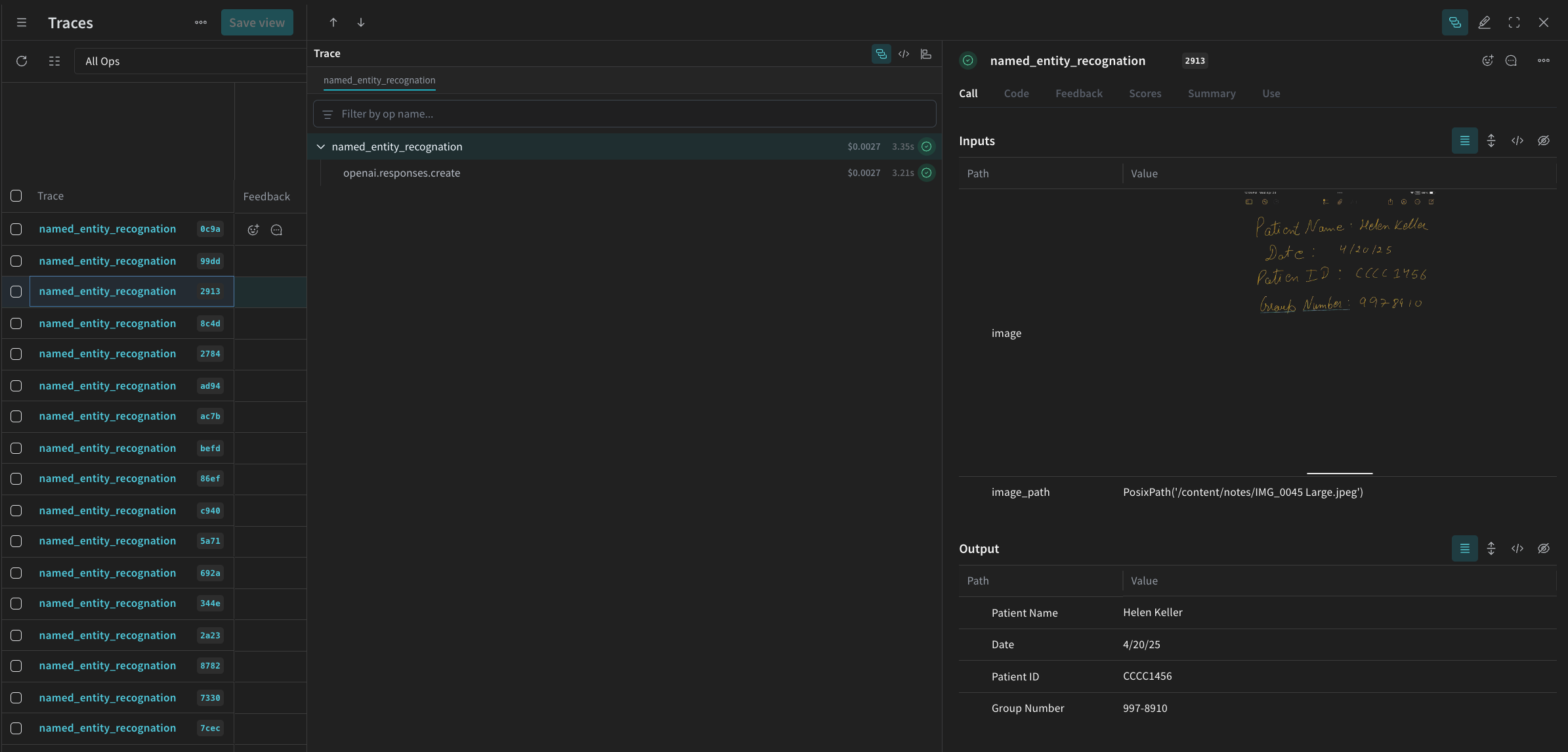
`named_entity_recognation`이 실행될 때마다 전체 트레이스 결과를 Weave UI에서 볼 수 있습니다. 트레이스를 보려면 Weave 프로젝트의 **Traces** 탭으로 이동하세요.
```python lines theme={null}
# 평가를 위한 NER 함수
@weave.op()
def named_entity_recognation(image_base64, id):
result = {}
try:
# 1) vision op을 호출하여 JSON 문자열 반환
output_text = extract_named_entities_from_image(image_base64)
# 2) JSON을 정확히 한 번만 파싱
result = json.loads(output_text)
print(f"Processed: {str(id)}")
except Exception as e:
print(f"Failed to process {str(id)}: {e}")
return result
```
마지막으로, 데이터셋에 대해 파이프라인을 실행하고 결과를 확인하세요. 이 단계에서는 다음 섹션에서 평가할 모델 출력을 생성합니다.
다음 코드는 데이터셋을 순회하며 결과를 로컬 파일 `processing_results.json`에 저장합니다. 결과는 Weave UI에서도 확인할 수 있습니다.
```python lines theme={null}
# 출력 결과
results = []
# 데이터셋의 모든 이미지를 순회
for row in dataset.rows:
result = named_entity_recognation(row["image_base64"], str(row["id"]))
result["image_id"] = str(row["id"])
results.append(result)
# 모든 결과를 JSON 파일로 저장
output_file = "processing_results.json"
with open(output_file, "w") as f:
json.dump(results, f, indent=2)
print(f"Results saved to: {output_file}")
```
Weave UI의 **Traces** 테이블에 다음과 비슷한 내용이 표시됩니다.
## Weave를 사용해 파이프라인 평가하기
이제 VLM을 사용해 NER를 수행하는 파이프라인을 만들었으므로, Weave를 사용해 이를 체계적으로 평가하고 성능이 얼마나 잘 나오는지 확인할 수 있습니다. 파이프라인을 평가하면 일부만 점검하는 방식에 의존하지 않고 전체 데이터셋 전반에서 추출 품질을 측정할 수 있습니다. Weave의 Evaluations에 관한 자세한 내용은 [Evaluations Overview](/ko/weave/guides/core-types/evaluations)를 참조하세요.
Weave 평가의 기본 구성 요소는 [Scorer](/ko/weave/guides/evaluation/scorers)입니다. Scorers는 AI의 출력 결과를 평가하고 평가 메트릭을 반환합니다. AI의 출력 결과를 받아 이를 분석한 뒤, 결과를 딕셔너리 형태로 반환합니다. 필요하면 입력 데이터를 기준 참조로 사용할 수 있으며, 평가에 대한 설명이나 추론 같은 추가 정보도 함께 출력할 수 있습니다.
이 섹션에서는 파이프라인을 평가하기 위해 두 개의 Scorer를 만듭니다:
* 프로그래매틱 Scorer.
* LLM-as-a-judge Scorer.
### 프로그램 방식 Scorer
첫 번째 Scorer는 LLM 없이 실행되는 결정론적 검사입니다. 프로그램 방식 Scorer인 `check_for_missing_fields_programatically`는 모델 출력(`named_entity_recognition` 함수의 출력)을 받아 결과에서 누락되었거나 비어 있는 `키`를 파악합니다.
이 검사는 모델이 어떤 필드도 추출하지 못한 샘플을 식별하는 데 유용합니다.
```python lines theme={null}
# Scorer 실행을 추적하기 위해 weave.op()를 추가합니다
@weave.op()
def check_for_missing_fields_programatically(model_output):
# 모든 항목에 필요한 키
required_fields = {"Patient Name", "Date", "Patient ID", "Group Number"}
for key in required_fields:
if (
key not in model_output
or model_output[key] is None
or str(model_output[key]).strip() == ""
):
return False # 이 항목에 누락되거나 비어 있는 필드가 있습니다
return True # 모든 필수 필드가 존재하며 비어 있지 않습니다
```
### LLM-as-a-judge scorer
프로그래밍 방식의 Scorer는 누락되었거나 비어 있는 필드만 감지할 수 있으므로, 추출된 값이 이미지에 표시된 내용과 실제로 일치하는지 확인하려면 두 번째 Scorer가 필요합니다. 평가의 이 단계에서는 실제 NER 성능이 반영되도록 이미지 데이터와 모델 출력을 모두 제공합니다. 즉, 모델 출력만이 아니라 이미지 내용 자체를 명시적으로 참조합니다.
이 단계에 사용되는 Scorer인 `check_for_missing_fields_with_llm`은 LLM(구체적으로는 OpenAI의 `gpt-4o`)을 사용해 점수화를 수행합니다. `eval_prompt`의 내용에 지정된 대로, `check_for_missing_fields_with_llm`은 `Boolean` 값을 출력합니다. 모든 필드가 이미지의 정보와 일치하고 형식도 올바르면 Scorer는 `true`를 반환합니다. 하나라도 누락되었거나 비어 있거나 올바르지 않거나 일치하지 않는 필드가 있으면 결과는 `false`가 되며, Scorer는 문제를 설명하는 메시지도 함께 반환합니다.
```python lines theme={null}
# LLM-as-a-judge용 system 프롬프트
eval_prompt = """
You are an OCR validation system. Your role is to assess whether the structured text extracted from an image accurately reflects the information in that image.
Only validate the structured text and use the image as your source of truth.
Expected input text format:
{"Patient Name": "First Last", "Date": "04/23/25", "Patient ID": "131313JJH", "Group Number": "35453453"}
Evaluation criteria:
- All four fields must be present.
- No field should be empty or contain placeholder/malformed values.
- The "Date" should be in MM/DD/YY format (e.g., "04/07/25") (zero padding the date is allowed)
Scoring:
- Return: {"Correct": true, "Reason": ""} if **all fields** match the information in the image and formatting is correct.
- Return: {"Correct": false, "Reason": "EXPLANATION"} if **any** field is missing, empty, incorrect, or mismatched.
Output requirements:
- Respond with a valid JSON object only.
- "Correct" must be a JSON boolean: true or false (not a string or number).
- "Reason" must be a short, specific string indicating all the problem — e.g., "Patient Name mismatch", "Date not zero-padded", or "Missing Group Number".
- Do not return any additional explanation or formatting.
Your response must be exactly one of the following:
{"Correct": true, "Reason": null}
OR
{"Correct": false, "Reason": "EXPLANATION_HERE"}
"""
# Scorer 실행을 추적하기 위해 weave.op()을 추가하세요
@weave.op()
def check_for_missing_fields_with_llm(model_output, image_base64):
client = OpenAI()
response = client.chat.completions.create(
model="gpt-4o",
messages=[
{"role": "developer", "content": [{"text": eval_prompt, "type": "text"}]},
{
"role": "user",
"content": [
{
"type": "image_url",
"image_url": {
"url": image_base64,
},
},
{"type": "text", "text": str(model_output)},
],
},
],
response_format={"type": "json_object"},
)
response = json.loads(response.choices[0].message.content)
return response
```
## 평가 실행
두 개의 Scorer가 모두 정의되었으므로 이제 평가를 실행할 수 있습니다. 전달된 `dataset`을 자동으로 순회하며 결과를 Weave UI에 함께 기록하는 평가 call을 정의합니다.
다음 코드는 평가를 시작하고 NER 파이프라인의 모든 출력에 두 개의 Scorer를 적용합니다. 결과는 Weave UI의 **Evals** 탭에서 확인할 수 있습니다.
```python lines theme={null}
evaluation = weave.Evaluation(
dataset=dataset,
scorers=[
check_for_missing_fields_with_llm,
check_for_missing_fields_programatically,
],
name="Evaluate_4.1_NER",
)
print(await evaluation.evaluate(named_entity_recognation))
```
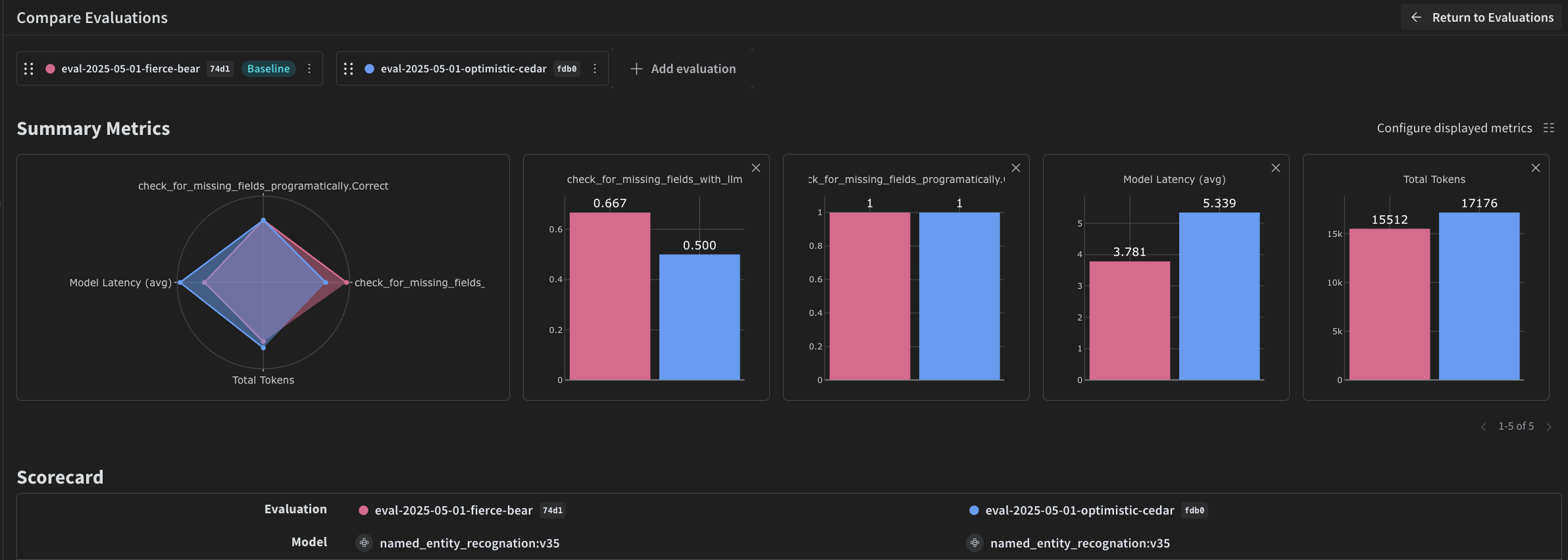
이전 코드를 실행하면 Weave UI의 Evaluation 테이블로 연결되는 링크를 Weave가 생성합니다. 이 링크를 따라가 결과를 확인하고, 원하는 모델, 프롬프트, Datasets 전반에 걸쳐 파이프라인의 여러 반복을 비교하세요. Weave UI는 팀을 위해 다음과 같은 시각화를 자동으로 생성합니다.