> ## Documentation Index
> Fetch the complete documentation index at: https://docs.wandb.ai/llms.txt
> Use this file to discover all available pages before exploring further.
> Visualize metrics, customize axes, and compare categorical data as bars.
# Bar plots
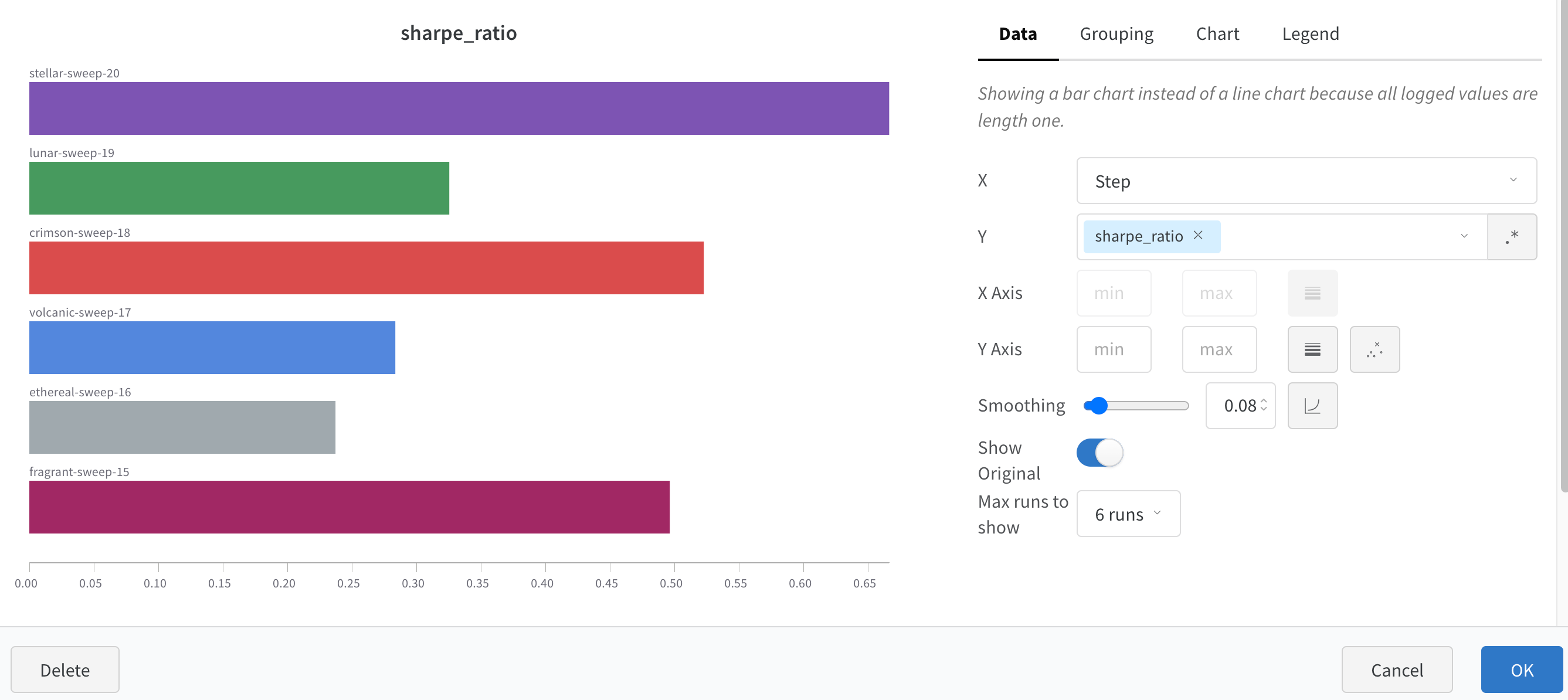
A bar plot presents categorical data with rectangular bars that you can plot vertically or horizontally. Use bar plots to visualize metrics, compare categorical data, and customize axes for your runs. Bar plots appear by default with `wandb.Run.log()` when all logged values are of length one.
 Use chart settings to limit the maximum number of runs shown, group runs by any config, and rename labels.
 ## Customize bar plots
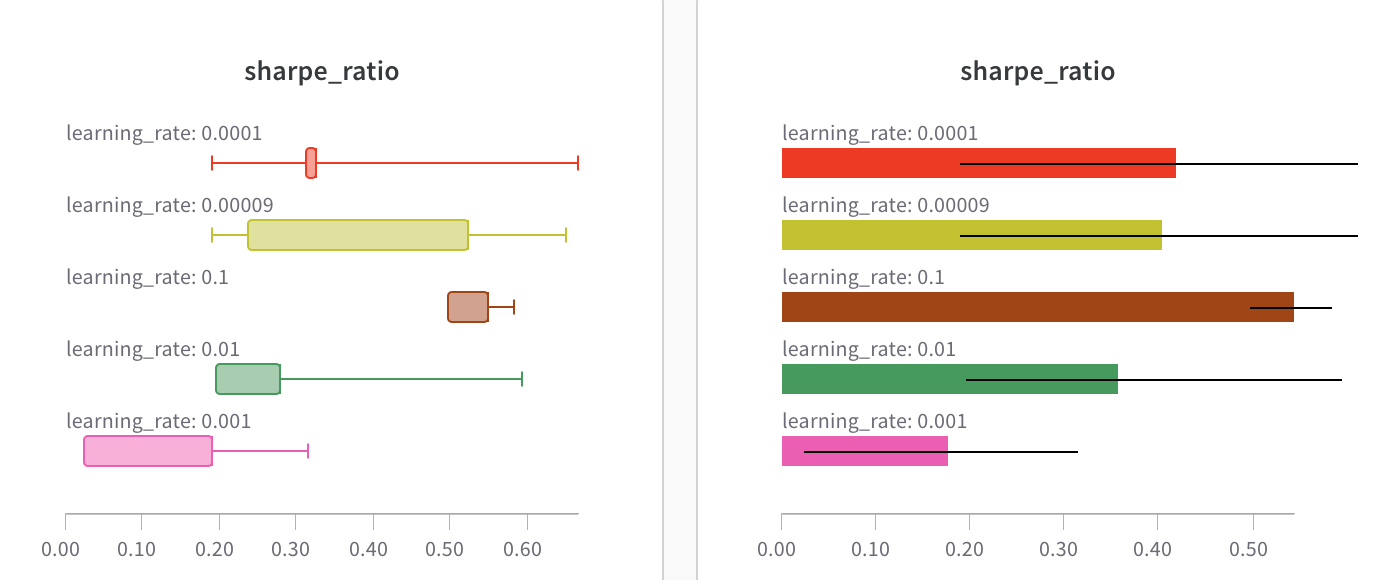
You can also create **Box** or **Violin** plots to combine many summary statistics into one chart type.
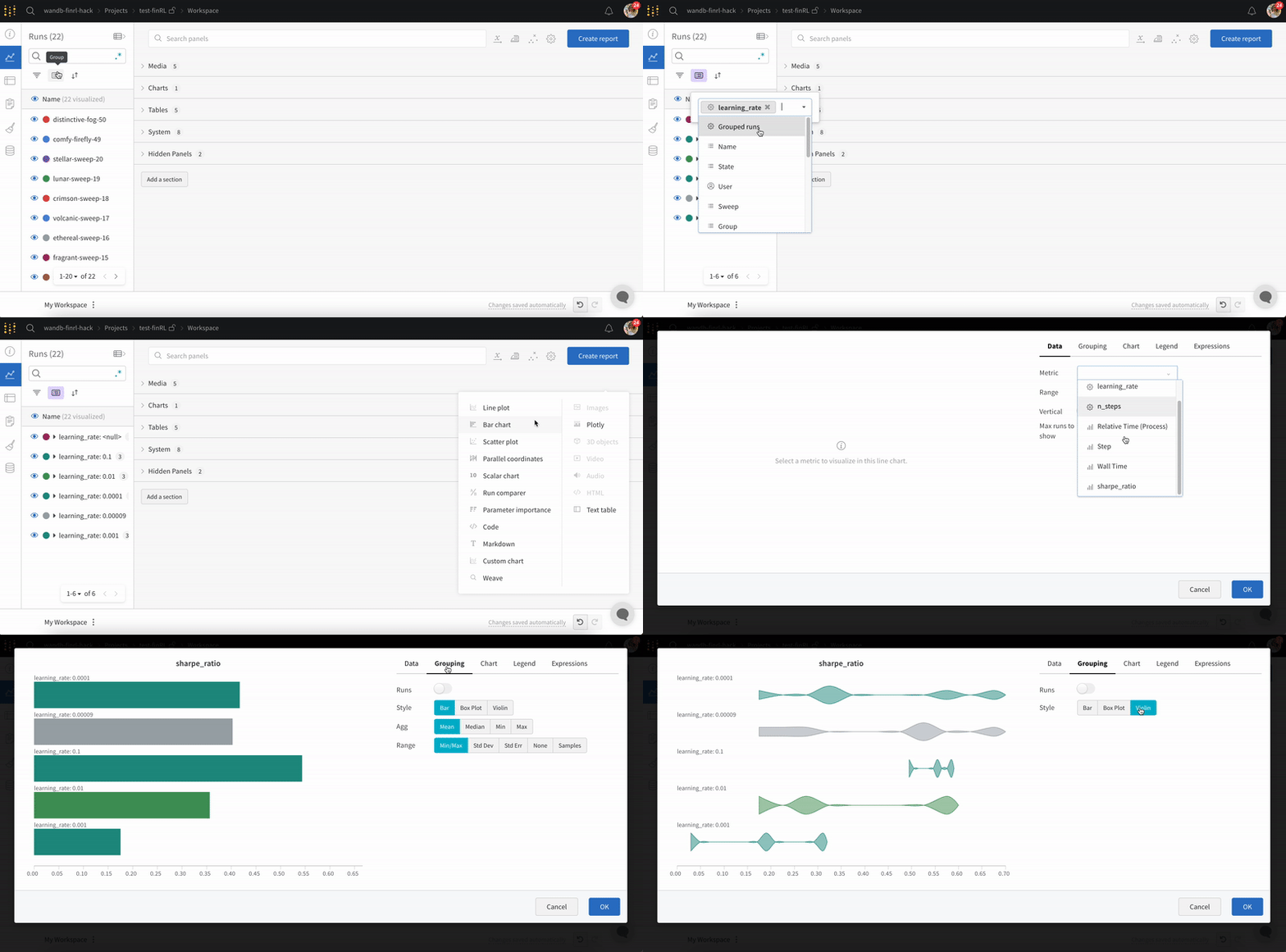
To create a box or violin plot:
1. Group runs through the runs table.
2. In the workspace, click **Add panel**.
3. Add a standard **Bar Chart** and select the metric to plot.
4. Under the **Grouping** tab, pick **Box** or **Violin** to plot either of these styles.
## Customize bar plots
You can also create **Box** or **Violin** plots to combine many summary statistics into one chart type.
To create a box or violin plot:
1. Group runs through the runs table.
2. In the workspace, click **Add panel**.
3. Add a standard **Bar Chart** and select the metric to plot.
4. Under the **Grouping** tab, pick **Box** or **Violin** to plot either of these styles.