> ## Documentation Index
> Fetch the complete documentation index at: https://docs.wandb.ai/llms.txt
> Use this file to discover all available pages before exploring further.
# Save and diff code
> Enable code saving, compare code across W&B runs with the code comparer, and capture Jupyter session history.
This page explains how to enable code saving so you can compare the code used across W\&B runs and review the cells executed in Jupyter sessions. Saving code makes it easier to reproduce experiments and understand how changes to your training code affect results.
By default, W\&B only saves the latest Git commit hash. You can turn on more code features to compare the code between your experiments in the UI.
Starting with `wandb` version 0.8.28, W\&B can save the code from your main training file where you call `wandb.init()`.
## Save library code
When you enable code saving, W\&B saves the code from the file that called `wandb.init()`. To save additional library code, you have three options.
### Call `log_code` after `wandb.init`
Call `wandb.Run.log_code(".")` after `wandb.init()`:
```python theme={null}
import wandb
with wandb.init() as run:
run.log_code(".")
```
### Pass a settings object with `code_dir`
Pass a settings object to `wandb.init()` with `code_dir` set:
```python theme={null}
import wandb
wandb.init(settings=wandb.Settings(code_dir="."))
```
This captures all Python source code files in the current directory and all subdirectories as an [artifact](/models/ref/python/experiments/artifact). For more control over the types and locations of source code files that W\&B saves, see the [reference docs](/models/ref/python/experiments/run#log_code).
### Set code saving in the UI
In addition to setting code saving programmatically, you can configure defaults in the UI at the team or organization level. The following sections describe the team-level and organization-level settings.
#### Team
By default, W\&B disables code saving for all teams. Before you can turn it on for a team, an organization admin must turn it on for the organization. See the [Organization](#organization) section.
A team admin can open the team **Settings** page, go to the **Privacy** section, and configure **Enable code saving by default** for runs in that team. This option is available only when an organization admin hasn't enforced code saving restrictions for the whole organization. For navigation steps, see [Configure privacy settings for a team](/platform/hosting/privacy-settings#configure-privacy-settings-for-a-team).
#### Organization
An organization admin can open organization **Settings**, go to the **Privacy** section, and activate **Enforce default code saving restrictions** so code saving stays off by default for every team. While this enforcement is active, team admins can't turn on **Enable code saving by default** for a team. For the full list of organization controls, see [Enforce privacy settings for all teams](/platform/hosting/privacy-settings#enforce-privacy-settings-for-all-teams).
## Code comparer
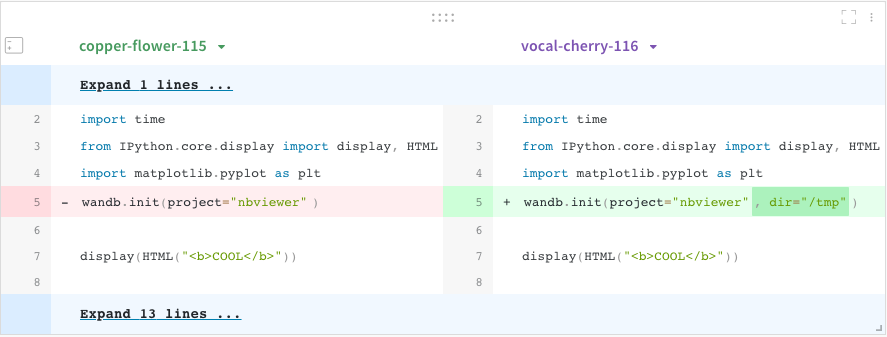
The code comparer panel displays the code from different W\&B runs side by side in the workspace.
To compare code used in different W\&B runs:
1. Select the **Add panels** button in the top right corner of the page.
2. Expand the **TEXT AND CODE** dropdown and select **Code**.
 ## Jupyter session history
W\&B saves the history of code executed in your Jupyter notebook session. When you call `wandb.init()` inside of Jupyter, W\&B adds a hook to automatically save a Jupyter notebook that contains the history of code executed in your current session.
To view the saved notebook history for a run:
1. Navigate to the project workspace that contains your code.
2. Select the **Artifacts** tab in the project sidebar.
3. Expand the **code** artifact.
4. Select the **Files** tab.
## Jupyter session history
W\&B saves the history of code executed in your Jupyter notebook session. When you call `wandb.init()` inside of Jupyter, W\&B adds a hook to automatically save a Jupyter notebook that contains the history of code executed in your current session.
To view the saved notebook history for a run:
1. Navigate to the project workspace that contains your code.
2. Select the **Artifacts** tab in the project sidebar.
3. Expand the **code** artifact.
4. Select the **Files** tab.
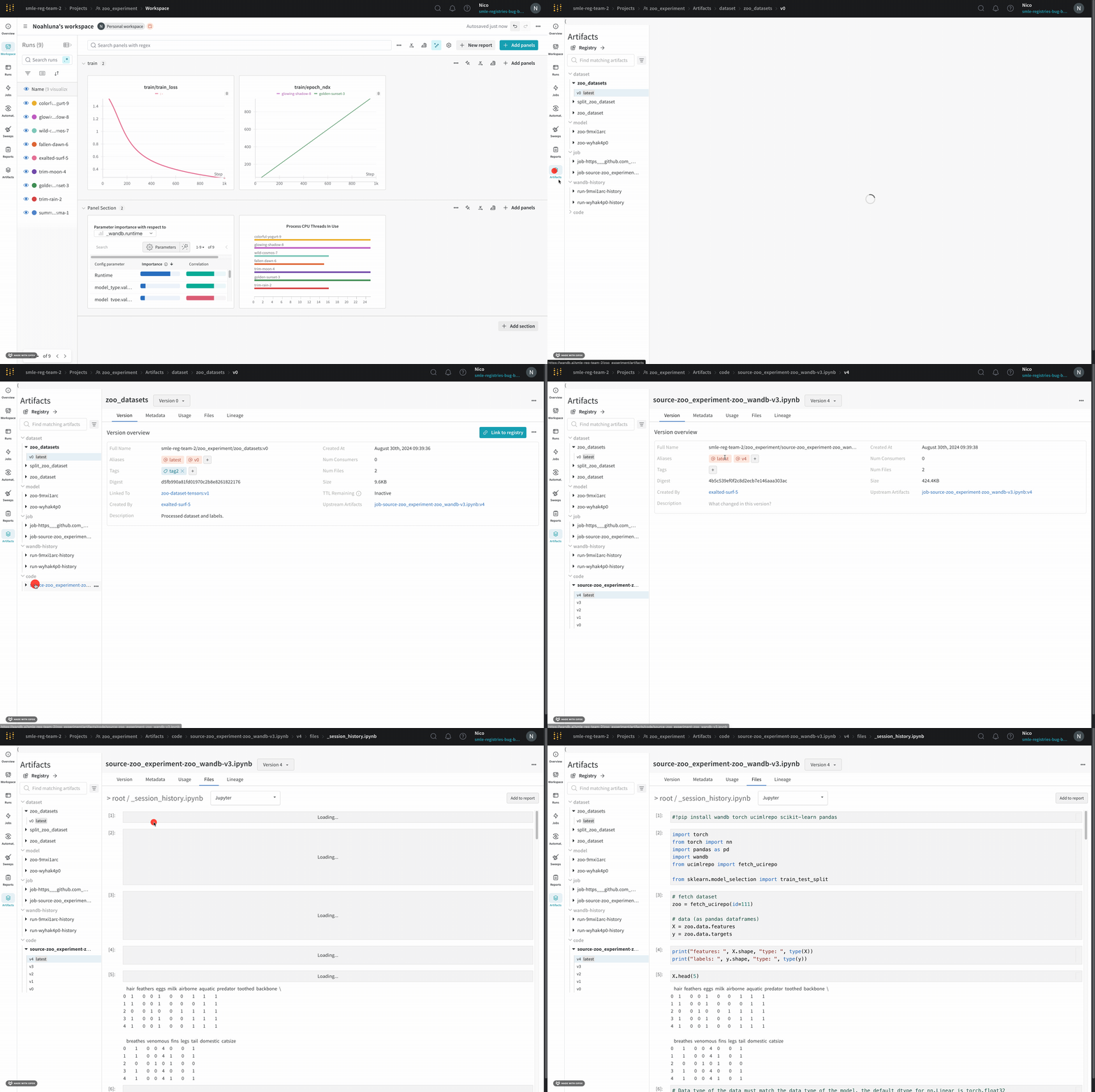 This displays the cells that ran in your session along with any outputs created by calling IPython's `display` method. This lets you see exactly what code ran within Jupyter in a given run. When possible, W\&B also saves the most recent version of the notebook, which you find in the code directory as well.