> ## Documentation Index
> Fetch the complete documentation index at: https://docs.wandb.ai/llms.txt
> Use this file to discover all available pages before exploring further.
> Some features on this page are in beta, hidden behind a feature flag. Add `weave-plot` to your bio on your profile page to unlock all related features.
# Query panels overview
Looking for W\&B Weave, W\&B's suite of tools for generative AI application building? See the [Weave documentation](https://wandb.github.io/weave/?utm_source=wandb_docs\&utm_medium=docs\&utm_campaign=weave-nudge).
Use query panels to query and interactively visualize your data. With a query panel, you can pull specific runs, artifacts, tables, and other W\&B objects into a single view and explore them as tables or plots without leaving your workspace or report. This page is for users who want to compose ad hoc queries against logged W\&B data and surface the results inside a workspace or report.
A query panel combines three pieces:
* **[Expression](#expressions)**: The data you select.
* **[Configuration](#configurations)**: Optional settings for the panel, such as the panel type and options from the gear menu.
* **[Result panel](#result-panels)**: How to show the results, such as in a table or plot.
For a set of interactive examples you can try, see a public [Query panel examples report](https://wandb.ai/luis_team_test/weave_example_queries/reports/Query-Panel-Examples---Vmlldzo1NzIxOTY2). For a guided walkthrough of query syntax, see the [Query panel tutorial report](https://wandb.ai/luis_team_test/weave_example_queries/reports/Weave-queries---Vmlldzo1NzIxOTY2). Generated types and ops are listed in the [query expression language overview](/models/ref/query-panel).
 ## Create a query panel
Add a query panel so you have a surface to write expressions against and visualize the results. You can add one to a project workspace or within a report.
1. Navigate to your project's workspace.
2. In the upper-right corner, click **Add panel**.
3. From the dropdown menu, select **Query panel**.
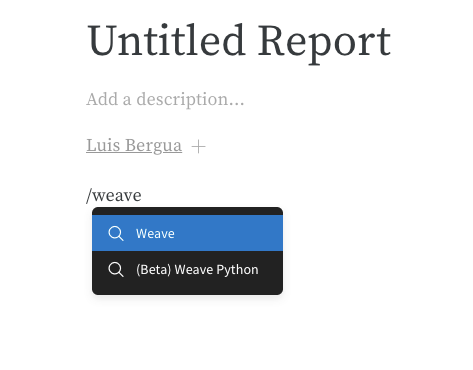
* Type and select **/Query panel**.
## Create a query panel
Add a query panel so you have a surface to write expressions against and visualize the results. You can add one to a project workspace or within a report.
1. Navigate to your project's workspace.
2. In the upper-right corner, click **Add panel**.
3. From the dropdown menu, select **Query panel**.
* Type and select **/Query panel**.
 Alternatively, you can associate a query with a set of runs:
1. Within your report, type and select **/Panel grid**.
2. Click the **Add panel** button.
3. From the dropdown menu, select **Query panel**.
## Query components
The following sections describe the three pieces that make up a query panel: the expression that selects data, the configuration that controls how the panel behaves, and the result panel that renders the output.
### Expressions
Use query expressions to query your data stored in W\&B such as runs, artifacts, models, tables, and more.
#### Example: Query a table
Suppose you want to query a W\&B Table. In your training code, you log a table called `"cifar10_sample_table"`:
```python theme={null}
import wandb
with wandb.init() as run:
run.log({"cifar10_sample_table":[MY-TABLE]})
```
Within the query panel, you can query your table with:
```python theme={null}
runs.summary["cifar10_sample_table"]
```
Alternatively, you can associate a query with a set of runs:
1. Within your report, type and select **/Panel grid**.
2. Click the **Add panel** button.
3. From the dropdown menu, select **Query panel**.
## Query components
The following sections describe the three pieces that make up a query panel: the expression that selects data, the configuration that controls how the panel behaves, and the result panel that renders the output.
### Expressions
Use query expressions to query your data stored in W\&B such as runs, artifacts, models, tables, and more.
#### Example: Query a table
Suppose you want to query a W\&B Table. In your training code, you log a table called `"cifar10_sample_table"`:
```python theme={null}
import wandb
with wandb.init() as run:
run.log({"cifar10_sample_table":[MY-TABLE]})
```
Within the query panel, you can query your table with:
```python theme={null}
runs.summary["cifar10_sample_table"]
```
 Breaking this down:
* `runs` is a variable automatically injected in query panel expressions when the query panel is in a workspace. Its value is the list of runs visible for that workspace. For details about the different attributes available within a run, see [Understanding the different attributes](/models/track/public-api-guide/#understanding-the-different-attributes).
* `summary` is an op that returns the Summary object for a run. Ops are *mapped*, meaning this op is applied to each run in the list, resulting in a list of Summary objects.
* `["cifar10_sample_table"]` is a Pick op (denoted with brackets) with a key of `cifar10_sample_table`. Because Summary objects act like dictionaries or maps, this operation picks that field from each Summary object.
### Configurations
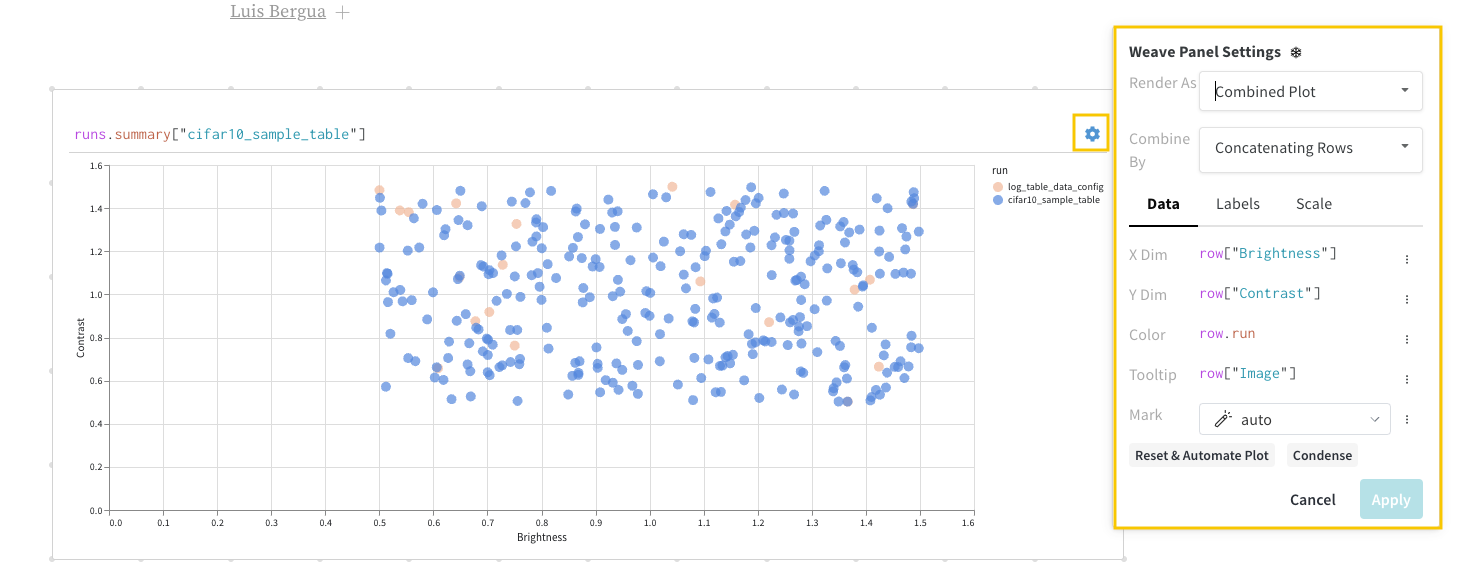
In the upper-left corner of the panel, click the gear icon to expand the query configuration. The configuration lets you set the type of panel and the parameters for the result panel.
Breaking this down:
* `runs` is a variable automatically injected in query panel expressions when the query panel is in a workspace. Its value is the list of runs visible for that workspace. For details about the different attributes available within a run, see [Understanding the different attributes](/models/track/public-api-guide/#understanding-the-different-attributes).
* `summary` is an op that returns the Summary object for a run. Ops are *mapped*, meaning this op is applied to each run in the list, resulting in a list of Summary objects.
* `["cifar10_sample_table"]` is a Pick op (denoted with brackets) with a key of `cifar10_sample_table`. Because Summary objects act like dictionaries or maps, this operation picks that field from each Summary object.
### Configurations
In the upper-left corner of the panel, click the gear icon to expand the query configuration. The configuration lets you set the type of panel and the parameters for the result panel.
 #### Panel options
The configuration menu can include options that change how the panel combines or loads table-style results. Exact labels and availability depend on your expression and panel type. For concrete setups, see the [Query panel examples report](https://wandb.ai/luis_team_test/weave_example_queries/reports/Query-Panel-Examples---Vmlldzo1NzIxOTY2).
**Concat**
Use **Concat** in the configuration when you want the panel to merge compatible table-style results and treat them as a single table for viewing and downstream operations. Expression-level row merging (for example, `concat` and `join` in the query) is separate from this setting. For more information, see [Combine tables in expressions](#combine-tables-in-expressions).
**Paginate**
Use **Paginate** when a table result might be too large to render at once. Pagination loads rows in chunks so the panel stays responsive. Pair this option with expressions that return large row lists. For patterns that work well with pagination, see the [Query panel examples report](https://wandb.ai/luis_team_test/weave_example_queries/reports/Query-Panel-Examples---Vmlldzo1NzIxOTY2).
### Result panels
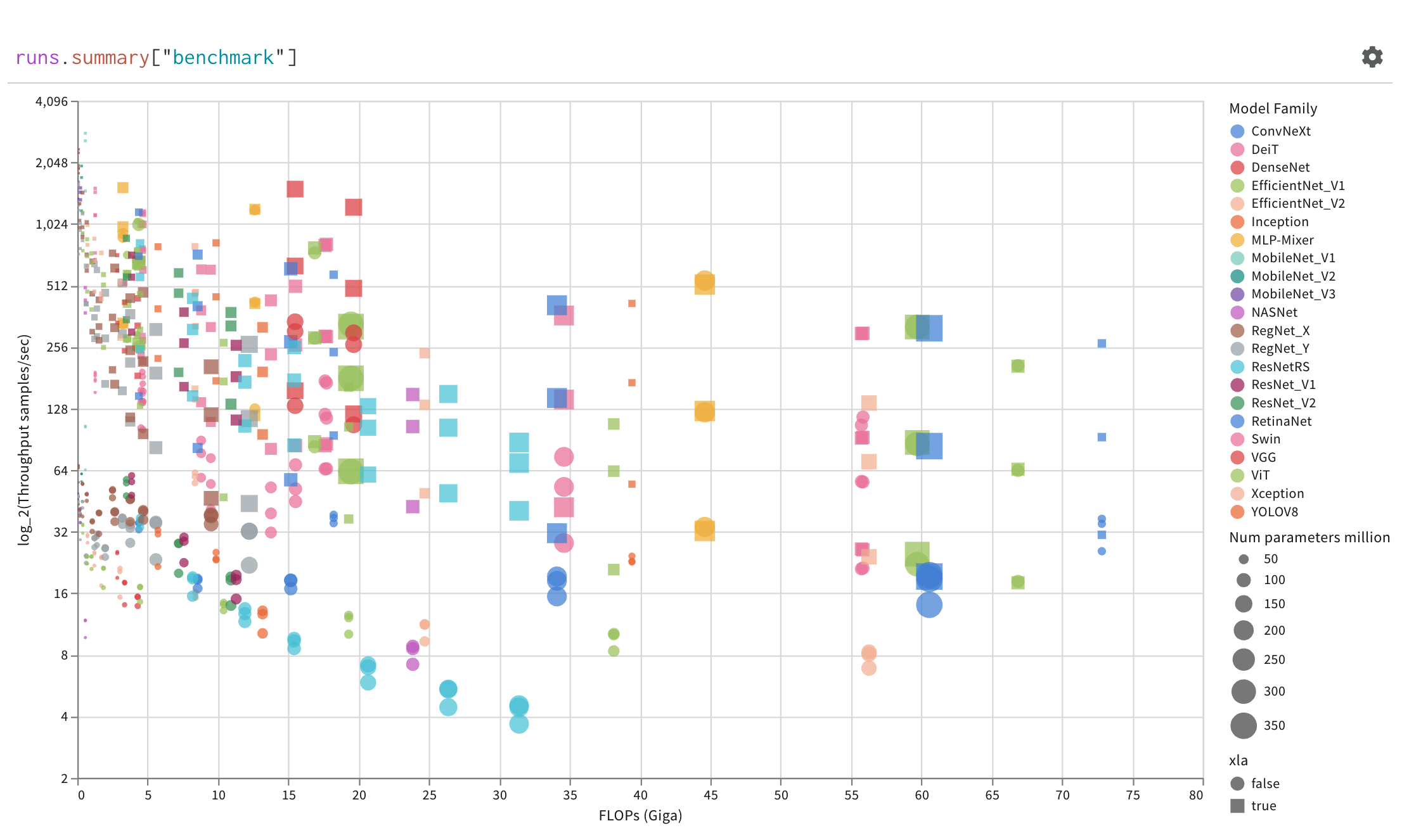
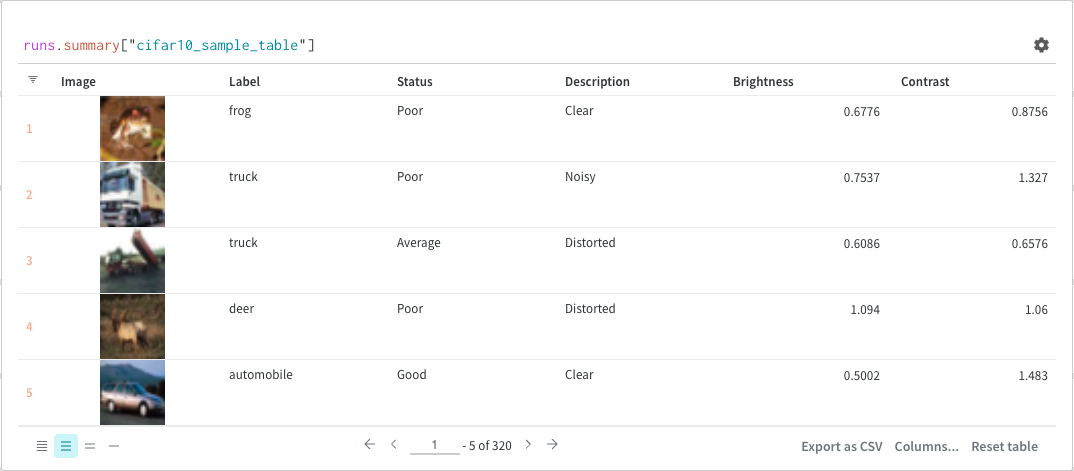
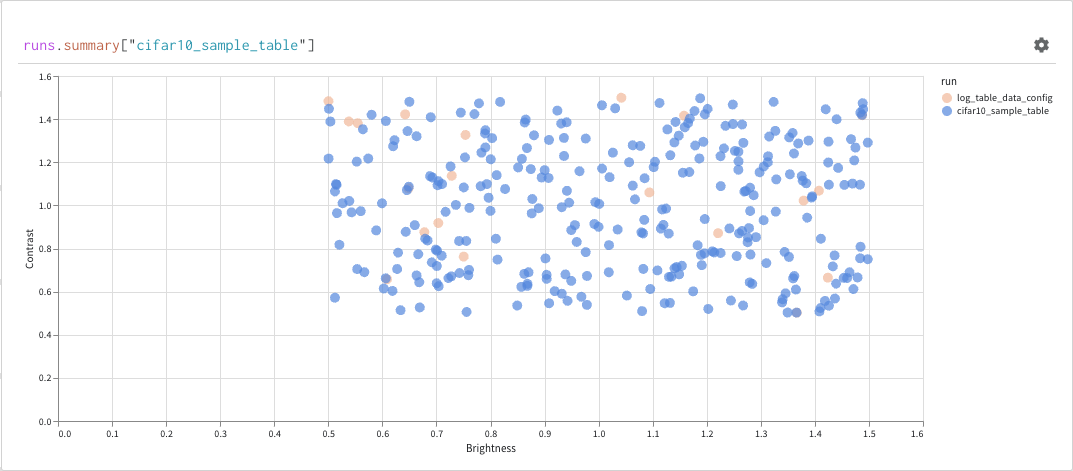
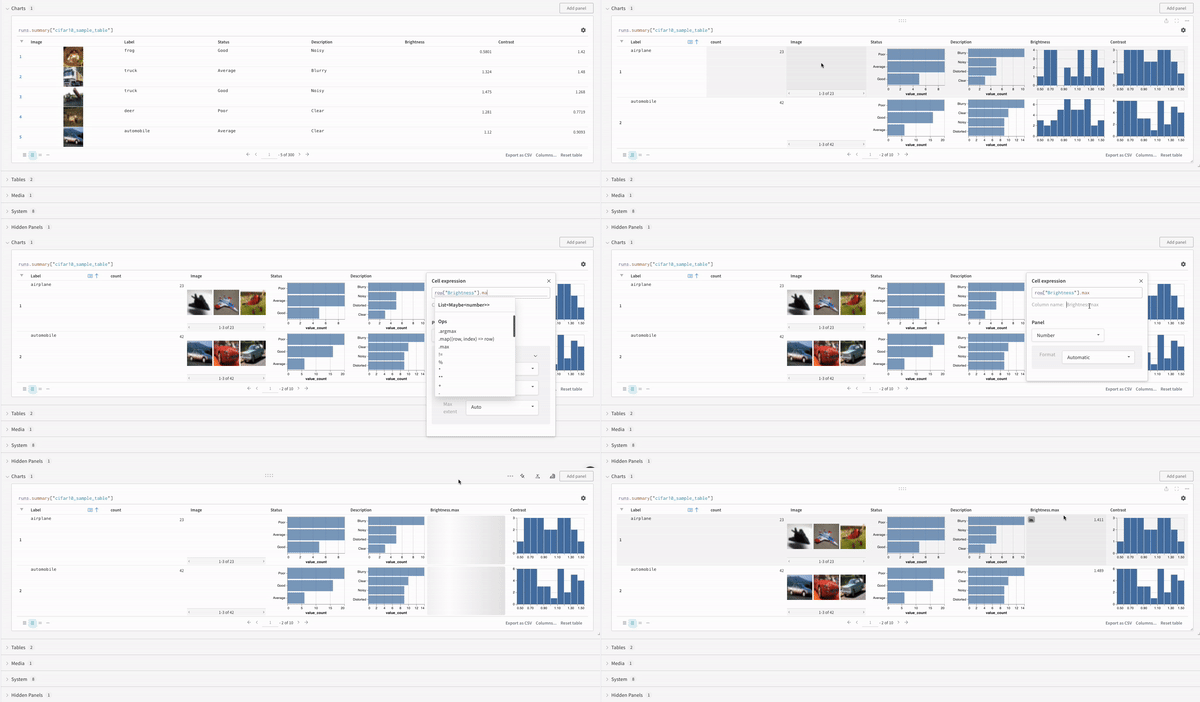
The query result panel renders the result of the query expression, using the selected query panel, configured to display the data in an interactive form. The following images show a Table and a Plot of the same data.
#### Panel options
The configuration menu can include options that change how the panel combines or loads table-style results. Exact labels and availability depend on your expression and panel type. For concrete setups, see the [Query panel examples report](https://wandb.ai/luis_team_test/weave_example_queries/reports/Query-Panel-Examples---Vmlldzo1NzIxOTY2).
**Concat**
Use **Concat** in the configuration when you want the panel to merge compatible table-style results and treat them as a single table for viewing and downstream operations. Expression-level row merging (for example, `concat` and `join` in the query) is separate from this setting. For more information, see [Combine tables in expressions](#combine-tables-in-expressions).
**Paginate**
Use **Paginate** when a table result might be too large to render at once. Pagination loads rows in chunks so the panel stays responsive. Pair this option with expressions that return large row lists. For patterns that work well with pagination, see the [Query panel examples report](https://wandb.ai/luis_team_test/weave_example_queries/reports/Query-Panel-Examples---Vmlldzo1NzIxOTY2).
### Result panels
The query result panel renders the result of the query expression, using the selected query panel, configured to display the data in an interactive form. The following images show a Table and a Plot of the same data.
 ### Step through run history
In tables and plots built from `runs` or `runs.history`, the app can show a **step** control (for example, a slider) so you can move through logged steps and inspect metrics, text, or media over the course of your runs. After you change the expression, edit the query panel's configuration and change **Render As** to **Stepper**. The control can follow a different metric instead of `_step` if it better matches how you logged data. For sample expressions, see the [Query panel examples report](https://wandb.ai/luis_team_test/weave_example_queries/reports/Query-Panel-Examples---Vmlldzo1NzIxOTY2).
## Basic operations
After a query panel renders results, you can refine what you see by sorting, filtering, mapping, or grouping the rows. The following are common operations you can perform within your query panels.
### Sort
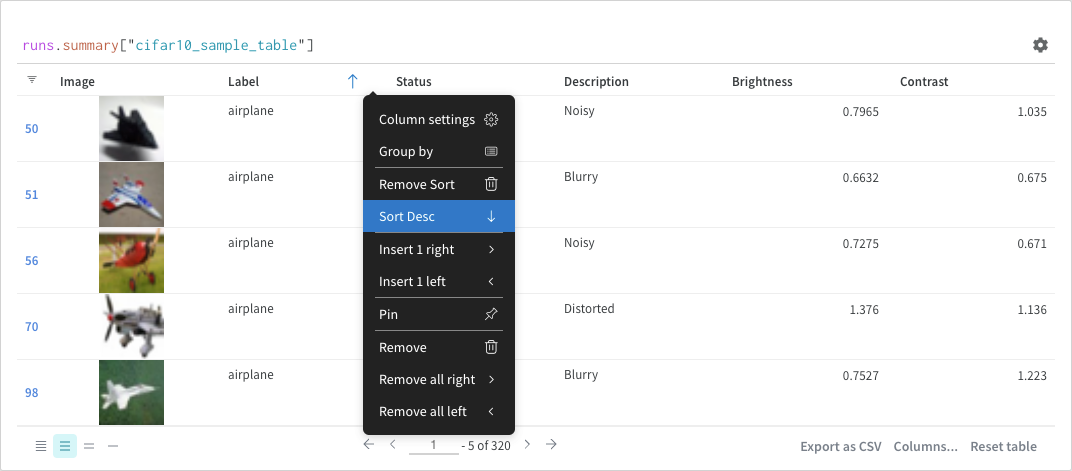
Sort from the column options:
### Step through run history
In tables and plots built from `runs` or `runs.history`, the app can show a **step** control (for example, a slider) so you can move through logged steps and inspect metrics, text, or media over the course of your runs. After you change the expression, edit the query panel's configuration and change **Render As** to **Stepper**. The control can follow a different metric instead of `_step` if it better matches how you logged data. For sample expressions, see the [Query panel examples report](https://wandb.ai/luis_team_test/weave_example_queries/reports/Query-Panel-Examples---Vmlldzo1NzIxOTY2).
## Basic operations
After a query panel renders results, you can refine what you see by sorting, filtering, mapping, or grouping the rows. The following are common operations you can perform within your query panels.
### Sort
Sort from the column options:
 ### Filter
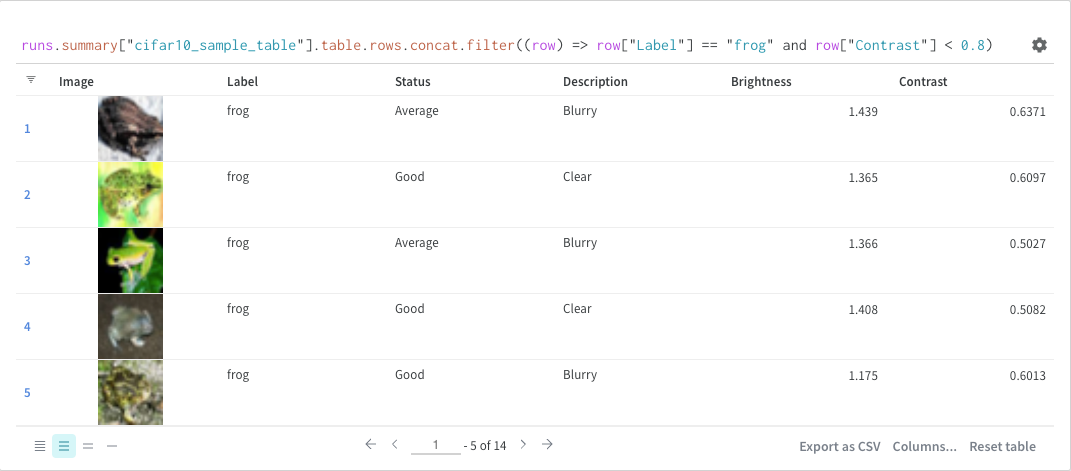
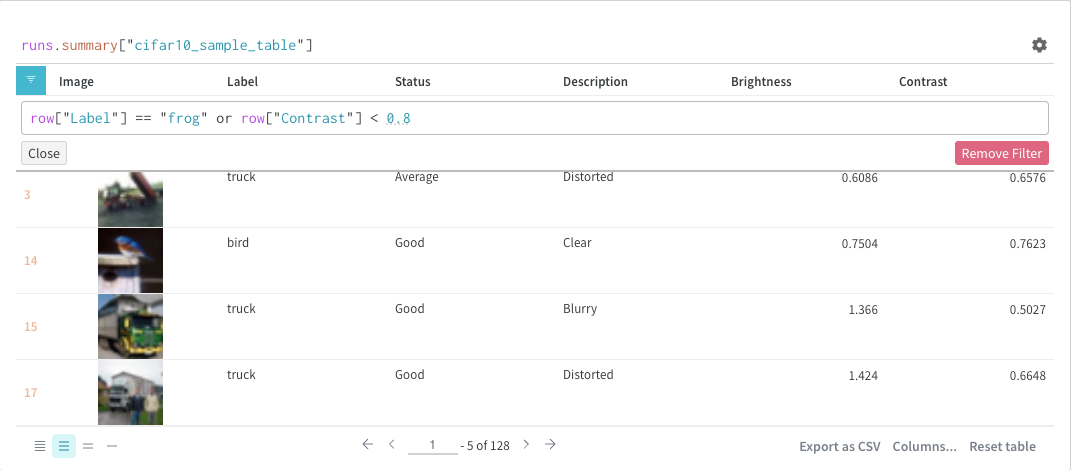
You can either filter directly in the query or use the filter button in the upper-left corner of the panel.
### Filter
You can either filter directly in the query or use the filter button in the upper-left corner of the panel.
 ### Map
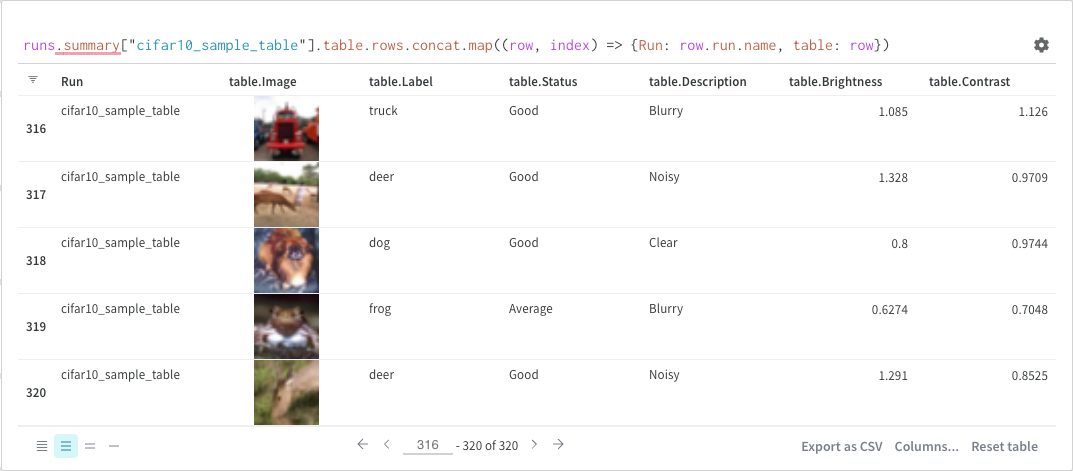
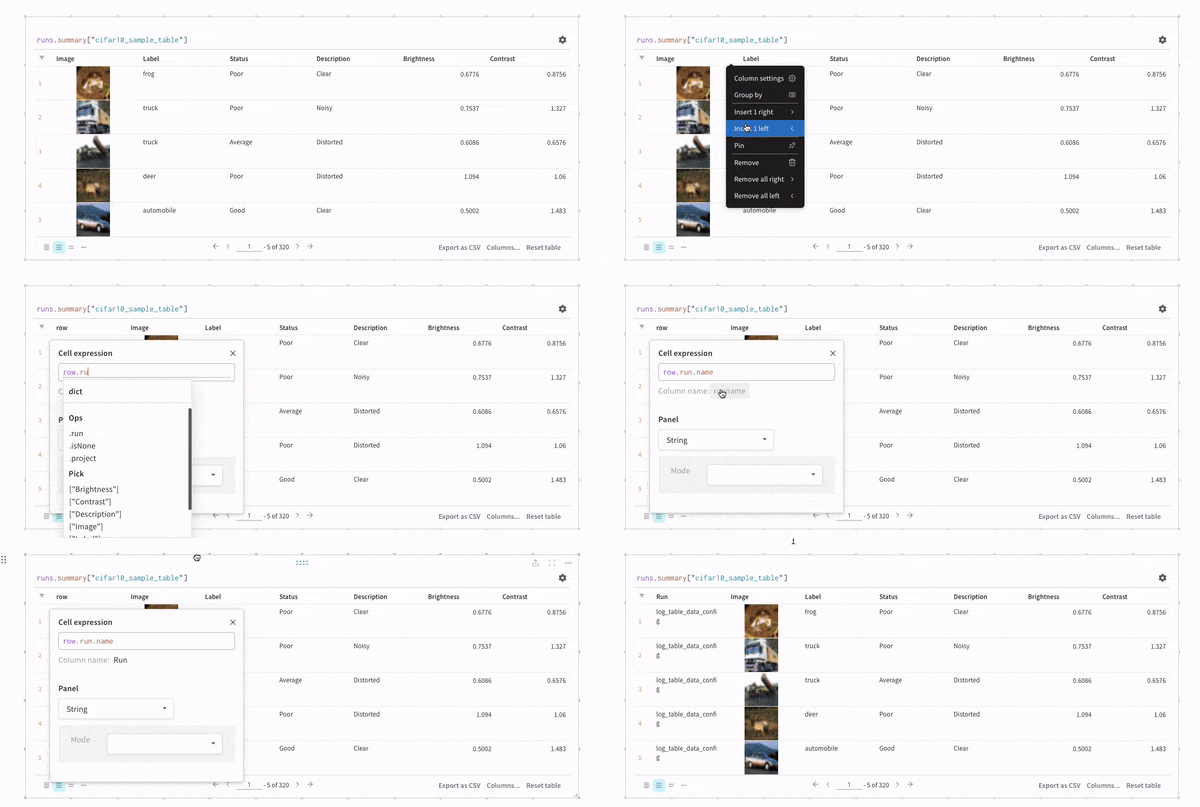
Map operations iterate over lists and apply a function to each element in the data. You can do this directly with a panel query or by inserting a new column from the column options.
### Map
Map operations iterate over lists and apply a function to each element in the data. You can do this directly with a panel query or by inserting a new column from the column options.
 ### Group by
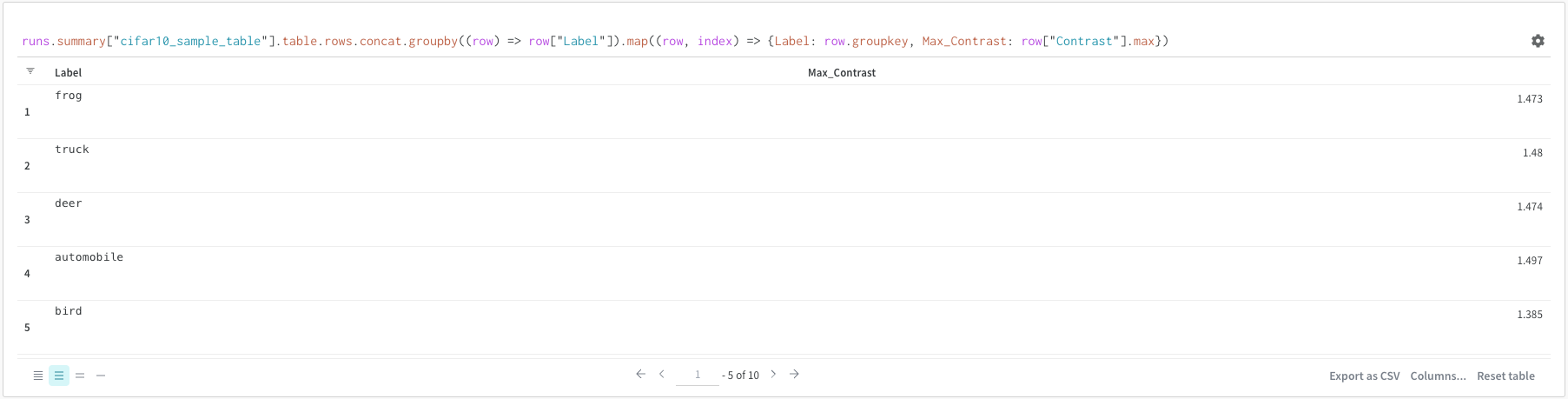
You can group by using a query or from the column options.
### Group by
You can group by using a query or from the column options.
 ### Combine tables in expressions
Use `concat`, `join`, and related ops in your expression when you need to stack or merge row lists from tables. See [Join](#join) for a full example. The **Concat** and **Paginate** items in [Panel options](#panel-options) are separate controls for how the UI merges and loads table results.
### Join
You can also join tables directly in the query. Consider the following query expression:
```python theme={null}
project("luis_team_test", "weave_example_queries").runs.summary["short_table_0"].table.rows.concat.join(\
project("luis_team_test", "weave_example_queries").runs.summary["short_table_1"].table.rows.concat,\
(row) => row["Label"],(row) => row["Label"], "Table1", "Table2",\
"false", "false")
```
### Combine tables in expressions
Use `concat`, `join`, and related ops in your expression when you need to stack or merge row lists from tables. See [Join](#join) for a full example. The **Concat** and **Paginate** items in [Panel options](#panel-options) are separate controls for how the UI merges and loads table results.
### Join
You can also join tables directly in the query. Consider the following query expression:
```python theme={null}
project("luis_team_test", "weave_example_queries").runs.summary["short_table_0"].table.rows.concat.join(\
project("luis_team_test", "weave_example_queries").runs.summary["short_table_1"].table.rows.concat,\
(row) => row["Label"],(row) => row["Label"], "Table1", "Table2",\
"false", "false")
```
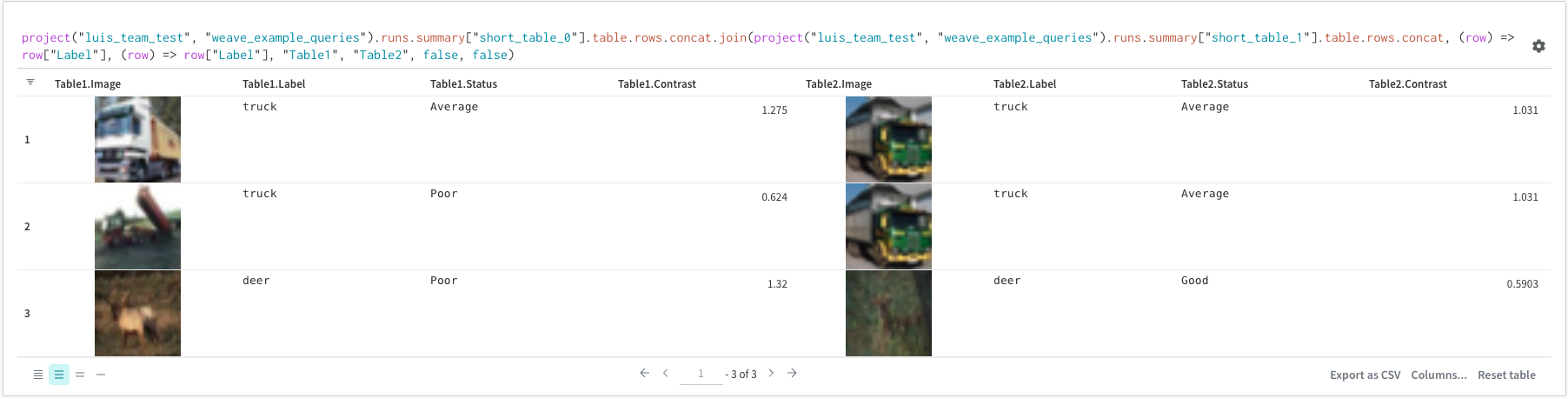 The table on the left is generated from:
```python theme={null}
project("luis_team_test", "weave_example_queries").\
runs.summary["short_table_0"].table.rows.concat.join
```
The table on the right is generated from:
```python theme={null}
project("luis_team_test", "weave_example_queries").\
runs.summary["short_table_1"].table.rows.concat
```
Where:
* `(row) => row["Label"]` are selectors for each table, determining which column to join on.
* `"Table1"` and `"Table2"` are the names of each table when joined.
* `true` and `false` are for left and right inner/outer join settings.
## Runs object
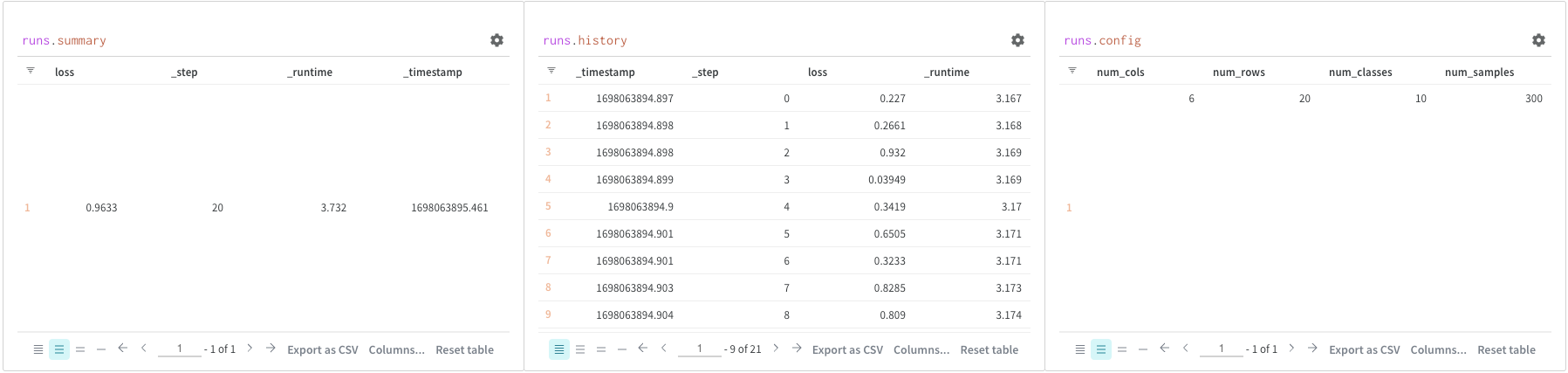
Use query panels to access the `runs` object. Run objects store records of your experiments. For more details, see [Accessing runs object](https://wandb.ai/luis_team_test/weave_example_queries/reports/Weave-queries---Vmlldzo1NzIxOTY2#3.-accessing-runs-object). As a quick overview, the `runs` object has the following available:
* `summary`: A dictionary of information that summarizes the run's results. The summary can contain scalars like accuracy and loss, or large files. By default, `wandb.Run.log()` sets the summary to the final value of a logged time series. You can set the contents of the summary directly. Think of the summary as the run's outputs.
* `history`: A list of dictionaries meant to store values that change while the model is training, such as loss. The command `wandb.Run.log()` appends to this object.
* `config`: A dictionary of the run's configuration information, such as the hyperparameters for a training run or the preprocessing methods for a run that creates a dataset artifact. Think of these as the run's inputs.
The table on the left is generated from:
```python theme={null}
project("luis_team_test", "weave_example_queries").\
runs.summary["short_table_0"].table.rows.concat.join
```
The table on the right is generated from:
```python theme={null}
project("luis_team_test", "weave_example_queries").\
runs.summary["short_table_1"].table.rows.concat
```
Where:
* `(row) => row["Label"]` are selectors for each table, determining which column to join on.
* `"Table1"` and `"Table2"` are the names of each table when joined.
* `true` and `false` are for left and right inner/outer join settings.
## Runs object
Use query panels to access the `runs` object. Run objects store records of your experiments. For more details, see [Accessing runs object](https://wandb.ai/luis_team_test/weave_example_queries/reports/Weave-queries---Vmlldzo1NzIxOTY2#3.-accessing-runs-object). As a quick overview, the `runs` object has the following available:
* `summary`: A dictionary of information that summarizes the run's results. The summary can contain scalars like accuracy and loss, or large files. By default, `wandb.Run.log()` sets the summary to the final value of a logged time series. You can set the contents of the summary directly. Think of the summary as the run's outputs.
* `history`: A list of dictionaries meant to store values that change while the model is training, such as loss. The command `wandb.Run.log()` appends to this object.
* `config`: A dictionary of the run's configuration information, such as the hyperparameters for a training run or the preprocessing methods for a run that creates a dataset artifact. Think of these as the run's inputs.
 ## Access artifacts
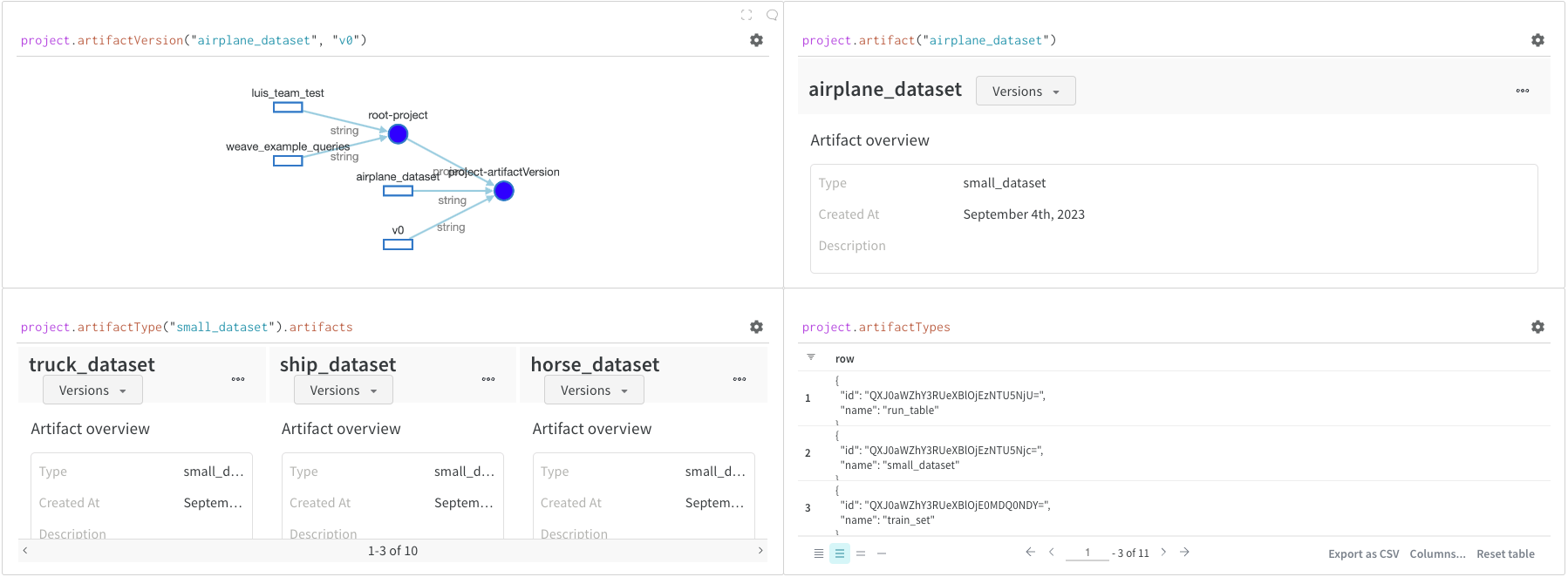
Artifacts are a core concept in W\&B. They are a versioned, named collection of files and directories. Use artifacts to track model weights, datasets, and any other file or directory. W\&B stores artifacts, and you can download them or use them in other runs. For more details and examples, see [Accessing artifacts](https://wandb.ai/luis_team_test/weave_example_queries/reports/Weave-queries---Vmlldzo1NzIxOTY2#4.-accessing-artifacts). You normally access artifacts from the `project` object:
* `project.artifactVersion()`: Returns the specific artifact version for a given name and version within a project.
* `project.artifact("")`: Returns the artifact for a given name within a project. You can then use `.versions` to get a list of all versions of this artifact.
* `project.artifactType()`: Returns the `artifactType` for a given name within a project. You can then use `.artifacts` to get a list of all artifacts with this type.
* `project.artifactTypes`: Returns a list of all artifact types under the project.
## Access artifacts
Artifacts are a core concept in W\&B. They are a versioned, named collection of files and directories. Use artifacts to track model weights, datasets, and any other file or directory. W\&B stores artifacts, and you can download them or use them in other runs. For more details and examples, see [Accessing artifacts](https://wandb.ai/luis_team_test/weave_example_queries/reports/Weave-queries---Vmlldzo1NzIxOTY2#4.-accessing-artifacts). You normally access artifacts from the `project` object:
* `project.artifactVersion()`: Returns the specific artifact version for a given name and version within a project.
* `project.artifact("")`: Returns the artifact for a given name within a project. You can then use `.versions` to get a list of all versions of this artifact.
* `project.artifactType()`: Returns the `artifactType` for a given name within a project. You can then use `.artifacts` to get a list of all artifacts with this type.
* `project.artifactTypes`: Returns a list of all artifact types under the project.