> ## Documentation Index
> Fetch the complete documentation index at: https://docs.wandb.ai/llms.txt
> Use this file to discover all available pages before exploring further.
> View and traverse artifact lineage graphs to track the inputs and outputs of W&B runs as a directed acyclic graph.
# Explore artifact lineage graphs
W\&B tracks the inputs and outputs of runs using directed acyclic graphs (DAGs) called *lineage graphs*. Lineage graphs are visual representations of the relationships between artifacts and runs in an ML experiment. They show how data and models
flow through different stages of the ML lifecycle, from raw data ingestion to model training and evaluation.
Tracking artifact lineage provides several key advantages:
* **Reproducibility**: Enables teams to reproduce experiments, models, and results for debugging, experimentation, and validation.
* **Version control**: Tracks changes to artifacts over time, allowing teams to revert to previous data or model versions when needed.
* **Auditing**: Maintains a detailed record of artifacts and transformations to support compliance and governance.
* **Collaboration**: Helps to improve teamwork by making experiment history transparent, reducing duplicated effort, and accelerating development.
## View an artifact's lineage graph
To view an artifact's lineage graph:
1. Navigate to your project's workspace in the W\&B App.
2. Click on the **Artifacts** tab in the project sidebar.
3. Select an artifact, then click the **Lineage** tab.
## Navigate lineage graphs
The lineage graph is a visual representation of the relationships between artifacts and runs in an ML experiment. Use the W\&B App UI or the Python SDK to explore and traverse an artifact's lineage graph.
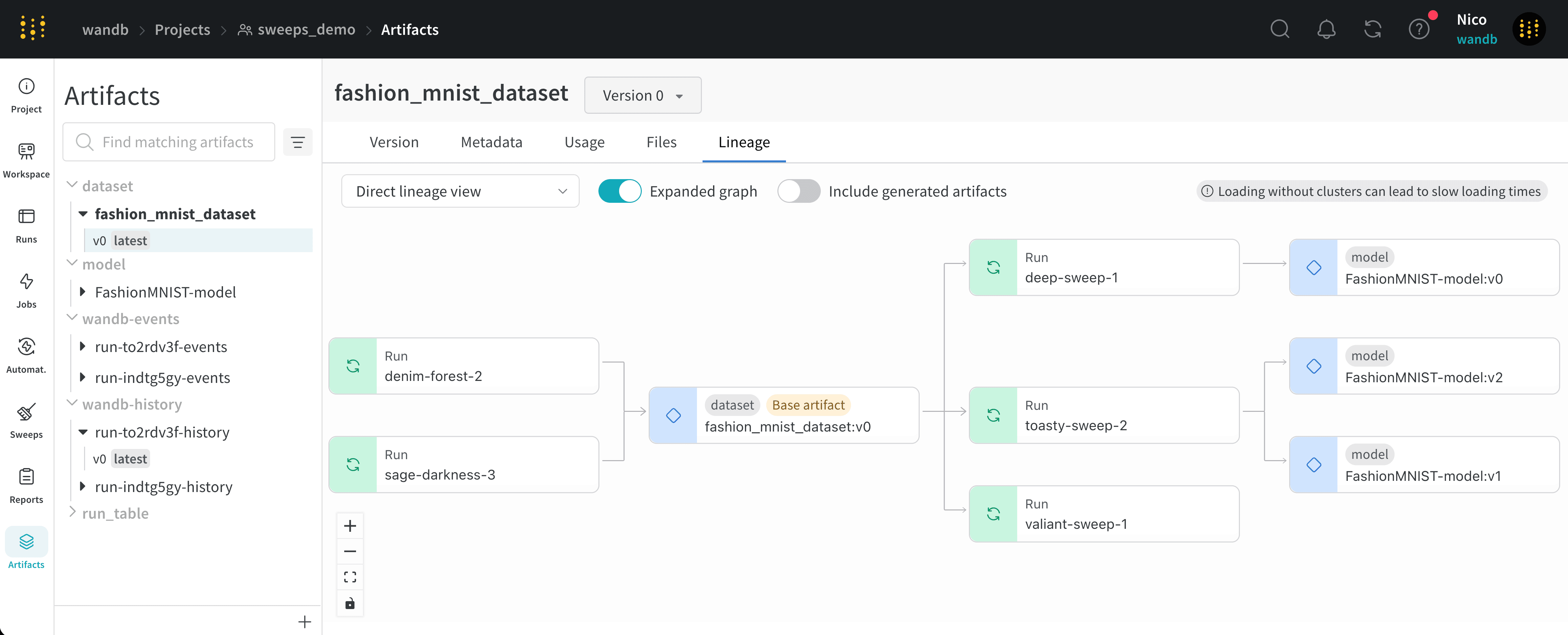
Nodes with green icons represent runs. Nodes with blue icons represent artifacts. Arrows between nodes indicate the input and output of a run or artifact.
Artifact nodes display the artifact's name along with the version of the artifact in the form `:`. An artifact's type is displayed above the name of the artifact.
You can view the type and the name of artifact in both the left sidebar and in the lineage graph node.
Run nodes display the run's name.
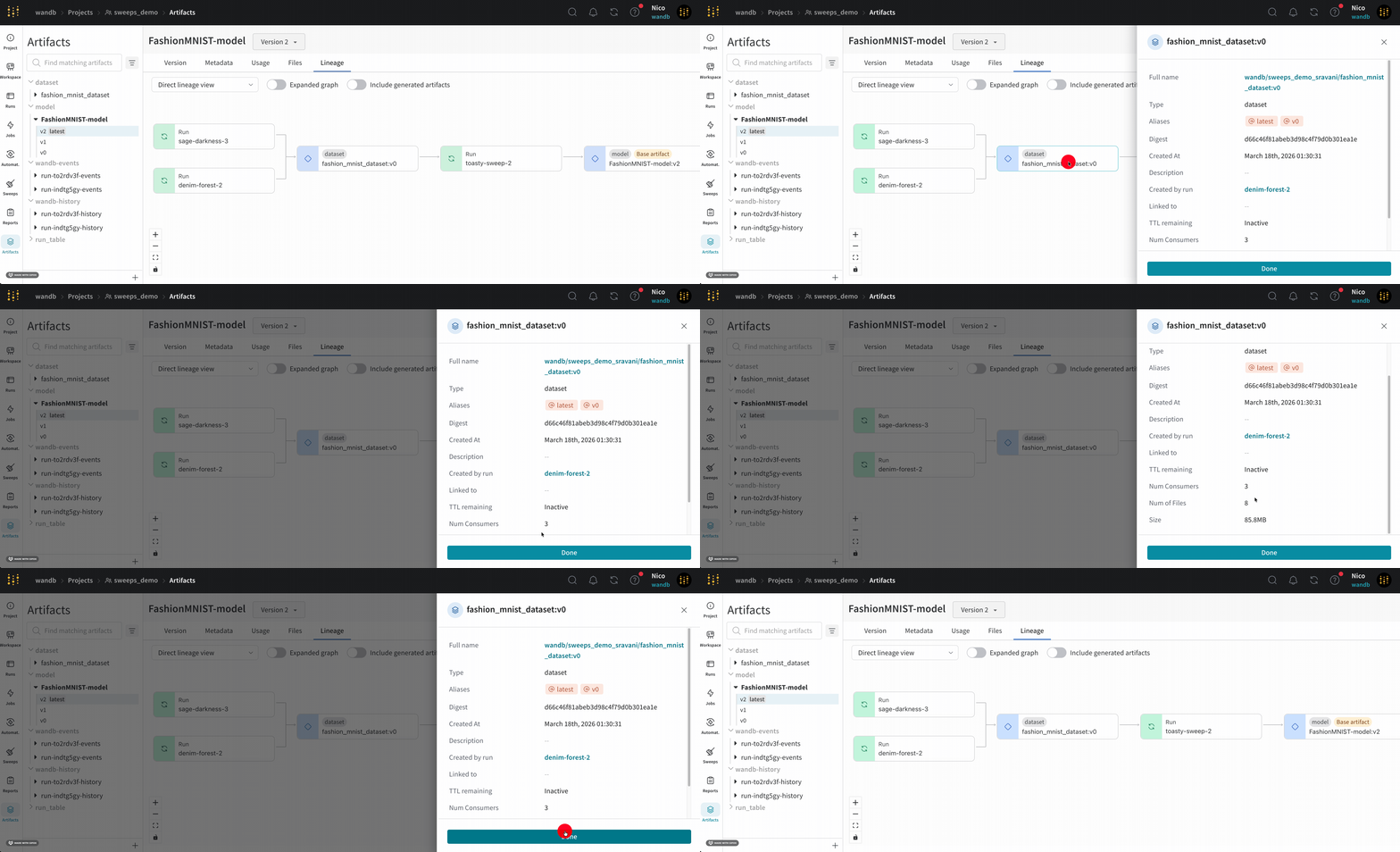
 Click any individual run to get more information about that runs such as the run's: start time, time duration, author, job type, and more. Click any individual artifact to get more information about the artifact's: aliases, creation time, type, version, description, the run that logged the artifact, file size, and more.
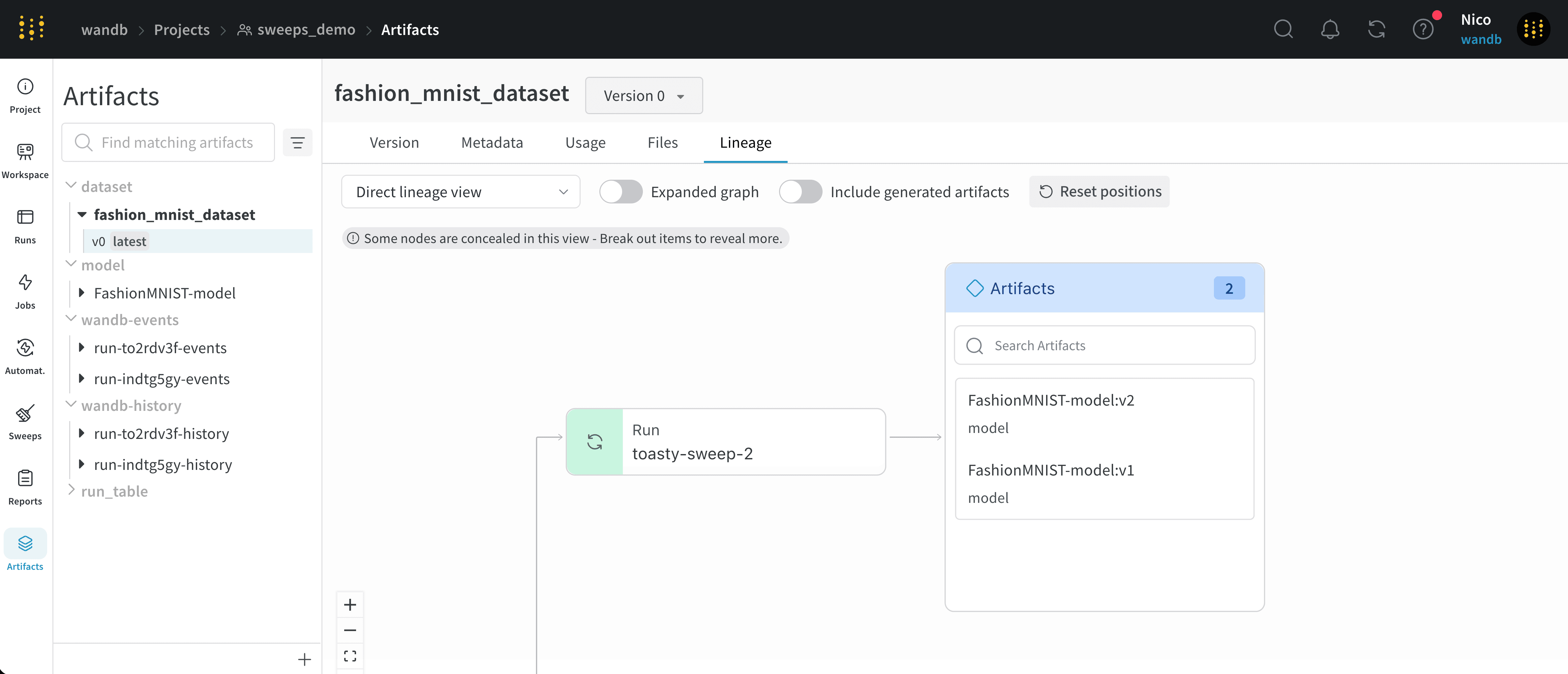
 Runs that create multiple versions of the same artifact are grouped together in a cluster. Click on a specific artifact version listed within the cluster to view specific information about that artifact version.
 Click and drag a node to rearrange the graph to customize the layout. You can also zoom in and out of the graph to get a better view of the nodes and their relationships.
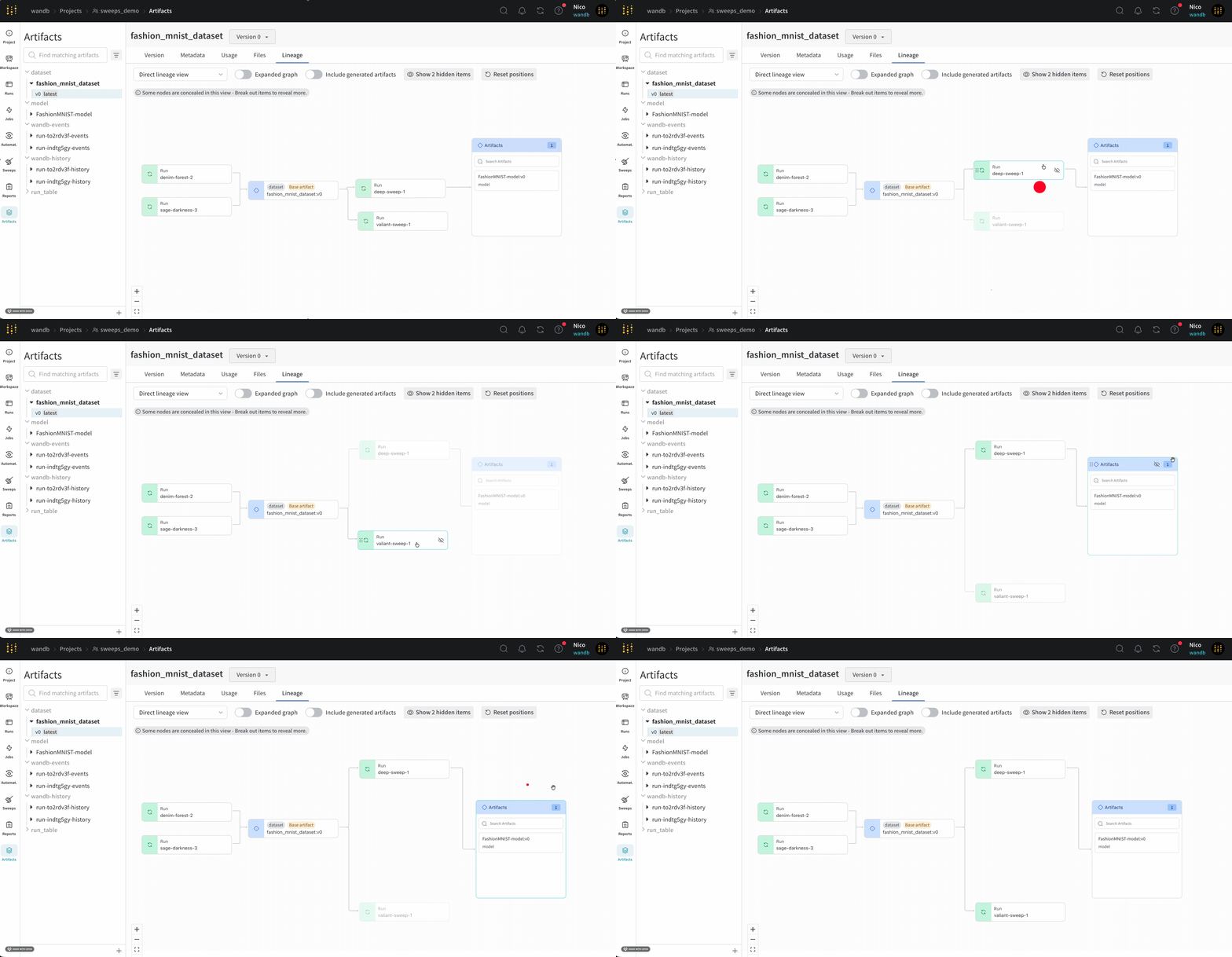 Hover your mouse over a node and click on the eye icon to hide or show a node in the graph. This is useful for decluttering the graph to focus on specific nodes and their relationships.
Programmatically navigate a graph using the W\&B Python SDK. Use an artifact object's
[`logged_by()`](/models/ref/python/experiments/artifact#method-artifact-logged-by) and [`used_by()`](/models/ref/python/experiments/artifact#method-artifact-used-by) methods to walk the graph:
```python theme={null}
with wandb.init() as run:
artifact = run.use_artifact("artifact_name:latest")
# Walk up and down the graph from an artifact:
producer_run = artifact.logged_by()
consumer_runs = artifact.used_by()
```
## Enable lineage graph tracking
To enable lineage graph tracking, you need to mark artifacts as [inputs](/models/artifacts/explore-and-traverse-an-artifact-graph) or
[outputs](/models/artifacts/explore-and-traverse-an-artifact-graph#track-the-output-of-a-run) of a run using the W\&B Python SDK.
### Track the input of a run
Mark an artifact as the input (or dependency) of a run with the [`wandb.Run.use_artifact()`](/models/ref/python/experiments/run#method-runuse_artifact)
method. Specify the name of the artifact and an optional alias to reference a specific version of that artifact. The name of the
artifact is in the format `:` or `:`.
Replace values enclosed in angle brackets (`< >`) with your values:
```python theme={null}
import wandb
# Initialize a run
with wandb.init(entity="", project="") as run:
# Get artifact, mark it as a dependency
artifact = run.use_artifact(artifact_or_name="", aliases="")
```
### Track the output of a run
Use [`wandb.Run.log_artifact()`](/models/ref/python/experiments/run#log_artifact) to declare an artifact as an output of a run. First,
create an artifact with the [`wandb.Artifact()`](/models/ref/python/experiments/artifact#wandb.Artifact) constructor. Then, log the
artifact as an output of the run with `wandb.Run.log_artifact()`.
Replace values enclosed in angle brackets (`< >`) with your values:
```python theme={null}
import wandb
# Initialize a run
with wandb.init(entity="", project="") as run:
# Create an artifact
artifact = wandb.Artifact(name = "", type = "")
artifact.add_file(local_path = "", name="")
# Log the artifact as an output of the run
run.log_artifact(artifact_or_path = artifact)
```
## Artifact clusters
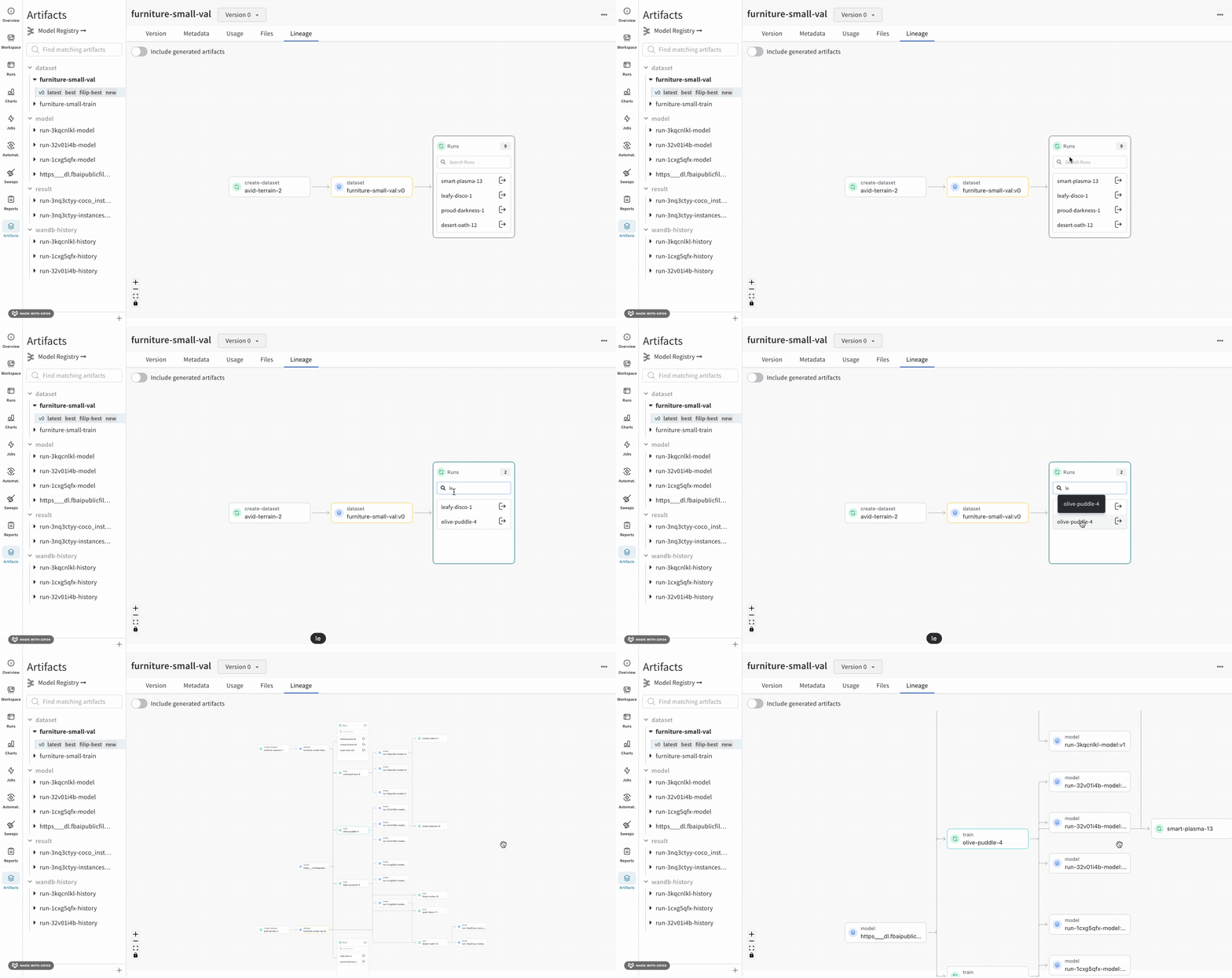
When a level of the graph has five or more runs or artifacts, it creates a cluster. A cluster has a search bar to find specific versions of runs or artifacts and pulls an individual node from a cluster to continue investigating the lineage of a node inside a cluster.
Clicking on a node opens a preview with an overview of the node. Clicking on the arrow extracts the individual run or artifact so you can examine the lineage of the extracted node.
Hover your mouse over a node and click on the eye icon to hide or show a node in the graph. This is useful for decluttering the graph to focus on specific nodes and their relationships.
Programmatically navigate a graph using the W\&B Python SDK. Use an artifact object's
[`logged_by()`](/models/ref/python/experiments/artifact#method-artifact-logged-by) and [`used_by()`](/models/ref/python/experiments/artifact#method-artifact-used-by) methods to walk the graph:
```python theme={null}
with wandb.init() as run:
artifact = run.use_artifact("artifact_name:latest")
# Walk up and down the graph from an artifact:
producer_run = artifact.logged_by()
consumer_runs = artifact.used_by()
```
## Enable lineage graph tracking
To enable lineage graph tracking, you need to mark artifacts as [inputs](/models/artifacts/explore-and-traverse-an-artifact-graph) or
[outputs](/models/artifacts/explore-and-traverse-an-artifact-graph#track-the-output-of-a-run) of a run using the W\&B Python SDK.
### Track the input of a run
Mark an artifact as the input (or dependency) of a run with the [`wandb.Run.use_artifact()`](/models/ref/python/experiments/run#method-runuse_artifact)
method. Specify the name of the artifact and an optional alias to reference a specific version of that artifact. The name of the
artifact is in the format `:` or `:`.
Replace values enclosed in angle brackets (`< >`) with your values:
```python theme={null}
import wandb
# Initialize a run
with wandb.init(entity="", project="") as run:
# Get artifact, mark it as a dependency
artifact = run.use_artifact(artifact_or_name="", aliases="")
```
### Track the output of a run
Use [`wandb.Run.log_artifact()`](/models/ref/python/experiments/run#log_artifact) to declare an artifact as an output of a run. First,
create an artifact with the [`wandb.Artifact()`](/models/ref/python/experiments/artifact#wandb.Artifact) constructor. Then, log the
artifact as an output of the run with `wandb.Run.log_artifact()`.
Replace values enclosed in angle brackets (`< >`) with your values:
```python theme={null}
import wandb
# Initialize a run
with wandb.init(entity="", project="") as run:
# Create an artifact
artifact = wandb.Artifact(name = "", type = "")
artifact.add_file(local_path = "", name="")
# Log the artifact as an output of the run
run.log_artifact(artifact_or_path = artifact)
```
## Artifact clusters
When a level of the graph has five or more runs or artifacts, it creates a cluster. A cluster has a search bar to find specific versions of runs or artifacts and pulls an individual node from a cluster to continue investigating the lineage of a node inside a cluster.
Clicking on a node opens a preview with an overview of the node. Clicking on the arrow extracts the individual run or artifact so you can examine the lineage of the extracted node.