> ## Documentation Index
> Fetch the complete documentation index at: https://docs.wandb.ai/llms.txt
> Use this file to discover all available pages before exploring further.
# Create a webhook automation
> Create a webhook automation in W&B to send HTTP requests to external services when specific events occur.
This page shows how to create a webhook [automation](/models/automations), which sends an HTTP request to an external service when a specific event occurs in W\&B. Use a webhook automation to integrate W\&B with external systems such as CI/CD pipelines, notification services, or custom tooling. To create a Slack automation, refer to [Create a Slack automation](/models/automations/create-automations/slack) instead.
At a high level, to create a webhook automation, you take these steps:
1. If necessary, [create a W\&B secret](/platform/secrets) for each sensitive string required by the automation, such as an access token, password, or SSH key. Secrets are defined in your **Team Settings**.
2. [Create a webhook](#create-a-webhook) to define the endpoint and authorization details and grant the integration access to any secrets it needs.
3. [Create the automation](#create-an-automation) to define the [event](/models/automations/automation-events) to watch for and the payload W\&B sends. Grant the automation access to any secrets it needs for the payload.
## Create a webhook
A team admin can add a webhook for the team. The webhook defines the endpoint W\&B sends requests to and any credentials required to authenticate with it.
If the webhook requires a Bearer token or its payload requires a sensitive string, [create a secret that contains it](/platform/secrets/#add-a-secret) before creating the webhook. You can configure at most one access token and one other secret for a webhook. The webhook's service determines your webhook's authentication and authorization requirements.
1. Log in to W\&B and go to the **Team Settings** page.
2. In the **Webhooks** section, click **New webhook**.
3. Provide a name for the webhook.
4. Provide the endpoint URL of the webhook.
5. If the webhook requires a Bearer token, set **Access token** to the [secret](/platform/secrets) that contains it. When using the webhook automation, W\&B sets the `Authorization: Bearer` HTTP header to the access token, and you can access the token in the `${ACCESS_TOKEN}` [payload variable](#payload-variables). For more information about the structure of the `POST` request W\&B sends to the webhook service, see [Troubleshoot your webhook](#troubleshoot-your-webhook).
6. If the webhook requires a password or other sensitive string in its payload, set **Secret** to the secret that contains it. When you configure the automation that uses the webhook, you can access the secret as a [payload variable](#payload-variables) by prefixing its name with `$`.
If the webhook's access token is stored in a secret, you must *also* complete the next step to specify the secret as the access token.
7. To verify that W\&B can connect and authenticate to the endpoint:
1. Optionally, provide a payload to test. To refer to a secret the webhook has access to in the payload, prefix its name with `$`. W\&B uses this payload only for testing and doesn't save it. You configure an automation's payload when you [create the automation](#create-an-automation). For more information about where the secret and access token appear in the `POST` request, see [Troubleshoot your webhook](#troubleshoot-your-webhook).
2. Click **Test**. W\&B attempts to connect to the webhook's endpoint using the credentials you configured. If you provided a payload, W\&B sends it.
If the test doesn't succeed, verify the webhook's configuration and try again. If necessary, refer to [Troubleshoot your webhook](#troubleshoot-your-webhook).
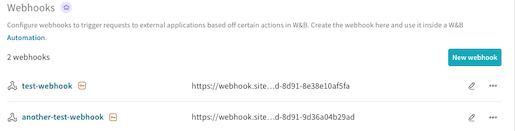 Now you can [create an automation](#create-an-automation) that uses the webhook.
## Create an automation
After you [configure a webhook](#create-a-webhook), create an automation that defines which W\&B event triggers the webhook and what payload to send. Select **Registry** or **Project** depending on the scope you want, then follow these steps to create an automation that triggers the webhook.
A Registry admin can create automations in that registry. Registry automations apply to all collections in the registry, including those added in the future.
1. Log in to W\&B.
2. Click the name of a registry to view its details.
3. To create an automation scoped to the registry, click the **Automations** tab, then click **Create automation**.
4. Choose the [event](/models/automations/automation-events/#registry-events) to watch for.
Fill in any additional fields that appear. For example, if you select **An artifact alias is added**, you must specify the **Alias regex**.
Click **Next step**.
5. Select the team that owns the [webhook](#create-a-webhook).
6. Set **Action type** to **Webhooks**. Then select the [webhook](#create-a-webhook) to use.
7. If you configured an access token for the webhook, you can access the token in the `${ACCESS_TOKEN}` [payload variable](#payload-variables). If you configured a secret for the webhook, you can access it in the payload by prefixing its name with `$`. The webhook's service determines your webhook's requirements.
8. Click **Next step**.
9. Provide a name for the automation. Optionally, provide a description. Click **Create automation**.
A W\&B admin can create automations in a project.
1. Log in to W\&B and go to the project page.
2. In the project sidebar, click **Automations**, then click **Create automation**.
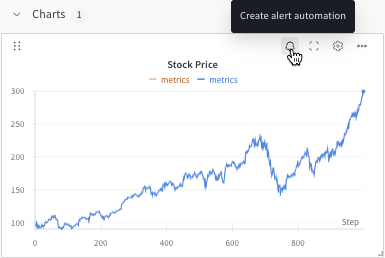
Or, from a line plot in the workspace, you can quickly create a [run metric automation](/models/automations/automation-events/#run-events) for the metric it shows. Hover over the panel, then click the bell icon at the top of the panel.
Now you can [create an automation](#create-an-automation) that uses the webhook.
## Create an automation
After you [configure a webhook](#create-a-webhook), create an automation that defines which W\&B event triggers the webhook and what payload to send. Select **Registry** or **Project** depending on the scope you want, then follow these steps to create an automation that triggers the webhook.
A Registry admin can create automations in that registry. Registry automations apply to all collections in the registry, including those added in the future.
1. Log in to W\&B.
2. Click the name of a registry to view its details.
3. To create an automation scoped to the registry, click the **Automations** tab, then click **Create automation**.
4. Choose the [event](/models/automations/automation-events/#registry-events) to watch for.
Fill in any additional fields that appear. For example, if you select **An artifact alias is added**, you must specify the **Alias regex**.
Click **Next step**.
5. Select the team that owns the [webhook](#create-a-webhook).
6. Set **Action type** to **Webhooks**. Then select the [webhook](#create-a-webhook) to use.
7. If you configured an access token for the webhook, you can access the token in the `${ACCESS_TOKEN}` [payload variable](#payload-variables). If you configured a secret for the webhook, you can access it in the payload by prefixing its name with `$`. The webhook's service determines your webhook's requirements.
8. Click **Next step**.
9. Provide a name for the automation. Optionally, provide a description. Click **Create automation**.
A W\&B admin can create automations in a project.
1. Log in to W\&B and go to the project page.
2. In the project sidebar, click **Automations**, then click **Create automation**.
Or, from a line plot in the workspace, you can quickly create a [run metric automation](/models/automations/automation-events/#run-events) for the metric it shows. Hover over the panel, then click the bell icon at the top of the panel.
 3. Choose the [event](/models/automations/automation-events/#project) to watch for, such as when an artifact alias is added or when a run metric meets a given threshold.
1. Fill in any additional fields that appear, which depend upon the event. For example, if you select **An artifact alias is added**, you must specify the **Alias regex**.
1. For automations triggered by a run, optionally specify one or more run filters.
* **Filter to one user's runs**: Include only runs created by the specified user. Click the toggle to turn on the filter, then specify a username.
* **Filter on run name**: Include only runs whose names match the given regular expression. Click the toggle to turn on the filter, then specify a regular expression.
The automation applies to all collections in the project, including those added in the future.
2. Click **Next step**.
4. Select the team that owns the [webhook](#create-a-webhook).
5. Set **Action type** to **Webhooks**. Then select the [webhook](#create-a-webhook) to use.
6. If your webhook requires a payload, construct it and paste it into the **Payload** field. If you configured an access token for the webhook, you can access the token in the `${ACCESS_TOKEN}` [payload variable](#payload-variables). If you configured a secret for the webhook, you can access it in the payload by prefixing its name with `$`. The webhook's service determines your webhook's requirements.
7. Click **Next step**.
8. Provide a name for the automation. Optionally, provide a description. Click **Create automation**.
After you complete these steps, the automation is active and runs the webhook whenever the specified event occurs in the registry or project.
## View and manage automations
Review, edit, or delete an automation from the **Automations** tab.
Manage a registry's automations from the registry's **Automations** tab.
* To view an automation's details, click its name.
* To edit an automation, click its **action ()** menu, then click **Edit automation**.
* To delete an automation, click its **action ()** menu, then click **Delete automation**. W\&B prompts you to confirm.
A W\&B admin can view and manage a project's automations from the project's **Automations** tab.
* To view an automation's details, click its name.
* To edit an automation, click its **action ()** menu, then click **Edit automation**.
* To delete an automation, click its **action ()** menu, then click **Delete automation**. W\&B prompts you to confirm.
## Payload reference
Use these sections to construct your webhook's payload. The following sections describe the variables available to your payload and show example payloads for common services. For details about testing your webhook and its payload, refer to [Troubleshoot your webhook](#troubleshoot-your-webhook).
### Payload variables
The following table describes the variables you can use to construct your webhook's payload.
| Variable | Details |
| ----------------------------- | ------------------------------------------------------------------------------------------------------------------------------------------------------------------------------------------------------------------------------------- |
| `${project_name}` | The name of the project that owns the mutation that triggered the action. |
| `${entity_name}` | The name of the entity or team that owns the mutation that triggered the action. |
| `${event_type}` | The type of event that triggered the action. |
| `${event_author}` | The user that triggered the action. |
| `${alias}` | Contains an artifact's alias if the automation is triggered by the **An artifact alias is added** event. For other automations, this variable is blank. |
| `${tag}` | Contains an artifact's tags if the automation is triggered by the **An artifact tag is added** event. For other automations, this variable is blank. |
| `${artifact_collection_name}` | The name of the artifact collection that the artifact version is linked to. |
| `${artifact_metadata.}` | The value of an arbitrary top-level metadata key from the artifact version that triggered the action. Replace `` with the name of a top-level metadata key. Only top-level metadata keys are available in the webhook's payload. |
| `${artifact_version}` | The [`Wandb.Artifact`](/models/ref/python/experiments/artifact) representation of the artifact version that triggered the action. |
| `${artifact_version_string}` | The `string` representation of the artifact version that triggered the action. |
| `${ACCESS_TOKEN}` | The value of the access token configured in the [webhook](#create-a-webhook), if you configured an access token. W\&B automatically passes it in the `Authorization: Bearer` HTTP header. |
| `${SECRET_NAME}` | If configured, the value of a secret configured in the [webhook](#create-a-webhook). Replace `SECRET_NAME` with the name of the secret. |
### Payload examples
The following examples show webhook payloads for common use cases. The examples demonstrate how to use [payload variables](#payload-variables).
Verify that your access tokens have the required set of permissions to trigger your GitHub Actions workflow. For more information, see the [GitHub repository dispatch event documentation](https://docs.github.com/en/rest/repos/repos?#create-a-repository-dispatch-event).
Send a repository dispatch from W\&B to trigger a GitHub action. For example, suppose you have a GitHub workflow file that accepts a repository dispatch as a trigger for the `on` key:
```yaml theme={null}
on:
repository_dispatch:
types: BUILD_AND_DEPLOY
```
The payload for the repository might look something like:
```json theme={null}
{
"event_type": "BUILD_AND_DEPLOY",
"client_payload":
{
"event_author": "${event_author}",
"artifact_version": "${artifact_version}",
"artifact_version_string": "${artifact_version_string}",
"artifact_collection_name": "${artifact_collection_name}",
"project_name": "${project_name}",
"entity_name": "${entity_name}"
}
}
```
The `event_type` key in the webhook payload must match the `types` field in the GitHub workflow YAML file.
The contents and positioning of rendered template strings depend on the event or model version you configured the automation for. `${event_type}` renders as either `LINK_ARTIFACT` or `ADD_ARTIFACT_ALIAS`. The following shows an example mapping:
```text theme={null}
${event_type} --> "LINK_ARTIFACT" or "ADD_ARTIFACT_ALIAS"
${event_author} --> ""
${artifact_version} --> "wandb-artifact://_id/QXJ0aWZhY3Q6NTE3ODg5ODg3"
${artifact_version_string} --> "/model-registry/:"
${artifact_collection_name} --> ""
${project_name} --> "model-registry"
${entity_name} --> ""
```
Use template strings to dynamically pass context from W\&B to GitHub Actions and other tools. If those tools can call Python scripts, they can consume the registered model artifacts through the [W\&B API](/models/artifacts/download-and-use-an-artifact).
For more information, see the following resources:
* For more information about repository dispatch, see the [official documentation on the GitHub Marketplace](https://github.com/marketplace/actions/repository-dispatch).
* Watch the videos [Webhook Automations for Model Evaluation](https://www.youtube.com/watch?v=7j-Mtbo-E74\&ab_channel=Weights%26Biases) and [Webhook Automations for Model Deployment](https://www.youtube.com/watch?v=g5UiAFjM2nA\&ab_channel=Weights%26Biases), which guide you to create automations for model evaluation and deployment.
* Review the W\&B report [Model CI/CD with W\&B](https://wandb.ai/wandb/wandb-model-cicd/reports/Model-CI-CD-with-W-B--Vmlldzo0OTcwNDQw), which illustrates how to use a GitHub Actions webhook automation for model CI.
* For an example of model CI with a Modal Labs webhook, see the [wandb-modal-webhook GitHub repository](https://github.com/hamelsmu/wandb-modal-webhook).
This example payload shows how to notify your Teams channel using a webhook:
```json theme={null}
{
"@type": "MessageCard",
"@context": "http://schema.org/extensions",
"summary": "New Notification",
"sections": [
{
"activityTitle": "Notification from WANDB",
"text": "This is an example message sent via Teams webhook.",
"facts": [
{
"name": "Author",
"value": "${event_author}"
},
{
"name": "Event Type",
"value": "${event_type}"
}
],
"markdown": true
}
]
}
```
You can use template strings to inject W\&B data into your payload at the time of execution. See the [Teams example](#microsoft-teams-notification).
This section is provided for historical purposes. If you use a webhook to integrate with Slack, W\&B recommends that you update your configuration to use the [Slack integration](/models/automations/create-automations/slack) instead.
Set up your Slack app and add an incoming webhook integration by following the instructions in the [Slack API documentation](https://api.slack.com/messaging/webhooks). Ensure that you have the secret specified under `Bot User OAuth Token` as your W\&B webhook's access token.
The following is an example payload:
```json theme={null}
{
"text": "New alert from WANDB!",
"blocks": [
{
"type": "section",
"text": {
"type": "mrkdwn",
"text": "Registry event: ${event_type}"
}
},
{
"type":"section",
"text": {
"type": "mrkdwn",
"text": "New version: ${artifact_version_string}"
}
},
{
"type": "divider"
},
{
"type": "section",
"text": {
"type": "mrkdwn",
"text": "Author: ${event_author}"
}
}
]
}
```
## Troubleshoot your webhook
If a webhook isn't working as expected, you can troubleshoot it interactively with the W\&B App UI or programmatically with a shell script. You can troubleshoot a webhook during creation or afterward.
For details about the format W\&B uses for the `POST` request, refer to the **Shell script** tab.
A team admin can test a webhook interactively with the W\&B App UI.
1. Go to your team page, then click **Settings**.
2. Scroll to the **Webhooks** section.
3. Click the **action ()** menu next to the name of your webhook.
4. Select **Test**.
5. From the UI panel that appears, paste your `POST` request into the field that appears.
3. Choose the [event](/models/automations/automation-events/#project) to watch for, such as when an artifact alias is added or when a run metric meets a given threshold.
1. Fill in any additional fields that appear, which depend upon the event. For example, if you select **An artifact alias is added**, you must specify the **Alias regex**.
1. For automations triggered by a run, optionally specify one or more run filters.
* **Filter to one user's runs**: Include only runs created by the specified user. Click the toggle to turn on the filter, then specify a username.
* **Filter on run name**: Include only runs whose names match the given regular expression. Click the toggle to turn on the filter, then specify a regular expression.
The automation applies to all collections in the project, including those added in the future.
2. Click **Next step**.
4. Select the team that owns the [webhook](#create-a-webhook).
5. Set **Action type** to **Webhooks**. Then select the [webhook](#create-a-webhook) to use.
6. If your webhook requires a payload, construct it and paste it into the **Payload** field. If you configured an access token for the webhook, you can access the token in the `${ACCESS_TOKEN}` [payload variable](#payload-variables). If you configured a secret for the webhook, you can access it in the payload by prefixing its name with `$`. The webhook's service determines your webhook's requirements.
7. Click **Next step**.
8. Provide a name for the automation. Optionally, provide a description. Click **Create automation**.
After you complete these steps, the automation is active and runs the webhook whenever the specified event occurs in the registry or project.
## View and manage automations
Review, edit, or delete an automation from the **Automations** tab.
Manage a registry's automations from the registry's **Automations** tab.
* To view an automation's details, click its name.
* To edit an automation, click its **action ()** menu, then click **Edit automation**.
* To delete an automation, click its **action ()** menu, then click **Delete automation**. W\&B prompts you to confirm.
A W\&B admin can view and manage a project's automations from the project's **Automations** tab.
* To view an automation's details, click its name.
* To edit an automation, click its **action ()** menu, then click **Edit automation**.
* To delete an automation, click its **action ()** menu, then click **Delete automation**. W\&B prompts you to confirm.
## Payload reference
Use these sections to construct your webhook's payload. The following sections describe the variables available to your payload and show example payloads for common services. For details about testing your webhook and its payload, refer to [Troubleshoot your webhook](#troubleshoot-your-webhook).
### Payload variables
The following table describes the variables you can use to construct your webhook's payload.
| Variable | Details |
| ----------------------------- | ------------------------------------------------------------------------------------------------------------------------------------------------------------------------------------------------------------------------------------- |
| `${project_name}` | The name of the project that owns the mutation that triggered the action. |
| `${entity_name}` | The name of the entity or team that owns the mutation that triggered the action. |
| `${event_type}` | The type of event that triggered the action. |
| `${event_author}` | The user that triggered the action. |
| `${alias}` | Contains an artifact's alias if the automation is triggered by the **An artifact alias is added** event. For other automations, this variable is blank. |
| `${tag}` | Contains an artifact's tags if the automation is triggered by the **An artifact tag is added** event. For other automations, this variable is blank. |
| `${artifact_collection_name}` | The name of the artifact collection that the artifact version is linked to. |
| `${artifact_metadata.}` | The value of an arbitrary top-level metadata key from the artifact version that triggered the action. Replace `` with the name of a top-level metadata key. Only top-level metadata keys are available in the webhook's payload. |
| `${artifact_version}` | The [`Wandb.Artifact`](/models/ref/python/experiments/artifact) representation of the artifact version that triggered the action. |
| `${artifact_version_string}` | The `string` representation of the artifact version that triggered the action. |
| `${ACCESS_TOKEN}` | The value of the access token configured in the [webhook](#create-a-webhook), if you configured an access token. W\&B automatically passes it in the `Authorization: Bearer` HTTP header. |
| `${SECRET_NAME}` | If configured, the value of a secret configured in the [webhook](#create-a-webhook). Replace `SECRET_NAME` with the name of the secret. |
### Payload examples
The following examples show webhook payloads for common use cases. The examples demonstrate how to use [payload variables](#payload-variables).
Verify that your access tokens have the required set of permissions to trigger your GitHub Actions workflow. For more information, see the [GitHub repository dispatch event documentation](https://docs.github.com/en/rest/repos/repos?#create-a-repository-dispatch-event).
Send a repository dispatch from W\&B to trigger a GitHub action. For example, suppose you have a GitHub workflow file that accepts a repository dispatch as a trigger for the `on` key:
```yaml theme={null}
on:
repository_dispatch:
types: BUILD_AND_DEPLOY
```
The payload for the repository might look something like:
```json theme={null}
{
"event_type": "BUILD_AND_DEPLOY",
"client_payload":
{
"event_author": "${event_author}",
"artifact_version": "${artifact_version}",
"artifact_version_string": "${artifact_version_string}",
"artifact_collection_name": "${artifact_collection_name}",
"project_name": "${project_name}",
"entity_name": "${entity_name}"
}
}
```
The `event_type` key in the webhook payload must match the `types` field in the GitHub workflow YAML file.
The contents and positioning of rendered template strings depend on the event or model version you configured the automation for. `${event_type}` renders as either `LINK_ARTIFACT` or `ADD_ARTIFACT_ALIAS`. The following shows an example mapping:
```text theme={null}
${event_type} --> "LINK_ARTIFACT" or "ADD_ARTIFACT_ALIAS"
${event_author} --> ""
${artifact_version} --> "wandb-artifact://_id/QXJ0aWZhY3Q6NTE3ODg5ODg3"
${artifact_version_string} --> "/model-registry/:"
${artifact_collection_name} --> ""
${project_name} --> "model-registry"
${entity_name} --> ""
```
Use template strings to dynamically pass context from W\&B to GitHub Actions and other tools. If those tools can call Python scripts, they can consume the registered model artifacts through the [W\&B API](/models/artifacts/download-and-use-an-artifact).
For more information, see the following resources:
* For more information about repository dispatch, see the [official documentation on the GitHub Marketplace](https://github.com/marketplace/actions/repository-dispatch).
* Watch the videos [Webhook Automations for Model Evaluation](https://www.youtube.com/watch?v=7j-Mtbo-E74\&ab_channel=Weights%26Biases) and [Webhook Automations for Model Deployment](https://www.youtube.com/watch?v=g5UiAFjM2nA\&ab_channel=Weights%26Biases), which guide you to create automations for model evaluation and deployment.
* Review the W\&B report [Model CI/CD with W\&B](https://wandb.ai/wandb/wandb-model-cicd/reports/Model-CI-CD-with-W-B--Vmlldzo0OTcwNDQw), which illustrates how to use a GitHub Actions webhook automation for model CI.
* For an example of model CI with a Modal Labs webhook, see the [wandb-modal-webhook GitHub repository](https://github.com/hamelsmu/wandb-modal-webhook).
This example payload shows how to notify your Teams channel using a webhook:
```json theme={null}
{
"@type": "MessageCard",
"@context": "http://schema.org/extensions",
"summary": "New Notification",
"sections": [
{
"activityTitle": "Notification from WANDB",
"text": "This is an example message sent via Teams webhook.",
"facts": [
{
"name": "Author",
"value": "${event_author}"
},
{
"name": "Event Type",
"value": "${event_type}"
}
],
"markdown": true
}
]
}
```
You can use template strings to inject W\&B data into your payload at the time of execution. See the [Teams example](#microsoft-teams-notification).
This section is provided for historical purposes. If you use a webhook to integrate with Slack, W\&B recommends that you update your configuration to use the [Slack integration](/models/automations/create-automations/slack) instead.
Set up your Slack app and add an incoming webhook integration by following the instructions in the [Slack API documentation](https://api.slack.com/messaging/webhooks). Ensure that you have the secret specified under `Bot User OAuth Token` as your W\&B webhook's access token.
The following is an example payload:
```json theme={null}
{
"text": "New alert from WANDB!",
"blocks": [
{
"type": "section",
"text": {
"type": "mrkdwn",
"text": "Registry event: ${event_type}"
}
},
{
"type":"section",
"text": {
"type": "mrkdwn",
"text": "New version: ${artifact_version_string}"
}
},
{
"type": "divider"
},
{
"type": "section",
"text": {
"type": "mrkdwn",
"text": "Author: ${event_author}"
}
}
]
}
```
## Troubleshoot your webhook
If a webhook isn't working as expected, you can troubleshoot it interactively with the W\&B App UI or programmatically with a shell script. You can troubleshoot a webhook during creation or afterward.
For details about the format W\&B uses for the `POST` request, refer to the **Shell script** tab.
A team admin can test a webhook interactively with the W\&B App UI.
1. Go to your team page, then click **Settings**.
2. Scroll to the **Webhooks** section.
3. Click the **action ()** menu next to the name of your webhook.
4. Select **Test**.
5. From the UI panel that appears, paste your `POST` request into the field that appears.
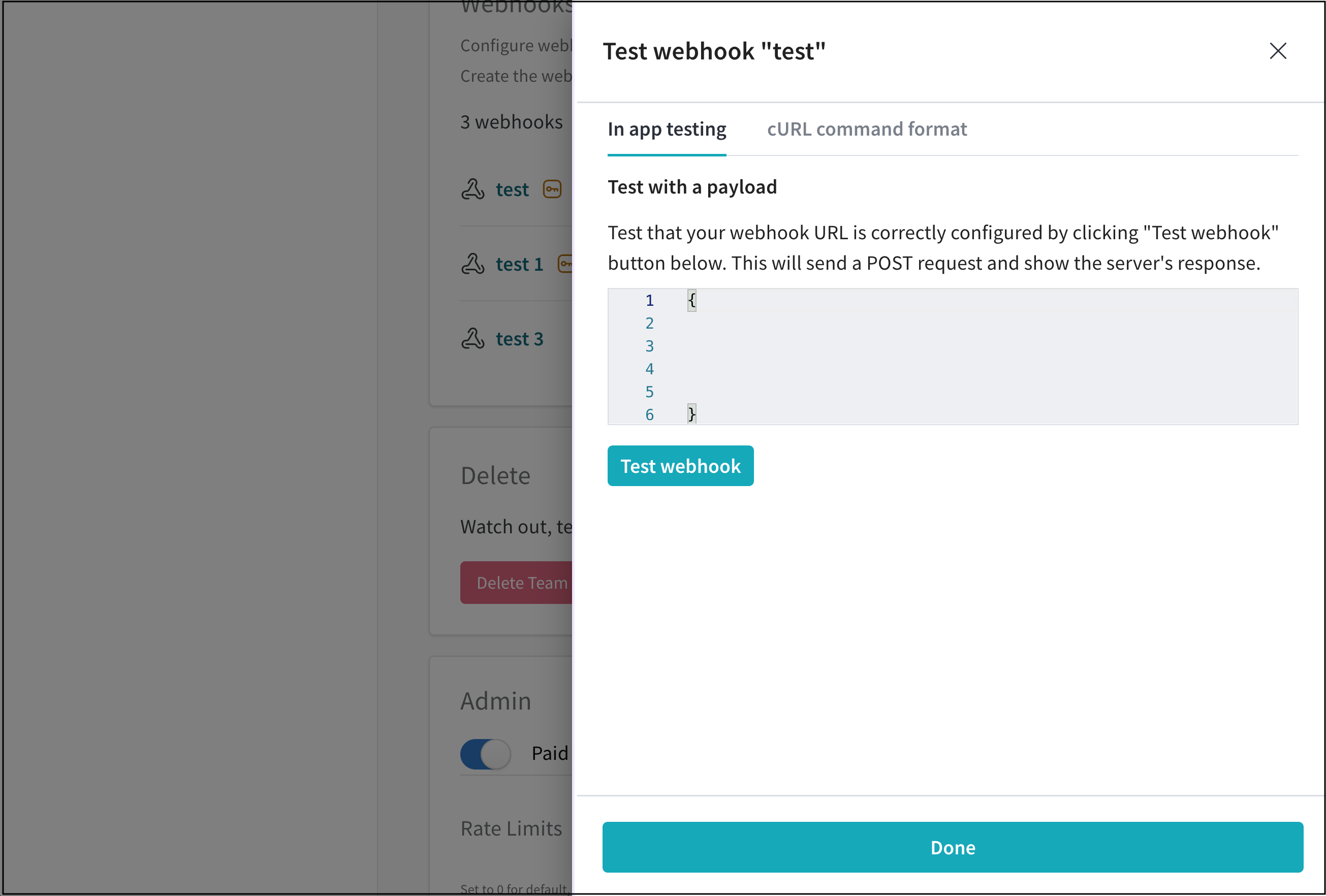 6. Click **Test webhook**. Within the W\&B App UI, W\&B posts the response from your endpoint.
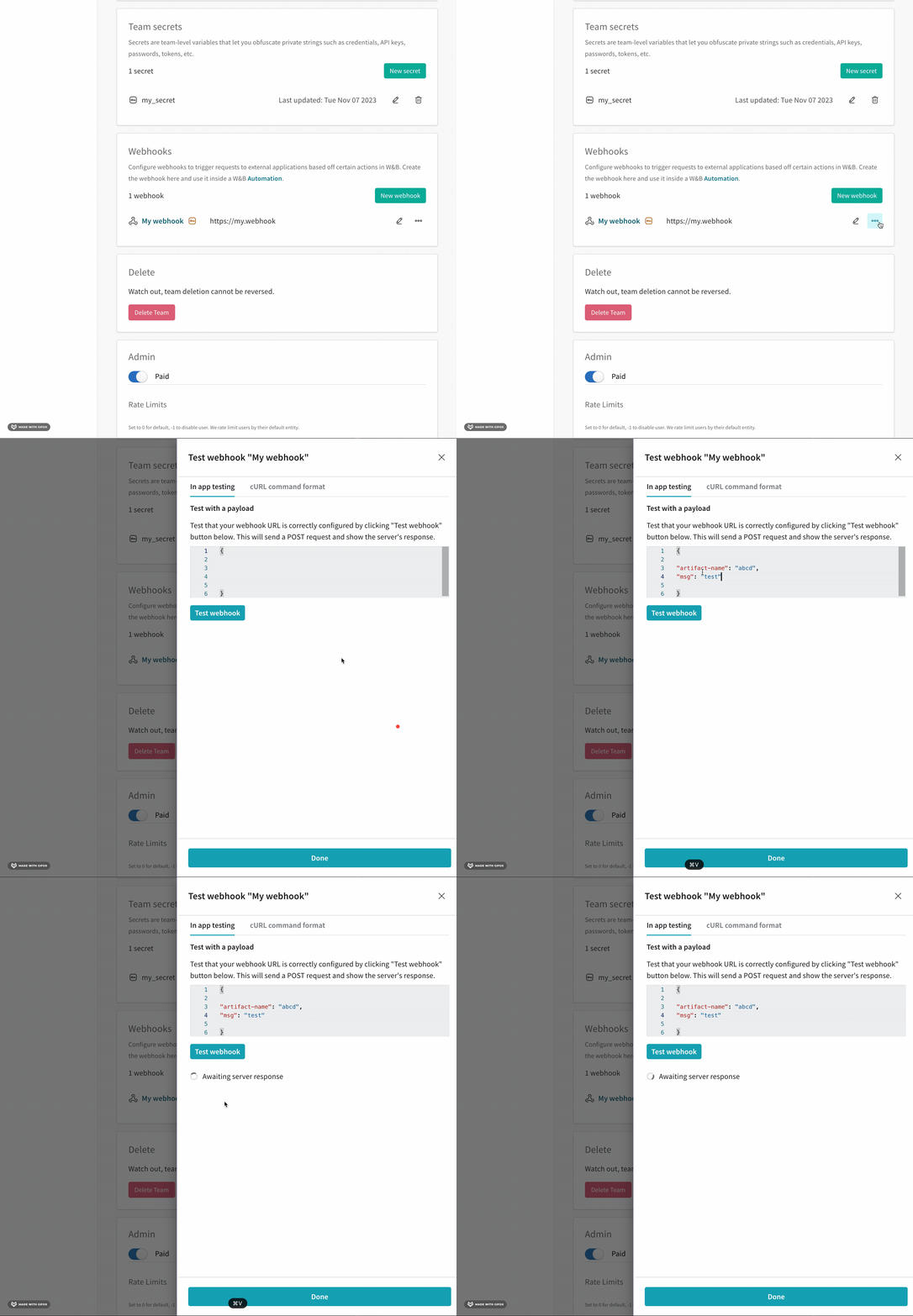 Watch the video [Testing Webhooks in W\&B](https://www.youtube.com/watch?v=bl44fDpMGJw\&ab_channel=Weights%26Biases) for a demonstration.
This shell script shows one method to generate a `POST` request similar to the request W\&B sends to your webhook automation when it's triggered.
Copy and paste the following code into a shell script to troubleshoot your webhook. Specify your own values for:
* `ACCESS_TOKEN`
* `SECRET`
* `PAYLOAD`
* `API_ENDPOINT`
```bash webhook_test.sh theme={null}
#!/bin/bash
# Your access token and secret
ACCESS_TOKEN="your_api_key"
SECRET="your_api_secret"
# URL of your webhook endpoint
API_ENDPOINT="https://your.webhook.endpoint/path"
# The data you want to send (for example, in JSON format)
PAYLOAD='{"key1": "value1", "key2": "value2"}'
# Generate the HMAC signature. For security, W&B includes the
# X-Wandb-Signature header computed from the payload and the shared secret
# associated with the webhook using HMAC with SHA-256.
SIGNATURE=$(echo -n "$PAYLOAD" | openssl dgst -sha256 -hmac "$SECRET" | awk '{print $2}')
# Make the cURL request
curl -X POST \
-H "Content-Type: application/json" \
-H "Authorization: Bearer $ACCESS_TOKEN" \
-H "X-Wandb-Signature: $SIGNATURE" \
-d "$PAYLOAD" "$API_ENDPOINT"
```
Watch the video [Testing Webhooks in W\&B](https://www.youtube.com/watch?v=bl44fDpMGJw\&ab_channel=Weights%26Biases) for a demonstration.
This shell script shows one method to generate a `POST` request similar to the request W\&B sends to your webhook automation when it's triggered.
Copy and paste the following code into a shell script to troubleshoot your webhook. Specify your own values for:
* `ACCESS_TOKEN`
* `SECRET`
* `PAYLOAD`
* `API_ENDPOINT`
```bash webhook_test.sh theme={null}
#!/bin/bash
# Your access token and secret
ACCESS_TOKEN="your_api_key"
SECRET="your_api_secret"
# URL of your webhook endpoint
API_ENDPOINT="https://your.webhook.endpoint/path"
# The data you want to send (for example, in JSON format)
PAYLOAD='{"key1": "value1", "key2": "value2"}'
# Generate the HMAC signature. For security, W&B includes the
# X-Wandb-Signature header computed from the payload and the shared secret
# associated with the webhook using HMAC with SHA-256.
SIGNATURE=$(echo -n "$PAYLOAD" | openssl dgst -sha256 -hmac "$SECRET" | awk '{print $2}')
# Make the cURL request
curl -X POST \
-H "Content-Type: application/json" \
-H "Authorization: Bearer $ACCESS_TOKEN" \
-H "X-Wandb-Signature: $SIGNATURE" \
-d "$PAYLOAD" "$API_ENDPOINT"
```