", num_labels=num_labels
)
# your awesome training arguments here.
training_args = TrainingArguments()
trainer = Trainer(model=model, args=training_args)
# make sure use the checkpoint dir to resume training from the checkpoint
trainer.train(resume_from_checkpoint=checkpoint_dir)
```
### How do I log and view evaluation samples during training
Logging to W\&B via the Transformers `Trainer` is taken care of by the [`WandbCallback`](https://huggingface.co/transformers/main_classes/callback.html#transformers.integrations.WandbCallback) in the Transformers library. If you need to customize your Hugging Face logging you can modify this callback by subclassing `WandbCallback` and adding additional functionality that leverages additional methods from the Trainer class.
Below is the general pattern to add this new callback to the HF Trainer, and further down is a code-complete example to log evaluation outputs to a W\&B Table:
```python theme={null}
# Instantiate the Trainer as normal
trainer = Trainer()
# Instantiate the new logging callback, passing it the Trainer object
evals_callback = WandbEvalsCallback(trainer, tokenizer, ...)
# Add the callback to the Trainer
trainer.add_callback(evals_callback)
# Begin Trainer training as normal
trainer.train()
```
#### View evaluation samples during training
The following section shows how to customize the `WandbCallback` to run model predictions and log evaluation samples to a W\&B Table during training. We will every `eval_steps` using the `on_evaluate` method of the Trainer callback.
Here, we wrote a `decode_predictions` function to decode the predictions and labels from the model output using the tokenizer.
Then, we create a pandas DataFrame from the predictions and labels and add an `epoch` column to the DataFrame.
Finally, we create a `wandb.Table` from the DataFrame and log it to wandb.
Additionally, we can control the frequency of logging by logging the predictions every `freq` epochs.
**Note**: Unlike the regular `WandbCallback` this custom callback needs to be added to the trainer **after** the `Trainer` is instantiated and not during initialization of the `Trainer`.
This is because the `Trainer` instance is passed to the callback during initialization.
```python theme={null}
from transformers.integrations import WandbCallback
import pandas as pd
def decode_predictions(tokenizer, predictions):
labels = tokenizer.batch_decode(predictions.label_ids)
logits = predictions.predictions.argmax(axis=-1)
prediction_text = tokenizer.batch_decode(logits)
return {"labels": labels, "predictions": prediction_text}
class WandbPredictionProgressCallback(WandbCallback):
"""Custom WandbCallback to log model predictions during training.
This callback logs model predictions and labels to a wandb.Table at each
logging step during training. It allows to visualize the
model predictions as the training progresses.
Attributes:
trainer (Trainer): The Hugging Face Trainer instance.
tokenizer (AutoTokenizer): The tokenizer associated with the model.
sample_dataset (Dataset): A subset of the validation dataset
for generating predictions.
num_samples (int, optional): Number of samples to select from
the validation dataset for generating predictions. Defaults to 100.
freq (int, optional): Frequency of logging. Defaults to 2.
"""
def __init__(self, trainer, tokenizer, val_dataset, num_samples=100, freq=2):
"""Initializes the WandbPredictionProgressCallback instance.
Args:
trainer (Trainer): The Hugging Face Trainer instance.
tokenizer (AutoTokenizer): The tokenizer associated
with the model.
val_dataset (Dataset): The validation dataset.
num_samples (int, optional): Number of samples to select from
the validation dataset for generating predictions.
Defaults to 100.
freq (int, optional): Frequency of logging. Defaults to 2.
"""
super().__init__()
self.trainer = trainer
self.tokenizer = tokenizer
self.sample_dataset = val_dataset.select(range(num_samples))
self.freq = freq
def on_evaluate(self, args, state, control, **kwargs):
super().on_evaluate(args, state, control, **kwargs)
# control the frequency of logging by logging the predictions
# every `freq` epochs
if state.epoch % self.freq == 0:
# generate predictions
predictions = self.trainer.predict(self.sample_dataset)
# decode predictions and labels
predictions = decode_predictions(self.tokenizer, predictions)
# add predictions to a wandb.Table
predictions_df = pd.DataFrame(predictions)
predictions_df["epoch"] = state.epoch
records_table = self._wandb.Table(dataframe=predictions_df)
# log the table to wandb
self._wandb.log({"sample_predictions": records_table})
# First, instantiate the Trainer
trainer = Trainer(
model=model,
args=training_args,
train_dataset=lm_datasets["train"],
eval_dataset=lm_datasets["validation"],
)
# Instantiate the WandbPredictionProgressCallback
progress_callback = WandbPredictionProgressCallback(
trainer=trainer,
tokenizer=tokenizer,
val_dataset=lm_dataset["validation"],
num_samples=10,
freq=2,
)
# Add the callback to the trainer
trainer.add_callback(progress_callback)
```
For a more detailed example please refer to this [colab](https://colab.research.google.com/github/wandb/examples/blob/master/colabs/huggingface/Custom_Progress_Callback.ipynb)
### What additional W\&B settings are available?
Further configuration of what is logged with `Trainer` is possible by setting environment variables. A full list of W\&B environment variables [can be found here](/platform/hosting/env-vars).
| Environment Variable | Usage |
| -------------------- | ------------------------------------------------------------------------------------------------------------------------------------------------------------------------------------------------------------------------------------------------------------------------------------------------------------------------------------------------------------------------------ |
| `WANDB_PROJECT` | Give your project a name (`huggingface` by default) |
| `WANDB_LOG_MODEL` | Log the model checkpoint as a W\&B Artifact (`false` by default)
false (default): No model checkpointing checkpoint: A checkpoint will be uploaded every args.save\_steps (set in the Trainer's TrainingArguments). end: The final model checkpoint will be uploaded at the end of training.
|
| `WANDB_WATCH` | Set whether you'd like to log your models gradients, parameters or neither
false (default): No gradient or parameter logging gradients: Log histograms of the gradients all: Log histograms of gradients and parameters
|
| `WANDB_DISABLED` | Set to `true` to turn off logging entirely (`false` by default) |
| `WANDB_QUIET`. | Set to `true` to limit statements logged to standard output to critical statements only (`false` by default) |
| `WANDB_SILENT` | Set to `true` to silence the output printed by wandb (`false` by default) |
```bash theme={null}
WANDB_WATCH=all
WANDB_SILENT=true
```
```notebook theme={null}
%env WANDB_WATCH=all
%env WANDB_SILENT=true
```
### How do I customize `wandb.init()`?
The `WandbCallback` that `Trainer` uses will call `wandb.init()` under the hood when `Trainer` is initialized. You can alternatively set up your runs manually by calling `wandb.init()` before the`Trainer` is initialized. This gives you full control over your W\&B run configuration.
An example of what you might want to pass to `init` is below. For `wandb.init()` details, see the [`wandb.init()` reference](/models/ref/python/functions/init).
```python theme={null}
wandb.init(
project="amazon_sentiment_analysis",
name="bert-base-high-lr",
tags=["baseline", "high-lr"],
group="bert",
)
```
## Additional resources
Below are 6 Transformers and W\&B related articles you might enjoy
Hyperparameter Optimization for Hugging Face Transformers
* Three strategies for hyperparameter optimization for Hugging Face Transformers are compared: Grid Search, Bayesian Optimization, and Population Based Training.
* We use a standard uncased BERT model from Hugging Face transformers, and we want to fine-tune on the RTE dataset from the SuperGLUE benchmark
* Results show that Population Based Training is the most effective approach to hyperparameter optimization of our Hugging Face transformer model.
Read the [Hyperparameter Optimization for Hugging Face Transformers report](https://wandb.ai/amogkam/transformers/reports/Hyperparameter-Optimization-for-Hugging-Face-Transformers--VmlldzoyMTc2ODI).
Hugging Tweets: Train a Model to Generate Tweets
* In the article, the author demonstrates how to fine-tune a pre-trained GPT2 HuggingFace Transformer model on anyone's Tweets in five minutes.
* The model uses the following pipeline: Downloading Tweets, Optimizing the Dataset, Initial Experiments, Comparing Losses Between Users, Fine-Tuning the Model.
Read the full report [here](https://wandb.ai/wandb/huggingtweets/reports/HuggingTweets-Train-a-Model-to-Generate-Tweets--VmlldzoxMTY5MjI).
Sentence Classification With Hugging Face BERT and WB
* In this article, we'll build a sentence classifier leveraging the power of recent breakthroughs in Natural Language Processing, focusing on an application of transfer learning to NLP.
* We'll be using The Corpus of Linguistic Acceptability (CoLA) dataset for single sentence classification, which is a set of sentences labeled as grammatically correct or incorrect that was first published in May 2018.
* We'll use Google's BERT to create high performance models with minimal effort on a range of NLP tasks.
Read the full report [here](https://wandb.ai/cayush/bert-finetuning/reports/Sentence-Classification-With-Huggingface-BERT-and-W-B--Vmlldzo4MDMwNA).
A Step by Step Guide to Tracking Hugging Face Model Performance
* We use W\&B and Hugging Face transformers to train DistilBERT, a Transformer that's 40% smaller than BERT but retains 97% of BERT's accuracy, on the GLUE benchmark
* The GLUE benchmark is a collection of nine datasets and tasks for training NLP models
Read the full report [here](https://wandb.ai/jxmorris12/huggingface-demo/reports/A-Step-by-Step-Guide-to-Tracking-HuggingFace-Model-Performance--VmlldzoxMDE2MTU).
Examples of Early Stopping in HuggingFace
* Fine-tuning a Hugging Face Transformer using Early Stopping regularization can be done natively in PyTorch or TensorFlow.
* Using the EarlyStopping callback in TensorFlow is straightforward with the `tf.keras.callbacks.EarlyStopping`callback.
* In PyTorch, there is not an off-the-shelf early stopping method, but there is a working early stopping hook available on GitHub Gist.
Read the full report [here](https://wandb.ai/ayush-thakur/huggingface/reports/Early-Stopping-in-HuggingFace-Examples--Vmlldzo0MzE2MTM).
How to Fine-Tune Hugging Face Transformers on a Custom Dataset
We fine tune a DistilBERT transformer for sentiment analysis (binary classification) on a custom IMDB dataset.
Read the full report [here](https://wandb.ai/ayush-thakur/huggingface/reports/How-to-Fine-Tune-HuggingFace-Transformers-on-a-Custom-Dataset--Vmlldzo0MzQ2MDc).
## Get help or request features
For any issues, questions, or feature requests for the Hugging Face W\&B integration, feel free to post in [this thread on the Hugging Face forums](https://discuss.huggingface.co/t/logging-experiment-tracking-with-w-b/498) or open an issue on the Hugging Face [Transformers GitHub repo](https://github.com/huggingface/transformers).
 ### Finish your W\&B Run (Notebook only)
If your training is encapsulated in a Python script, the W\&B run will end when your script finishes.
If you are using a Jupyter or Google Colab notebook, you'll need to tell us when you're done with training by calling `run.finish()`.
```python theme={null}
run = wandb.init()
trainer.train() # start training and logging to W&B
# post-training analysis, testing, other logged code
run.finish()
```
### Visualize your results
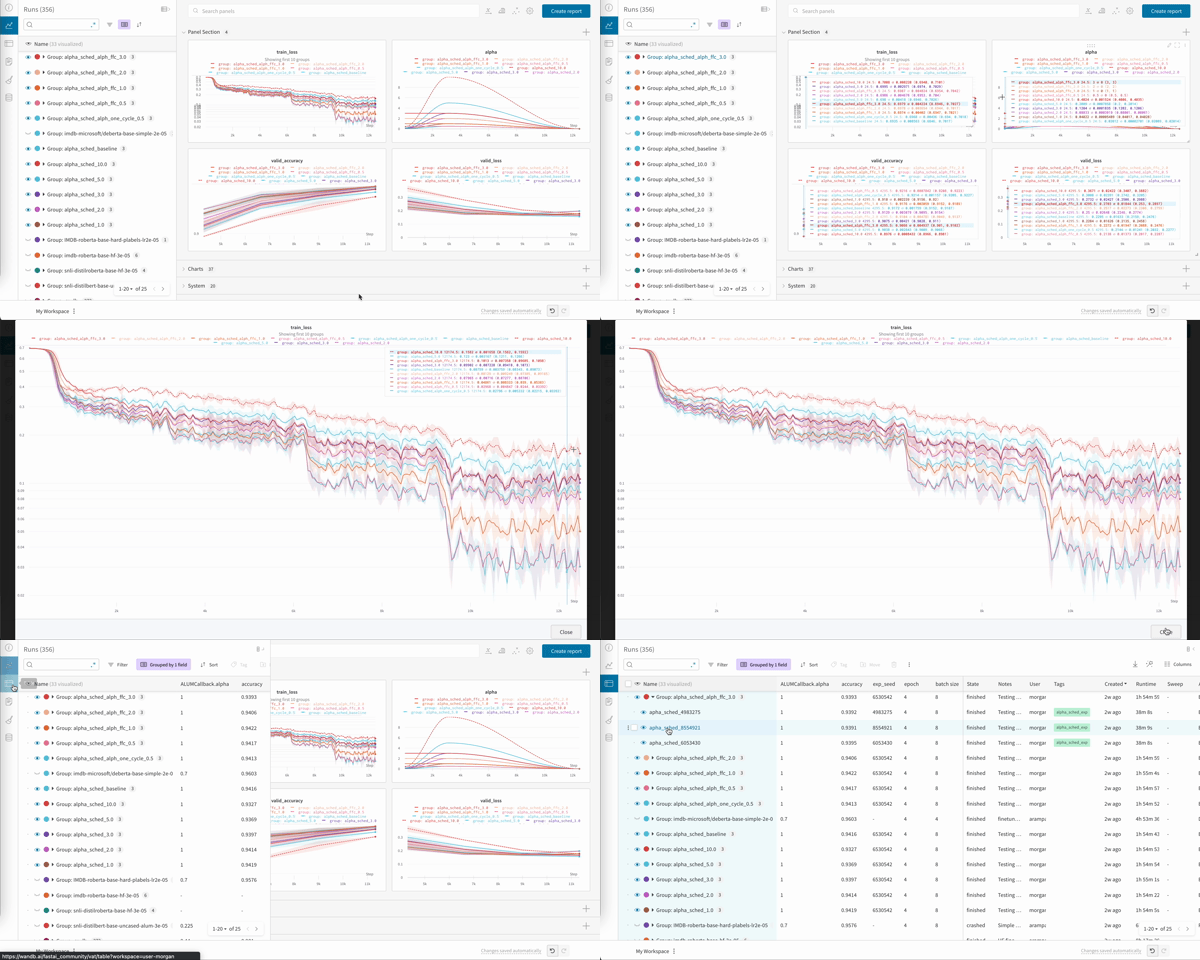
Once you have logged your training results you can explore your results dynamically in the [W\&B Dashboard](/models/track/workspaces/). It's easy to compare across dozens of runs at once, zoom in on interesting findings, and coax insights out of complex data with flexible, interactive visualizations.
## Advanced features and FAQs
### How do I save the best model?
If you pass `TrainingArguments` with `load_best_model_at_end=True` to your `Trainer`, W\&B saves the best performing model checkpoint to Artifacts.
If you save your model checkpoints as Artifacts, you can promote them to the [Registry](/models/registry/). In Registry, you can:
* Organize your best model versions by ML task.
* Centralize models and share them with your team.
* Stage models for production or bookmark them for further evaluation.
* Trigger downstream CI/CD processes.
### How do I load a saved model?
If you saved your model to W\&B Artifacts with `WANDB_LOG_MODEL`, you can download your model weights for additional training or to run inference. You just load them back into the same Hugging Face architecture that you used before.
```python theme={null}
# Create a new run
with wandb.init(project="amazon_sentiment_analysis") as run:
# Pass the name and version of Artifact
my_model_name = "model-bert-base-high-lr:latest"
my_model_artifact = run.use_artifact(my_model_name)
# Download model weights to a folder and return the path
model_dir = my_model_artifact.download()
# Load your Hugging Face model from that folder
# using the same model class
model = AutoModelForSequenceClassification.from_pretrained(
model_dir, num_labels=num_labels
)
# Do additional training, or run inference
```
### How do I resume training from a checkpoint?
If you had set `WANDB_LOG_MODEL='checkpoint'` you can also resume training by you can using the `model_dir` as the `model_name_or_path` argument in your `TrainingArguments` and pass `resume_from_checkpoint=True` to `Trainer`.
```python theme={null}
last_run_id = "xxxxxxxx" # fetch the run_id from your wandb workspace
# resume the wandb run from the run_id
with wandb.init(
project=os.environ["WANDB_PROJECT"],
id=last_run_id,
resume="must",
) as run:
# Connect an Artifact to the run
my_checkpoint_name = f"checkpoint-{last_run_id}:latest"
my_checkpoint_artifact = run.use_artifact(my_model_name)
# Download checkpoint to a folder and return the path
checkpoint_dir = my_checkpoint_artifact.download()
# reinitialize your model and trainer
model = AutoModelForSequenceClassification.from_pretrained(
"
### Finish your W\&B Run (Notebook only)
If your training is encapsulated in a Python script, the W\&B run will end when your script finishes.
If you are using a Jupyter or Google Colab notebook, you'll need to tell us when you're done with training by calling `run.finish()`.
```python theme={null}
run = wandb.init()
trainer.train() # start training and logging to W&B
# post-training analysis, testing, other logged code
run.finish()
```
### Visualize your results
Once you have logged your training results you can explore your results dynamically in the [W\&B Dashboard](/models/track/workspaces/). It's easy to compare across dozens of runs at once, zoom in on interesting findings, and coax insights out of complex data with flexible, interactive visualizations.
## Advanced features and FAQs
### How do I save the best model?
If you pass `TrainingArguments` with `load_best_model_at_end=True` to your `Trainer`, W\&B saves the best performing model checkpoint to Artifacts.
If you save your model checkpoints as Artifacts, you can promote them to the [Registry](/models/registry/). In Registry, you can:
* Organize your best model versions by ML task.
* Centralize models and share them with your team.
* Stage models for production or bookmark them for further evaluation.
* Trigger downstream CI/CD processes.
### How do I load a saved model?
If you saved your model to W\&B Artifacts with `WANDB_LOG_MODEL`, you can download your model weights for additional training or to run inference. You just load them back into the same Hugging Face architecture that you used before.
```python theme={null}
# Create a new run
with wandb.init(project="amazon_sentiment_analysis") as run:
# Pass the name and version of Artifact
my_model_name = "model-bert-base-high-lr:latest"
my_model_artifact = run.use_artifact(my_model_name)
# Download model weights to a folder and return the path
model_dir = my_model_artifact.download()
# Load your Hugging Face model from that folder
# using the same model class
model = AutoModelForSequenceClassification.from_pretrained(
model_dir, num_labels=num_labels
)
# Do additional training, or run inference
```
### How do I resume training from a checkpoint?
If you had set `WANDB_LOG_MODEL='checkpoint'` you can also resume training by you can using the `model_dir` as the `model_name_or_path` argument in your `TrainingArguments` and pass `resume_from_checkpoint=True` to `Trainer`.
```python theme={null}
last_run_id = "xxxxxxxx" # fetch the run_id from your wandb workspace
# resume the wandb run from the run_id
with wandb.init(
project=os.environ["WANDB_PROJECT"],
id=last_run_id,
resume="must",
) as run:
# Connect an Artifact to the run
my_checkpoint_name = f"checkpoint-{last_run_id}:latest"
my_checkpoint_artifact = run.use_artifact(my_model_name)
# Download checkpoint to a folder and return the path
checkpoint_dir = my_checkpoint_artifact.download()
# reinitialize your model and trainer
model = AutoModelForSequenceClassification.from_pretrained(
"