> ## Documentation Index
> Fetch the complete documentation index at: https://docs.wandb.ai/llms.txt
> Use this file to discover all available pages before exploring further.
# PyTorch Lightning
> Use W&B with PyTorch Lightning through the built-in WandbLogger for experiment tracking and model checkpointing.
export const ColabLink = ({url}) =>
Try in Colab
;
{/* */}
PyTorch Lightning provides a lightweight wrapper for organizing your PyTorch code and easily adding advanced features such as distributed training and 16-bit precision. W\&B provides a lightweight wrapper for logging your ML experiments. But you don't need to combine the two yourself: W\&B is incorporated directly into the PyTorch Lightning library via the [`WandbLogger`](https://lightning.ai/docs/pytorch/stable/api/lightning.pytorch.loggers.wandb.html#module-lightning.pytorch.loggers.wandb).
## Integrate with Lightning
```python theme={null}
from lightning.pytorch.loggers import WandbLogger
from lightning.pytorch import Trainer
wandb_logger = WandbLogger(log_model="all")
trainer = Trainer(logger=wandb_logger)
```
**Using wandb.log():** The `WandbLogger` logs to W\&B using the Trainer's `global_step`. If you make additional calls to `wandb.log()` directly in your code, **do not** use the `step` argument in `wandb.log()`.
Instead, log the Trainer's `global_step` like your other metrics:
```python theme={null}
wandb.log({"accuracy":0.99, "trainer/global_step": step})
```
```python theme={null}
import lightning as L
from wandb.integration.lightning.fabric import WandbLogger
wandb_logger = WandbLogger(log_model="all")
fabric = L.Fabric(loggers=[wandb_logger])
fabric.launch()
fabric.log_dict({"important_metric": important_metric})
```
### Sign up and create an API key
An API key authenticates your machine to W\&B. You can generate an API key from your user profile.
For a more streamlined approach, create an API key by going directly to [User Settings](https://wandb.ai/settings). Copy the newly created API key immediately and save it in a secure location such as a password manager.
1. Click your user profile icon in the upper right corner.
2. Select **User Settings**, then scroll to the **API Keys** section.
### Install the `wandb` library and log in
To install the `wandb` library locally and log in:
1. Set the `WANDB_API_KEY` [environment variable](/models/track/environment-variables/) to your API key.
```bash theme={null}
export WANDB_API_KEY=
```
2. Install the `wandb` library and log in.
```shell theme={null}
pip install wandb
wandb login
```
```bash theme={null}
pip install wandb
```
```python theme={null}
import wandb
wandb.login()
```
```notebook theme={null}
!pip install wandb
import wandb
wandb.login()
```
## Use PyTorch Lightning's `WandbLogger`
PyTorch Lightning has multiple `WandbLogger` classes to log metrics and model weights, media, and more.
* [`PyTorch`](https://lightning.ai/docs/pytorch/stable/api/lightning.pytorch.loggers.wandb.html#module-lightning.pytorch.loggers.wandb)
* [`Fabric`](https://lightning.ai/docs/pytorch/stable/api/lightning.pytorch.loggers.wandb.html#module-lightning.pytorch.loggers.wandb)
To integrate with Lightning, instantiate the `WandbLogger` and pass it to Lightning's `Trainer` or `Fabric`.
```python theme={null}
trainer = Trainer(logger=wandb_logger)
```
```python theme={null}
fabric = L.Fabric(loggers=[wandb_logger])
fabric.launch()
fabric.log_dict({
"important_metric": important_metric
})
```
### Common logger arguments
Below are some of the most used parameters in `WandbLogger`. Review the PyTorch Lightning documentation for details about all logger arguments.
* [`PyTorch`](https://lightning.ai/docs/pytorch/stable/api/lightning.pytorch.loggers.wandb.html#module-lightning.pytorch.loggers.wandb)
* [`Fabric`](https://lightning.ai/docs/pytorch/stable/api/lightning.pytorch.loggers.wandb.html#module-lightning.pytorch.loggers.wandb)
| Parameter | Description |
| ----------- | ----------------------------------------------------------------------------- |
| `project` | Define what wandb Project to log to |
| `name` | Give a name to your wandb run |
| `log_model` | Log all models if `log_model="all"` or at end of training if `log_model=True` |
| `save_dir` | Path where data is saved |
## Log your hyperparameters
```python theme={null}
class LitModule(LightningModule):
def __init__(self, *args, **kwarg):
self.save_hyperparameters()
```
```python theme={null}
wandb_logger.log_hyperparams(
{
"hyperparameter_1": hyperparameter_1,
"hyperparameter_2": hyperparameter_2,
}
)
```
## Log additional config parameters
```python theme={null}
# add one parameter
wandb_logger.experiment.config["key"] = value
# add multiple parameters
wandb_logger.experiment.config.update({key1: val1, key2: val2})
# use directly wandb module
wandb.config["key"] = value
wandb.config.update()
```
## Log gradients, parameter histogram and model topology
You can pass your model object to `wandblogger.watch()` to monitor your models's gradients and parameters as you train. See the PyTorch Lightning `WandbLogger` documentation
## Log metrics
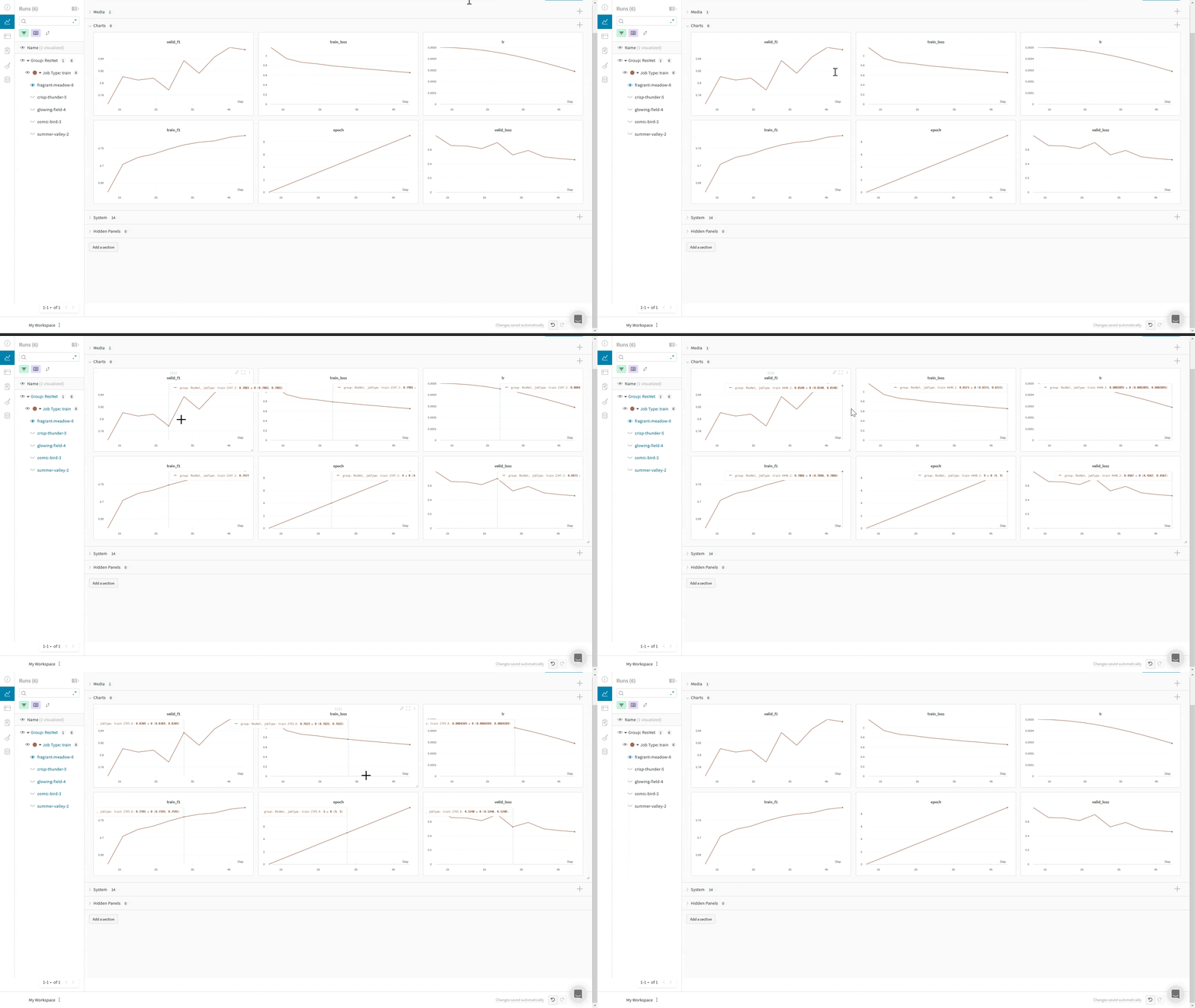
You can log your metrics to W\&B when using the `WandbLogger` by calling `self.log('my_metric_name', metric_vale)` within your `LightningModule`, such as in your `training_step` or `validation_step methods.`
The code snippet below shows how to define your `LightningModule` to log your metrics and your `LightningModule` hyperparameters. This example uses the [`torchmetrics`](https://github.com/Lightning-AI/torchmetrics) library to calculate your metrics
```python theme={null}
import torch
from torch.nn import Linear, CrossEntropyLoss, functional as F
from torch.optim import Adam
from torchmetrics.functional import accuracy
from lightning.pytorch import LightningModule
class My_LitModule(LightningModule):
def __init__(self, n_classes=10, n_layer_1=128, n_layer_2=256, lr=1e-3):
"""method used to define the model parameters"""
super().__init__()
# mnist images are (1, 28, 28) (channels, width, height)
self.layer_1 = Linear(28 * 28, n_layer_1)
self.layer_2 = Linear(n_layer_1, n_layer_2)
self.layer_3 = Linear(n_layer_2, n_classes)
self.loss = CrossEntropyLoss()
self.lr = lr
# save hyper-parameters to self.hparams (auto-logged by W&B)
self.save_hyperparameters()
def forward(self, x):
"""method used for inference input -> output"""
# (b, 1, 28, 28) -> (b, 1*28*28)
batch_size, channels, width, height = x.size()
x = x.view(batch_size, -1)
# let's do 3 x (linear + relu)
x = F.relu(self.layer_1(x))
x = F.relu(self.layer_2(x))
x = self.layer_3(x)
return x
def training_step(self, batch, batch_idx):
"""needs to return a loss from a single batch"""
_, loss, acc = self._get_preds_loss_accuracy(batch)
# Log loss and metric
self.log("train_loss", loss)
self.log("train_accuracy", acc)
return loss
def validation_step(self, batch, batch_idx):
"""used for logging metrics"""
preds, loss, acc = self._get_preds_loss_accuracy(batch)
# Log loss and metric
self.log("val_loss", loss)
self.log("val_accuracy", acc)
return preds
def configure_optimizers(self):
"""defines model optimizer"""
return Adam(self.parameters(), lr=self.lr)
def _get_preds_loss_accuracy(self, batch):
"""convenience function since train/valid/test steps are similar"""
x, y = batch
logits = self(x)
preds = torch.argmax(logits, dim=1)
loss = self.loss(logits, y)
acc = accuracy(preds, y)
return preds, loss, acc
```
```python theme={null}
import lightning as L
import torch
import torchvision as tv
from wandb.integration.lightning.fabric import WandbLogger
import wandb
fabric = L.Fabric(loggers=[wandb_logger])
fabric.launch()
model = tv.models.resnet18()
optimizer = torch.optim.SGD(model.parameters(), lr=lr)
model, optimizer = fabric.setup(model, optimizer)
train_dataloader = fabric.setup_dataloaders(
torch.utils.data.DataLoader(train_dataset, batch_size=batch_size)
)
model.train()
for epoch in range(num_epochs):
for batch in train_dataloader:
optimizer.zero_grad()
loss = model(batch)
loss.backward()
optimizer.step()
fabric.log_dict({"loss": loss})
```
## Log the min/max of a metric
Using wandb's [`define_metric`](/models/ref/python/experiments/run#define_metric) function you can define whether you'd like your W\&B summary metric to display the min, max, mean or best value for that metric. If `define`\_`metric` \_ isn't used, then the last value logged with appear in your summary metrics. See the `define_metric` [reference docs here](/models/ref/python/experiments/run#define_metric) and the [guide here](/models/track/log/customize-logging-axes/) for more.
To tell W\&B to keep track of the max validation accuracy in the W\&B summary metric, call `wandb.define_metric()` only once, at the beginning of training:
```python theme={null}
class My_LitModule(LightningModule):
...
def validation_step(self, batch, batch_idx):
if trainer.global_step == 0:
wandb.define_metric("val_accuracy", summary="max")
preds, loss, acc = self._get_preds_loss_accuracy(batch)
# Log loss and metric
self.log("val_loss", loss)
self.log("val_accuracy", acc)
return preds
```
```python theme={null}
wandb.define_metric("val_accuracy", summary="max")
fabric = L.Fabric(loggers=[wandb_logger])
fabric.launch()
fabric.log_dict({"val_accuracy": val_accuracy})
```
## Checkpoint a model
To save model checkpoints as W\&B [Artifacts](/models/artifacts/),
use the Lightning [`ModelCheckpoint`](https://lightning.ai/docs/pytorch/stable/api/lightning.pytorch.callbacks.ModelCheckpoint.html) callback and set the `log_model` argument in the `WandbLogger`.
```python theme={null}
trainer = Trainer(logger=wandb_logger, callbacks=[checkpoint_callback])
```
```python theme={null}
fabric = L.Fabric(loggers=[wandb_logger], callbacks=[checkpoint_callback])
```
The *latest* and *best* aliases are automatically set to easily retrieve a model checkpoint from a W\&B [Artifact](/models/artifacts/):
```python theme={null}
# reference can be retrieved in artifacts panel
# "VERSION" can be a version (ex: "v2") or an alias ("latest or "best")
checkpoint_reference = "USER/PROJECT/MODEL-RUN_ID:VERSION"
```
```python theme={null}
# download checkpoint locally (if not already cached)
wandb_logger.download_artifact(checkpoint_reference, artifact_type="model")
```
```python theme={null}
# download checkpoint locally (if not already cached)
run = wandb.init(project="MNIST")
artifact = run.use_artifact(checkpoint_reference, type="model")
artifact_dir = artifact.download()
```
```python theme={null}
# load checkpoint
model = LitModule.load_from_checkpoint(Path(artifact_dir) / "model.ckpt")
```
```python theme={null}
# Request the raw checkpoint
full_checkpoint = fabric.load(Path(artifact_dir) / "model.ckpt")
model.load_state_dict(full_checkpoint["model"])
optimizer.load_state_dict(full_checkpoint["optimizer"])
```
The model checkpoints you log are viewable through the [W\&B Artifacts](/models/artifacts/) UI, and include the full model lineage (see an example model checkpoint in the UI [here](https://wandb.ai/wandb/arttest/artifacts/model/iv3_trained/5334ab69740f9dda4fed/lineage?_gl=1*yyql5q*_ga*MTQxOTYyNzExOS4xNjg0NDYyNzk1*_ga_JH1SJHJQXJ*MTY5MjMwNzI2Mi4yNjkuMS4xNjkyMzA5NjM2LjM3LjAuMA..)).
To bookmark your best model checkpoints and centralize them across your team, you can link them to the [W\&B Model Registry](/models).
Here you can organize your best models by task, manage model lifecycle, facilitate easy tracking and auditing throughout the ML lifecycle, and [automate](/models/automations/) downstream actions with webhooks or jobs.
## Log images, text, and more
The `WandbLogger` has `log_image`, `log_text` and `log_table` methods for logging media.
You can also directly call `wandb.log()` or `trainer.logger.experiment.log()` to log other media types such as Audio, Molecules, Point Clouds, 3D Objects and more.
```python theme={null}
# using tensors, numpy arrays or PIL images
wandb_logger.log_image(key="samples", images=[img1, img2])
# adding captions
wandb_logger.log_image(key="samples", images=[img1, img2], caption=["tree", "person"])
# using file path
wandb_logger.log_image(key="samples", images=["img_1.jpg", "img_2.jpg"])
# using .log in the trainer
trainer.logger.experiment.log(
{"samples": [wandb.Image(img, caption=caption) for (img, caption) in my_images]},
step=current_trainer_global_step,
)
```
```python theme={null}
# data should be a list of lists
columns = ["input", "label", "prediction"]
my_data = [["cheese", "english", "english"], ["fromage", "french", "spanish"]]
# using columns and data
wandb_logger.log_text(key="my_samples", columns=columns, data=my_data)
# using a pandas DataFrame
wandb_logger.log_text(key="my_samples", dataframe=my_dataframe)
```
```python theme={null}
# log a W&B Table that has a text caption, an image and audio
columns = ["caption", "image", "sound"]
# data should be a list of lists
my_data = [
["cheese", wandb.Image(img_1), wandb.Audio(snd_1)],
["wine", wandb.Image(img_2), wandb.Audio(snd_2)],
]
# log the Table
wandb_logger.log_table(key="my_samples", columns=columns, data=data)
```
You can use Lightning's Callbacks system to control when you log to W\&B via the `WandbLogger`, in this example we log a sample of our validation images and predictions:
```python theme={null}
import torch
import wandb
import lightning.pytorch as pl
from lightning.pytorch.loggers import WandbLogger
# or
# from wandb.integration.lightning.fabric import WandbLogger
class LogPredictionSamplesCallback(Callback):
def on_validation_batch_end(
self, trainer, pl_module, outputs, batch, batch_idx, dataloader_idx
):
"""Called when the validation batch ends."""
# `outputs` comes from `LightningModule.validation_step`
# which corresponds to our model predictions in this case
# Let's log 20 sample image predictions from the first batch
if batch_idx == 0:
n = 20
x, y = batch
images = [img for img in x[:n]]
captions = [
f"Ground Truth: {y_i} - Prediction: {y_pred}"
for y_i, y_pred in zip(y[:n], outputs[:n])
]
# Option 1: log images with `WandbLogger.log_image`
wandb_logger.log_image(key="sample_images", images=images, caption=captions)
# Option 2: log images and predictions as a W&B Table
columns = ["image", "ground truth", "prediction"]
data = [
[wandb.Image(x_i), y_i, y_pred] or x_i,
y_i,
y_pred in list(zip(x[:n], y[:n], outputs[:n])),
]
wandb_logger.log_table(key="sample_table", columns=columns, data=data)
trainer = pl.Trainer(callbacks=[LogPredictionSamplesCallback()])
```
## Use multiple GPUs with Lightning and W\&B
PyTorch Lightning has Multi-GPU support through their DDP Interface. However, PyTorch Lightning's design requires you to be careful about how you instantiate our GPUs.
Lightning assumes that each GPU (or Rank) in your training loop must be instantiated in exactly the same way - with the same initial conditions. However, only rank 0 process gets access to the `wandb.run` object, and for non-zero rank processes: `wandb.run = None`. This could cause your non-zero processes to fail. Such a situation can put you in a **deadlock** because rank 0 process will wait for the non-zero rank processes to join, which have already crashed.
For this reason, be careful about how we set up your training code. The recommended way to set it up would be to have your code be independent of the `wandb.run` object.
```python theme={null}
class MNISTClassifier(pl.LightningModule):
def __init__(self):
super(MNISTClassifier, self).__init__()
self.model = nn.Sequential(
nn.Flatten(),
nn.Linear(28 * 28, 128),
nn.ReLU(),
nn.Linear(128, 10),
)
self.loss = nn.CrossEntropyLoss()
def forward(self, x):
return self.model(x)
def training_step(self, batch, batch_idx):
x, y = batch
y_hat = self.forward(x)
loss = self.loss(y_hat, y)
self.log("train/loss", loss)
return {"train_loss": loss}
def validation_step(self, batch, batch_idx):
x, y = batch
y_hat = self.forward(x)
loss = self.loss(y_hat, y)
self.log("val/loss", loss)
return {"val_loss": loss}
def configure_optimizers(self):
return torch.optim.Adam(self.parameters(), lr=0.001)
def main():
# Setting all the random seeds to the same value.
# This is important in a distributed training setting.
# Each rank will get its own set of initial weights.
# If they don't match up, the gradients will not match either,
# leading to training that may not converge.
pl.seed_everything(1)
train_loader = DataLoader(train_dataset, batch_size=64, shuffle=True, num_workers=4)
val_loader = DataLoader(val_dataset, batch_size=64, shuffle=False, num_workers=4)
model = MNISTClassifier()
wandb_logger = WandbLogger(project="")
callbacks = [
ModelCheckpoint(
dirpath="checkpoints",
every_n_train_steps=100,
),
]
trainer = pl.Trainer(
max_epochs=3, gpus=2, logger=wandb_logger, strategy="ddp", callbacks=callbacks
)
trainer.fit(model, train_loader, val_loader)
```
## Examples
You can follow along in a [video tutorial with a Colab notebook](https://wandb.me/lit-colab).
## Frequently asked questions
### How does W\&B integrate with Lightning?
The core integration is based on the [Lightning `loggers` API](https://lightning.ai/docs/pytorch/stable/extensions/logging.html), which lets you write much of your logging code in a framework-agnostic way. `Logger`s are passed to the [Lightning `Trainer`](https://lightning.ai/docs/pytorch/stable/common/trainer.html) and are triggered based on that API's rich [hook-and-callback system](https://lightning.ai/docs/pytorch/stable/extensions/callbacks.html). This keeps your research code well-separated from engineering and logging code.
### What does the integration log without any additional code?
We'll save your model checkpoints to W\&B, where you can view them or download them for use in future runs. We'll also capture [system metrics](/models/ref/python/experiments/system-metrics), like GPU usage and network I/O, environment information, like hardware and OS information, [code state](/models/app/features/panels/code/) (including git commit and diff patch, notebook contents and session history), and anything printed to the standard out.
### What if I need to use `wandb.run` in my training setup?
You need to expand the scope of the variable you need to access yourself. In other words, make sure that the initial conditions are the same on all processes.
```python theme={null}
if os.environ.get("LOCAL_RANK", None) is None:
os.environ["WANDB_DIR"] = wandb.run.dir
```
If they are, you can use `os.environ["WANDB_DIR"]` to set up the model checkpoints directory. This way, any non-zero rank process can access `wandb.run.dir`.
 ### Sign up and create an API key
An API key authenticates your machine to W\&B. You can generate an API key from your user profile.
### Sign up and create an API key
An API key authenticates your machine to W\&B. You can generate an API key from your user profile.