> ## Documentation Index
> Fetch the complete documentation index at: https://docs.wandb.ai/llms.txt
> Use this file to discover all available pages before exploring further.
> Use tags to organize collections or artifact versions within collections. You can add, remove, edit tags with the Python SDK or W&B App UI.
# Organize versions with tags
Create and add tags to organize your collections or artifact versions within your registry. Add, modify, view, or remove tags to a collection or artifact version with the W\&B App UI or the W\&B Python SDK.
**When to use a tag versus using an alias**
Use aliases when you need to reference a specific artifact version uniquely. For example, use an alias such as 'production' or 'latest' to ensure that `artifact_name:alias` always points to a single, specific version.
Use tags when you want more flexibility for grouping or searching. Tags are ideal when multiple versions or collections can share the same label, and you don’t need the guarantee that only one version is associated with a specific identifier.
## Add a tag to a collection
Use the W\&B App UI or Python SDK to add a tag to a collection:
Use the W\&B App UI to add a tag to a collection:
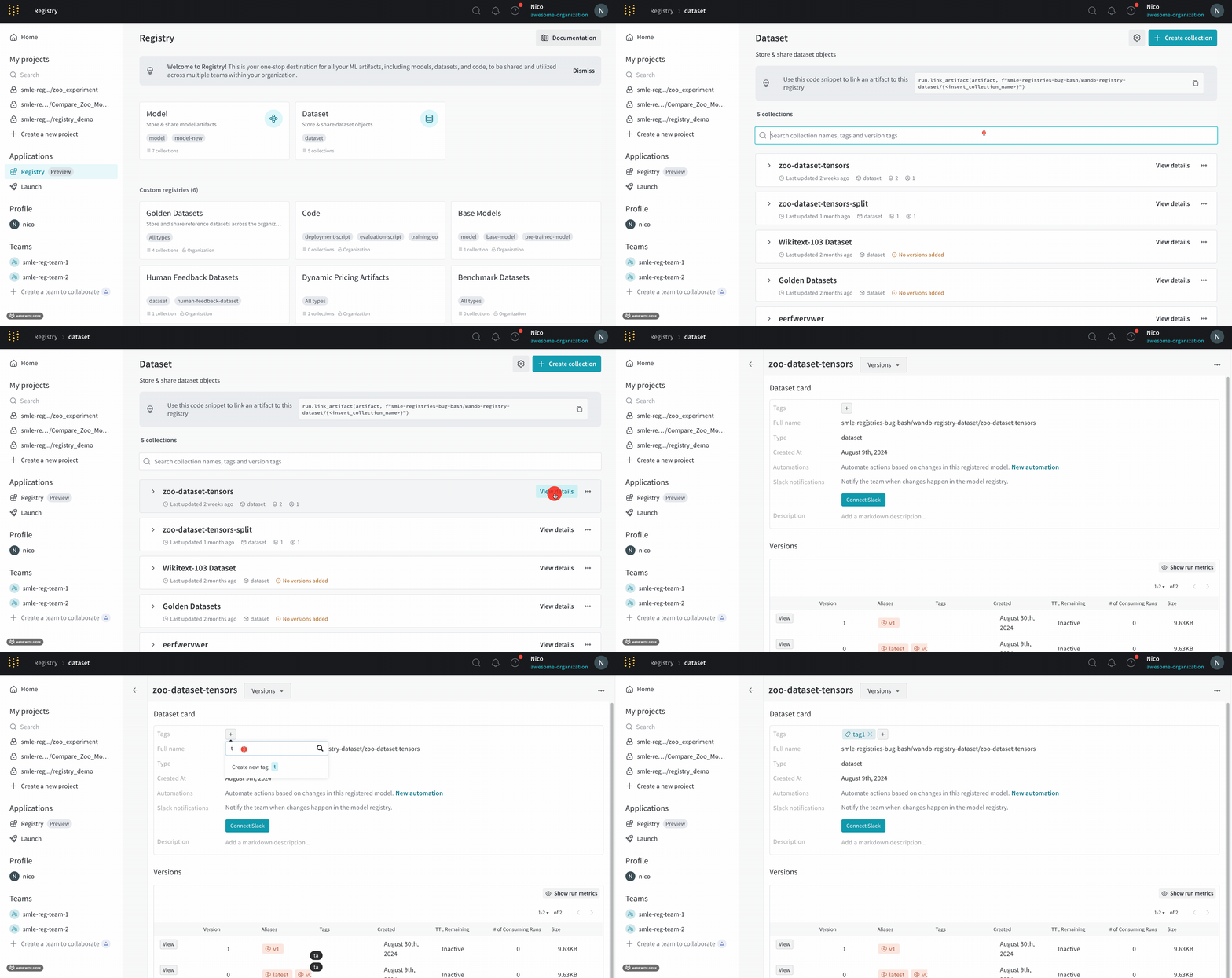
1. Navigate to the [W\&B Registry](https://wandb.ai/registry).
2. Click on a registry card.
3. Click **View details** next to the name of a collection.
4. Within the collection card, click on the plus icon (**+**) next to the **Tags** field and type in the name of the tag.
5. Press **Enter** on your keyboard.
 ```python theme={null}
import wandb
COLLECTION_TYPE = ""
REGISTRY_NAME = ""
COLLECTION_NAME = ""
full_name = f"wandb-registry-{REGISTRY_NAME}/{COLLECTION_NAME}"
collection = wandb.Api().artifact_collection(
type_name = COLLECTION_TYPE,
name = full_name
)
collection.tags = ["your-tag"]
collection.save()
```
## Update tags that belong to a collection
Update a tag programmatically by reassigning or by mutating the `tags` attribute. W\&B recommends, and it is good Python practice, that you reassign the `tags` attribute instead of in-place mutation.
For example, the following code snippet shows common ways to update a list with reassignment. For brevity, we continue the code example from the [Add a tag to a collection section](#add-a-tag-to-a-collection):
```python theme={null}
collection.tags = [*collection.tags, "new-tag", "other-tag"]
collection.tags = collection.tags + ["new-tag", "other-tag"]
collection.tags = set(collection.tags) - set(tags_to_delete)
collection.tags = [] # deletes all tags
```
The following code snippet shows how you can use in-place mutation to update tags that belong to an artifact version:
```python theme={null}
collection.tags += ["new-tag", "other-tag"]
collection.tags.append("new-tag")
collection.tags.extend(["new-tag", "other-tag"])
collection.tags[:] = ["new-tag", "other-tag"]
collection.tags.remove("existing-tag")
collection.tags.pop()
collection.tags.clear()
```
## View tags that belong to a collection
Use the W\&B App UI to view tags added to a collection:
1. Navigate to the [W\&B Registry](https://wandb.ai/registry).
2. Click on a registry card.
3. Click **View details** next to the name of a collection.
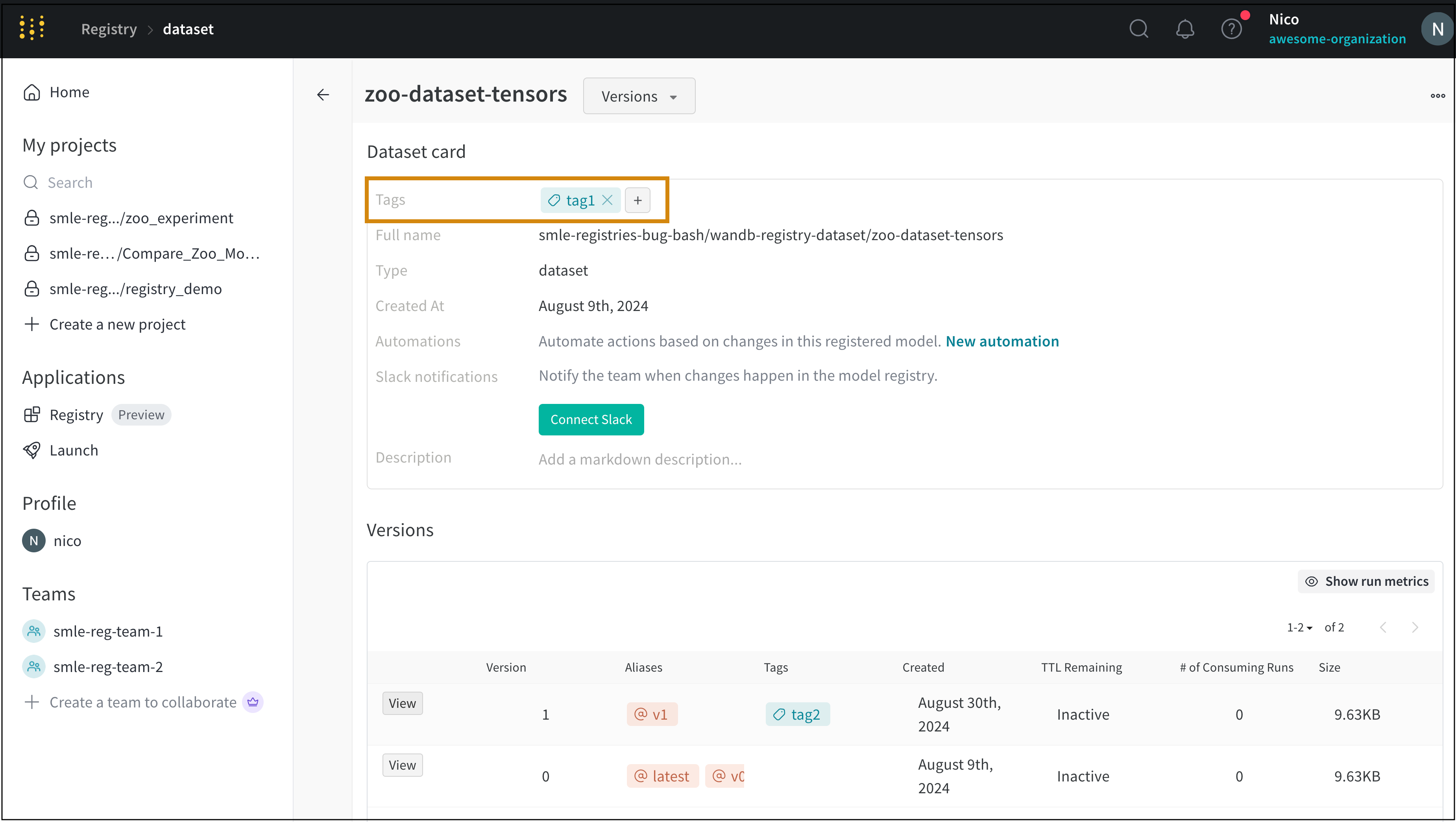
If a collection has one or more tags, you can view those tags within the collection card next to the **Tags** field.
```python theme={null}
import wandb
COLLECTION_TYPE = ""
REGISTRY_NAME = ""
COLLECTION_NAME = ""
full_name = f"wandb-registry-{REGISTRY_NAME}/{COLLECTION_NAME}"
collection = wandb.Api().artifact_collection(
type_name = COLLECTION_TYPE,
name = full_name
)
collection.tags = ["your-tag"]
collection.save()
```
## Update tags that belong to a collection
Update a tag programmatically by reassigning or by mutating the `tags` attribute. W\&B recommends, and it is good Python practice, that you reassign the `tags` attribute instead of in-place mutation.
For example, the following code snippet shows common ways to update a list with reassignment. For brevity, we continue the code example from the [Add a tag to a collection section](#add-a-tag-to-a-collection):
```python theme={null}
collection.tags = [*collection.tags, "new-tag", "other-tag"]
collection.tags = collection.tags + ["new-tag", "other-tag"]
collection.tags = set(collection.tags) - set(tags_to_delete)
collection.tags = [] # deletes all tags
```
The following code snippet shows how you can use in-place mutation to update tags that belong to an artifact version:
```python theme={null}
collection.tags += ["new-tag", "other-tag"]
collection.tags.append("new-tag")
collection.tags.extend(["new-tag", "other-tag"])
collection.tags[:] = ["new-tag", "other-tag"]
collection.tags.remove("existing-tag")
collection.tags.pop()
collection.tags.clear()
```
## View tags that belong to a collection
Use the W\&B App UI to view tags added to a collection:
1. Navigate to the [W\&B Registry](https://wandb.ai/registry).
2. Click on a registry card.
3. Click **View details** next to the name of a collection.
If a collection has one or more tags, you can view those tags within the collection card next to the **Tags** field.
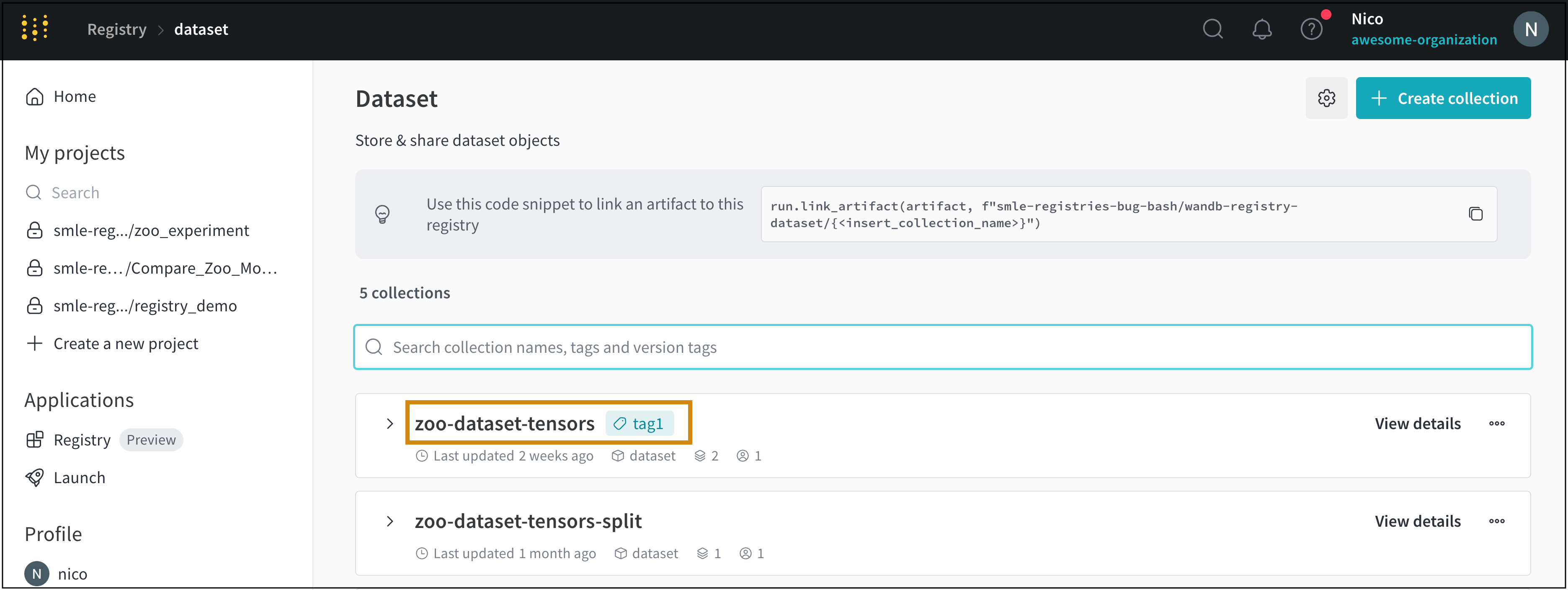
 Tags added to a collection also appear next to the name of that collection.
For example, in the following image, a tag called "tag1" was added to the "zoo-dataset-tensors" collection.
Tags added to a collection also appear next to the name of that collection.
For example, in the following image, a tag called "tag1" was added to the "zoo-dataset-tensors" collection.
 ## Remove a tag from a collection
Use the W\&B App UI to remove a tag from a collection:
1. Navigate to the [W\&B Registry](https://wandb.ai/registry).
2. Click on a registry card.
3. Click **View details** next to the name of a collection.
4. Within the collection card, hover your mouse over the name of the tag you want to remove.
5. Click on the cancel button (**X** icon).
## Add a tag to an artifact version
Add a tag to an artifact version linked to a collection with the W\&B App UI or with the Python SDK.
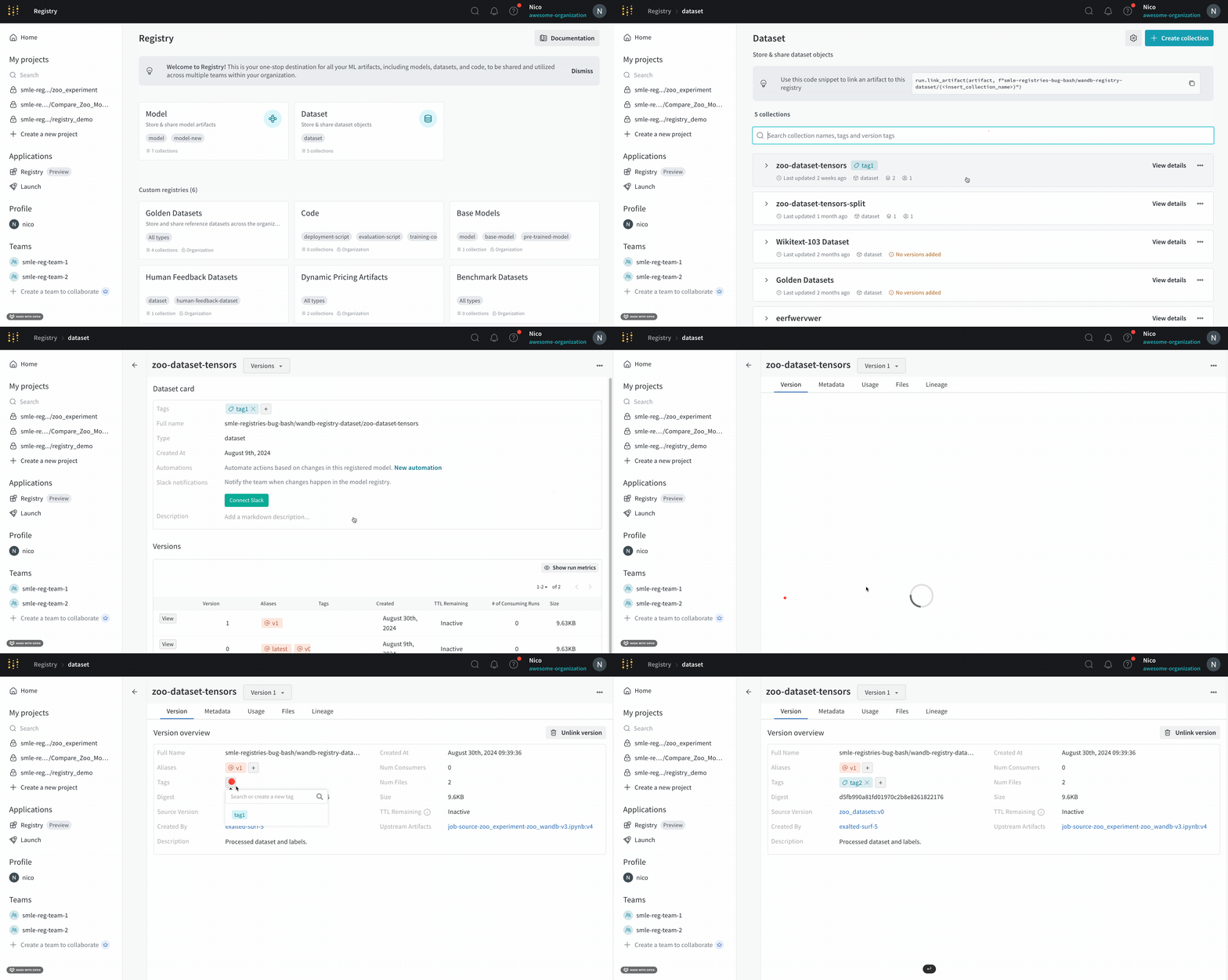
1. Navigate to the W\&B Registry at [https://wandb.ai/registry](https://wandb.ai/registry)
2. Click on a registry card.
3. Click **View details** next to the name of the collection you want to add a tag to.
4. Scroll down to **Versions**.
5. Click **View** next to an artifact version.
6. Within the **Version** tab, click on the plus icon (**+**) next to the **Tags** field and type in the name of the tag.
7. Press **Enter** on your keyboard.
## Remove a tag from a collection
Use the W\&B App UI to remove a tag from a collection:
1. Navigate to the [W\&B Registry](https://wandb.ai/registry).
2. Click on a registry card.
3. Click **View details** next to the name of a collection.
4. Within the collection card, hover your mouse over the name of the tag you want to remove.
5. Click on the cancel button (**X** icon).
## Add a tag to an artifact version
Add a tag to an artifact version linked to a collection with the W\&B App UI or with the Python SDK.
1. Navigate to the W\&B Registry at [https://wandb.ai/registry](https://wandb.ai/registry)
2. Click on a registry card.
3. Click **View details** next to the name of the collection you want to add a tag to.
4. Scroll down to **Versions**.
5. Click **View** next to an artifact version.
6. Within the **Version** tab, click on the plus icon (**+**) next to the **Tags** field and type in the name of the tag.
7. Press **Enter** on your keyboard.
 Fetch the artifact version you want to add or update a tag to. Once you have the artifact version, you can access the artifact object's `tag` attribute to add or modify tags to that artifact. Pass in one or more tags as list to the artifacts `tag` attribute.
Like other artifacts, you can fetch an artifact from W\&B without creating a run or you can create a run and fetch the artifact within that run. In either case, ensure to call the artifact object's `save` method to update the artifact on the W\&B servers.
Copy and paste an appropriate code cells below to add or modify an artifact version's tag. Replace the values in `<>` with your own.
The following code snippet shows how to fetch an artifact and add a tag without creating a new run:
```python title="Add a tag to an artifact version without creating a new run" theme={null}
import wandb
ARTIFACT_TYPE = ""
REGISTRY_NAME = ""
COLLECTION_NAME = ""
VERSION = ""
artifact_name = f"wandb-registry-{REGISTRY_NAME}/{COLLECTION_NAME}:v{VERSION}"
artifact = wandb.Api().artifact(name = artifact_name, type = ARTIFACT_TYPE)
artifact.tags = ["tag2"] # Provide one or more tags in a list
artifact.save()
```
The following code snippet shows how to fetch an artifact and add a tag by creating a new run:
```python title="Add a tag to an artifact version during a run" theme={null}
import wandb
REGISTRY_NAME = ""
COLLECTION_NAME = ""
VERSION = ""
with wandb.init(entity = "", project="") as run:
artifact_name = f"wandb-registry-{REGISTRY_NAME}/{COLLECTION_NAME}:v{VERSION}"
artifact = run.use_artifact(artifact_or_name = artifact_name)
artifact.tags = ["tag2"] # Provide one or more tags in a list
artifact.save()
```
## Update tags that belong to an artifact version
Update a tag programmatically by reassigning or by mutating the `tags` attribute. W\&B recommends, and it is good Python practice, that you reassign the `tags` attribute instead of in-place mutation.
For example, the following code snippet shows common ways to update a list with reassignment. For brevity, we continue the code example from the [Add a tag to an artifact version section](#add-a-tag-to-an-artifact-version):
```python theme={null}
artifact.tags = [*artifact.tags, "new-tag", "other-tag"]
artifact.tags = artifact.tags + ["new-tag", "other-tag"]
artifact.tags = set(artifact.tags) - set(tags_to_delete)
artifact.tags = [] # deletes all tags
```
The following code snippet shows how you can use in-place mutation to update tags that belong to an artifact version:
```python theme={null}
artifact.tags += ["new-tag", "other-tag"]
artifact.tags.append("new-tag")
artifact.tags.extend(["new-tag", "other-tag"])
artifact.tags[:] = ["new-tag", "other-tag"]
artifact.tags.remove("existing-tag")
artifact.tags.pop()
artifact.tags.clear()
```
## View tags that belong to an artifact version
View tags that belong to an artifact version that is linked to a registry with the W\&B App UI or with the Python SDK.
1. Navigate to the [W\&B Registry](https://wandb.ai/registry).
2. Click on a registry card.
3. Click **View details** next to the name of the collection you want to add a tag to.
4. Scroll down to **Versions** section.
If an artifact version has one or more tags, you can view those tags within the **Tags** column.
Fetch the artifact version you want to add or update a tag to. Once you have the artifact version, you can access the artifact object's `tag` attribute to add or modify tags to that artifact. Pass in one or more tags as list to the artifacts `tag` attribute.
Like other artifacts, you can fetch an artifact from W\&B without creating a run or you can create a run and fetch the artifact within that run. In either case, ensure to call the artifact object's `save` method to update the artifact on the W\&B servers.
Copy and paste an appropriate code cells below to add or modify an artifact version's tag. Replace the values in `<>` with your own.
The following code snippet shows how to fetch an artifact and add a tag without creating a new run:
```python title="Add a tag to an artifact version without creating a new run" theme={null}
import wandb
ARTIFACT_TYPE = ""
REGISTRY_NAME = ""
COLLECTION_NAME = ""
VERSION = ""
artifact_name = f"wandb-registry-{REGISTRY_NAME}/{COLLECTION_NAME}:v{VERSION}"
artifact = wandb.Api().artifact(name = artifact_name, type = ARTIFACT_TYPE)
artifact.tags = ["tag2"] # Provide one or more tags in a list
artifact.save()
```
The following code snippet shows how to fetch an artifact and add a tag by creating a new run:
```python title="Add a tag to an artifact version during a run" theme={null}
import wandb
REGISTRY_NAME = ""
COLLECTION_NAME = ""
VERSION = ""
with wandb.init(entity = "", project="") as run:
artifact_name = f"wandb-registry-{REGISTRY_NAME}/{COLLECTION_NAME}:v{VERSION}"
artifact = run.use_artifact(artifact_or_name = artifact_name)
artifact.tags = ["tag2"] # Provide one or more tags in a list
artifact.save()
```
## Update tags that belong to an artifact version
Update a tag programmatically by reassigning or by mutating the `tags` attribute. W\&B recommends, and it is good Python practice, that you reassign the `tags` attribute instead of in-place mutation.
For example, the following code snippet shows common ways to update a list with reassignment. For brevity, we continue the code example from the [Add a tag to an artifact version section](#add-a-tag-to-an-artifact-version):
```python theme={null}
artifact.tags = [*artifact.tags, "new-tag", "other-tag"]
artifact.tags = artifact.tags + ["new-tag", "other-tag"]
artifact.tags = set(artifact.tags) - set(tags_to_delete)
artifact.tags = [] # deletes all tags
```
The following code snippet shows how you can use in-place mutation to update tags that belong to an artifact version:
```python theme={null}
artifact.tags += ["new-tag", "other-tag"]
artifact.tags.append("new-tag")
artifact.tags.extend(["new-tag", "other-tag"])
artifact.tags[:] = ["new-tag", "other-tag"]
artifact.tags.remove("existing-tag")
artifact.tags.pop()
artifact.tags.clear()
```
## View tags that belong to an artifact version
View tags that belong to an artifact version that is linked to a registry with the W\&B App UI or with the Python SDK.
1. Navigate to the [W\&B Registry](https://wandb.ai/registry).
2. Click on a registry card.
3. Click **View details** next to the name of the collection you want to add a tag to.
4. Scroll down to **Versions** section.
If an artifact version has one or more tags, you can view those tags within the **Tags** column.
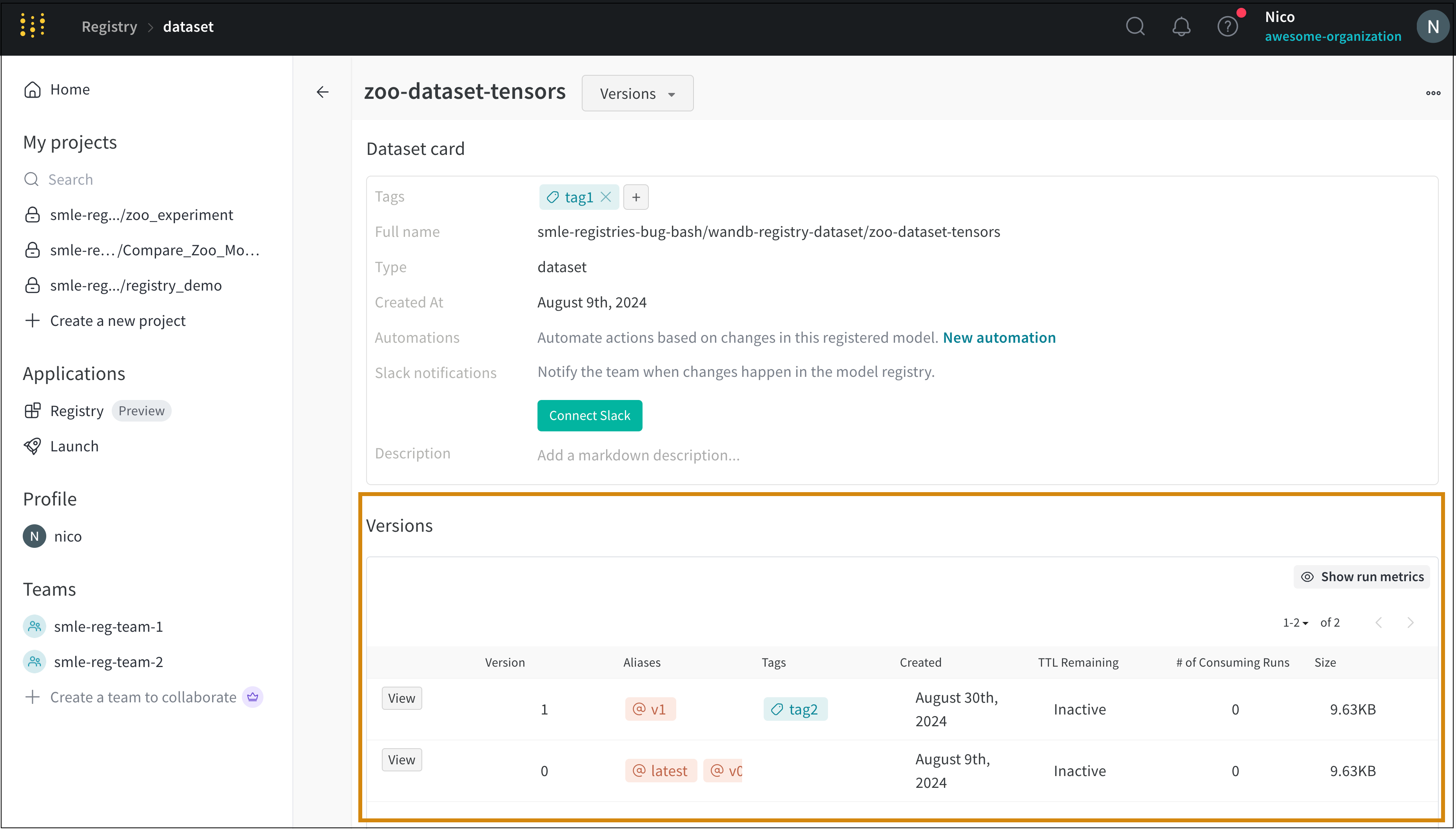 Fetch the artifact version to view its tags. Once you have the artifact version, you can view tags that belong to that artifact by viewing the artifact object's `tag` attribute.
Similar to other artifacts, you can fetch an artifact from W\&B without creating a run or you can create a run and fetch the artifact within that run.
Copy and paste an appropriate code cells below to add or modify an artifact version's tag. Replace the values in `<>` with your own.
The following code snippet shows how to fetch and view an artifact version's tags without creating a new run:
```python title="Add a tag to an artifact version without creating a new run" theme={null}
import wandb
ARTIFACT_TYPE = ""
REGISTRY_NAME = ""
COLLECTION_NAME = ""
VERSION = ""
artifact_name = f"wandb-registry-{REGISTRY_NAME}/{COLLECTION_NAME}:v{VERSION}"
artifact = wandb.Api().artifact(name = artifact_name, type = artifact_type)
print(artifact.tags)
```
The following code snippet shows how to fetch and view artifact version's tags by creating a new run:
```python title="Add a tag to an artifact version during a run" theme={null}
import wandb
REGISTRY_NAME = ""
COLLECTION_NAME = ""
VERSION = ""
with wandb.init(entity = "", project="") as run:
artifact_name = f"wandb-registry-{REGISTRY_NAME}/{COLLECTION_NAME}:v{VERSION}"
artifact = run.use_artifact(artifact_or_name = artifact_name)
print(artifact.tags)
```
## Remove a tag from an artifact version
1. Navigate to the [W\&B Registry](https://wandb.ai/registry).
2. Click on a registry card.
3. Click **View details** next to the name of the collection you want to add a tag to
4. Scroll down to **Versions**
5. Click **View** next to an artifact version
6. Within the **Version** tab, hover your mouse over the name of the tag
7. Click on the cancel button (**X** icon)
## Search existing tags
Use the W\&B App UI to search existing tags in collections and artifact versions:
1. Navigate to the [W\&B Registry](https://wandb.ai/registry).
2. Click on a registry card.
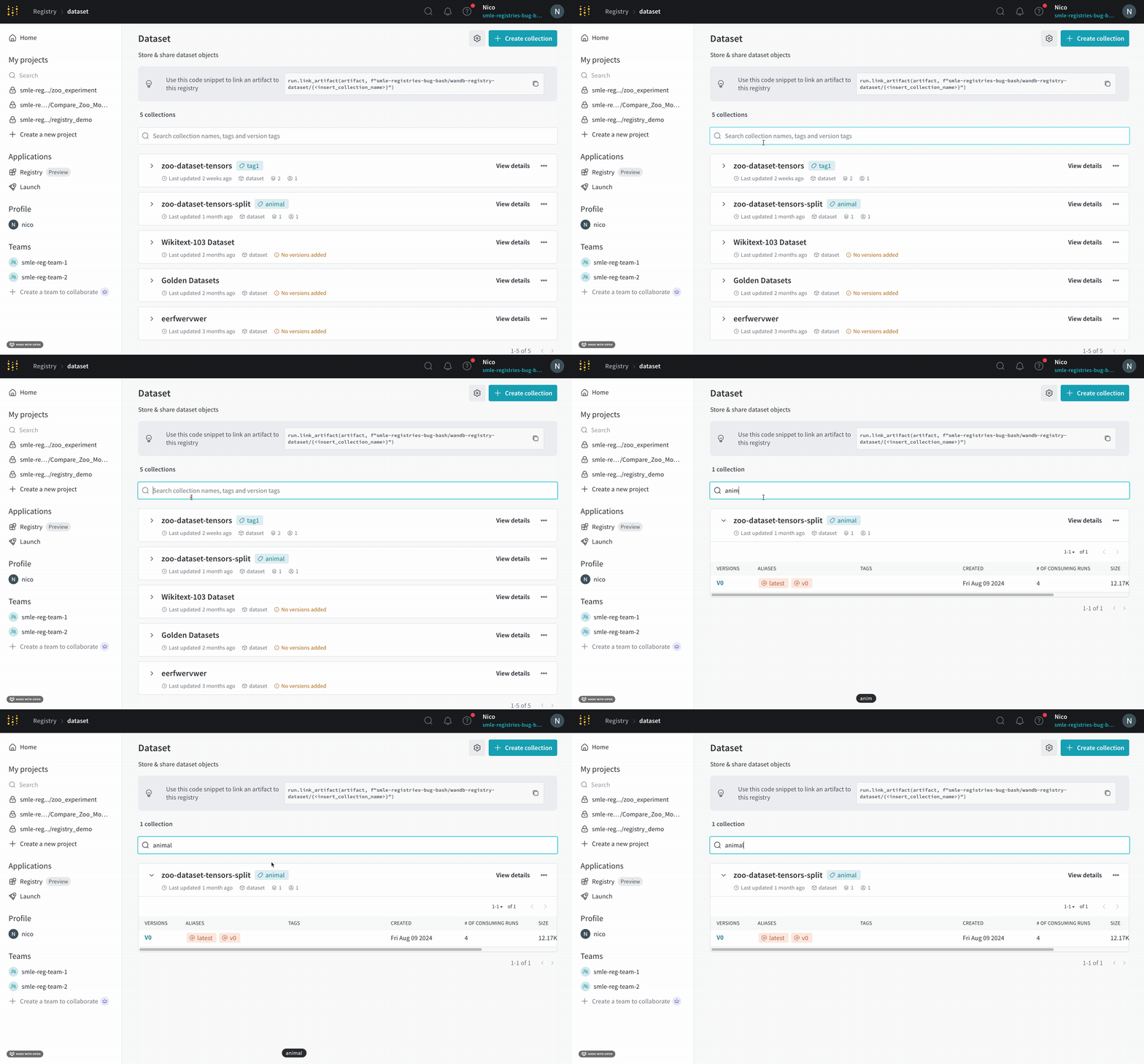
3. Within the search bar, type in the name of a tag.
Fetch the artifact version to view its tags. Once you have the artifact version, you can view tags that belong to that artifact by viewing the artifact object's `tag` attribute.
Similar to other artifacts, you can fetch an artifact from W\&B without creating a run or you can create a run and fetch the artifact within that run.
Copy and paste an appropriate code cells below to add or modify an artifact version's tag. Replace the values in `<>` with your own.
The following code snippet shows how to fetch and view an artifact version's tags without creating a new run:
```python title="Add a tag to an artifact version without creating a new run" theme={null}
import wandb
ARTIFACT_TYPE = ""
REGISTRY_NAME = ""
COLLECTION_NAME = ""
VERSION = ""
artifact_name = f"wandb-registry-{REGISTRY_NAME}/{COLLECTION_NAME}:v{VERSION}"
artifact = wandb.Api().artifact(name = artifact_name, type = artifact_type)
print(artifact.tags)
```
The following code snippet shows how to fetch and view artifact version's tags by creating a new run:
```python title="Add a tag to an artifact version during a run" theme={null}
import wandb
REGISTRY_NAME = ""
COLLECTION_NAME = ""
VERSION = ""
with wandb.init(entity = "", project="") as run:
artifact_name = f"wandb-registry-{REGISTRY_NAME}/{COLLECTION_NAME}:v{VERSION}"
artifact = run.use_artifact(artifact_or_name = artifact_name)
print(artifact.tags)
```
## Remove a tag from an artifact version
1. Navigate to the [W\&B Registry](https://wandb.ai/registry).
2. Click on a registry card.
3. Click **View details** next to the name of the collection you want to add a tag to
4. Scroll down to **Versions**
5. Click **View** next to an artifact version
6. Within the **Version** tab, hover your mouse over the name of the tag
7. Click on the cancel button (**X** icon)
## Search existing tags
Use the W\&B App UI to search existing tags in collections and artifact versions:
1. Navigate to the [W\&B Registry](https://wandb.ai/registry).
2. Click on a registry card.
3. Within the search bar, type in the name of a tag.
 ## Find artifact versions with a specific tag
Use the W\&B Python SDK to find artifact versions that have a set of tags:
```python theme={null}
import wandb
api = wandb.Api()
tagged_artifact_versions = api.artifacts(
type_name = "",
name = "",
tags = ["", ""]
)
for artifact_version in tagged_artifact_versions:
print(artifact_version.tags)
```
## Find artifact versions with a specific tag
Use the W\&B Python SDK to find artifact versions that have a set of tags:
```python theme={null}
import wandb
api = wandb.Api()
tagged_artifact_versions = api.artifacts(
type_name = "",
name = "",
tags = ["", ""]
)
for artifact_version in tagged_artifact_versions:
print(artifact_version.tags)
```