> ## Documentation Index
> Fetch the complete documentation index at: https://docs.wandb.ai/llms.txt
> Use this file to discover all available pages before exploring further.
> Create a W&B Report with the W&B App or programmatically.
# Create a report
W\&B Report and Workspace API is in Public Preview.
Select a tab to learn how to create a report in the W\&B App or programmatically with the Report and Workspace API.
For an example of how to programmatically create a report, see this [Google Colab](https://colab.research.google.com/github/wandb/examples/blob/master/colabs/intro/Report_API_Quickstart.ipynb).
1. Navigate to your project workspace in the W\&B App.
2. In the upper-right corner of your workspace, click **Create report**.
 3. A modal appears. Select the charts you want to start with. You can add or delete charts later from the report interface.
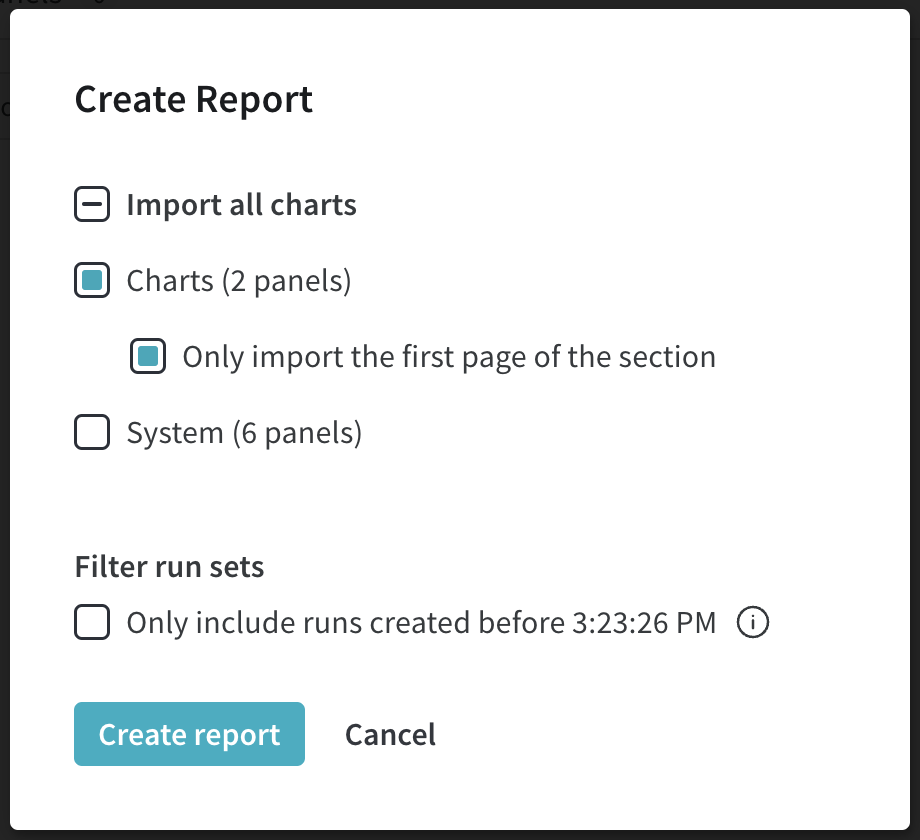 4. Select the **Filter run sets** option to prevent new runs from being added to your report. You can toggle this option on or off. A draft report is saved automatically. Access it in the **Reports** tab.
1. Navigate to your project workspace in the W\&B App.
2. Select the **Reports** tab in your project.
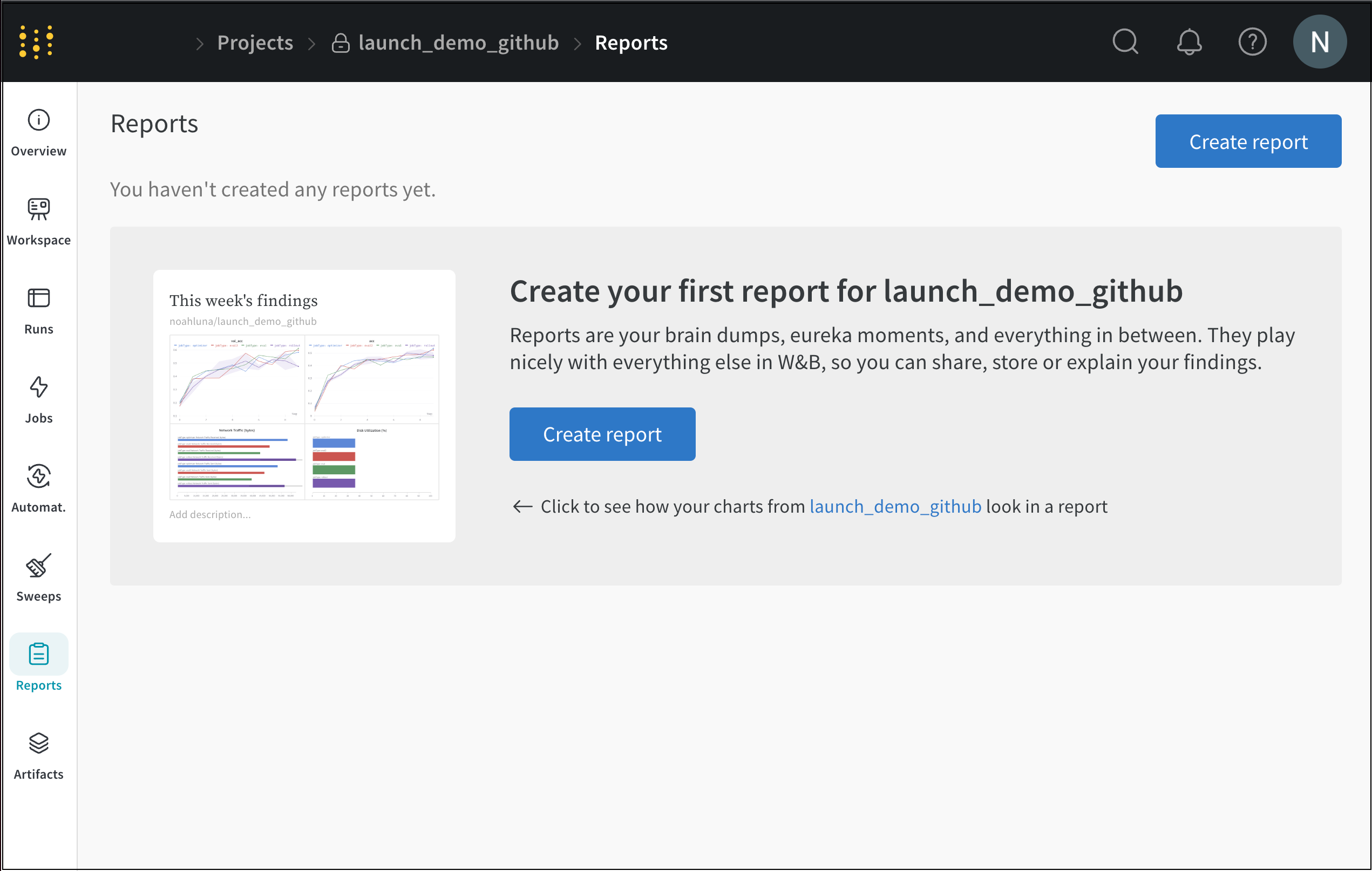
3. Click **Create report**.
4. Select the **Filter run sets** option to prevent new runs from being added to your report. You can toggle this option on or off. A draft report is saved automatically. Access it in the **Reports** tab.
1. Navigate to your project workspace in the W\&B App.
2. Select the **Reports** tab in your project.
3. Click **Create report**.
 Create a report programmatically:
1. Install W\&B SDK (`wandb`) and Report and Workspace API (`wandb-workspaces`):
```bash theme={null}
pip install wandb wandb-workspaces
```
2. Import the W\&B Python SDK and the Report and Workspace API.
```python theme={null}
import wandb
import wandb_workspaces.reports.v2 as wr
```
3. Create a report with `wandb_workspaces.reports.v2.Report`. Create a report instance with the Report Class Public API ([`wandb.apis.reports`](/models/ref/python/public-api/api#reports)). Specify a name for the project.
```python theme={null}
report = wr.Report(project="report_standard")
```
4. Save the report. Reports aren't uploaded to W\&B until you call the `.save()` method:
```python theme={null}
report.save()
```
For more information, see [Edit a report](/models/reports/edit-a-report).
Create a report programmatically:
1. Install W\&B SDK (`wandb`) and Report and Workspace API (`wandb-workspaces`):
```bash theme={null}
pip install wandb wandb-workspaces
```
2. Import the W\&B Python SDK and the Report and Workspace API.
```python theme={null}
import wandb
import wandb_workspaces.reports.v2 as wr
```
3. Create a report with `wandb_workspaces.reports.v2.Report`. Create a report instance with the Report Class Public API ([`wandb.apis.reports`](/models/ref/python/public-api/api#reports)). Specify a name for the project.
```python theme={null}
report = wr.Report(project="report_standard")
```
4. Save the report. Reports aren't uploaded to W\&B until you call the `.save()` method:
```python theme={null}
report.save()
```
For more information, see [Edit a report](/models/reports/edit-a-report).