> ## Documentation Index
> Fetch the complete documentation index at: https://docs.wandb.ai/llms.txt
> Use this file to discover all available pages before exploring further.
> Edit a report interactively with the App UI or programmatically with the W&B SDK.
# Edit a report
W\&B Report and Workspace API is in Public Preview.
This page describes how to edit a report interactively with the App UI or programmatically with the W\&B SDK. It covers adding plots, run sets, code blocks, markdown, HTML elements, and rich media, as well as filtering and grouping run sets, organizing report layout, and visualizing multi-dimensional relationships.
A report's body consists of *blocks*. Blocks contain text, images, embedded visualizations, plots from experiments and runs, and panel grids.
*Panel grids* are a specific type of block that hold panels and *run sets*. Run sets are a collection of runs logged to a project in W\&B. Panels are visualizations of run set data.
Run the [Programmatic workspaces notebook](https://colab.research.google.com/github/wandb/wandb-workspaces/blob/Update-wandb-workspaces-tuturial/Workspace_tutorial.ipynb) for an end-to-end tutorial of creating a customized saved workspace view.
To programmatically edit a report, you must have the W\&B Report and Workspace API (`wandb-workspaces`) installed along with the W\&B Python SDK:
```bash theme={null}
pip install wandb wandb-workspaces
```
## Add plots
Plots let you visualize run data inside a report. Each panel grid has a set of run sets and a set of panels. The run sets at the bottom of the section control what data appears on the panels in the grid. Create a new panel grid if you want to add charts that pull data from a different set of runs.
Enter a forward slash (`/`) in the report to display a dropdown menu. Select **Add panel** to add a panel. You can add any panel that W\&B supports, including a line plot, scatter plot, or parallel coordinates chart.
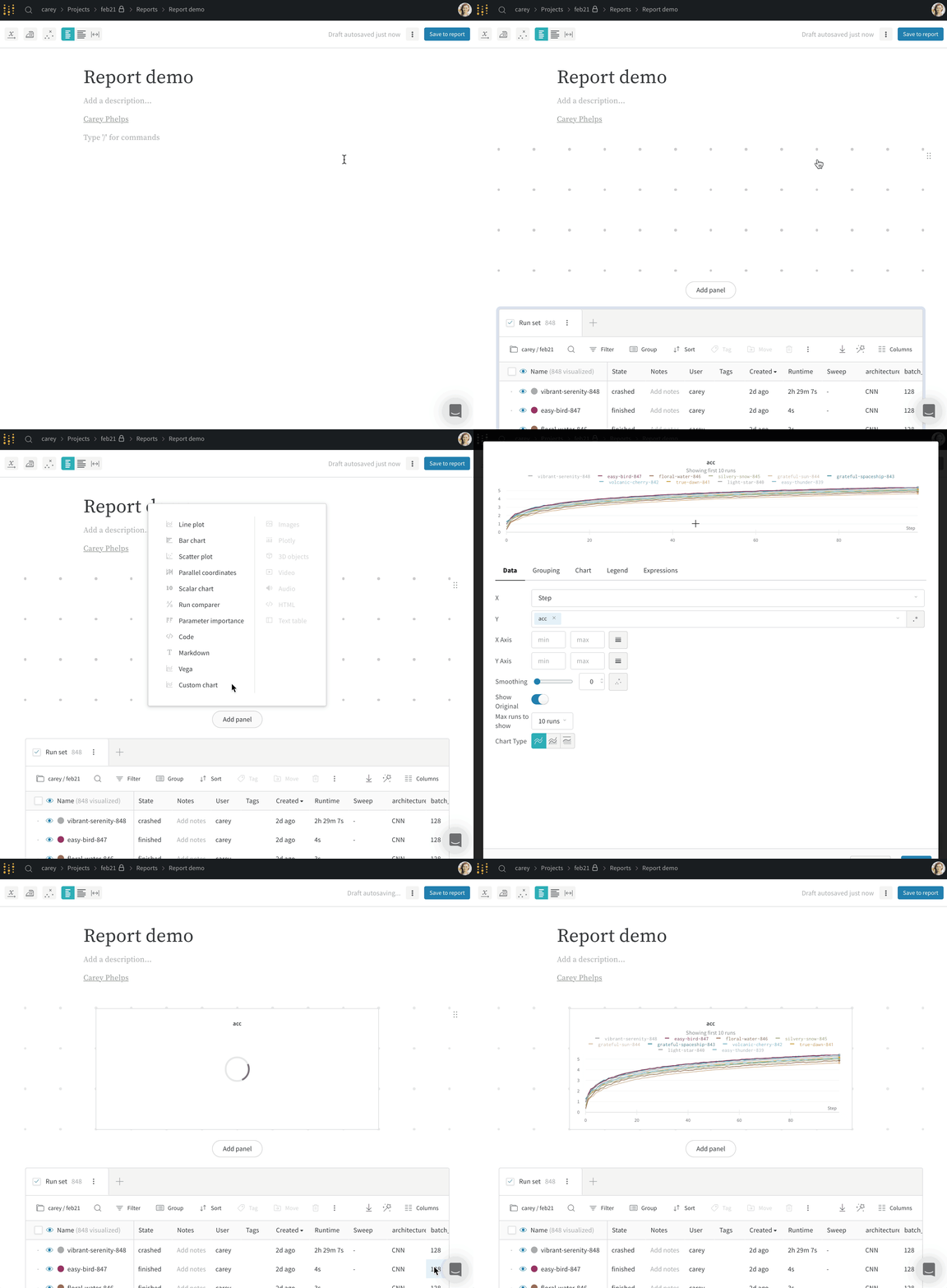 Add plots to a report programmatically with the SDK. Pass a list of one or more plot or chart objects to the `panels` parameter in the `PanelGrid` Public API Class. Create a plot or chart object with its associated Python Class.
The following examples demonstrate how to create a line plot and scatter plot.
```python theme={null}
import wandb
import wandb_workspaces.reports.v2 as wr
report = wr.Report(
project="report-editing",
title="Report title",
description="Report description.",
)
blocks = [
wr.PanelGrid(
panels=[
wr.LinePlot(x="time", y="velocity"),
wr.ScatterPlot(x="time", y="acceleration"),
]
)
]
report.blocks = blocks
report.save()
```
For more information about available plots and charts you can add to a report programmatically, see `wr.panels`.
## Add run sets
Add run sets from projects interactively with the App UI or the W\&B SDK.
Enter a forward slash (`/`) in the report to display a dropdown menu. From the dropdown, choose **Panel Grid**. W\&B automatically imports the run set from the project the report was created from.
If you import a panel into a report, run names are inherited from the project. In the report, you can optionally [rename a run](/models/runs/#rename-a-run) to give the reader more context. The run is renamed only in the individual panel. If you clone the panel in the same report, the run is also renamed in the cloned panel.
1. In the report, click the pencil icon to open the report editor.
2. In the run set, find the run to rename. Hover over the report name and click the **action ()** menu. Select one of the following choices, then submit the form.
* **Rename run for project**: Rename the run across the entire project. To generate a new random name, leave the field blank.
* **Rename run for panel grid**: Rename the run only in the report, preserving the existing name in other contexts. Generating a new random name is not supported.
3. Click **Publish report**.
Add run sets from projects with the `wr.Runset()` and `wr.PanelGrid` Classes. To add a runset, follow these steps:
1. Create a `wr.Runset()` object instance. Provide the name of the project that contains the run sets for the project parameter and the entity that owns the project for the entity parameter.
2. Create a `wr.PanelGrid()` object instance. Pass a list of one or more runset objects to the `run sets` parameter.
3. Store one or more `wr.PanelGrid()` object instances in a list.
4. Update the report instance blocks attribute with the list of panel grid instances.
Replace `[PROJECT-NAME]` with your W\&B project name and `[ENTITY-NAME]` with your W\&B entity name in the following example:
```python theme={null}
import wandb
import wandb_workspaces.reports.v2 as wr
report = wr.Report(
project="report-editing",
title="Report title",
description="Report description.",
)
panel_grids = wr.PanelGrid(
runsets=[wr.RunSet(project="[PROJECT-NAME]", entity="[ENTITY-NAME]")]
)
report.blocks = [panel_grids]
report.save()
```
You can optionally add runsets and panels with one call to the SDK:
```python theme={null}
import wandb
report = wr.Report(
project="report-editing",
title="Report title",
description="Report description.",
)
panel_grids = wr.PanelGrid(
panels=[
wr.LinePlot(
title="line title",
x="x",
y=["y"],
range_x=[0, 100],
range_y=[0, 100],
log_x=True,
log_y=True,
title_x="x axis title",
title_y="y axis title",
ignore_outliers=True,
groupby="hyperparam1",
groupby_aggfunc="mean",
groupby_rangefunc="minmax",
smoothing_factor=0.5,
smoothing_type="gaussian",
smoothing_show_original=True,
max_runs_to_show=10,
plot_type="stacked-area",
font_size="large",
legend_position="west",
),
wr.ScatterPlot(
title="scatter title",
x="y",
y="y",
# z='x',
range_x=[0, 0.0005],
range_y=[0, 0.0005],
# range_z=[0,1],
log_x=False,
log_y=False,
# log_z=True,
running_ymin=True,
running_ymean=True,
running_ymax=True,
font_size="small",
regression=True,
),
],
runsets=[wr.RunSet(project="[PROJECT-NAME]", entity="[ENTITY-NAME]")],
)
report.blocks = [panel_grids]
report.save()
```
## Freeze a run set
A report automatically updates run sets to show the latest data from the project. Freeze a run set when you want to preserve its state in a report at a point in time, so that later runs don't change what the report displays.
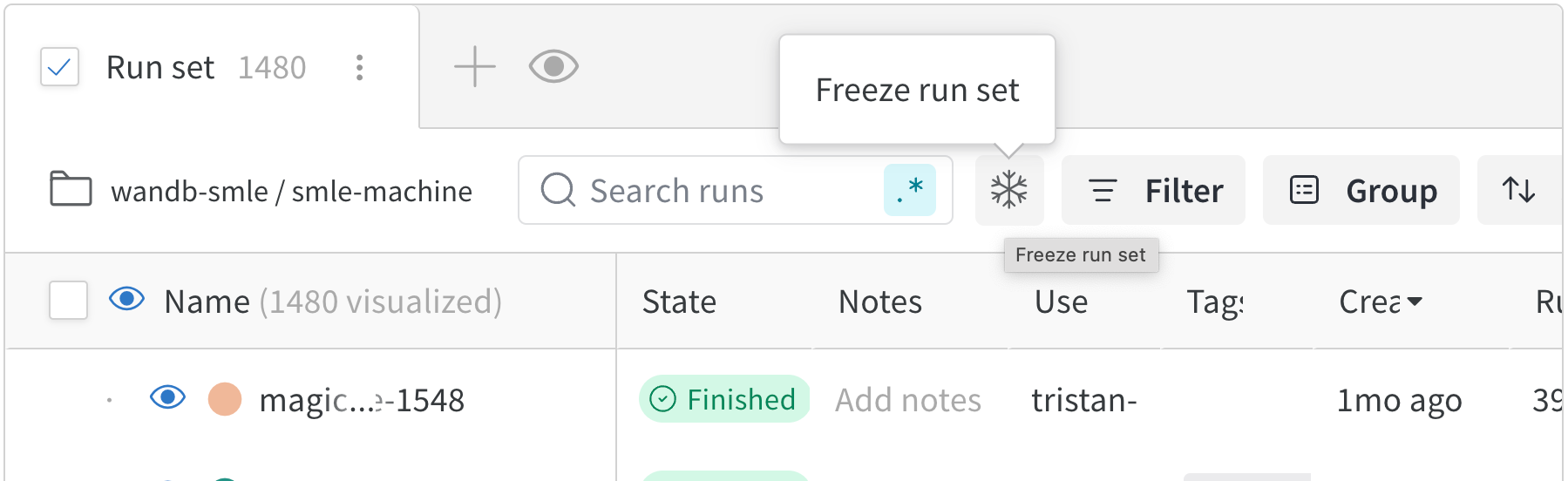
To freeze a run set when viewing a report, click the snowflake icon in its panel grid near the **Filter** button.
Add plots to a report programmatically with the SDK. Pass a list of one or more plot or chart objects to the `panels` parameter in the `PanelGrid` Public API Class. Create a plot or chart object with its associated Python Class.
The following examples demonstrate how to create a line plot and scatter plot.
```python theme={null}
import wandb
import wandb_workspaces.reports.v2 as wr
report = wr.Report(
project="report-editing",
title="Report title",
description="Report description.",
)
blocks = [
wr.PanelGrid(
panels=[
wr.LinePlot(x="time", y="velocity"),
wr.ScatterPlot(x="time", y="acceleration"),
]
)
]
report.blocks = blocks
report.save()
```
For more information about available plots and charts you can add to a report programmatically, see `wr.panels`.
## Add run sets
Add run sets from projects interactively with the App UI or the W\&B SDK.
Enter a forward slash (`/`) in the report to display a dropdown menu. From the dropdown, choose **Panel Grid**. W\&B automatically imports the run set from the project the report was created from.
If you import a panel into a report, run names are inherited from the project. In the report, you can optionally [rename a run](/models/runs/#rename-a-run) to give the reader more context. The run is renamed only in the individual panel. If you clone the panel in the same report, the run is also renamed in the cloned panel.
1. In the report, click the pencil icon to open the report editor.
2. In the run set, find the run to rename. Hover over the report name and click the **action ()** menu. Select one of the following choices, then submit the form.
* **Rename run for project**: Rename the run across the entire project. To generate a new random name, leave the field blank.
* **Rename run for panel grid**: Rename the run only in the report, preserving the existing name in other contexts. Generating a new random name is not supported.
3. Click **Publish report**.
Add run sets from projects with the `wr.Runset()` and `wr.PanelGrid` Classes. To add a runset, follow these steps:
1. Create a `wr.Runset()` object instance. Provide the name of the project that contains the run sets for the project parameter and the entity that owns the project for the entity parameter.
2. Create a `wr.PanelGrid()` object instance. Pass a list of one or more runset objects to the `run sets` parameter.
3. Store one or more `wr.PanelGrid()` object instances in a list.
4. Update the report instance blocks attribute with the list of panel grid instances.
Replace `[PROJECT-NAME]` with your W\&B project name and `[ENTITY-NAME]` with your W\&B entity name in the following example:
```python theme={null}
import wandb
import wandb_workspaces.reports.v2 as wr
report = wr.Report(
project="report-editing",
title="Report title",
description="Report description.",
)
panel_grids = wr.PanelGrid(
runsets=[wr.RunSet(project="[PROJECT-NAME]", entity="[ENTITY-NAME]")]
)
report.blocks = [panel_grids]
report.save()
```
You can optionally add runsets and panels with one call to the SDK:
```python theme={null}
import wandb
report = wr.Report(
project="report-editing",
title="Report title",
description="Report description.",
)
panel_grids = wr.PanelGrid(
panels=[
wr.LinePlot(
title="line title",
x="x",
y=["y"],
range_x=[0, 100],
range_y=[0, 100],
log_x=True,
log_y=True,
title_x="x axis title",
title_y="y axis title",
ignore_outliers=True,
groupby="hyperparam1",
groupby_aggfunc="mean",
groupby_rangefunc="minmax",
smoothing_factor=0.5,
smoothing_type="gaussian",
smoothing_show_original=True,
max_runs_to_show=10,
plot_type="stacked-area",
font_size="large",
legend_position="west",
),
wr.ScatterPlot(
title="scatter title",
x="y",
y="y",
# z='x',
range_x=[0, 0.0005],
range_y=[0, 0.0005],
# range_z=[0,1],
log_x=False,
log_y=False,
# log_z=True,
running_ymin=True,
running_ymean=True,
running_ymax=True,
font_size="small",
regression=True,
),
],
runsets=[wr.RunSet(project="[PROJECT-NAME]", entity="[ENTITY-NAME]")],
)
report.blocks = [panel_grids]
report.save()
```
## Freeze a run set
A report automatically updates run sets to show the latest data from the project. Freeze a run set when you want to preserve its state in a report at a point in time, so that later runs don't change what the report displays.
To freeze a run set when viewing a report, click the snowflake icon in its panel grid near the **Filter** button.
 ## Group a run set programmatically
Group runs in a run set programmatically with the [Workspace and Reports API](/models/ref/wandb_workspaces/reports). Grouping organizes related runs together in panels, which makes it easier to compare configurations and results.
You can group runs in a run set by config values, run metadata, or summary metrics. The following table lists the available grouping methods along with the available keys for each grouping method:
| Grouping method | Description | Available keys |
| --------------- | ----------------------------- | ------------------------------------------------------------- |
| Config values | Group runs by config values | Values specified in config parameter in `wandb.init(config=)` |
| Run metadata | Group runs by run metadata | `State`, `Name`, `JobType` |
| Summary metrics | Group runs by summary metrics | Values you log to a run with `wandb.Run.log()` |
### Group runs by config values
Group runs by config values to compare runs with similar configurations. Config values are parameters you specify in your run configuration `(wandb.init(config=))`. To group runs by config values, use the `config.[KEY]` syntax, where `[KEY]` is the name of the config value you want to group by.
For example, the following code snippet first initializes a run with a config value for `group`, then groups runs in a report based on the `group` config value. Replace `[ENTITY]` and `[PROJECT]` with your W\&B entity and project names.
```python theme={null}
import wandb
import wandb_workspaces.reports.v2 as wr
entity = "[ENTITY]"
project = "[PROJECT]"
for group in ["control", "experiment_a", "experiment_b"]:
for i in range(3):
with wandb.init(entity=entity, project=project, group=group, config={"group": group, "run": i}, name=f"{group}_run_{i}") as run:
# Simulate some training
for step in range(100):
run.log({
"acc": 0.5 + (step / 100) * 0.3 + (i * 0.05),
"loss": 1.0 - (step / 100) * 0.5
})
```
Within your Python script or notebook, you can then group runs by the `config.group` value:
```python theme={null}
runset = wr.Runset(
project=project,
entity=entity,
groupby=["config.group"] # Group by the "group" config value
)
```
Continuing from the previous example, you can create a report with the grouped run set:
```python theme={null}
report = wr.Report(
entity=entity,
project=project,
title="Grouped Runs Example",
)
report.blocks = [
wr.PanelGrid(
runsets=[runset],
)
]
report.save()
```
### Group runs by run metadata
Group runs by a run's name (`Name`), state (`State`), or job type (`JobType`).
Continuing from the previous example, you can group your runs by their name with the following code snippet:
```python theme={null}
runset = wr.Runset(
project=project,
entity=entity,
groupby=["Name"] # Group by run names
)
```
The name of the run is the name you specify in the `wandb.init(name=)` parameter. If you don't specify a name, W\&B generates a random name for the run.
You can find the name of the run in the **Overview** page of a run in the W\&B App or programmatically with `Api.runs().run.name`.
### Group runs by summary metrics
The following examples demonstrate how to group runs by summary metrics. Summary metrics are the values you log to a run with `wandb.Run.log()`. After you log a run, you can find the names of your summary metrics in the W\&B App under the **Summary** section of a run's **Overview** page.
The syntax for grouping runs by summary metrics is `summary.[KEY]`, where `[KEY]` is the name of the summary metric you want to group by.
For example, suppose you log a summary metric called `acc`. Replace `[ENTITY]` and `[PROJECT]` with your W\&B entity and project names:
```python theme={null}
import wandb
import wandb_workspaces.reports.v2 as wr
entity = "[ENTITY]"
project = "[PROJECT]"
for group in ["control", "experiment_a", "experiment_b"]:
for i in range(3):
with wandb.init(entity=entity, project=project, group=group, config={"group": group, "run": i}, name=f"{group}_run_{i}") as run:
# Simulate some training
for step in range(100):
run.log({
"acc": 0.5 + (step / 100) * 0.3 + (i * 0.05),
"loss": 1.0 - (step / 100) * 0.5
})
```
You can then group runs by the `summary.acc` summary metric:
```python theme={null}
runset = wr.Runset(
project=project,
entity=entity,
groupby=["summary.acc"] # Group by summary values
)
```
## Filter a run set programmatically
Programmatically filter run sets and add them to a report with the [Workspace and Reports API](/models/ref/wandb_workspaces/reports). Filtering narrows a run set to the specific runs you want to display, based on config values, metrics, tags, or run properties.
The general syntax for a filter expression is:
```text theme={null}
Filter('[KEY]') operation [VALUE]
```
In this expression, `[KEY]` is the name of the filter, `operation` is a comparison operator (for example, `>`, `<`, `==`, `in`, `not in`, `or`, and `and`), and `[VALUE]` is the value to compare against. `Filter` is a placeholder for the type of filter you want to apply. The following table lists the available filters and their descriptions:
| Filter | Description | Available keys |
| ------------------------ | ------------------------- | ---------------------------------------------------------------------------- |
| `Config('[KEY]')` | Filter by config values | Values specified in `config` parameter in `wandb.init(config=)`. |
| `SummaryMetric('[KEY]')` | Filter by summary metrics | Values you log to a run with `wandb.Run.log()`. |
| `Tags('[KEY]')` | Filter by tags | Tag values that you add to your run (programmatically or with the W\&B App). |
| `Metric('[KEY]')` | Filter by run properties | `tags`, `state`, `displayName`, `jobType` |
After you define your filters, you can create a report and pass the filtered run sets to `wr.PanelGrid(runsets=)`. See the **Report and Workspace API** tabs throughout this page for more information about how to add various elements to a report programmatically.
The following examples demonstrate how to filter run sets in a report. Replace values enclosed in brackets (for example, `[ENTITY]` and `[PROJECT]`) with your own values.
### Config filters
Filter a runset by one or more config values. Config values are parameters you specify in your run configuration (`wandb.init(config=)`).
For example, the following code snippet first initializes a run with a config value for `learning_rate` and `batch_size`, then filters runs in a report based on the `learning_rate` config value.
```python theme={null}
import wandb
config = {
"learning_rate": 0.01,
"batch_size": 32,
}
with wandb.init(project="[PROJECT]", entity="[ENTITY]", config=config) as run:
# Your training code here
pass
```
Within your Python script or notebook, you can then programmatically filter runs that have a learning rate greater than `0.01`.
```python theme={null}
import wandb_workspaces.reports.v2 as wr
runset = wr.Runset(
entity="[ENTITY]",
project="[PROJECT]",
filters="Config('learning_rate') > 0.01"
)
```
You can also filter by multiple config values with the `and` operator:
```python theme={null}
runset = wr.Runset(
entity="[ENTITY]",
project="[PROJECT]",
filters="Config('learning_rate') > 0.01 and Config('batch_size') == 32"
)
```
Continuing from the previous example, you can create a report with the filtered runset as follows:
```python theme={null}
report = wr.Report(
entity="[ENTITY]",
project="[PROJECT]",
title="My Report"
)
report.blocks = [
wr.PanelGrid(
runsets=[runset],
panels=[
wr.LinePlot(
x="Step",
y=["accuracy"],
)
]
)
]
report.save()
```
### Metric filters
Filter run sets based on a run's tag (`tags`), run state (`state`), run name (`displayName`), or job type (`jobType`).
`Metric` filters use a different syntax than other filters. You must pass values as a list.
```text theme={null}
Metric('[KEY]') operation [VALUE]
```
For example, consider the following Python snippet that creates three runs and assigns each of them a name:
```python theme={null}
import wandb
with wandb.init(project="[PROJECT]", entity="[ENTITY]") as run:
for i in range(3):
run.name = f"run{i+1}"
# Your training code here
pass
```
When you create your report, you can filter runs by their display name. For example, to filter runs with names `run1`, `run2`, and `run3`, you can use the following code:
```python theme={null}
runset = wr.Runset(
entity="[ENTITY]",
project="[PROJECT]",
filters="Metric('displayName') in ['run1', 'run2', 'run3']"
)
```
You can find the name of the run in the **Overview** page of a run in the W\&B App or programmatically with `Api.runs().run.name`.
The following examples demonstrate how to filter a runset by the run's state (`finished`, `crashed`, or `running`):
```python theme={null}
runset = wr.Runset(
entity="[ENTITY]",
project="[PROJECT]",
filters="Metric('state') in ['finished']"
)
```
```python theme={null}
runset = wr.Runset(
entity="[ENTITY]",
project="[PROJECT]",
filters="Metric('state') not in ['crashed']"
)
```
### SummaryMetric filters
The following examples demonstrate how to filter a run set by summary metrics. Summary metrics are the values you log to a run with `wandb.Run.log()`. After you log a run, you can find the names of your summary metrics in the W\&B App under the **Summary** section of a run's **Overview** page.
```python theme={null}
runset = wr.Runset(
entity="[ENTITY]",
project="[PROJECT]",
filters="SummaryMetric('accuracy') > 0.9"
)
```
```python theme={null}
runset = wr.Runset(
entity="[ENTITY]",
project="[PROJECT]",
filters="Metric('state') in ['finished'] and SummaryMetric('train/train_loss') < 0.5"
)
```
### Tags filters
The following code snippet shows how to filter a runs set by its tags. Tags are values you add to a run (programmatically or with the W\&B App).
```python theme={null}
runset = wr.Runset(
entity="[ENTITY]",
project="[PROJECT]",
filters="Tags('training') == 'training'"
)
```
## Add code blocks
Add code blocks to your report interactively with the App UI or with the W\&B SDK.
Enter a forward slash (`/`) in the report to display a dropdown menu. From the dropdown, choose **Code**.
Select the name of the programming language on the right side of the code block to expand a dropdown. From the dropdown, select your programming language syntax. You can choose from JavaScript, Python, CSS, JSON, HTML, Markdown, and YAML.
Use the `wr.CodeBlock` Class to create a code block programmatically. Provide the name of the language and the code you want to display for the language and code parameters, respectively.
The following example demonstrates a list in a YAML file:
```python theme={null}
import wandb
import wandb_workspaces.reports.v2 as wr
report = wr.Report(project="report-editing")
report.blocks = [
wr.CodeBlock(
code=["this:", "- is", "- a", "cool:", "- yaml", "- file"], language="yaml"
)
]
report.save()
```
This renders a code block similar to:
```yaml theme={null}
this:
- is
- a
cool:
- yaml
- file
```
The following example demonstrates a Python code block:
```python theme={null}
report = wr.Report(project="report-editing")
report.blocks = [wr.CodeBlock(code=["Hello, World!"], language="python")]
report.save()
```
This renders a code block similar to:
```md theme={null}
Hello, World!
```
## Add markdown
Add markdown to your report interactively with the App UI or with the W\&B SDK.
Enter a forward slash (`/`) in the report to display a dropdown menu. From the dropdown, choose **Markdown**.
Use the `wandb.apis.reports.MarkdownBlock` Class to create a markdown block programmatically. Pass a string to the `text` parameter:
```python theme={null}
import wandb
import wandb_workspaces.reports.v2 as wr
report = wr.Report(project="report-editing")
report.blocks = [
wr.MarkdownBlock(text="Markdown cell with *italics* and **bold** and $e=mc^2$")
]
```
This renders a markdown block similar to:
## Group a run set programmatically
Group runs in a run set programmatically with the [Workspace and Reports API](/models/ref/wandb_workspaces/reports). Grouping organizes related runs together in panels, which makes it easier to compare configurations and results.
You can group runs in a run set by config values, run metadata, or summary metrics. The following table lists the available grouping methods along with the available keys for each grouping method:
| Grouping method | Description | Available keys |
| --------------- | ----------------------------- | ------------------------------------------------------------- |
| Config values | Group runs by config values | Values specified in config parameter in `wandb.init(config=)` |
| Run metadata | Group runs by run metadata | `State`, `Name`, `JobType` |
| Summary metrics | Group runs by summary metrics | Values you log to a run with `wandb.Run.log()` |
### Group runs by config values
Group runs by config values to compare runs with similar configurations. Config values are parameters you specify in your run configuration `(wandb.init(config=))`. To group runs by config values, use the `config.[KEY]` syntax, where `[KEY]` is the name of the config value you want to group by.
For example, the following code snippet first initializes a run with a config value for `group`, then groups runs in a report based on the `group` config value. Replace `[ENTITY]` and `[PROJECT]` with your W\&B entity and project names.
```python theme={null}
import wandb
import wandb_workspaces.reports.v2 as wr
entity = "[ENTITY]"
project = "[PROJECT]"
for group in ["control", "experiment_a", "experiment_b"]:
for i in range(3):
with wandb.init(entity=entity, project=project, group=group, config={"group": group, "run": i}, name=f"{group}_run_{i}") as run:
# Simulate some training
for step in range(100):
run.log({
"acc": 0.5 + (step / 100) * 0.3 + (i * 0.05),
"loss": 1.0 - (step / 100) * 0.5
})
```
Within your Python script or notebook, you can then group runs by the `config.group` value:
```python theme={null}
runset = wr.Runset(
project=project,
entity=entity,
groupby=["config.group"] # Group by the "group" config value
)
```
Continuing from the previous example, you can create a report with the grouped run set:
```python theme={null}
report = wr.Report(
entity=entity,
project=project,
title="Grouped Runs Example",
)
report.blocks = [
wr.PanelGrid(
runsets=[runset],
)
]
report.save()
```
### Group runs by run metadata
Group runs by a run's name (`Name`), state (`State`), or job type (`JobType`).
Continuing from the previous example, you can group your runs by their name with the following code snippet:
```python theme={null}
runset = wr.Runset(
project=project,
entity=entity,
groupby=["Name"] # Group by run names
)
```
The name of the run is the name you specify in the `wandb.init(name=)` parameter. If you don't specify a name, W\&B generates a random name for the run.
You can find the name of the run in the **Overview** page of a run in the W\&B App or programmatically with `Api.runs().run.name`.
### Group runs by summary metrics
The following examples demonstrate how to group runs by summary metrics. Summary metrics are the values you log to a run with `wandb.Run.log()`. After you log a run, you can find the names of your summary metrics in the W\&B App under the **Summary** section of a run's **Overview** page.
The syntax for grouping runs by summary metrics is `summary.[KEY]`, where `[KEY]` is the name of the summary metric you want to group by.
For example, suppose you log a summary metric called `acc`. Replace `[ENTITY]` and `[PROJECT]` with your W\&B entity and project names:
```python theme={null}
import wandb
import wandb_workspaces.reports.v2 as wr
entity = "[ENTITY]"
project = "[PROJECT]"
for group in ["control", "experiment_a", "experiment_b"]:
for i in range(3):
with wandb.init(entity=entity, project=project, group=group, config={"group": group, "run": i}, name=f"{group}_run_{i}") as run:
# Simulate some training
for step in range(100):
run.log({
"acc": 0.5 + (step / 100) * 0.3 + (i * 0.05),
"loss": 1.0 - (step / 100) * 0.5
})
```
You can then group runs by the `summary.acc` summary metric:
```python theme={null}
runset = wr.Runset(
project=project,
entity=entity,
groupby=["summary.acc"] # Group by summary values
)
```
## Filter a run set programmatically
Programmatically filter run sets and add them to a report with the [Workspace and Reports API](/models/ref/wandb_workspaces/reports). Filtering narrows a run set to the specific runs you want to display, based on config values, metrics, tags, or run properties.
The general syntax for a filter expression is:
```text theme={null}
Filter('[KEY]') operation [VALUE]
```
In this expression, `[KEY]` is the name of the filter, `operation` is a comparison operator (for example, `>`, `<`, `==`, `in`, `not in`, `or`, and `and`), and `[VALUE]` is the value to compare against. `Filter` is a placeholder for the type of filter you want to apply. The following table lists the available filters and their descriptions:
| Filter | Description | Available keys |
| ------------------------ | ------------------------- | ---------------------------------------------------------------------------- |
| `Config('[KEY]')` | Filter by config values | Values specified in `config` parameter in `wandb.init(config=)`. |
| `SummaryMetric('[KEY]')` | Filter by summary metrics | Values you log to a run with `wandb.Run.log()`. |
| `Tags('[KEY]')` | Filter by tags | Tag values that you add to your run (programmatically or with the W\&B App). |
| `Metric('[KEY]')` | Filter by run properties | `tags`, `state`, `displayName`, `jobType` |
After you define your filters, you can create a report and pass the filtered run sets to `wr.PanelGrid(runsets=)`. See the **Report and Workspace API** tabs throughout this page for more information about how to add various elements to a report programmatically.
The following examples demonstrate how to filter run sets in a report. Replace values enclosed in brackets (for example, `[ENTITY]` and `[PROJECT]`) with your own values.
### Config filters
Filter a runset by one or more config values. Config values are parameters you specify in your run configuration (`wandb.init(config=)`).
For example, the following code snippet first initializes a run with a config value for `learning_rate` and `batch_size`, then filters runs in a report based on the `learning_rate` config value.
```python theme={null}
import wandb
config = {
"learning_rate": 0.01,
"batch_size": 32,
}
with wandb.init(project="[PROJECT]", entity="[ENTITY]", config=config) as run:
# Your training code here
pass
```
Within your Python script or notebook, you can then programmatically filter runs that have a learning rate greater than `0.01`.
```python theme={null}
import wandb_workspaces.reports.v2 as wr
runset = wr.Runset(
entity="[ENTITY]",
project="[PROJECT]",
filters="Config('learning_rate') > 0.01"
)
```
You can also filter by multiple config values with the `and` operator:
```python theme={null}
runset = wr.Runset(
entity="[ENTITY]",
project="[PROJECT]",
filters="Config('learning_rate') > 0.01 and Config('batch_size') == 32"
)
```
Continuing from the previous example, you can create a report with the filtered runset as follows:
```python theme={null}
report = wr.Report(
entity="[ENTITY]",
project="[PROJECT]",
title="My Report"
)
report.blocks = [
wr.PanelGrid(
runsets=[runset],
panels=[
wr.LinePlot(
x="Step",
y=["accuracy"],
)
]
)
]
report.save()
```
### Metric filters
Filter run sets based on a run's tag (`tags`), run state (`state`), run name (`displayName`), or job type (`jobType`).
`Metric` filters use a different syntax than other filters. You must pass values as a list.
```text theme={null}
Metric('[KEY]') operation [VALUE]
```
For example, consider the following Python snippet that creates three runs and assigns each of them a name:
```python theme={null}
import wandb
with wandb.init(project="[PROJECT]", entity="[ENTITY]") as run:
for i in range(3):
run.name = f"run{i+1}"
# Your training code here
pass
```
When you create your report, you can filter runs by their display name. For example, to filter runs with names `run1`, `run2`, and `run3`, you can use the following code:
```python theme={null}
runset = wr.Runset(
entity="[ENTITY]",
project="[PROJECT]",
filters="Metric('displayName') in ['run1', 'run2', 'run3']"
)
```
You can find the name of the run in the **Overview** page of a run in the W\&B App or programmatically with `Api.runs().run.name`.
The following examples demonstrate how to filter a runset by the run's state (`finished`, `crashed`, or `running`):
```python theme={null}
runset = wr.Runset(
entity="[ENTITY]",
project="[PROJECT]",
filters="Metric('state') in ['finished']"
)
```
```python theme={null}
runset = wr.Runset(
entity="[ENTITY]",
project="[PROJECT]",
filters="Metric('state') not in ['crashed']"
)
```
### SummaryMetric filters
The following examples demonstrate how to filter a run set by summary metrics. Summary metrics are the values you log to a run with `wandb.Run.log()`. After you log a run, you can find the names of your summary metrics in the W\&B App under the **Summary** section of a run's **Overview** page.
```python theme={null}
runset = wr.Runset(
entity="[ENTITY]",
project="[PROJECT]",
filters="SummaryMetric('accuracy') > 0.9"
)
```
```python theme={null}
runset = wr.Runset(
entity="[ENTITY]",
project="[PROJECT]",
filters="Metric('state') in ['finished'] and SummaryMetric('train/train_loss') < 0.5"
)
```
### Tags filters
The following code snippet shows how to filter a runs set by its tags. Tags are values you add to a run (programmatically or with the W\&B App).
```python theme={null}
runset = wr.Runset(
entity="[ENTITY]",
project="[PROJECT]",
filters="Tags('training') == 'training'"
)
```
## Add code blocks
Add code blocks to your report interactively with the App UI or with the W\&B SDK.
Enter a forward slash (`/`) in the report to display a dropdown menu. From the dropdown, choose **Code**.
Select the name of the programming language on the right side of the code block to expand a dropdown. From the dropdown, select your programming language syntax. You can choose from JavaScript, Python, CSS, JSON, HTML, Markdown, and YAML.
Use the `wr.CodeBlock` Class to create a code block programmatically. Provide the name of the language and the code you want to display for the language and code parameters, respectively.
The following example demonstrates a list in a YAML file:
```python theme={null}
import wandb
import wandb_workspaces.reports.v2 as wr
report = wr.Report(project="report-editing")
report.blocks = [
wr.CodeBlock(
code=["this:", "- is", "- a", "cool:", "- yaml", "- file"], language="yaml"
)
]
report.save()
```
This renders a code block similar to:
```yaml theme={null}
this:
- is
- a
cool:
- yaml
- file
```
The following example demonstrates a Python code block:
```python theme={null}
report = wr.Report(project="report-editing")
report.blocks = [wr.CodeBlock(code=["Hello, World!"], language="python")]
report.save()
```
This renders a code block similar to:
```md theme={null}
Hello, World!
```
## Add markdown
Add markdown to your report interactively with the App UI or with the W\&B SDK.
Enter a forward slash (`/`) in the report to display a dropdown menu. From the dropdown, choose **Markdown**.
Use the `wandb.apis.reports.MarkdownBlock` Class to create a markdown block programmatically. Pass a string to the `text` parameter:
```python theme={null}
import wandb
import wandb_workspaces.reports.v2 as wr
report = wr.Report(project="report-editing")
report.blocks = [
wr.MarkdownBlock(text="Markdown cell with *italics* and **bold** and $e=mc^2$")
]
```
This renders a markdown block similar to:
 ## Add HTML elements
Add HTML elements to your report interactively with the App UI or with the W\&B SDK.
Enter a forward slash (`/`) in the report to display a dropdown menu. From the dropdown, select a type of text block. For example, to create an H2 heading block, select the `Heading 2` option.
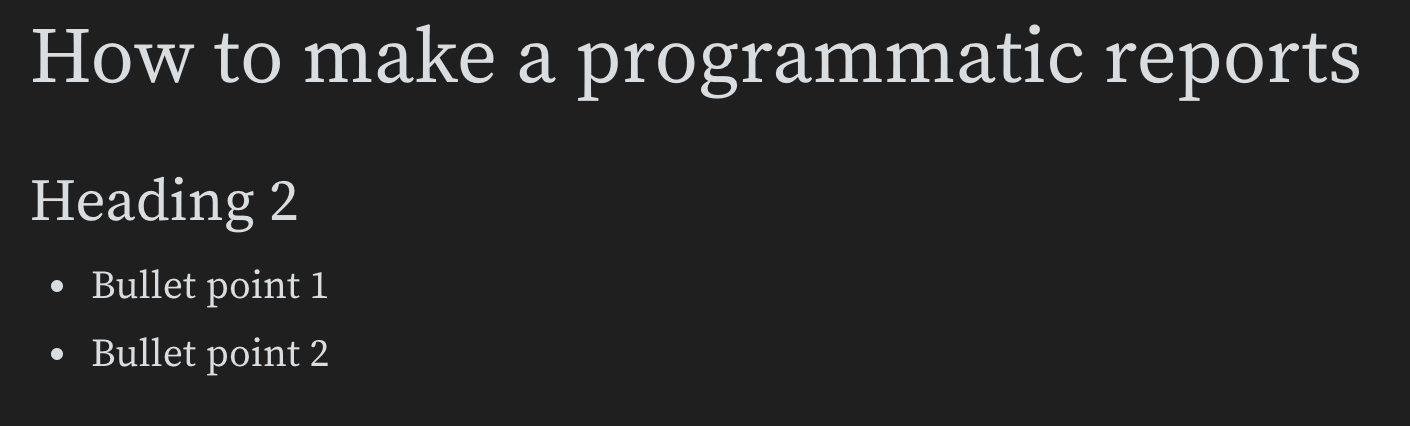
Pass a list of one or more HTML elements to `wandb.apis.reports.blocks` attribute. The following example demonstrates how to create an H1, H2, and an unordered list:
```python theme={null}
import wandb
import wandb_workspaces.reports.v2 as wr
report = wr.Report(project="report-editing")
report.blocks = [
wr.H1(text="How Programmatic Reports work"),
wr.H2(text="Heading 2"),
wr.UnorderedList(items=["Bullet 1", "Bullet 2"]),
]
report.save()
```
This renders the HTML elements to the following:
## Add HTML elements
Add HTML elements to your report interactively with the App UI or with the W\&B SDK.
Enter a forward slash (`/`) in the report to display a dropdown menu. From the dropdown, select a type of text block. For example, to create an H2 heading block, select the `Heading 2` option.
Pass a list of one or more HTML elements to `wandb.apis.reports.blocks` attribute. The following example demonstrates how to create an H1, H2, and an unordered list:
```python theme={null}
import wandb
import wandb_workspaces.reports.v2 as wr
report = wr.Report(project="report-editing")
report.blocks = [
wr.H1(text="How Programmatic Reports work"),
wr.H2(text="Heading 2"),
wr.UnorderedList(items=["Bullet 1", "Bullet 2"]),
]
report.save()
```
This renders the HTML elements to the following:
 ## Embed rich media links
Embed rich media within the report with the App UI or with the W\&B SDK.
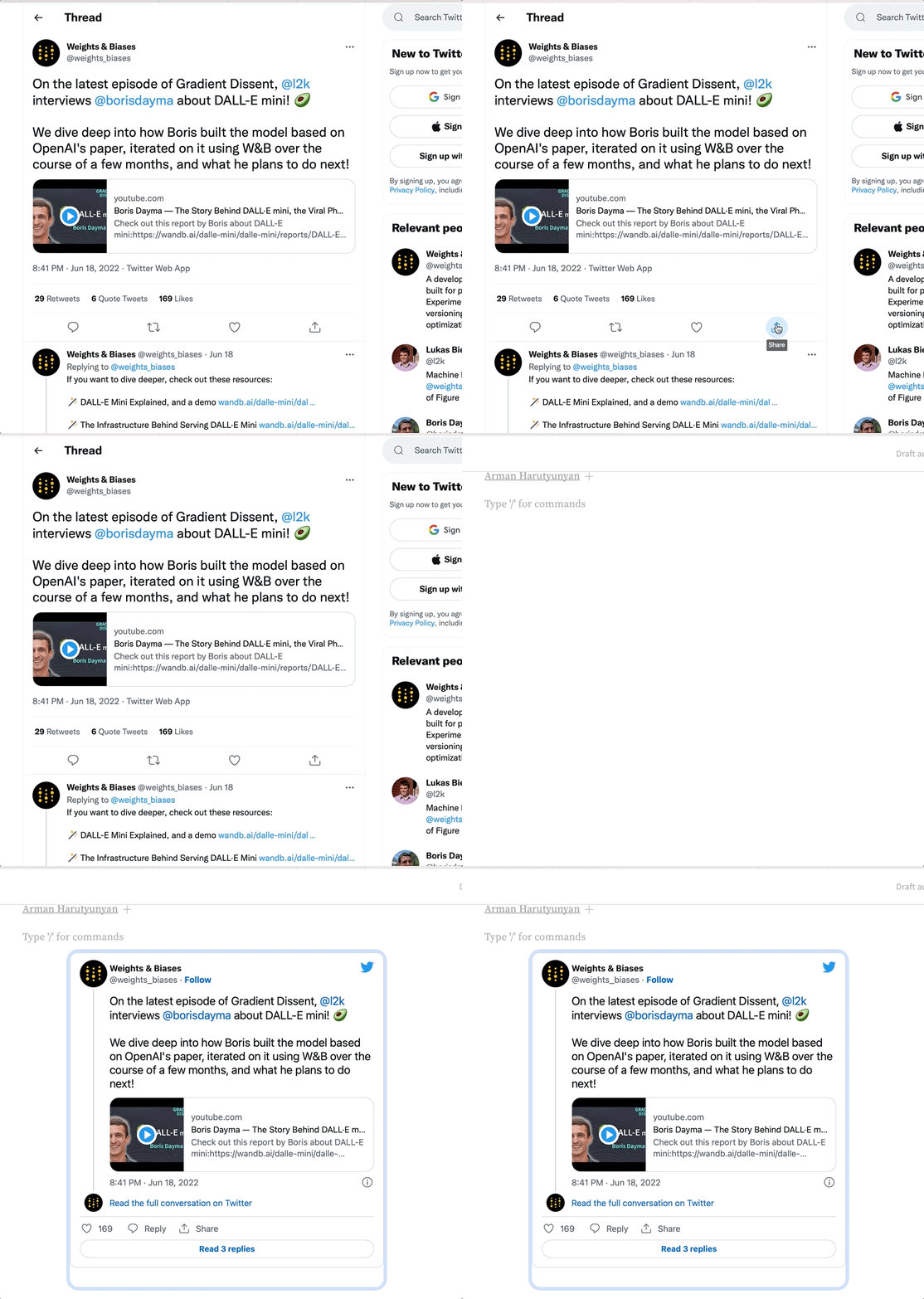
Copy and paste URLs into reports to embed rich media within the report. The following animations demonstrate how to copy and paste URLs from Twitter, YouTube, and SoundCloud.
### Twitter
Copy and paste a Tweet link URL into a report to view the Tweet within the report.
## Embed rich media links
Embed rich media within the report with the App UI or with the W\&B SDK.
Copy and paste URLs into reports to embed rich media within the report. The following animations demonstrate how to copy and paste URLs from Twitter, YouTube, and SoundCloud.
### Twitter
Copy and paste a Tweet link URL into a report to view the Tweet within the report.
 ### Youtube
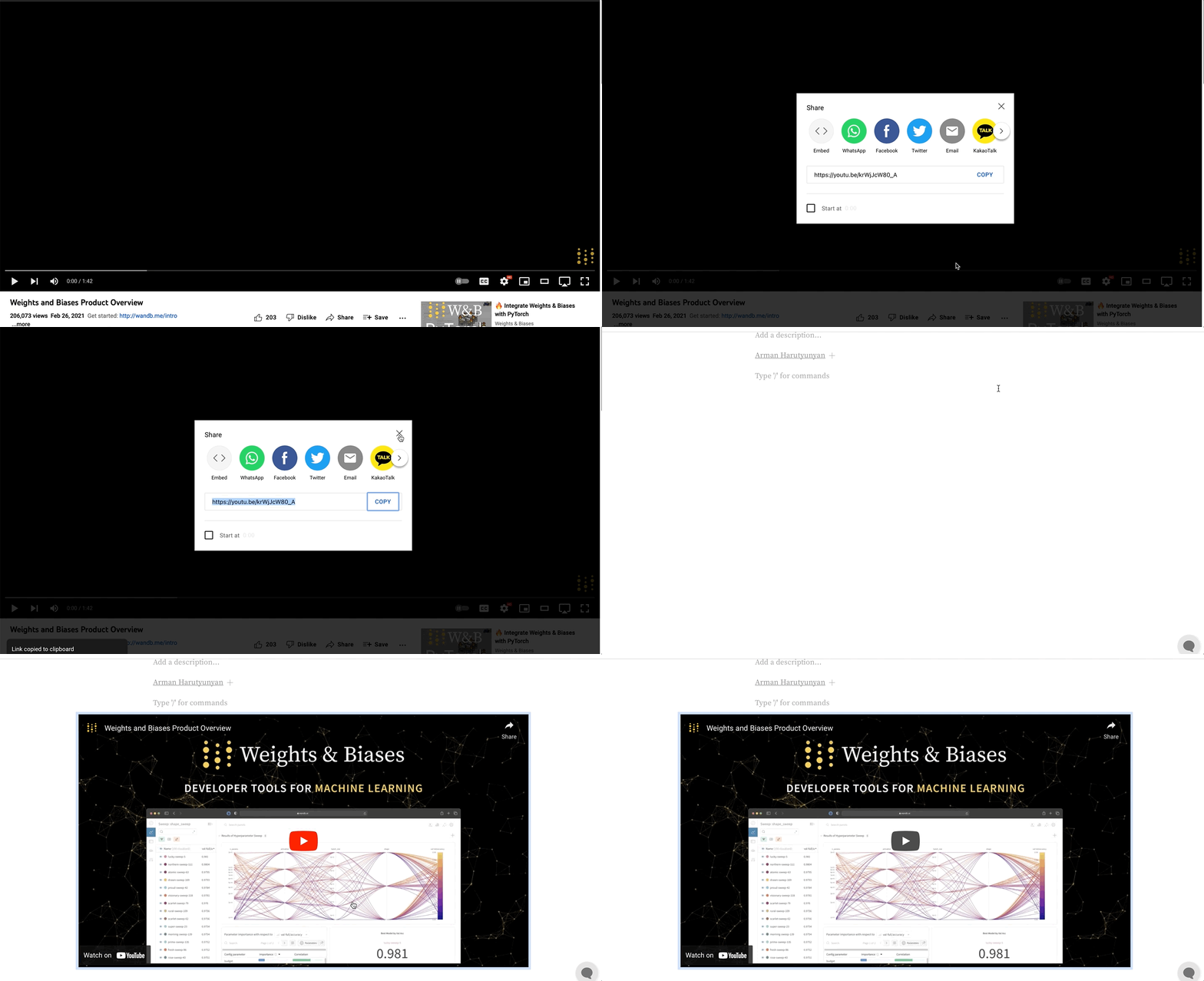
Copy and paste a YouTube video URL link to embed a video in the report.
### Youtube
Copy and paste a YouTube video URL link to embed a video in the report.
 ### SoundCloud
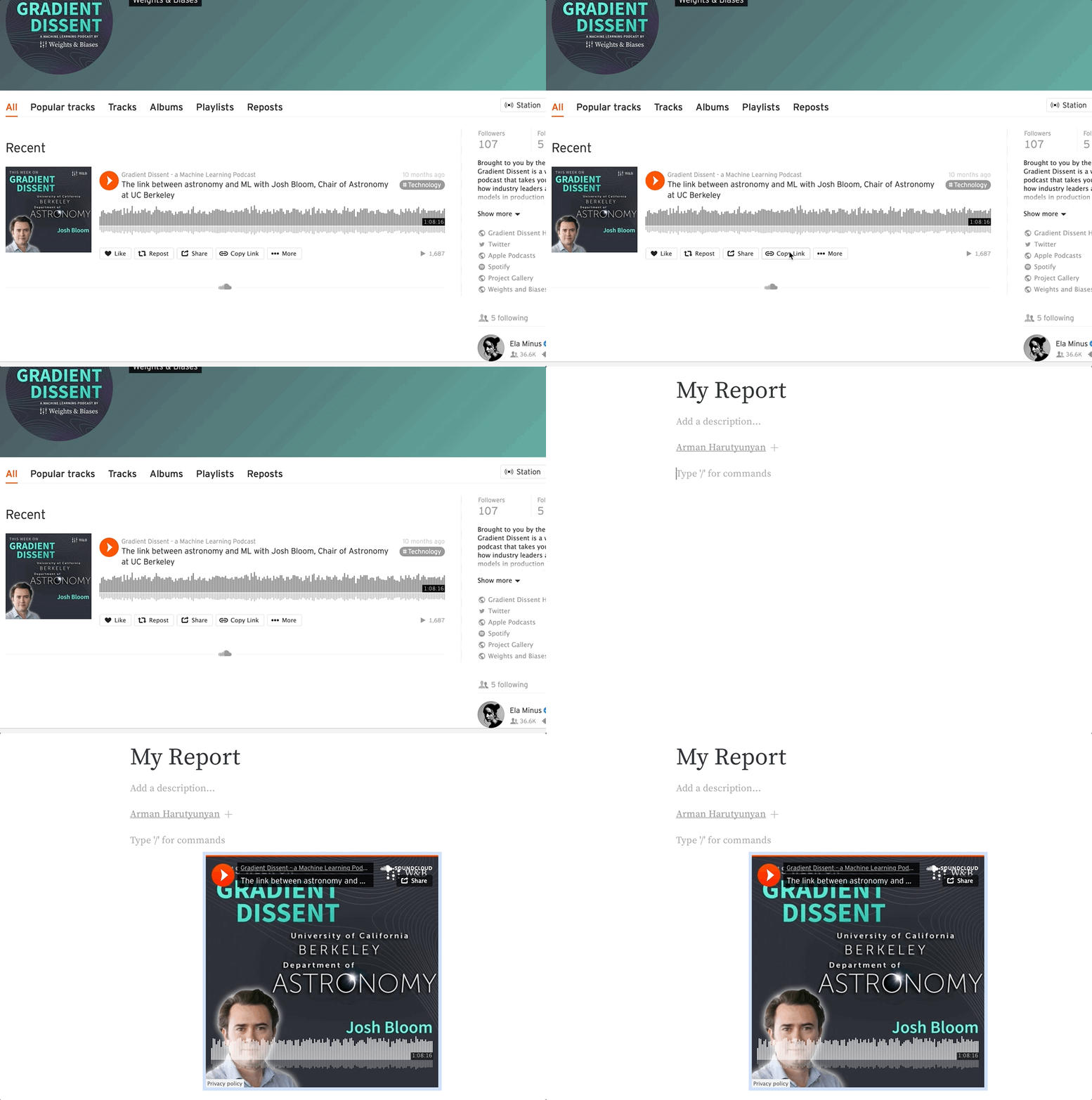
Copy and paste a SoundCloud link to embed an audio file into a report.
### SoundCloud
Copy and paste a SoundCloud link to embed an audio file into a report.
 Pass a list of one or more embedded media objects to the `wandb.apis.reports.blocks` attribute. The following example demonstrates how to embed video and Twitter media into a report:
```python theme={null}
import wandb
import wandb_workspaces.reports.v2 as wr
report = wr.Report(project="report-editing")
report.blocks = [
wr.Video(url="https://www.youtube.com/embed/6riDJMI-Y8U"),
wr.Twitter(
embed_html='\n'
),
]
report.save()
```
## Duplicate panel grids
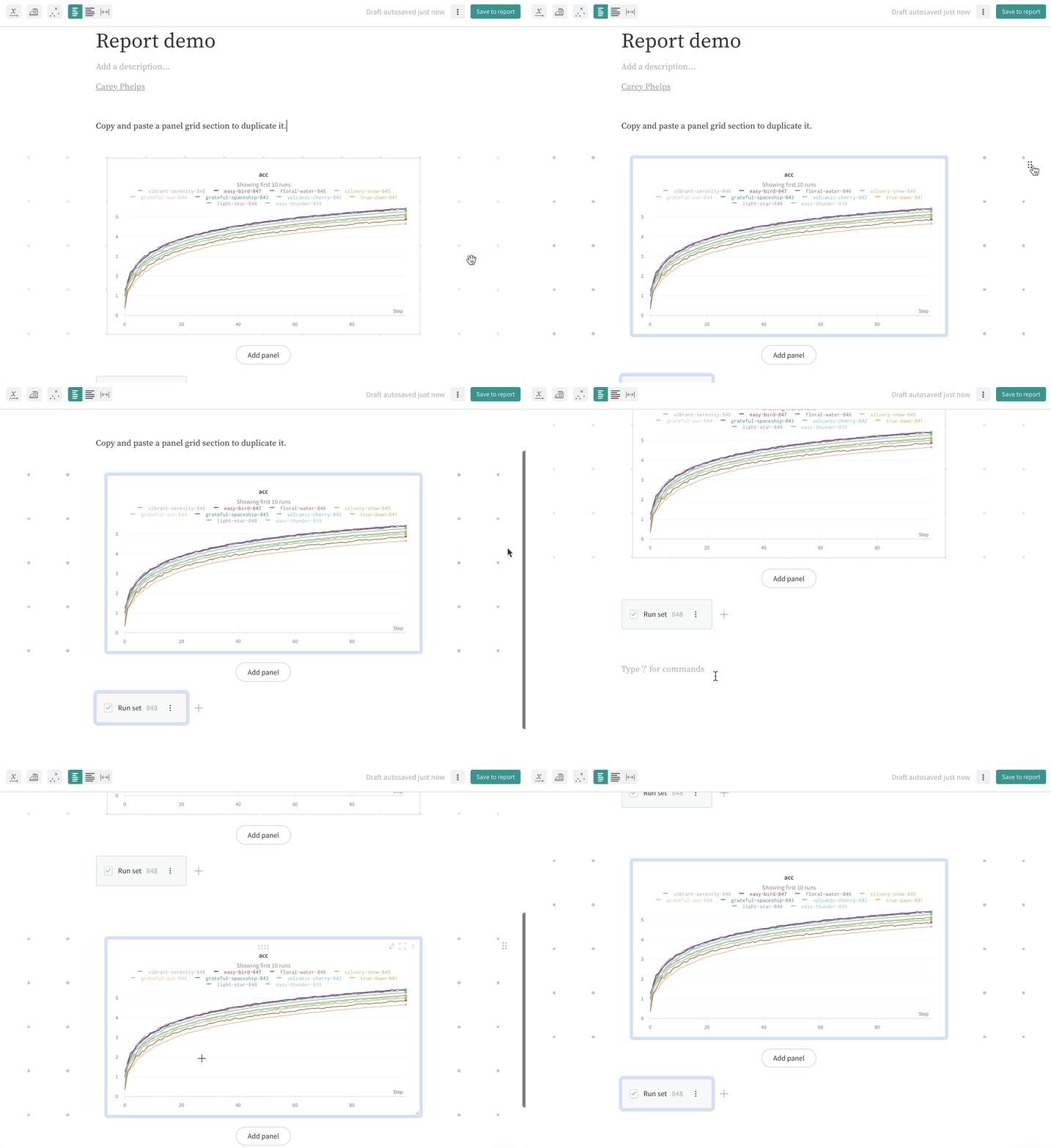
Duplicate a panel grid to reuse its layout in the same report or in a different report. Select a panel grid and copy-paste it to duplicate it in the same report or paste it into a different report.
Highlight a whole panel grid section by selecting the drag handle in the upper right corner. Click and drag to highlight and select a region in a report such as panel grids, text, and headings.
Pass a list of one or more embedded media objects to the `wandb.apis.reports.blocks` attribute. The following example demonstrates how to embed video and Twitter media into a report:
```python theme={null}
import wandb
import wandb_workspaces.reports.v2 as wr
report = wr.Report(project="report-editing")
report.blocks = [
wr.Video(url="https://www.youtube.com/embed/6riDJMI-Y8U"),
wr.Twitter(
embed_html='\n'
),
]
report.save()
```
## Duplicate panel grids
Duplicate a panel grid to reuse its layout in the same report or in a different report. Select a panel grid and copy-paste it to duplicate it in the same report or paste it into a different report.
Highlight a whole panel grid section by selecting the drag handle in the upper right corner. Click and drag to highlight and select a region in a report such as panel grids, text, and headings.
 ## Delete panel grids
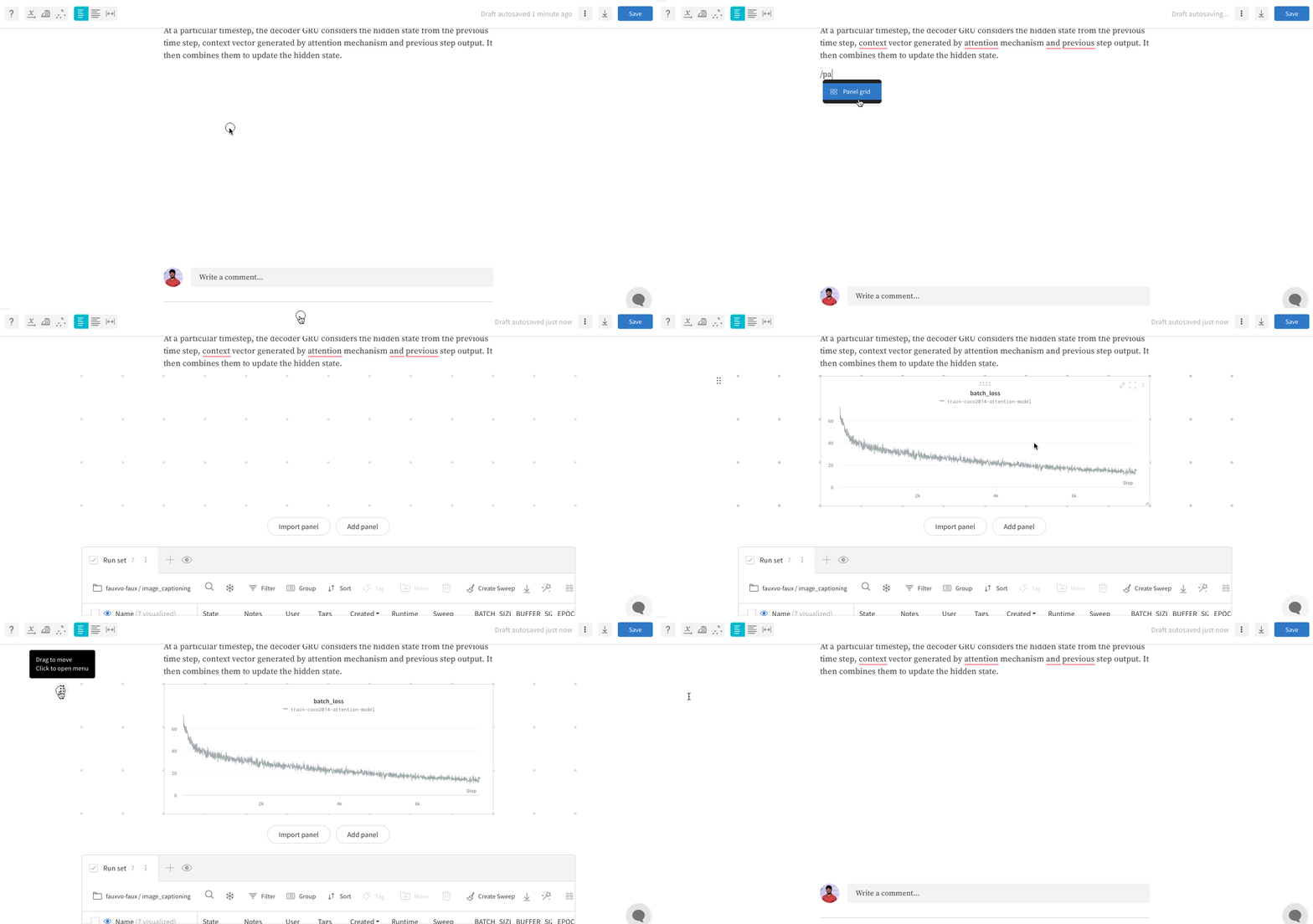
Select a panel grid and press `delete` on your keyboard to delete a panel grid.
## Delete panel grids
Select a panel grid and press `delete` on your keyboard to delete a panel grid.
 ## Collapse headers to organize reports
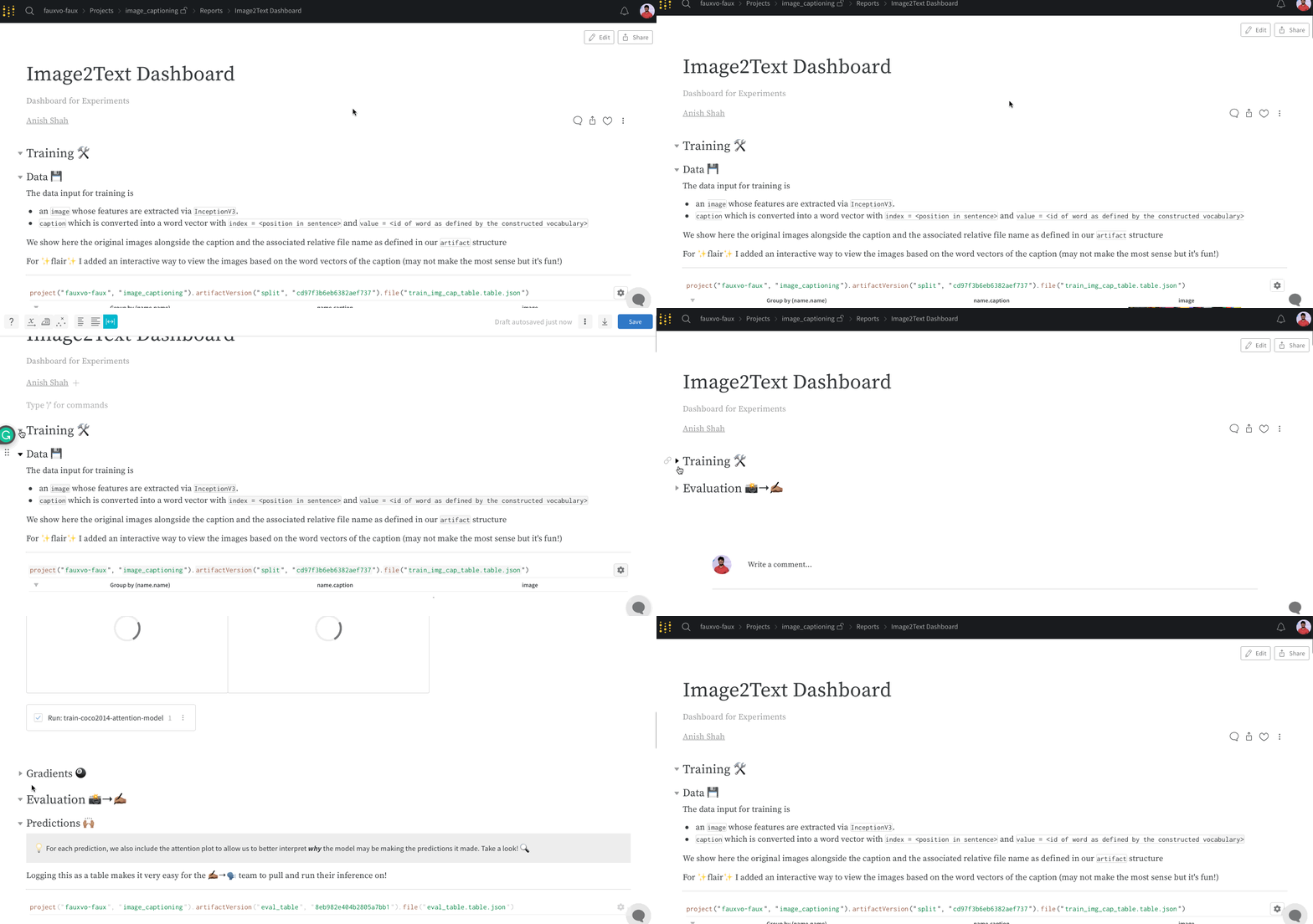
Collapse headers in a report to hide content within a text block. When the report loads, only expanded headers show content. Collapsing headers in reports helps organize your content and prevents excessive data loading. The following gif demonstrates the process.
## Collapse headers to organize reports
Collapse headers in a report to hide content within a text block. When the report loads, only expanded headers show content. Collapsing headers in reports helps organize your content and prevents excessive data loading. The following gif demonstrates the process.
 ## Visualize relationships across multiple dimensions
To compare more variables than a 2D plot can show, you can use a color gradient as an additional dimension. Using a color gradient to represent one of the variables can make patterns easier to interpret.
1. Choose a variable to represent with a color gradient, like penalty scores or learning rates. This provides a clearer understanding of how penalty (color) interacts with reward/side effects (y-axis) over training time (x-axis).
2. Highlight key trends. Hover over a specific group of runs to highlight them in the visualization.
## Visualize relationships across multiple dimensions
To compare more variables than a 2D plot can show, you can use a color gradient as an additional dimension. Using a color gradient to represent one of the variables can make patterns easier to interpret.
1. Choose a variable to represent with a color gradient, like penalty scores or learning rates. This provides a clearer understanding of how penalty (color) interacts with reward/side effects (y-axis) over training time (x-axis).
2. Highlight key trends. Hover over a specific group of runs to highlight them in the visualization.