> ## Documentation Index
> Fetch the complete documentation index at: https://docs.wandb.ai/llms.txt
> Use this file to discover all available pages before exploring further.
> Send alerts, triggered from your Python code, to your Slack or email
# Send an alert
export const ColabLink = ({url}) =>
Try in Colab
;
Create alerts with Slack or email if your run crashes or with a custom trigger. For example, you can create an alert if the gradient of your training loop starts to blow up (reports NaN) or a step in your ML pipeline completes. Alerts apply to all projects where you initialize runs, including both personal and team projects.
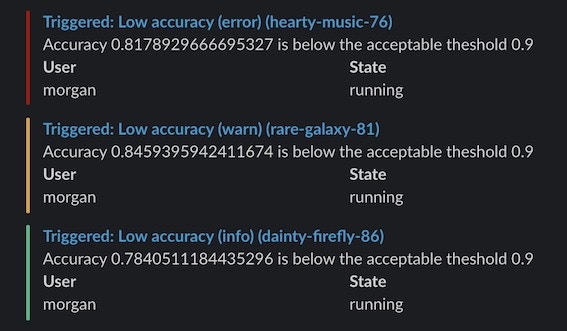
And then see W\&B Alerts messages in Slack (or your email):
W\&B Alerts require you to add `run.alert()` to your code. Without modifying your code, [Automations](/models/automations/) provide another way to notify Slack based on an event in W\&B, such as when an [artifact](/models/artifacts/) artifact version is created or when a [run metric](/models/runs/) meets or changes by a threshold.
For example, an automation can notify a Slack channel when a new version is created, run an automated testing webhook when the `production` alias is added to an artifact, or start a validation job only when a run's `loss` is within acceptable bounds.
Read the [Automations overview](/models/automations/) or [create an automation](/models/automations/create-automations/).
The following guide only applies to alerts in Multi-tenant Cloud.
If you're using [W\&B Server](/platform/hosting/) in your Private Cloud or on W\&B Dedicated Cloud, refer to [Configure Slack alerts in W\&B Server](/platform/hosting/monitoring-usage/slack-alerts) to set up Slack alerts.
To set up an alert, take these steps, which are detailed in the following sections:
1. Turn on Alerts in your W\&B [User Settings](https://wandb.ai/settings).
2. Add `run.alert()` to your code.
3. Test the configuration.
### 1. Turn on alerts in your W\&B User Settings
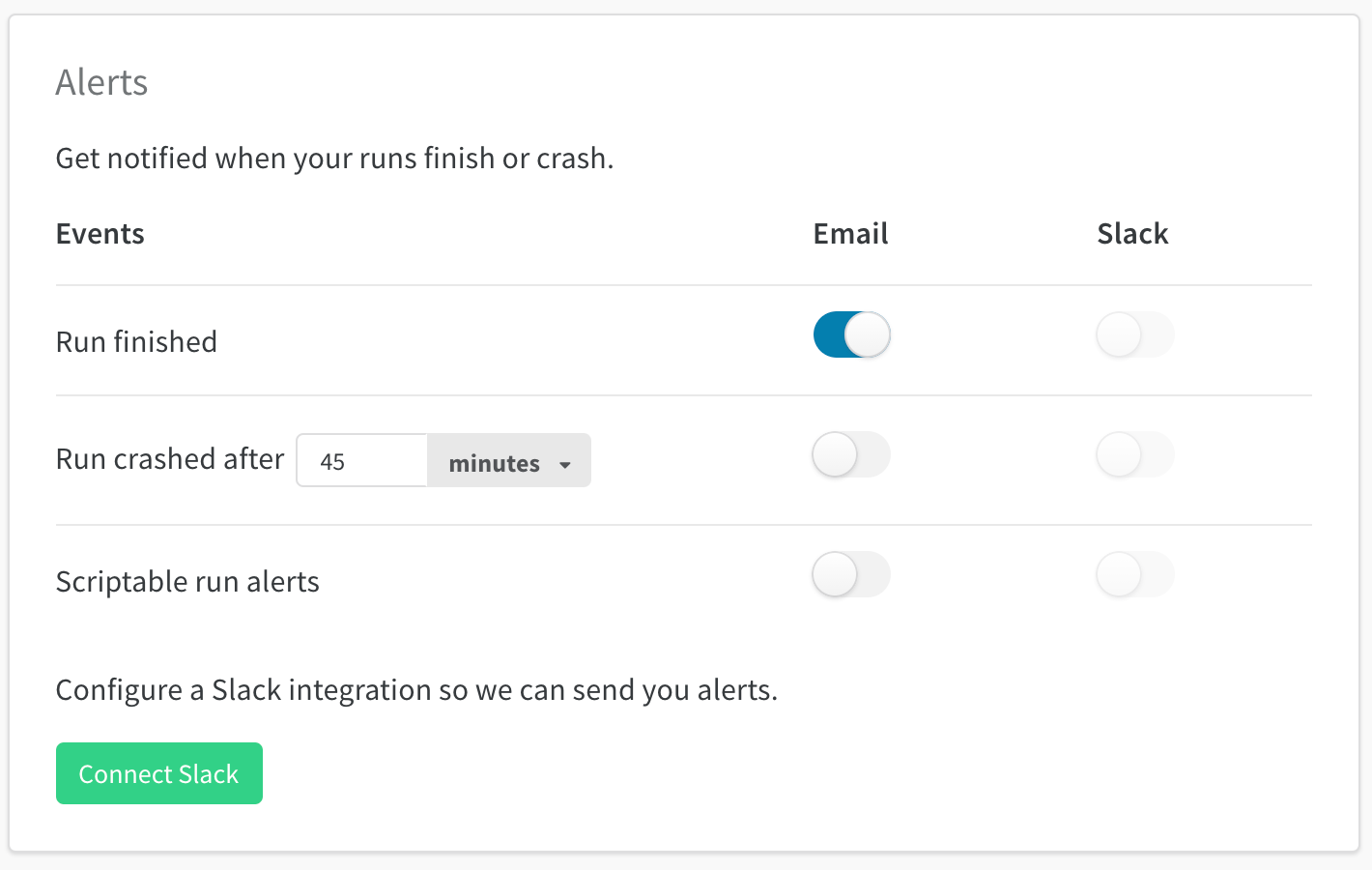
In your [User Settings](https://wandb.ai/settings):
* Scroll to the **Alerts** section
* Turn on **Scriptable run alerts** to receive alerts from `run.alert()`
* Use **Connect Slack** to pick a Slack channel to post alerts. We recommend the **Slackbot** channel because it keeps the alerts private.
* **Email** will go to the email address you used when you signed up for W\&B. We recommend setting up a filter in your email so all these alerts go into a folder and don't fill up your inbox.
You will only have to do this the first time you set up W\&B Alerts, or when you'd like to modify how you receive alerts.
### 2. Add `run.alert()` to your code
Add `run.alert()` to your code (either in a Notebook or Python script) wherever you'd like it to be triggered
```python theme={null}
import wandb
with wandb.init() as run:
run.alert(title="High Loss", text="Loss is increasing rapidly")
```
### 3. Test the configuration
Check your Slack or emails for the alert message. If you didn't receive any, make sure you've got emails or Slack turned on for **Scriptable Alerts** in your [User Settings](https://wandb.ai/settings)
## Example
This simple alert sends a warning when accuracy falls below a threshold. In this example, it only sends alerts at least 5 minutes apart.
```python theme={null}
import wandb
from wandb import AlertLevel
with wandb.init() as run:
if acc < threshold:
run.alert(
title="Low accuracy",
text=f"Accuracy {acc} is below the acceptable threshold {threshold}",
level=AlertLevel.WARN,
wait_duration=300,
)
```
## Tag or mention users
Use the at sign `@` followed by the Slack user ID to tag yourself or your colleagues in either the title or the text of the alert. You can find a Slack user ID from their Slack profile page.
```python theme={null}
run.alert(title="Loss is NaN", text=f"Hey <@U1234ABCD> loss has gone to NaN")
```
## Configure team alerts
Team admins can set up alerts for the team on the team settings page: `wandb.ai/teams/your-team`.
Team alerts apply to everyone on your team. W\&B recommends using the **Slackbot** channel because it keeps alerts private.
## Change Slack channel to send alerts to
To change what channel alerts are sent to, click **Disconnect Slack** and then reconnect. After you reconnect, pick a different Slack channel.
 ### 2. Add `run.alert()` to your code
Add `run.alert()` to your code (either in a Notebook or Python script) wherever you'd like it to be triggered
```python theme={null}
import wandb
with wandb.init() as run:
run.alert(title="High Loss", text="Loss is increasing rapidly")
```
### 3. Test the configuration
Check your Slack or emails for the alert message. If you didn't receive any, make sure you've got emails or Slack turned on for **Scriptable Alerts** in your [User Settings](https://wandb.ai/settings)
## Example
This simple alert sends a warning when accuracy falls below a threshold. In this example, it only sends alerts at least 5 minutes apart.
```python theme={null}
import wandb
from wandb import AlertLevel
with wandb.init() as run:
if acc < threshold:
run.alert(
title="Low accuracy",
text=f"Accuracy {acc} is below the acceptable threshold {threshold}",
level=AlertLevel.WARN,
wait_duration=300,
)
```
## Tag or mention users
Use the at sign `@` followed by the Slack user ID to tag yourself or your colleagues in either the title or the text of the alert. You can find a Slack user ID from their Slack profile page.
```python theme={null}
run.alert(title="Loss is NaN", text=f"Hey <@U1234ABCD> loss has gone to NaN")
```
## Configure team alerts
Team admins can set up alerts for the team on the team settings page: `wandb.ai/teams/your-team`.
Team alerts apply to everyone on your team. W\&B recommends using the **Slackbot** channel because it keeps alerts private.
## Change Slack channel to send alerts to
To change what channel alerts are sent to, click **Disconnect Slack** and then reconnect. After you reconnect, pick a different Slack channel.
### 2. Add `run.alert()` to your code
Add `run.alert()` to your code (either in a Notebook or Python script) wherever you'd like it to be triggered
```python theme={null}
import wandb
with wandb.init() as run:
run.alert(title="High Loss", text="Loss is increasing rapidly")
```
### 3. Test the configuration
Check your Slack or emails for the alert message. If you didn't receive any, make sure you've got emails or Slack turned on for **Scriptable Alerts** in your [User Settings](https://wandb.ai/settings)
## Example
This simple alert sends a warning when accuracy falls below a threshold. In this example, it only sends alerts at least 5 minutes apart.
```python theme={null}
import wandb
from wandb import AlertLevel
with wandb.init() as run:
if acc < threshold:
run.alert(
title="Low accuracy",
text=f"Accuracy {acc} is below the acceptable threshold {threshold}",
level=AlertLevel.WARN,
wait_duration=300,
)
```
## Tag or mention users
Use the at sign `@` followed by the Slack user ID to tag yourself or your colleagues in either the title or the text of the alert. You can find a Slack user ID from their Slack profile page.
```python theme={null}
run.alert(title="Loss is NaN", text=f"Hey <@U1234ABCD> loss has gone to NaN")
```
## Configure team alerts
Team admins can set up alerts for the team on the team settings page: `wandb.ai/teams/your-team`.
Team alerts apply to everyone on your team. W\&B recommends using the **Slackbot** channel because it keeps alerts private.
## Change Slack channel to send alerts to
To change what channel alerts are sent to, click **Disconnect Slack** and then reconnect. After you reconnect, pick a different Slack channel.