> ## Documentation Index
> Fetch the complete documentation index at: https://docs.wandb.ai/llms.txt
> Use this file to discover all available pages before exploring further.
# View runs in a project
> Details about customizing how runs are displayed in your project's runs table
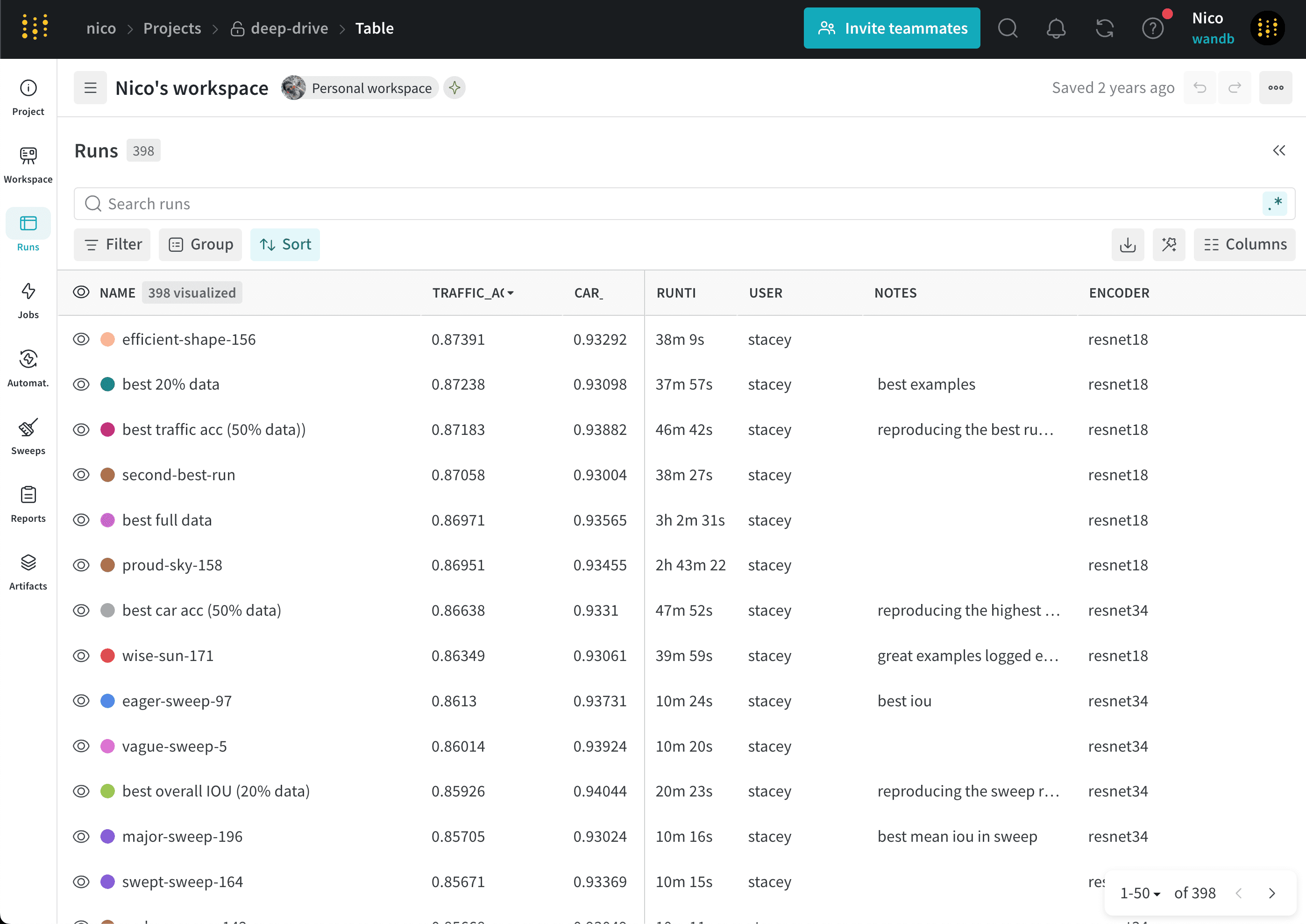
View all runs logged to your W\&B project in the **Runs** tab of your project sidebar. Within the Runs tab is the *Runs table*. The Runs table shows details about all of your runs in a project. Use the Runs table to compare runs, sort runs by specific columns, and organize runs into groups.
The following image shows the Runs table for a project named `deep-drive`:
 ## Manage columns
The following sections describe how to customize the Runs table.
### Add columns
Add columns in the Runs table to customize which properties associated with your project are visible.
To add a columns in the Runs table:
1. In the project sidebar, select the **Runs** tab.
2. Above the list of runs, click the **Columns** (six horizontal dashes) button.
3. Select the name of a property within the **Hidden** section of the modal.
4. Drag columns to change their order.
5. Click **Close**.
### Remove columns
Remove columns in the Runs table to customize which properties associated with your project are visible.
To remove columns in the Runs table:
1. In the project sidebar, select the **Runs** tab.
2. Above the list of runs, click the **Columns** (six horizontal dashes) button.
3. Select the name of a property within the **Visible & Pinned** section of the modal.
4. Click **Close**.
### Move columns
To move columns in the Runs table:
1. In the project sidebar, select the **Runs** tab.
2. Drag a column to the left or right.
### Pin columns
Pinned columns are shown on the left-hand side. Unpinned columns are shown on the right-hand side of the Runs tab. If you pin a column in the **Runs** tab, it is also pinned in the **Workspace** tab. Similarly, if you pin a column in the **Workspace** tab, it is also pinned in the **Runs** tab.
To pin a column:
1. In the project sidebar, navigate to the **Runs** tab.
2. Click the **Columns** (six horizontal dashes) button.
3. Within the **Visible & Pinned** section of the modal, click on the pin icon next to the column name you want to pin.
To unpin a column:
1. In the project sidebar, navigate to the **Runs** tab.
2. Either hover over the column name, then click its **action ()** menu, or click the **Columns** (six horizontal dashes) button and click on the pin icon next to the column name you want to unpin.
3. Click **Unpin column**.
W\&B persists columns you pin or unpin in the Runs table in the Runs selector of the Workspace tab.
### Hide columns
To hide columns in the Runs table:
1. In the project sidebar, select the **Runs** tab.
2. Hover over the column name, click the **action ()** menu that appears.
3. Click **Hide column**.
To view all columns that are currently hidden, click **Columns**.
## Sort runs by column
Sort runs by any visible column in the Runs table. This is particularly useful if you want to view the best (or worst) recorded value.
To sort the list of runs by any visible column:
1. Hover over the column name, then click its **action ()** menu.
2. Optinally hover over **Show latest**. From the dropdown, select **latest**, **min**, or **max**.
3. Click **Sort ascending** or **Sort descending**.
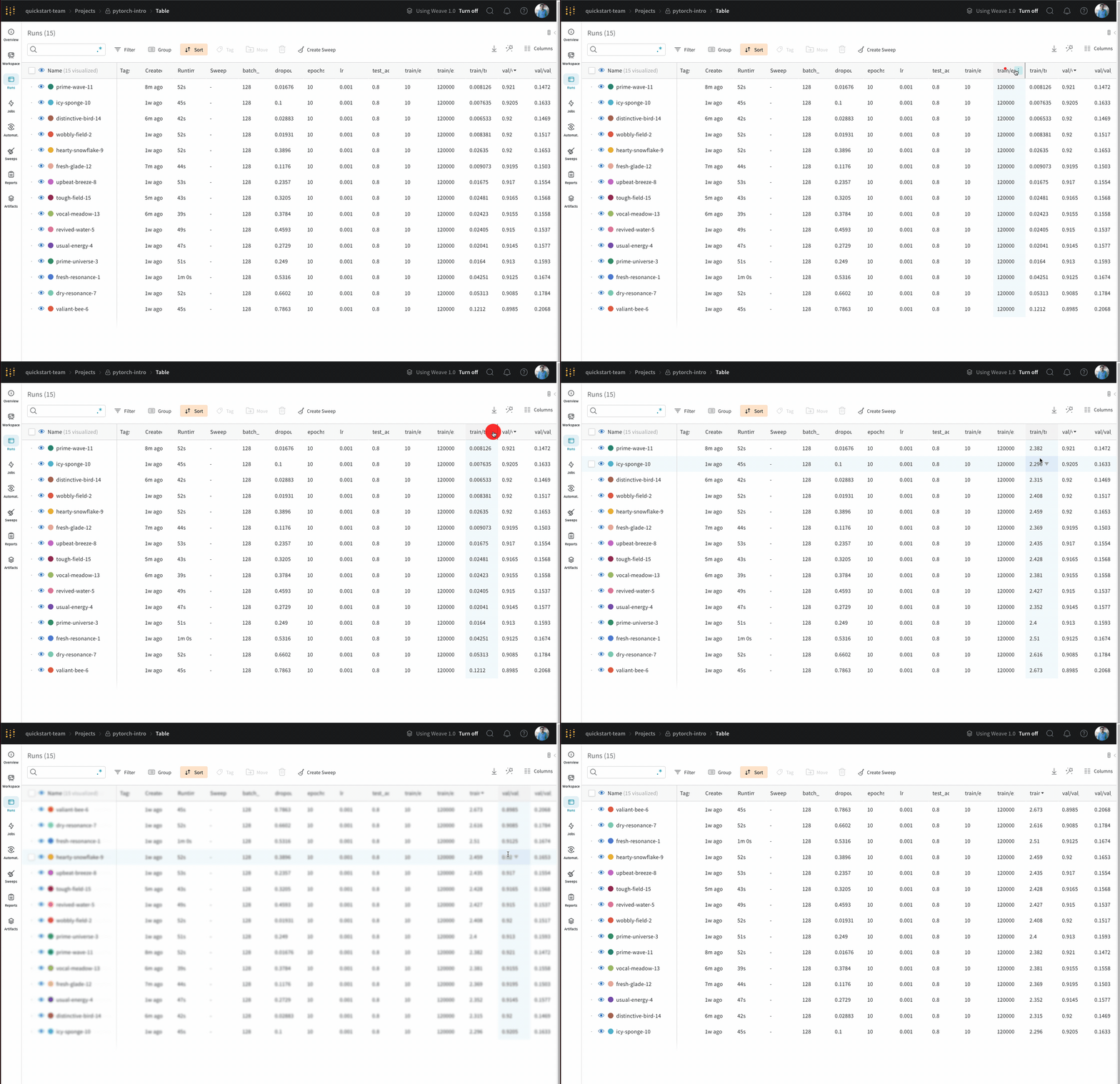
The following animation shows sorting runs by the maximum value of a logged metric:
## Manage columns
The following sections describe how to customize the Runs table.
### Add columns
Add columns in the Runs table to customize which properties associated with your project are visible.
To add a columns in the Runs table:
1. In the project sidebar, select the **Runs** tab.
2. Above the list of runs, click the **Columns** (six horizontal dashes) button.
3. Select the name of a property within the **Hidden** section of the modal.
4. Drag columns to change their order.
5. Click **Close**.
### Remove columns
Remove columns in the Runs table to customize which properties associated with your project are visible.
To remove columns in the Runs table:
1. In the project sidebar, select the **Runs** tab.
2. Above the list of runs, click the **Columns** (six horizontal dashes) button.
3. Select the name of a property within the **Visible & Pinned** section of the modal.
4. Click **Close**.
### Move columns
To move columns in the Runs table:
1. In the project sidebar, select the **Runs** tab.
2. Drag a column to the left or right.
### Pin columns
Pinned columns are shown on the left-hand side. Unpinned columns are shown on the right-hand side of the Runs tab. If you pin a column in the **Runs** tab, it is also pinned in the **Workspace** tab. Similarly, if you pin a column in the **Workspace** tab, it is also pinned in the **Runs** tab.
To pin a column:
1. In the project sidebar, navigate to the **Runs** tab.
2. Click the **Columns** (six horizontal dashes) button.
3. Within the **Visible & Pinned** section of the modal, click on the pin icon next to the column name you want to pin.
To unpin a column:
1. In the project sidebar, navigate to the **Runs** tab.
2. Either hover over the column name, then click its **action ()** menu, or click the **Columns** (six horizontal dashes) button and click on the pin icon next to the column name you want to unpin.
3. Click **Unpin column**.
W\&B persists columns you pin or unpin in the Runs table in the Runs selector of the Workspace tab.
### Hide columns
To hide columns in the Runs table:
1. In the project sidebar, select the **Runs** tab.
2. Hover over the column name, click the **action ()** menu that appears.
3. Click **Hide column**.
To view all columns that are currently hidden, click **Columns**.
## Sort runs by column
Sort runs by any visible column in the Runs table. This is particularly useful if you want to view the best (or worst) recorded value.
To sort the list of runs by any visible column:
1. Hover over the column name, then click its **action ()** menu.
2. Optinally hover over **Show latest**. From the dropdown, select **latest**, **min**, or **max**.
3. Click **Sort ascending** or **Sort descending**.
The following animation shows sorting runs by the maximum value of a logged metric:
 W\&B persists the sort order you select in the Runs table in the Runs selector of the Workspace tab.
## Export runs table to CSV
Export the table of all your runs, hyperparameters, and summary metrics to a CSV with the download button.
1. In the project sidebar, select the **Runs** tab.
2. Above the list of runs, click the **Download** (downward arrow) button.
W\&B persists the sort order you select in the Runs table in the Runs selector of the Workspace tab.
## Export runs table to CSV
Export the table of all your runs, hyperparameters, and summary metrics to a CSV with the download button.
1. In the project sidebar, select the **Runs** tab.
2. Above the list of runs, click the **Download** (downward arrow) button.