> ## Documentation Index
> Fetch the complete documentation index at: https://docs.wandb.ai/llms.txt
> Use this file to discover all available pages before exploring further.
> Organize your runs into groups and other properties.
# Organize runs
Organize your runs into *groups*. A group is a collection of runs that share a common purpose, such as training runs for a specific model or evaluation runs for a specific dataset.
You can also organize runs by other properties such as *job type*. [Job types](/models/runs/grouping#organize-runs-by-job-type) indicate the function of a run, such as `preprocessing`, `training`, or `evaluation`.
## Organize runs into groups
You can add runs to a group programmatically using the W\&B Python SDK or interactively in the W\&B App.
W\&B stores group names as a run [`wandb.Run.group`](/models/ref/python/experiments/run#property-run-group) property.
Programmatically add one or more runs to a group with the W\&B Python SDK. Pass the name of your group as an argument to the `group` parameter when you initialize a run with `wandb.init(group="")`. You can use group names to organize and filter runs in the W\&B App.
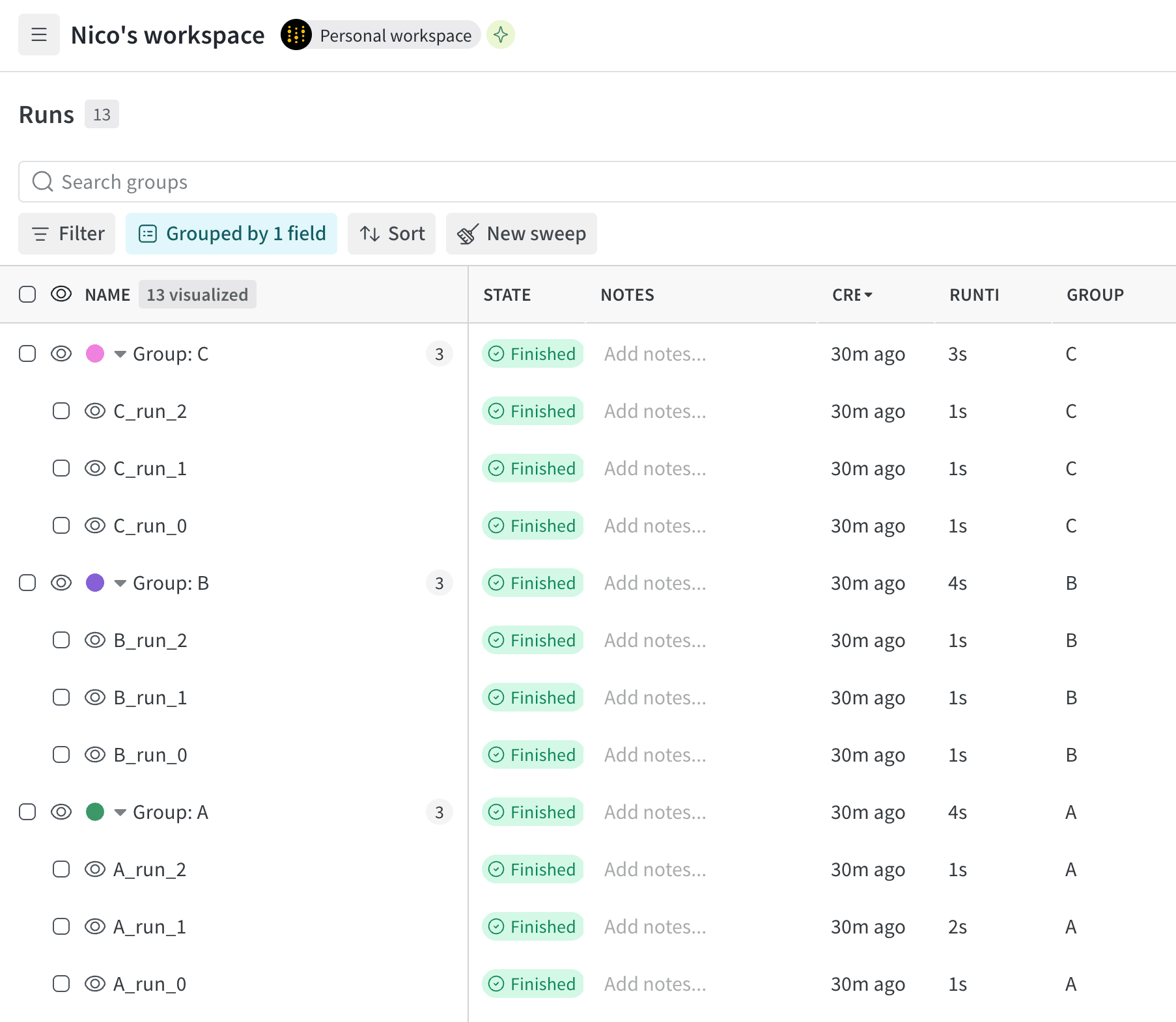
The following example creates three groups named `A`, `B`, and `C`. Each group contains three runs.
```python theme={null}
import wandb
entity = ""
project = ""
for group in ["A", "B", "C"]:
for i in range(3):
with wandb.init(entity=entity, project=project, group=group, name=f"{group}_run_{i}") as run:
# Simulate some training
for step in range(100):
run.log({
"acc": 0.5 + (step / 100) * 0.3 + (i * 0.05),
"loss": 1.0 - (step / 100) * 0.5
})
```
In the project's workspace, you can view runs organized by group. The following image illustrates organizing the runs table by group name. Three groups named `A`, `B`, and `C` appear in the runs table, each containing three runs.
 1. Navigate to your W\&B project.
2. Select the **Runs** tab from the project sidebar.
3. Above the list of runs, click the **Group** button.
4. Click the checkbox next to one or more runs you want to group.
5. Select **Move to group**.
6. In the drawer, select an existing group or create a new group.
### View groups
View runs organized by group in the W\&B App:
1. In your project sidebar, select the **Runs** tab.
2. Above the list of runs, click the **Group** button.
3. From the dropdown, select a **Group**.
### Move runs between groups
Move runs from one group to another group:
1. Navigate to your W\&B project.
2. Select the **Runs** tab from the project sidebar.
3. Select one or more runs by clicking their checkboxes.
4. Above the table, click **Move to group**.
5. Within the drawer, select the target group or create a new group.
6. Click **Move**.
### Remove runs from a group
1. Navigate to your W\&B project.
2. Select the **Runs** tab from the project sidebar.
3. Above the list of runs, click the **Group** button.
4. From the dropdown, select the **X** next to the name of the group you want to remove.
### Delete a group
To delete a group, remove all runs from it. This automatically deletes the group.
## Organize runs by job type
Organize runs by their *job type*. A job type indicates the function of a run, such as `preprocessing`, `training`, or `evaluation`.
View a run's job type by accessing the run's [`wandb.Run.job_type`](/models/ref/python/experiments/run#property-run-job-type) property.
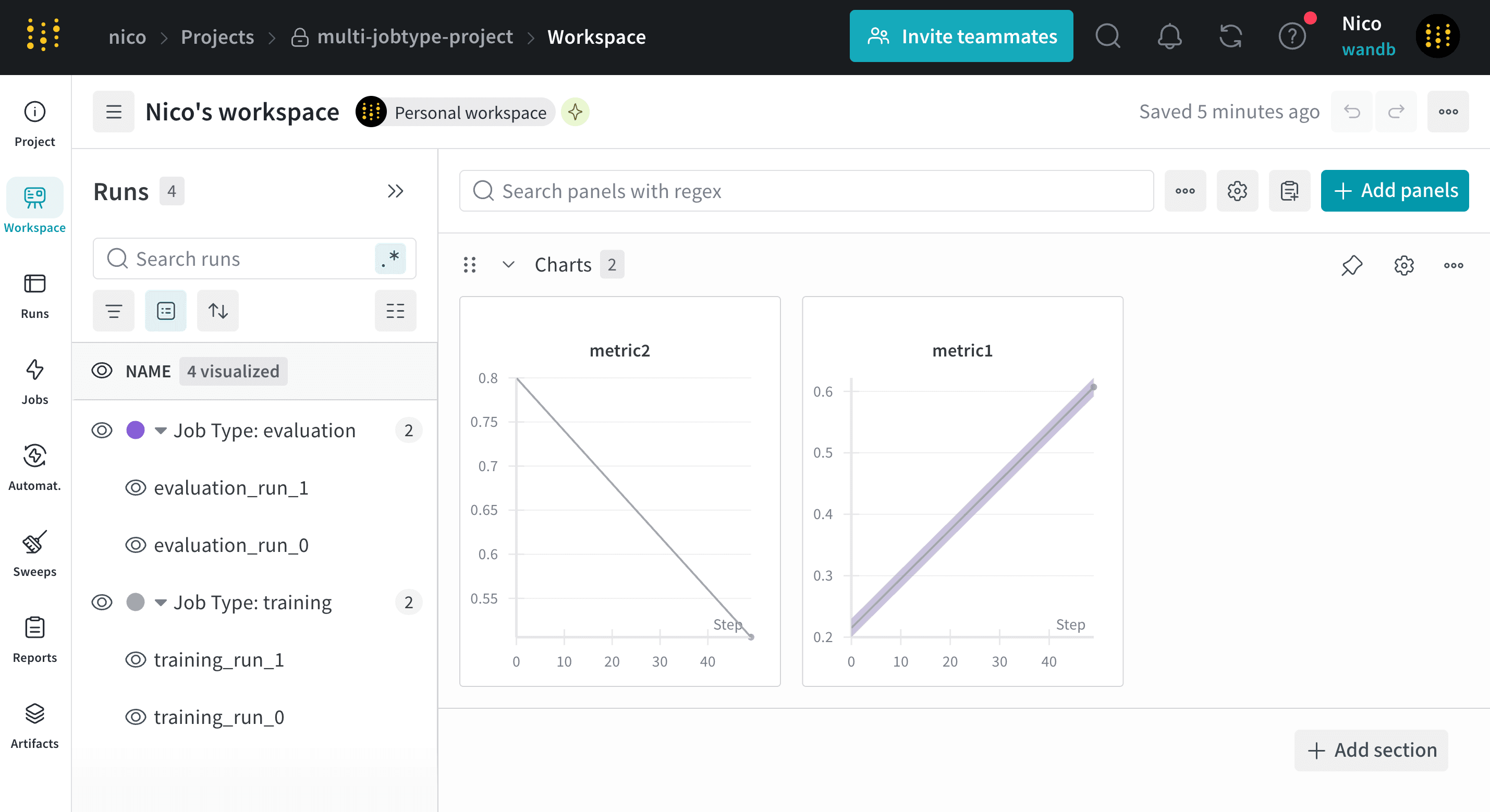
Add a job type to a run by passing the `job_type` parameter to `wandb.init(job_type="")`. For example, the following code snippet creates runs with job types of either `training` or `evaluation`:
```python theme={null}
import wandb
entity = ""
project = ""
for job_type in ["training", "evaluation"]:
for i in range(2):
with wandb.init(entity=entity, project=project, job_type=job_type, name=f"{job_type}_run_{i}") as run:
# Simulate some process
for step in range(50):
run.log({
"metric1": 0.2 + (step / 50) * 0.4 + (i * 0.03),
"metric2": 0.8 - (step / 50) * 0.3
})
```
The following image shows runs organized by job type:
1. Navigate to your W\&B project.
2. Select the **Runs** tab from the project sidebar.
3. Above the list of runs, click the **Group** button.
4. Click the checkbox next to one or more runs you want to group.
5. Select **Move to group**.
6. In the drawer, select an existing group or create a new group.
### View groups
View runs organized by group in the W\&B App:
1. In your project sidebar, select the **Runs** tab.
2. Above the list of runs, click the **Group** button.
3. From the dropdown, select a **Group**.
### Move runs between groups
Move runs from one group to another group:
1. Navigate to your W\&B project.
2. Select the **Runs** tab from the project sidebar.
3. Select one or more runs by clicking their checkboxes.
4. Above the table, click **Move to group**.
5. Within the drawer, select the target group or create a new group.
6. Click **Move**.
### Remove runs from a group
1. Navigate to your W\&B project.
2. Select the **Runs** tab from the project sidebar.
3. Above the list of runs, click the **Group** button.
4. From the dropdown, select the **X** next to the name of the group you want to remove.
### Delete a group
To delete a group, remove all runs from it. This automatically deletes the group.
## Organize runs by job type
Organize runs by their *job type*. A job type indicates the function of a run, such as `preprocessing`, `training`, or `evaluation`.
View a run's job type by accessing the run's [`wandb.Run.job_type`](/models/ref/python/experiments/run#property-run-job-type) property.
Add a job type to a run by passing the `job_type` parameter to `wandb.init(job_type="")`. For example, the following code snippet creates runs with job types of either `training` or `evaluation`:
```python theme={null}
import wandb
entity = ""
project = ""
for job_type in ["training", "evaluation"]:
for i in range(2):
with wandb.init(entity=entity, project=project, job_type=job_type, name=f"{job_type}_run_{i}") as run:
# Simulate some process
for step in range(50):
run.log({
"metric1": 0.2 + (step / 50) * 0.4 + (i * 0.03),
"metric2": 0.8 - (step / 50) * 0.3
})
```
The following image shows runs organized by job type:
 ### View runs organized by job type
View runs organized by group in the W\&B App:
1. In your project sidebar, select the **Runs** tab.
2. Above the list of runs, click the **Group** button.
3. From the dropdown, select **Job Type**.
### View runs organized by job type
View runs organized by group in the W\&B App:
1. In your project sidebar, select the **Runs** tab.
2. Above the list of runs, click the **Group** button.
3. From the dropdown, select **Job Type**.