> ## Documentation Index
> Fetch the complete documentation index at: https://docs.wandb.ai/llms.txt
> Use this file to discover all available pages before exploring further.
> This page describes how logging patterns impact performance in W&B and provides guidance for scaling experiment tracking in large projects.
# Logging at scale and performance
Performance is usually influenced by a combination of:
* the number of runs in a project
* the number of steps in each run
* the number of distinct metrics you log
* how often you call `wandb.Run.log()`
* how much data you send in each log call
* how your workspace is configured
In most cases, performance issues are caused more often by logging too many distinct metrics than by logging too many steps.
## Key terms
The following terms are used throughout this page.
### Steps
A **step** is a single logical row of metrics in a run. A step is finalized when `wandb.Run.log()` is called with `commit=True`, or implicitly when neither `commit` nor `step` is specified.
```python theme={null}
import wandb
with wandb.init() as run:
run.log({"loss": 0.42}, commit=True)
```
### Metric cardinality
**Metric cardinality** is the number of distinct metric keys logged in a project, including keys in nested dictionaries.
For example, the following logs 4 distinct metric keys: `a`, `b.c`, `b.d.e`, and `b.d.f`.
```python theme={null}
import wandb
with wandb.init() as run:
run.log(
{
"a": 1,
"b": {
"c": 2,
"d": {
"e": 3,
"f": 4,
},
},
}
)
```
W\&B flattens nested dictionaries into dot-separated metric names.
### Logged points
**Logged points** are the total number of metric values recorded.
For example, both of the following code samples produce three logged points:
```python theme={null}
import wandb
with wandb.init() as run:
run.log({"a": 1, "b": 2, "c": 3})
```
```python theme={null}
import wandb
with wandb.init() as run:
run.log({"a": 1})
run.log({"a": 2})
run.log({"a": 3})
```
### Log frequency
**Log frequency** is the number of `wandb.Run.log()` calls per minute.
```text theme={null}
log frequency = wandb.Run.log() calls per minute
```
### Throughput
**Throughput** is the total number of logged points recorded per minute.
You can think of throughput as:
```text theme={null}
throughput = logged points per minute
```
Or, equivalently:
```text theme={null}
throughput = logged points × log frequency
```
## Recommendations at scale
The recommendations described in this section only apply to W\&B Multi-tenant Cloud. If you use a different W\&B deployment type, check with your administrator for deployment-specific guidance or limits.
The following table summarizes recommended operating ranges for large-scale logging.
| Dimension | Guidance at scale |
| ------------------------------ | ------------------------- |
| Runs per project | 10,000 |
| Steps per run | 500,000 |
| Metric cardinality per project | 100,000 |
| Log frequency | 1,000 rows per minute |
| Throughput | 100,000 values per minute |
| Video throughput | 40 MB per minute |
These values are guidelines for maintaining good performance at scale. W\&B may continue to accept data beyond these recommendations, but pages can become slower to load and use.
## Throughput examples
Different logging patterns can produce the same throughput.
### Scalar logging examples
The values listed in the table only apply to W\&B Multi-tenant Cloud. If you use a different W\&B deployment type, check with your administrator for deployment-specific guidance or limits.
| Metrics per log call | Log frequency (per minute) | Throughput (values per minute) |
| -------------------- | -------------------------- | ------------------------------ |
| 100 | 1,000 | 100,000 |
| 1,000 | 100 | 100,000 |
| 10,000 | 10 | 100,000 |
| 20,000 | 5 | 100,000 |
### Video logging examples
The values listed in the table only apply to W\&B Multi-tenant Cloud. If you use a different W\&B deployment type, check with your administrator for deployment-specific guidance or limits.
| Video size (MB) | Log frequency (per minute) | Video throughput (MB per minute) |
| --------------- | -------------------------- | -------------------------------- |
| 1 | 46 | 46 |
| 5 | 8 | 40 |
| 10 | 4 | 40 |
| 50 | 1 | 50 |
| 100 | 0.3 | 30 |
| 250 | 0.1 | 25 |
| 500 | 0.07 | 35 |
## Logging considerations
Use `wandb.Run.log()` to track experiment metrics.
### Metric cardinality
Keep the total metric cardinality (number of distinct metrics) in a project within the recommended range for your workload. High metric cardinality is one of the most common causes of slow workspaces.
Performance issues are often caused by logging too many distinct metrics, not by logging too many steps.
Because W\&B flattens nested keys into dot-separated metric names, metric cardinality can increase more than you expect.
For example, the following logs 3 distinct metric keys: `a`, `b.c`, and `b.d`.
```python theme={null}
import wandb
with wandb.init() as run:
run.log(
{
"a": 1,
"b": {
"c": "hello",
"d": [1, 2, 3],
},
}
)
```
If your workspace suddenly slows down, check whether recent runs introduced a large number of new metric keys. This often appears as many plots with only one or two runs visible. If this happened unintentionally, consider deleting and recreating those runs with a smaller, more stable set of metric names.
### Value size
Keep the size of a single logged value under 1 MB and the total size of a single `wandb.Run.log()` call under 25 MB.
These recommendations do not apply to `wandb.Media` types such as `wandb.Image` and `wandb.Audio`, which are handled differently.
```python theme={null}
import json
import wandb
with wandb.init(project="wide-values") as run:
# Not recommended
run.log({"wide_key": list(range(10000000))})
# Not recommended
with open("large_file.json", "r") as f:
large_data = json.load(f)
run.log(large_data)
```
Large values can slow plot loading for the entire run, not just for the metric that contains the large value.
W\&B still stores logged data that exceeds these recommendations, but pages may load more slowly.
### Log frequency and throughput
Choose a logging frequency that matches the value of the data you are collecting. Logging too often can increase SDK overhead and make the app slower, especially when combined with high metric cardinality or large payloads.
As a starting point, keep logging within these guidelines:
* Log frequency: less than 1,000 `wandb.Run.log()` calls per minute
* Throughput: less than 100,000 logged values per minute
* Video throughput: less than 40 MB per minute
Batch related metrics into the same step when possible. For example, the following code snippet logs three metrics in the same step, which is more efficient than logging them separately.
```python theme={null}
import wandb
with wandb.init(project="metric-frequency") as run:
# Recommended: batch related scalar metrics together
run.log(
{
"loss": 0.12,
"accuracy": 0.98,
"lr": 1e-4,
},
commit=True,
)
```
### Config size
Keep the total size of a run config under 10 MB.
Large configs can slow project workspaces and runs table operations.
```python theme={null}
import json
import wandb
# Recommended
with wandb.init(
project="config-size",
config={
"lr": 0.1,
"batch_size": 32,
"epochs": 4,
},
) as run:
pass
# Not recommended
with wandb.init(
project="config-size",
config={
"large_list": list(range(10000000)),
"large_string": "a" * 10000000,
},
) as run:
pass
# Not recommended
with open("large_config.json", "r") as f:
large_config = json.load(f)
wandb.init(config=large_config)
```
## Workspace performance
Workspace performance depends on both the underlying project data and workspace configuration.
### Runs per project
For large projects, keep the number of runs in a project under 10,000 for best performance.
If your team regularly works with only a subset of runs, consider moving older or less frequently used runs into a separate archive project. See [Manage runs](/models/runs/manage-runs/).
### Panel count
By default, a workspace in automatic mode creates standard panels for each logged key. In large projects, this can produce too many panels and slow the workspace.
To improve performance:
1. Reset the workspace to manual mode.
2. Use [Quick add](/models/app/features/panels/#quick-add) to add only the panels you need.
Deleting unused panels one at a time usually has little effect. Reset the workspace and add back only the panels you want.
See [Panels](/models/app/features/panels/) for details.
### Section count
Hundreds of sections in a workspace can hurt performance.
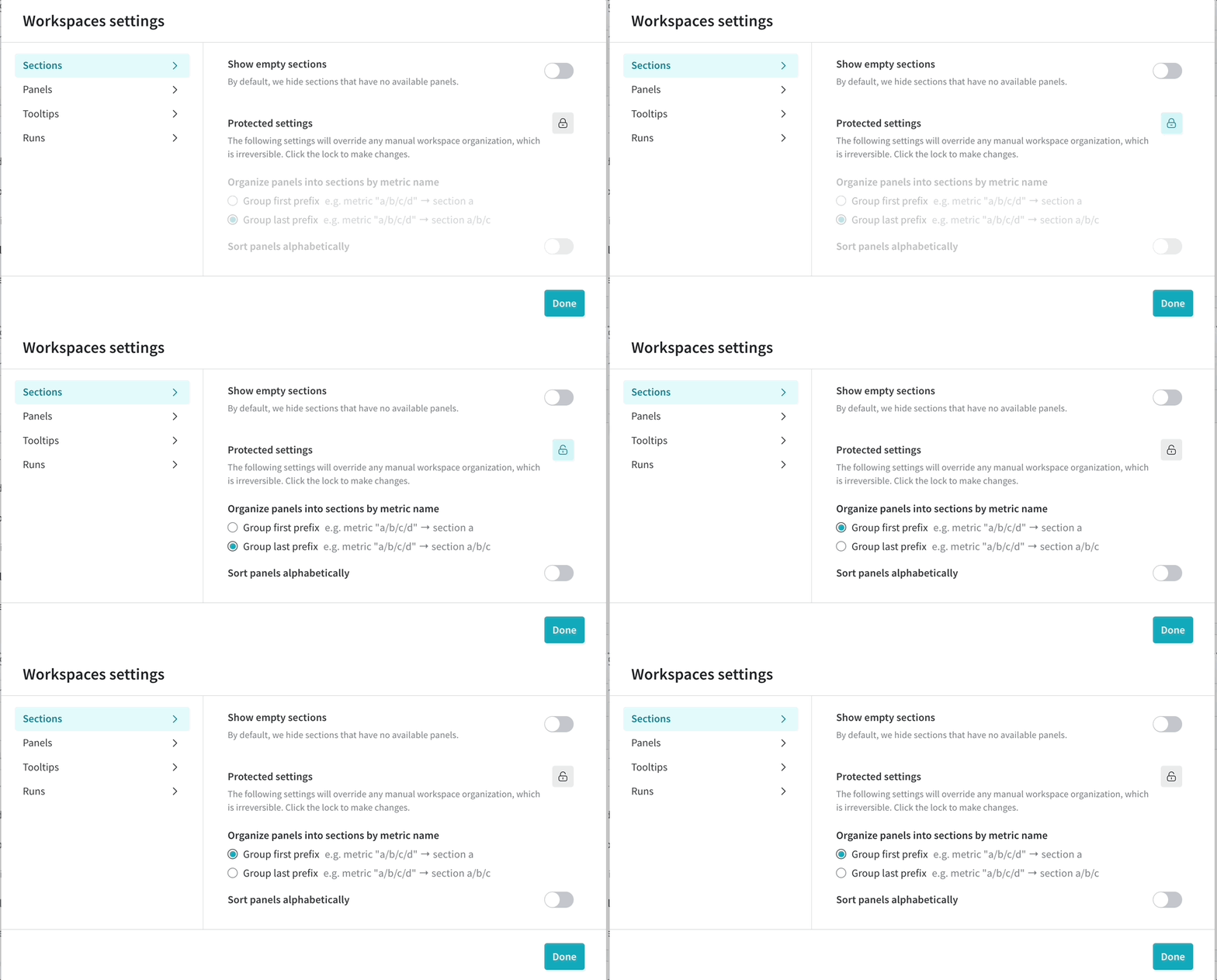
Create sections based on high-level metric groupings rather than one section per metric. If you have too many sections, consider creating sections by prefix rather than suffix so that related metrics are grouped into fewer sections.
 ### Many metrics per run
When logging thousands of metrics per run, use a manual workspace so that you can choose which metrics to visualize.
A focused set of panels loads faster. Metrics that are not plotted are still collected and stored.
To reset a workspace to manual mode, click the workspace's **action ()** menu, then click **Reset workspace**. Resetting a workspace has no impact on stored metrics for runs. See [workspace panel management](/models/app/features/panels/).
### File count
Keep the number of files uploaded for a single run under 1,000.
If you need to log a large number of files, use W\&B Artifacts instead. Exceeding 1,000 files in a single run can slow run pages.
### Reports and workspaces
A report is designed for communication and presentation. A workspace is designed for dense, interactive analysis across many runs and metrics.
Use a workspace when you need to compare large numbers of runs or view many plots together. Use a report when you want to present curated results.
## Python script performance
Logging can add overhead to your training script. The main contributors are:
1. Large payloads
2. Network speed and backend configuration
3. Very frequent calls to `wandb.Run.log()`
If you call `wandb.Run.log()` too often, each call can add a small amount of latency to the training loop. Batching multiple metrics into fewer log calls usually improves performance.
Is frequent logging slowing your training runs down? See [this Colab](https://wandb.me/log-hf-colab) for strategies to improve performance by adjusting your logging pattern.
W\&B does not enforce hard product limits for these recommendations beyond API rate limiting. If you exceed the guidance on this page, W\&B may continue to accept your data, but the app or SDK may become slower.
## Rate limits
W\&B Multi-tenant Cloud APIs use rate limits to maintain service reliability and availability.
Rate limits are subject to change.
If you hit a rate limit, the server returns HTTP `429 Rate limit exceeded` and includes rate-limit headers in the response.
### Rate-limit HTTP headers
| Header name | Description |
| --------------------- | ----------------------------------------------------------------- |
| `RateLimit-Limit` | Quota available in the current time window, scaled from 0 to 1000 |
| `RateLimit-Remaining` | Remaining quota in the current window, scaled from 0 to 1000 |
| `RateLimit-Reset` | Number of seconds until the current quota resets |
### Metric logging API rate limits
`wandb.Run.log()` sends training data to W\&B, either directly online or later through [offline syncing](/models/ref/cli/wandb-sync).
Rate limits for metric logging apply at the project level and include both request rate and total request size over a rolling time window. Paid plans have higher limits than free plans.
If you exceed a rate limit, the W\&B SDK automatically retries requests with backoff. In some cases, this can delay `run.finish()` until the rate-limit window resets.
To reduce the chance of rate limiting:
* Use the latest W\&B SDK version.
* Reduce logging frequency.
* Batch related metrics into fewer log calls.
* Use offline logging and sync later when appropriate.
```python theme={null}
import random
import wandb
with wandb.init(project="basic-intro") as run:
for epoch in range(10):
accuracy = 1 - 2 ** -epoch - random.random() / (epoch + 1)
loss = 2 ** -epoch + random.random() / (epoch + 1)
if epoch % 5 == 0:
run.log({"acc": accuracy, "loss": loss})
```
For manual syncing, use `wandb sync `. See [`wandb sync`](/models/ref/cli/wandb-sync).
### GraphQL API rate limits
The W\&B app and the [public API](/models/ref/python/public-api/api) use GraphQL requests to query and modify data.
For Multi-tenant Cloud:
* unauthorized requests are rate-limited per IP address
* authorized requests are rate-limited per user
* some SDK requests that specify a project path can also be limited per project based on database query time
Teams and Enterprise plans have higher limits than Free plans.
If you are making a large number of public API requests, wait at least one second between requests when possible. If you receive HTTP `429 Rate limit exceeded` or see `RateLimit-Remaining=0`, wait for the number of seconds in `RateLimit-Reset` before retrying.
## Troubleshooting slow projects
If a project or workspace feels slow, check the following first:
1. Did recent runs introduce a large number of new metric names?
2. Are you logging too frequently?
3. Are individual `run.log()` calls very large?
4. Is the workspace in automatic mode with too many panels or sections?
5. Does the project contain more runs than your team actively uses?
In many cases, performance improves after reducing metric cardinality, batching log calls, and switching large workspaces to manual mode.
## Browser considerations
The W\&B app can be memory-intensive and performs best in Chrome. Depending on your computer's memory, having W\&B active in 3+ tabs at once can cause performance to degrade. If you encounter unexpectedly slow performance, consider closing other tabs or applications.
## Reporting performance issues to W\&B
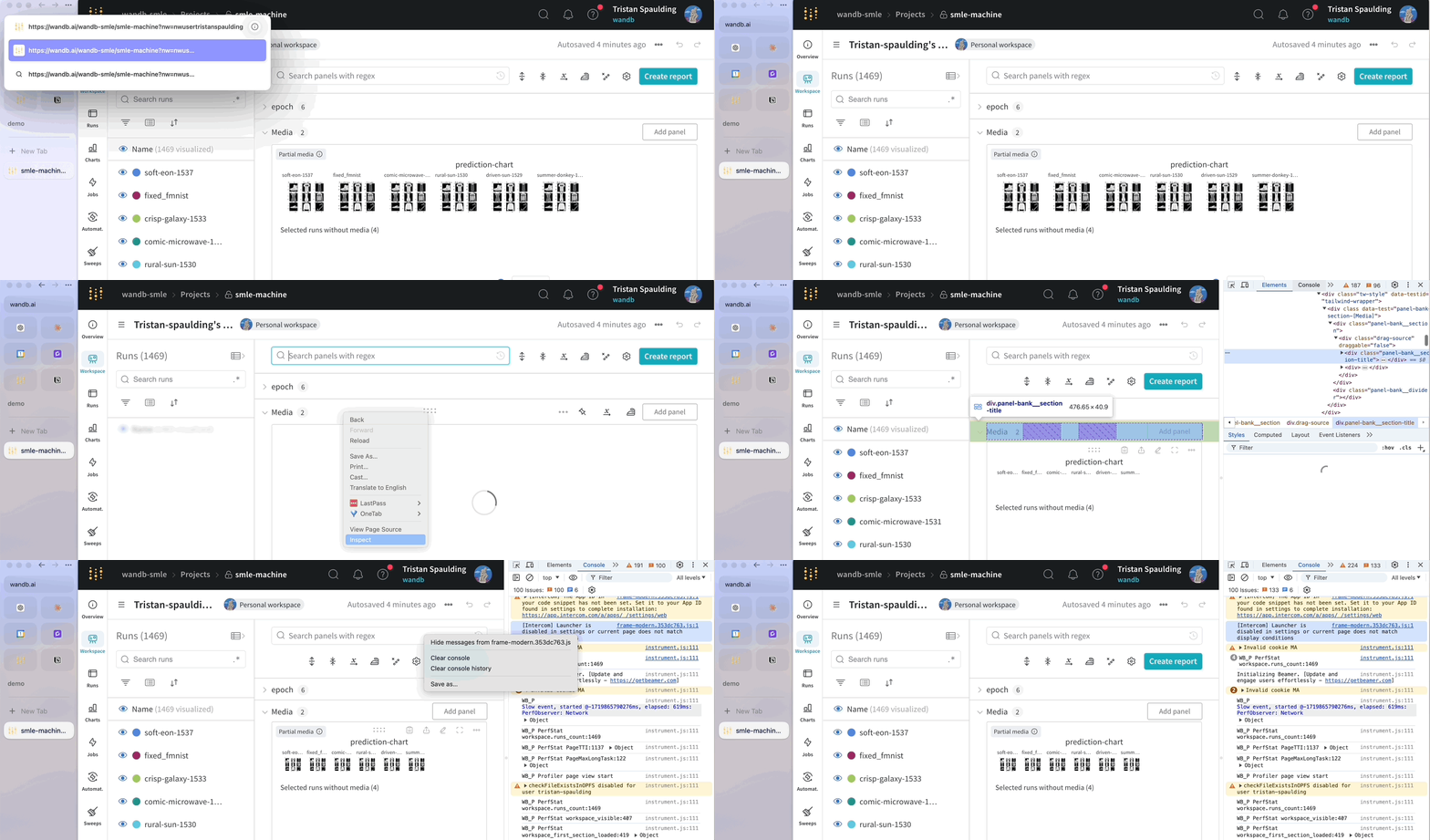
W\&B takes performance seriously and investigates every report of lag. To expedite investigation, when reporting slow loading times consider invoking W\&B's built-in performance logger that captures key metrics and performance events. Append the URL parameter `&PERF_LOGGING` to a page that is loading slowly, then share the output of your console with your account team or Support.
### Many metrics per run
When logging thousands of metrics per run, use a manual workspace so that you can choose which metrics to visualize.
A focused set of panels loads faster. Metrics that are not plotted are still collected and stored.
To reset a workspace to manual mode, click the workspace's **action ()** menu, then click **Reset workspace**. Resetting a workspace has no impact on stored metrics for runs. See [workspace panel management](/models/app/features/panels/).
### File count
Keep the number of files uploaded for a single run under 1,000.
If you need to log a large number of files, use W\&B Artifacts instead. Exceeding 1,000 files in a single run can slow run pages.
### Reports and workspaces
A report is designed for communication and presentation. A workspace is designed for dense, interactive analysis across many runs and metrics.
Use a workspace when you need to compare large numbers of runs or view many plots together. Use a report when you want to present curated results.
## Python script performance
Logging can add overhead to your training script. The main contributors are:
1. Large payloads
2. Network speed and backend configuration
3. Very frequent calls to `wandb.Run.log()`
If you call `wandb.Run.log()` too often, each call can add a small amount of latency to the training loop. Batching multiple metrics into fewer log calls usually improves performance.
Is frequent logging slowing your training runs down? See [this Colab](https://wandb.me/log-hf-colab) for strategies to improve performance by adjusting your logging pattern.
W\&B does not enforce hard product limits for these recommendations beyond API rate limiting. If you exceed the guidance on this page, W\&B may continue to accept your data, but the app or SDK may become slower.
## Rate limits
W\&B Multi-tenant Cloud APIs use rate limits to maintain service reliability and availability.
Rate limits are subject to change.
If you hit a rate limit, the server returns HTTP `429 Rate limit exceeded` and includes rate-limit headers in the response.
### Rate-limit HTTP headers
| Header name | Description |
| --------------------- | ----------------------------------------------------------------- |
| `RateLimit-Limit` | Quota available in the current time window, scaled from 0 to 1000 |
| `RateLimit-Remaining` | Remaining quota in the current window, scaled from 0 to 1000 |
| `RateLimit-Reset` | Number of seconds until the current quota resets |
### Metric logging API rate limits
`wandb.Run.log()` sends training data to W\&B, either directly online or later through [offline syncing](/models/ref/cli/wandb-sync).
Rate limits for metric logging apply at the project level and include both request rate and total request size over a rolling time window. Paid plans have higher limits than free plans.
If you exceed a rate limit, the W\&B SDK automatically retries requests with backoff. In some cases, this can delay `run.finish()` until the rate-limit window resets.
To reduce the chance of rate limiting:
* Use the latest W\&B SDK version.
* Reduce logging frequency.
* Batch related metrics into fewer log calls.
* Use offline logging and sync later when appropriate.
```python theme={null}
import random
import wandb
with wandb.init(project="basic-intro") as run:
for epoch in range(10):
accuracy = 1 - 2 ** -epoch - random.random() / (epoch + 1)
loss = 2 ** -epoch + random.random() / (epoch + 1)
if epoch % 5 == 0:
run.log({"acc": accuracy, "loss": loss})
```
For manual syncing, use `wandb sync `. See [`wandb sync`](/models/ref/cli/wandb-sync).
### GraphQL API rate limits
The W\&B app and the [public API](/models/ref/python/public-api/api) use GraphQL requests to query and modify data.
For Multi-tenant Cloud:
* unauthorized requests are rate-limited per IP address
* authorized requests are rate-limited per user
* some SDK requests that specify a project path can also be limited per project based on database query time
Teams and Enterprise plans have higher limits than Free plans.
If you are making a large number of public API requests, wait at least one second between requests when possible. If you receive HTTP `429 Rate limit exceeded` or see `RateLimit-Remaining=0`, wait for the number of seconds in `RateLimit-Reset` before retrying.
## Troubleshooting slow projects
If a project or workspace feels slow, check the following first:
1. Did recent runs introduce a large number of new metric names?
2. Are you logging too frequently?
3. Are individual `run.log()` calls very large?
4. Is the workspace in automatic mode with too many panels or sections?
5. Does the project contain more runs than your team actively uses?
In many cases, performance improves after reducing metric cardinality, batching log calls, and switching large workspaces to manual mode.
## Browser considerations
The W\&B app can be memory-intensive and performs best in Chrome. Depending on your computer's memory, having W\&B active in 3+ tabs at once can cause performance to degrade. If you encounter unexpectedly slow performance, consider closing other tabs or applications.
## Reporting performance issues to W\&B
W\&B takes performance seriously and investigates every report of lag. To expedite investigation, when reporting slow loading times consider invoking W\&B's built-in performance logger that captures key metrics and performance events. Append the URL parameter `&PERF_LOGGING` to a page that is loading slowly, then share the output of your console with your account team or Support.