> ## Documentation Index
> Fetch the complete documentation index at: https://docs.wandb.ai/llms.txt
> Use this file to discover all available pages before exploring further.
> A playground for exploring run data with interactive visualizations
# View experiments results
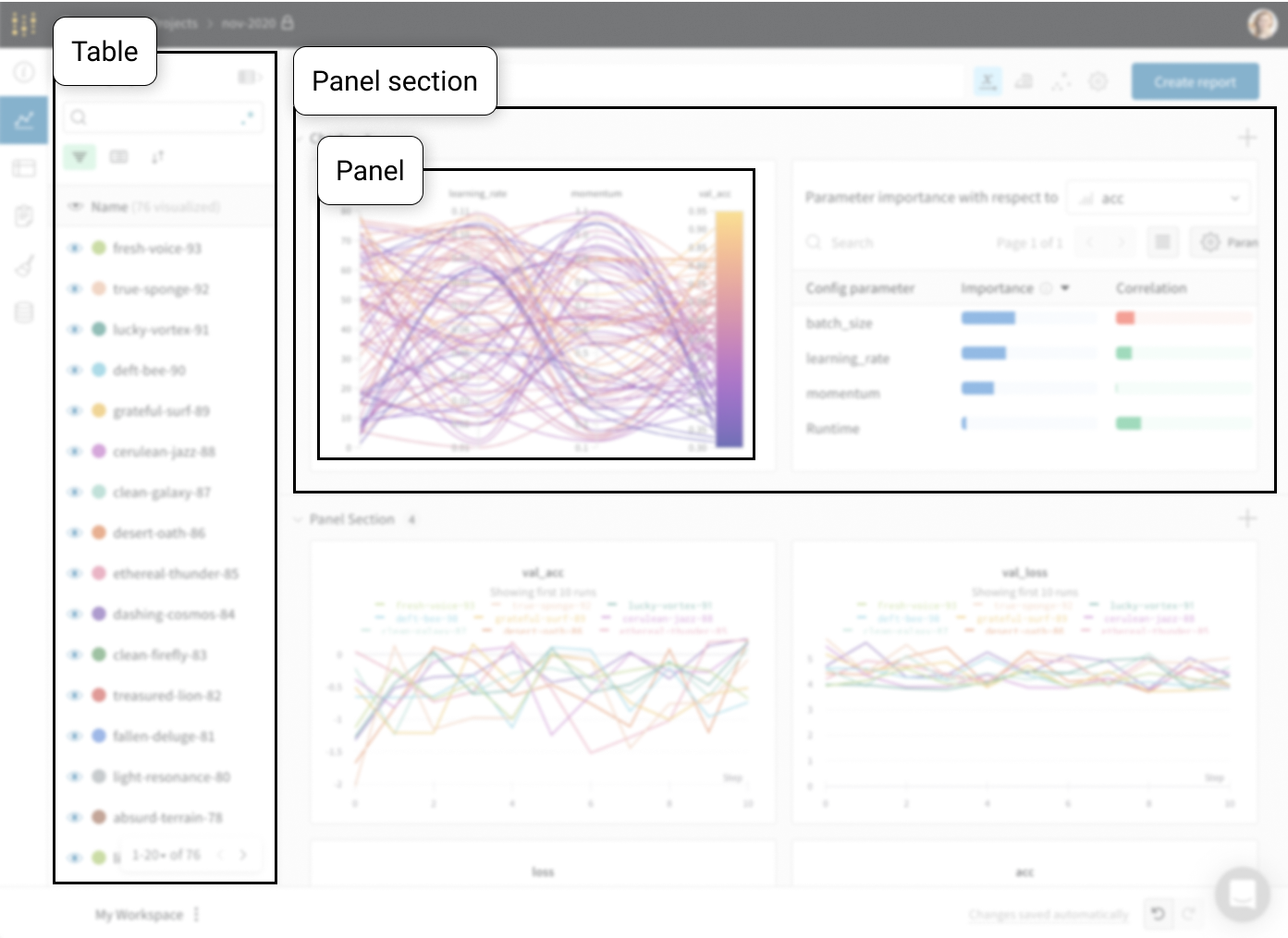
W\&B workspace is your personal sandbox to customize charts and explore model results. A W\&B workspace consists of *Tables* and *Panel sections*:
* **Tables**: All runs logged to your project are listed in the project's table. Turn on and off runs, change colors, and expand the table to see notes, config, and summary metrics for each run.
* **Panel sections**: A section that contains one or more [panels](/models/app/features/panels/). Create new panels, organize them, and export to reports to save snapshots of your workspace.
 ## Workspace types
There are two main workspace categories: **Personal workspaces** and **Saved views**.
* **Personal workspaces:** A customizable workspace for in-depth analysis of models and data visualizations. Only the owner of the workspace can edit and save changes. Teammates can view a personal workspace but teammates can not make changes to someone else's personal workspace.
* **Saved views:** Saved views are collaborative snapshots of a workspace. Anyone on your team can view, edit, and save changes to saved workspace views. Use saved workspace views for reviewing and discussing experiments, runs, and more.
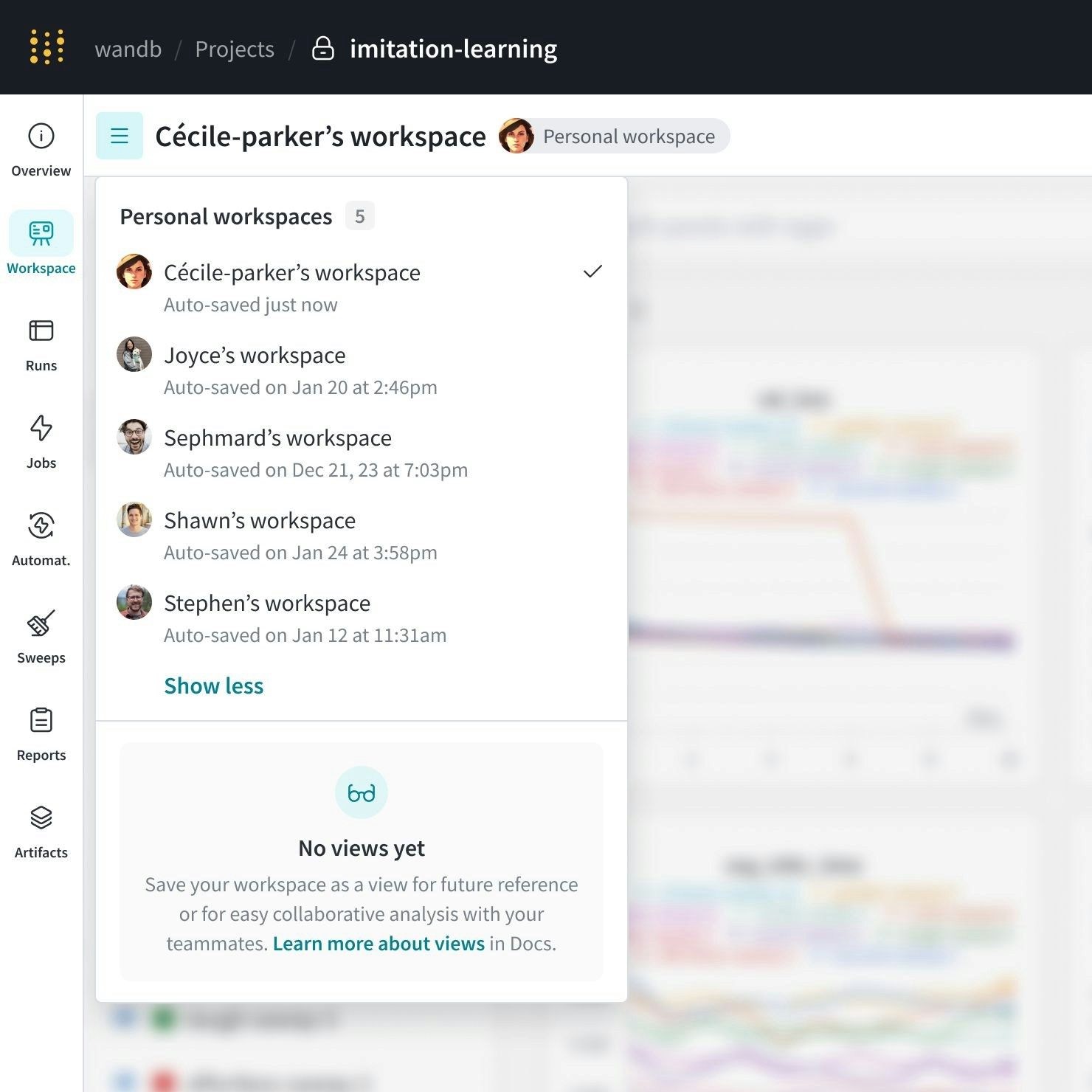
The following image shows multiple personal workspaces created by Cécile-parker's teammates. In this project, there are no saved views:
## Workspace types
There are two main workspace categories: **Personal workspaces** and **Saved views**.
* **Personal workspaces:** A customizable workspace for in-depth analysis of models and data visualizations. Only the owner of the workspace can edit and save changes. Teammates can view a personal workspace but teammates can not make changes to someone else's personal workspace.
* **Saved views:** Saved views are collaborative snapshots of a workspace. Anyone on your team can view, edit, and save changes to saved workspace views. Use saved workspace views for reviewing and discussing experiments, runs, and more.
The following image shows multiple personal workspaces created by Cécile-parker's teammates. In this project, there are no saved views:
 ## Saved workspace views
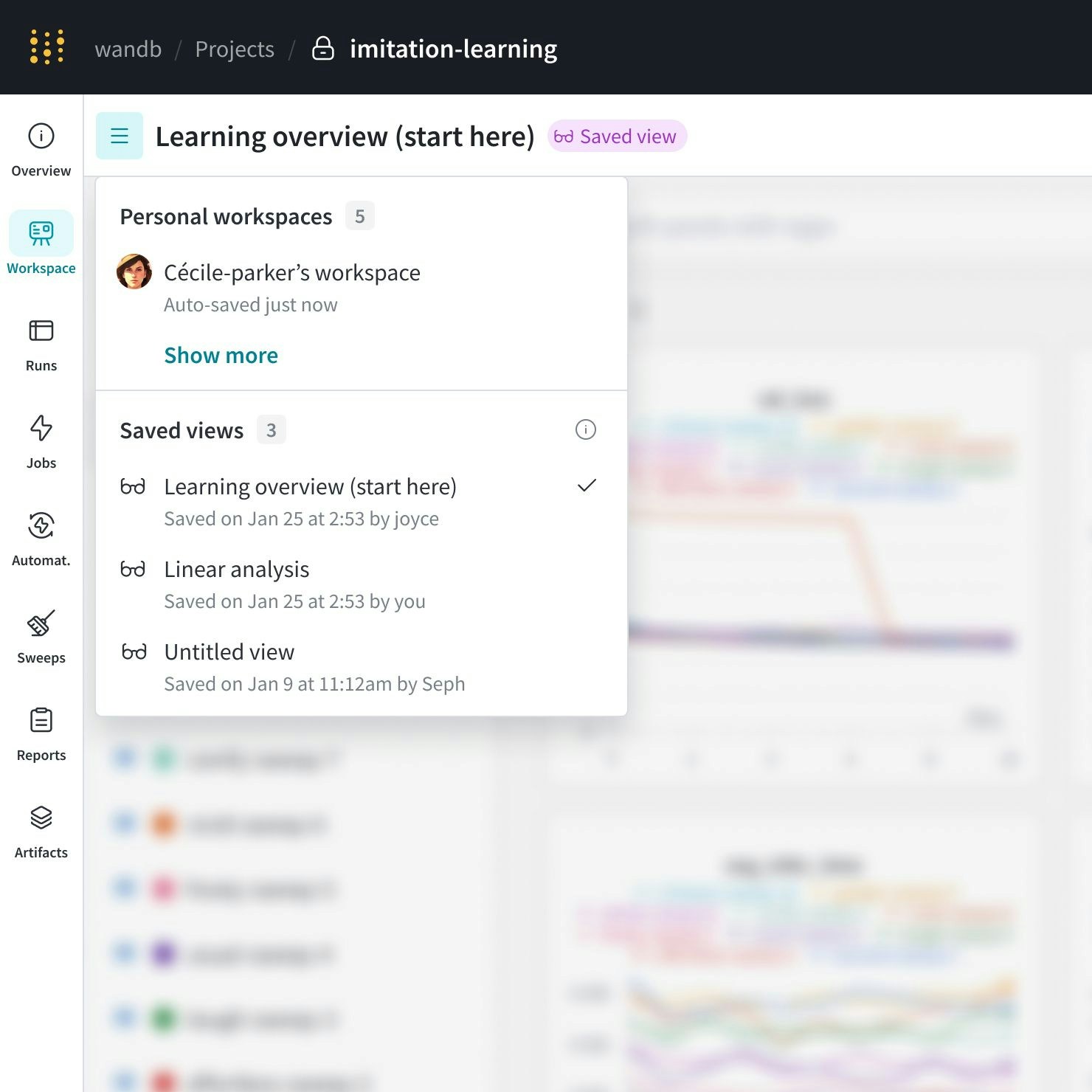
Improve team collaboration with tailored workspace views. Create Saved Views to organize your preferred setup of charts and data.
### Create a new saved workspace view
1. Navigate to a personal workspace or a saved view.
2. Make edits to the workspace.
3. Click the **action ()** menu at the top right corner of your workspace. Click **Save as a new view**.
New saved views appear in the workspace navigation menu.
## Saved workspace views
Improve team collaboration with tailored workspace views. Create Saved Views to organize your preferred setup of charts and data.
### Create a new saved workspace view
1. Navigate to a personal workspace or a saved view.
2. Make edits to the workspace.
3. Click the **action ()** menu at the top right corner of your workspace. Click **Save as a new view**.
New saved views appear in the workspace navigation menu.
 ### Update a saved workspace view
Saved changes overwrite the previous state of the saved view. Unsaved changes are not retained. To update a saved workspace view in W\&B:
1. Navigate to a saved view.
2. Make the desired changes to your charts and data within the workspace.
3. Click the **Save** button to confirm your changes.
A confirmation dialog appears when you save your updates to a workspace view. If you prefer not to see this prompt in the future, select the option **Do not show this modal next time** before confirming your save.
### Delete a saved workspace view
Remove saved views that are no longer needed.
1. Navigate to the saved view you want to remove.
2. Select the **menu ()** button at the top right of the view.
3. Choose **Delete view**.
4. Confirm the deletion to remove the view from your workspace menu.
### Share a workspace view
Share your customized workspace with your team by sharing the workspace URL directly. All users with access to the workspace project can see the saved Views of that workspace.
## Workspace templates
This feature requires an [Enterprise](https://wandb.ai/site/pricing/) license.
Use *workspace templates* to create workspaces using the same settings as an existing workspace instead of the [default settings for new workspaces](#default-workspace-settings).
### Default workspace settings
W\&B uses the following default settings for workspaces:
#### Hide empty sections during search
By default, W\&B does not show empty sections in the workspace. You can change this setting to show empty sections in the workspace.
#### Sort panels alphabetically
By default, W\&B does not sort panels by plot title alphabetically. You can change this setting to sort panels alphabetically by their plot title.
#### Section organization
By default, W\&B organizes panels into sections based on the first prefix of the metric name. For example, if your workspace includes the metrics `a/b/c/d` and `a/e/f`, W\&B organizes these metrics into a section called `a`. If your workspace includes the metrics `a/b/c/d` and `e/f/g`, W\&B organizes these metrics into sections called `a` and `e`.
You can change the default section organization to group by the last prefix. For example, if your workspace includes the metrics `a/b/c/d` and `a/e/f`, W\&B organizes these metrics into sections called `d` and `f`. If your workspace includes the metrics `a/b/c/d` and `e/f/g`, W\&B organizes these metrics into sections called `d` and `g`.
#### Line plot settings
By default, new workspaces use these default settings for line plots:
| X axis | Default |
| --------- | ------- |
| Value | Step |
| Log scale | false |
| Y axis | Default |
| --------- | ------- |
| Log scale | false |
| Smoothing | Default |
| ----------------------------- | --------------- |
| Type | Time weight EMA |
| Weight | 0 |
| Show original after smoothing | Off |
| Max number of runs | Default |
| ------------------ | ------- |
| Max runs | 10 |
| Data | Default |
| ----------------- | ------------- |
| Point aggregation | Full fidelity |
| Grouping | Default |
| ---------------------- | ------- |
| Use grouping in charts | On |
| Group aggregation | Mean |
| Display preferences | Default |
| ------------------------- | ------- |
| Color run names | On |
| Display full run name | Off |
| Show X range in tooltip | Off |
| Tooltip runs | Default |
| Sync zoom across charts | Off |
| Show highlighted run only | Off |
### Configure your workspace template
1. Open any workspace or create a new one.
2. Click on the **Settings** button at the top right corner of the workspace.
3. Select **Workspace layout** from the panel.
4. Configure the workspace's settings according to your preferences.
### Save your workspace template
1. At the top of the workspace, click the **action ()** menu near the **Undo** and **Redo** arrow icons.
2. Click **Save personal workspace template**.
3. Review the settings for the template, then click **Save**.
New workspaces will use these settings instead of the defaults.
### View your workspace template
To view your workspace template's current configuration:
1. From any page, select your user icon on the top right corner. From the dropdown, choose **User Settings**.
2. Navigate to the **Personal workspace template** section. If you are using a workspace template, its configuration displays. Otherwise, the section includes no details.
### Update your workspace template
To update your workspace template:
1. Open any workspace.
2. Modify the workspace's settings. For example, set the number of runs to include to `11`.
3. To save the changes to the template, click the **action ()** menu near the **Undo** and **Redo** arrow icons, then click **Update personal workspace template**.
4. Verify the settings, then click **Update**. The template is updated, and reapplied to all workspaces that use it.
### Delete your workspace template
To delete your workspace template and go back to the default settings:
1. From any page, select your user icon on the top right corner. From the dropdown, choose **User Settings**.
2. Navigate to the **Personal workspace template** section. Your workspace template's configuration displays.
3. Click the trash icon next to **Settings**.
For Dedicated Cloud and Self-Managed, deleting your workspace template is supported on v0.70 and above. On older Server versions, update your workspace template to use the [default settings](#default-workspace-settings) instead.
## Programmatically create workspaces
For an end-to-end example, see [Programmatic Workspaces](https://colab.research.google.com/github/wandb/wandb-workspaces/blob/Update-wandb-workspaces-tuturial/Workspace_tutorial.ipynb) notebook.
[`wandb-workspaces`](https://github.com/wandb/wandb-workspaces/tree/main) is a Python library for programmatically working with [W\&B](https://wandb.ai/) workspaces and reports.
Define a workspace programmatically with [`wandb-workspaces`](https://github.com/wandb/wandb-workspaces/tree/main). [`wandb-workspaces`](https://github.com/wandb/wandb-workspaces/tree/main) is a Python library for programmatically working with [W\&B](https://wandb.ai/) workspaces and reports.
You can define the workspace's properties, such as:
* Set panel layouts, colors, and section orders.
* Configure workspace settings like default x-axis, section order, and collapse states.
* Add and customize panels within sections to organize workspace views.
* Load and modify existing workspaces using a URL.
* Save changes to existing workspaces or save as new views.
* Filter, group, and sort runs programmatically using simple expressions.
* Customize run appearance with settings like colors and visibility.
* Copy views from one workspace to another for integration and reuse.
### Install Workspace API
In addition to `wandb`, ensure that you install `wandb-workspaces`:
```bash theme={null}
pip install wandb wandb-workspaces
```
### Define and save a workspace view programmatically
```python theme={null}
import wandb_workspaces.reports.v2 as ws
workspace = ws.Workspace(entity="your-entity", project="your-project", views=[...])
workspace.save()
```
### Edit an existing view
```python theme={null}
existing_workspace = ws.Workspace.from_url("workspace-url")
existing_workspace.views[0] = ws.View(name="my-new-view", sections=[...])
existing_workspace.save()
```
### Copy a workspace `saved view` to another workspace
```python theme={null}
old_workspace = ws.Workspace.from_url("old-workspace-url")
old_workspace_view = old_workspace.views[0]
new_workspace = ws.Workspace(entity="new-entity", project="new-project", views=[old_workspace_view])
new_workspace.save()
```
See [`wandb-workspace examples`](https://github.com/wandb/wandb-workspaces/tree/main/examples/workspaces) for comprehensive workspace API examples.
### Update a saved workspace view
Saved changes overwrite the previous state of the saved view. Unsaved changes are not retained. To update a saved workspace view in W\&B:
1. Navigate to a saved view.
2. Make the desired changes to your charts and data within the workspace.
3. Click the **Save** button to confirm your changes.
A confirmation dialog appears when you save your updates to a workspace view. If you prefer not to see this prompt in the future, select the option **Do not show this modal next time** before confirming your save.
### Delete a saved workspace view
Remove saved views that are no longer needed.
1. Navigate to the saved view you want to remove.
2. Select the **menu ()** button at the top right of the view.
3. Choose **Delete view**.
4. Confirm the deletion to remove the view from your workspace menu.
### Share a workspace view
Share your customized workspace with your team by sharing the workspace URL directly. All users with access to the workspace project can see the saved Views of that workspace.
## Workspace templates
This feature requires an [Enterprise](https://wandb.ai/site/pricing/) license.
Use *workspace templates* to create workspaces using the same settings as an existing workspace instead of the [default settings for new workspaces](#default-workspace-settings).
### Default workspace settings
W\&B uses the following default settings for workspaces:
#### Hide empty sections during search
By default, W\&B does not show empty sections in the workspace. You can change this setting to show empty sections in the workspace.
#### Sort panels alphabetically
By default, W\&B does not sort panels by plot title alphabetically. You can change this setting to sort panels alphabetically by their plot title.
#### Section organization
By default, W\&B organizes panels into sections based on the first prefix of the metric name. For example, if your workspace includes the metrics `a/b/c/d` and `a/e/f`, W\&B organizes these metrics into a section called `a`. If your workspace includes the metrics `a/b/c/d` and `e/f/g`, W\&B organizes these metrics into sections called `a` and `e`.
You can change the default section organization to group by the last prefix. For example, if your workspace includes the metrics `a/b/c/d` and `a/e/f`, W\&B organizes these metrics into sections called `d` and `f`. If your workspace includes the metrics `a/b/c/d` and `e/f/g`, W\&B organizes these metrics into sections called `d` and `g`.
#### Line plot settings
By default, new workspaces use these default settings for line plots:
| X axis | Default |
| --------- | ------- |
| Value | Step |
| Log scale | false |
| Y axis | Default |
| --------- | ------- |
| Log scale | false |
| Smoothing | Default |
| ----------------------------- | --------------- |
| Type | Time weight EMA |
| Weight | 0 |
| Show original after smoothing | Off |
| Max number of runs | Default |
| ------------------ | ------- |
| Max runs | 10 |
| Data | Default |
| ----------------- | ------------- |
| Point aggregation | Full fidelity |
| Grouping | Default |
| ---------------------- | ------- |
| Use grouping in charts | On |
| Group aggregation | Mean |
| Display preferences | Default |
| ------------------------- | ------- |
| Color run names | On |
| Display full run name | Off |
| Show X range in tooltip | Off |
| Tooltip runs | Default |
| Sync zoom across charts | Off |
| Show highlighted run only | Off |
### Configure your workspace template
1. Open any workspace or create a new one.
2. Click on the **Settings** button at the top right corner of the workspace.
3. Select **Workspace layout** from the panel.
4. Configure the workspace's settings according to your preferences.
### Save your workspace template
1. At the top of the workspace, click the **action ()** menu near the **Undo** and **Redo** arrow icons.
2. Click **Save personal workspace template**.
3. Review the settings for the template, then click **Save**.
New workspaces will use these settings instead of the defaults.
### View your workspace template
To view your workspace template's current configuration:
1. From any page, select your user icon on the top right corner. From the dropdown, choose **User Settings**.
2. Navigate to the **Personal workspace template** section. If you are using a workspace template, its configuration displays. Otherwise, the section includes no details.
### Update your workspace template
To update your workspace template:
1. Open any workspace.
2. Modify the workspace's settings. For example, set the number of runs to include to `11`.
3. To save the changes to the template, click the **action ()** menu near the **Undo** and **Redo** arrow icons, then click **Update personal workspace template**.
4. Verify the settings, then click **Update**. The template is updated, and reapplied to all workspaces that use it.
### Delete your workspace template
To delete your workspace template and go back to the default settings:
1. From any page, select your user icon on the top right corner. From the dropdown, choose **User Settings**.
2. Navigate to the **Personal workspace template** section. Your workspace template's configuration displays.
3. Click the trash icon next to **Settings**.
For Dedicated Cloud and Self-Managed, deleting your workspace template is supported on v0.70 and above. On older Server versions, update your workspace template to use the [default settings](#default-workspace-settings) instead.
## Programmatically create workspaces
For an end-to-end example, see [Programmatic Workspaces](https://colab.research.google.com/github/wandb/wandb-workspaces/blob/Update-wandb-workspaces-tuturial/Workspace_tutorial.ipynb) notebook.
[`wandb-workspaces`](https://github.com/wandb/wandb-workspaces/tree/main) is a Python library for programmatically working with [W\&B](https://wandb.ai/) workspaces and reports.
Define a workspace programmatically with [`wandb-workspaces`](https://github.com/wandb/wandb-workspaces/tree/main). [`wandb-workspaces`](https://github.com/wandb/wandb-workspaces/tree/main) is a Python library for programmatically working with [W\&B](https://wandb.ai/) workspaces and reports.
You can define the workspace's properties, such as:
* Set panel layouts, colors, and section orders.
* Configure workspace settings like default x-axis, section order, and collapse states.
* Add and customize panels within sections to organize workspace views.
* Load and modify existing workspaces using a URL.
* Save changes to existing workspaces or save as new views.
* Filter, group, and sort runs programmatically using simple expressions.
* Customize run appearance with settings like colors and visibility.
* Copy views from one workspace to another for integration and reuse.
### Install Workspace API
In addition to `wandb`, ensure that you install `wandb-workspaces`:
```bash theme={null}
pip install wandb wandb-workspaces
```
### Define and save a workspace view programmatically
```python theme={null}
import wandb_workspaces.reports.v2 as ws
workspace = ws.Workspace(entity="your-entity", project="your-project", views=[...])
workspace.save()
```
### Edit an existing view
```python theme={null}
existing_workspace = ws.Workspace.from_url("workspace-url")
existing_workspace.views[0] = ws.View(name="my-new-view", sections=[...])
existing_workspace.save()
```
### Copy a workspace `saved view` to another workspace
```python theme={null}
old_workspace = ws.Workspace.from_url("old-workspace-url")
old_workspace_view = old_workspace.views[0]
new_workspace = ws.Workspace(entity="new-entity", project="new-project", views=[old_workspace_view])
new_workspace.save()
```
See [`wandb-workspace examples`](https://github.com/wandb/wandb-workspaces/tree/main/examples/workspaces) for comprehensive workspace API examples.