> ## Documentation Index
> Fetch the complete documentation index at: https://docs.wandb.ai/llms.txt
> Use this file to discover all available pages before exploring further.
# Manage your organization
> Manage users, teams, roles, seats, and billing within a W&B organization as an organization admin.
This page describes how to administer a W\&B organization, including how to invite users, manage teams, assign roles and seats, and configure billing. Use these procedures to keep your organization's membership, access, and team structure aligned with how your company uses W\&B.
As an admin of an organization, you can [manage individual users](#add-and-manage-users) within your organization and [manage teams](#add-and-manage-teams).
As a team admin, you can [manage teams](#add-and-manage-teams).
The following workflow applies to users with instance admin roles. Contact an admin in your organization if you believe you should have instance admin permissions.
To simplify user management in your organization, see [Automate user and team management](../automate_iam).
## Change the name of your organization
The following workflow only applies to W\&B Multi-tenant Cloud.
1. Navigate to [https://wandb.ai/home](https://wandb.ai/home).
2. In the upper right corner of the page, select the **User menu** dropdown. Within the **Account** section of the dropdown, select **Settings**.
3. Within the **Settings** tab, select **General**.
4. Select the **Change name** button.
5. Within the modal that appears, provide a new name for your organization and select the **Save name** button.
## Add and manage users
As an admin, use your organization's dashboard to:
* Invite or remove users.
* Assign or update a user's organization role, and create custom roles.
* Assign the billing admin.
An organization admin can add users to an organization in several ways:
* Member-by-invite
* Auto provisioning with SSO
* Domain capture
The following sections describe each method.
### Seats and pricing
The following table summarizes how seats work for Models and Weave:
| Product | Seats | Cost based on |
| ------- | ----------- | -------------------------------------------------------------------------------------------------------------------------------------------------------------------------------------------------------- |
| Models | Pay per set | How many Models paid seats you have and how much usage you've accrued determines your overall subscription cost. You can assign each user one of three available seat types: Full, Viewer, or No-Access. |
| Weave | Free | Usage based |
### Invite a user
Admins can invite users to their organization, as well as to specific teams within the organization.
1. Navigate to [https://wandb.ai/home](https://wandb.ai/home).
2. In the upper right corner of the page, select the **User menu** dropdown. Within the **Account** section of the dropdown, select **Users**.
3. Select **Invite new user**.
4. In the modal that appears, provide the email or username of the user in the **Email or username** field.
5. Optional: Add the user to a team from the **Choose teams** dropdown menu.
6. From the **Select role** dropdown, select the role to assign to the user. You can change the user's role later. See the table listed in [Assign a role](#assign-or-update-a-team-members-role) for more information about possible roles.
7. Click the **Send invite** button.
After you select the **Send invite** button, W\&B sends an invite link to the user's email using a third-party email server. A user can access your organization once they accept the invite.
1. Navigate to `https://.io/console/settings/`. Replace `` with your organization name.
2. Select the **Add user** button.
3. Within the modal that appears, provide the email of the new user in the **Email** field.
4. Select a role to assign to the user from the **Role** dropdown. You can change the user's role later. See the table listed in [Assign a role](#assign-or-update-a-team-members-role) for more information about possible roles.
5. To have W\&B send an invite link to the user's email using a third-party email server, check the **Send invite email to user** box.
6. Select the **Add new user** button.
### Auto provision users
Auto-provisioning streamlines onboarding by letting users join your organization automatically through SSO, so admins don't need to send individual invitations.
If you configure SSO and your SSO provider permits it, a W\&B user with a matching email domain can log in to your W\&B organization with Single Sign-On (SSO). SSO is available for all Enterprise licenses.
**Enable SSO for authentication**
W\&B recommends that users authenticate using Single Sign-On (SSO). Contact your W\&B team to enable SSO for your organization.
For more information about how to set up SSO with Dedicated Cloud or Self-Managed instances, see [SSO with OIDC](/platform/hosting/iam/sso/) or [SSO with LDAP](/platform/hosting/iam/ldap/).
W\&B assigns auto-provisioning users "Member" roles by default. You can change the role of auto-provisioned users at any time.
Auto-provisioning users with SSO is on by default for Dedicated Cloud instances and Self-Managed deployments. You can turn off auto provisioning. Turning auto provisioning off lets you selectively add specific users to your W\&B organization.
The following tabs describe how to turn off SSO based on deployment type:
Auto provisioning with SSO isn't configurable for Multi-tenant Cloud. Contact your W\&B team for assistance.
For Dedicated Cloud instances, contact your W\&B team if you want to turn off auto provisioning with SSO.
For Self-Managed deployments, use the W\&B Console to turn off auto provisioning with SSO:
1. Navigate to `https://.io/console/settings/`. Replace `` with your organization name.
2. Select **Security**.
3. Select the **Disable SSO Provisioning** to turn off auto provisioning with SSO.
Auto provisioning with SSO is useful for adding users to an organization at scale because organization admins don't need to generate individual user invitations.
### Domain capture
Domain capture helps your employees join your company's organization to ensure new users don't create assets outside your company's jurisdiction.
**Domains must be unique**
Domains are unique identifiers. This means that you can't use a domain that's already in use by another organization.
Domain capture lets you automatically add people with a company email address, such as `@example.com`, to your W\&B Multi-tenant Cloud organization. This helps all your employees join the right organization and ensures that new users don't create assets outside your company jurisdiction.
This table summarizes the behavior of new and existing users with and without domain capture enabled:
| | With domain capture | Without domain capture |
| -------------- | ------------------------------------------------------------------------------------------------------------------------------------------------------------------------------------------------------------------------------------------------------------------------------- | ---------------------------------------------------------------------------------------------------------------------------------------------------- |
| New users | Users who sign up for W\&B from verified domains are automatically added as members to your organization's default team. They can choose additional teams to join at sign up, if you enable team joining. They can still join other organizations and teams with an invitation. | Users can create W\&B accounts without knowing a centralized organization is available. |
| Invited users | Invited users automatically join your organization when accepting your invite. Invited users aren't automatically added as members to your organization's default team. They can still join other organizations and teams with an invitation. | Invited users automatically join your organization when accepting your invite. They can still join other organizations and teams with an invitation. |
| Existing users | Existing users with verified email addresses from your domains can join your organization's teams within the W\&B App. All data that existing users create before joining your organization remains. W\&B doesn't migrate the existing user's data. | Existing W\&B users may be spread across multiple organizations and teams. |
To automatically assign non-invited new users to a default team when they join your organization:
1. Navigate to [https://wandb.ai/home](https://wandb.ai/home).
2. In the upper right corner of the page, select the **User menu** dropdown. From the dropdown, choose **Settings**.
3. Within the **Settings** tab, select **General**.
4. Click the **Claim domain** button within **Domain capture**.
5. Select the team that you want new users to automatically join from the **Default team** dropdown. If no teams are available, update team settings. See the instructions in [Add and manage teams](#add-and-manage-teams).
6. Click the **Claim email domain** button.
You must enable domain matching within a team's settings before you can automatically assign non-invited new users to that team.
1. Navigate to the team's dashboard at `https://wandb.ai/`, where `` is the name of the team for which you want to enable domain matching.
2. Select **Team settings** in the global navigation on the left side of the team's dashboard.
3. Within the **Privacy** section, toggle the **Recommend new users with matching email domains join this team upon signing up** option.
If you use Dedicated Cloud or Self-Managed deployment type, contact your W\&B Account Team to configure domain capture. Once configured, your W\&B Multi-tenant Cloud instance automatically prompts users who create a W\&B account with your company email address to contact your admin to request access to your Dedicated Cloud or Self-Managed instance.
| | With domain capture | Without domain capture |
| -------------- | -------------------------------------------------------------------------------------------------------------------------------------------------------------------------------------------------------------------------------------------- | --------------------------------------------------------------------------------------------------------------------------- |
| New users | Users who sign up for W\&B on Multi-tenant Cloud from verified domains are automatically prompted to contact an admin with an email address you customize. They can still create an organization on Multi-tenant Cloud to trial the product. | Users can create W\&B Multi-tenant Cloud accounts without learning that their company has a centralized dedicated instance. |
| Existing users | Existing W\&B users may be spread across multiple organizations and teams. | Existing W\&B users may be spread across multiple organizations and teams. |
### Assign or update a user's role
A user's organization role controls what they can do across the organization, such as inviting other users, managing teams, or viewing content. Assign or update roles to give each user the appropriate level of administrative authority.
Every member in an organization has an organization role and seat for both W\&B Models and Weave. The type of seat they have determines both their billing status and the actions they can take in each product line.
You initially assign an organization role to a user when you invite them to your organization. You can change any user's role later.
A user within an organization can have one of the following roles:
| Role | Descriptions |
| -------------------------------------- | ---------------------------------------------------------------------------------------------------------------------------------------------------------------------------------------------------------------------------------------------------------------------------------------------------------------------------------------------------------------------------- |
| Admin | An instance admin who can add or remove other users to the organization, change user roles, manage custom roles, add teams, and more. W\&B recommends having more than one admin in case your admin is unavailable. |
| Member | A regular user of the organization, invited by an instance admin. An organization member can't invite other users or manage existing users in the organization. |
| Viewer (Enterprise-only feature) | A view-only user of your organization, invited by an instance admin. A viewer only has read access to the organization and the underlying teams that they are a member of. |
| Custom Roles (Enterprise-only feature) | Custom roles let organization admins compose new roles by inheriting from the preceding View-Only or Member roles and adding additional permissions to achieve fine-grained access control. Team admins can then assign any of those custom roles to users in their respective teams. For more information, see [Add and manage custom roles](#add-and-manage-custom-roles). |
To change a user's role:
1. Navigate to [https://wandb.ai/home](https://wandb.ai/home).
2. In the upper right corner of the page, select the **User menu** dropdown. From the dropdown, choose **Users**.
3. Provide the name or email of the user in the search bar.
4. Select a role from the **TEAM ROLE** dropdown next to the name of the user.
### Assign or update a user's access
While the organization role controls administrative actions, the seat type controls what a user can do within Models and Weave. Use this procedure when you need to change a user's product-level permissions independent of their organization role.
A user within an organization has one of the following Model seat or Weave access types: full, viewer, or no access.
| Seat type | Description |
| --------- | ----------------------------------------------------------------------------------------------------------------------------------------------------------------------------------- |
| Full | Users with this role type have full permissions to write, read, and export data for Models or Weave. |
| Viewer | A view-only user of your organization. A viewer only has read access to the organization and the underlying teams that they are a part of, and view-only access to Models or Weave. |
| No access | Users with this role have no access to the Models or Weave products. |
Model seat type and Weave access type are defined at the organization level and inherited by the team. To change a user's seat type, navigate to the organization settings and follow these steps:
1. For Multi-tenant Cloud users, navigate to your organization's settings at `https://wandb.ai/account-settings//settings`. Replace the values enclosed in angle brackets (`<>`) with your organization name. For Dedicated Cloud and Self-Managed deployments, navigate to `https://.wandb.io/org/dashboard`.
2. Select the **Users** tab.
3. From the **Role** dropdown, select the seat type you want to assign to the user.
The organization role and subscription type determine which seat types are available within your organization.
### Remove a user
1. Navigate to [https://wandb.ai/home](https://wandb.ai/home).
2. In the upper right corner of the page, select the **User menu** dropdown. From the dropdown, choose **Users**.
3. Provide the name or email of the user in the search bar.
4. Select the **action ()** menu when it appears.
5. From the dropdown, choose **Remove member**.
### Assign the billing admin
1. Navigate to [https://wandb.ai/home](https://wandb.ai/home).
2. In the upper right corner of the page, select the **User menu** dropdown. From the dropdown, choose **Users**.
3. Provide the name or email of the user in the search bar.
4. Under the **Billing admin** column, choose the user you want to assign as the billing admin.
## Add and manage teams
Teams group related users together so they can collaborate on projects and share resources within the organization. The following sections describe how to create teams, invite users to them, and manage team membership and roles.
Use your organization's dashboard to create and manage teams within your organization. An organization admin or a team admin can:
* Invite users to a team or remove users from a team.
* Manage a team member's roles.
* Automate the addition of users to a team when they join your organization.
* Manage team storage with the team's dashboard at `https://wandb.ai/`.
### Create a team
Use your organization's dashboard to create a team:
1. Navigate to [https://wandb.ai/home](https://wandb.ai/home).
2. Select **Create a team to collaborate** on the left navigation panel underneath **Teams**.
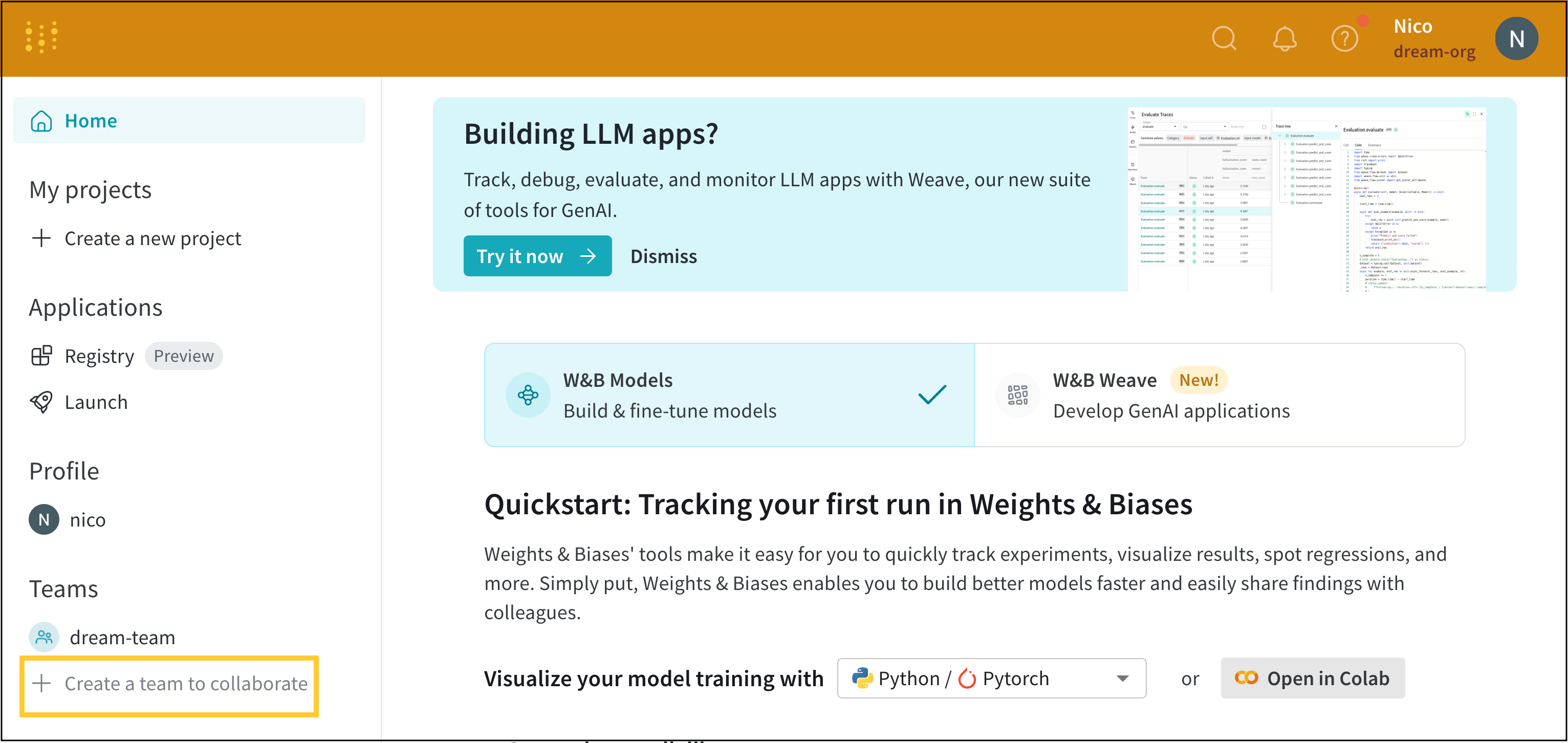 3. Provide a name for your team in the **Team name** field in the modal that appears.
4. Choose a storage type.
5. Select the **Create team** button.
After you select the **Create team** button, W\&B redirects you to a new team page at `https://wandb.ai/`, where `` consists of the name you provide when you create a team.
Once you have a team, you can add users to that team.
### Invite users to a team
Invite users to a team in your organization. Use the team's dashboard to invite users using their email address or W\&B username if they already have a W\&B account.
1. Navigate to `https://wandb.ai/`.
2. Select **Team settings** in the global navigation on the left side of the dashboard.
3. Provide a name for your team in the **Team name** field in the modal that appears.
4. Choose a storage type.
5. Select the **Create team** button.
After you select the **Create team** button, W\&B redirects you to a new team page at `https://wandb.ai/`, where `` consists of the name you provide when you create a team.
Once you have a team, you can add users to that team.
### Invite users to a team
Invite users to a team in your organization. Use the team's dashboard to invite users using their email address or W\&B username if they already have a W\&B account.
1. Navigate to `https://wandb.ai/`.
2. Select **Team settings** in the global navigation on the left side of the dashboard.
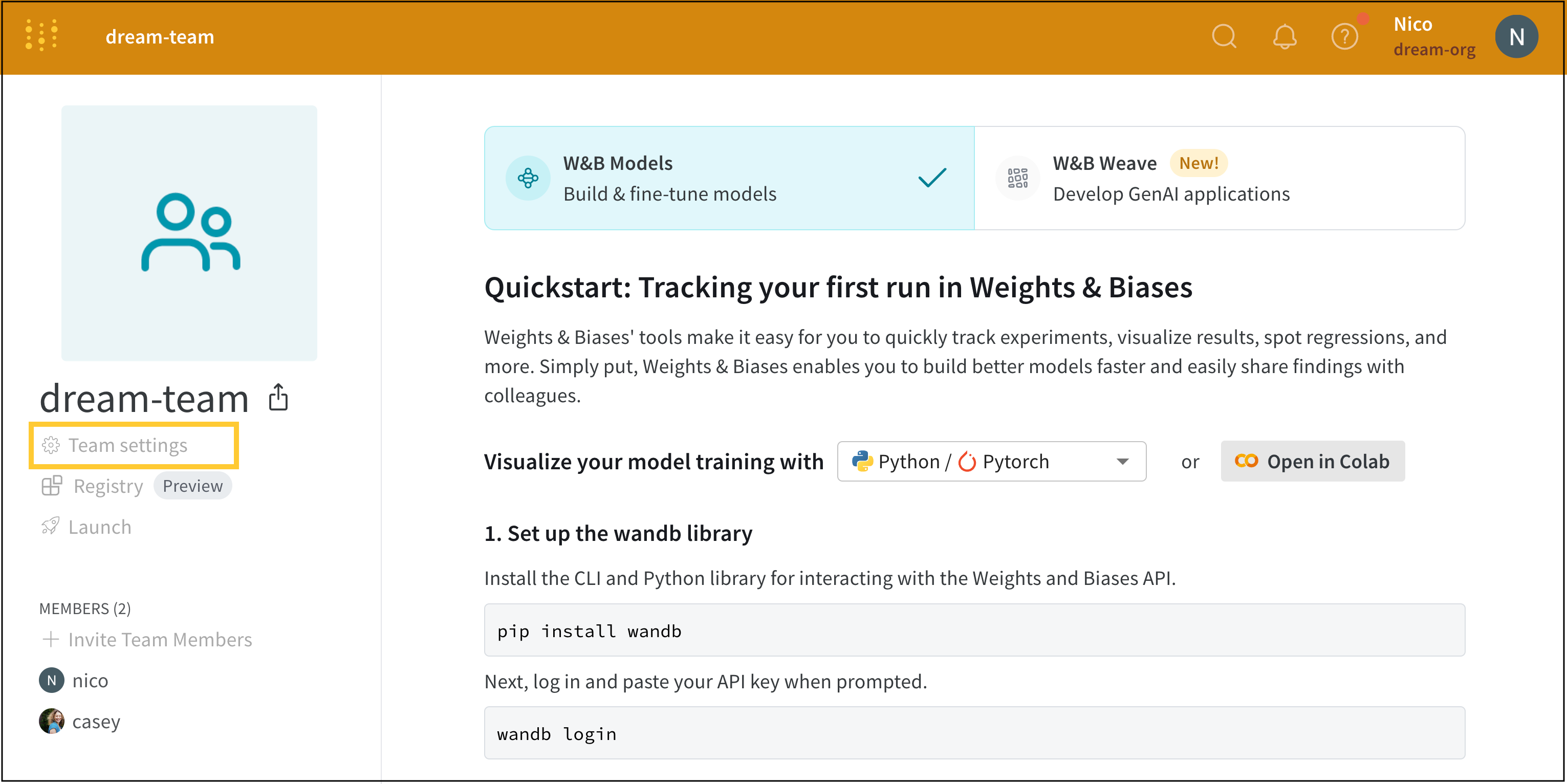 3. Select the **Users** tab.
4. Click **Invite a new user**.
5. Within the modal that appears, provide the email of the user in the **Email or username** field and select the role to assign to that user from the **Select a team** role dropdown. For more information about roles a user can have in a team, see [Assign or update a team member's role](#assign-or-update-a-team-members-role).
6. Click the **Send invite** button.
By default, only a team or instance admin can invite members to a team. To change this behavior, see [Team settings](/platform/app/settings-page/teams#privacy).
Besides inviting users manually with email invites, you can automatically add new users to a team if the new user's [email matches the domain of your organization](#domain-capture).
### Match members to a team organization during sign up
Allow new users within your organization to discover teams within your organization when they sign up. New users must have a verified email domain that matches your organization's verified email domain. Verified new users can view a list of verified teams that belong to an organization when they sign up for a W\&B account.
An organization admin must enable domain claiming. To enable domain capture, see the steps described in [Domain capture](#domain-capture).
### Assign or update a team member's role
A team member's role determines what they can do within the team, such as managing other members, contributing content, or viewing data only. Update a team member's role when their responsibilities within the team change.
1. Select the account type icon next to the name of the team member.
2. From the dropdown, choose the account type you want that team member to possess.
This table lists the roles you can assign to a member of a team:
| Role | Definition |
| -------------------------------------- | ---------------------------------------------------------------------------------------------------------------------------------------------------------------------------------------------------------------------------------------------------------------------------------------------------------------------------------------------------------------------------------------------------------------------------------------------------------- |
| Admin | A user who can add and remove other users in the team, change user roles, and configure team settings. |
| Member | A regular user of a team, invited by email or their organization-level username by the team admin. A member user can't invite other users to the team. |
| View-Only (Enterprise-only feature) | A view-only user of a team, invited by email or their organization-level username by the team admin. A view-only user only has read access to the team and its contents. |
| Custom Roles (Enterprise-only feature) | Custom roles let organization admins compose new roles by inheriting from the preceding View-Only or Member roles and adding additional permissions to achieve fine-grained access control. Team admins can then assign any of those custom roles to users in their respective teams. For more information, see the [custom roles announcement](https://wandb.ai/wandb_fc/announcements/reports/Introducing-Custom-Roles-for-W-B-Teams--Vmlldzo2MTMxMjQ3). |
Service accounts aren't users, but rather non-human identities used for automation. **Service accounts** provide API keys for automated workflows and don't consume user licenses. For more information about creating and managing service accounts, see [Use service accounts to automate workflows](/platform/hosting/iam/service-accounts/).
Only enterprise licenses on Dedicated Cloud or Self-Managed deployment can assign custom roles to members in a team.
### Remove users from a team
Remove a user from a team using the team's dashboard. W\&B preserves runs created in a team, even if the member who created the runs is no longer on that team.
1. Navigate to `https://wandb.ai/`.
2. Select **Team settings** in the left navigation bar.
3. Select the **Users** tab.
4. Hover your mouse next to the name of the user you want to delete. Select the **action ()** menu when it appears.
5. From the dropdown, select **Remove user**.
## Add and manage custom roles
Custom roles let you tailor permissions beyond the built-in roles when the standard View-Only, Member, and Admin roles don't match your organization's access requirements. Use custom roles to grant specific permissions while still building on a familiar base role.
An Enterprise license is required to create or assign custom roles on Dedicated Cloud or Self-Managed deployments.
Organization admins can compose a new role based on either the View-Only or Member role and add additional permissions to achieve fine-grained access control. Team admins can assign a custom role to a team member. You create custom roles at the organization level but assign them at the team level.
To create a custom role:
1. Navigate to [https://wandb.ai/home](https://wandb.ai/home).
2. In the upper right corner of the page, select the **User menu** dropdown. Within the **Account** section of the dropdown, select **Settings**.
3. Click **Roles**.
4. In the **Custom roles** section, click **Create a role**.
5. Provide a name for the role. Optionally provide a description.
6. Choose the role to base the custom role on, either **Viewer** or **Member**.
7. To add permissions, click the **Search permissions** field, then select one or more permissions to add.
8. Review the **Custom role permissions** section, which summarizes the permissions the role has.
9. Click **Create Role**.
1. Navigate to `https://.wandb.io/org/settings/`. Replace `` with your organization name.
2. In the **Custom roles** section, click **Create a role**.
3. Provide a name for the role. Optionally provide a description.
4. Choose the role to base the custom role on, either **Viewer** or **Member**.
5. To add permissions, click the **Search permissions** field, then select one or more permissions to add.
6. Review the **Custom role permissions** section, which summarizes the permissions the role has.
7. Click **Create Role**.
A team admin can now assign the custom role to members of a team from the [Team settings](#invite-users-to-a-team).
3. Select the **Users** tab.
4. Click **Invite a new user**.
5. Within the modal that appears, provide the email of the user in the **Email or username** field and select the role to assign to that user from the **Select a team** role dropdown. For more information about roles a user can have in a team, see [Assign or update a team member's role](#assign-or-update-a-team-members-role).
6. Click the **Send invite** button.
By default, only a team or instance admin can invite members to a team. To change this behavior, see [Team settings](/platform/app/settings-page/teams#privacy).
Besides inviting users manually with email invites, you can automatically add new users to a team if the new user's [email matches the domain of your organization](#domain-capture).
### Match members to a team organization during sign up
Allow new users within your organization to discover teams within your organization when they sign up. New users must have a verified email domain that matches your organization's verified email domain. Verified new users can view a list of verified teams that belong to an organization when they sign up for a W\&B account.
An organization admin must enable domain claiming. To enable domain capture, see the steps described in [Domain capture](#domain-capture).
### Assign or update a team member's role
A team member's role determines what they can do within the team, such as managing other members, contributing content, or viewing data only. Update a team member's role when their responsibilities within the team change.
1. Select the account type icon next to the name of the team member.
2. From the dropdown, choose the account type you want that team member to possess.
This table lists the roles you can assign to a member of a team:
| Role | Definition |
| -------------------------------------- | ---------------------------------------------------------------------------------------------------------------------------------------------------------------------------------------------------------------------------------------------------------------------------------------------------------------------------------------------------------------------------------------------------------------------------------------------------------- |
| Admin | A user who can add and remove other users in the team, change user roles, and configure team settings. |
| Member | A regular user of a team, invited by email or their organization-level username by the team admin. A member user can't invite other users to the team. |
| View-Only (Enterprise-only feature) | A view-only user of a team, invited by email or their organization-level username by the team admin. A view-only user only has read access to the team and its contents. |
| Custom Roles (Enterprise-only feature) | Custom roles let organization admins compose new roles by inheriting from the preceding View-Only or Member roles and adding additional permissions to achieve fine-grained access control. Team admins can then assign any of those custom roles to users in their respective teams. For more information, see the [custom roles announcement](https://wandb.ai/wandb_fc/announcements/reports/Introducing-Custom-Roles-for-W-B-Teams--Vmlldzo2MTMxMjQ3). |
Service accounts aren't users, but rather non-human identities used for automation. **Service accounts** provide API keys for automated workflows and don't consume user licenses. For more information about creating and managing service accounts, see [Use service accounts to automate workflows](/platform/hosting/iam/service-accounts/).
Only enterprise licenses on Dedicated Cloud or Self-Managed deployment can assign custom roles to members in a team.
### Remove users from a team
Remove a user from a team using the team's dashboard. W\&B preserves runs created in a team, even if the member who created the runs is no longer on that team.
1. Navigate to `https://wandb.ai/`.
2. Select **Team settings** in the left navigation bar.
3. Select the **Users** tab.
4. Hover your mouse next to the name of the user you want to delete. Select the **action ()** menu when it appears.
5. From the dropdown, select **Remove user**.
## Add and manage custom roles
Custom roles let you tailor permissions beyond the built-in roles when the standard View-Only, Member, and Admin roles don't match your organization's access requirements. Use custom roles to grant specific permissions while still building on a familiar base role.
An Enterprise license is required to create or assign custom roles on Dedicated Cloud or Self-Managed deployments.
Organization admins can compose a new role based on either the View-Only or Member role and add additional permissions to achieve fine-grained access control. Team admins can assign a custom role to a team member. You create custom roles at the organization level but assign them at the team level.
To create a custom role:
1. Navigate to [https://wandb.ai/home](https://wandb.ai/home).
2. In the upper right corner of the page, select the **User menu** dropdown. Within the **Account** section of the dropdown, select **Settings**.
3. Click **Roles**.
4. In the **Custom roles** section, click **Create a role**.
5. Provide a name for the role. Optionally provide a description.
6. Choose the role to base the custom role on, either **Viewer** or **Member**.
7. To add permissions, click the **Search permissions** field, then select one or more permissions to add.
8. Review the **Custom role permissions** section, which summarizes the permissions the role has.
9. Click **Create Role**.
1. Navigate to `https://.wandb.io/org/settings/`. Replace `` with your organization name.
2. In the **Custom roles** section, click **Create a role**.
3. Provide a name for the role. Optionally provide a description.
4. Choose the role to base the custom role on, either **Viewer** or **Member**.
5. To add permissions, click the **Search permissions** field, then select one or more permissions to add.
6. Review the **Custom role permissions** section, which summarizes the permissions the role has.
7. Click **Create Role**.
A team admin can now assign the custom role to members of a team from the [Team settings](#invite-users-to-a-team).