> ## Documentation Index
> Fetch the complete documentation index at: https://docs.wandb.ai/llms.txt
> Use this file to discover all available pages before exploring further.
> Manage project access using visibility scopes and project-level roles
# Manage access control for projects
Define the scope of a W\&B project to limit who can view, edit, and submit W\&B runs to it. This page is for team and organization admins, and project owners, who need to control access to sensitive workflows or limit collaboration to a specific group of users.
You can combine two controls to configure the access level for any project within a W\&B team. **Visibility scope** is the higher-level mechanism. Use it to control which groups of users can view or submit runs in a project. For a project with *Team* or *Restricted* visibility scope, you can then use **Project level roles** to control the level of access that each user has within the project.
The owner of a project, a team admin, or an organization admin can set or edit a project's visibility.
## Visibility scopes
Visibility scope determines which users in your organization can see and contribute to a project. You can choose from four project visibility scopes. From most public to most private, they are:
| Scope | Description |
| ---------- | ---------------------------------------------------------------------------------------------------------------------------------- |
| Open | Anyone who knows about the project can view it and submit runs or reports. |
| Public | Anyone who knows about the project can view it. Only your team can submit runs or reports. |
| Team | Only members of the parent team can view the project and submit runs or reports. Anyone outside the team can't access the project. |
| Restricted | Only invited members from the parent team can view the project and submit runs or reports. |
Set a project's scope to **Restricted** if you want to collaborate on workflows related to sensitive or confidential data. When you create a restricted project within a team, you can invite or add specific members from the team to collaborate on relevant experiments, artifacts, and reports.
Unlike other project scopes, all members of a team don't get implicit access to a restricted project. At the same time, team admins can join restricted projects if needed.
### Set visibility scope on a new or existing project
Set a project's visibility scope when you create a project or when you edit it later. The following sections describe both workflows.
* Only the owner of the project or a team admin can set or edit its visibility scope.
* When a team admin enables **Make all future team projects private (public sharing not allowed)** within a team's privacy setting, that turns off **Open** and **Public** project visibility scopes for that team. In this case, your team can only use **Team** and **Restricted** scopes.
#### Set visibility scope when you create a project
To set the visibility scope for a new project:
1. Navigate to your W\&B organization on a W\&B Multi-tenant Cloud, Dedicated Cloud, or Self-Managed instance.
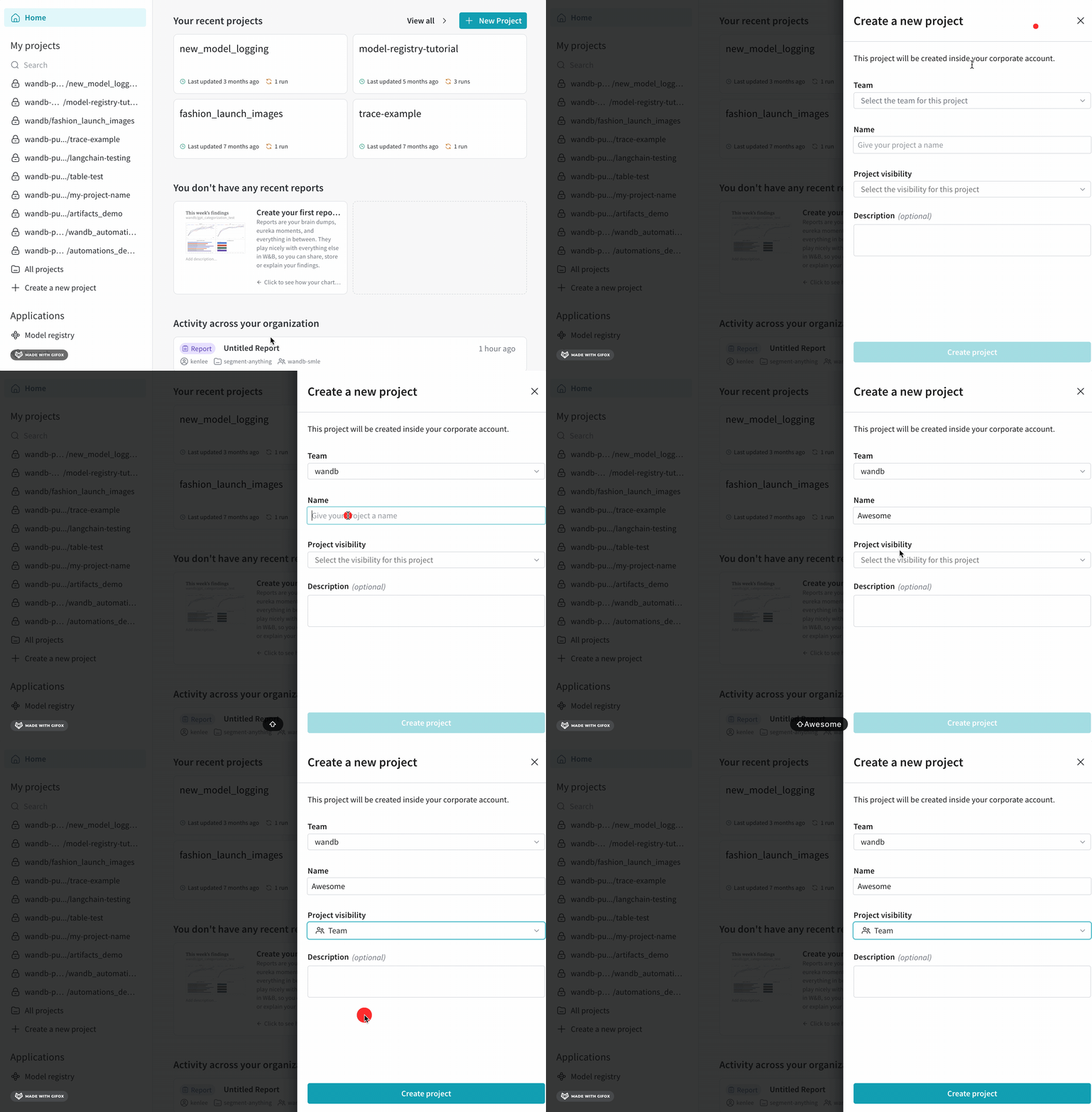
2. Click the **Create a new project** button in the left-hand sidebar's **My projects** section. Alternatively, navigate to the **Projects** tab of your team and click the **Create new project** button in the upper right-hand corner.
3. After you select the parent team and enter the name of the project, select the desired scope from the **Project Visibility** dropdown.
 Complete the following step if you select **Restricted** visibility.
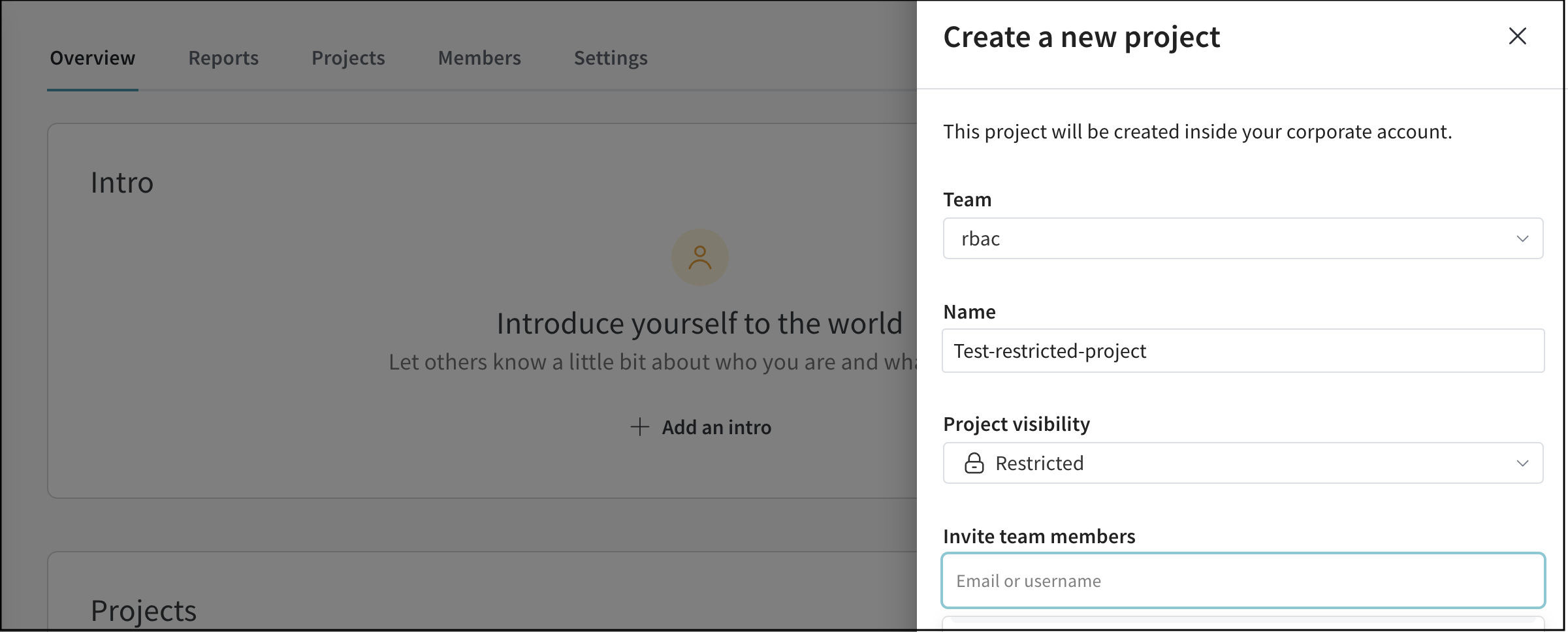
4. Provide names of one or more W\&B team members in the **Invite team members** field. Add only those members who are essential to collaborate on the project, since other team members don't get implicit access to a restricted project.
Complete the following step if you select **Restricted** visibility.
4. Provide names of one or more W\&B team members in the **Invite team members** field. Add only those members who are essential to collaborate on the project, since other team members don't get implicit access to a restricted project.
 You can add or remove members in a restricted project later, from its **Users** tab.
W\&B creates the project with the selected visibility scope, and only the invited members (for a restricted project) or in-scope users can access it.
#### Edit visibility scope of an existing project
To change the visibility scope of an existing project:
1. Navigate to your W\&B project.
2. Select the **Overview** tab on the left column.
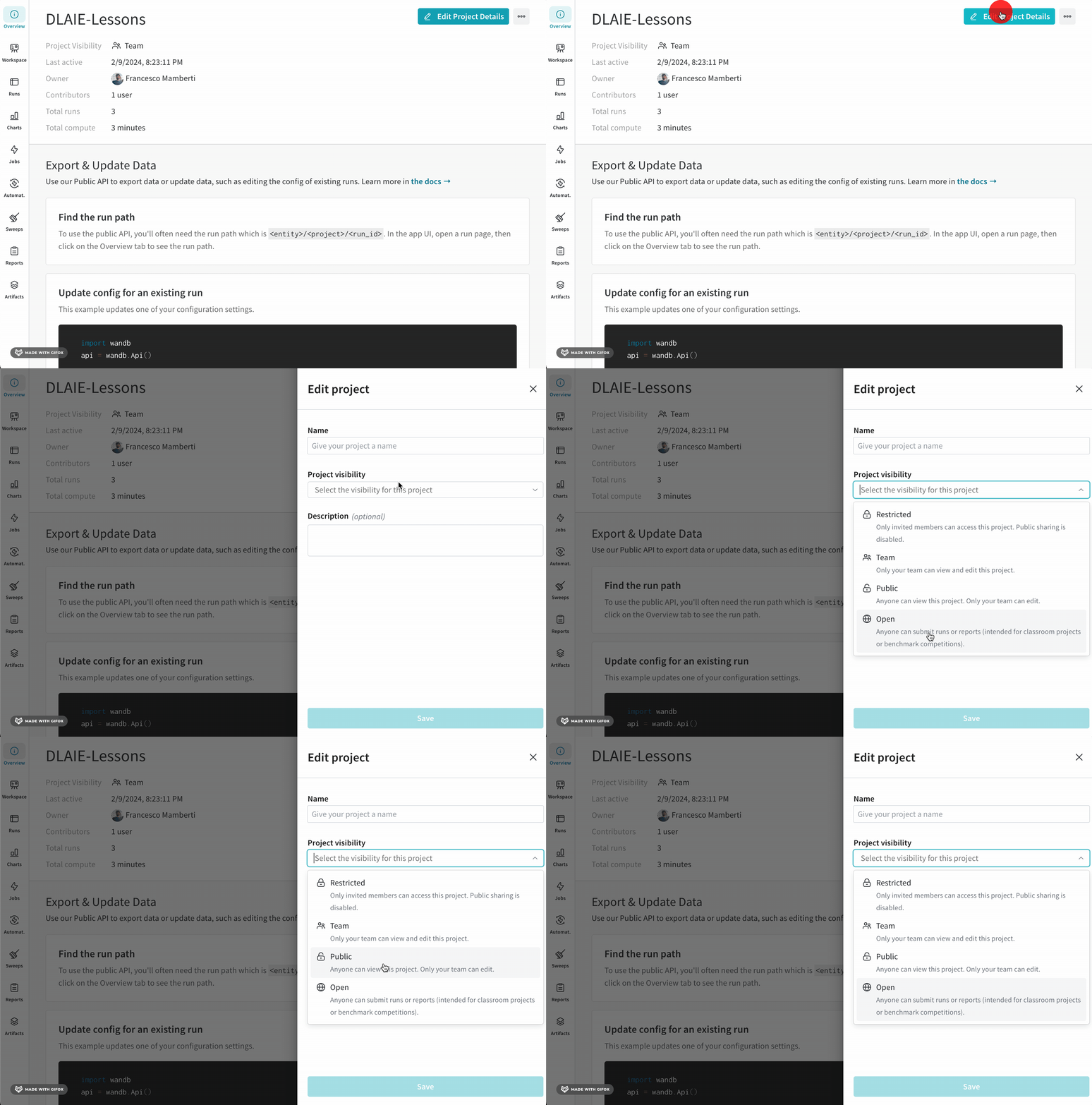
3. Click the **Edit Project Details** button on the upper right corner.
4. From the **Project Visibility** dropdown, select the desired scope.
You can add or remove members in a restricted project later, from its **Users** tab.
W\&B creates the project with the selected visibility scope, and only the invited members (for a restricted project) or in-scope users can access it.
#### Edit visibility scope of an existing project
To change the visibility scope of an existing project:
1. Navigate to your W\&B project.
2. Select the **Overview** tab on the left column.
3. Click the **Edit Project Details** button on the upper right corner.
4. From the **Project Visibility** dropdown, select the desired scope.
 Complete the following step if you select **Restricted** visibility.
5. Navigate to the **Users** tab in the project, and click the **Add user** button to invite specific users to the restricted project.
W\&B updates the project's visibility scope, and access reflects the new scope along with any invited members.
* All members of a team lose access to a project if you change its visibility scope from **Team** to **Restricted**, unless you invite the required team members to the project.
* All members of a team get access to a project if you change its visibility scope from **Restricted** to **Team**.
* If you remove a team member from the user list for a restricted project, they lose access to that project.
### Other key things to note for restricted scope
Keep the following behaviors in mind when working with restricted projects:
* If you want to use a team-level service account in a restricted project, you must invite or add it specifically to the project. Otherwise a team-level service account can't access a restricted project by default.
* You can't move runs from a restricted project, but you can move runs from a non-restricted project to a restricted one.
* You can convert the visibility of a restricted project to only **Team** scope, irrespective of the team privacy setting **Make all future team projects private (public sharing not allowed)**.
* If the owner of a restricted project isn't part of the parent team anymore, the team admin must change the owner to maintain access to the project.
## Project level roles
After you set a project's visibility scope, you can further refine each user's permissions inside the project by assigning a project level role. For *Team* or *Restricted* scoped projects in your team, you can assign a specific role to a user, which can differ from that user's team level role. For example, if a user has *Member* role at the team level, you can assign the *View-Only*, *Admin*, or any available custom role to that user within a *Team* or *Restricted* scope project in that team.
Project level roles are in preview on W\&B Multi-tenant Cloud, Dedicated Cloud, and Self-Managed instances.
### Assign a project level role to a user
To assign a project level role:
1. Navigate to your W\&B project.
2. Select the **Overview** tab on the left column.
3. Navigate to the **Users** tab in the project.
4. Click the currently assigned role for the relevant user in the **Project Role** field, which opens a dropdown listing the other available roles.
5. Select another role from the dropdown. The change saves instantly.
When you change the project level role for a user to be different from their team level role, the project level role includes a **\*** to indicate the difference.
### Other key things to note for project level roles
Keep the following behaviors in mind when assigning or changing project level roles:
* By default, project level roles for all users in a *Team* or *Restricted* scoped project **inherit** their respective team level roles.
* You **can't** change the project level role of a user who has *View-Only* role at the team level.
* If the project level role for a user within a particular project **is the same as** the team level role, and a team admin later changes the team level role, W\&B automatically changes the relevant project role to track the team level role.
* If you change the project level role for a user within a particular project such that **it differs from** the team level role, and a team admin later changes the team level role, the relevant project level role remains as is.
* If you remove a user from a *Restricted* project when their project level role differed from the team level role, and you then add the user back to the project later, they inherit the team level role due to the default behavior. If needed, change the project level role again to differ from the team level role.
Complete the following step if you select **Restricted** visibility.
5. Navigate to the **Users** tab in the project, and click the **Add user** button to invite specific users to the restricted project.
W\&B updates the project's visibility scope, and access reflects the new scope along with any invited members.
* All members of a team lose access to a project if you change its visibility scope from **Team** to **Restricted**, unless you invite the required team members to the project.
* All members of a team get access to a project if you change its visibility scope from **Restricted** to **Team**.
* If you remove a team member from the user list for a restricted project, they lose access to that project.
### Other key things to note for restricted scope
Keep the following behaviors in mind when working with restricted projects:
* If you want to use a team-level service account in a restricted project, you must invite or add it specifically to the project. Otherwise a team-level service account can't access a restricted project by default.
* You can't move runs from a restricted project, but you can move runs from a non-restricted project to a restricted one.
* You can convert the visibility of a restricted project to only **Team** scope, irrespective of the team privacy setting **Make all future team projects private (public sharing not allowed)**.
* If the owner of a restricted project isn't part of the parent team anymore, the team admin must change the owner to maintain access to the project.
## Project level roles
After you set a project's visibility scope, you can further refine each user's permissions inside the project by assigning a project level role. For *Team* or *Restricted* scoped projects in your team, you can assign a specific role to a user, which can differ from that user's team level role. For example, if a user has *Member* role at the team level, you can assign the *View-Only*, *Admin*, or any available custom role to that user within a *Team* or *Restricted* scope project in that team.
Project level roles are in preview on W\&B Multi-tenant Cloud, Dedicated Cloud, and Self-Managed instances.
### Assign a project level role to a user
To assign a project level role:
1. Navigate to your W\&B project.
2. Select the **Overview** tab on the left column.
3. Navigate to the **Users** tab in the project.
4. Click the currently assigned role for the relevant user in the **Project Role** field, which opens a dropdown listing the other available roles.
5. Select another role from the dropdown. The change saves instantly.
When you change the project level role for a user to be different from their team level role, the project level role includes a **\*** to indicate the difference.
### Other key things to note for project level roles
Keep the following behaviors in mind when assigning or changing project level roles:
* By default, project level roles for all users in a *Team* or *Restricted* scoped project **inherit** their respective team level roles.
* You **can't** change the project level role of a user who has *View-Only* role at the team level.
* If the project level role for a user within a particular project **is the same as** the team level role, and a team admin later changes the team level role, W\&B automatically changes the relevant project role to track the team level role.
* If you change the project level role for a user within a particular project such that **it differs from** the team level role, and a team admin later changes the team level role, the relevant project level role remains as is.
* If you remove a user from a *Restricted* project when their project level role differed from the team level role, and you then add the user back to the project later, they inherit the team level role due to the default behavior. If needed, change the project level role again to differ from the team level role.