> ## Documentation Index
> Fetch the complete documentation index at: https://docs.wandb.ai/llms.txt
> Use this file to discover all available pages before exploring further.
# Configure SSO with OIDC
> Configure SSO using OpenID Connect with identity providers like Okta, Azure AD, and AWS Cognito for W&B instances.
This guide is for administrators of W\&B Dedicated Cloud or Self-Managed instances who want to enable single sign-on (SSO) using an OpenID Connect (OIDC) compatible identity provider. By the end, you've configured your identity provider, connected it to W\&B so that users can sign in through your organization's existing identity system, and you can manage user identities and group memberships through providers like Okta, Keycloak, Auth0, Google, and Entra.
## OpenID Connect
W\&B supports the following OIDC authentication flows for integrating with external Identity Providers (IdPs):
* Implicit flow with form post.
* Authorization code flow with Proof Key for Code Exchange (PKCE).
These flows authenticate users and provide W\&B with the identity information (in the form of ID tokens) needed to manage access control.
The ID token is a JWT that contains the user's identity information, such as their name, username, email, and group memberships. W\&B uses this token to authenticate the user and map them to appropriate roles or groups in the system.
In the context of W\&B, access tokens authorize requests to APIs on behalf of the user, but because W\&B's primary concern is user authentication and identity, it only requires the ID token.
You can use environment variables to [configure IAM options](/platform/hosting/iam/advanced_env_vars) for your [Dedicated Cloud](/platform/hosting/hosting-options/dedicated-cloud) or [Self-Managed](/platform/hosting/hosting-options/self-managed) instance.
To assist with configuring Identity Providers for [Dedicated Cloud](/platform/hosting/hosting-options/dedicated-cloud) or [Self-Managed](/platform/hosting/hosting-options/self-managed) deployments, follow these guidelines. If you're using W\&B Multi-tenant Cloud, reach out to [support@wandb.com](mailto:support@wandb.com) for assistance.
## Configure your IdP
The following sections describe how to configure your identity provider (IdP) for OIDC. Complete the configuration steps for your IdP first. You use the resulting **Client ID**, **Issuer URL**, and (optionally) **Client Secret** when you set up SSO in W\&B in the next section. Select the tab for your IdP for details.
Follow this procedure to set up AWS Cognito as your IdP. At the end, you have a **Client ID** and **OIDC issuer URL** to use when you configure W\&B.
1. Sign in to your AWS account and navigate to the [AWS Cognito](https://aws.amazon.com/cognito/) App.
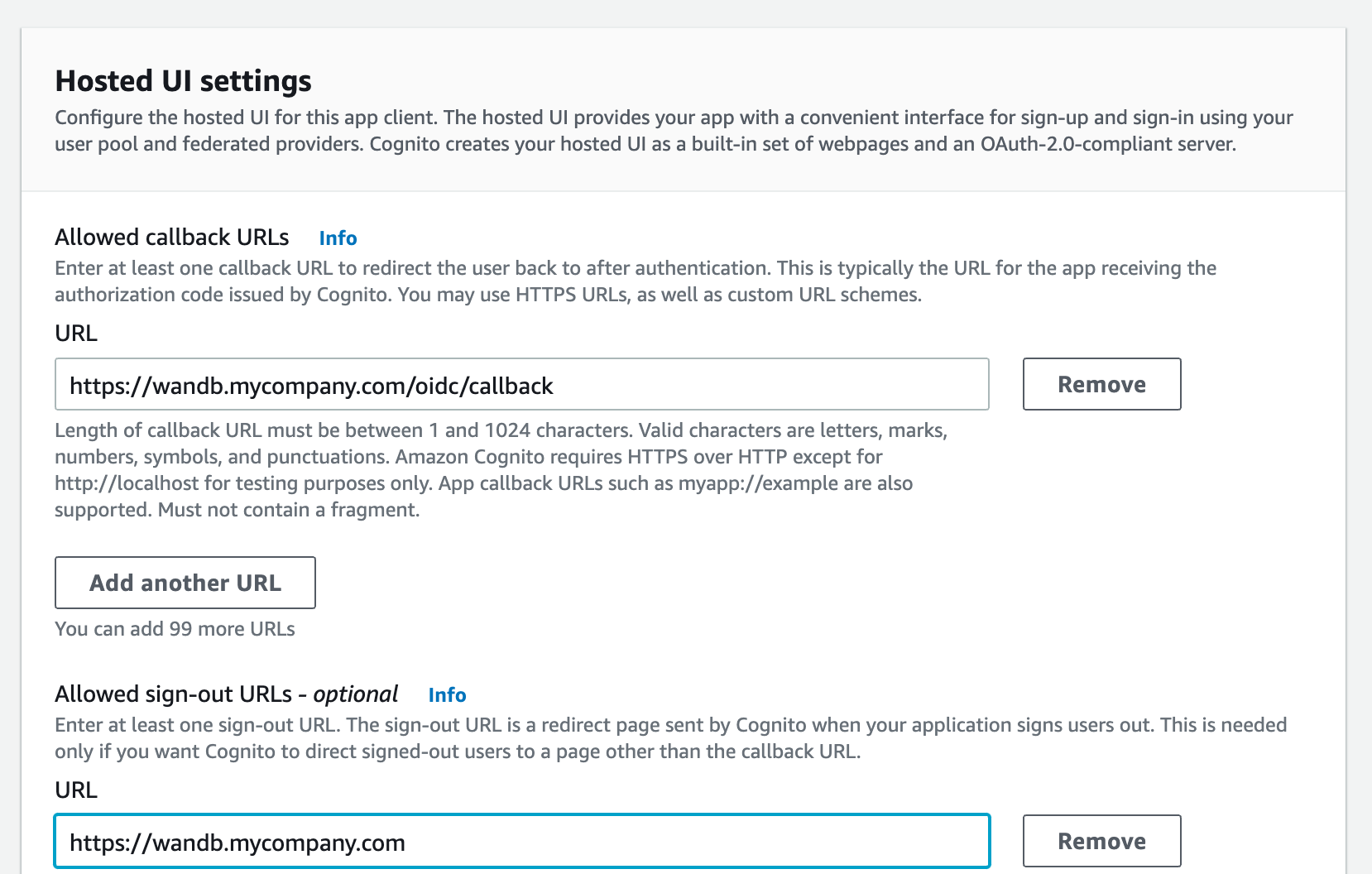
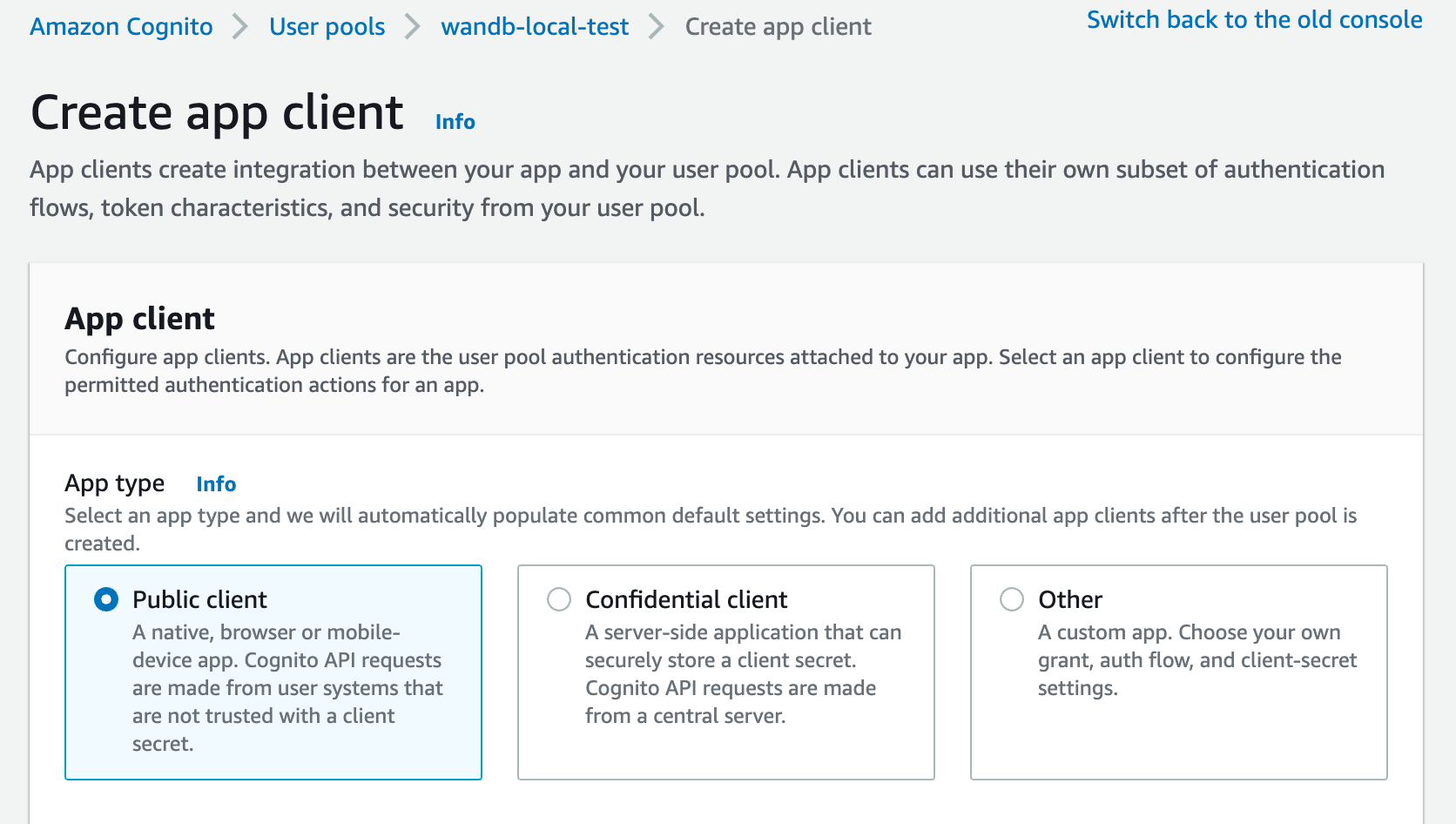 2. Provide an allowed callback URL to configure the application in your IdP. Add `http(s)://[YOUR-W-AND-B-HOST]/oidc/callback` as the callback URL. Replace `[YOUR-W-AND-B-HOST]` with your W\&B host path.
3. If your IdP supports universal logout, set the Logout URL to `http(s)://[YOUR-W-AND-B-HOST]`. Replace `[YOUR-W-AND-B-HOST]` with your W\&B host path.
For example, if your application runs at `https://wandb.mycompany.com`, replace `[YOUR-W-AND-B-HOST]` with `wandb.mycompany.com`.
The following image demonstrates how to provide allowed callback and sign-out URLs in AWS Cognito.
2. Provide an allowed callback URL to configure the application in your IdP. Add `http(s)://[YOUR-W-AND-B-HOST]/oidc/callback` as the callback URL. Replace `[YOUR-W-AND-B-HOST]` with your W\&B host path.
3. If your IdP supports universal logout, set the Logout URL to `http(s)://[YOUR-W-AND-B-HOST]`. Replace `[YOUR-W-AND-B-HOST]` with your W\&B host path.
For example, if your application runs at `https://wandb.mycompany.com`, replace `[YOUR-W-AND-B-HOST]` with `wandb.mycompany.com`.
The following image demonstrates how to provide allowed callback and sign-out URLs in AWS Cognito.
 `wandb/local` uses the [`implicit` grant with the `form_post` response type](https://auth0.com/docs/get-started/authentication-and-authorization-flow/implicit-flow-with-form-post) by default.
You can also configure `wandb/local` to perform an `authorization_code` grant that uses the [PKCE Code Exchange](https://www.oauth.com/oauth2-servers/pkce/) flow.
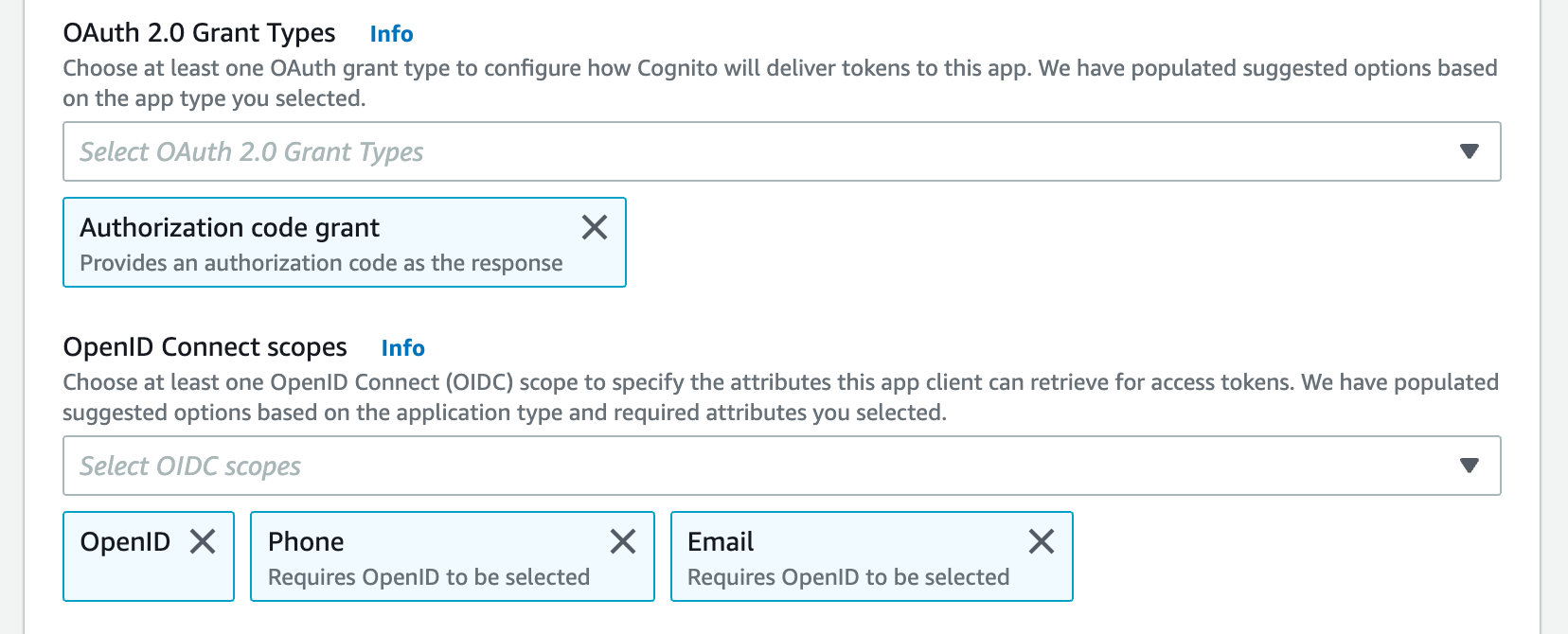
4. Select one or more OAuth grant types to configure how AWS Cognito delivers tokens to your app.
5. W\&B requires specific OpenID Connect (OIDC) scopes. Select the following from AWS Cognito App:
* `openid`
* `profile`
* `email`
For example, your AWS Cognito App UI should look similar to the following image:
`wandb/local` uses the [`implicit` grant with the `form_post` response type](https://auth0.com/docs/get-started/authentication-and-authorization-flow/implicit-flow-with-form-post) by default.
You can also configure `wandb/local` to perform an `authorization_code` grant that uses the [PKCE Code Exchange](https://www.oauth.com/oauth2-servers/pkce/) flow.
4. Select one or more OAuth grant types to configure how AWS Cognito delivers tokens to your app.
5. W\&B requires specific OpenID Connect (OIDC) scopes. Select the following from AWS Cognito App:
* `openid`
* `profile`
* `email`
For example, your AWS Cognito App UI should look similar to the following image:
 Select the **Auth Method** in the settings page or set the `OIDC_AUTH_METHOD` environment variable to specify which grant `wandb/local` uses.
You must set the **Auth Method** to `pkce`.
6. You need a **Client ID** and the URL of your OIDC issuer. The OpenID discovery document must be available at `$OIDC_ISSUER/.well-known/openid-configuration`.
For example, you can generate your issuer URL by appending your User Pool ID to the Cognito IdP URL from the **App Integration** tab within the **User Pools** section:
Select the **Auth Method** in the settings page or set the `OIDC_AUTH_METHOD` environment variable to specify which grant `wandb/local` uses.
You must set the **Auth Method** to `pkce`.
6. You need a **Client ID** and the URL of your OIDC issuer. The OpenID discovery document must be available at `$OIDC_ISSUER/.well-known/openid-configuration`.
For example, you can generate your issuer URL by appending your User Pool ID to the Cognito IdP URL from the **App Integration** tab within the **User Pools** section:
 Don't use the Cognito domain for the IdP URL. Cognito provides its discovery document at `https://cognito-idp.$REGION.amazonaws.com/$USER_POOL_ID`.
Next, [Set up SSO in W\&B](#set-up-sso-in-w%26b).
Follow this procedure to set up Okta as your IdP. At the end, you have a **Client ID** and **OIDC issuer URL** to use when you configure W\&B.
1. Sign in to the [Okta Portal](https://login.okta.com/).
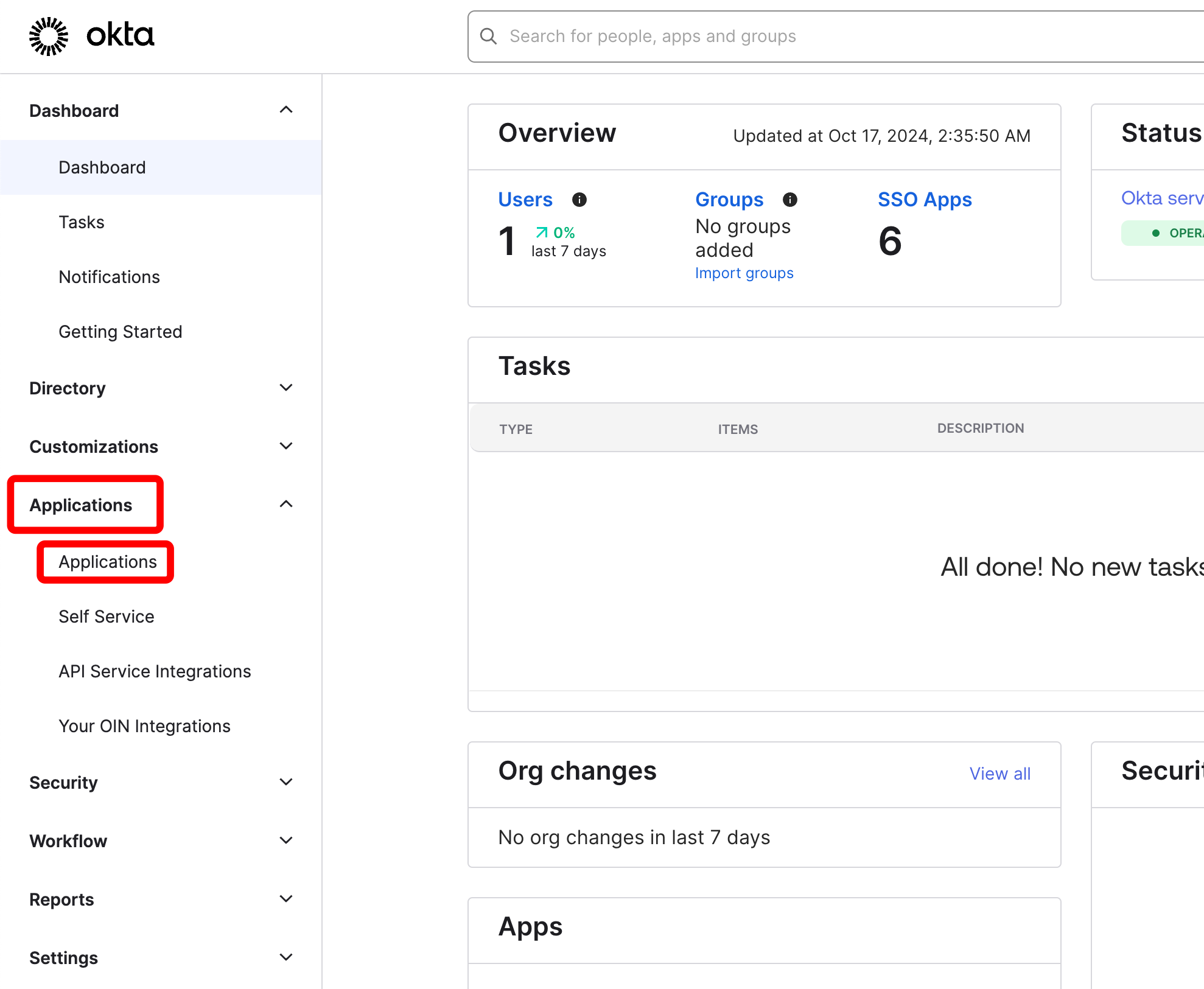
2. On the left side, select **Applications** and then **Applications** again.
Don't use the Cognito domain for the IdP URL. Cognito provides its discovery document at `https://cognito-idp.$REGION.amazonaws.com/$USER_POOL_ID`.
Next, [Set up SSO in W\&B](#set-up-sso-in-w%26b).
Follow this procedure to set up Okta as your IdP. At the end, you have a **Client ID** and **OIDC issuer URL** to use when you configure W\&B.
1. Sign in to the [Okta Portal](https://login.okta.com/).
2. On the left side, select **Applications** and then **Applications** again.
 3. Click **Create App integration**.
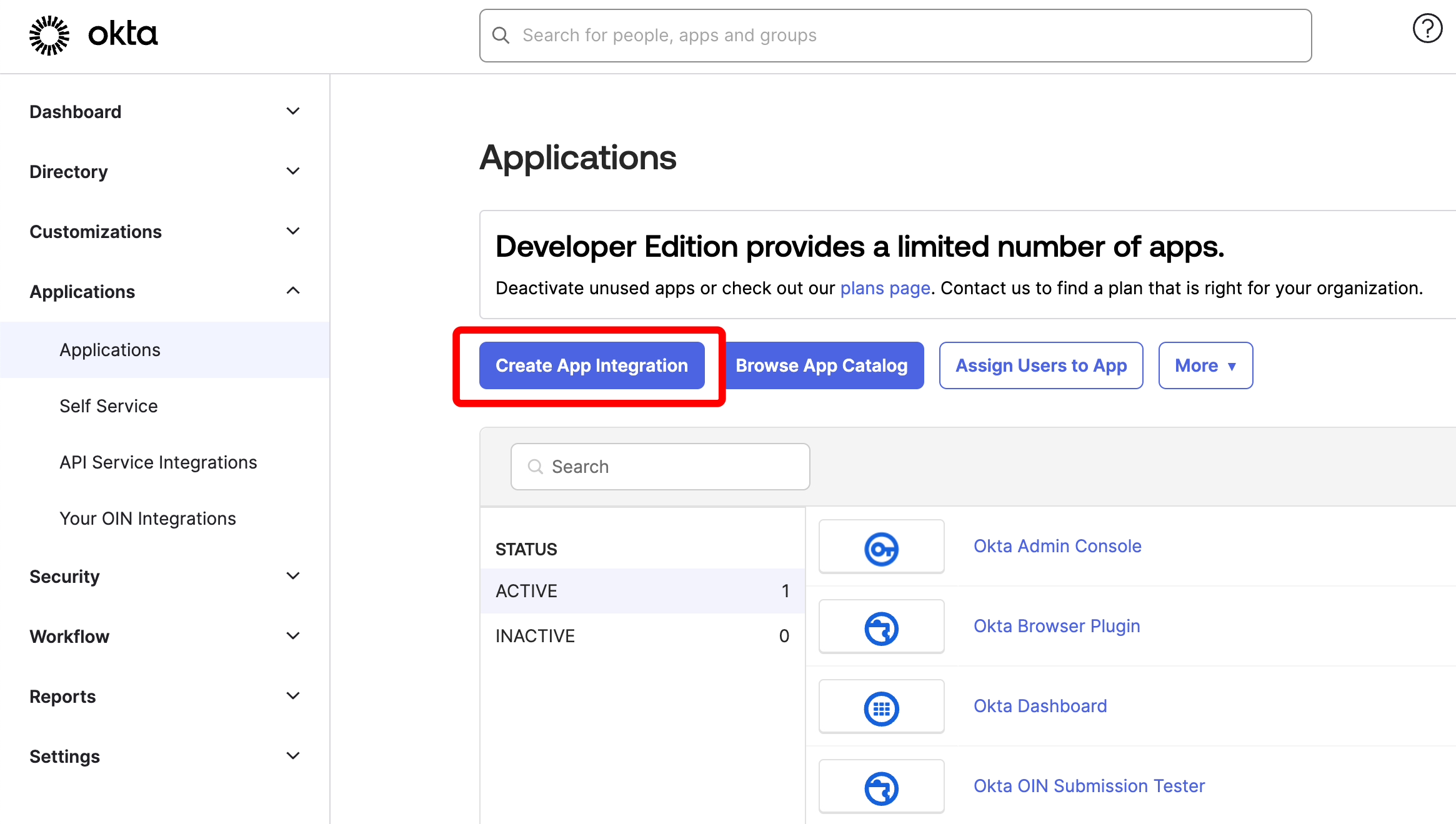 4. On the screen named **Create a new app integration**, select **OIDC - OpenID Connect** and **Single-Page Application**. Then click **Next**.
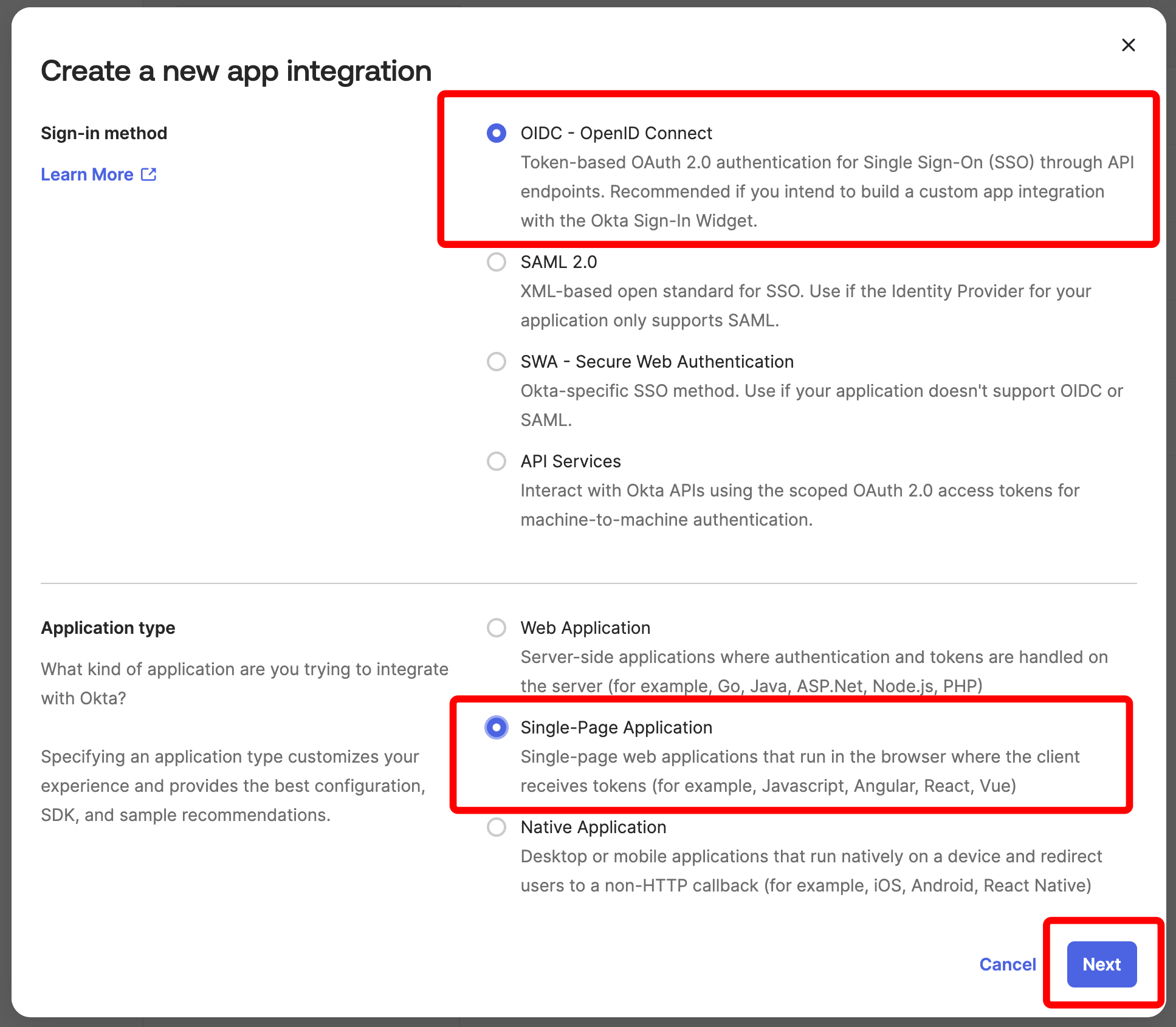 5. On the screen named **New Single-Page App Integration**, complete the values as follows and click **Save**:
* **App integration name**, for example `W&B`.
* **Grant type**: Select both **Authorization Code** and **Implicit (hybrid)**.
* **Sign-in redirect URIs**: `https://[YOUR-W-AND-B-URL]/oidc/callback`.
* **Sign-out redirect URIs**: `https://[YOUR-W-AND-B-URL]/logout`.
* **Assignments**: Select **Skip group assignment for now**.
5. On the screen named **New Single-Page App Integration**, complete the values as follows and click **Save**:
* **App integration name**, for example `W&B`.
* **Grant type**: Select both **Authorization Code** and **Implicit (hybrid)**.
* **Sign-in redirect URIs**: `https://[YOUR-W-AND-B-URL]/oidc/callback`.
* **Sign-out redirect URIs**: `https://[YOUR-W-AND-B-URL]/logout`.
* **Assignments**: Select **Skip group assignment for now**.
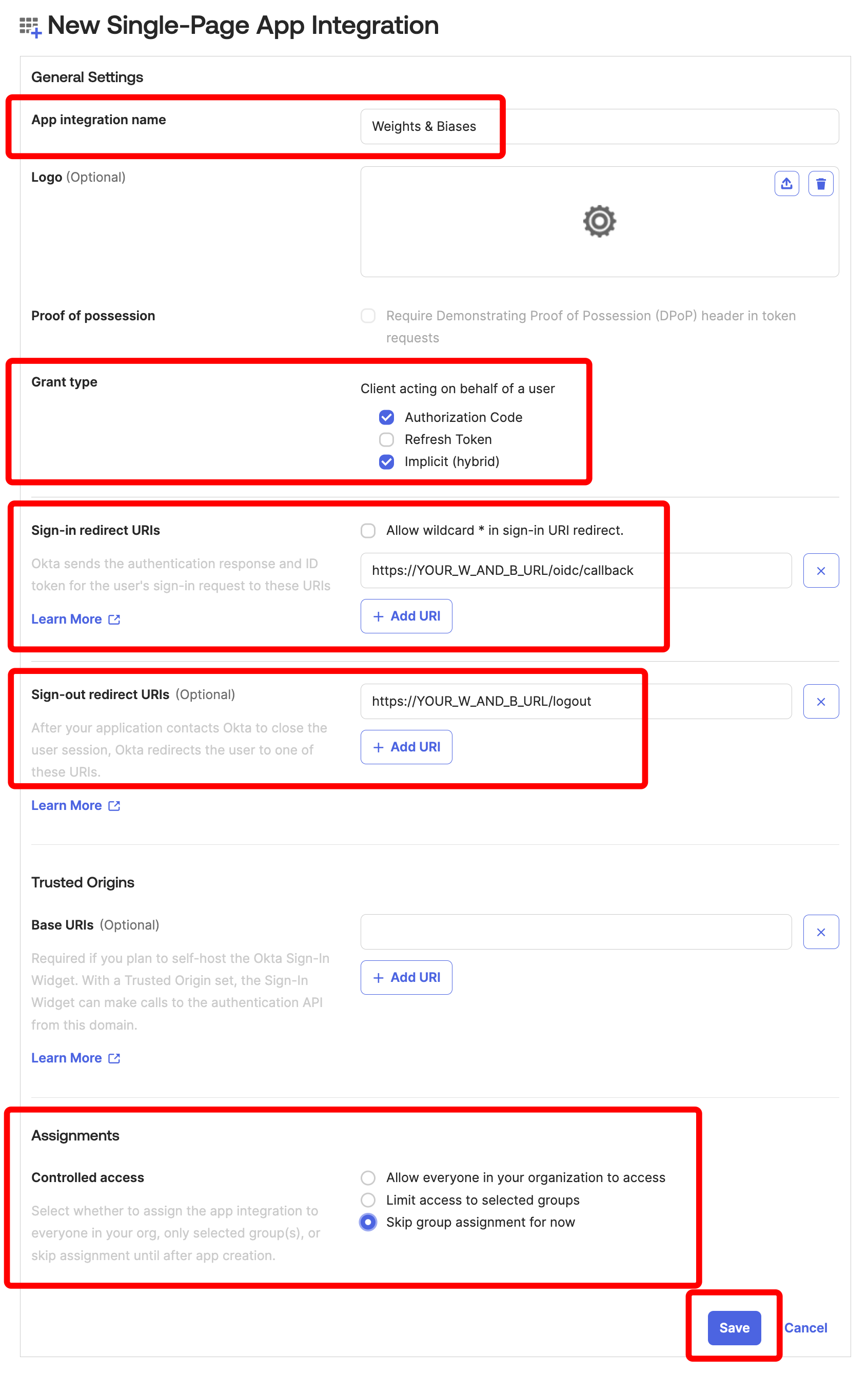 6. On the overview screen of the Okta application you created, make note of the **Client ID** under **Client Credentials** under the **General** tab:
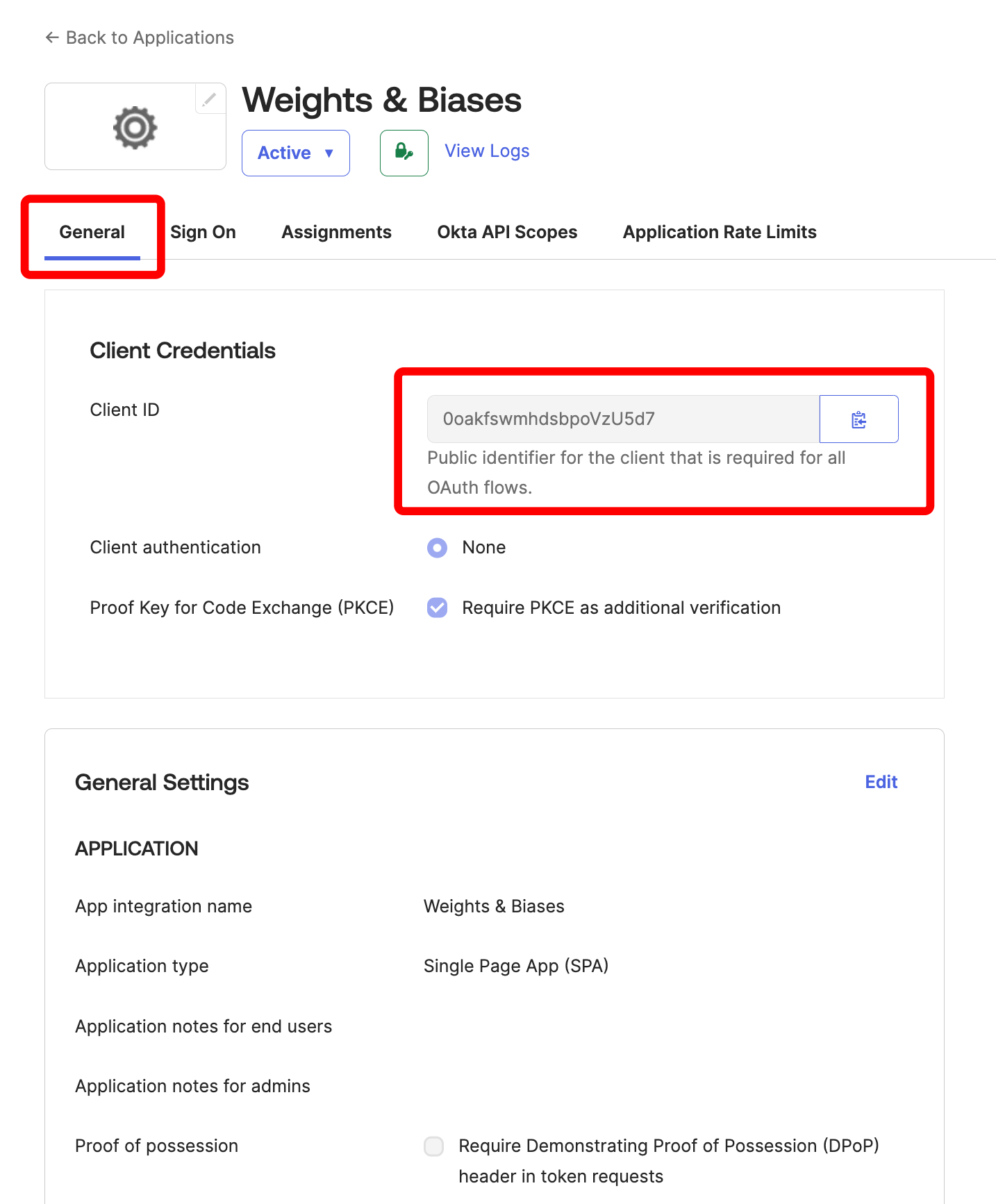 7. To identify the Okta **OIDC Issuer URL**, select **Settings** and then **Account** on the left side.
The Okta UI shows the company name under **Organization Contact**.
7. To identify the Okta **OIDC Issuer URL**, select **Settings** and then **Account** on the left side.
The Okta UI shows the company name under **Organization Contact**.
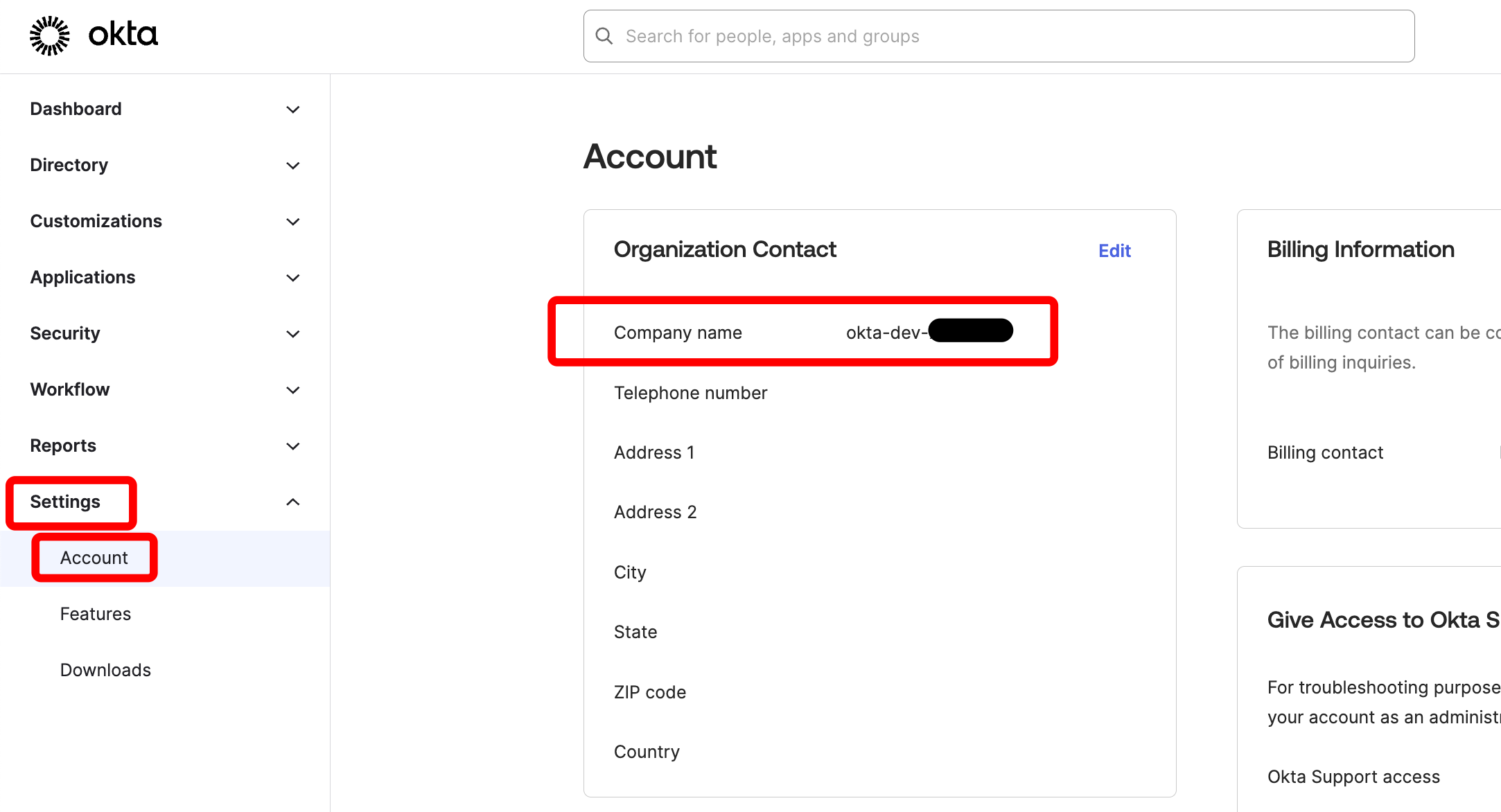 The OIDC issuer URL has the following format: `https://[COMPANY].okta.com`. Replace `[COMPANY]` with the corresponding value. Make note of it.
Next, [Set up SSO in W\&B](#set-up-sso-in-w%26b).
Azure AD (Entra ID) supports two OIDC configuration modes for W\&B. Choose the configuration that matches your security requirements:
* [Public client](#public-client): Uses PKCE without a client secret. Simpler to configure, suitable for most deployments.
* [Confidential client](#confidential-client): Uses PKCE with a client secret. Required if you need to set the `GORILLA_OIDC_SECRET` environment variable.
Don't mix configurations. If you select **Single-page application** in Azure AD, don't provide a client secret. If you need a client secret, you must select **Web** as the platform type.
Use this configuration if you don't need to specify a client secret. It's suitable for deployments without advanced security requirements.
1. Sign in to the [Azure Portal](https://portal.azure.com/).
2. Navigate to **Microsoft Entra ID** service and select **App registrations** from the left sidebar.
3. Click **New registration** at the top of the page.
4. On the **Register an application** screen, configure the following:
* **Name**: Enter a descriptive name.
* **Supported account types**: Keep the default **Single tenant** or modify as needed.
* **Redirect URI**: Select platform type **Single-page application** and enter `https://[YOUR-W-AND-B-URL]/oidc/callback`.
* Click **Register**.
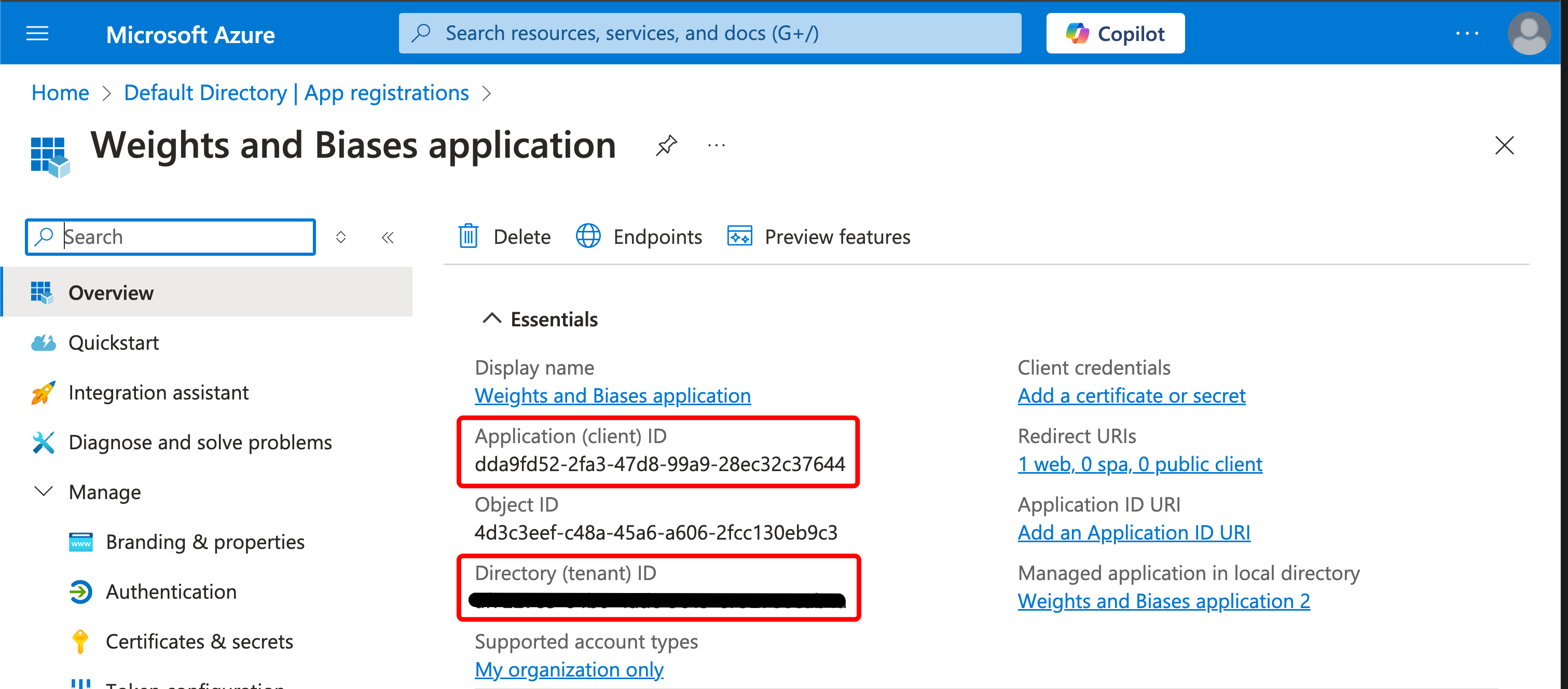
5. After registration, note the following values from the Overview page:
* **Application (client) ID**: Your OIDC Client ID.
* **Directory (tenant) ID**: Your OIDC Issuer URL.
The OIDC issuer URL has the following format: `https://[COMPANY].okta.com`. Replace `[COMPANY]` with the corresponding value. Make note of it.
Next, [Set up SSO in W\&B](#set-up-sso-in-w%26b).
Azure AD (Entra ID) supports two OIDC configuration modes for W\&B. Choose the configuration that matches your security requirements:
* [Public client](#public-client): Uses PKCE without a client secret. Simpler to configure, suitable for most deployments.
* [Confidential client](#confidential-client): Uses PKCE with a client secret. Required if you need to set the `GORILLA_OIDC_SECRET` environment variable.
Don't mix configurations. If you select **Single-page application** in Azure AD, don't provide a client secret. If you need a client secret, you must select **Web** as the platform type.
Use this configuration if you don't need to specify a client secret. It's suitable for deployments without advanced security requirements.
1. Sign in to the [Azure Portal](https://portal.azure.com/).
2. Navigate to **Microsoft Entra ID** service and select **App registrations** from the left sidebar.
3. Click **New registration** at the top of the page.
4. On the **Register an application** screen, configure the following:
* **Name**: Enter a descriptive name.
* **Supported account types**: Keep the default **Single tenant** or modify as needed.
* **Redirect URI**: Select platform type **Single-page application** and enter `https://[YOUR-W-AND-B-URL]/oidc/callback`.
* Click **Register**.
5. After registration, note the following values from the Overview page:
* **Application (client) ID**: Your OIDC Client ID.
* **Directory (tenant) ID**: Your OIDC Issuer URL.
 6. Configure authentication settings:
* Select **Authentication** from the left sidebar.
* Under **Front-channel logout URL**, enter `https://[YOUR-W-AND-B-URL]/logout`.
* Click **Save**.
Make a note of the following details:
* **OIDC Client ID**: The Application (client) ID from step 5.
* **OIDC Issuer URL**: `https://login.microsoftonline.com/[TENANT-ID]/v2.0` (replace `[TENANT-ID]` with your Directory ID from step 5).
When configuring W\&B, use:
* **Auth Method**: `pkce`.
* **OIDC Client Secret**: Leave empty (don't set `GORILLA_OIDC_SECRET`).
Next, [Set up SSO in W\&B](#set-up-sso-in-w%26b).
Use this configuration if you need to authenticate using a client secret.
1. Sign in to the [Azure Portal](https://portal.azure.com/).
2. Navigate to **Microsoft Entra ID** service and select **App registrations** from the left sidebar.
3. Click **New registration** at the top of the page.
4. On the **Register an application** screen, configure the following:
* **Name**: Enter a descriptive name.
* **Supported account types**: Keep the default **Single tenant** or modify as needed.
* **Redirect URI**: Select platform type **Web** and enter `https://[YOUR-W-AND-B-URL]/oidc/callback`.
* Click **Register**.
5. After registration, note the following values from the Overview page:
* **Application (client) ID**: Your OIDC Client ID.
* **Directory (tenant) ID**: Your OIDC Issuer URL.
6. Configure authentication settings:
* Select **Authentication** from the left sidebar.
* Under **Front-channel logout URL**, enter `https://[YOUR-W-AND-B-URL]/logout`.
* Click **Save**.
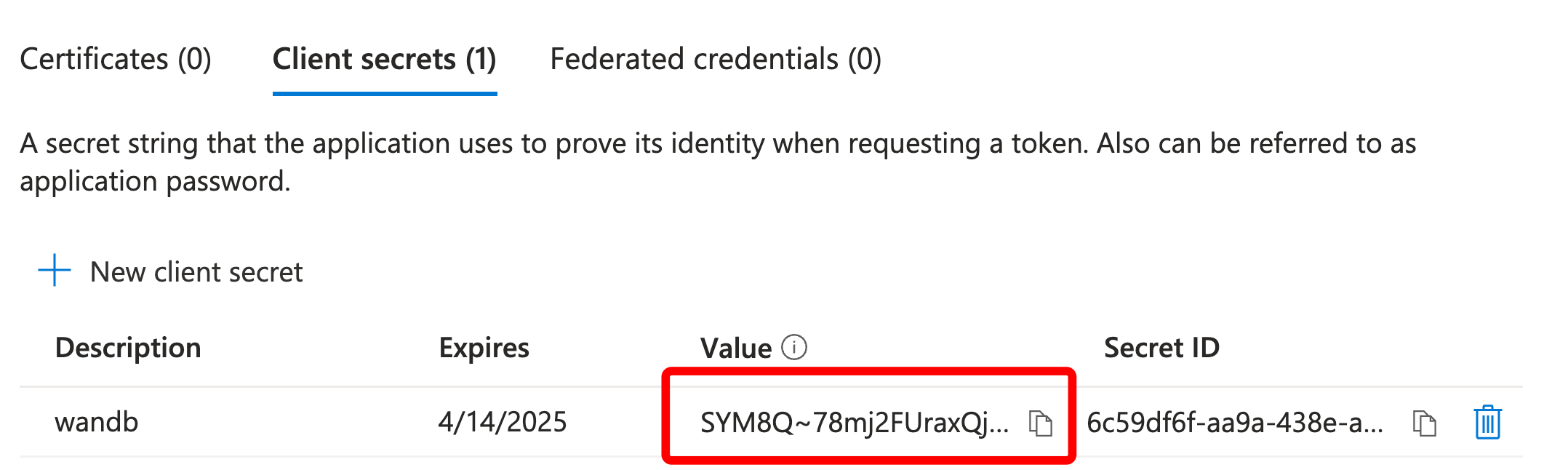
7. Create a client secret:
* Select **Certificates & secrets** from the left sidebar.
* Click **New client secret**.
* Add a description for the secret.
* Choose an expiration period.
* Click **Add**. Copy and save the secret **Value** immediately (not the Secret ID).
6. Configure authentication settings:
* Select **Authentication** from the left sidebar.
* Under **Front-channel logout URL**, enter `https://[YOUR-W-AND-B-URL]/logout`.
* Click **Save**.
Make a note of the following details:
* **OIDC Client ID**: The Application (client) ID from step 5.
* **OIDC Issuer URL**: `https://login.microsoftonline.com/[TENANT-ID]/v2.0` (replace `[TENANT-ID]` with your Directory ID from step 5).
When configuring W\&B, use:
* **Auth Method**: `pkce`.
* **OIDC Client Secret**: Leave empty (don't set `GORILLA_OIDC_SECRET`).
Next, [Set up SSO in W\&B](#set-up-sso-in-w%26b).
Use this configuration if you need to authenticate using a client secret.
1. Sign in to the [Azure Portal](https://portal.azure.com/).
2. Navigate to **Microsoft Entra ID** service and select **App registrations** from the left sidebar.
3. Click **New registration** at the top of the page.
4. On the **Register an application** screen, configure the following:
* **Name**: Enter a descriptive name.
* **Supported account types**: Keep the default **Single tenant** or modify as needed.
* **Redirect URI**: Select platform type **Web** and enter `https://[YOUR-W-AND-B-URL]/oidc/callback`.
* Click **Register**.
5. After registration, note the following values from the Overview page:
* **Application (client) ID**: Your OIDC Client ID.
* **Directory (tenant) ID**: Your OIDC Issuer URL.
6. Configure authentication settings:
* Select **Authentication** from the left sidebar.
* Under **Front-channel logout URL**, enter `https://[YOUR-W-AND-B-URL]/logout`.
* Click **Save**.
7. Create a client secret:
* Select **Certificates & secrets** from the left sidebar.
* Click **New client secret**.
* Add a description for the secret.
* Choose an expiration period.
* Click **Add**. Copy and save the secret **Value** immediately (not the Secret ID).
 Make a note of the following details:
* **OIDC Client ID**: The Application (client) ID from step 5.
* **OIDC Client Secret**: The secret value from step 7.
* **OIDC Issuer URL**: `https://login.microsoftonline.com/[TENANT-ID]/v2.0` (replace `[TENANT-ID]` with your Directory ID from step 5).
When configuring W\&B, use:
* **Auth Method**: `pkce`.
* **OIDC Client Secret**: Set the `GORILLA_OIDC_SECRET` environment variable to the secret value from step 7.
The v2.0 endpoint supports both personal Microsoft accounts and work/school accounts. If your organization requires the v1.0 endpoint, use `https://login.microsoftonline.com/[TENANT-ID]` instead.
Next, [Set up SSO in W\&B](#set-up-sso-in-w%26b).
## Set up SSO in W\&B
After you finish configuring your IdP, complete the following steps in W\&B to connect the IdP and enable SSO for your instance.
To set up SSO, you must have administrator privileges and the following information:
* **OIDC Client ID**.
* **OIDC Auth method** (`implicit` or `pkce`).
* **OIDC Issuer URL**.
* **OIDC Client Secret** (optional, depends on how you've set up your IdP).
If your IdP requires an OIDC Client Secret, specify it by passing the [environment variables](/platform/hosting/env-vars) `GORILLA_OIDC_SECRET`:
* In the W\&B App, go to **System Console** > **Settings** > **Advanced** > **User Spec** and add `GORILLA_OIDC_SECRET` to the `extraENV` section as shown in the following example.
* In Helm, configure `values.global.extraEnv` as shown in the following example.
```yaml theme={null}
values:
global:
extraEnv:
GORILLA_OIDC_SECRET="[YOUR-SECRET]"
```
If you can't sign in to your instance after configuring SSO, you can restart the instance with the `LOCAL_RESTORE=true` environment variable set. This outputs a temporary password to the containers logs and disables SSO. After you resolve any issues with SSO, you must remove that environment variable to enable SSO again.
Use this tab if you deploy W\&B with the W\&B Kubernetes Operator. The System Console is the successor to the System Settings page. It's available with the [W\&B Kubernetes Operator](/platform/hosting/self-managed/operator) based deployment.
1. Refer to [Access the W\&B Management Console](/platform/hosting/self-managed/operator#access-the-wb-management-console).
2. Navigate to **Settings**, then **Authentication**. Select **OIDC** in the **Type** dropdown.
Make a note of the following details:
* **OIDC Client ID**: The Application (client) ID from step 5.
* **OIDC Client Secret**: The secret value from step 7.
* **OIDC Issuer URL**: `https://login.microsoftonline.com/[TENANT-ID]/v2.0` (replace `[TENANT-ID]` with your Directory ID from step 5).
When configuring W\&B, use:
* **Auth Method**: `pkce`.
* **OIDC Client Secret**: Set the `GORILLA_OIDC_SECRET` environment variable to the secret value from step 7.
The v2.0 endpoint supports both personal Microsoft accounts and work/school accounts. If your organization requires the v1.0 endpoint, use `https://login.microsoftonline.com/[TENANT-ID]` instead.
Next, [Set up SSO in W\&B](#set-up-sso-in-w%26b).
## Set up SSO in W\&B
After you finish configuring your IdP, complete the following steps in W\&B to connect the IdP and enable SSO for your instance.
To set up SSO, you must have administrator privileges and the following information:
* **OIDC Client ID**.
* **OIDC Auth method** (`implicit` or `pkce`).
* **OIDC Issuer URL**.
* **OIDC Client Secret** (optional, depends on how you've set up your IdP).
If your IdP requires an OIDC Client Secret, specify it by passing the [environment variables](/platform/hosting/env-vars) `GORILLA_OIDC_SECRET`:
* In the W\&B App, go to **System Console** > **Settings** > **Advanced** > **User Spec** and add `GORILLA_OIDC_SECRET` to the `extraENV` section as shown in the following example.
* In Helm, configure `values.global.extraEnv` as shown in the following example.
```yaml theme={null}
values:
global:
extraEnv:
GORILLA_OIDC_SECRET="[YOUR-SECRET]"
```
If you can't sign in to your instance after configuring SSO, you can restart the instance with the `LOCAL_RESTORE=true` environment variable set. This outputs a temporary password to the containers logs and disables SSO. After you resolve any issues with SSO, you must remove that environment variable to enable SSO again.
Use this tab if you deploy W\&B with the W\&B Kubernetes Operator. The System Console is the successor to the System Settings page. It's available with the [W\&B Kubernetes Operator](/platform/hosting/self-managed/operator) based deployment.
1. Refer to [Access the W\&B Management Console](/platform/hosting/self-managed/operator#access-the-wb-management-console).
2. Navigate to **Settings**, then **Authentication**. Select **OIDC** in the **Type** dropdown.
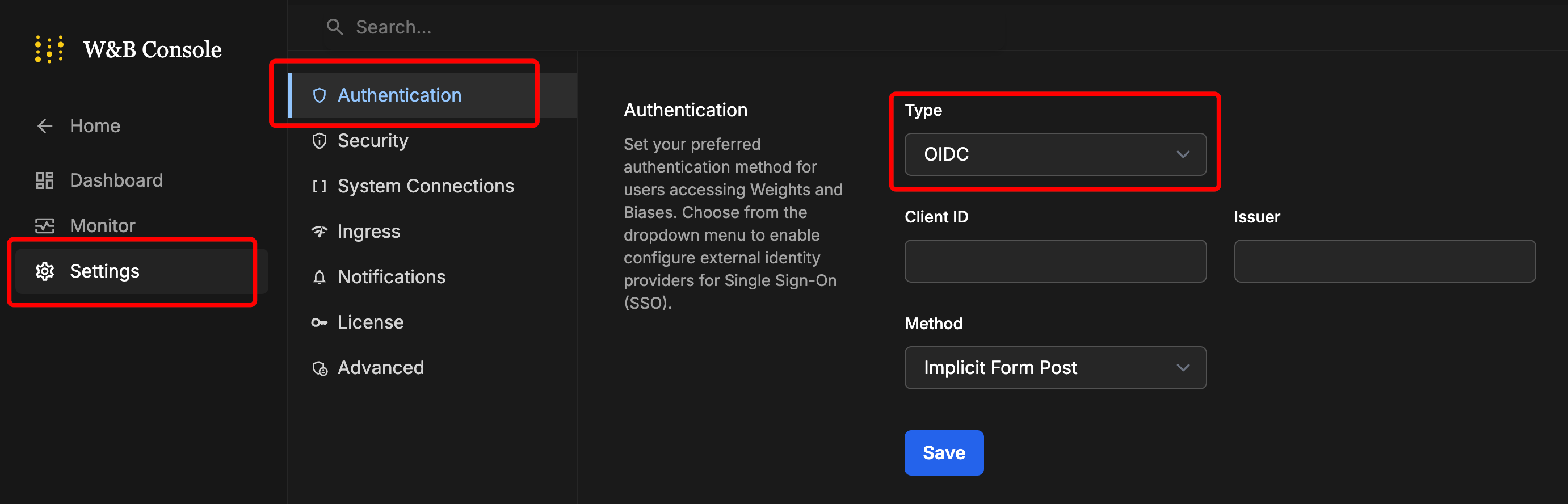 3. Enter the values.
4. Click **Save**.
5. Sign out and then sign back in, this time using the IdP sign-in screen.
## Find your customer namespace
Before you can configure team-level BYOB with CoreWeave storage on W\&B Dedicated Cloud or Self-Managed, you must obtain your organization's **Customer Namespace**. You can view and copy it from the bottom of the **Authentication** tab.
For detailed instructions on configuring CoreWeave storage with your Customer Namespace, see [CoreWeave requirements for Dedicated Cloud or Self-Managed](/platform/hosting/data-security/secure-storage-connector#coreweave-customer-namespace).
1. Sign in to your W\&B instance.
2. Navigate to the W\&B App.
3. Enter the values.
4. Click **Save**.
5. Sign out and then sign back in, this time using the IdP sign-in screen.
## Find your customer namespace
Before you can configure team-level BYOB with CoreWeave storage on W\&B Dedicated Cloud or Self-Managed, you must obtain your organization's **Customer Namespace**. You can view and copy it from the bottom of the **Authentication** tab.
For detailed instructions on configuring CoreWeave storage with your Customer Namespace, see [CoreWeave requirements for Dedicated Cloud or Self-Managed](/platform/hosting/data-security/secure-storage-connector#coreweave-customer-namespace).
1. Sign in to your W\&B instance.
2. Navigate to the W\&B App.
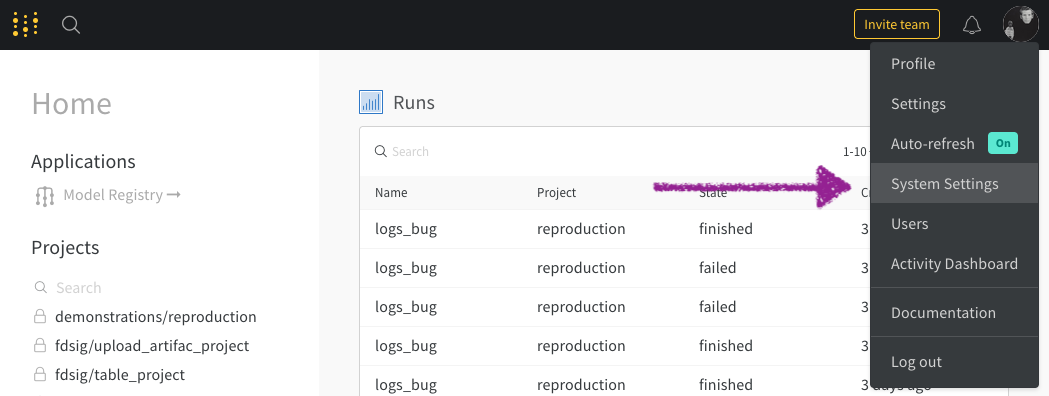
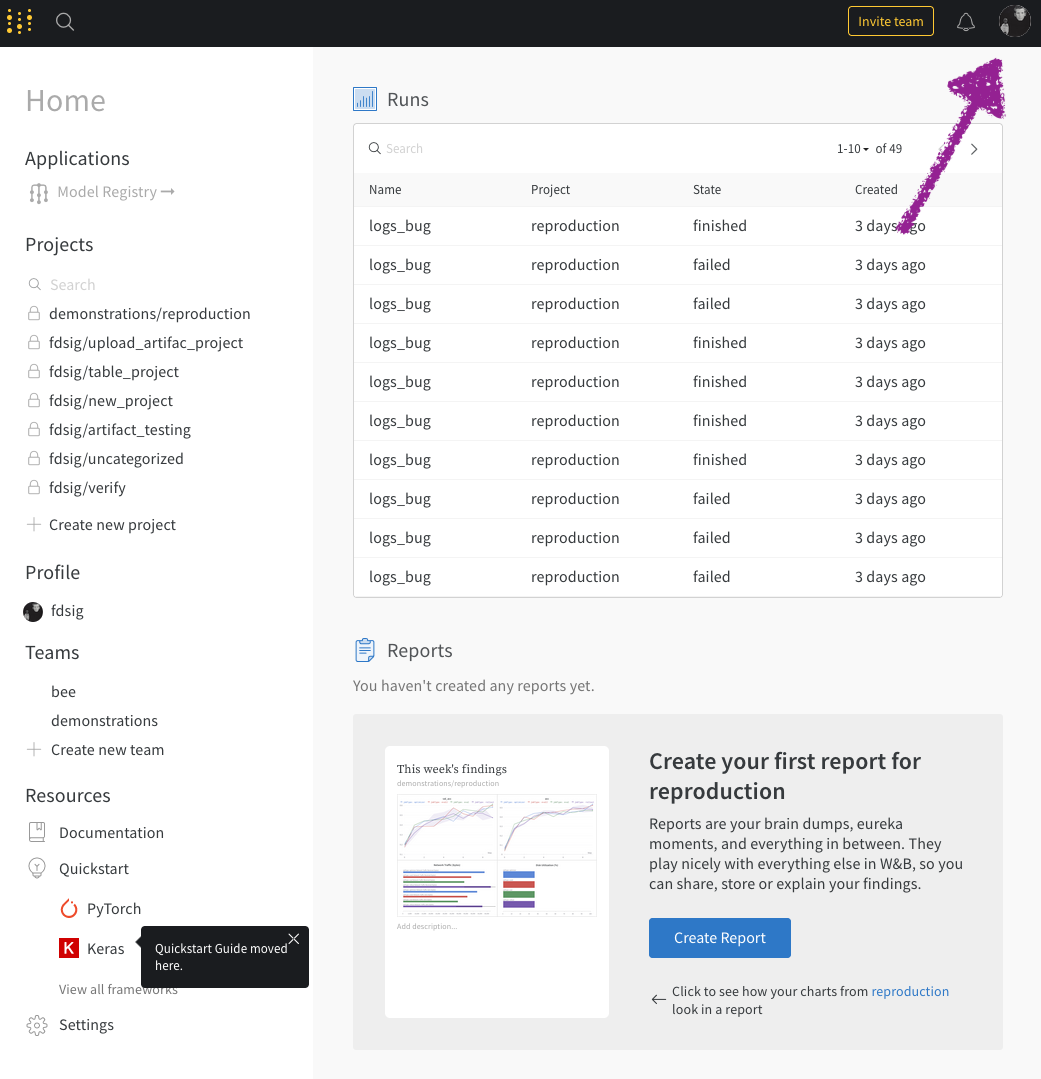 3. From the dropdown, select **System Settings**:
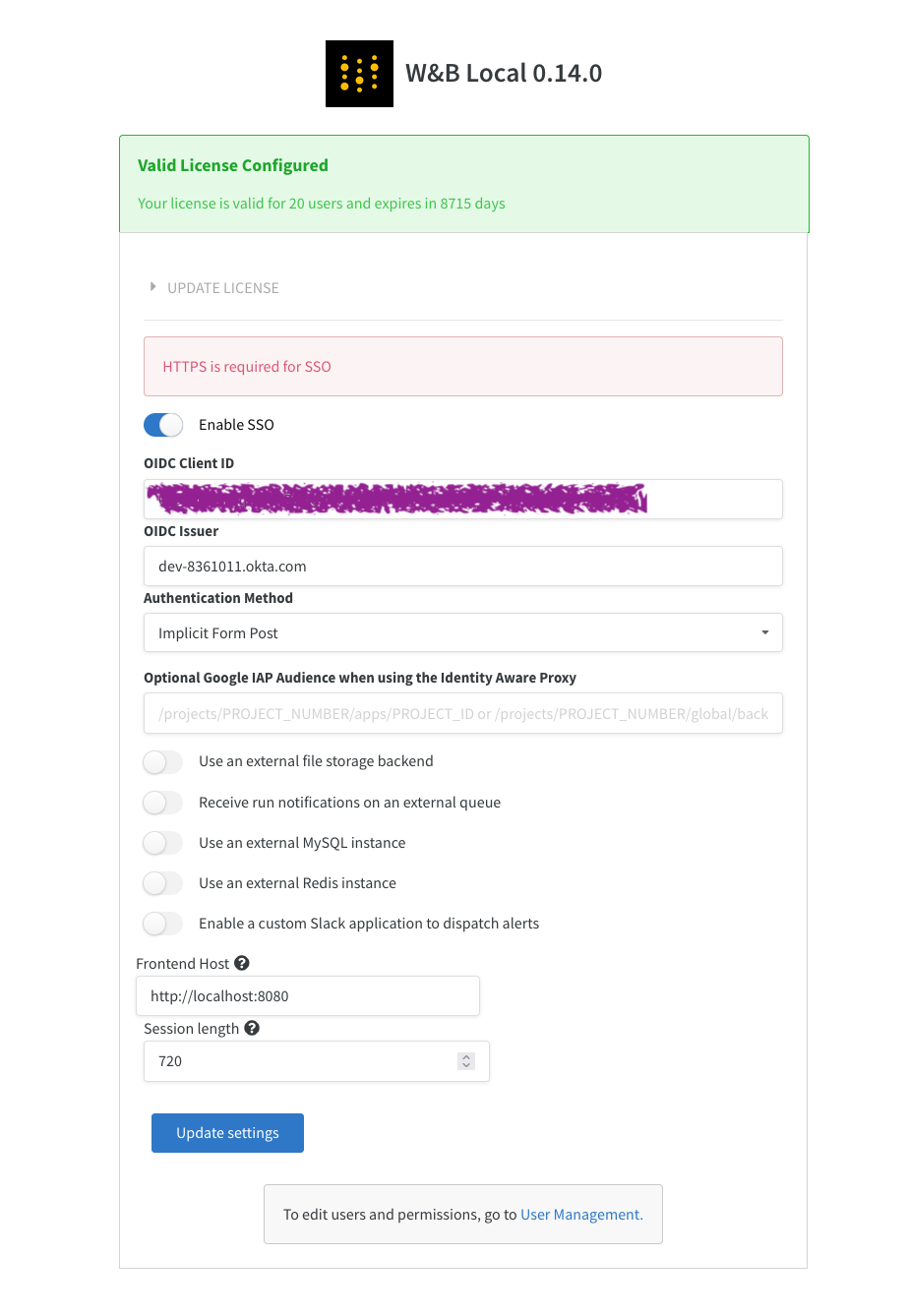
 4. Enter your **Issuer**, **Client ID**, and **Authentication Method**.
5. Select **Update settings**.
4. Enter your **Issuer**, **Client ID**, and **Authentication Method**.
5. Select **Update settings**.
 If you can't sign in to your instance after configuring SSO, you can restart the instance with the `LOCAL_RESTORE=true` environment variable set. This outputs a temporary password to the containers logs and disables SSO. After you resolve any issues with SSO, you must remove that environment variable to enable SSO again.
## Security Assertion Markup Language (SAML)
W\&B doesn't support SAML.
If you can't sign in to your instance after configuring SSO, you can restart the instance with the `LOCAL_RESTORE=true` environment variable set. This outputs a temporary password to the containers logs and disables SSO. After you resolve any issues with SSO, you must remove that environment variable to enable SSO again.
## Security Assertion Markup Language (SAML)
W\&B doesn't support SAML.