> ## Documentation Index
> Fetch the complete documentation index at: https://docs.wandb.ai/llms.txt
> Use this file to discover all available pages before exploring further.
# Disable automatic updates for W&B Server
> Learn how to disable automatic updates for W&B Server.
This page shows administrators of Self-Managed W\&B deployments how to disable automatic version upgrades for W\&B Server and pin its version to a specific release. Pinning a version gives you control over when upgrades happen. This control is useful when you need to coordinate upgrades with internal change management processes or validate a release in a staging environment before you roll it out. These instructions work only for deployments managed by the [W\&B Kubernetes Operator](/platform/hosting/self-managed/operator).
W\&B supports a major W\&B Server release for 12 months from its initial release date. Customers with **Self-Managed** instances are responsible for upgrading in time to maintain support. Avoid staying on an unsupported version. W\&B recommends that customers with **Self-Managed** instances update their deployments with the latest release at least once per quarter to maintain support and to receive the latest features, performance improvements, and fixes.
## Requirements
* W\&B Kubernetes Operator `v1.13.0` or newer
* System Console `v2.12.2` or newer
To verify that you meet these requirements, refer to the W\&B Custom Resource or Helm chart for your instance. Check the `version` values for the `operator-wandb` and `system-console` components.
## Disable automatic updates
To disable automatic updates, use the System Console to pin W\&B Server to a specific version, then check the Operator reconciliation logs to confirm that version pinning is active.
1. Log in to the W\&B App as a user with the `admin` role.
2. Click the user icon at the top, then click **System Console**.
3. Go to **Settings** > **Advanced**, then select the **Other** tab.
4. In the **Disable Auto Upgrades** section, turn on **Pin specific version**.
5. Click the **Select a version** drop-down list, then select a W\&B Server version.
6. Click **Save**.
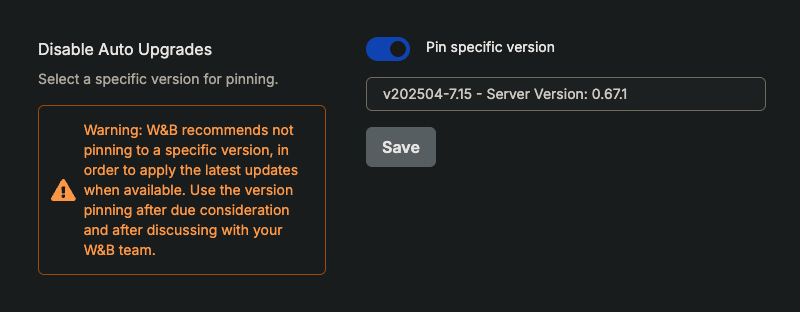 Automatic upgrades are turned off and W\&B Server is pinned at the version you selected.
7. Verify that automatic upgrades are turned off. Go to the **Operator** tab and search the reconciliation logs for the string `Version pinning is enabled`.
```text theme={null}
│info 2025-04-17T17:24:16Z wandb default No changes found
│info 2025-04-17T17:24:16Z wandb default Active spec found
│info 2025-04-17T17:24:16Z wandb default Desired spec
│info 2025-04-17T17:24:16Z wandb default License
│info 2025-04-17T17:24:16Z wandb default Version Pinning is enabled
│info 2025-04-17T17:24:16Z wandb default Found Weights & Biases instance, processing the spec...
│info 2025-04-17T17:24:16Z wandb default === Reconciling Weights & Biases instance...
```
Automatic upgrades are turned off and W\&B Server is pinned at the version you selected.
7. Verify that automatic upgrades are turned off. Go to the **Operator** tab and search the reconciliation logs for the string `Version pinning is enabled`.
```text theme={null}
│info 2025-04-17T17:24:16Z wandb default No changes found
│info 2025-04-17T17:24:16Z wandb default Active spec found
│info 2025-04-17T17:24:16Z wandb default Desired spec
│info 2025-04-17T17:24:16Z wandb default License
│info 2025-04-17T17:24:16Z wandb default Version Pinning is enabled
│info 2025-04-17T17:24:16Z wandb default Found Weights & Biases instance, processing the spec...
│info 2025-04-17T17:24:16Z wandb default === Reconciling Weights & Biases instance...
```