> ## Documentation Index
> Fetch the complete documentation index at: https://docs.wandb.ai/llms.txt
> Use this file to discover all available pages before exploring further.
> Deploy W&B Platform with Kubernetes Operator on cloud or on-premises
# Deploy W&B with Kubernetes Operator
## Overview
This page shows platform administrators how to deploy and manage W\&B Server on Kubernetes (cloud or on-premises) using the W\&B Kubernetes Operator. By the end, you have a running W\&B Server installation that the operator manages and upgrades automatically. Use this guide if you self-manage a W\&B deployment and need an installation method that works across cloud, on-premises, and air-gapped environments.
The W\&B Kubernetes Operator is the recommended way to deploy W\&B Server on Kubernetes (cloud or on-premises). For an overview of the operator, why W\&B uses it, and how configuration hierarchy works, see [Self-Managed](/platform/hosting/hosting-options/self-managed#about-the-wb-kubernetes-operator).
## Before you begin
Before deploying W\&B with the Kubernetes Operator, ensure your infrastructure meets all requirements:
1. **Review infrastructure requirements**: See the [Self-Managed infrastructure requirements](/platform/hosting/self-managed/requirements/) page for details on:
* Software version requirements (Kubernetes, MySQL, Redis, Helm)
* Hardware requirements (CPU architecture, sizing recommendations)
* Kubernetes cluster configuration
* Networking, SSL/TLS, and DNS requirements
2. **Obtain a W\&B Server license**: See the [License](/platform/hosting/self-managed/requirements#license) section on the Requirements page.
3. **Provision external services**: Set up MySQL, Redis, and object storage before deployment.
For additional context, see the [reference architecture](/platform/hosting/self-managed/ref-arch/) page.
### MySQL database
W\&B requires an external MySQL database.
For production, W\&B strongly recommends using managed database services:
* [AWS RDS Aurora MySQL](https://aws.amazon.com/rds/aurora/)
* [Google Cloud SQL for MySQL](https://cloud.google.com/sql/mysql)
* [Azure Database for MySQL](https://azure.microsoft.com/en-us/products/mysql/)
Managed database services provide automated backups, monitoring, high availability, patching, and reduce operational overhead.
See the [reference architecture](/platform/hosting/self-managed/ref-arch/#mysql) for complete MySQL requirements, including sizing recommendations and configuration parameters. For database creation SQL, see the [bare-metal guide](/platform/hosting/self-managed/operator/#mysql-database). For questions about your deployment's database configuration, contact [support](mailto:support@wandb.com) or your AISE.
For complete MySQL setup instructions including configuration parameters and database creation, see the [MySQL section in the requirements page](/platform/hosting/self-managed/requirements/#mysql-database).
### Redis
W\&B depends on a single-node Redis 7.x deployment used by W\&B's components for job queuing and data caching. For convenience during testing and development of proofs of concept, W\&B Self-Managed includes a local Redis deployment that is not appropriate for production deployments.
For production deployments, W\&B can connect to a Redis instance in the following environments:
* [AWS Elasticache](https://aws.amazon.com/elasticache/)
* [Google Cloud Memory Store](https://cloud.google.com/memorystore?hl=en)
* [Azure Cache for Redis](https://azure.microsoft.com/en-us/products/cache)
* Redis deployment hosted in your cloud or on-premise infrastructure
See the [External Redis configuration section](#external-redis) for details on how to configure an external Redis instance in Helm values.
### Object storage
W\&B requires object storage with pre-signed URL and CORS support.
**Recommended storage providers:**
* [Amazon S3](https://aws.amazon.com/s3/): Object storage service offering industry-leading scalability, data availability, security, and performance.
* [Google Cloud Storage](https://cloud.google.com/storage): Managed service for storing unstructured data at scale.
* [Azure Blob Storage](https://azure.microsoft.com/en-us/products/storage/blobs): Cloud-based object storage solution for storing massive amounts of unstructured data.
* [CoreWeave AI Object Storage](https://docs.coreweave.com/products/storage/object-storage): High-performance, S3-compatible object storage service optimized for AI workloads.
* Enterprise S3-compatible storage: [MinIO Enterprise (AIStor)](https://www.min.io/product/aistor), [NetApp StorageGRID](https://www.netapp.com/data-storage/storagegrid/), or other enterprise-grade solutions
MinIO Open Source is in [maintenance mode](https://github.com/minio/minio) with no active development or pre-compiled binaries. For production deployments, W\&B recommends using managed object storage services or enterprise S3-compatible solutions such as MinIO Enterprise (AIStor).
For detailed bucket provisioning instructions including IAM policies, CORS configuration, and access setup, see the [Bring Your Own Bucket (BYOB) guide](/platform/hosting/data-security/secure-storage-connector).
See the [reference architecture object storage section](/platform/hosting/self-managed/ref-arch/#object-storage) for complete requirements.
### Provision your storage bucket
Before configuring W\&B, provision your object storage bucket with proper IAM policies, CORS configuration, and access credentials.
**See the [Bring Your Own Bucket (BYOB) guide](/platform/hosting/data-security/secure-storage-connector) for detailed step-by-step provisioning instructions for:**
* Amazon S3 (including IAM policies and bucket policies)
* Google Cloud Storage (including PubSub notifications)
* Azure Blob Storage (including managed identities)
* CoreWeave AI Object Storage
* S3-compatible storage (MinIO Enterprise, NetApp StorageGRID, and other enterprise solutions)
See the [Object storage configuration section](#object-storage-bucket) for details on how to configure object storage in Helm values.
### OpenShift Kubernetes clusters
W\&B supports deployment on [OpenShift Kubernetes clusters](https://www.redhat.com/en/technologies/cloud-computing/openshift) in cloud, on-premises, and air-gapped environments.
W\&B recommends you install with the official W\&B Helm chart.
#### Run the container as an un-privileged user
OpenShift and similar orchestrators often reject containers that run as root, so W\&B containers must be configured to run as a non-root user that still belongs to the root group. By default, containers use a `$UID` of 999. Specify `$UID` >= 100000 and a `$GID` of 0 if your orchestrator requires the container run with a non-root user.
W\&B must start as the root group (`$GID=0`) for file system permissions to function properly.
Configure security contexts for each W\&B component. For example, to configure the API component:
```yaml theme={null}
api:
install: true
image:
repository: wandb/megabinary
tag: 0.74.1 # Replace with your actual version
pod:
securityContext:
fsGroup: 10001
fsGroupChangePolicy: Always
runAsGroup: 0
runAsNonRoot: true
runAsUser: 10001
seccompProfile:
type: RuntimeDefault
container:
securityContext:
allowPrivilegeEscalation: false
capabilities:
drop:
- ALL
privileged: false
readOnlyRootFilesystem: false
```
If needed, configure a custom security context for other components like `app` or `console`. For details, see [Custom security context](#custom-security-context).
## Deploy W\&B Server application
**The W\&B Kubernetes Operator with Helm is the recommended installation method** for all W\&B self-managed deployments, including cloud, on-premises, and air-gapped environments.
Choose your deployment method:
W\&B provides a Helm chart to deploy the W\&B Kubernetes Operator to a Kubernetes cluster. This approach lets you deploy W\&B Server with Helm CLI or a continuous delivery tool like ArgoCD.
For deployment-specific considerations, see [Environment-specific considerations](#environment-specific-considerations) and [Deploy with Terraform on public cloud](#deploy-with-terraform-on-public-cloud). For disconnected environments, see [Deploy on Air-Gapped Kubernetes](/platform/hosting/self-managed/on-premises-deployments/kubernetes-airgapped/).
Follow these steps to install the W\&B Kubernetes Operator with Helm CLI:
1. Add the W\&B Helm repository. The W\&B Helm chart is available in the W\&B Helm repository:
```shell theme={null}
helm repo add wandb https://charts.wandb.ai
helm repo update
```
2. Install the Operator on a Kubernetes cluster:
```shell theme={null}
helm upgrade --install operator wandb/operator -n wandb-cr --create-namespace
```
3. Configure the W\&B operator custom resource to trigger the W\&B Server installation. Create a file named `operator.yaml` with your W\&B deployment configuration. Refer to [Configuration Reference](#configuration-reference-for-wb-server) for all available options.
Here's a minimal example configuration:
```yaml theme={null}
apiVersion: apps.wandb.com/v1
kind: WeightsAndBiases
metadata:
labels:
app.kubernetes.io/name: weightsandbiases
app.kubernetes.io/instance: wandb
name: wandb
namespace: default
spec:
values:
global:
host: https://
license: eyJhbGnUzaH...j9ZieKQ2x5GGfw
bucket:
mysql:
ingress:
annotations:
```
4. Start the Operator with your custom configuration so that it can install, configure, and manage the W\&B Server application:
```shell theme={null}
kubectl apply -f operator.yaml
```
Wait until the deployment completes. This takes a few minutes.
5. To verify the installation using the web UI, create the first admin user account, then follow the verification steps outlined in [Verify the installation](#verify-the-installation).
After these steps complete, you have a W\&B Kubernetes Operator running in the `wandb-cr` namespace and a W\&B Server application that the operator manages from your `operator.yaml` custom resource.
Deploy W\&B using Terraform for infrastructure-as-code deployments. Choose between:
* **Helm Terraform Module**: Deploys the operator to existing Kubernetes infrastructure.
* **Cloud Terraform Modules**: Complete infrastructure plus application deployment for AWS, Google Cloud, and Azure.
For deployment-specific considerations, see [Environment-specific considerations](#environment-specific-considerations) and [Deploy with Terraform on public cloud](#deploy-with-terraform-on-public-cloud). For disconnected environments, see [Deploy on Air-Gapped Kubernetes](/platform/hosting/self-managed/on-premises-deployments/kubernetes-airgapped/).
#### Helm Terraform Module
This method supports customized deployments tailored to specific requirements, using Terraform's infrastructure-as-code approach for consistency and repeatability. The official W\&B [Helm-based Terraform Module](https://registry.terraform.io/modules/wandb/wandb/helm/latest) is available on the Terraform Registry.
Use the following code as a starting point. It includes all necessary configuration options for a production grade deployment:
```hcl theme={null}
module "wandb" {
source = "wandb/wandb/helm"
spec = {
values = {
global = {
host = "https://"
license = "eyJhbGnUzaH...j9ZieKQ2x5GGfw"
bucket = {
}
mysql = {
}
}
ingress = {
annotations = {
"a" = "b"
"x" = "y"
}
}
}
}
}
```
The configuration options are the same as described in [Configuration Reference](#configuration-reference-for-wb-server), but the syntax must follow the HashiCorp Configuration Language (HCL). The Terraform module creates the W\&B custom resource definition (CRD).
To see how W\&B themselves use the Helm Terraform module to deploy Dedicated Cloud installations for customers, follow these links:
* [AWS](https://github.com/wandb/terraform-aws-wandb/blob/45e1d746f53e78e73e68f911a1f8cad5408e74b6/main.tf#L225)
* [Azure](https://github.com/wandb/terraform-azurerm-wandb/blob/170e03136b6b6fc758102d59dacda99768854045/main.tf#L155)
* [Google Cloud](https://github.com/wandb/terraform-google-wandb/blob/49ddc3383df4cefc04337a2ae784f57ce2a2c699/main.tf#L189)
#### Cloud Terraform Modules
W\&B provides a set of Terraform Modules for AWS, Google Cloud, and Azure. These modules deploy the complete infrastructure, including Kubernetes clusters, load balancers, and MySQL databases, along with the W\&B Server application. The W\&B Kubernetes Operator is included in these official W\&B cloud-specific Terraform Modules with the following versions:
| Terraform Registry | Source Code | Version |
| ------------------------------------------------------------------- | ---------------------------------------------------------------------------------------------------- | ------- |
| [AWS](https://registry.terraform.io/modules/wandb/wandb/aws/latest) | [https://github.com/wandb/terraform-aws-wandb](https://github.com/wandb/terraform-aws-wandb) | v4.0.0+ |
| [Azure](https://github.com/wandb/terraform-azurerm-wandb) | [https://github.com/wandb/terraform-azurerm-wandb](https://github.com/wandb/terraform-azurerm-wandb) | v2.0.0+ |
| [Google Cloud](https://github.com/wandb/terraform-google-wandb) | [https://github.com/wandb/terraform-google-wandb](https://github.com/wandb/terraform-google-wandb) | v2.0.0+ |
These modules install the W\&B Kubernetes Operator as part of the deployment, so you can use it to manage W\&B Server in your cloud environment without additional setup.
For detailed instructions on using these cloud-specific modules, see [Deploy with Terraform on public cloud](#deploy-with-terraform-on-public-cloud).
### Verify the installation
To verify the installation, W\&B recommends using the [W\&B CLI](/models/ref/cli/). The verify command executes several tests that verify all components and configurations.
This step assumes that the first admin user account is created with the browser.
Follow these steps to verify the installation:
1. Install the W\&B CLI:
```bash theme={null}
pip install wandb
```
2. Log in to W\&B:
```bash theme={null}
wandb login --host=https://YOUR_DNS_DOMAIN
```
For example:
```bash theme={null}
wandb login --host=https://wandb.company-name.com
```
3. Verify the installation:
```bash theme={null}
wandb verify
```
A successful installation and fully working W\&B deployment shows the following output:
```console theme={null}
Default host selected: https://wandb.company-name.com
Find detailed logs for this test at: /var/folders/pn/b3g3gnc11_sbsykqkm3tx5rh0000gp/T/tmpdtdjbxua/wandb
Checking if logged in...................................................✅
Checking signed URL upload..............................................✅
Checking ability to send large payloads through proxy...................✅
Checking requests to base url...........................................✅
Checking requests made over signed URLs.................................✅
Checking CORs configuration of the bucket...............................✅
Checking wandb package version is up to date............................✅
Checking logged metrics, saving and downloading a file..................✅
Checking artifact save and download workflows...........................✅
```
Contact W\&B Support if you encounter errors.
## Enable the MCP server
The [W\&B MCP Server](/platform/mcp-server) ships as an optional subchart in `operator-wandb`. When enabled, the operator deploys an in-cluster MCP server exposed through your existing ingress at `/mcp`, so any MCP-compatible client can connect using a W\&B API key. This is the same server W\&B runs as the hosted offering at `https://mcp.withwandb.com/mcp`, but pointed at your deployment's data.
For end-user client configuration and the tool catalog, see [Use the W\&B MCP server](/platform/mcp-server). This section only covers the operator-side enablement.
### Prerequisites
Make sure your deployment meets the following requirements before you enable the MCP server:
* **Chart version**: `operator-wandb` `0.42.3` or later. The `mcp-server` subchart was introduced in `0.42.1`, but the Datadog and privacy fields used in the following example were added later.
* **Weave Traces enabled**: the MCP server depends on Weave Traces for trace tools and for the `WF_TRACE_SERVER_URL` default. Set `weave-trace.install: true`. If Weave Traces isn't enabled, the Helm render fails with `mcp-server requires weave-trace.install=true`.
* **Reachable ingress**: `global.host` must already resolve and route to the W\&B ingress. The MCP pod reads `WANDB_BASE_URL` from `global.host` and is available at `/mcp`.
* **Node capacity**: the MCP pod requests `500m` CPU and `1Gi` memory by default (limits `2` CPU and `4Gi` memory). Confirm your node pool has enough headroom before you enable the subchart.
### Enable the subchart
Enable the `mcp-server` subchart so that the operator deploys an in-cluster MCP server and extends your existing W\&B ingress with a `/mcp` route. Add the following to the `spec.values` block of your existing `WeightsAndBiases` custom resource (CR), alongside your existing `global`, `ingress`, and other overrides. The Datadog block is optional, but recommended when a Datadog Agent DaemonSet already collects pod logs and traces in your cluster.
```yaml theme={null}
spec:
values:
weave-trace:
install: true
mcp-server:
install: true
image:
repository: us-docker.pkg.dev/wandb-production/public/wandb/mcp-server
tag: "0.3.3"
datadog:
enabled: true
mode: "agent"
service: "wandb-mcp-server-"
env: ""
deploymentType: "self-managed"
customer: ""
extraTags:
- "region:"
- "tier:"
privacy:
logLevel: "standard"
```
Configure each block:
* **`weave-trace.install: true`**: required unless you set `mcp-server.env.WF_TRACE_SERVER_URL` yourself.
* **`datadog.mode: "agent"`**: use for Kubernetes deployments where the Datadog Agent DaemonSet owns log and trace collection. In agent mode, the MCP pod doesn't need a Datadog API key.
* **`datadog.service`, `env`, `deploymentType`, `customer`, `extraTags`**: set these to match your deployment's observability naming conventions. Set `customer` to an empty string if you don't want a customer tag.
* **`privacy.logLevel`**: use `"standard"` for most self-managed Kubernetes installations. This redacts free-text parameter values in logs while preserving deployment identifiers that operators commonly use for debugging. Use `"strict"` when entity, project, run, or user identifiers should not remain in plaintext logs. Use `"off"` only when you explicitly want plaintext logging for those values.
Apply the change to trigger reconciliation:
```bash theme={null}
kubectl apply -f operator.yaml
```
The operator creates a `wandb-mcp-server` deployment and service in the release namespace, and extends the W\&B ingress with a `/mcp` path.
### Verify the MCP server
Wait for the pod to become `Running`, then check the health endpoint in-cluster and through the ingress:
```bash theme={null}
kubectl get pod -l app.kubernetes.io/component=mcp-server
kubectl port-forward svc/wandb-mcp-server 8080:8080
curl -s http://localhost:8080/mcp/health
curl -s "https:///mcp/health"
```
Both requests should return `200 OK`. The in-cluster check confirms the pod is healthy. The ingress check confirms routing. If the in-cluster check returns `200 OK` but the ingress check returns `404 Not Found`, see [Troubleshooting](#troubleshooting). If you enabled Datadog, MCP server logs should also appear in Datadog with the configured `mcp-server.datadog.service` and `mcp-server.datadog.env` values.
### Connect a client
After the MCP server is healthy, configure your MCP client to use `https:///mcp` with a W\&B API key as the bearer token. For IDE and agent configurations, see [Use the W\&B MCP server](/platform/mcp-server).
### Troubleshooting
| Symptom | Cause and fix |
| ------------------------------------------------------------------------------------------ | ------------------------------------------------------------------------------------------------------------------------------------------------------------------------------------------------------------------------------------------------------------------------------------------- |
| `helm render` fails with `mcp-server requires weave-trace.install=true` | Add `weave-trace.install: true` to `spec.values`. The MCP server depends on Weave Traces for trace tools. |
| `wandb-mcp-server` pod stuck in `Pending` with `Insufficient cpu` or `Insufficient memory` | Add node capacity, or lower `mcp-server.resources.requests` in your CR. Defaults are `500m` CPU and `1Gi` memory. |
| `curl https:///mcp/health` returns 404 | The chart renders the `/mcp` ingress path only when `mcp-server.install: true`. Reapply the CR and wait for the ingress controller to propagate the new path. |
| MCP logs don't appear in Datadog | Confirm `mcp-server.datadog.enabled: true`, `mcp-server.datadog.mode: "agent"`, and that the Datadog Agent DaemonSet collects pod stdout. Search Datadog with the configured `service` and `env` values. |
| MCP logs include more user-supplied text than expected | Set `mcp-server.privacy.logLevel` to `"standard"` or `"strict"`. Use `"strict"` when identifiers such as entity, project, run, or user names should not remain in plaintext logs. |
| `wandb-mcp-server` pod in `ImagePullBackOff` in an air-gapped or mirrored cluster | Mirror the image to your registry and override `mcp-server.image.repository` in your CR, the same pattern used for other W\&B component images in air-gapped installs. See [Deploy on Air-Gapped Kubernetes](/platform/hosting/self-managed/on-premises-deployments/kubernetes-airgapped/). |
## Environment-specific considerations
Kubernetes is the same whether it runs on-premises or in the cloud. The main differences are in naming and managed services (for example, MySQL compared to RDS, or S3 compared to on-premises object storage). This section covers considerations that vary by environment.
### On-premises and bare metal
When deploying on on-premises or bare-metal Kubernetes, pay attention to the following.
#### Load balancer configuration
On-premises Kubernetes clusters typically require manual load balancer configuration. Options include:
* **External load balancer**: Configure an existing hardware or software load balancer, such as F5 or HAProxy.
* **Nginx Ingress Controller**: Deploy nginx-ingress-controller with NodePort or host networking.
* **MetalLB**: For bare-metal Kubernetes clusters, MetalLB provides load balancer services.
For detailed load balancer configuration examples, see the [Reference Architecture networking section](/platform/hosting/self-managed/ref-arch#networking).
#### Persistent storage
Ensure your Kubernetes cluster has a StorageClass configured for persistent volumes. W\&B components might require persistent storage for caching and temporary data.
Common on-premises storage options include:
* NFS-based storage classes
* Ceph/Rook storage
* Local persistent volumes
* Enterprise storage solutions such as NetApp or Pure Storage
#### DNS and certificate management
For on-premises deployments, complete the following tasks:
* Configure internal DNS records to point to your W\&B hostname.
* Provision SSL/TLS certificates from your internal Certificate Authority (CA).
* If using self-signed certificates, configure the operator to trust your CA certificate.
See the [SSL/TLS requirements](/platform/hosting/self-managed/requirements#ssl-tls) for certificate configuration details.
#### OpenShift deployments
W\&B fully supports deployment on OpenShift Kubernetes clusters. OpenShift deployments require additional security context configurations due to OpenShift's stricter security policies.
For OpenShift-specific configuration details, see [OpenShift Kubernetes clusters](#openshift-kubernetes-clusters). For OpenShift examples in air-gapped environments, see [Deploy on Air-Gapped Kubernetes](/platform/hosting/self-managed/on-premises-deployments/kubernetes-airgapped#openshift-configuration).
#### Object storage for on-premises and S3-compatible
After provisioning your object storage bucket (see [Object storage provisioning](/platform/hosting/data-security/secure-storage-connector)), configure it in your W\&B Custom Resource.
**AWS S3 (on-premises)**
For on-premises AWS S3 (through Outposts or compatible storage):
```yaml theme={null}
bucket:
kmsKey: # Optional KMS key for encryption
name: # Example: wandb
path: "" # Keep as empty string
provider: s3
region: # Example: us-east-1
```
**S3-compatible storage such as MinIO, Ceph, or NetApp**
For S3-compatible storage systems:
```yaml theme={null}
bucket:
kmsKey: null
name: # Example: s3.example.com:9000
path: # Example: wandb
provider: s3
region: # Example: us-east-1
```
To enable TLS for S3-compatible storage, append `?tls=true` to the bucket path:
```yaml theme={null}
bucket:
path: "wandb?tls=true"
```
The certificate must be trusted. Self-signed certificates require additional configuration. See the [SSL/TLS requirements](/platform/hosting/self-managed/requirements#ssl-tls) for details.
**Important considerations for on-premises object storage**
When running your own object storage, consider:
1. **Storage capacity and performance**: Monitor disk capacity carefully. Average W\&B usage results in tens to hundreds of gigabytes. Heavy usage can result in petabytes of storage consumption.
2. **Fault tolerance**: At minimum, use RAID arrays for physical disks. For S3-compatible storage, use distributed or highly available configurations.
3. **Availability**: Configure monitoring to ensure the storage remains available.
**MinIO considerations**
MinIO Open Source is in [maintenance mode](https://github.com/minio/minio) with no active development. Pre-compiled binaries are no longer provided, and only critical security fixes are considered case-by-case. For production deployments, W\&B recommends using managed object storage services or [MinIO Enterprise (AIStor)](https://min.io/product/aistor).
Enterprise alternatives for on-premises object storage include:
* [Amazon S3 on Outposts](https://aws.amazon.com/s3/outposts/)
* [NetApp StorageGRID](https://www.netapp.com/data-storage/storagegrid/)
* MinIO Enterprise (AIStor)
* [Dell ObjectScale](https://www.dell.com/en-us/shop/cty/sf/objectscale)
If you are using an existing MinIO deployment or MinIO Enterprise, you can create a bucket using the MinIO client:
```bash theme={null}
mc config host add local http://$MINIO_HOST:$MINIO_PORT "$MINIO_ACCESS_KEY" "$MINIO_SECRET_KEY" --api s3v4
mc mb --region=us-east-1 local/wandb-files
```
### Public cloud with Terraform
For full infrastructure-plus-application deployment on AWS, Google Cloud, or Azure, see [Deploy with Terraform on public cloud](#deploy-with-terraform-on-public-cloud).
## Deploy with Terraform on public cloud
W\&B recommends fully managed deployment options such as [W\&B Multi-tenant Cloud](/platform/hosting/hosting-options/multi_tenant_cloud) or [W\&B Dedicated Cloud](/platform/hosting/hosting-options/dedicated-cloud) deployment types. Fully managed services require little or no configuration.
W\&B provides Terraform modules for deploying the platform on public cloud providers. These modules automate the provisioning of infrastructure and installation of W\&B Server, so you can stand up a complete environment without manually creating each cloud resource.
Before you start, W\&B recommends that you choose one of the [remote backends](https://developer.hashicorp.com/terraform/language/backend) available for Terraform to store the [State File](https://developer.hashicorp.com/terraform/language/state). The State File is the necessary resource to roll out upgrades or make changes in your deployment without recreating all components.
Select your cloud provider:
W\&B recommends using the [W\&B Server AWS Terraform Module](https://registry.terraform.io/modules/wandb/wandb/aws/latest) to deploy the platform on AWS.
The Terraform Module deploys the following mandatory components:
* Load Balancer
* AWS Identity & Access Management (IAM)
* AWS Key Management System (KMS)
* Amazon Aurora MySQL
* Amazon VPC
* Amazon S3
* Amazon Route53
* Amazon Certificate Manager (ACM)
* Amazon Elastic Load Balancing (ALB)
* Amazon Secrets Manager
Optional components include:
* Elastic Cache for Redis
* SQS
### Prerequisite permissions
The account that runs Terraform must be able to create all components listed in the preceding section and have permission to create **IAM Policies** and **IAM Roles** and assign roles to resources.
### General steps
The steps in this section are common for any deployment option.
1. Prepare the development environment.
* Install [Terraform](https://developer.hashicorp.com/terraform/tutorials/aws-get-started/install-cli)
* W\&B recommends creating a Git repository for version control.
2. Create the `terraform.tfvars` file.
Customize the `tvfars` file content according to the installation type. The minimum recommended content looks like the following example.
```bash theme={null}
namespace = "wandb"
license = "xxxxxxxxxxyyyyyyyyyyyzzzzzzz"
subdomain = "wandb-aws"
domain_name = "wandb.ml"
zone_id = "xxxxxxxxxxxxxxxx"
allowed_inbound_cidr = ["0.0.0.0/0"]
allowed_inbound_ipv6_cidr = ["::/0"]
eks_cluster_version = "1.29"
```
Define variables in your `tvfars` file before you deploy because the `namespace` variable is a string that prefixes all resources created by Terraform.
The combination of `subdomain` and `domain` forms the FQDN for your W\&B instance. In the preceding example, the W\&B FQDN is `wandb-aws.wandb.ml` and the DNS `zone_id` is where Terraform creates the FQDN record.
Both `allowed_inbound_cidr` and `allowed_inbound_ipv6_cidr` also require setting. In the module, this is a mandatory input. The following example permits access from any source to the W\&B installation.
3. Create the file `versions.tf`.
This file contains the Terraform and Terraform provider versions required to deploy W\&B in AWS:
```bash theme={null}
provider "aws" {
region = "eu-central-1"
default_tags {
tags = {
GithubRepo = "terraform-aws-wandb"
GithubOrg = "wandb"
Enviroment = "Example"
Example = "PublicDnsExternal"
}
}
}
```
Refer to the [Terraform Official Documentation](https://registry.terraform.io/providers/hashicorp/aws/latest/docs#provider-configuration) to configure the AWS provider.
W\&B recommends that you also add the [remote backend configuration](https://developer.hashicorp.com/terraform/language/backend) mentioned at the beginning of this documentation.
4. Create the file `variables.tf`
For every option configured in the `terraform.tfvars` Terraform requires a correspondent variable declaration.
```hcl theme={null}
variable "namespace" {
type = string
description = "Name prefix used for resources"
}
variable "domain_name" {
type = string
description = "Domain name used to access instance."
}
variable "subdomain" {
type = string
default = null
description = "Subdomain for accessing the Weights & Biases UI."
}
variable "license" {
type = string
}
variable "zone_id" {
type = string
description = "Domain for creating the Weights & Biases subdomain on."
}
variable "allowed_inbound_cidr" {
description = "CIDRs allowed to access wandb-server."
nullable = false
type = list(string)
}
variable "allowed_inbound_ipv6_cidr" {
description = "CIDRs allowed to access wandb-server."
nullable = false
type = list(string)
}
variable "eks_cluster_version" {
description = "EKS cluster kubernetes version"
nullable = false
type = string
}
```
### Recommended deployment
This is the most straightforward deployment option configuration that creates all mandatory components and installs in the Kubernetes Cluster the latest version of W\&B.
1. Create the `main.tf`
In the same directory where you created the files in the General Steps, create a file `main.tf` with the following content:
```hcl theme={null}
module "wandb_infra" {
source = "wandb/wandb/aws"
version = "~>7.0"
namespace = var.namespace
domain_name = var.domain_name
license = var.license
subdomain = var.subdomain
zone_id = var.zone_id
allowed_inbound_cidr = var.allowed_inbound_cidr
allowed_inbound_ipv6_cidr = var.allowed_inbound_ipv6_cidr
public_access = true
external_dns = true
kubernetes_public_access = true
kubernetes_public_access_cidrs = ["0.0.0.0/0"]
eks_cluster_version = var.eks_cluster_version
}
data "aws_eks_cluster" "eks_cluster_id" {
name = module.wandb_infra.cluster_name
}
data "aws_eks_cluster_auth" "eks_cluster_auth" {
name = module.wandb_infra.cluster_name
}
provider "kubernetes" {
host = data.aws_eks_cluster.eks_cluster_id.endpoint
cluster_ca_certificate = base64decode(data.aws_eks_cluster.eks_cluster_id.certificate_authority.0.data)
token = data.aws_eks_cluster_auth.eks_cluster_auth.token
}
provider "helm" {
kubernetes {
host = data.aws_eks_cluster.eks_cluster_id.endpoint
cluster_ca_certificate = base64decode(data.aws_eks_cluster.eks_cluster_id.certificate_authority.0.data)
token = data.aws_eks_cluster_auth.eks_cluster_auth.token
}
}
output "url" {
value = module.wandb_infra.url
}
output "bucket" {
value = module.wandb_infra.bucket_name
}
```
2. Deploy W\&B
To deploy W\&B, execute the following commands:
```bash theme={null}
terraform init
terraform apply -var-file=terraform.tfvars
```
### Enable Redis
To use Redis to cache SQL queries and speed up the application response when loading metrics, add the option `create_elasticache_subnet = true` to the `main.tf` file:
```hcl theme={null}
module "wandb_infra" {
source = "wandb/wandb/aws"
version = "~>7.0"
namespace = var.namespace
domain_name = var.domain_name
subdomain = var.subdomain
zone_id = var.zone_id
create_elasticache_subnet = true
}
[...]
```
### Enable message broker (queue)
To enable an external message broker using SQS, add the option `use_internal_queue = false` to the `main.tf` file:
This is optional because W\&B includes an embedded broker. This option doesn't bring a performance improvement.
```hcl theme={null}
module "wandb_infra" {
source = "wandb/wandb/aws"
version = "~>7.0"
namespace = var.namespace
domain_name = var.domain_name
subdomain = var.subdomain
zone_id = var.zone_id
use_internal_queue = false
[...]
}
```
### Additional resources
* [AWS Terraform Module documentation](https://registry.terraform.io/modules/wandb/wandb/aws/latest)
* [AWS Terraform Module source code](https://github.com/wandb/terraform-aws-wandb)
* [Migrate to operator-based AWS Terraform modules](#migrate-to-operator-based-aws-terraform-modules)
W\&B recommends using the [W\&B Server Google Cloud Terraform Module](https://registry.terraform.io/modules/wandb/wandb/google/latest) to deploy the platform on Google Cloud.
The module documentation lists all available options.
Before you start, W\&B recommends that you choose one of the [remote backends](https://developer.hashicorp.com/terraform/language/backend/remote) available for Terraform to store the [State File](https://developer.hashicorp.com/terraform/language/state). The State File is the necessary resource to roll out upgrades or make changes in your deployment without recreating all components.
The Terraform Module deploys the following mandatory components:
* VPC
* Cloud SQL for MySQL
* Cloud Storage Bucket
* Google Kubernetes Engine
* Memorystore for Redis
* KMS Crypto Key
* Load Balancer
Optional components include:
* Pub/Sub messages system
### Prerequisite permissions
The account that runs Terraform must have the role `roles/owner` in the Google Cloud project used.
### General steps
The steps in this section are common for any deployment option.
1. Prepare the development environment.
* Install [Terraform](https://developer.hashicorp.com/terraform/tutorials/aws-get-started/install-cli).
* W\&B recommends creating a Git repository for your code, but you can keep your files locally.
* Create a project in [Google Cloud Console](https://console.cloud.google.com/).
* Authenticate with Google Cloud (make sure to [install gcloud](https://cloud.google.com/sdk/docs/install) first) using `gcloud auth application-default login`.
2. Create the `terraform.tfvars` file.
Customize the `tvfars` file content according to the installation type. The minimum recommended content looks like the following example.
```bash theme={null}
project_id = "wandb-project"
region = "europe-west2"
zone = "europe-west2-a"
namespace = "wandb"
license = "xxxxxxxxxxyyyyyyyyyyyzzzzzzz"
subdomain = "wandb-gcp"
domain_name = "wandb.ml"
```
You must decide the values for these variables before deployment. The `namespace` variable is a string that prefixes all resources created by Terraform.
The combination of `subdomain` and `domain` forms the FQDN that configures W\&B. In the preceding example, the W\&B FQDN is `wandb-gcp.wandb.ml`.
3. Create the file `variables.tf`.
For every option configured in the `terraform.tfvars` Terraform requires a correspondent variable declaration.
```hcl theme={null}
variable "project_id" {
type = string
description = "Project ID"
}
variable "region" {
type = string
description = "Google region"
}
variable "zone" {
type = string
description = "Google zone"
}
variable "namespace" {
type = string
description = "Namespace prefix used for resources"
}
variable "domain_name" {
type = string
description = "Domain name for accessing the Weights & Biases UI."
}
variable "subdomain" {
type = string
description = "Subdomain for access the Weights & Biases UI."
}
variable "license" {
type = string
description = "W&B License"
}
```
### Recommended deployment
This is the most straightforward deployment option configuration that creates all mandatory components and installs in the Kubernetes Cluster the latest version of W\&B.
1. Create the `main.tf`
In the same directory where you created the files in the General Steps, create a file `main.tf` with the following content:
```hcl theme={null}
provider "google" {
project = var.project_id
region = var.region
zone = var.zone
}
provider "google-beta" {
project = var.project_id
region = var.region
zone = var.zone
}
data "google_client_config" "current" {}
provider "kubernetes" {
host = "https://${module.wandb.cluster_endpoint}"
cluster_ca_certificate = base64decode(module.wandb.cluster_ca_certificate)
token = data.google_client_config.current.access_token
}
provider "helm" {
kubernetes {
host = "https://${module.wandb.cluster_endpoint}"
cluster_ca_certificate = base64decode(module.wandb.cluster_ca_certificate)
token = data.google_client_config.current.access_token
}
}
# Spin up all required services
module "wandb" {
source = "wandb/wandb/google"
version = "~> 10.0"
namespace = var.namespace
license = var.license
domain_name = var.domain_name
subdomain = var.subdomain
}
# You'll want to update your DNS with the provisioned IP address
output "url" {
value = module.wandb.url
}
output "address" {
value = module.wandb.address
}
output "bucket_name" {
value = module.wandb.bucket_name
}
```
2. Deploy W\&B.
To deploy W\&B, execute the following commands:
```bash theme={null}
terraform init
terraform apply -var-file=terraform.tfvars
```
### Enable Redis
To use Redis to cache SQL queries and speed up the application response when loading metrics, add the option `create_redis = true` to the `main.tf` file:
```hcl theme={null}
[...]
module "wandb" {
source = "wandb/wandb/google"
version = "~> 10.0"
namespace = var.namespace
license = var.license
domain_name = var.domain_name
subdomain = var.subdomain
create_redis = true
}
[...]
```
### Enable message broker (queue)
To enable an external message broker using Pub/Sub, add the option `use_internal_queue = false` to the `main.tf` file:
This is optional because W\&B includes an embedded broker. This option doesn't bring a performance improvement.
```hcl theme={null}
[...]
module "wandb" {
source = "wandb/wandb/google"
version = "~> 10.0"
namespace = var.namespace
license = var.license
domain_name = var.domain_name
subdomain = var.subdomain
use_internal_queue = false
}
[...]
```
### Additional resources
* [Google Cloud Terraform Module documentation](https://registry.terraform.io/modules/wandb/wandb/google/latest)
* [Google Cloud Terraform Module source code](https://github.com/wandb/terraform-google-wandb)
W\&B recommends using the [W\&B Server Azure Terraform Module](https://registry.terraform.io/modules/wandb/wandb/azurerm/latest) to deploy the platform on Azure.
The module documentation lists all available options.
The Terraform Module deploys the following mandatory components:
* Azure Resource Group
* Azure Virtual Network (VPC)
* Azure MySQL Flexible Server
* Azure Storage Account and Blob Storage
* Azure Kubernetes Service
* Azure Application Gateway
Optional components include:
* Azure Cache for Redis
* Azure Event Grid
### Prerequisite permissions
The simplest way to configure the AzureRM provider is through the [Azure CLI](https://registry.terraform.io/providers/hashicorp/azurerm/latest/docs/guides/azure_cli). For automation, you can also use an [Azure Service Principal](https://registry.terraform.io/providers/hashicorp/azurerm/latest/docs/guides/service_principal_client_secret).
Regardless of the authentication method used, the account that runs Terraform must be able to create all components listed in the preceding section.
### General steps
The steps in this section are common for any deployment option.
1. Prepare the development environment.
* Install [Terraform](https://developer.hashicorp.com/terraform/tutorials/aws-get-started/install-cli)
* W\&B recommends creating a Git repository for your code, but you can keep your files locally.
2. Create the `terraform.tfvars` file.
Customize the `tvfars` file content according to the installation type. The minimum recommended content looks like the following example.
```bash theme={null}
namespace = "wandb"
wandb_license = "xxxxxxxxxxyyyyyyyyyyyzzzzzzz"
subdomain = "wandb-azure"
domain_name = "wandb.ml"
location = "westeurope"
```
You must decide the values for these variables before deployment. The `namespace` variable is a string that prefixes all resources created by Terraform.
The combination of `subdomain` and `domain` forms the FQDN that configures W\&B. In the preceding example, the W\&B FQDN is `wandb-azure.wandb.ml`.
3. Create the file `versions.tf`.
This file contains the Terraform and Terraform provider versions required to deploy W\&B in Azure:
```bash theme={null}
terraform {
required_version = "~> 1.3"
required_providers {
azurerm = {
source = "hashicorp/azurerm"
version = "~> 3.17"
}
}
}
```
Refer to the [Terraform Official Documentation](https://registry.terraform.io/providers/hashicorp/azurerm/latest/docs) to configure the Azure provider.
W\&B recommends that you also add the [remote backend configuration](https://developer.hashicorp.com/terraform/language/backend) mentioned at the beginning of this documentation.
4. Create the file `variables.tf`
For every option configured in the `terraform.tfvars` Terraform requires a correspondent variable declaration.
```bash theme={null}
variable "namespace" {
type = string
description = "String used for prefix resources."
}
variable "location" {
type = string
description = "Azure Resource Group location"
}
variable "domain_name" {
type = string
description = "Domain for accessing the Weights & Biases UI."
}
variable "subdomain" {
type = string
default = null
description = "Subdomain for accessing the Weights & Biases UI. Default creates record at Route53 Route."
}
variable "license" {
type = string
description = "Your wandb/local license"
}
```
### Recommended deployment
This is the most straightforward deployment option configuration that creates all mandatory components and installs in the Kubernetes Cluster the latest version of W\&B.
1. Create the `main.tf`
In the same directory where you created the files in the General Steps, create a file `main.tf` with the following content:
```bash theme={null}
provider "azurerm" {
features {}
}
provider "kubernetes" {
host = module.wandb.cluster_host
cluster_ca_certificate = base64decode(module.wandb.cluster_ca_certificate)
client_key = base64decode(module.wandb.cluster_client_key)
client_certificate = base64decode(module.wandb.cluster_client_certificate)
}
provider "helm" {
kubernetes {
host = module.wandb.cluster_host
cluster_ca_certificate = base64decode(module.wandb.cluster_ca_certificate)
client_key = base64decode(module.wandb.cluster_client_key)
client_certificate = base64decode(module.wandb.cluster_client_certificate)
}
}
# Spin up all required services
module "wandb" {
source = "wandb/wandb/azurerm"
version = "~> 1.2"
namespace = var.namespace
location = var.location
license = var.license
domain_name = var.domain_name
subdomain = var.subdomain
deletion_protection = false
tags = {
"Example" : "PublicDns"
}
}
output "address" {
value = module.wandb.address
}
output "url" {
value = module.wandb.url
}
```
2. Deploy W\&B
To deploy W\&B, execute the following commands:
```bash theme={null}
terraform init
terraform apply -var-file=terraform.tfvars
```
### Enable Redis
To use Redis to cache SQL queries and speed up the application response when loading metrics, add the option `create_redis = true` to the `main.tf` file:
```bash theme={null}
# Spin up all required services
module "wandb" {
source = "wandb/wandb/azurerm"
version = "~> 1.2"
namespace = var.namespace
location = var.location
license = var.license
domain_name = var.domain_name
subdomain = var.subdomain
create_redis = true
[...]
}
```
### Enable message broker (queue)
To enable an external message broker using Azure Event Grid, add the option `use_internal_queue = false` to the `main.tf` file:
This is optional because W\&B includes an embedded broker. This option doesn't bring a performance improvement.
```bash theme={null}
# Spin up all required services
module "wandb" {
source = "wandb/wandb/azurerm"
version = "~> 1.2"
namespace = var.namespace
location = var.location
license = var.license
domain_name = var.domain_name
subdomain = var.subdomain
use_internal_queue = false
[...]
}
```
### Additional resources
* [Azure Terraform Module documentation](https://registry.terraform.io/modules/wandb/wandb/azurerm/latest)
* [Azure Terraform Module source code](https://github.com/wandb/terraform-azurerm-wandb)
### Other deployment options
You can combine multiple deployment options by adding all configurations to the same file. Each Terraform module provides several options that can be combined with the standard options and the minimal configuration found in the recommended deployment section.
Refer to the module documentation for your cloud provider for the full list of available options:
* [AWS Module documentation](https://registry.terraform.io/modules/wandb/wandb/aws/latest)
* [Google Cloud Module documentation](https://registry.terraform.io/modules/wandb/wandb/google/latest)
* [Azure Module documentation](https://registry.terraform.io/modules/wandb/wandb/azurerm/latest)
## Access the W\&B management console
The W\&B Kubernetes Operator comes with a management console where you can review deployment status, view component metrics, and adjust operator-level settings. It's available at `${HOST_URI}/console`, for example `https://wandb.company-name.com/console`.
You can log in to the management console in two ways:
1. Open the W\&B application in the browser and log in. Log in to the W\&B application with `${HOST_URI}/`, for example `https://wandb.company-name.com/`
2. Access the console. Click the icon in the top right corner and then click **System console**. Only users with admin privileges can see the **System console** entry.
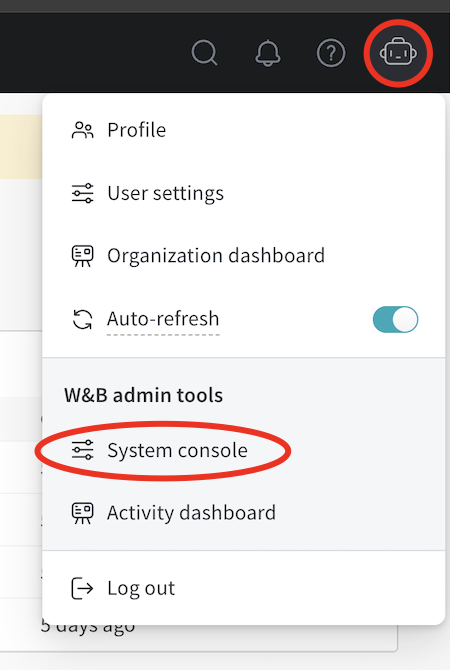 W\&B recommends you access the console using the following steps only if Option 1 doesn't work.
1. Open the console application in your browser. Open the URL described in the preceding section, which redirects you to the login screen:
W\&B recommends you access the console using the following steps only if Option 1 doesn't work.
1. Open the console application in your browser. Open the URL described in the preceding section, which redirects you to the login screen:
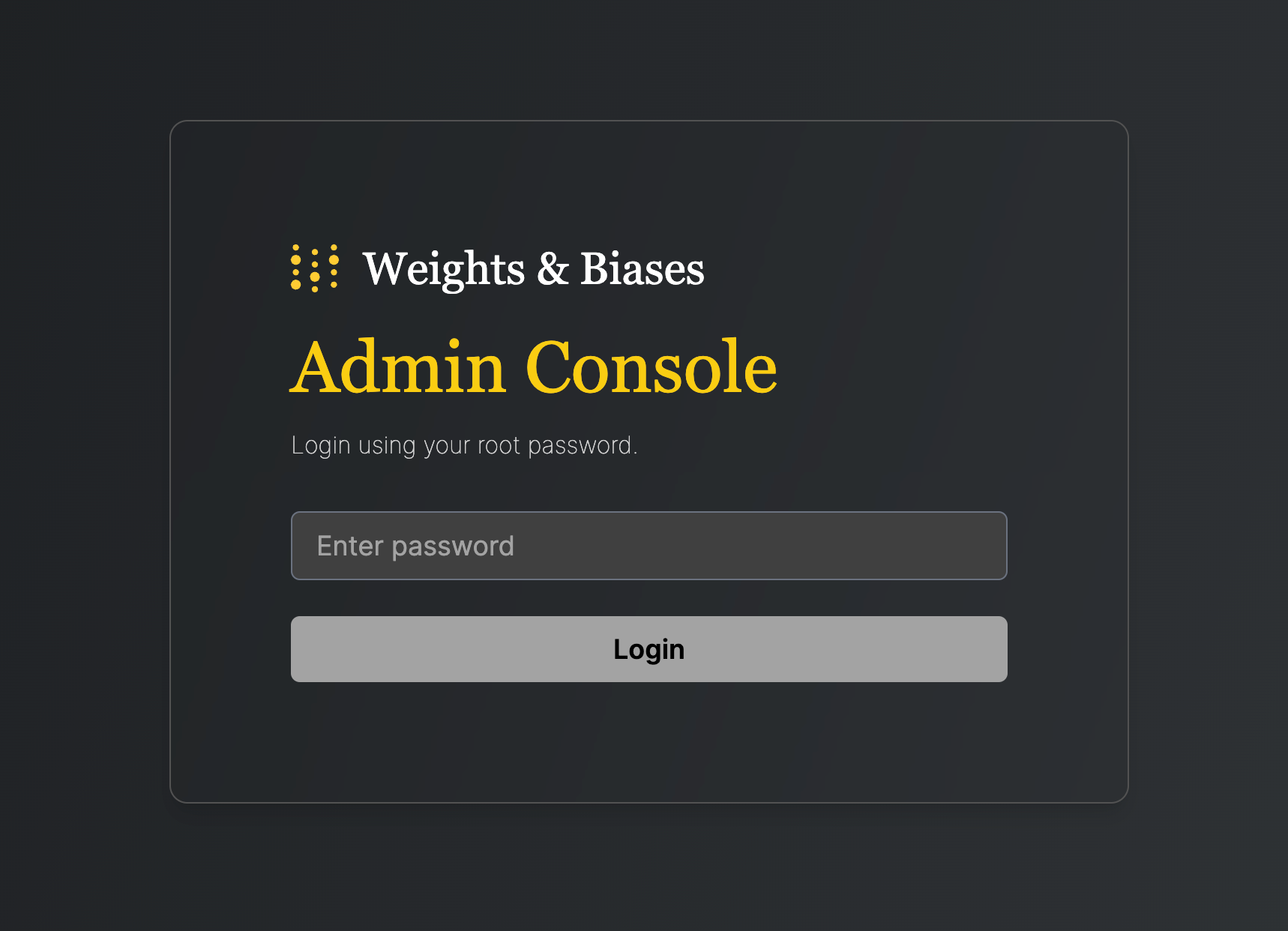 2. Retrieve the password from the Kubernetes secret that the installation generates:
```shell theme={null}
kubectl get secret wandb-password -o jsonpath='{.data.password}' | base64 -d
```
Copy the password.
3. Log in to the console. Paste the copied password, then click **Login**.
## Update the W\&B Kubernetes Operator
This section describes how to update the W\&B Kubernetes Operator itself. Update the operator periodically so that you get bug fixes and new reconciliation features.
* Updating the W\&B Kubernetes Operator doesn't update the W\&B Server application.
* If you use a Helm chart that doesn't use the W\&B Kubernetes Operator, see the [migration instructions](#migrate-self-managed-instances-to-wb-operator) before following the steps in this section to update the W\&B Operator.
Copy and paste the following code snippets into your terminal.
1. Update the repo with [`helm repo update`](https://helm.sh/docs/helm/helm_repo_update/):
```shell theme={null}
helm repo update
```
2. Update the Helm chart with [`helm upgrade`](https://helm.sh/docs/helm/helm_upgrade/):
```shell theme={null}
helm upgrade operator wandb/operator -n wandb-cr --reuse-values
```
## Update the W\&B Server application
You no longer need to update W\&B Server application if you use the W\&B Kubernetes Operator.
The operator automatically updates your W\&B Server application when a new version of the software of W\&B is released.
## Migrate self-managed instances to W\&B Operator
The following section describes how to migrate from self-managing your own W\&B Server installation to using the W\&B Operator to do this for you. Migrating lets the operator handle reconciliation and W\&B Server upgrades automatically, so you no longer have to coordinate manifest changes or Helm upgrades for the application. The migration process depends on how you installed W\&B Server:
The W\&B Operator is the default and recommended installation method for W\&B Server. Reach out to [Customer Support](mailto:support@wandb.com) or your W\&B team if you have any questions.
* If you used the official W\&B Cloud Terraform Modules, navigate to the appropriate documentation and follow the steps there:
* [AWS](#migrate-to-operator-based-aws-terraform-modules)
* [Google Cloud](#migrate-to-operator-based-google-cloud-terraform-modules)
* [Azure](#migrate-to-operator-based-azure-terraform-modules)
* If you used the [W\&B Non-Operator Helm chart](https://github.com/wandb/helm-charts/tree/main/charts/wandb), see [Migrate to operator-based Helm chart](#migrate-to-operator-based-helm-chart).
* If you used the [W\&B Non-Operator Helm chart with Terraform](https://registry.terraform.io/modules/wandb/wandb/kubernetes/latest), see [Migrate to operator-based Terraform Helm chart](#migrate-to-operator-based-terraform-helm-chart).
* If you created the Kubernetes resources with manifests, see [Migrate to operator-based Helm chart](#migrate-to-operator-based-helm-chart).
### Migrate to operator-based AWS Terraform modules
For a detailed description of the migration process, see the [operator-wandb chart documentation](https://github.com/wandb/helm-charts/tree/main/charts/operator-wandb).
### Migrate to operator-based Google Cloud Terraform modules
Reach out to [Customer Support](mailto:support@wandb.com) or your W\&B team if you have any questions or need assistance.
### Migrate to operator-based Azure Terraform modules
Reach out to [Customer Support](mailto:support@wandb.com) or your W\&B team if you have any questions or need assistance.
### Migrate to operator-based Helm chart
Follow these steps to migrate to the operator-based Helm chart:
1. Get the current W\&B configuration. If you deployed W\&B with a non-operator-based version of the Helm chart, export the values like this:
```shell theme={null}
helm get values wandb
```
If you deployed W\&B with Kubernetes manifests, export the values like this:
```shell theme={null}
kubectl get deployment wandb -o yaml
```
You now have all the configuration values you need for the next step.
2. Create a file called `operator.yaml`. Follow the format described in the [Configuration Reference](#configuration-reference-for-wb-operator). Use the values from step 1.
3. Scale the current deployment to 0 pods. This step stops the current deployment.
```shell theme={null}
kubectl scale --replicas=0 deployment wandb
```
4. Update the Helm chart repo:
```shell theme={null}
helm repo update
```
5. Install the new Helm chart:
```shell theme={null}
helm upgrade --install operator wandb/operator -n wandb-cr --create-namespace
```
6. Configure the new Helm chart and trigger W\&B application deployment. Apply the new configuration.
```shell theme={null}
kubectl apply -f operator.yaml
```
The deployment takes a few minutes to complete.
7. Verify the installation. Make sure that everything works by following the steps in [Verify the installation](#verify-the-installation).
8. Remove the old installation. Uninstall the old Helm chart or delete the resources that you created with manifests.
### Migrate to operator-based Terraform Helm chart
Follow these steps to migrate to the operator-based Helm chart:
1. Prepare Terraform config. Replace the Terraform code from the old deployment in your Terraform config with the code described in [Deploy W\&B with Helm Terraform module](#deploy-wb-with-helm-terraform-module). Set the same variables as before. Do not change the `.tfvars` file if you have one.
2. Execute Terraform run. Execute `terraform init`, `terraform plan`, and `terraform apply`.
3. Verify the installation. Make sure that everything works by following the steps in [Verify the installation](#verify-the-installation).
4. Remove the old installation. Uninstall the old Helm chart or delete the resources that you created with manifests.
## Configuration reference for W\&B Server
This section is a reference for the configuration options that you set in your `WeightsAndBiases` custom resource. Use it to look up the YAML schema for a specific subsystem (for example, MySQL, Redis, ingress, or OIDC) as you build or update your `operator.yaml` file.
This section describes the configuration options for W\&B Server application. The application receives its configuration as custom resource definition named [WeightsAndBiases](#how-it-works). Some configuration options are exposed with the following configuration. You must set others as environment variables.
The documentation has two lists of environment variables: [basic](/platform/hosting/env-vars/) and [advanced](/platform/hosting/iam/advanced_env_vars/). Only use environment variables if the configuration option that you need is not exposed using the Helm chart.
### Basic example
This example defines the minimum set of values required for W\&B. For a more realistic production example, see [Complete example](#complete-example).
This YAML file defines the desired state of your W\&B deployment, including the version, environment variables, external resources like databases, and other necessary settings.
```yaml theme={null}
apiVersion: apps.wandb.com/v1
kind: WeightsAndBiases
metadata:
labels:
app.kubernetes.io/name: weightsandbiases
app.kubernetes.io/instance: wandb
name: wandb
namespace: default
spec:
values:
global:
host: https://
license: eyJhbGnUzaH...j9ZieKQ2x5GGfw
bucket:
2. Retrieve the password from the Kubernetes secret that the installation generates:
```shell theme={null}
kubectl get secret wandb-password -o jsonpath='{.data.password}' | base64 -d
```
Copy the password.
3. Log in to the console. Paste the copied password, then click **Login**.
## Update the W\&B Kubernetes Operator
This section describes how to update the W\&B Kubernetes Operator itself. Update the operator periodically so that you get bug fixes and new reconciliation features.
* Updating the W\&B Kubernetes Operator doesn't update the W\&B Server application.
* If you use a Helm chart that doesn't use the W\&B Kubernetes Operator, see the [migration instructions](#migrate-self-managed-instances-to-wb-operator) before following the steps in this section to update the W\&B Operator.
Copy and paste the following code snippets into your terminal.
1. Update the repo with [`helm repo update`](https://helm.sh/docs/helm/helm_repo_update/):
```shell theme={null}
helm repo update
```
2. Update the Helm chart with [`helm upgrade`](https://helm.sh/docs/helm/helm_upgrade/):
```shell theme={null}
helm upgrade operator wandb/operator -n wandb-cr --reuse-values
```
## Update the W\&B Server application
You no longer need to update W\&B Server application if you use the W\&B Kubernetes Operator.
The operator automatically updates your W\&B Server application when a new version of the software of W\&B is released.
## Migrate self-managed instances to W\&B Operator
The following section describes how to migrate from self-managing your own W\&B Server installation to using the W\&B Operator to do this for you. Migrating lets the operator handle reconciliation and W\&B Server upgrades automatically, so you no longer have to coordinate manifest changes or Helm upgrades for the application. The migration process depends on how you installed W\&B Server:
The W\&B Operator is the default and recommended installation method for W\&B Server. Reach out to [Customer Support](mailto:support@wandb.com) or your W\&B team if you have any questions.
* If you used the official W\&B Cloud Terraform Modules, navigate to the appropriate documentation and follow the steps there:
* [AWS](#migrate-to-operator-based-aws-terraform-modules)
* [Google Cloud](#migrate-to-operator-based-google-cloud-terraform-modules)
* [Azure](#migrate-to-operator-based-azure-terraform-modules)
* If you used the [W\&B Non-Operator Helm chart](https://github.com/wandb/helm-charts/tree/main/charts/wandb), see [Migrate to operator-based Helm chart](#migrate-to-operator-based-helm-chart).
* If you used the [W\&B Non-Operator Helm chart with Terraform](https://registry.terraform.io/modules/wandb/wandb/kubernetes/latest), see [Migrate to operator-based Terraform Helm chart](#migrate-to-operator-based-terraform-helm-chart).
* If you created the Kubernetes resources with manifests, see [Migrate to operator-based Helm chart](#migrate-to-operator-based-helm-chart).
### Migrate to operator-based AWS Terraform modules
For a detailed description of the migration process, see the [operator-wandb chart documentation](https://github.com/wandb/helm-charts/tree/main/charts/operator-wandb).
### Migrate to operator-based Google Cloud Terraform modules
Reach out to [Customer Support](mailto:support@wandb.com) or your W\&B team if you have any questions or need assistance.
### Migrate to operator-based Azure Terraform modules
Reach out to [Customer Support](mailto:support@wandb.com) or your W\&B team if you have any questions or need assistance.
### Migrate to operator-based Helm chart
Follow these steps to migrate to the operator-based Helm chart:
1. Get the current W\&B configuration. If you deployed W\&B with a non-operator-based version of the Helm chart, export the values like this:
```shell theme={null}
helm get values wandb
```
If you deployed W\&B with Kubernetes manifests, export the values like this:
```shell theme={null}
kubectl get deployment wandb -o yaml
```
You now have all the configuration values you need for the next step.
2. Create a file called `operator.yaml`. Follow the format described in the [Configuration Reference](#configuration-reference-for-wb-operator). Use the values from step 1.
3. Scale the current deployment to 0 pods. This step stops the current deployment.
```shell theme={null}
kubectl scale --replicas=0 deployment wandb
```
4. Update the Helm chart repo:
```shell theme={null}
helm repo update
```
5. Install the new Helm chart:
```shell theme={null}
helm upgrade --install operator wandb/operator -n wandb-cr --create-namespace
```
6. Configure the new Helm chart and trigger W\&B application deployment. Apply the new configuration.
```shell theme={null}
kubectl apply -f operator.yaml
```
The deployment takes a few minutes to complete.
7. Verify the installation. Make sure that everything works by following the steps in [Verify the installation](#verify-the-installation).
8. Remove the old installation. Uninstall the old Helm chart or delete the resources that you created with manifests.
### Migrate to operator-based Terraform Helm chart
Follow these steps to migrate to the operator-based Helm chart:
1. Prepare Terraform config. Replace the Terraform code from the old deployment in your Terraform config with the code described in [Deploy W\&B with Helm Terraform module](#deploy-wb-with-helm-terraform-module). Set the same variables as before. Do not change the `.tfvars` file if you have one.
2. Execute Terraform run. Execute `terraform init`, `terraform plan`, and `terraform apply`.
3. Verify the installation. Make sure that everything works by following the steps in [Verify the installation](#verify-the-installation).
4. Remove the old installation. Uninstall the old Helm chart or delete the resources that you created with manifests.
## Configuration reference for W\&B Server
This section is a reference for the configuration options that you set in your `WeightsAndBiases` custom resource. Use it to look up the YAML schema for a specific subsystem (for example, MySQL, Redis, ingress, or OIDC) as you build or update your `operator.yaml` file.
This section describes the configuration options for W\&B Server application. The application receives its configuration as custom resource definition named [WeightsAndBiases](#how-it-works). Some configuration options are exposed with the following configuration. You must set others as environment variables.
The documentation has two lists of environment variables: [basic](/platform/hosting/env-vars/) and [advanced](/platform/hosting/iam/advanced_env_vars/). Only use environment variables if the configuration option that you need is not exposed using the Helm chart.
### Basic example
This example defines the minimum set of values required for W\&B. For a more realistic production example, see [Complete example](#complete-example).
This YAML file defines the desired state of your W\&B deployment, including the version, environment variables, external resources like databases, and other necessary settings.
```yaml theme={null}
apiVersion: apps.wandb.com/v1
kind: WeightsAndBiases
metadata:
labels:
app.kubernetes.io/name: weightsandbiases
app.kubernetes.io/instance: wandb
name: wandb
namespace: default
spec:
values:
global:
host: https://
license: eyJhbGnUzaH...j9ZieKQ2x5GGfw
bucket:
mysql:
ingress:
annotations:
```
Find the full set of values in the [W\&B Helm repository](https://github.com/wandb/helm-charts/blob/main/charts/operator-wandb/values.yaml). **Change only those values you need to override**.
### Complete example
This example configuration deploys W\&B to Google Cloud Anthos using Google Cloud Storage:
```yaml theme={null}
apiVersion: apps.wandb.com/v1
kind: WeightsAndBiases
metadata:
labels:
app.kubernetes.io/name: weightsandbiases
app.kubernetes.io/instance: wandb
name: wandb
namespace: default
spec:
values:
global:
host: https://abc-wandb.sandbox-gcp.wandb.ml
bucket:
name: abc-wandb-moving-pipefish
provider: gcs
mysql:
database: wandb_local
host: 10.218.0.2
name: wandb_local
password: 8wtX6cJHizAZvYScjDzZcUarK4zZGjpV
port: 3306
user: wandb
redis:
host: redis.example.com
port: 6379
password: password
api:
enabled: true
glue:
enabled: true
executor:
enabled: true
license: eyJhbGnUzaHgyQjQyQWhEU3...ZieKQ2x5GGfw
ingress:
annotations:
ingress.gcp.kubernetes.io/pre-shared-cert: abc-wandb-cert-creative-puma
kubernetes.io/ingress.class: gce
kubernetes.io/ingress.global-static-ip-name: abc-wandb-operator-address
```
### Host
```yaml theme={null}
# Provide the FQDN with protocol
global:
# example host name, replace with your own
host: https://wandb.example.com
```
### Object storage (bucket)
**AWS**
```yaml theme={null}
global:
bucket:
provider: "s3"
name: ""
kmsKey: ""
region: ""
```
**Google Cloud**
```yaml theme={null}
global:
bucket:
provider: "gcs"
name: ""
```
**Azure**
```yaml theme={null}
global:
bucket:
provider: "az"
name: ""
secretKey: ""
```
**Other providers (Minio, Ceph, and other S3-compatible storage)**
For other S3 compatible providers, set the bucket configuration as follows:
```yaml theme={null}
global:
bucket:
# Example values, replace with your own
provider: s3
name: storage.example.com
kmsKey: null
path: wandb
region: default
accessKey: 5WOA500...P5DK7I
secretKey: HDKYe4Q...JAp1YyjysnX
```
For S3-compatible storage hosted outside of AWS, `kmsKey` must be `null`.
To reference `accessKey` and `secretKey` from a secret:
```yaml theme={null}
global:
bucket:
# Example values, replace with your own
provider: s3
name: storage.example.com
kmsKey: null
path: wandb
region: default
secret:
secretName: bucket-secret
accessKeyName: ACCESS_KEY
secretKeyName: SECRET_KEY
```
### MySQL
```yaml theme={null}
global:
mysql:
# Example values, replace with your own
host: db.example.com
port: 3306
database: wandb_local
user: wandb
password: 8wtX6cJH...ZcUarK4zZGjpV
```
To reference the `password` from a secret:
```yaml theme={null}
global:
mysql:
# Example values, replace with your own
host: db.example.com
port: 3306
database: wandb_local
user: wandb
passwordSecret:
name: database-secret
passwordKey: MYSQL_WANDB_PASSWORD
```
### License
```yaml theme={null}
global:
# Example license, replace with your own
license: eyJhbGnUzaHgyQjQy...VFnPS_KETXg1hi
```
To reference the `license` from a secret:
```yaml theme={null}
global:
licenseSecret:
name: license-secret
key: CUSTOMER_WANDB_LICENSE
```
### Ingress
See [How to identify the Kubernetes ingress class](#how-to-identify-the-kubernetes-ingress-class).
**Without TLS**
```yaml theme={null}
global:
# IMPORTANT: Ingress is on the same level in the YAML as 'global' (not a child)
ingress:
class: ""
```
**With TLS**
Create a secret that contains the certificate
```console theme={null}
kubectl create secret tls wandb-ingress-tls --key wandb-ingress-tls.key --cert wandb-ingress-tls.crt
```
Reference the secret in the ingress configuration
```yaml theme={null}
global:
# IMPORTANT: Ingress is on the same level in the YAML as 'global' (not a child)
ingress:
class: ""
annotations:
{}
# kubernetes.io/ingress.class: nginx
# kubernetes.io/tls-acme: "true"
tls:
- secretName: wandb-ingress-tls
hosts:
-
```
For Nginx, you might have to add the following annotation:
```yaml theme={null}
ingress:
annotations:
nginx.ingress.kubernetes.io/proxy-body-size: 0
```
### Custom Kubernetes service accounts
Specify custom Kubernetes service accounts to run the W\&B pods.
The following snippet creates a service account as part of the deployment with the specified name:
```yaml theme={null}
app:
serviceAccount:
name: custom-service-account
create: true
parquet:
serviceAccount:
name: custom-service-account
create: true
global:
...
```
The subsystems "app" and "parquet" run under the specified service account. The other subsystems run under the default service account.
If the service account already exists on the cluster, set `create: false`:
```yaml theme={null}
app:
serviceAccount:
name: custom-service-account
create: false
parquet:
serviceAccount:
name: custom-service-account
create: false
global:
...
```
You can specify service accounts on different subsystems such as app, parquet, console, and others:
```yaml theme={null}
app:
serviceAccount:
name: custom-service-account
create: true
console:
serviceAccount:
name: custom-service-account
create: true
global:
...
```
The service accounts can be different between the subsystems:
```yaml theme={null}
app:
serviceAccount:
name: custom-service-account
create: false
console:
serviceAccount:
name: another-custom-service-account
create: true
global:
...
```
### External Redis
```yaml theme={null}
redis:
install: false
global:
redis:
host: ""
port: 6379
password: ""
parameters: {}
caCert: ""
```
To reference the `password` from a secret:
```console theme={null}
kubectl create secret generic redis-secret --from-literal=redis-password=supersecret
```
Reference it in the following configuration:
```yaml theme={null}
redis:
install: false
global:
redis:
host: redis.example
port: 9001
auth:
enabled: true
secret: redis-secret
key: redis-password
```
### LDAP
LDAP configuration support in the current Helm chart is limited. Contact W\&B Support or your AISE for assistance configuring LDAP.
Configure LDAP by setting environment variables in `global.extraEnv`:
```yaml theme={null}
global:
extraEnv:
LDAP_ADDRESS: ldaps://ldap.company.example.com
LDAP_BASE_DN: cn=accounts,dc=company,dc=example,dc=com
LDAP_USER_BASE_DN: cn=users,cn=accounts,dc=company,dc=example,dc=com
LDAP_GROUP_BASE_DN: cn=groups,cn=accounts,dc=company,dc=example,dc=com
LDAP_BIND_DN: uid=ldapbind,cn=sysaccounts,cn=etc,dc=company,dc=example,dc=com
LDAP_BIND_PW: ********************
LDAP_ATTRIBUTES: email=mail,name=cn
LDAP_TLS_ENABLE: "true"
LDAP_LOGIN: "true"
LDAP_USER_OBJECT_CLASS: user
LDAP_GROUP_OBJECT_CLASS: group
```
This legacy approach is no longer recommended. This section is provided for reference.
**Without TLS**
```yaml theme={null}
global:
ldap:
enabled: true
# LDAP server address including "ldap://" or "ldaps://"
host:
# LDAP search base to use for finding users
baseDN:
# LDAP user to bind with (if not using anonymous bind)
bindDN:
# Secret name and key with LDAP password to bind with (if not using anonymous bind)
bindPW:
# LDAP attribute for email and group ID attribute names as comma separated string values.
attributes:
# LDAP group allow list
groupAllowList:
# Enable LDAP TLS
tls: false
```
**With TLS**
The LDAP TLS cert configuration requires a config map pre-created with the certificate content.
To create the config map you can use the following command:
```console theme={null}
kubectl create configmap ldap-tls-cert --from-file=certificate.crt
```
And use the config map in the YAML like the following example.
```yaml theme={null}
global:
ldap:
enabled: true
# LDAP server address including "ldap://" or "ldaps://"
host:
# LDAP search base to use for finding users
baseDN:
# LDAP user to bind with (if not using anonymous bind)
bindDN:
# Secret name and key with LDAP password to bind with (if not using anonymous bind)
bindPW:
# LDAP attribute for email and group ID attribute names as comma separated string values.
attributes:
# LDAP group allow list
groupAllowList:
# Enable LDAP TLS
tls: true
# ConfigMap name and key with CA certificate for LDAP server
tlsCert:
configMap:
name: "ldap-tls-cert"
key: "certificate.crt"
```
### OIDC SSO
```yaml theme={null}
global:
auth:
sessionLengthHours: 720
oidc:
clientId: ""
secret: ""
# Only include if your IdP requires it.
authMethod: ""
issuer: ""
```
`authMethod` is optional.
### SMTP
```yaml theme={null}
global:
email:
smtp:
host: ""
port: 587
user: ""
password: ""
```
### Environment variables
```yaml theme={null}
global:
extraEnv:
GLOBAL_ENV: "example"
```
### Custom certificate authority
`customCACerts` is a list and can take many certificates. Certificate authorities specified in `customCACerts` only apply to the W\&B Server application.
```yaml theme={null}
global:
customCACerts:
- |
-----BEGIN CERTIFICATE-----
MIIBnDCCAUKgAwIBAg.....................fucMwCgYIKoZIzj0EAwIwLDEQ
MA4GA1UEChMHSG9tZU.....................tZUxhYiBSb290IENBMB4XDTI0
MDQwMTA4MjgzMFoXDT.....................oNWYggsMo8O+0mWLYMAoGCCqG
SM49BAMCA0gAMEUCIQ.....................hwuJgyQRaqMI149div72V2QIg
P5GD+5I+02yEp58Cwxd5Bj2CvyQwTjTO4hiVl1Xd0M0=
-----END CERTIFICATE-----
- |
-----BEGIN CERTIFICATE-----
MIIBxTCCAWugAwIB.......................qaJcwCgYIKoZIzj0EAwIwLDEQ
MA4GA1UEChMHSG9t.......................tZUxhYiBSb290IENBMB4XDTI0
MDQwMTA4MjgzMVoX.......................UK+moK4nZYvpNpqfvz/7m5wKU
SAAwRQIhAIzXZMW4.......................E8UFqsCcILdXjAiA7iTluM0IU
aIgJYVqKxXt25blH/VyBRzvNhViesfkNUQ==
-----END CERTIFICATE-----
```
CA certificates can also be stored in a ConfigMap:
```yaml theme={null}
global:
caCertsConfigMap: custom-ca-certs
```
The ConfigMap must look like this:
```yaml theme={null}
apiVersion: v1
kind: ConfigMap
metadata:
name: custom-ca-certs
data:
ca-cert1.crt: |
-----BEGIN CERTIFICATE-----
...
-----END CERTIFICATE-----
ca-cert2.crt: |
-----BEGIN CERTIFICATE-----
...
-----END CERTIFICATE-----
```
If using a ConfigMap, each key in the ConfigMap must end with `.crt` (for example, `my-cert.crt` or `ca-cert1.crt`). This naming convention is required for `update-ca-certificates` to parse and add each certificate to the system CA store.
### Custom security context
Each W\&B component supports custom security context configurations of the following form:
```yaml theme={null}
pod:
securityContext:
runAsNonRoot: true
runAsUser: 1001
runAsGroup: 0
fsGroup: 1001
fsGroupChangePolicy: Always
seccompProfile:
type: RuntimeDefault
container:
securityContext:
capabilities:
drop:
- ALL
readOnlyRootFilesystem: false
allowPrivilegeEscalation: false
```
The only valid value for `runAsGroup:` is `0`. Any other value is an error.
For example, to configure the application pod, add a section `app` to your configuration:
```yaml theme={null}
global:
...
app:
pod:
securityContext:
runAsNonRoot: true
runAsUser: 1001
runAsGroup: 0
fsGroup: 1001
fsGroupChangePolicy: Always
seccompProfile:
type: RuntimeDefault
container:
securityContext:
capabilities:
drop:
- ALL
readOnlyRootFilesystem: false
allowPrivilegeEscalation: false
```
The same concept applies to `console`, `weave`, `weave-trace`, and `parquet`.
## Configuration reference for W\&B Operator
This section describes configuration options for W\&B Kubernetes Operator (`wandb-controller-manager`). The operator receives its configuration in the form of a YAML file.
By default, the W\&B Kubernetes Operator doesn't need a configuration file. Create a configuration file if required. For example, you might need a configuration file to specify custom certificate authorities, deploy in an air gap environment, and so forth.
Find the full list of spec customization [in the Helm repository](https://github.com/wandb/helm-charts/blob/main/charts/operator/values.yaml).
### Custom CA
A custom certificate authority (`customCACerts`) is a list and can take many certificates. Those certificate authorities, when added, only apply to the W\&B Kubernetes Operator (`wandb-controller-manager`).
```yaml theme={null}
customCACerts:
- |
-----BEGIN CERTIFICATE-----
MIIBnDCCAUKgAwIBAg.....................fucMwCgYIKoZIzj0EAwIwLDEQ
MA4GA1UEChMHSG9tZU.....................tZUxhYiBSb290IENBMB4XDTI0
MDQwMTA4MjgzMFoXDT.....................oNWYggsMo8O+0mWLYMAoGCCqG
SM49BAMCA0gAMEUCIQ.....................hwuJgyQRaqMI149div72V2QIg
P5GD+5I+02yEp58Cwxd5Bj2CvyQwTjTO4hiVl1Xd0M0=
-----END CERTIFICATE-----
- |
-----BEGIN CERTIFICATE-----
MIIBxTCCAWugAwIB.......................qaJcwCgYIKoZIzj0EAwIwLDEQ
MA4GA1UEChMHSG9t.......................tZUxhYiBSb290IENBMB4XDTI0
MDQwMTA4MjgzMVoX.......................UK+moK4nZYvpNpqfvz/7m5wKU
SAAwRQIhAIzXZMW4.......................E8UFqsCcILdXjAiA7iTluM0IU
aIgJYVqKxXt25blH/VyBRzvNhViesfkNUQ==
-----END CERTIFICATE-----
```
CA certificates can also be stored in a ConfigMap:
```yaml theme={null}
caCertsConfigMap: custom-ca-certs
```
The ConfigMap must look like this:
```yaml theme={null}
apiVersion: v1
kind: ConfigMap
metadata:
name: custom-ca-certs
data:
ca-cert1.crt: |
-----BEGIN CERTIFICATE-----
...
-----END CERTIFICATE-----
ca-cert2.crt: |
-----BEGIN CERTIFICATE-----
...
-----END CERTIFICATE-----
```
Each key in the ConfigMap must end with `.crt` (for example, `my-cert.crt` or `ca-cert1.crt`). This naming convention is required for `update-ca-certificates` to parse and add each certificate to the system CA store.
## FAQ
### Purpose and role of each pod
A W\&B Server deployment includes the following pods:
* **`wandb-app`**: the core of W\&B, including the GraphQL API and frontend application. It powers most of the W\&B platform's functionality.
* **`wandb-console`**: the administration console, accessed through `/console`.
* **`wandb-otel`**: the OpenTelemetry agent, which collects metrics and logs from resources at the Kubernetes layer for display in the administration console.
* **`wandb-prometheus`**: the Prometheus server, which captures metrics from various components for display in the administration console.
* **`wandb-parquet`**: a backend microservice separate from the `wandb-app` pod that exports database data to object storage in Parquet format.
* **`wandb-weave`**: another backend microservice that loads query tables in the UI and supports various core app features.
* **`wandb-weave-trace`**: a framework for tracking, experimenting with, evaluating, deploying, and improving LLM-based applications. The framework is accessed through the `wandb-app` pod.
### How to get the W\&B Operator Console password
See [Access the W\&B management console](#access-the-wb-management-console).
### How to access the W\&B Operator Console if Ingress doesn't work
Execute the following command on a host that can reach the Kubernetes cluster:
```console theme={null}
kubectl port-forward svc/wandb-console 8082
```
Access the console in the browser with `https://localhost:8082/` console.
For how to get the password (Option 2), see [Access the W\&B management console](#access-the-wb-management-console).
### How to view W\&B Server logs
The application pod is named **wandb-app-xxx**.
```console theme={null}
kubectl get pods
kubectl logs wandb-XXXXX-XXXXX
```
### How to identify the Kubernetes ingress class
You can get the ingress class installed in your cluster by running
```console theme={null}
kubectl get ingressclass
```