> ## Documentation Index
> Fetch the complete documentation index at: https://docs.wandb.ai/llms.txt
> Use this file to discover all available pages before exploring further.
# Set up custom monitors
> Passively score production traffic to surface trends and issues
Custom monitors are the previous approach to monitoring production traffic. For new implementations, use **Signals** under Weave for Agents. See [View agent signals](/weave/guides/tracking/view-agent-signals).
This page shows you how to set up custom monitors in W\&B Weave so you can passively score production traffic and surface trends and issues in your LLM applications. Use this guide when you want to define your own evaluation criteria, beyond Weave's preset signals, for production traces.
Monitors use LLM judges to passively score production traffic to surface trends and issues in your LLM applications. For example, you can monitor your application's responses for correctness or helpfulness, or you can monitor user input to identify trends in what users ask your agents about. Monitors automatically store all scoring results in Weave's database, so you can analyze historical trends and patterns.
You can monitor text, images, and audio in your application's input and output.
Monitors require no code changes to your application. Set them up using the Weave UI.
If you need to actively intervene in your application's behavior based on scores, use [guardrails](/weave/guides/evaluation/guardrails) instead.
## Signals and custom monitors
Use [signals](/weave/guides/evaluation/monitors), preset automated scorers for production traces, to get started with production monitoring quickly, then add custom monitors for evaluation criteria specific to your application.
| | Signals | Custom monitors |
| ------------------- | ------------------------------------------------------------------------ | ------------------------------------------------------- |
| **Configuration** | One-click enable, no prompt writing | Full control over scoring prompt, model, and parameters |
| **Scope** | Preset quality and error classifiers | Any evaluation criteria you define |
| **Trace selection** | Automatic (successful root traces for quality, failed traces for errors) | Configurable operations, filters, and sampling rate |
| **Model** | Serverless Inference (preset) | Any commercial or Serverless Inference model |
| **Use case** | Quick production monitoring with proven classifiers | Custom evaluation criteria specific to your application |
## Create a monitor in Weave
To create a custom monitor in Weave:
1. Open the [W\&B UI](https://wandb.ai/home) and then open your Weave project.
2. From the Weave sidebar, select **Monitors** and then select the **+ New Monitor** button. This opens the **Create new monitor** modal dialog.
3. In the **Create new monitor** menu, configure the following fields:
* **Name**: Must start with a letter or number. Can contain letters, numbers, hyphens, and underscores.
* **Description** (Optional): Explain what the monitor does.
* **Active monitor** toggle: Turn the monitor on or off.
* **Calls to monitor**:
* **Operations**: Choose one or more `@weave.op`s to monitor. You must log at least one trace that uses the op before it appears in the list of available ops.
* **Filter** (Optional): Narrow which calls are eligible (for example, by `max_tokens` or `top_p`).
* **Sampling rate**: The percentage of calls to score (0% to 100%).
A lower sampling rate reduces costs, since each scoring call has an associated cost.
* **LLM-as-a-judge configuration**:
* **Scorer name**: Must start with a letter or number. Can contain letters, numbers, hyphens, and underscores.
* **Score Audio**: Filters the available LLM models to display only audio-enabled models, and opens the **Media Scoring JSON Paths** field.
* **Score Images**: Filters the available LLM models to display only image-enabled models, and opens the **Media Scoring JSON Paths** field.
* **Judge model**: Select the model to score your ops. The menu contains commercial LLM models you have configured in your W\&B account, as well as [Serverless Inference models](/inference/models). Audio-enabled models have an **Audio Input** label beside their names. For the selected model, configure the following settings:
* **Configuration name**: A name for this model configuration.
* **System prompt**: Defines the judging model's role and persona, for example, "You are an impartial AI judge."
* **Response format**: The format the judge uses to output its response, such as a `json_object` or plain `text`.
* **Scoring prompt**: The evaluation task used to score your ops. You can reference [prompt variables](/weave/guides/evaluation/scorers#access-variables-from-your-ops-in-scoring-prompts) from your ops in your scoring prompts. For example, "Evaluate whether `{output}` is accurate based on `{ground_truth}`."
* **Media Scoring JSON Paths**: Specify JSONPath expressions (RFC 9535) to extract media from your trace data. If you specify no paths, the monitor includes all scorable media from user messages. This field appears when you enable **Score Audio** or **Score Images**.
4. After you configure the monitor's fields, select **Create monitor**. This adds the monitor to your Weave project. When your code starts generating traces, you can review the scores in the **Traces** tab by selecting the monitor's name and reviewing the data in the resulting panel.
You can also [compare](/weave/guides/tools/comparison) and visualize the monitor's trace data in the Weave UI, or download it in formats such as CSV and JSON using the download button () in the **Traces** tab.
Weave automatically stores all scorer results in the [Call](/weave/guides/tracking/tracing#calls) object's `feedback` field.
### Example: Create a truthfulness monitor
The following end-to-end example walks through creating a monitor that evaluates the truthfulness of generated statements. By the end, you have an active monitor scoring a sample op in your Weave project, with scored traces visible in the W\&B UI.
1. Define a function that generates statements. Some statements are truthful, others are not:
```python lines theme={null}
import weave
import random
import openai
weave.init("my-team/my-weave-project")
client = openai.OpenAI()
@weave.op()
def generate_statement(ground_truth: str) -> str:
if random.random() < 0.5:
response = client.chat.completions.create(
model="gpt-4.1",
messages=[
{
"role": "user",
"content": f"Generate a statement that is incorrect based on this fact: {ground_truth}"
}
]
)
return response.choices[0].message.content
else:
return ground_truth
generate_statement("The Earth revolves around the Sun.")
```
```typescript lines twoslash theme={null}
// @noErrors
import * as weave from 'weave';
import OpenAI from 'openai';
await weave.init('my-team/my-weave-project');
const client = new OpenAI();
const generateStatement = weave.op(async (ground_truth: string): Promise => {
if (Math.random() < 0.5) {
const response = await client.chat.completions.create({
model: 'gpt-4.1',
messages: [
{
role: 'user',
content: `Generate a statement that is incorrect based on this fact: ${ground_truth}`,
},
],
});
return response.choices[0]?.message?.content ?? '';
}
return ground_truth;
});
await generateStatement("The Earth revolves around the Sun.");
```
2. Run the function at least once to log a trace in your project. This makes the op available for monitoring in the W\&B UI.
3. Open your Weave project in the W\&B UI and select **Monitors** from the sidebar. Then select **New Monitor**.
4. In the **Create new monitor** menu, configure the fields using the following values:
* **Name**: `truthfulness-monitor`
* **Description**: `Evaluates the truthfulness of generated statements.`
* **Active monitor**: Toggle **on**.
* **Operations**: Select `generate_statement`.
* **Sampling rate**: Set to `100%` to score every call.
* **Scorer name**: `truthfulness-scorer`
* **Judge model**: `o3-mini-2025-01-31`
* **System prompt**: `You are an impartial AI judge. Your task is to evaluate the truthfulness of statements.`
* **Response format**: `json_object`
* **Scoring prompt**:
```text theme={null}
Evaluate whether the output statement is accurate based on the input statement.
This is the input statement: {ground_truth}
This is the output statement: {output}
The response should be a JSON object with the following fields:
- is_true: a boolean stating whether the output statement is true or false based on the input statement.
- reasoning: your reasoning as to why the statement is true or false.
```
5. Select **Create monitor**. This adds the monitor to your Weave project.
6. In your script, invoke your function using statements with differing degrees of truthfulness to test the scoring function:
```python lines theme={null}
generate_statement("The Earth revolves around the Sun.")
generate_statement("Water freezes at 0 degrees Celsius.")
generate_statement("The Great Wall of China was built over several centuries.")
```
```typescript lines twoslash theme={null}
// @noErrors
await generateStatement("The Earth revolves around the Sun.");
await generateStatement("Water freezes at 0 degrees Celsius.");
await generateStatement("The Great Wall of China was built over several centuries.");
```
7. After running the script using several different statements, open the W\&B UI and go to the **Traces** tab. Select any **LLMAsAJudgeScorer.score** trace to see the results.
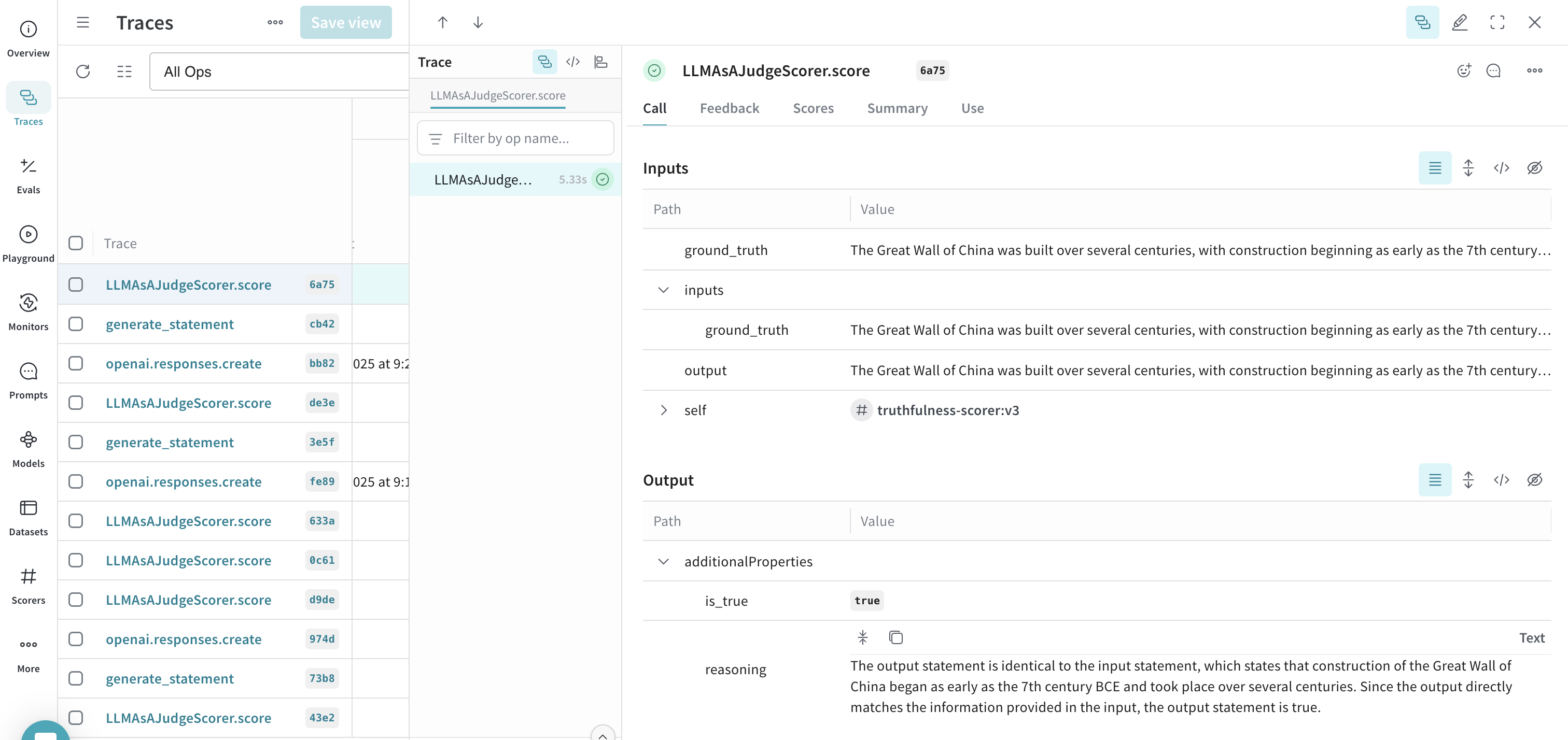 You now have a working truthfulness monitor that scores each invocation of `generate_statement` and stores the results alongside the original trace, ready for analysis and comparison in the Weave UI.