> ## Documentation Index
> Fetch the complete documentation index at: https://docs.wandb.ai/llms.txt
> Use this file to discover all available pages before exploring further.
# Scoring overview
> Evaluate AI outputs and return evaluation metrics with Weave Scorers
In Weave, Scorers are used to evaluate AI outputs and return evaluation metrics. They take the AI's output, analyze it, and return a dictionary of results. Scorers can use your input data as reference if needed and can also output extra information, such as explanations or reasonings from the evaluation.
Scorers are passed to a `weave.Evaluation` object during evaluation. There are two types of Scorers in weave:
1. **Function-based Scorers:** Simple Python functions decorated with `@weave.op`.
2. **Class-based Scorers:** Python classes that inherit from `weave.Scorer` for more complex evaluations.
Scorers must return a dictionary and can return multiple metrics, nested metrics and non-numeric values such as text returned from an LLM-evaluator about its reasoning.
Scorers are special ops passed to a `weave.Evaluation` object during evaluation.
## Create your own Scorers
**Ready-to-Use Scorers**
While this guide shows you how to create custom scorers, Weave comes with a variety of [predefined scorers](./builtin_scorers) and [local SLM scorers](./weave_local_scorers) that you can use right away, including:
* [Hallucination detection](./builtin_scorers#hallucinationfreescorer)
* [Summarization quality](./builtin_scorers#summarizationscorer)
* [Embedding similarity](./builtin_scorers#embeddingsimilarityscorer)
* [Toxicity detection (local)](./weave_local_scorers#weavetoxicityscorerv1)
* [Context Relevance scoring (local)](./weave_local_scorers#weavecontextrelevancescorerv1)
* And more!
### Function-based Scorers
These are functions decorated with `@weave.op` that return a dictionary. They're great for simple evaluations like:
```python lines theme={null}
import weave
@weave.op
def evaluate_uppercase(text: str) -> dict:
return {"text_is_uppercase": text.isupper()}
my_eval = weave.Evaluation(
dataset=[{"text": "HELLO WORLD"}],
scorers=[evaluate_uppercase]
)
```
When the evaluation is run, `evaluate_uppercase` checks if the text is all uppercase.
These are functions wrapped with `weave.op` that accept an object with `modelOutput` and optionally `datasetRow`. They're great for simple evaluations like:
```typescript lines theme={null}
import * as weave from 'weave'
const evaluateUppercase = weave.op(
({modelOutput}) => modelOutput.toUpperCase() === modelOutput,
{name: 'textIsUppercase'}
);
const myEval = new weave.Evaluation({
dataset: [{text: 'HELLO WORLD'}],
scorers: [evaluateUppercase],
})
```
### Class-based Scorers
For more advanced evaluations, especially when you need to keep track of additional scorer metadata, try different prompts for your LLM-evaluators, or make multiple function calls, you can use the `Scorer` class.
**Requirements:**
1. Inherit from `weave.Scorer`.
2. Define a `score` method decorated with `@weave.op`.
3. The `score` method must return a dictionary.
Example:
```python lines {7} theme={null}
import weave
from openai import OpenAI
from weave import Scorer
llm_client = OpenAI()
class SummarizationScorer(Scorer):
model_id: str = "gpt-4o"
system_prompt: str = "Evaluate whether the summary is good."
@weave.op
def some_complicated_preprocessing(self, text: str) -> str:
processed_text = "Original text: \n" + text + "\n"
return processed_text
@weave.op
def call_llm(self, summary: str, processed_text: str) -> dict:
res = llm_client.chat.completions.create(
messages=[
{"role": "system", "content": self.system_prompt},
{"role": "user", "content": (
f"Analyze how good the summary is compared to the original text."
f"Summary: {summary}\n{processed_text}"
)}])
return {"summary_quality": res}
@weave.op
def score(self, output: str, text: str) -> dict:
"""Score the summary quality.
Args:
output: The summary generated by an AI system
text: The original text being summarized
"""
processed_text = self.some_complicated_preprocessing(text)
eval_result = self.call_llm(summary=output, processed_text=processed_text)
return {"summary_quality": eval_result}
evaluation = weave.Evaluation(
dataset=[{"text": "The quick brown fox jumps over the lazy dog."}],
scorers=[summarization_scorer])
```
This class evaluates how good a summary is by comparing it to the original text.
```plaintext theme={null}
This feature is not available in TypeScript yet.
```
## How scorers work
### Scorer keyword arguments
Scorers can access both the output from your AI system and the input data from the dataset row.
* **Input:** If you would like your scorer to use data from your dataset row, such as a "label" or "target" column then you can easily make this available to the scorer by adding a `label` or `target` keyword argument to your scorer definition.
For example if you wanted to use a column called "label" from your dataset then your scorer function (or `score` class method) would have a parameter list like this:
```python lines theme={null}
@weave.op
def my_custom_scorer(output: str, label: int) -> dict:
...
```
When a weave `Evaluation` is run, the output of the AI system is passed to the `output` parameter. The `Evaluation` also automatically tries to match any additional scorer argument names to your dataset columns. If customizing your scorer arguments or dataset columns is not feasible, you can use column mapping - see below for more.
* **Output:** Include an `output` parameter in your scorer function's signature to access the AI system's output.
### Mapping Column Names with `column_map`
Sometimes, the `score` methods' argument names don't match the column names in your dataset. You can fix this using a `column_map`.
If you're using a class-based scorer, pass a dictionary to the `column_map` attribute of `Scorer` when you initialize your scorer class. This dictionary maps your `score` method's argument names to the dataset's column names, in the order: `{scorer_keyword_argument: dataset_column_name}`.
Example:
```python lines theme={null}
import weave
from weave import Scorer
# A dataset with news articles to be summarized
dataset = [
{"news_article": "The news today was great...", "date": "2030-04-20", "source": "Bright Sky Network"},
...
]
# Scorer class
class SummarizationScorer(Scorer):
@weave.op
def score(self, output, text) -> dict:
"""
output: output summary from a LLM summarization system
text: the text being summarized
"""
... # evaluate the quality of the summary
# create a scorer with a column mapping the `text` argument to the `news_article` data column
scorer = SummarizationScorer(column_map={"text" : "news_article"})
```
Now, the `text` argument in the `score` method will receive data from the `news_article` dataset column.
**Notes:**
* Another equivalent option to map your columns is to subclass the `Scorer` and overload the `score` method mapping the columns explicitly.
```python lines theme={null}
import weave
from weave import Scorer
class MySummarizationScorer(SummarizationScorer):
@weave.op
def score(self, output: str, news_article: str) -> dict: # Added type hints
# overload the score method and map columns manually
return super().score(output=output, text=news_article)
```
Scorers can access both the output from your AI system and the contents of the dataset row.
You can easily access relevant columns from the dataset row by adding a `datasetRow` keyword argument to your scorer definition.
```typescript lines theme={null}
const myScorer = weave.op(
({modelOutput, datasetRow}) => {
return modelOutput * 2 === datasetRow.expectedOutputTimesTwo;
},
{name: 'myScorer'}
);
```
### Mapping Column Names with `columnMapping`
In TypeScript, this feature is currently on the `Evaluation` object, not individual scorers.
Sometimes your `datasetRow` keys will not exactly match the scorer's naming scheme, but they are semantically similar. You can map the columns using the `Evaluation`'s `columnMapping` option.
The mapping is always from the scorer's perspective, that is, `{scorer_key: dataset_column_name}`.
Example:
```typescript lines theme={null}
const myScorer = weave.op(
({modelOutput, datasetRow}) => {
return modelOutput * 2 === datasetRow.expectedOutputTimesTwo;
},
{name: 'myScorer'}
);
const myEval = new weave.Evaluation({
dataset: [{expected: 2}],
scorers: [myScorer],
columnMapping: {expectedOutputTimesTwo: 'expected'}
});
```
### Access variables from your ops in scoring prompts
In scoring prompts for LLM-as-a-judge scorers, you can reference variables from your op. These values are automatically extracted when the scorer runs.
For a function like:
```python theme={null}
@weave.op
def summarize_article(article: str, max_length: int) -> str:
# Your summarization logic here
return summary
```
The following variables are available:
| Variable | Description |
| -------------- | -------------------------------------------- |
| `{article}` | The value of the input argument `article` |
| `{max_length}` | The value of the input argument `max_length` |
| `{inputs}` | A JSON dictionary of all input arguments |
| `{output}` | The result returned by your op |
Example scoring prompt:
```text theme={null}
Evaluate the quality of this summary.
Original article: {article}
Summary: {output}
Maximum length requested: {max_length}
Rate the summary on a scale of 1-10 based on:
- Accuracy: Does it accurately represent the article?
- Completeness: Does it cover the key points?
- Conciseness: Is it appropriately brief?
Return a JSON object with your rating and reasoning.
```
### Final summarization of the scorer
During evaluation, the scorer will be computed for each row of your dataset. To provide a final score for the evaluation we provide an `auto_summarize` depending on the returning type of the output.
* Averages are computed for numerical columns
* Count and fraction for boolean columns
* Other column types are ignored
You can override the `summarize` method on the `Scorer` class and provide your own way of computing the final scores. The `summarize` function expects:
* A single parameter `score_rows`: This is a list of dictionaries, where each dictionary contains the scores returned by the `score` method for a single row of your dataset.
* It should return a dictionary containing the summarized scores.
**Why this is useful?**
When you need to score all rows before deciding on the final value of the score for the dataset.
```python lines theme={null}
class MyBinaryScorer(Scorer):
"""
Returns True if the full output matches the target, False if not
"""
@weave.op
def score(self, output, target):
return {"match": output == target}
def summarize(self, score_rows: list) -> dict:
full_match = all(row["match"] for row in score_rows)
return {"full_match": full_match}
```
> In this example, the default `auto_summarize` would have returned the count and proportion of True.
If you want to learn more, check the implementation of [CorrectnessLLMJudge](/weave/tutorial-rag#optional-defining-a-scorer-class).
During evaluation, the scorer will be computed for each row of your dataset. To provide a final score, we use an internal `summarizeResults` function that aggregates depending on the output type.
* Averages are computed for numerical columns
* Count and fraction for boolean columns
* Other column types are ignored
We don't currently support custom summarization.
### Applying Scorers to a Call
To apply scorers to your Weave ops, you'll need to use the `.call()` method which provides access to both the operation's result and its tracking information. This allows you to associate scorer results with specific calls in Weave's database.
For more information on how to use the `.call()` method, see the [Calling Ops](../tracking/tracing#calling-ops#getting-a-handle-to-the-call-object-during-execution) guide.
Here's a basic example:
```python lines theme={null}
# Get both result and Call object
result, call = generate_text.call("Say hello")
# Apply a scorer
score = await call.apply_scorer(MyScorer())
```
You can also apply multiple scorers to the same call:
```python lines theme={null}
# Apply multiple scorers in parallel
await asyncio.gather(
call.apply_scorer(quality_scorer),
call.apply_scorer(toxicity_scorer)
)
```
**Notes:**
* Scorer results are automatically stored in Weave's database
* Scorers run asynchronously after the main operation completes
* You can view scorer results in the UI or query them via the API
For more detailed information about using scorers as guardrails or monitors, including production best practices and complete examples, see our [Guardrails and Monitors guide](./monitors).
```plaintext theme={null}
This feature is not available in TypeScript yet.
```
### Use `preprocess_model_input`
You can use the `preprocess_model_input` parameter to modify dataset examples before they reach your model during evaluation.
The `preprocess_model_input` function only transforms inputs before they are passed to the model’s prediction function.
Scorer functions always receive the original dataset examples, without any preprocessing applied.
For usage information and an example, see [Using `preprocess_model_input` to format dataset rows before evaluating](../core-types/evaluations#using-preprocess_model_input-to-format-dataset-rows-before-evaluating).
## Score analysis
In this section, we'll show you how to analyze the scores for a single call, multiple calls, and all calls scored by a specific scorer.
### Analyze a single Call's Scores
#### Single Call API
To retrieve the calls for a single call, you can use the `get_call` method.
```python lines theme={null}
client = weave.init("my-project")
# Get a single call
call = client.get_call("call-uuid-here")
# Get the feedback for the call which contains the scores
feedback = list(call.feedback)
```
#### Single Call UI
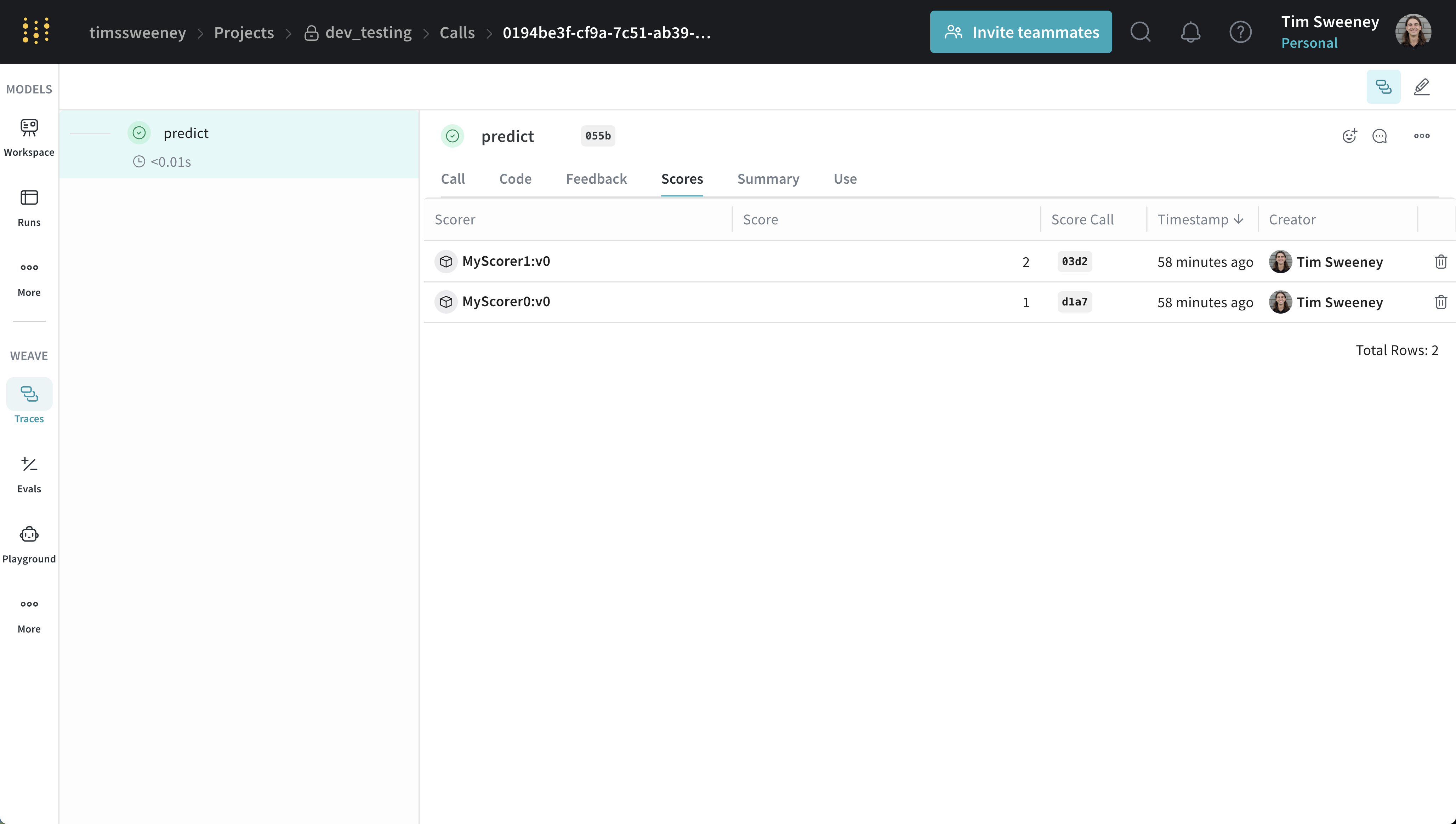 Scores for an individual call are displayed in the Call details panel under the "Scores" tab.
### Analyze multiple Calls' Scores
#### Multiple Calls API
To retrieve the calls for multiple calls, you can use the `get_calls` method.
```python lines theme={null}
client = weave.init("my-project")
# Get multiple calls - use whatever filters you want and include feedback
calls = client.get_calls(..., include_feedback=True)
# Iterate over the calls and access the feedback which contains the scores
for call in calls:
feedback = list(call.feedback)
```
#### Multiple Calls UI
Scores for an individual call are displayed in the Call details panel under the "Scores" tab.
### Analyze multiple Calls' Scores
#### Multiple Calls API
To retrieve the calls for multiple calls, you can use the `get_calls` method.
```python lines theme={null}
client = weave.init("my-project")
# Get multiple calls - use whatever filters you want and include feedback
calls = client.get_calls(..., include_feedback=True)
# Iterate over the calls and access the feedback which contains the scores
for call in calls:
feedback = list(call.feedback)
```
#### Multiple Calls UI
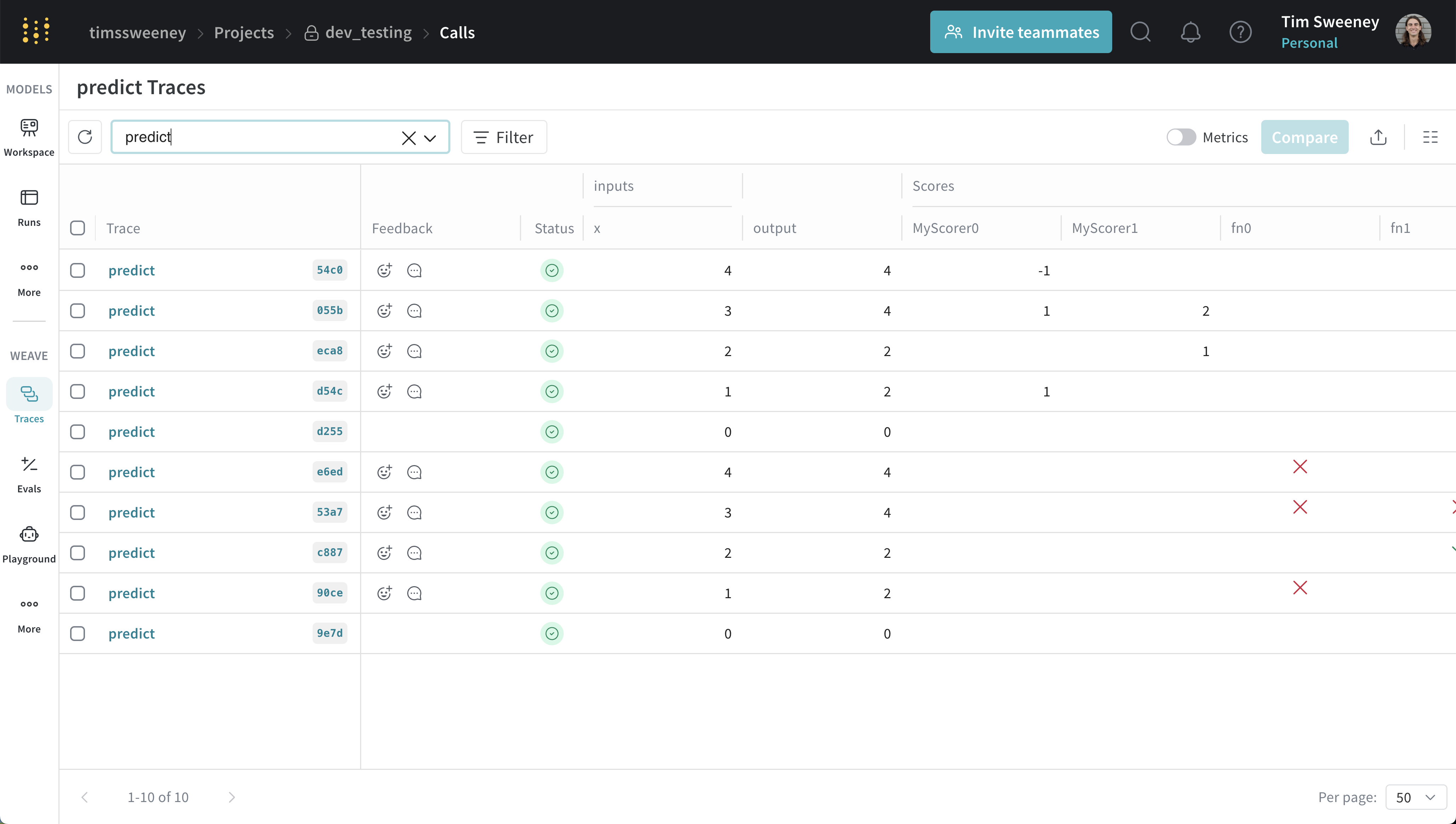 Scores for multiple calls are displayed in the traces table under the "Scores" column.
### Analyze all Calls scored by a specific Scorer
#### All Calls by Scorer API
To retrieve all calls scored by a specific scorer, you can use the `get_calls` method.
```python lines theme={null}
client = weave.init("my-project")
# To get all the calls scored by any version of a scorer, use the scorer name (typically the class name)
calls = client.get_calls(scored_by=["MyScorer"], include_feedback=True)
# To get all the calls scored by a specific version of a scorer, use the entire ref
# Refs can be obtained from the scorer object or via the UI.
calls = client.get_calls(scored_by=[myScorer.ref.uri()], include_feedback=True)
# Iterate over the calls and access the feedback which contains the scores
for call in calls:
feedback = list(call.feedback)
```
#### All Calls by Scorer UI
Finally, if you would like to see all the calls scored by a Scorer, navigate to the Scorers Tab in the UI and select "Programmatic Scorer" tab. Click your Scorer to open the Scorer details page.
Scores for multiple calls are displayed in the traces table under the "Scores" column.
### Analyze all Calls scored by a specific Scorer
#### All Calls by Scorer API
To retrieve all calls scored by a specific scorer, you can use the `get_calls` method.
```python lines theme={null}
client = weave.init("my-project")
# To get all the calls scored by any version of a scorer, use the scorer name (typically the class name)
calls = client.get_calls(scored_by=["MyScorer"], include_feedback=True)
# To get all the calls scored by a specific version of a scorer, use the entire ref
# Refs can be obtained from the scorer object or via the UI.
calls = client.get_calls(scored_by=[myScorer.ref.uri()], include_feedback=True)
# Iterate over the calls and access the feedback which contains the scores
for call in calls:
feedback = list(call.feedback)
```
#### All Calls by Scorer UI
Finally, if you would like to see all the calls scored by a Scorer, navigate to the Scorers Tab in the UI and select "Programmatic Scorer" tab. Click your Scorer to open the Scorer details page.
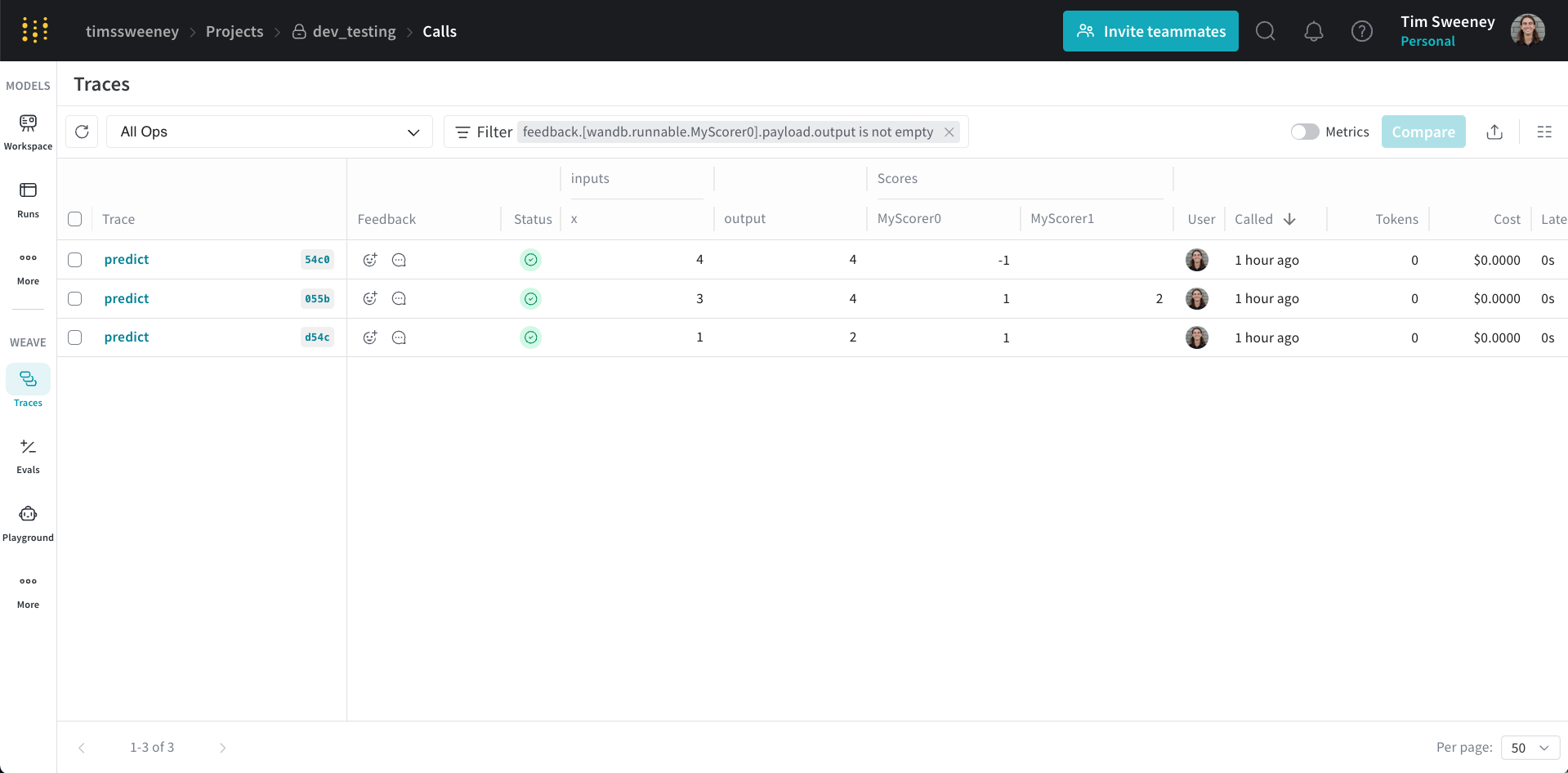
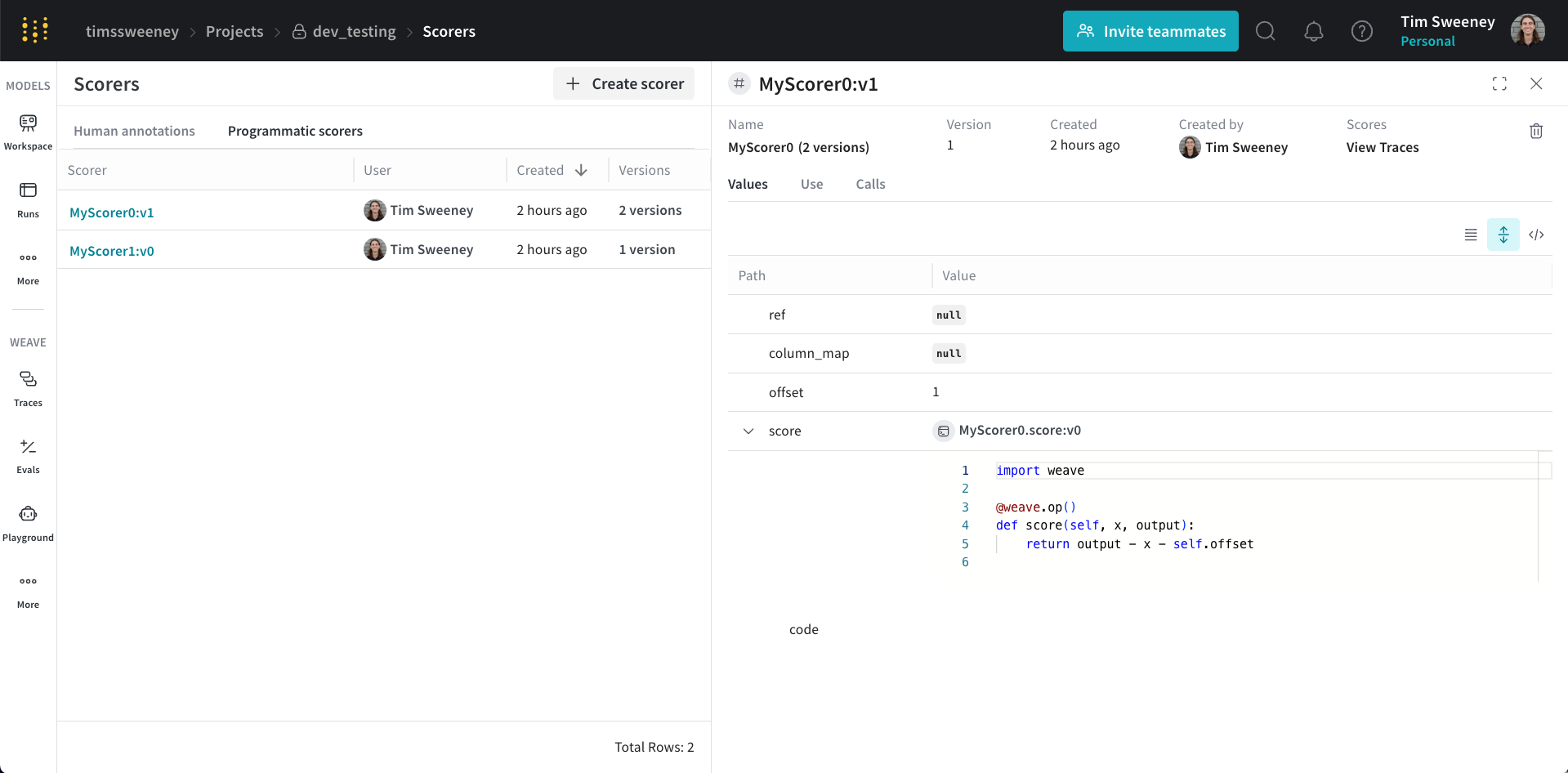 Next, click the `View Traces` button under `Scores` to view all the calls scored by your Scorer.
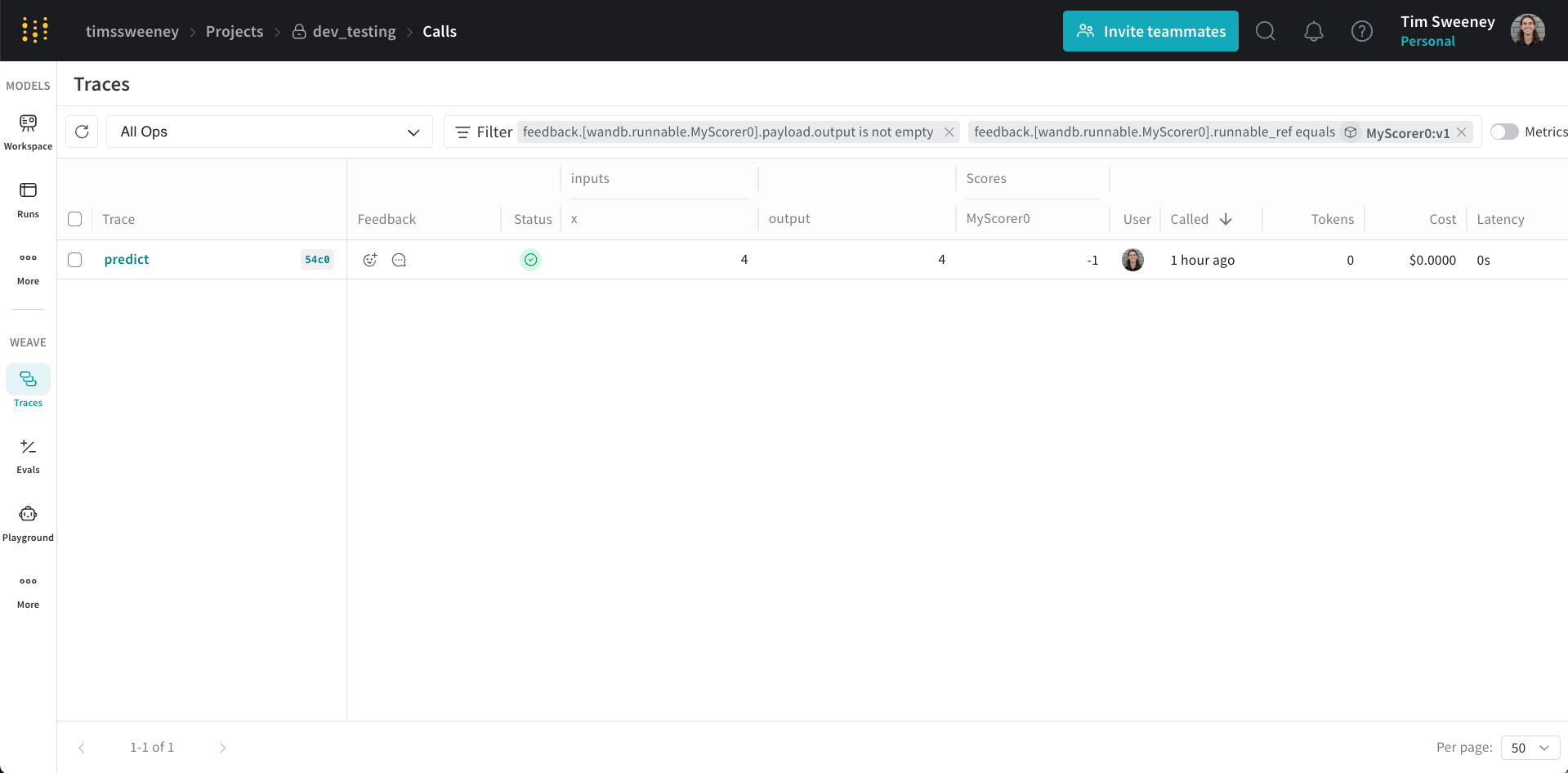 This will default to the selected version of the Scorer. You can remove the version filter to see all the calls scored by any version of the Scorer.