> ## Documentation Index
> Fetch the complete documentation index at: https://docs.wandb.ai/llms.txt
> Use this file to discover all available pages before exploring further.
# Compare traces and other logged information
> Visually compare and diff code, traces, prompts, models, and configurations
The W\&B Weave Comparison feature allows you to visually compare and diff code, traces, prompts, models, and model configurations. You can compare two objects side-by-side or analyze a larger set of objects to identify differences, patterns, and trends.
This guide covers the steps to start a comparison and the available actions to tailor your comparison view, including baseline comparisons, numeric diff formatting, and more.
## Access the Comparison view
1. In the sidebar, select the type of object to compare (for example, **Traces** or **Models**).
2. Select the objects that you want to compare. The selection method varies depending on the type of object you are comparing:
* For **Traces**, select traces to compare by checking the checkboxes for the appropriate rows in the Trace column.
* For objects such as **Models**, navigate to the model Versions page and check the checkboxes next to the versions that you want to compare.
3. Select **Compare** to open the Comparison view. At the top of the page, the comparison bar contains interactive call ID tokens (for example, `f02b`, `4a98`) that you can drag, reorder, or remove to change the comparison.
4. You can refine your view using the [available actions](#available-actions).
## Customize the Comparison view
In the Comparison view, you can adjust how objects are displayed and compared:
* [Display summary](#display-summary)
* [Display a Calls view](#display-a-calls-view)
* [Change the diff display](#change-the-diff-display)
* [Display side-by-side](#display-side-by-side)
* [Display in a unified view](#display-in-a-unified-view)
* [Set a baseline](#set-a-baseline)
* [Remove a baseline](#remove-a-baseline)
* [Change the comparison order](#change-the-comparison-order)
* [Change numeric diff display format](#change-numeric-diff-display-format)
* [Compare with baseline or previous](#compare-with-baseline-or-previous)
* [Compare a pair from a multi-object comparison](#compare-a-pair-from-a-multi-object-comparison)
* [Remove an object from comparison](#remove-an-object-from-comparison)
### Display summary
The default view for a selected object comparison is a summary. This summary includes a preview of the LLM input and output, as well as tokens, cost, and latency.
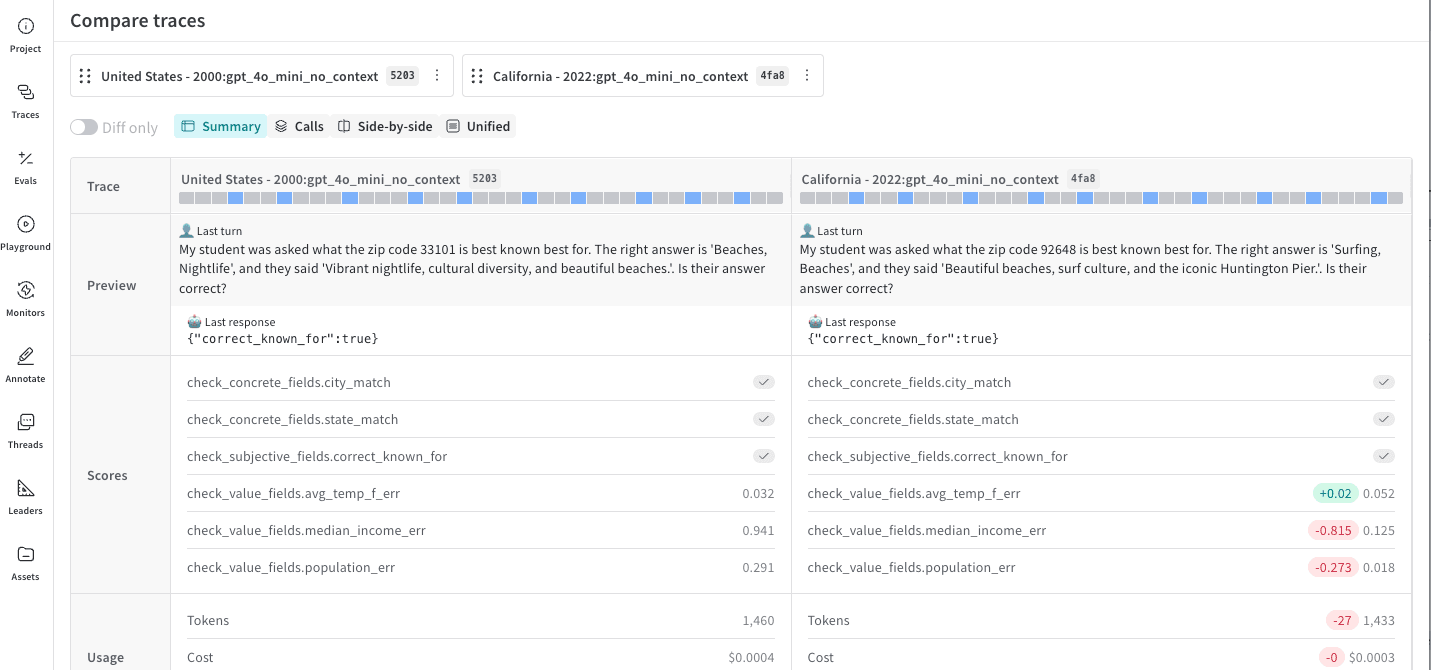 For traces, the colored bar displayed at the top of the comparison table reflects any custom kinds and colors that you've applied to your Ops. For more information on using this enhanced visibility, see [Apply kinds and colors](/weave/guides/tracking/ops#apply-kinds-and-colors).
### Display a Calls view
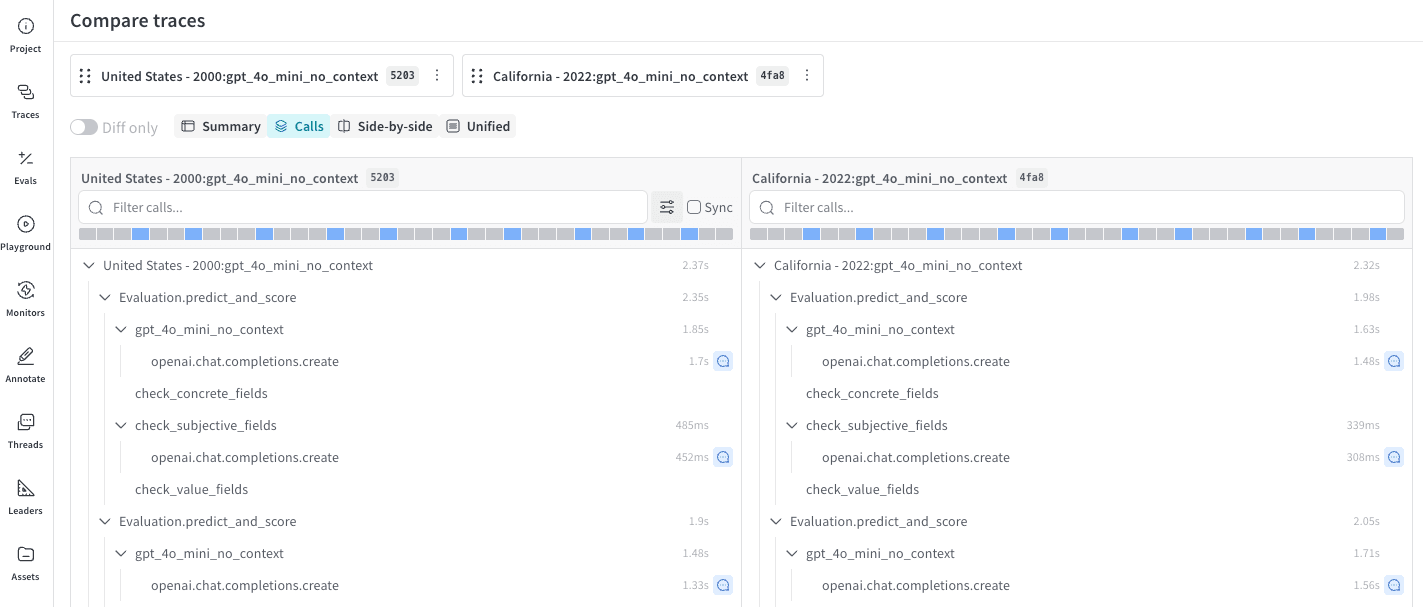
To compare each object's Calls, select **Calls**. This view:
* Displays the complete trace tree for the Call.
* Provides basic in-memory text search.
* Allows you to toggle the display of per-call latency, cost, tokens, Op kinds, and feedback.
For traces, the colored bar displayed at the top of the comparison table reflects any custom kinds and colors that you've applied to your Ops. For more information on using this enhanced visibility, see [Apply kinds and colors](/weave/guides/tracking/ops#apply-kinds-and-colors).
### Display a Calls view
To compare each object's Calls, select **Calls**. This view:
* Displays the complete trace tree for the Call.
* Provides basic in-memory text search.
* Allows you to toggle the display of per-call latency, cost, tokens, Op kinds, and feedback.
 ### Change the diff display
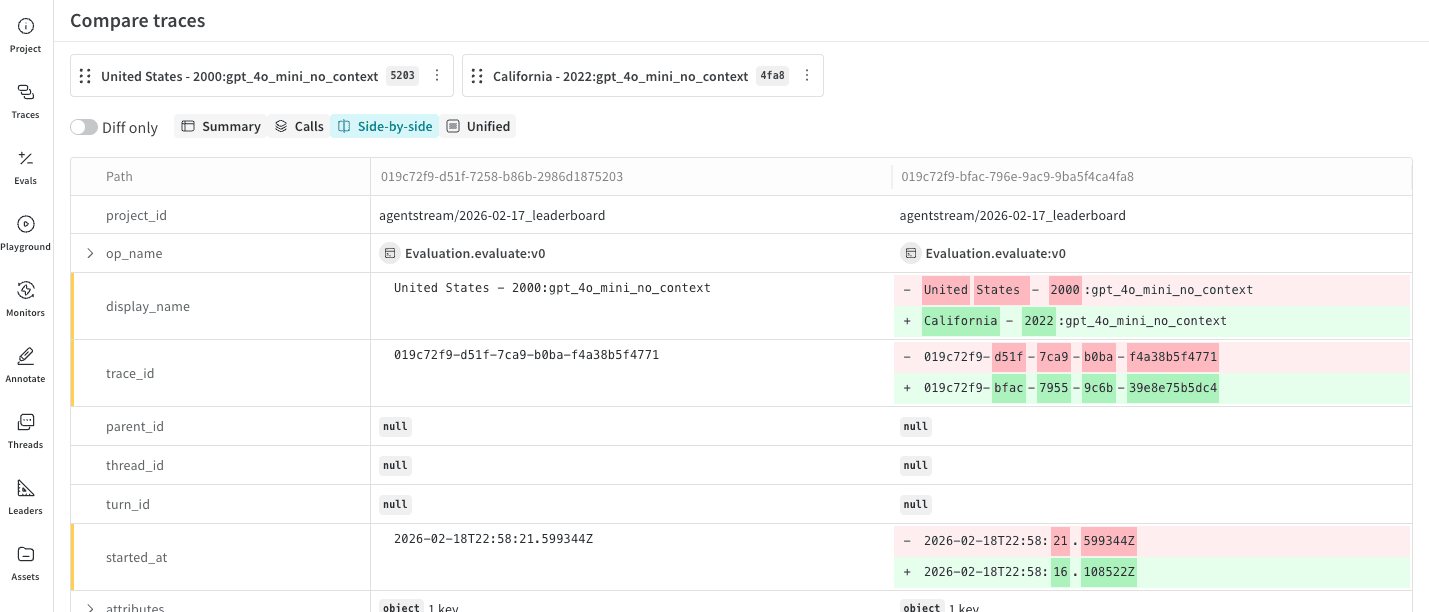
By default, **Diff only** is set to off. To filter the table rows so that only changed rows are displayed, toggle **Diff only** on.
**Diff only** applies to side-by-side and unified views and is disabled in other views.
### Display side-by-side
To compare each object side-by-side in separate columns, select **Side-by-side**.
### Change the diff display
By default, **Diff only** is set to off. To filter the table rows so that only changed rows are displayed, toggle **Diff only** on.
**Diff only** applies to side-by-side and unified views and is disabled in other views.
### Display side-by-side
To compare each object side-by-side in separate columns, select **Side-by-side**.
 ### Display in a unified view
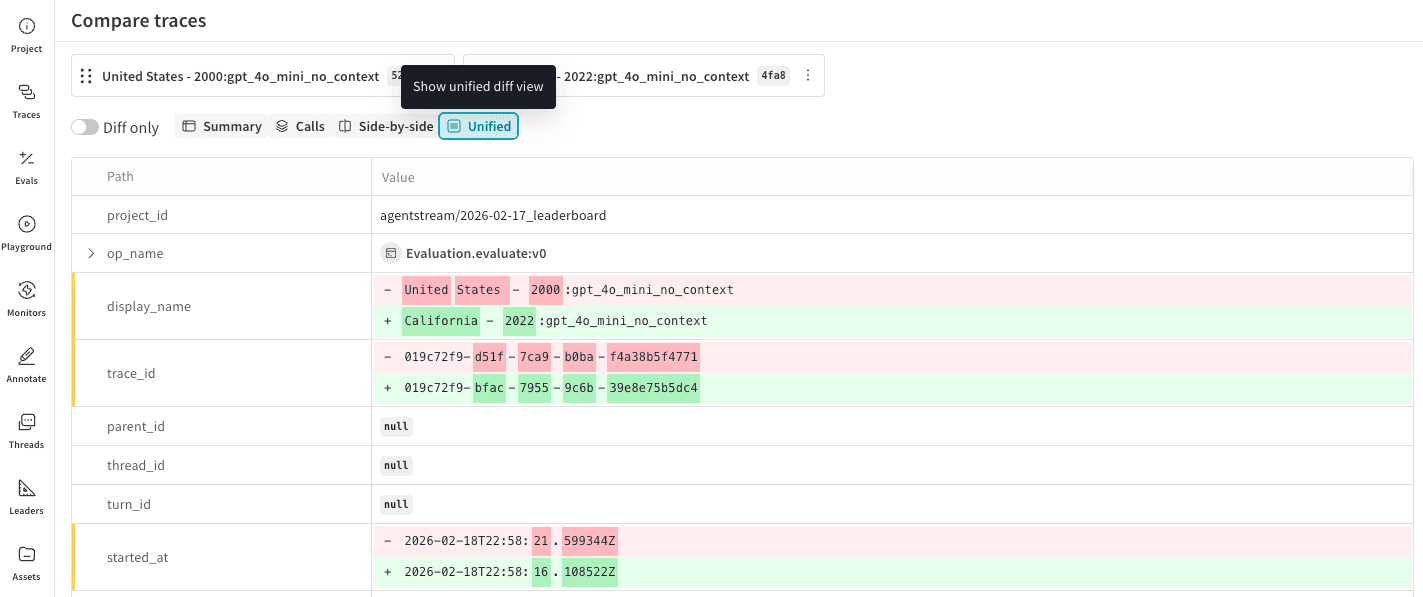
To compare two objects in a unified view, select **Unified**. This view is not available when comparing more than two objects.
### Display in a unified view
To compare two objects in a unified view, select **Unified**. This view is not available when comparing more than two objects.
 ### Set a baseline
By default, each object in the Comparison view is compared to the object to its left. However, you can set an object as the *baseline*, which means that all objects will be compared to the leftmost object in the view.
To set an object as the baseline:
1. In the comparison bar, hold the pointer over the object that you want to set as the baseline.
2. Click the **action ()** menu to the right of the ID.
### Set a baseline
By default, each object in the Comparison view is compared to the object to its left. However, you can set an object as the *baseline*, which means that all objects will be compared to the leftmost object in the view.
To set an object as the baseline:
1. In the comparison bar, hold the pointer over the object that you want to set as the baseline.
2. Click the **action ()** menu to the right of the ID.
 3. In the list, select **Make baseline**. The UI refreshes with the baseline object in the leftmost position in the comparison bar and `Baseline` next to the ID.
 ### Remove a baseline
To remove an object as a baseline:
1. In the comparison bar, hold the pointer over the baseline object.
2. Click the **action ()** menu to the right of the ID.
3. In the list, select **Remove baseline**. Now, `Baseline` no longer displays next to the call ID.
### Change the comparison order
Drag the objects in the comparison bar to reorder them. This also reorders the corresponding columns in the comparison table.
To change the comparison order:
1. In the comparison bar, hold the pointer over the ID that you want to reorder.
2. Click and hold the six dots to the left of the ID and drag it to the left or the right as needed.
3. Place the ID in the desired ordering. The comparison data refreshes with an updated comparison ordering.
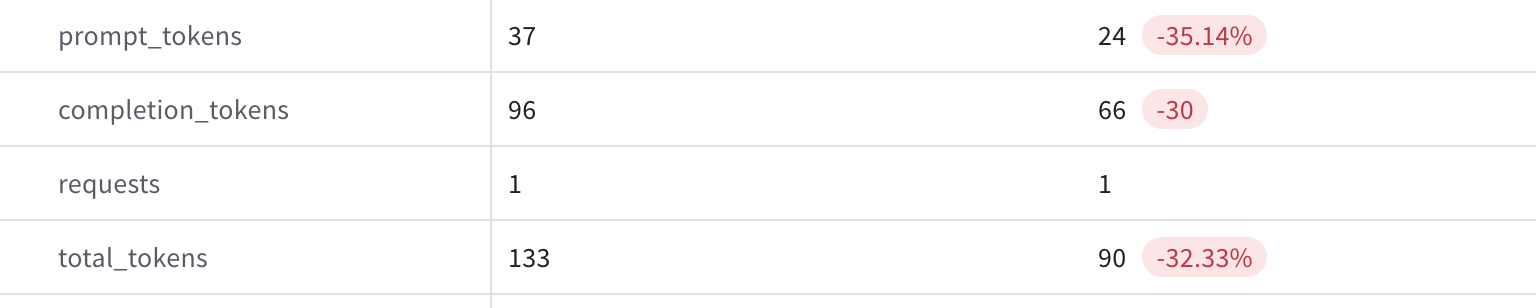
### Change numeric diff display format
For numeric values such as `completion_tokens` and `total_tokens`, you can view the diff as either an integer or a percentage. Additionally, positive numeric values can be viewed as a multiplier.
To change a numeric diff's display format:
1. In the Comparison table, find the numeric value that you want to update the diff display format for.
### Remove a baseline
To remove an object as a baseline:
1. In the comparison bar, hold the pointer over the baseline object.
2. Click the **action ()** menu to the right of the ID.
3. In the list, select **Remove baseline**. Now, `Baseline` no longer displays next to the call ID.
### Change the comparison order
Drag the objects in the comparison bar to reorder them. This also reorders the corresponding columns in the comparison table.
To change the comparison order:
1. In the comparison bar, hold the pointer over the ID that you want to reorder.
2. Click and hold the six dots to the left of the ID and drag it to the left or the right as needed.
3. Place the ID in the desired ordering. The comparison data refreshes with an updated comparison ordering.
### Change numeric diff display format
For numeric values such as `completion_tokens` and `total_tokens`, you can view the diff as either an integer or a percentage. Additionally, positive numeric values can be viewed as a multiplier.
To change a numeric diff's display format:
1. In the Comparison table, find the numeric value that you want to update the diff display format for.
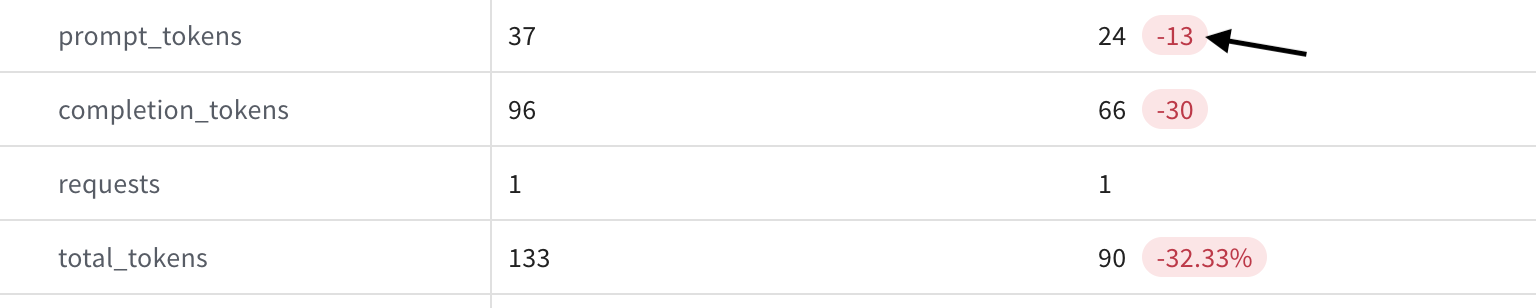 2. Click the diff value. The format automatically updates to either an integer or a percentage.
 ### Compare with baseline or previous
This option is only available when comparing 3 or more objects. You can also [set](#set-a-baseline) or [remove an existing baseline by clicking the 3 dots to the right of the ID](#remove-a-baseline).
To perform a baseline comparison with 3 or more objects:
1. In the right-hand corner of either the Side-by-side or Unified Comparison view, click the list. Depending on your current view configuration, the list is either titled **Compare with previous** or **Compare with baseline**.
2. Depending on your current view configuration, select either **Compare with previous** or **Compare with baseline**.
* **Compare with baseline**: Sets the leftmost object as the baseline. The table updates so that the leftmost column is the baseline.
* **Compare with previous**: No object is set as baseline.
### Compare a pair from a multi-object comparison
This option is only available when comparing 3 or more objects.
When comparing 3 or more objects, you can compare a single object to its adjacent object or a baseline. This changes the Comparison table view so that the view is identical to a two-object comparison.
To compare a pair of objects from a multi-object comparison:
1. In the comparison bar, select the ID you want to compare. If you have set a baseline, the view compares the selected object to the baseline. Otherwise, it compares the object to the ID immediately to its left in the comparison bar.
2. To select the item, click the ID. The UI refreshes with a two-way comparison table.
### Compare with baseline or previous
This option is only available when comparing 3 or more objects. You can also [set](#set-a-baseline) or [remove an existing baseline by clicking the 3 dots to the right of the ID](#remove-a-baseline).
To perform a baseline comparison with 3 or more objects:
1. In the right-hand corner of either the Side-by-side or Unified Comparison view, click the list. Depending on your current view configuration, the list is either titled **Compare with previous** or **Compare with baseline**.
2. Depending on your current view configuration, select either **Compare with previous** or **Compare with baseline**.
* **Compare with baseline**: Sets the leftmost object as the baseline. The table updates so that the leftmost column is the baseline.
* **Compare with previous**: No object is set as baseline.
### Compare a pair from a multi-object comparison
This option is only available when comparing 3 or more objects.
When comparing 3 or more objects, you can compare a single object to its adjacent object or a baseline. This changes the Comparison table view so that the view is identical to a two-object comparison.
To compare a pair of objects from a multi-object comparison:
1. In the comparison bar, select the ID you want to compare. If you have set a baseline, the view compares the selected object to the baseline. Otherwise, it compares the object to the ID immediately to its left in the comparison bar.
2. To select the item, click the ID. The UI refreshes with a two-way comparison table.
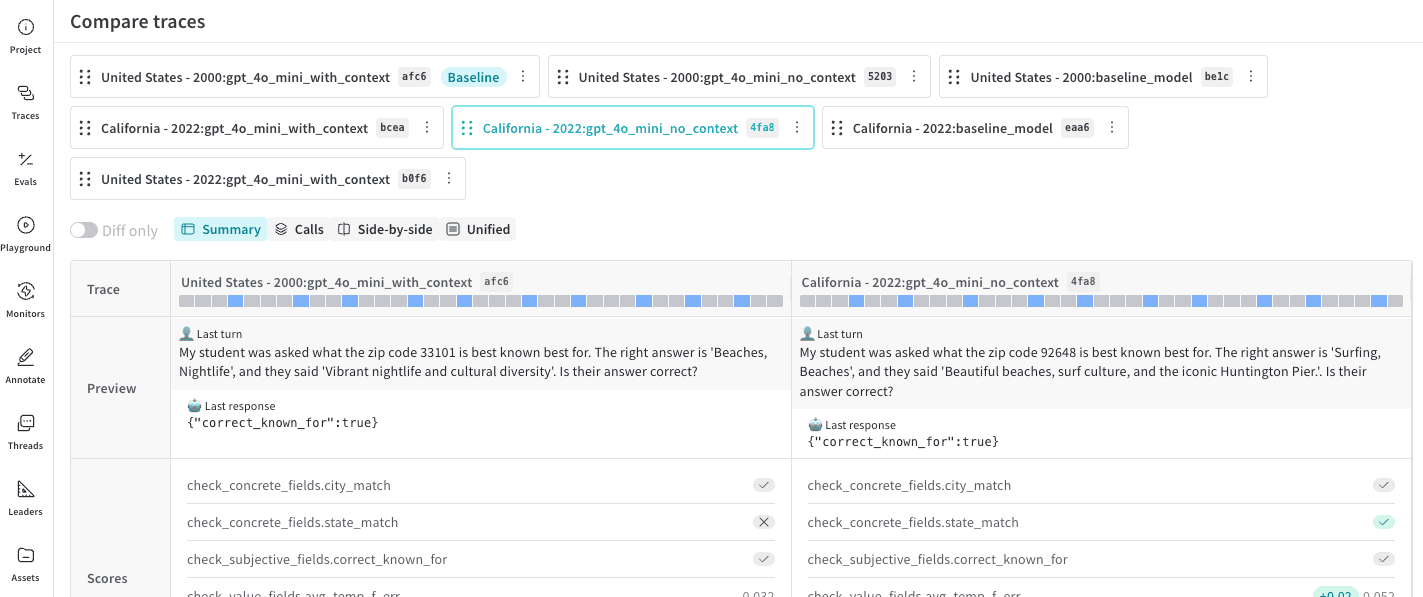 To reset the view so that the first 6 objects selected for comparison are displayed in the table, click the ID again.
### Remove an object from comparison
This option is only available when comparing 3 or more objects.
To remove an object from comparison:
1. In the comparison bar, find the object that you want to remove from comparison.
2. Click the **action ()** menu to the right of the ID.
3. In the list, select **Remove object from comparison**. The UI refreshes with an updated table that no longer includes the removed object.
## Usage notes
* The Comparison feature is only available in the UI.
* You can compare as many objects as you'd like. However, the UI only displays a maximum of 6. To view an object in the comparison table that is not visible when comparing more than 6 objects, either [change the comparison order](#change-the-comparison-order) so that the object is one of the first 6 objects from left to right, or [pair from a multi-object comparison](#compare-a-pair-from-a-multi-object-comparison) for easy viewing.
To reset the view so that the first 6 objects selected for comparison are displayed in the table, click the ID again.
### Remove an object from comparison
This option is only available when comparing 3 or more objects.
To remove an object from comparison:
1. In the comparison bar, find the object that you want to remove from comparison.
2. Click the **action ()** menu to the right of the ID.
3. In the list, select **Remove object from comparison**. The UI refreshes with an updated table that no longer includes the removed object.
## Usage notes
* The Comparison feature is only available in the UI.
* You can compare as many objects as you'd like. However, the UI only displays a maximum of 6. To view an object in the comparison table that is not visible when comparing more than 6 objects, either [change the comparison order](#change-the-comparison-order) so that the object is one of the first 6 objects from left to right, or [pair from a multi-object comparison](#compare-a-pair-from-a-multi-object-comparison) for easy viewing.