> ## Documentation Index
> Fetch the complete documentation index at: https://docs.wandb.ai/llms.txt
> Use this file to discover all available pages before exploring further.
# Reference media in your own bucket (BYOB) using Weave Op
> Render images and video that live in your own cloud bucket in Weave traces by logging their URIs, without importing the bytes into Weave.
Use this technique when the media you want to see in Weave already lives in your own bucket:
* Frames from a video pipeline.
* Screenshots from a browser agent.
* Images a model wrote to S3.
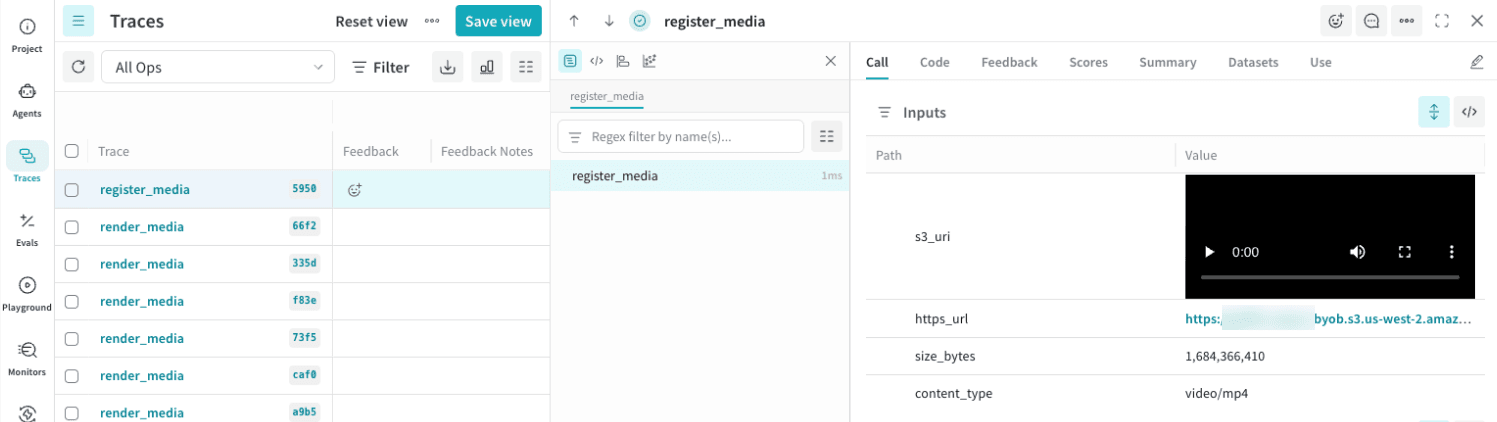
Instead of re-uploading those bytes into Weave, you log the object's URI as a string and Weave renders the image or video inline from your bucket. Only the URI is sent to Weave; the bytes stay in your bucket. Logging a 2 GB video costs the same as logging its path.
This is different from logging media with the [Content API](/weave/guides/core-types/media#contents-api), which reads the bytes and stores them in Weave.
This is a Weave feature and is separate from [platform BYOB (secure storage connector)](/platform/hosting/data-security/secure-storage-connector), which backs W\&B artifact and run storage. Reference media buckets are configured per team and only need read access.
## How it works
Reference media rendering works in three steps:
1. You store a media object in your bucket, for example `s3://[YOUR-BUCKET]/frames/000123.png`.
2. You log that URI as a string value anywhere in a trace: an Op input or output, or an agent tool result. The field name does not matter.
3. When you open the trace, Weave resolves the URI to a short-lived [presigned URL](/platform/hosting/data-security/presigned-urls) and renders it inline. The file extension decides how it renders. Common image formats (such as `.png`, `.jpg`, `.gif`) and video formats (such as `.mp4`, `.mov`, `.webm`) render inline. Other formats render as a download link.
Weave only resolves URIs that point at a bucket registered for your team. Supported schemes are `s3://` and `gs://`.
## Prerequisites
* This feature is supported only in [W\&B Multi-tenant Cloud](/platform/hosting/hosting-options/multi_tenant_cloud).
* A W\&B account and [API key](https://wandb.ai/authorize).
* A cloud storage bucket you control (S3 or GCS), containing at least one object.
* Organization admin permissions. Adding a reference bucket requires the same permission as creating a team in the organization.
## Configure your bucket
Grant W\&B read access to the bucket and allow the browser to fetch objects with CORS.
When you view a trace, W\&B presigns a short-lived download URL for each referenced object. Grant the W\&B integration principal read access on the bucket so presigning can succeed. This is read-only access for inline rendering.
1. Apply a bucket policy that grants the W\&B integration principal `s3:GetObject`. Save the following as `bucket-policy.json`, replacing `[YOUR-BUCKET]` with your bucket name:
```json lines theme={null}
{
"Version": "2012-10-17",
"Id": "WandBAccess",
"Statement": [{
"Sid": "WandbAccess",
"Effect": "Allow",
"Principal": {"AWS": "arn:aws:iam::725579432336:role/WandbIntegration"},
"Action": "s3:GetObject",
"Resource": "arn:aws:s3:::[YOUR-BUCKET]/*"
}]
}
```
Then apply it to your bucket:
```bash theme={null}
aws s3api put-bucket-policy --bucket [YOUR-BUCKET] --policy file://bucket-policy.json
```
2. Apply a CORS configuration so the app can fetch objects in the browser. Save the following as `cors.json`:
```json lines theme={null}
{
"CORSRules": [{
"AllowedHeaders": ["*"],
"AllowedMethods": ["GET", "HEAD"],
"AllowedOrigins": ["https://wandb.ai"],
"ExposeHeaders": ["ETag"],
"MaxAgeSeconds": 3000
}]
}
```
Then apply it to your bucket:
```bash theme={null}
aws s3api put-bucket-cors --bucket [YOUR-BUCKET] --cors-configuration file://cors.json
```
If an object is encrypted with a customer-managed KMS key, its key policy must also grant `arn:aws:iam::725579432336:role/WandbIntegration` `kms:Decrypt`. The bucket policy alone is not sufficient.
1. Grant the W\&B integration service account `roles/storage.objectViewer` on the bucket. Replace `[YOUR-BUCKET]` with your bucket name:
```bash theme={null}
gcloud storage buckets add-iam-policy-binding gs://[YOUR-BUCKET] \
--member="serviceAccount:wandb-integration@wandb-production.iam.gserviceaccount.com" \
--role="roles/storage.objectViewer"
```
2. Apply a CORS configuration so the app can fetch objects in the browser. Save the following as `cors.json`:
```json lines theme={null}
[{
"origin": ["https://wandb.ai"],
"method": ["GET", "HEAD"],
"responseHeader": ["ETag"],
"maxAgeSeconds": 3000
}]
```
Then apply it to your bucket:
```bash theme={null}
gcloud storage buckets update gs://[YOUR-BUCKET] --cors-file=cors.json
```
At this point, W\&B can read objects from your bucket, and the Weave UI can fetch them in the browser.
## Register the reference bucket
Register the bucket in your team settings so Weave can presign and display referenced URIs.
1. Go to your team settings page (`https://wandb.ai/[YOUR-TEAM]/settings`).
2. In the **Reference buckets** section, select **Add bucket**.
3. Select your cloud provider (**AWS** or **Google Cloud**).
4. For the bucket name, enter `[YOUR-BUCKET]` only — without the `s3://` or `gs://` prefix.
5. For the object key, enter the key of an existing object in the bucket, for example `photos/cat.png` (the object key only, not a full URL). W\&B reads this one object to confirm it has read access and that CORS is configured correctly. This checks access only; once verified, presigning works for any object in the bucket.
6. Optionally, select **Test connection** to validate the configuration without saving.
7. Select **Add bucket** to save.
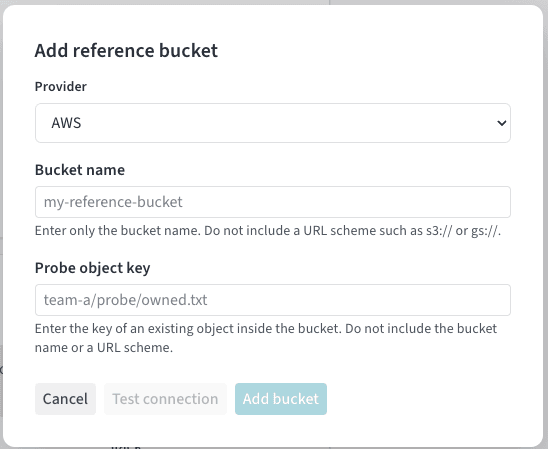 Until the bucket is registered, referenced URIs do not render. Registration is what lets Weave presign and display the object.
## Log a media reference using Weave Op function tracing
Log the URI as a string value in a trace. Any string field whose value is a bucket URI renders. No content annotation is needed because the bytes stay in your bucket. The following example Op captions images that already live in your bucket and logs each URI alongside its caption. Replace `[YOUR-TEAM]`, `[YOUR-PROJECT]`, and `[YOUR-BUCKET]` with your own values.
If you're adding reference media to an agentic application, see [Reference media in agent spans](/weave/guides/tracking/agents-byob-references) instead.
```python lines theme={null}
import weave
weave.init("[YOUR-TEAM]/[YOUR-PROJECT]")
@weave.op
def caption_image(image_uri: str) -> dict:
caption = my_captioner(image_uri) # Your model or API call.
# image_uri renders inline from its value; the field name is arbitrary
# and the extension (.png here) decides image vs video.
return {"image": image_uri, "caption": caption}
caption_image("s3://[YOUR-BUCKET]/photos/cat.png")
```
```typescript lines theme={null}
import * as weave from 'weave';
await weave.init('[YOUR-TEAM]/[YOUR-PROJECT]');
const captionImage = weave.op(async function captionImage(imageUri: string) {
const caption = await myCaptioner(imageUri); // Your model or API call.
// imageUri renders inline from its value; the field name is arbitrary.
return {image: imageUri, caption};
});
await captionImage('s3://[YOUR-BUCKET]/photos/cat.png');
```
## View the reference in Weave Traces
Open the trace from the link that `weave.init()` prints. The referenced image or video renders inline in the **Traces** view. If Weave can't resolve a URI, for example because the object is missing or the bucket isn't registered, it shows the plain URI string.
Until the bucket is registered, referenced URIs do not render. Registration is what lets Weave presign and display the object.
## Log a media reference using Weave Op function tracing
Log the URI as a string value in a trace. Any string field whose value is a bucket URI renders. No content annotation is needed because the bytes stay in your bucket. The following example Op captions images that already live in your bucket and logs each URI alongside its caption. Replace `[YOUR-TEAM]`, `[YOUR-PROJECT]`, and `[YOUR-BUCKET]` with your own values.
If you're adding reference media to an agentic application, see [Reference media in agent spans](/weave/guides/tracking/agents-byob-references) instead.
```python lines theme={null}
import weave
weave.init("[YOUR-TEAM]/[YOUR-PROJECT]")
@weave.op
def caption_image(image_uri: str) -> dict:
caption = my_captioner(image_uri) # Your model or API call.
# image_uri renders inline from its value; the field name is arbitrary
# and the extension (.png here) decides image vs video.
return {"image": image_uri, "caption": caption}
caption_image("s3://[YOUR-BUCKET]/photos/cat.png")
```
```typescript lines theme={null}
import * as weave from 'weave';
await weave.init('[YOUR-TEAM]/[YOUR-PROJECT]');
const captionImage = weave.op(async function captionImage(imageUri: string) {
const caption = await myCaptioner(imageUri); // Your model or API call.
// imageUri renders inline from its value; the field name is arbitrary.
return {image: imageUri, caption};
});
await captionImage('s3://[YOUR-BUCKET]/photos/cat.png');
```
## View the reference in Weave Traces
Open the trace from the link that `weave.init()` prints. The referenced image or video renders inline in the **Traces** view. If Weave can't resolve a URI, for example because the object is missing or the bucket isn't registered, it shows the plain URI string.