> ## Documentation Index
> Fetch the complete documentation index at: https://docs.wandb.ai/llms.txt
> Use this file to discover all available pages before exploring further.
# Collect feedback and use annotations
> Collect and analyze feedback for LLM applications through UI and SDK
Efficiently evaluating LLM applications requires robust tooling to collect and analyze feedback. W\&B Weave provides an integrated feedback system, allowing users to provide Call feedback directly through the UI or programmatically through the SDK. Various feedback types are supported, including emoji reactions, textual comments, and structured data, enabling teams to:
* Build evaluation datasets for performance monitoring.
* Identify and resolve LLM content issues effectively.
* Gather examples for advanced tasks like fine-tuning.
This guide covers how to use Weave’s feedback functionality in both the UI and SDK, query and manage feedback, and use human annotations for detailed evaluations.
* [Provide feedback in the UI](#provide-feedback-in-the-ui)
* [Provide feedback through the SDK](#provide-feedback-through-the-sdk)
* [Add human annotations](#add-human-annotations)
## Provide feedback in the UI
In the Weave UI, you can add and view feedback [from the Call details panel](#from-the-call-details-panel) or [using the icons](#use-the-icons).
### From the Call details panel
1. In the Weave project sidebar, navigate to **Traces**.
2. Find the row for the Call that you want to add feedback to.
3. Click the linked Trace name to open the trace tree and Call details panel.
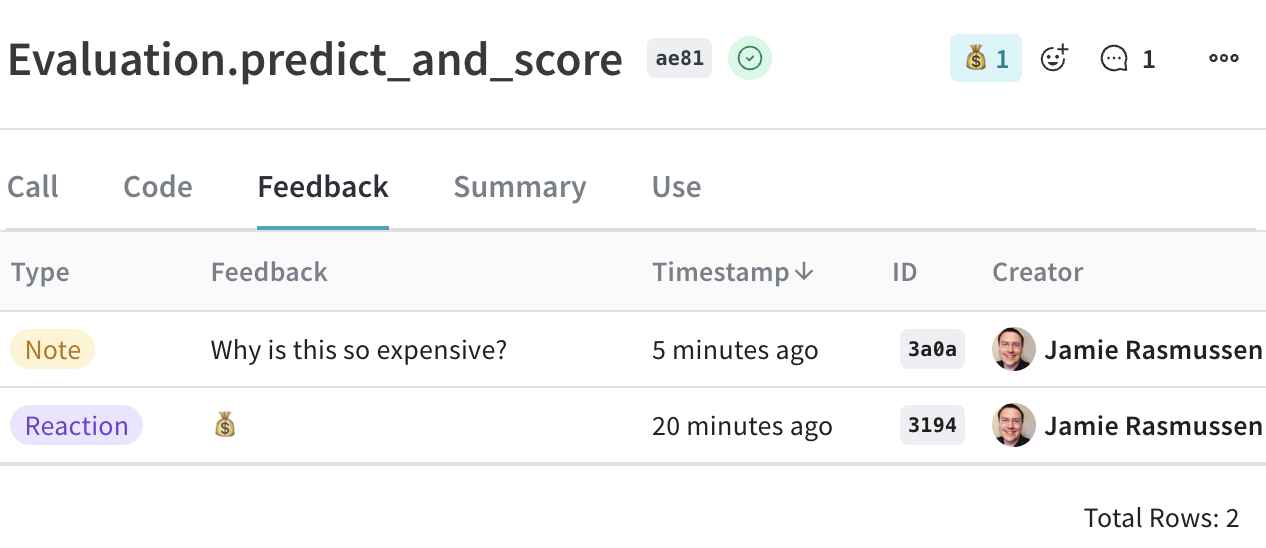
4. In the Call details tab bar, select **Feedback**.
5. Add, view, or delete feedback:
* *Add and view feedback using the icons* located in the upper right corner of the Call details feedback view.
* *View and delete feedback from the Call details feedback table.* Delete feedback by clicking the trashcan icon in the rightmost column of the appropriate feedback row.
### Use the feedback icons
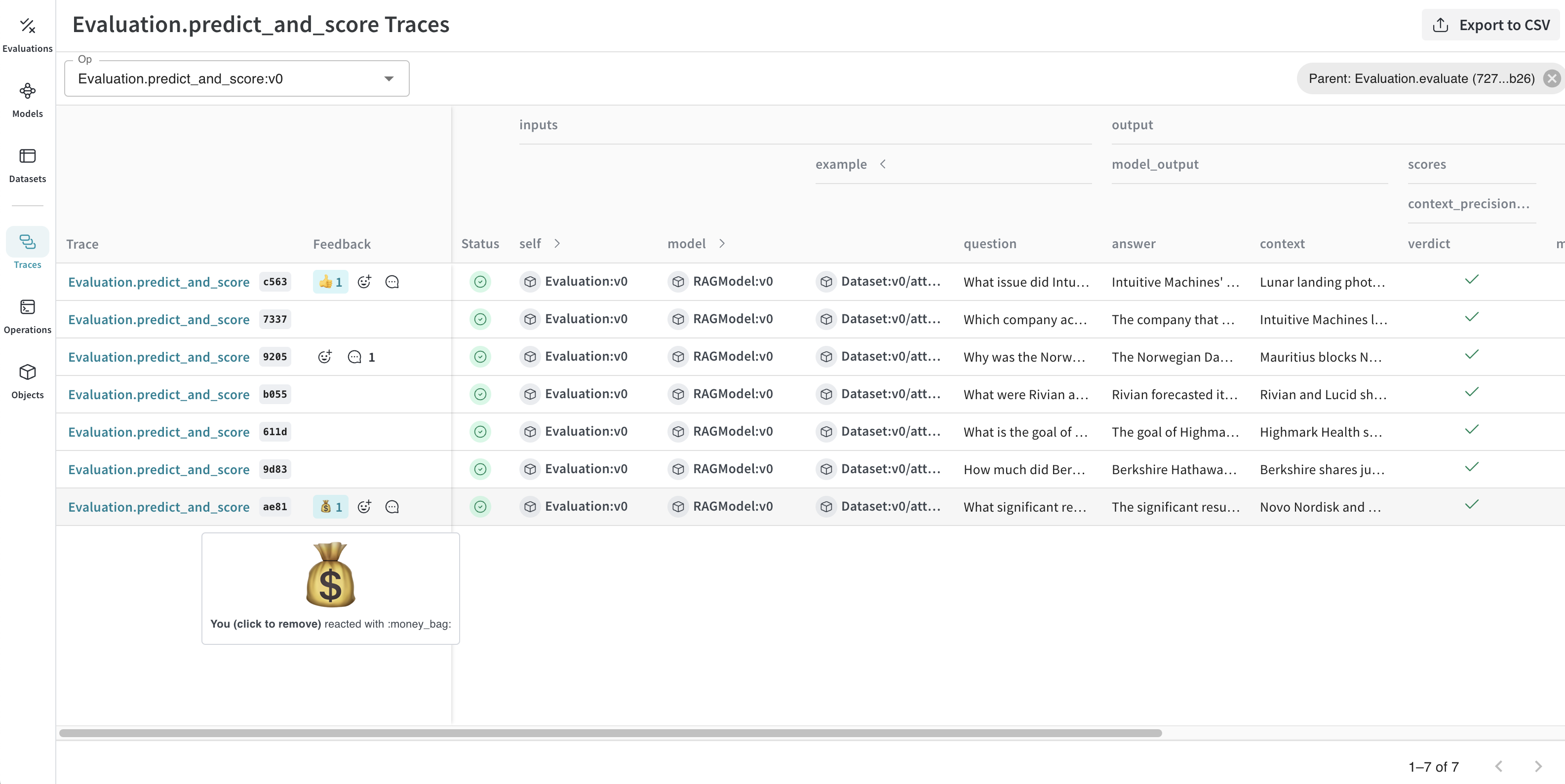
You can add or remove a reaction, and add a note using the icons that are located in both the Traces table and individual Call details panel.
* *Traces table*: Located in **Feedback** column in the appropriate row in the **Traces** table.
* *Call details panel*: Located in the upper right corner of each Call details panel.
To add a reaction:
1. Click the emoji icon.
2. Add a thumbs up, thumbs down, or click the **+** icon for more emojis.
To remove a reaction:
1. Hover over the emoji reaction you want to remove.
2. Click the reaction to remove it.
> You can also delete feedback from the [**Feedback** column on the Call details panel](#from-the-call-details-panel).
To add a comment:
1. Click the comment bubble icon.
2. In the text box, add your note. The maximum number of characters in a feedback note is 1024.
3. To save the note, press the **Enter** key. You can add additional notes.
The maximum number of characters in a feedback note is 1024. If a note exceeds this limit, it will not be created.
## Provide feedback through the SDK
You can find SDK usage examples for feedback in the UI under the **Use** tab in the Call details panel.
You can use the Weave Python SDK to programmatically [add](/weave/reference/python-sdk/trace/feedback#method-add), [remove](/weave/reference/python-sdk/trace/feedback#method-purge), and [query feedback](/weave/reference/python-sdk/trace/weave_client#method-get_feedback) on calls. The TypeScript SDK does not currently support feedback functionality.
### Query a project's feedback
You can query the feedback for your Weave project using the SDK. The SDK supports the following feedback query operations:
* `client.get_feedback()`: Returns all feedback in a project.
* `client.get_feedback("")`: Returns a specific feedback object specified by `` as a collection.
* `client.get_feedback(reaction="")`: Returns all feedback objects for a specific reaction type.
You can also get additional information for each feedback object in `client.get_feedback()`:
* `id`: The feedback object ID.
* `created_at`: The creation time information for the feedback object.
* `feedback_type`: The type of feedback (reaction, note, custom).
* `payload`: The feedback payload.
```python lines theme={null}
import weave
client = weave.init('intro-example')
# Get all feedback in a project
all_feedback = client.get_feedback()
# Fetch a specific feedback object by id.
# The API returns a collection, which is expected to contain at most one item.
one_feedback = client.get_feedback("")[0]
# Find all feedback objects with a specific reaction. You can specify offset and limit.
thumbs_up = client.get_feedback(reaction="👍", limit=10)
# After retrieval, view the details of individual feedback objects.
for f in client.get_feedback():
print(f.id)
print(f.created_at)
print(f.feedback_type)
print(f.payload)
```
```plaintext theme={null}
This feature is not available in TypeScript yet.
```
### Add feedback to a Call
You can add feedback to a Call using the Call's UUID. To use the UUID to get a particular Call, [retrieve it during or after Call execution](#retrieve-the-call-uuid). The SDK supports the following operations for adding feedback to a Call:
* `call.feedback.add_reaction("")`: Add one of the supported `` (emojis), such as 👍.
* `call.feedback.add_note("")`: Add a note.
* `call.feedback.add("
 ### Use the feedback icons
You can add or remove a reaction, and add a note using the icons that are located in both the Traces table and individual Call details panel.
* *Traces table*: Located in **Feedback** column in the appropriate row in the **Traces** table.
* *Call details panel*: Located in the upper right corner of each Call details panel.
To add a reaction:
1. Click the emoji icon.
2. Add a thumbs up, thumbs down, or click the **+** icon for more emojis.
To remove a reaction:
1. Hover over the emoji reaction you want to remove.
2. Click the reaction to remove it.
> You can also delete feedback from the [**Feedback** column on the Call details panel](#from-the-call-details-panel).
To add a comment:
1. Click the comment bubble icon.
2. In the text box, add your note. The maximum number of characters in a feedback note is 1024.
3. To save the note, press the **Enter** key. You can add additional notes.
### Use the feedback icons
You can add or remove a reaction, and add a note using the icons that are located in both the Traces table and individual Call details panel.
* *Traces table*: Located in **Feedback** column in the appropriate row in the **Traces** table.
* *Call details panel*: Located in the upper right corner of each Call details panel.
To add a reaction:
1. Click the emoji icon.
2. Add a thumbs up, thumbs down, or click the **+** icon for more emojis.
To remove a reaction:
1. Hover over the emoji reaction you want to remove.
2. Click the reaction to remove it.
> You can also delete feedback from the [**Feedback** column on the Call details panel](#from-the-call-details-panel).
To add a comment:
1. Click the comment bubble icon.
2. In the text box, add your note. The maximum number of characters in a feedback note is 1024.
3. To save the note, press the **Enter** key. You can add additional notes.
 ## Provide feedback through the SDK
You can find SDK usage examples for feedback in the UI under the **Use** tab in the Call details panel.
You can use the Weave Python SDK to programmatically [add](/weave/reference/python-sdk/trace/feedback#method-add), [remove](/weave/reference/python-sdk/trace/feedback#method-purge), and [query feedback](/weave/reference/python-sdk/trace/weave_client#method-get_feedback) on calls. The TypeScript SDK does not currently support feedback functionality.
### Query a project's feedback
You can query the feedback for your Weave project using the SDK. The SDK supports the following feedback query operations:
* `client.get_feedback()`: Returns all feedback in a project.
* `client.get_feedback("
## Provide feedback through the SDK
You can find SDK usage examples for feedback in the UI under the **Use** tab in the Call details panel.
You can use the Weave Python SDK to programmatically [add](/weave/reference/python-sdk/trace/feedback#method-add), [remove](/weave/reference/python-sdk/trace/feedback#method-purge), and [query feedback](/weave/reference/python-sdk/trace/weave_client#method-get_feedback) on calls. The TypeScript SDK does not currently support feedback functionality.
### Query a project's feedback
You can query the feedback for your Weave project using the SDK. The SDK supports the following feedback query operations:
* `client.get_feedback()`: Returns all feedback in a project.
* `client.get_feedback("