Documentation Index

Fetch the complete documentation index at: https://docs.wandb.ai/llms.txt

Use this file to discover all available pages before exploring further.

In your W&B Settings page, the Emails dashboard lets you add, delete, and manage email types and primary email addresses. To open the Emails dashboard, follow these steps:
  1. In the W&B dashboard, select your profile icon in the upper-right corner.
  2. From the dropdown, select Settings.
  3. Scroll down to the Emails dashboard.
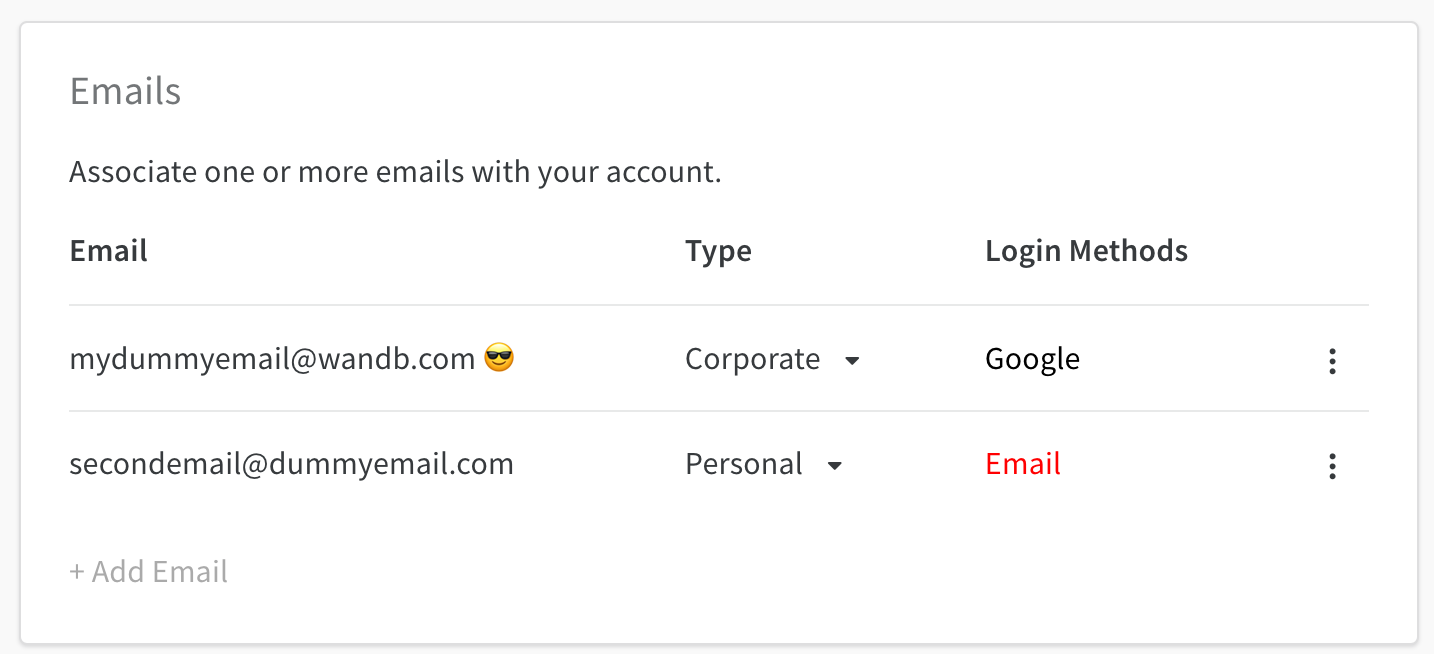
Email management dashboard

Manage primary email

A smiling-face-with-sunglasses icon marks your primary email. Your primary email defaults to the address you provided when you created your W&B account. To change the primary email associated with your W&B account, select the action () menu.
You can only set verified emails as primary.
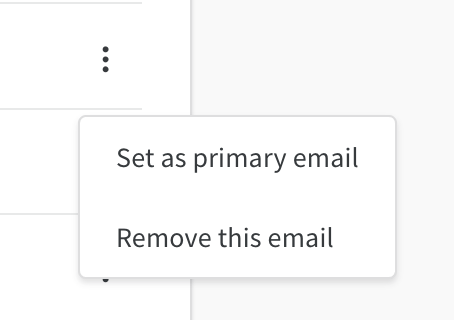
Primary email dropdown

Add emails

To add an email, select + Add Email. The Auth0 page opens, where you can enter credentials for the new email or connect using single sign-on (SSO).

Delete emails

To delete an email registered to your W&B account, select the action () menu and choose Delete Emails.
You can’t delete a primary email. Set a different email as primary before deleting.

Login methods

The Log in Methods column shows the login methods associated with your account. When you create a W&B account, W&B sends a verification email to your address. Your email account stays unverified until you verify the address, and unverified emails appear in red. If you no longer have the original verification email, attempt to log in with your email address again to receive a second one. For account login issues, contact support@wandb.com.