

Get started
Follow these steps to open the trace plots side pane for your project:- Navigate to your project’s Traces page.
- Optional: Select Filter to filter selected traces (for example, by datetime or operation).
-
In the upper right corner of the Traces view, click the Show Metrics icon to open the trace plots side pane.
- View the default trace plots.
- Create a custom trace plot.
- Charts update dynamically based on your trace filters and selections.
Default trace plots
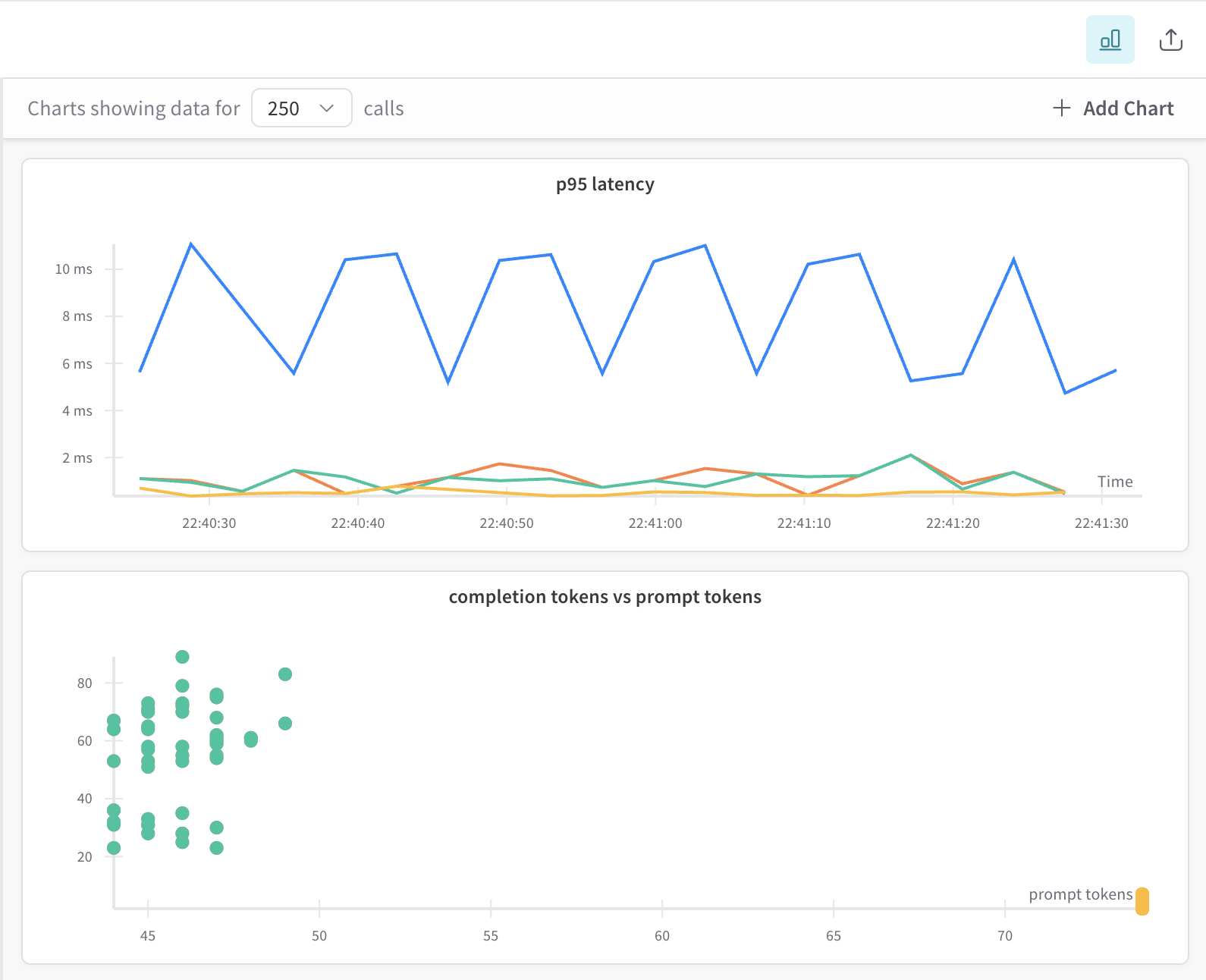
When you first open the trace plots panel, Weave automatically generates trace plots based on your available project trace data:- Bar chart (cost or latency grouped over time bins).
- Line chart (latency over time).
- Scatter plot (for example, prompt tokens versus completion tokens).
- Hover for tooltips.
- Drag to zoom.
- Double-click to reset.
- Click points in scatter plots to open a specific trace.
Create a custom trace plot
If the default trace plots don’t show the metrics or relationships you need, you can build your own. To create a custom trace plot, do the following:-
From the trace plots side pane, click ➕ Add Chart.
-
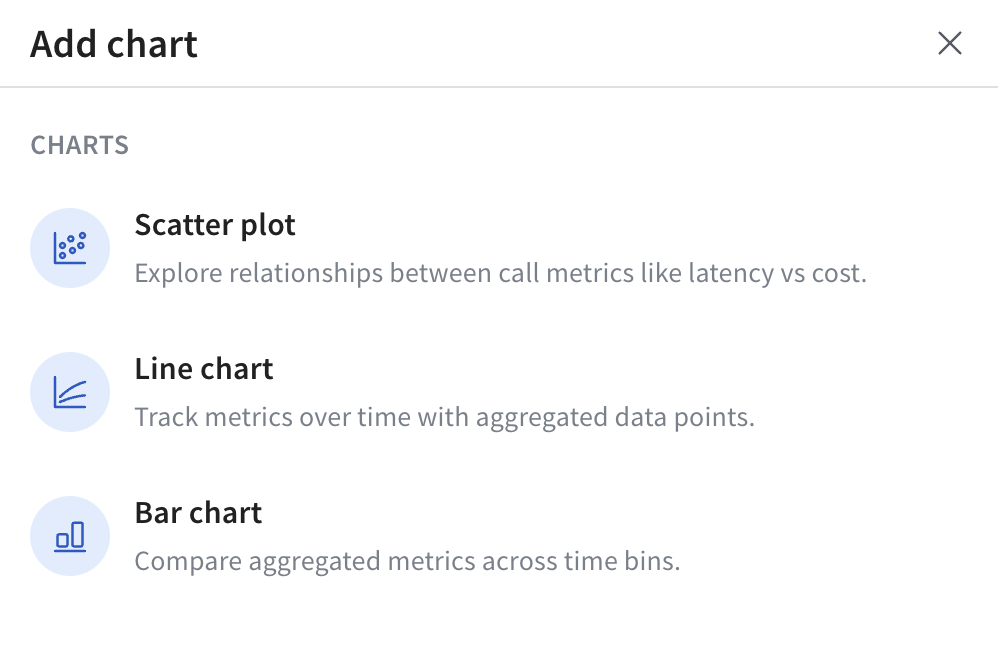
In the pop-up, select one of the available trace plot types:
- Configure your trace plot for the selected type. For information on configuration options by trace plot type, see Trace plot settings by plot type.
- Click Save chart to save your chart.