Weave projects keep related assets organized, including traces, evaluations, models, datasets, and other Weave assets. Projects keep your team organized, streamline collaboration and sharing, and help you track the evolution of your LLM applications over time.

Project Resources

Projects store the following resources:
ResourceDescription
TracesIndividual LLM calls, function executions, and application flows that capture inputs, outputs, latency, and token usage for debugging and analysis. See Traces.
EvaluationsTest results that compare model performance against datasets using scoring functions to measure quality, accuracy, and other metrics. See Evaluations.
MonitorsBackground processes that automatically score a subset of function calls using LLM-as-a-judge scorers to track quality metrics over time in production. See Monitors.
LeaderboardsRanked comparisons of model performance across different evaluation runs, helping you identify the best-performing configurations. See Leaderboards.
ThreadsMulti-turn conversations and session-based workflows that group related calls under a shared thread ID for analyzing complete user interactions. See Threads.
AssetsThe Assets tab stores and organizes versioned objects in your project:
  • Models: Versioned model definitions that capture prompts, parameters, and configuration, automatically tracking changes for reproducibility and comparison. See Models.
  • Datasets: Collections of test examples stored as Weave objects that can be downloaded, browsed, and used for running evaluations. See Datasets.
  • Prompts: Versioned system prompts that you can test and reuse in your model configurations. See Prompts.
  • Scorers: Functions that evaluate model inputs and outputs to measure quality, safety, or custom metrics. See Scorers.
  • Ops: Automatically versioned and tracked functions decorated with @weave.op() that produce calls and maintain a record of function modifications. See Ops.
  • Other objects and metadata: Additional Weave objects, custom types, and associated metadata stored within the project.

Project paths

Teams (also called an entities) own and manage projects in your W&B organization. Your team name and project name make up the path to your project in the W&B UI. You use also use this path in your code to associate your Weave resources with the project. For example, if your team’s name is my-team and your project’s name is my-project, the path to your project is:
my-team/my-project
Use this path when you initialize Weave in your code to associate your app’s data with the project:
weave.init('my-team/my-project')

Create and find projects

You can create a Weave project using the W&B UI or by setting a new project path in your code.
To create a new project using the W&B UI:
  1. Navigate to wandb.ai.
  2. Select New project. This opens the Create a new project modal dialog.
  3. In the modal, configure the following fields:
    • Team: The existing team to associate the project with.
    • Name: A name for your project.
    • Project visibility: The scope of who can view and edit the project.
    • Description: (Optional) A short description of the project to help you track and organize its purpose.
  4. After configuring the necessary fields, select Create project. The project creates the project.
To locate your newly created project, select the Weights & Biases logo in the upper-left corner to open the Global navigation menu. The menu lists your most recent projects and the teams you belong to, allowing you to quickly switch context. Select your project to open the project’s workspace.Alternatively, open your Profile from the menu under your name in the upper-right corner. The Projects tab lists all of your projects.When you open the new project’s workspace, the UI offers quickstarts for both W&B Models and W&B Weave. The project’s toolbar also contains tools for each product. After you associate Weave data with your project through your code, the sidenav shows only Weave tools and the Weave dashboard becomes available.

View projects in the UI

To access a project in the Weave UI:
  1. Navigate to wandb.ai.
  2. Click the Weights & Biases logo in the upper-left corner to open the Global navigation menu, then select your project from the Projects sidebar. This opens the project’s overview page, or Traces page if you have already logged traces to the project.
  3. From the overview page, you can:
    • Review your project’s statistics, such as the number of traces logged to the project and how much storage the project is using.
    • Navigate to traces, evaluations, and other resources using the sidebar.
    • Navigate to recently logged traces, evaluations, models, and datasets.
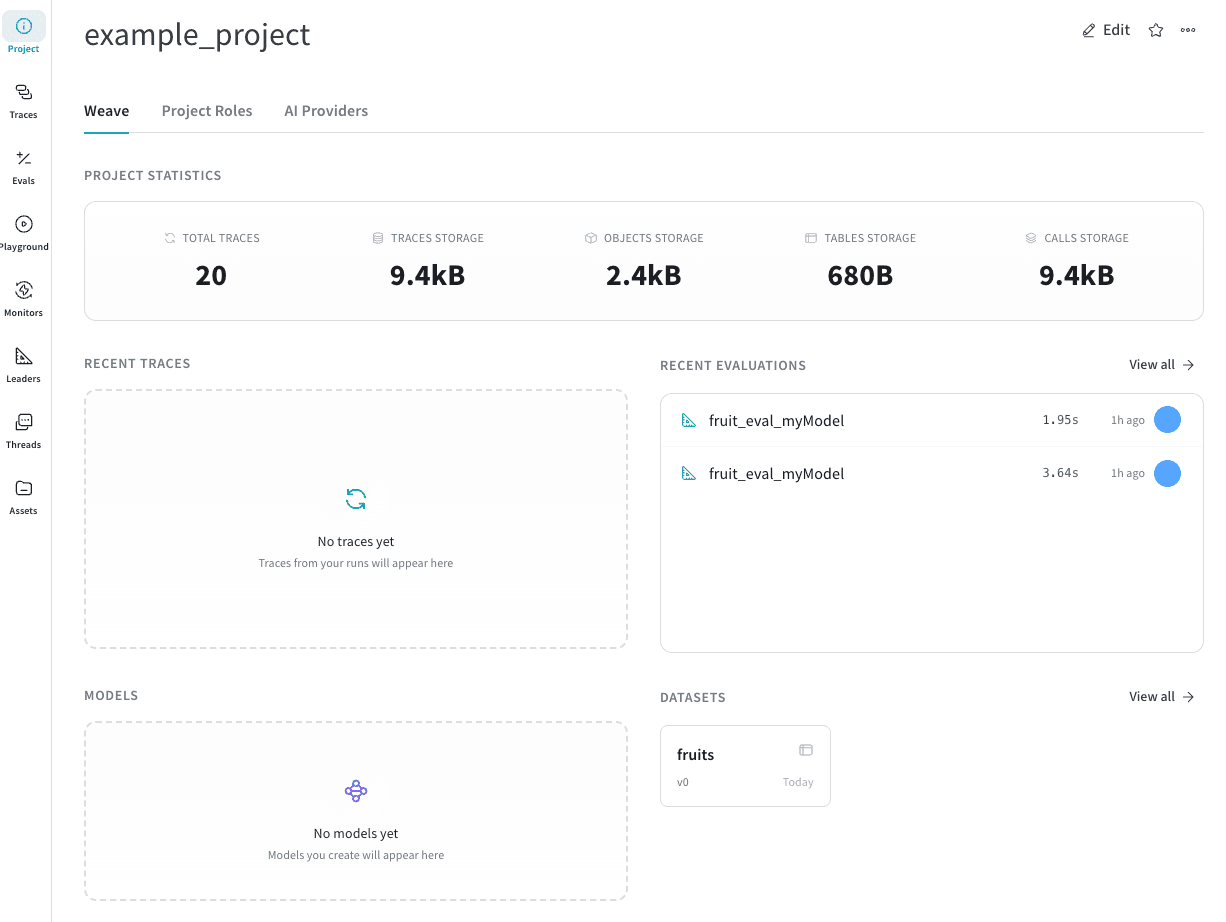
Weave project

Delete a project

To delete a project from your W&B account:
  1. Navigate to wandb.ai.
  2. Select your project from the Projects sidebar. This opens the project’s overview page, or Traces page if you have already logged traces to the project.
  3. Select the Project () button in the sidenav to open the project’s overview page if it is not already open.
  4. Select the three-dots menu () and choose Delete Project from the list. This opens the Delete project modal dialog.
  5. In the modal, enter the project name in the confirmation field and click Delete. The project is permanently deleted from your W&B account.