

Datasets programmatically and through the UI.
This page is for engineers and team members who want to manage evaluation data either in code or through the Weave UI. It describes:
- Basic
Datasetoperations in Python and TypeScript and how to get started. - How to create a
Datasetin Python and TypeScript from objects such as Weave calls. - Available operations on a
Datasetin the UI.
Dataset quickstart
The following code samples demonstrate how to perform fundamentalDataset operations using Python and TypeScript. Using the SDKs, you can:
- Create a
Dataset - Publish the
Dataset - Retrieve the
Dataset - Access a specific example in the
Dataset
- Python
- TypeScript
Create a dataset from other objects
This section shows how to build aDataset from data you already have, such as recorded Weave calls or existing tabular data, so you don’t have to manually re-enter examples.
- Python
- TypeScript
In Python, Then, use the
Datasets can also be constructed from common Weave objects like calls, and Python objects like pandas.DataFrames. This feature is useful if you want to create an example Dataset from specific examples.Weave call
To create aDataset from one or more Weave calls, retrieve the call objects and add them to a list in the from_calls method.Pandas DataFrame
To create aDataset from a Pandas DataFrame object, use the from_pandas method. To convert the Dataset back, use to_pandas.Hugging Face Datasets
To create aDataset from a Hugging Face datasets.Dataset or datasets.DatasetDict object, first ensure you have the necessary dependencies installed:from_hf method. If you provide a DatasetDict with multiple splits (like train, test, validation), Weave automatically uses the train split and issues a warning. If the train split isn’t present, Weave raises an error. You can provide a specific split directly (for example, hf_dataset_dict['test']).To convert a weave.Dataset back to a Hugging Face Dataset, use the to_hf method.Create, edit, and delete a dataset in the UI
You can create, edit, and deleteDatasets in the UI. Creating datasets in the Weave UI lets you and non-engineering members of your team develop and curate sharable datasets containing examples, questions, and other agent-testing data without editing code.
The following procedures walk through each of these tasks in the UI. Use them when you want to manage evaluation data alongside the traces it came from, rather than from a notebook or script.
Create a new dataset
The following procedure creates a newDataset from one or more existing calls in your Weave project. After you complete it, you have a published Dataset you can reference in evaluations and share with your team.
- Navigate to the Weave project you want to edit.
- In the sidebar, select Traces.
-
Select one or more calls to create a new
Datasetfor. - In the upper right-hand menu, click the Add selected rows to a dataset icon (located next to the trashcan icon).
- From the Choose a dataset dropdown, select Create new. The Dataset name field appears.
-
In the Dataset name field, enter a name for your dataset. Options to Configure dataset fields appear.
Dataset names must start with a letter or number and can only contain letters, numbers, hyphens, and underscores.
-
Optional: In Configure dataset fields, select the fields from your calls to include in the dataset.
- You can customize the column names for each selected field.
- You can select a subset of fields to include in the new
Dataset, or deselect all fields.
-
Once you’ve configured the dataset fields, click Next. A preview of your new
Datasetappears. - Optional: Click any of the editable fields in your Dataset to edit the entry.
- Click Create dataset. Weave creates your new dataset.
-
In the confirmation popup, click View the dataset to view the new
Dataset. Alternatively, go to the Datasets tab.
Edit a dataset
Use the following procedure to add new rows to an existingDataset and publish a new version. Editing in the UI is helpful when you want to extend or correct evaluation data without changing code.
-
Navigate to the Weave project containing the
Datasetyou want to edit. -
From the sidebar, select Datasets. Your available
Datasets display.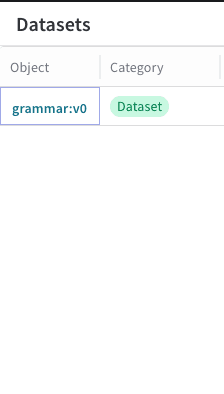
-
In the Object column, click the name and version of the
Datasetyou want to edit. A pop-out modal showingDatasetinformation like name, version, author, andDatasetrows displays.
-
In the upper right-hand corner of the modal, click the Edit dataset button (the pencil icon). An + Add row button displays at the bottom of the modal.

-
Click + Add row. A new row displays at the top of your existing
Datasetrows, indicating that you can add a new row to theDataset.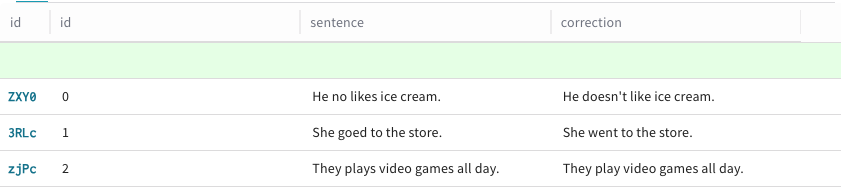
-
To add data to a new row, click the desired column within that row. You can’t edit the default id column in a
Datasetrow, because Weave assigns it automatically upon creation. An editing modal appears with Text, Code, and Diff options for formatting.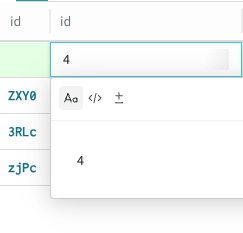
-
Repeat step 6 for each column that you want to add data to in the new row.
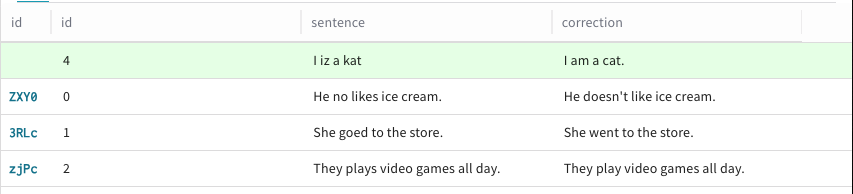
-
Repeat step 5 for each row that you want to add to the
Dataset. -
When you’re done editing, publish your
Datasetby clicking Publish in the upper right-hand corner of the modal. Alternatively, if you don’t want to publish your changes, click Cancel.
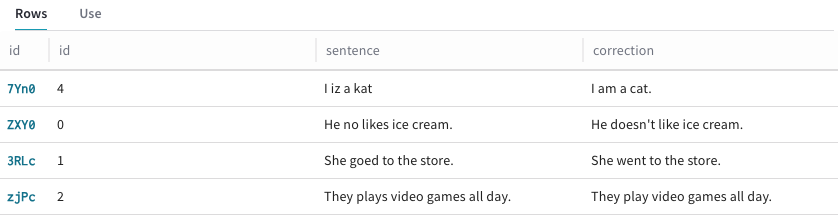
Datasetwith updated rows is available in the UI.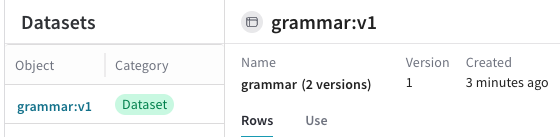
Delete a dataset
Use the following procedure when you want to remove aDataset you no longer need from your Weave project.
-
Navigate to the Weave project containing the
Datasetyou want to edit. -
From the sidebar, select Datasets. Your available
Datasets display. -
In the Object column, click the name and version of the
Datasetyou want to delete. A pop-out modal showingDatasetinformation like name, version, author, andDatasetrows displays. -
In the upper right-hand corner of the modal, click the trashcan icon.
A pop-up modal prompting you to confirm
Datasetdeletion displays.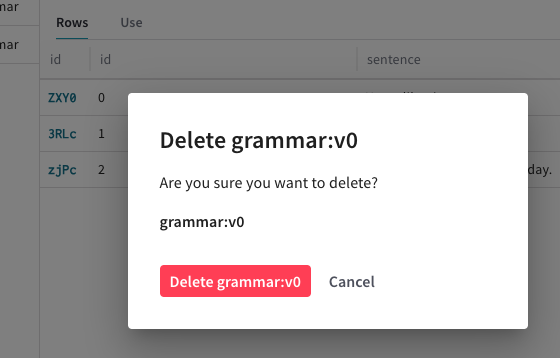
-
In the pop-up modal, click Delete to delete the
Dataset. Alternatively, click Cancel if you don’t want to delete theDataset. TheDatasetis deleted and no longer visible in the Datasets tab in your Weave dashboard.
Add a new agent trace to a dataset
To add agent turns and tool calls to aDataset, see Add agent messages to a dataset.
Add a new trace to a dataset
To add traces generated from Ops and Calls (using the@weave.op decorator) to a Dataset:
- Navigate to the Weave project you want to edit.
- In the sidebar, select Traces.
-
Select one or more calls with
Datasetsfor which you want to create new examples. - In the upper right-hand menu, click the Add selected rows to a dataset icon (located next to the trashcan icon). Optionally, toggle Show latest versions to off to display all versions of all available datasets.
-
From the Choose a dataset dropdown, select the
Datasetyou want to add examples to. Options to Configure field mapping display. - Optional: In Configure field mapping, you can adjust the mapping of fields from your calls to the corresponding dataset columns.
-
Once you’ve configured field mappings, click Next. A preview of your new
Datasetappears. - In the empty row (green), add your new example values. The id field isn’t editable, and Weave creates it automatically.
- Click Add to dataset. Alternatively, to return to the Configure field mapping screen, click Back.
-
In the confirmation popup, click View the dataset to see the changes. Alternatively, navigate to the Datasets tab to view the updates to your
Dataset.
Other dataset operations
This section covers additional SDK operations that are useful once you already have aDataset to work with.
- Python
- TypeScript
Select rows
You can select specific rows from aDataset by their index using the select method. This is useful for creating subsets of your data, such as when you want to evaluate against a smaller slice of examples.