Get started
To open the Agents view for your project:- Navigate to https://wandb.ai and select your project.
- In the sidebar menu, select Agents to view all agent conversations saved for your project.
Dashboard tab
The Dashboard tab is a project-wide overview of all agent activity. It’s designed to be read at a glance, so teams use it as the starting point for a daily health check before drilling into a specific agent or conversation.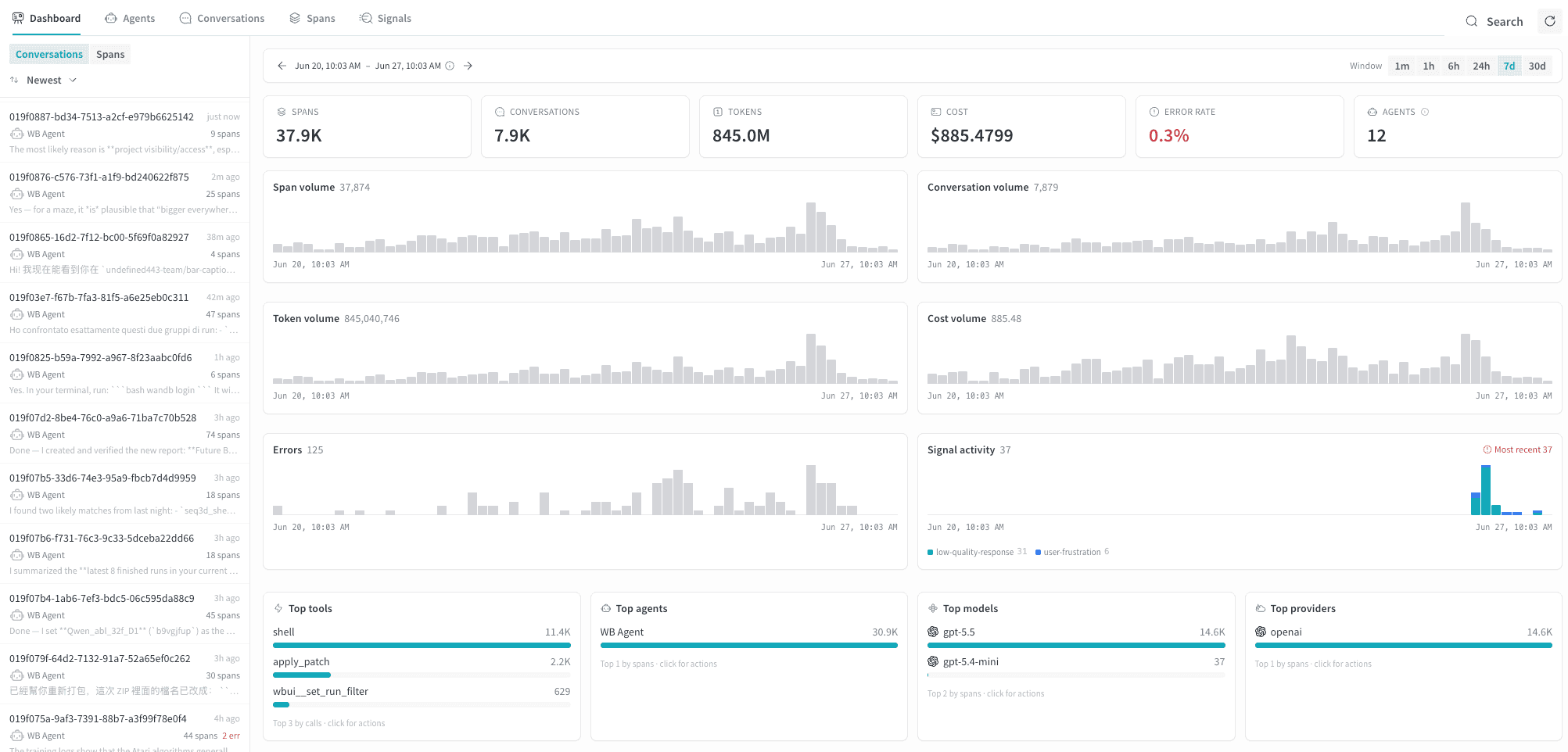
Agents tab
The Agents tab gives you a high-level view of all agents that have logged traces to this project. Use it to spot which agents are active and to compare latency and error rates across agents. It also helps you identify agents that need attention before drilling into individual conversations.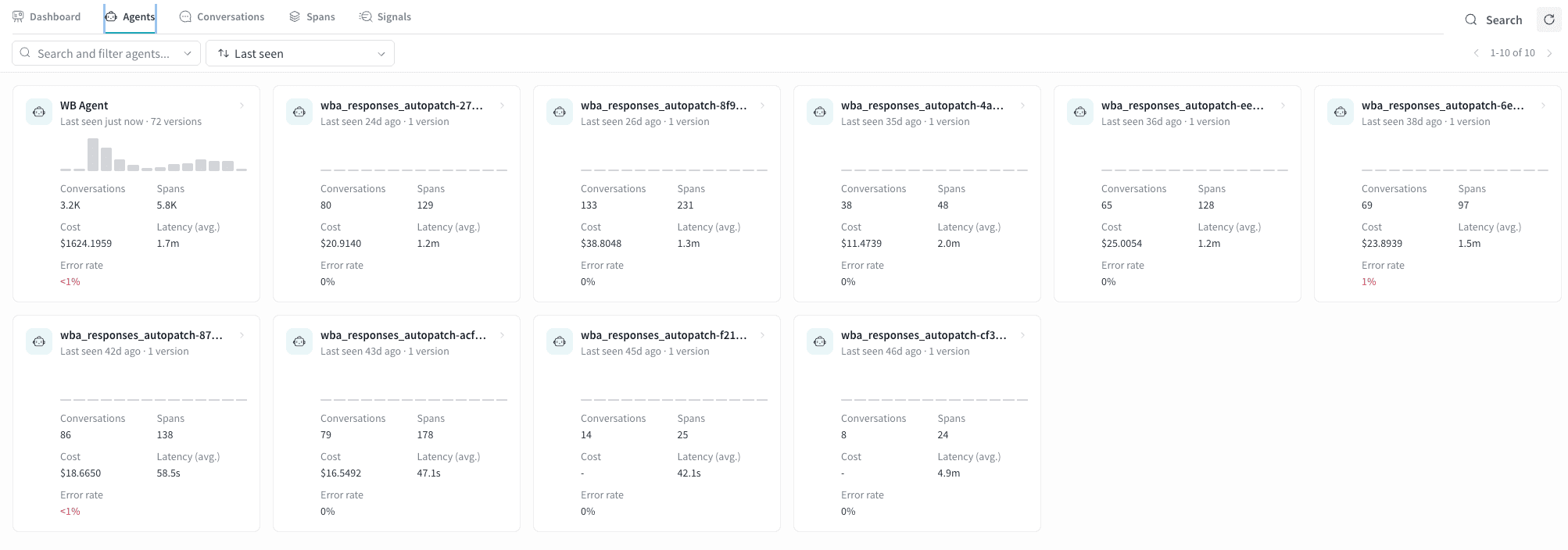
- Monitoring a fleet of agents. The card grid lets you compare latency and error rate across all agents at once without opening individual conversations. A latency spike or a newly red error rate on one card signals a regression worth investigating.
- Identifying stale agents. Sorting by Last seen highlights agents that haven’t recorded activity recently. This is useful for confirming a deployment is live or spotting agents that may have stopped logging traces unexpectedly.
- Comparing versions. The version count on each card shows how many distinct versions of that agent have been deployed. A high version count alongside a rising error rate may indicate a regression introduced in a recent deployment.
- Drilling into an agent. Click any card to open the detail panel for that agent, from which you can navigate to its conversations or spans:
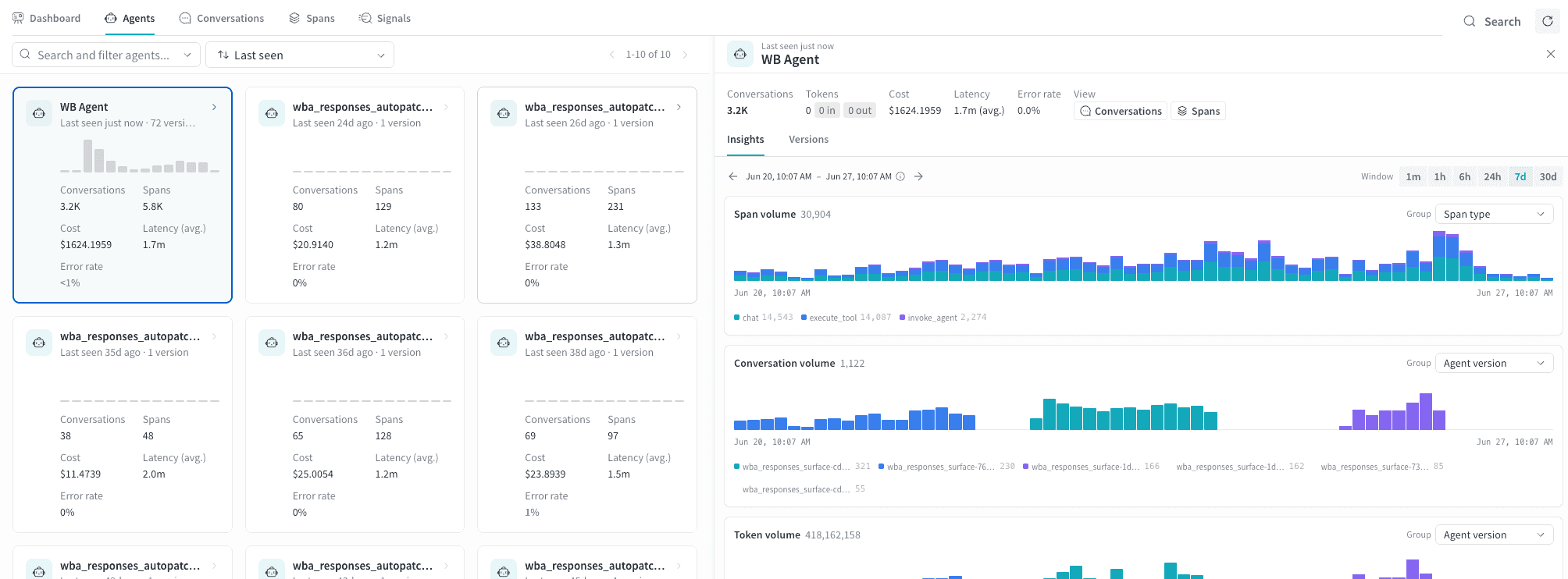
Agent cards
Each agent is represented as a card showing:Find and sort agents
Use the Search and filter agents field to find agents by name. Use the sort dropdown (default: Last seen) to reorder the grid. The available sort options are:- Last seen: Most recently active agents first.
- Most invocations: Highest conversation volume first.
- Most input tokens: Highest token consumption first.
- Most errors: Highest error count first.
Conversations tab
The Conversations tab on the Agents page lets you browse, filter, and inspect individual agent runs. Use it to investigate failures, measure token costs, and understand the sequence of LLM calls and tool executions that made up a run. For high-level questions about what an agent said and did across a conversation, start with the Conversations tab.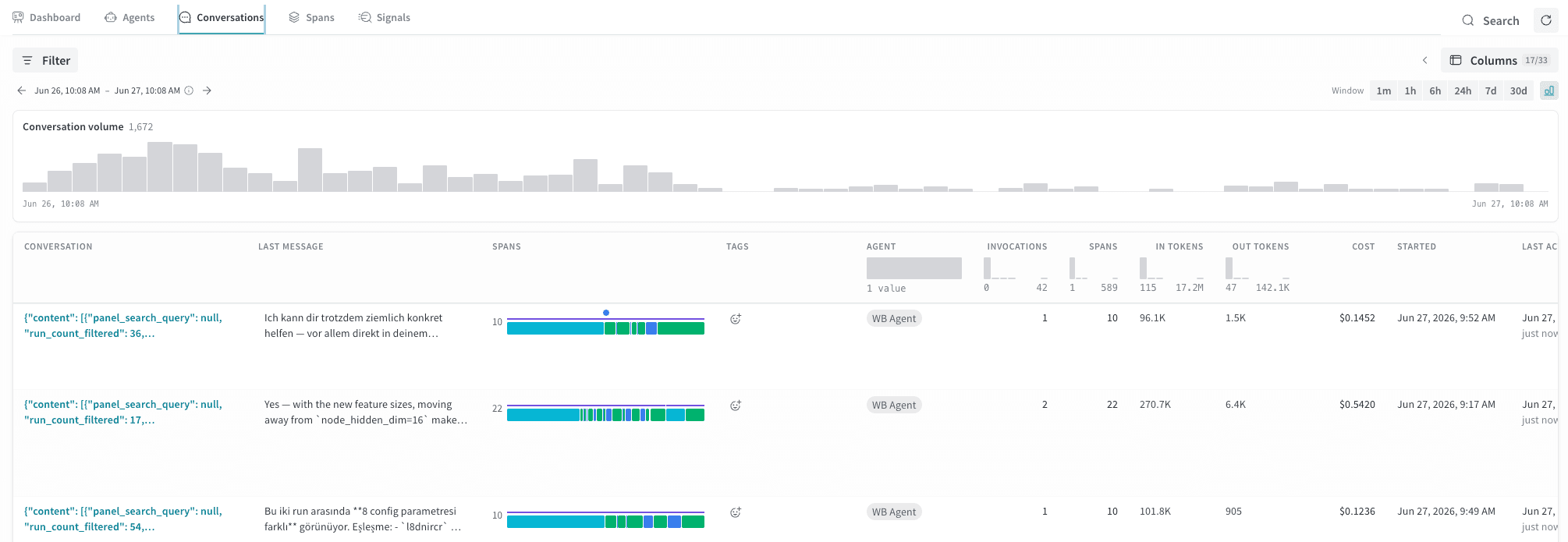
Conversations table
The conversation table shows one row per conversation. The following columns appear by default:
The Spans column also renders a color-coded strip that previews the
sequence of events in the conversation, using the same event colors as the
Events timeline. This lets you tell at a glance whether a
conversation was tool-heavy, LLM-heavy, or involved sub-agent delegation
without opening it.
To show or hide additional columns, click Columns in the toolbar.
Filters and time window
Use the Filter bar to narrow results by agent, model, error status, or other attributes. Custom attributes that you stamp on agent spans with the SDK are also filterable here. You can filter the conversation list to a specific value for a specific attribute. To show a custom attribute as its own column, click Columns in the toolbar. For how to set these attributes, see Set attributes and events on agent spans. Use the time window selector (1m, 1h, 6h, 24h, 7d, or 30d) to restrict the list to conversations that were active within that period. The conversation volume histogram above the list updates to reflect the selected window. Hover over any column header in the conversation list to filter that column to a specific value or range.Agent conversation detail
Click a conversation row to open a detail panel with two sub-panels: Turns and Events. The panel header shows the agent name and conversation ID, along with Summarize (to generate a summary of the conversation) and Add to dataset actions.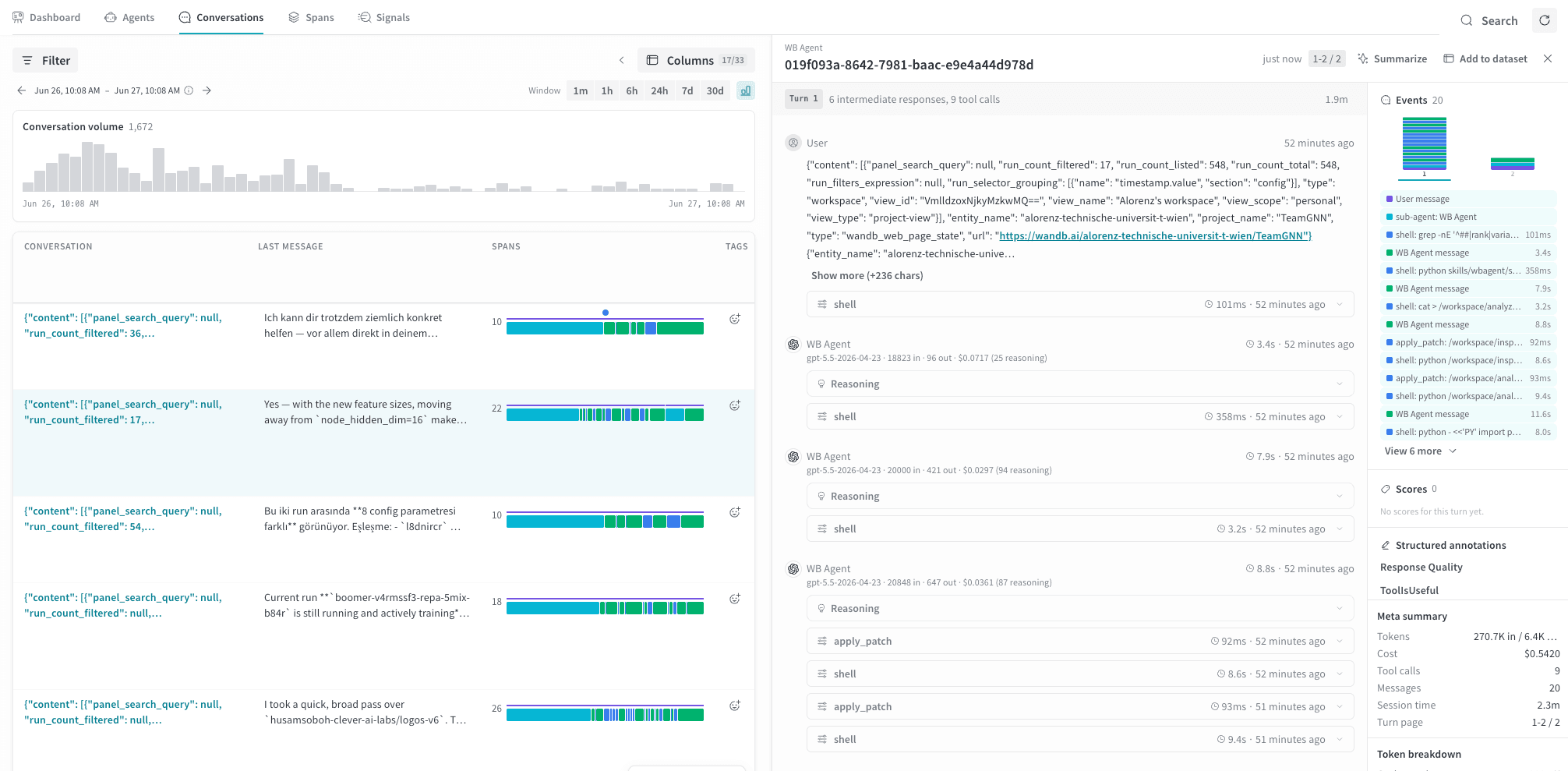
Turns
The conversation detail turns panel shows each turn in chronological order, numbered from 1. Each turn displays the number of intermediate responses and tool calls, and the total wall-clock duration. Expand a turn to see the full message thread.Messages
Within a turn, messages are grouped by role. User messages show the message text and any attached media or content references. Assistant messages show the following:- The agent name and the model used (for example,
gpt-5.5-2026-04-23). - Timestamp and duration.
- Input and output token counts and cost (for example,
18823 in · 96 out · $0.0717). - An expandable Reasoning section when the model used extended thinking.
- The response text, which collapses automatically for long responses.
Error states
When a tool call returns an error status, a red ERROR badge appears inline next to it. In the Events timeline, that event also displays in red regardless of its type.Events
The Events panel on the right shows a color-coded strip that represents the sequence of events within the selected turn. In the Events timeline, each segment’s color indicates the event type.
Use the Events timeline to get a quick sense of how a turn was structured. For
example, you can see whether it was LLM-heavy, tool-heavy, or involved sub-agent
delegation before reading the full message thread.
Scores
If any signals are active for the project, a Scores section provides metrics for the conversation. It shows the signal scorer name, an overall numeric rating from 0 to 1, a confidence percentage, and the individual rubric points that contributed to the score. Each rubric point also shows its own confidence. Use this to understand not just whether a turn scored well, but which specific rubric criteria passed or failed.Meta summary
The Meta summary section shows aggregate statistics for the selected conversation.Token breakdown
The Token breakdown section shows cache and reasoning details for the selected conversation.Participants
The Participants section lists the agents and models involved in the conversation. In multi-agent conversations, different turns may show different model names here.Add agent messages to a dataset
To add agent messages to aDataset:
- In the conversation details panel header, click Add to dataset to open the Add example to dataset drawer.
- In Choose a dataset, use the dropdown to choose the dataset you want to add traces to.
- In Select context, select which messages to add to the dataset. Click Next.
- Review your selections and click Add to dataset.
Spans tab
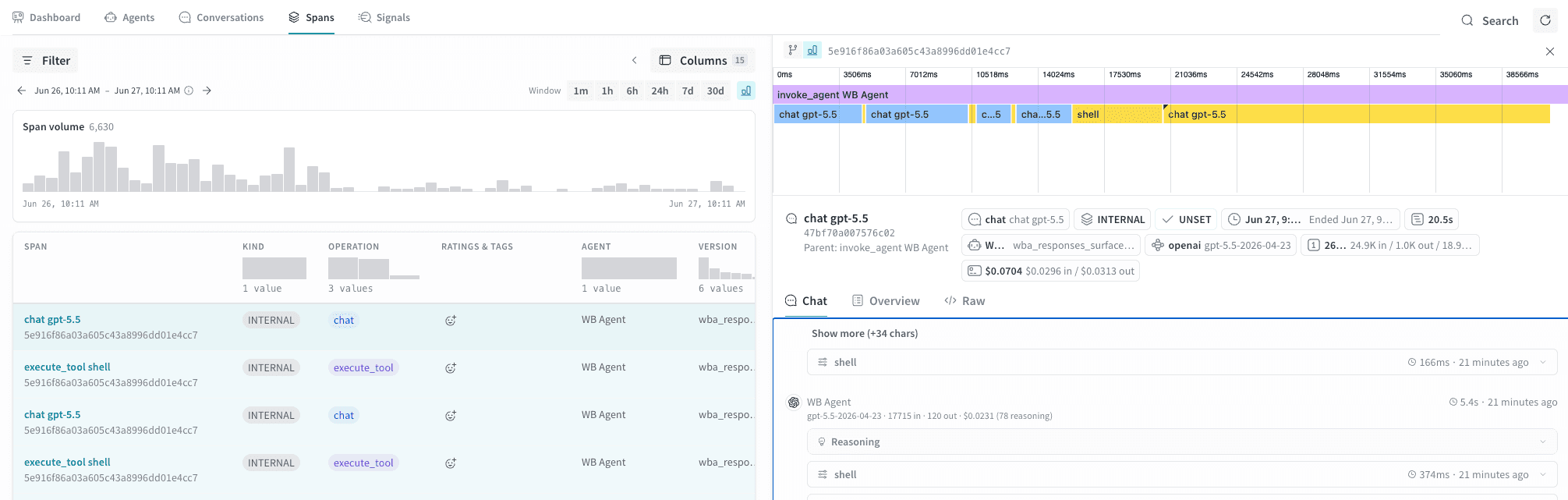
The Spans tab shows every individual span recorded across all agent activity in the project. The Conversations tab aggregates activity into dialogue-level rows. The Spans tab exposes the raw operations underneath: each LLM call, tool execution, and agent invocation as its own row. Use it to trace exactly which call was slow, which model consumed unexpected tokens, or which tool invocation failed.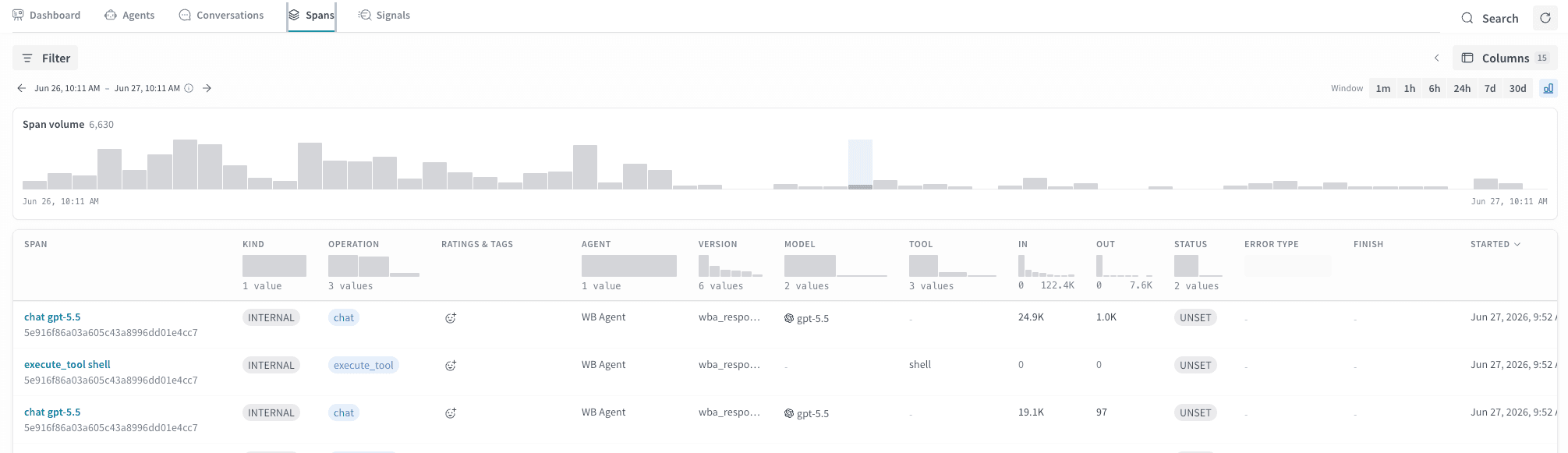
Spans table
The span table shares most columns with the Conversations table (agent, model, tool, token counts, status). Some columns unique to this view are:
Additional columns for cache token breakdowns, reasoning tokens, LLM
parameters, and W&B run metadata are available through the Columns button.
The Spans tab is most useful when you need operation-level precision that the
Conversations tab doesn’t provide:
- Identifying expensive calls. Sort by In or Out tokens to find which individual LLM calls are driving cost, rather than seeing totals at the conversation level.
- Debugging a specific operation type. Filter by Operation to isolate
all
execute_toolspans and check error rates, or allchatspans for a specific model. - Investigating truncation. Filter Finish by
max_tokensto find spans where the model hit its token limit rather than completing normally. - Correlating with a W&B run. Hidden-by-default columns expose W&B run IDs and run steps, letting you link a specific span back to a training or evaluation run in W&B.
Trace groups
Click any row to select its trace and highlight all other spans that share the same trace ID. This shows you the full set of operations that ran as part of one agent invocation. Grouping here is by trace, not by conversation. This means a single conversation may contain multiple traces if it involved sub-agent delegation.Agent invocation detail
Click a row in the Spans table to open a detail panel populated with data from the complete agent invocation. At the top of the detail panel, a bar chart shows the wall-clock position and relative duration of every span in the selected trace, arranged as a waterfall. The parent invocation spans the full width, and each child span appears below it as a colored bar scaled to its actual duration, positioned at its start time in milliseconds from the beginning of the trace. Use the timeline to:- Spot the longest operation at a glance. Wide bars indicate spans that dominated total latency.
- See parallelism. Overlapping bars indicate spans that executed concurrently rather than sequentially.
- Inspect any span inline. Click a bar in the timeline to load that span’s details into view, including its input messages and output messages, token counts, and other metadata.