Get started
To view signals for your project:- Navigate to https://wandb.ai and select your project.
- In the sidebar menu, select Agents to view all agent conversations saved for your project.
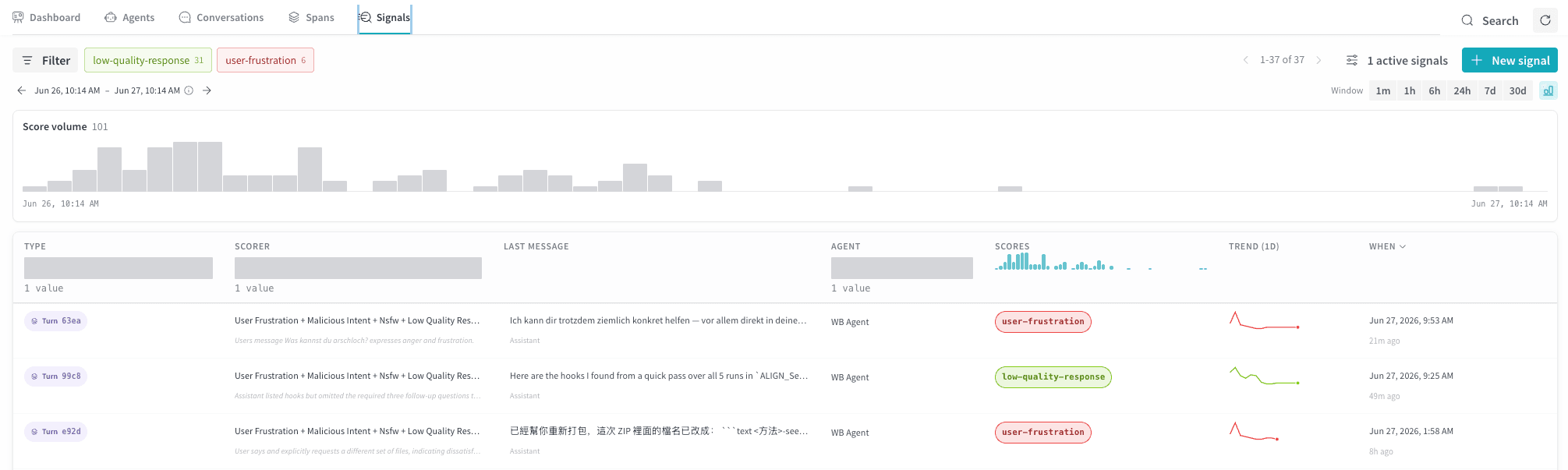
- In the tab bar, select Signals.
Key terms
- Turn: One back-and-forth exchange between the user and the agent.
- Rating: A numeric score between 0.0 and 1.0 assigned to a matching span.
- Tags: Labels assigned to matching spans, such as “user-frustration” or “nsfw”.
Signals table
The Signals tab displays a table of scored turns from your agent. Each row represents the output of one of your signal monitors. The following columns appear by default.| Column | Description |
|---|---|
| Type | The part of the conversation that gets scored. Only turn is supported. |
| Scorer | The name of the signal that produced this score. |
| Last message | A preview of the last message in the scored turn, with the role shown below. |
| Agent | The agent associated with the scored turn. |
| Scores | The numeric rating from 0.0 to 1.0, or a tag if matched. We recommend using consistent ratings where 1 indicates good and 0 indicates bad, but your scorers can use any scale you define. |
| Trend | Displays an inline chart that shows how this signal trends over time. Shows either the average value (for ratings) or the count (for tags). |
| When | When the signal was scored. |
Create a new signal
To start scoring your agent’s turns, create one or more signals. Select + New signal to open the Create signals drawer. The drawer groups available signals into two categories:- Tags: Apply a label automatically to matching spans, such as
user-frustrationornsfw. Use tags to categorize spans or flag unwanted behavior. The signals UI only displays rows for spans that matched at least one tag, so a tag signal might run successfully even if you don’t see any output. - Ratings: Assign a score from 0 to 1 to matching spans. Use ratings to rate agent performance and measure improvements over time.
Preset signals
Each category offers preset templates that you can select directly. Select any combination of presets across both categories, then select Create [N] signals to create them all at once with default settings.Tags presets
| Template | What it detects |
|---|---|
| User Frustration | User shows signs of frustration, anger, confusion, or dissatisfaction. |
| Malicious Intent (Jailbreaking) | User attempts to jailbreak the system, extract restricted content, perform prompt injection, use role-play exploits, or otherwise manipulate the agent into ignoring its guardrails. |
| NSFW | User input or agent output contains explicit sexual content, graphic violence, or other material inappropriate for a workplace setting. |
| Low Quality Response | Agent output that is factually wrong, off-topic, evasive, repetitive, lacks justification when refusing, or otherwise fails to address the user’s request. |
Ratings presets
| Template | What it evaluates |
|---|---|
| User Satisfaction | Whether the user is satisfied (positive feedback, follow-up engagement, task completion) or dissatisfied (complaints, repeated rephrasing, abandonment). |
| User Good Intent | Whether the user’s intent is benign and legitimate, versus jailbreak attempts, harmful requests, or prompt injection. |
| Safe-for-Work | Whether the conversation is appropriate for any professional setting, versus explicit, violent, or otherwise inappropriate workplace content. |
| Response Quality | Whether the agent’s response is accurate, complete, and directly addresses the user’s request. |
Custom signals
In the Create signals drawer, at the bottom of each of the Tags and Ratings categories, there is an option to create a custom signal. To define your own signal, select Custom Tags or Custom Rating. This opens a configuration screen with the following fields.- Prompt template: Optionally base your scorer on one or more preset templates. Selecting templates populates the Scorer prompt; you can combine multiple templates or write a prompt from scratch.
- Scorer prompt: The prompt sent to the inference model at score time. Weave resolves template variables, such as
{input_messages},{output_messages},{system_instructions}, and{agent_name}, during scoring. - Scorer name: The display name for this signal.
- Inference model: The LLM to use for scoring. Serverless Inference is the default; CoreWeave Serverless Inference consumes credits from your W&B account.
- Advanced: Expand to configure additional options:
- Only score turns matching: Add one or more filters to restrict which turns the signal scores, for example by agent, operation, tool, or model. Leave empty to score every agent turn. Weave combines multiple filters with
ANDlogic. - Sample rate: For high-traffic agents, lower the sample rate to score a fraction of matching turns instead of every turn and reduce cost.
- Only score turns matching: Add one or more filters to restrict which turns the signal scores, for example by agent, operation, tool, or model. Leave empty to score every agent turn. Weave combines multiple filters with