

Visualize evaluation results in a Leaderboard
When your project contains Weave Evaluation data, you can use the evaluation table to quickly create a Weave Leaderboard view based on a filtered subset of results. To create a Weave Leaderboard:- Navigate to wandb.ai.
- In the Weave sidebar menu, click Evaluations.
- Apply filters to the evaluation table to narrow the data to the models, datasets, or runs you want to compare.
- In the evaluation table toolbar, click Visualize. Weave automatically creates a Leaderboard panel using only the data currently filtered in the table.
- In the Leaderboard panel header, click Configure to open the Edit Leaderboard panel. The Edit Leaderboard panel gives you fine-grained control over how models, datasets, scorers, and metrics appear.
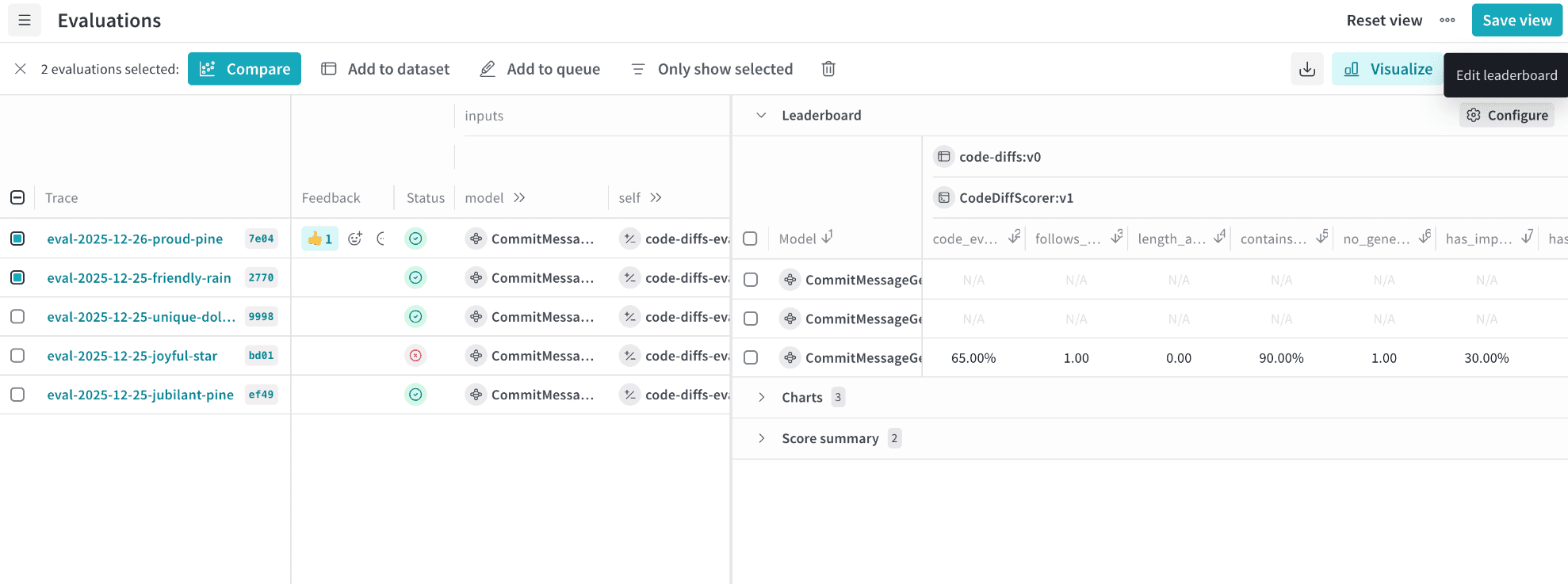
Configure Leaderboard elements with visibility and custom names
The Edit Leaderboard panel lets you control which elements appear in the Leaderboard and how they’re labeled. The following shows the Edit Leaderboard panel with four configuration tabs: Models, Datasets, Scorers, and Metrics.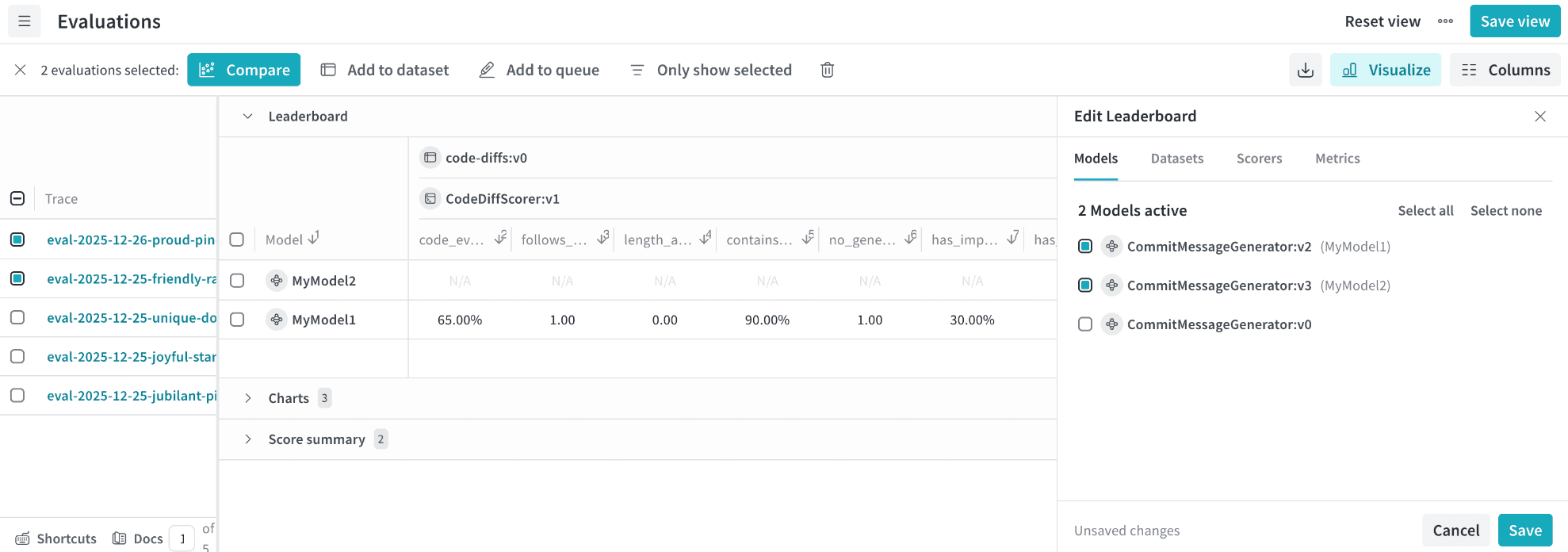
-
Activate or deactivate display
Select which models, datasets, scorers, and metrics appear in the Leaderboard by checking or unchecking them. -
Rename models, datasets, and scorers
Assign display-friendly names (for example, renaming a model run toGPT-4or a dataset toJokesV1). Renamed items:- Update immediately in the Leaderboard.
- Remain clickable so you can still open the underlying reference in the side panel.
- Automatically propagate anywhere the Leaderboard view is used.
Configure Leaderboard metric behavior and coloring
Different metrics require different interpretations of “good” performance. The Edit Leaderboard panel lets you set the direction for each metric so that visual highlighting matches your intent. In the Edit Leaderboard panel, for each metric, you can specify one of the following directions:- Higher values are better
- Lower values are better
- Green highlights the better value.
- Red highlights the worse value.
- Colors automatically invert when you switch between “higher is better” and “lower is better”.
Save and reuse Leaderboard views
After you customize a Leaderboard, you can save it as a named view so you and your team can return to the same configuration later. In the Edit Leaderboard panel, click Save to save your customized Leaderboard as a reusable view. The saved Leaderboard view captures:- Selected models, datasets, scorers, and metrics.
- Renamed display labels.
- Metric direction settings (higher or lower is better).
- Applied filters.
Switch between saved views
Click the menu () button next to the Evaluations page title to open saved views. You can:- Return to the default view to see the full dataset.
- Reopen a saved view to restore all customizations.