

LLM Evaluation Jobs is in Preview for W&B Multi-tenant Cloud. Compute is free during the preview period. See LLM Evaluation Jobs pricing for details.
Prerequisites
Before you evaluate a model checkpoint, complete the following:- Review the requirements and limitations for LLM Evaluation Jobs.
- To run certain benchmarks, a team admin must add the required API keys as team-scoped secrets. Any team member can specify the secret when configuring an evaluation job. See Evaluation model catalog for requirements.
- An OpenAPI API key: used by benchmarks that use OpenAI models for scoring. Required if the field Scorer API key appears after you select a benchmark. The secret must be named
OPENAI_API_KEY. - A Hugging Face user access token: required for certain benchmarks like
lingolyandlingoly2that require access to one or more gated Hugging Face datasets. Required if the field Hugging Face token appears after selecting a benchmark. The API key must have access to the relevant dataset. See the Hugging Face documentation for User access tokens and accessing gated datasets.
- An OpenAPI API key: used by benchmarks that use OpenAI models for scoring. Required if the field Scorer API key appears after you select a benchmark. The secret must be named
- Create a new W&B project for the evaluation results. From the project sidebar, click Create new project.
- Package the model in VLLM-compatible format and save it as an artifact in W&B Models. An attempt to benchmark any other type of artifact fails. For one approach, see the following Example: Prepare a model section.
- Review the documentation for a given benchmark to understand how it works and learn about specific requirements. For convenience, the Available evaluation benchmarks reference includes relevant links.
Evaluate your model
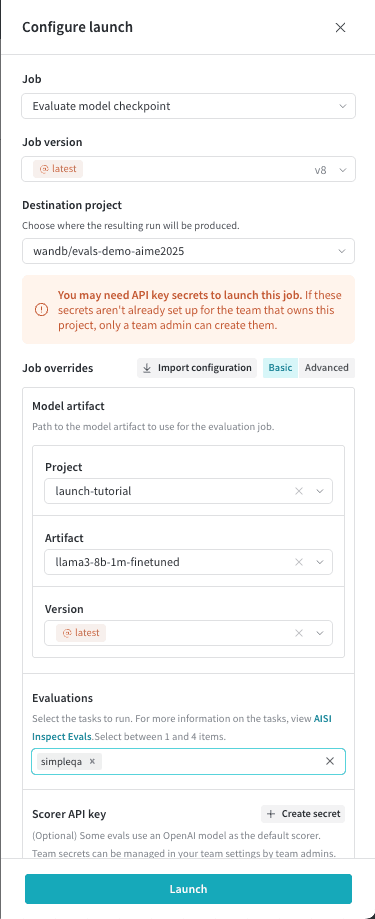
After you complete the prerequisites, follow these steps to set up and launch an evaluation job:- Log in to W&B, then click Launch in the project sidebar. The LLM Evaluation Jobs page displays.
- Click Evaluate model checkpoint to set up the evaluation job.
- Select a destination project to save the evaluation results to.
- In the Model artifact section, specify the project, artifact, and version of the prepared model to evaluate.
- Click Evaluations, then select up to four benchmarks.
- If you select benchmarks that use OpenAI models for scoring, the Scorer API key field displays. Click it, then select the
OPENAI_API_KEYsecret. For convenience, a team admin can create a secret from this drawer by clicking Create secret. - If you select benchmarks that require access to gated datasets in Hugging Face, a Hugging Face token field displays. Request access to the relevant dataset, then select the secret that contains the Hugging Face user access token.
- Optional: Set Sample limit to a positive integer to limit the maximum number of benchmark samples to evaluate. Otherwise, the job includes all samples in the task.
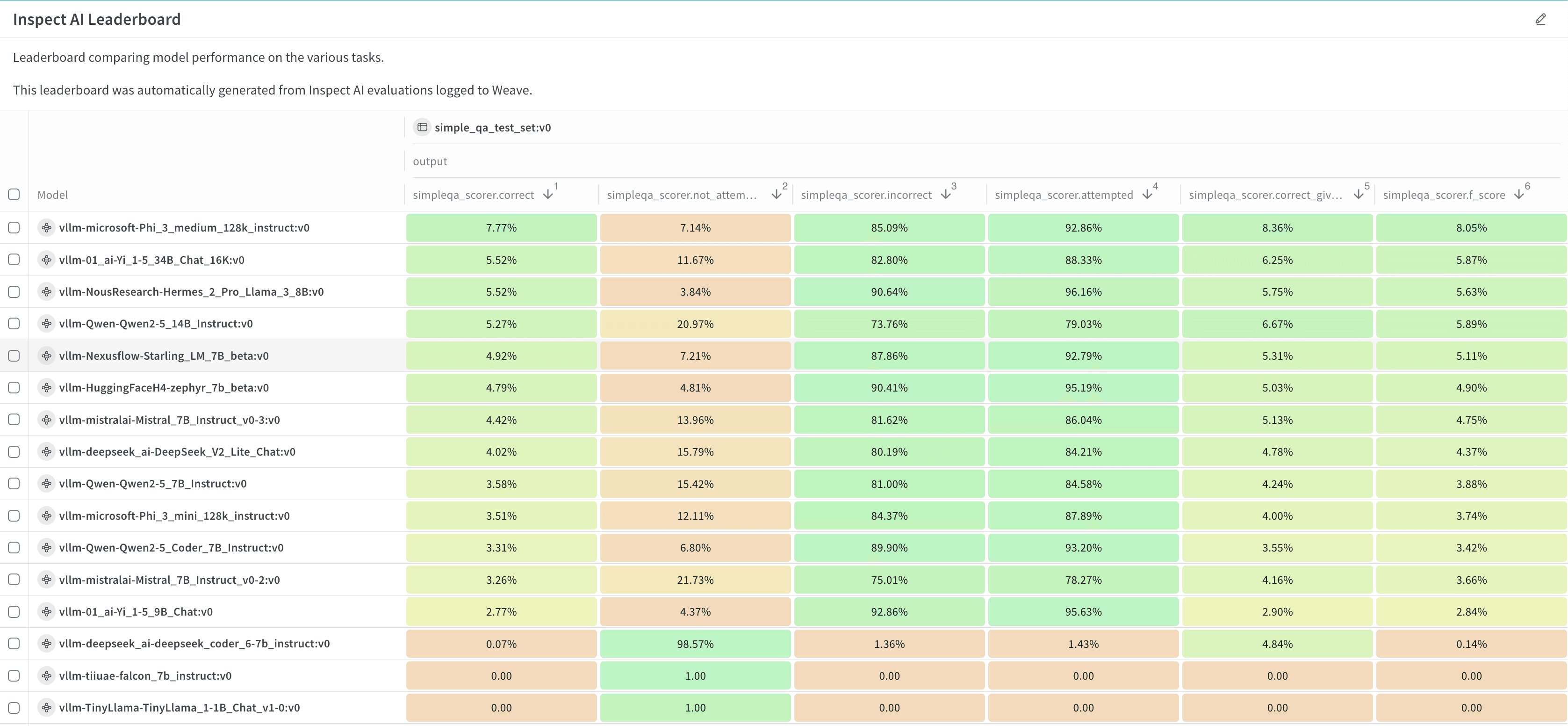
- To create a leaderboard automatically, click Publish results to leaderboard. The leaderboard displays all evaluations together in a workspace panel, and you can also share it in a report.
- Click Launch to launch the evaluation job.
- Click the circular arrow icon at the top of the page to open the recent run modal. Evaluation jobs appear with your other recent runs. Click the name of a finished run to open it in single-run view, or click the Leaderboard link to open the leaderboard directly. For details, see View the results.
Review evaluation results
Review your evaluation job results in W&B Models in the destination project’s workspace.- Click the circular arrow icon at the top of the page to open the recent run modal, where evaluation jobs appear with other runs in the project. If the evaluation job has a leaderboard, click Leaderboard to open the leaderboard in full screen, or click a run name to open it in the project in single-run view.
- View the evaluation job’s traces in the Evaluations section of a workspace or in the Traces tab of the Weave sidebar panel.
- Click the Overview tab to view detailed information about the evaluation job, including its configuration and summary metrics.
- Click the Logs tab to view, search, or download the evaluation job’s debug logs.
- Click the Files tab to browse, view, or download the evaluation job’s files, including code, log, configuration, and other output files.
Customize a leaderboard
The leaderboard shows results for all evaluation jobs sent to a given project, with one row per benchmark per evaluation job. Columns display details like the trace, input values, and output values for the evaluation job. For more information about leaderboards, see Leaderboards in Weave.- By default, all evaluation jobs are displayed. Filter or search for an evaluation job using the run selector at the left.
- By default, evaluation jobs are ungrouped. To group by one or more columns, click the Group icon. You can show or hide a group, or expand a group to view its runs.
- By default, all operations are displayed. To display only a single operation, click All ops and select an operation.
- To sort by a column, click the column heading. To customize the display of columns, click Columns.
- By default, headers are organized in a single level. You can increase the header depth to organize related headers together.
- Select or deselect individual columns to show or hide them, or show or hide all columns with a click.
- Pin columns to display them before unpinned columns.
Export a leaderboard
To export a leaderboard:- Click the download icon, located near the Columns button.
- To optimize the export size, W&B exports only the trace roots by default. To export full traces, turn off Trace roots only.
- To optimize the export size, W&B doesn’t export feedback and costs by default. To include them in the export, toggle Feedback or Costs.
- By default, the export is in JSONL format. To customize the format, click Export to file and select a format.
- To export the leaderboard in your browser, click Export.
- To export the leaderboard programmatically, select Python or cURL, then click Copy and run the script or command.
Re-run an evaluation job
After an evaluation job completes, you might want to run it again with the same or adjusted settings, or reuse its configuration as a starting point for a new job. Depending on your situation, you can re-run an evaluation job or view its configuration in multiple ways.- To re-run the last evaluation job, follow the steps in Evaluate your model. Select the destination project, then the model artifact details and the benchmarks you selected last time populate automatically. Optionally, make adjustments, then launch the evaluation job.
- To re-run an evaluation job from the project’s Runs tab or run selector, hover over the run name and click the play icon. The job configuration drawer displays with the settings pre-populated. Optionally, adjust the settings, then click Launch.
- To re-run an evaluation job from a different project, import its configuration:
- Follow the steps in Evaluate your model. After you select the destination project, click Import configuration.
- Select the project that contains the evaluation job to import, then select the evaluation job run. The job configuration drawer displays with the settings pre-populated.
- Optional: Adjust the configuration.
- Click Launch.
Export an evaluation job configuration
To save a local copy of an evaluation job’sconfig.yaml for reuse or reference, export the configuration from the run’s Files tab:
- Open the run in single-run view.
- In the run, select Files.
- Next to
config.yaml, select the download button.