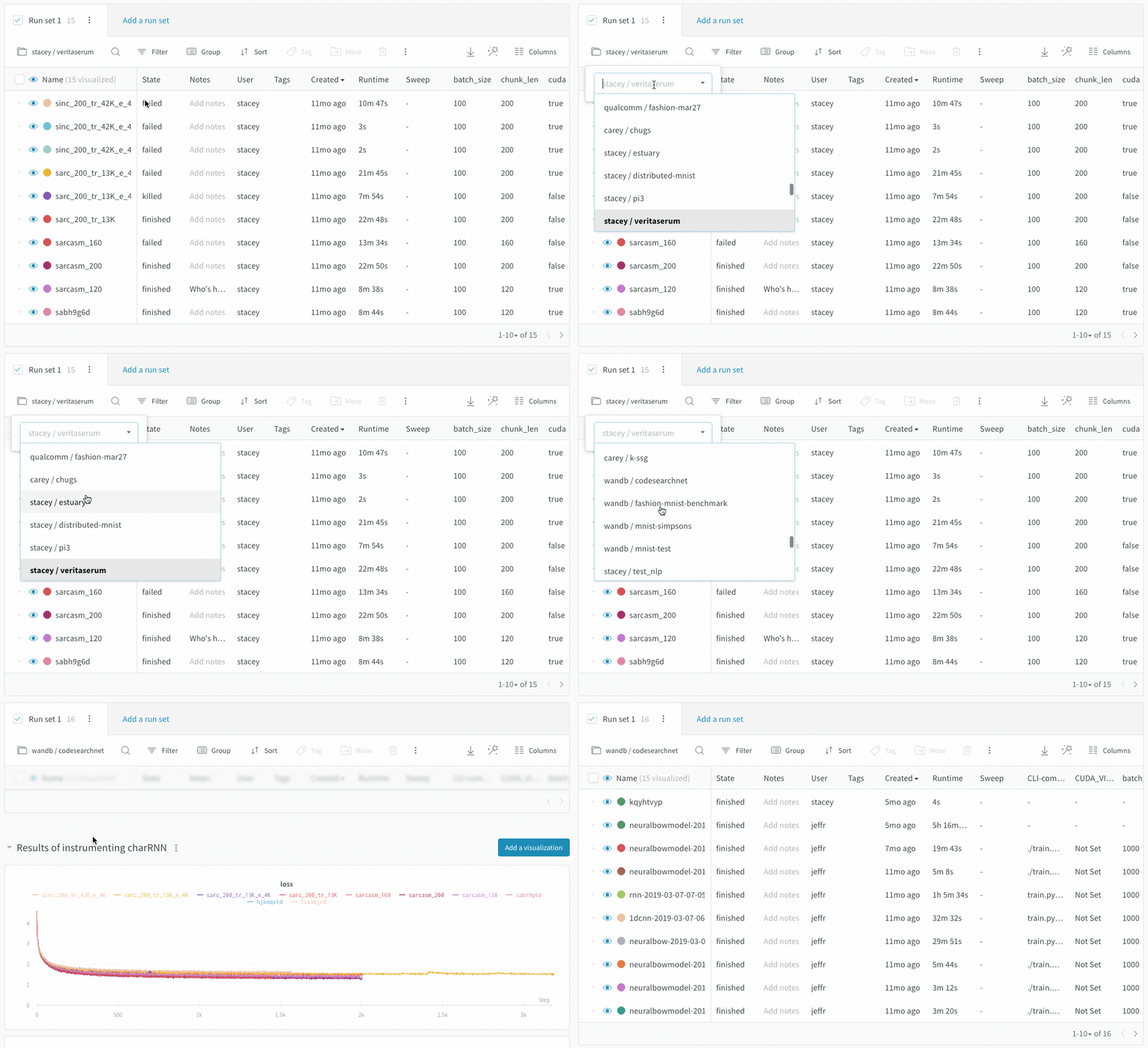
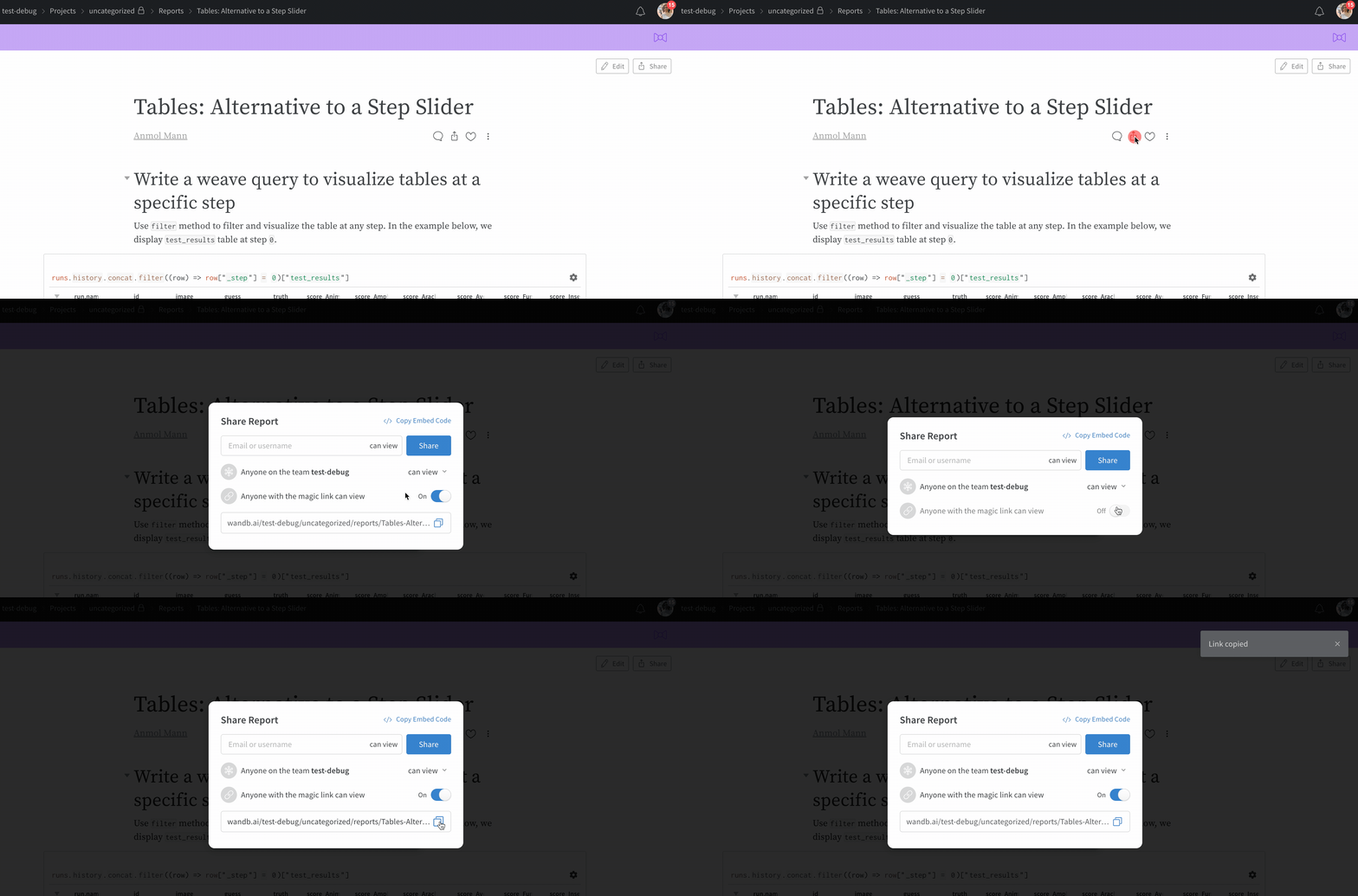
Cross-project reports let you compare runs from two different projects side by side. This is useful when you want to evaluate experiments tracked under separate W&B projects without duplicating data. This page describes how to pull runs from another project into a report and how to share that report with collaborators who don’t have W&B accounts.
To compare runs across projects, use the project selector in the run set table to pick a project.
The visualizations in the section pull columns from the first active run set. If you don’t see the metric you’re looking for in the line plot, make sure that the first run set checked in the section has that column available.
This feature supports history data on time series lines, but doesn’t support pulling different summary metrics from different projects. In other words, you can’t create a scatter plot from columns that are only logged in another project.
If you need to compare runs from two projects and the columns aren’t working, add a tag to the runs in one project and then move those runs to the other project. You can still filter only the runs from each project, but the report includes all the columns for both sets of runs.
View-only report links
When you need to share a report with someone outside your project (such as a stakeholder who doesn’t have a W&B account), use a view-only link. Share a view-only link to a report that is in a private project or team project.
View-only report links add a secret access token to the URL, so anyone who opens the link can view the page. Anyone can use the magic link to view the report without logging in first. For customers on W&B Local private cloud installations, these links remain behind your firewall. Only team members who have both access to your private instance and access to the view-only link can view the report.
In view-only mode, someone who isn’t logged in can see the charts and hover over them to see tooltips of values, zoom in and out on charts, and scroll through columns in the table. They can’t create new charts or new table queries to explore the data. View-only visitors can’t click a run to get to the run page, and they can’t see the share modal. Instead, they see a tooltip on hover that says Sharing not available for view only access.
The magic links are only available for Private and Team projects. For Public projects (anyone can view) or Open projects (anyone can view and contribute runs), you can’t turn the links on or off. The project is already public, so the report is already available to anyone with the link.
Send a graph to a report
You can also populate a report with charts you’ve already built in a workspace, rather than recreating them. To preserve a chart from a workspace alongside related analysis, send it directly to a report. Click the dropdown menu on the chart or panel you want to copy, then click Add to report to select the destination report.