Set up an evaluation in the playground
The following sections describe how to open the Evaluation Playground, choose a starting point for your evaluation, and configure the dataset, models, and scorers. To set up an evaluation in the Evaluation Playground:- Open the Weave UI, and then open the project that you want to perform the evaluation in. The Traces page opens.
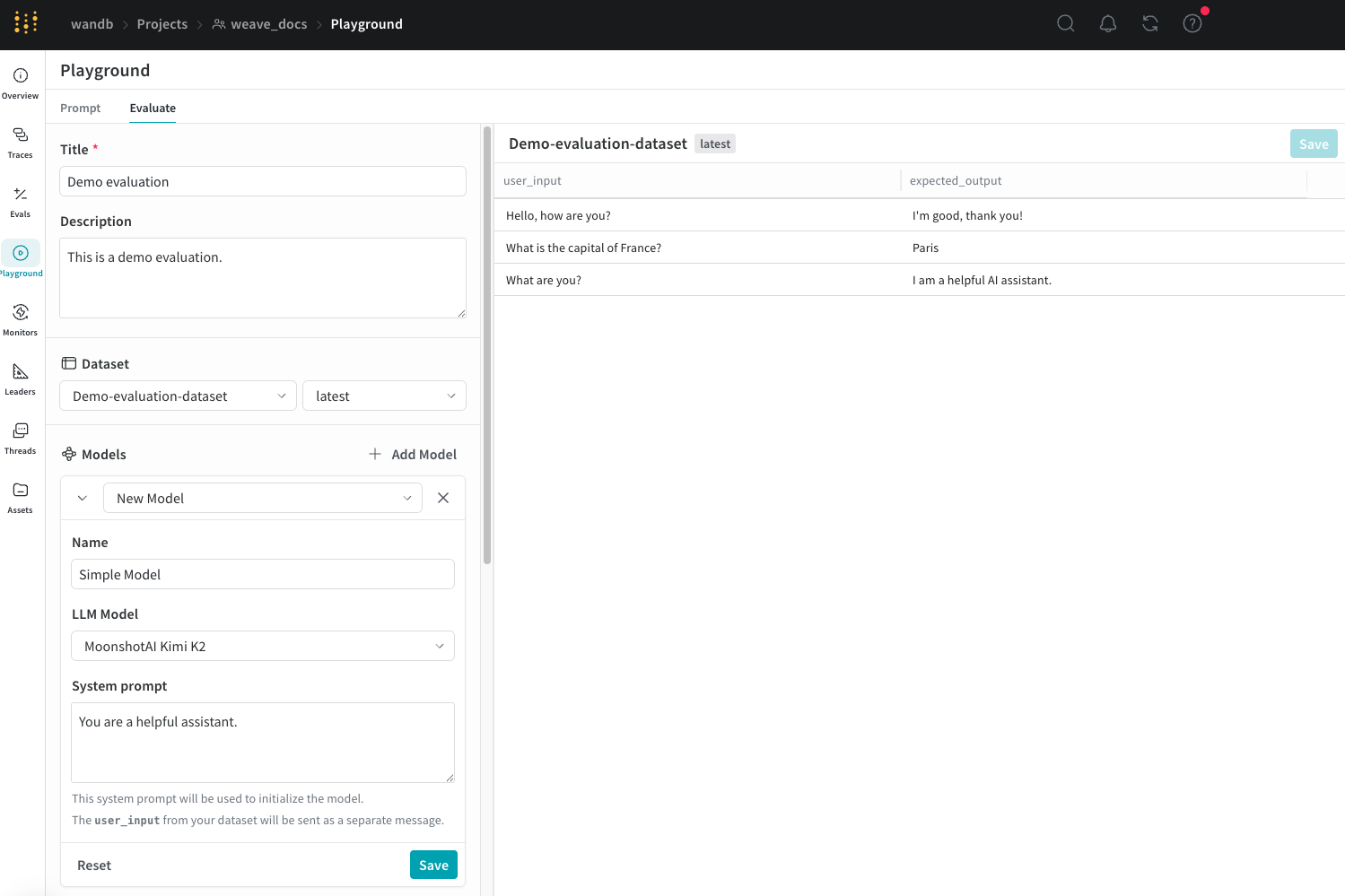
- From the Traces page, click the Playground icon in the left menu, and then select the Evaluate tab on the Playground page. On the Evaluate page, you can either:
- Load a demo example: Loads a predefined configuration that evaluates the MoonshotAI Kimi K2 model on expected output and uses an LLM judge to determine its correctness. You can use this configuration to experiment with the interface.
- Start from scratch: Loads a blank configuration for you to build upon.
- If you selected Start from scratch, add a descriptive title and description for your evaluation in the Title and Description fields.
Add a dataset
Datasets are organized collections of example user inputs and your expected responses from models. During evaluation, the playground feeds each test input into your model, collects the output, and then scores the output based on a metric you’ve selected, such as correctness. You can create a dataset in the UI, add an existing dataset already saved to your project, or upload a new dataset. You can upload datasets in the following formats:.csv.tsv.json.jsonl
- Click the dropdown menu and then select either:
- Start from scratch to create a new dataset in the UI.
- Upload a file to upload a dataset from your local machine.
- An existing dataset already saved to your project.
- Optional: Click Save to save the dataset to your project for later use.
You can only use the UI to edit new datasets.It’s also important to name the columns in your dataset
user_input and expected_output so that the scorers can access the data.Add a model
In the context of Weave, models are a combination of an AI model (such as GPT) and the environment (in this case the system prompt) that defines how the model operates during the evaluation. You can select existing models in your project or create new ones to evaluate, and you can add multiple models at once to evaluate them simultaneously with the same dataset and scorer. You can only use models created using the playground feature. To add a model in the Models section of the Evaluation Playground:- Click Add Model and either select New Model or an existing model from the dropdown menu.
-
If you selected New Model, configure the following fields:
- Name: Add a descriptive name to your new model.
- LLM Model: Select a foundation model to build your new model on, such as OpenAI’s GPT-4. You can select from a list of foundation models you’ve already configured access to, or you can add access to a foundation model by selecting Add AI provider and selecting a model. Adding a provider prompts you to enter your access credentials to that provider. See your provider’s documentation to learn how to locate your API key, endpoints, and any additional configuration information you need to access the model using Weave.
- System Prompt: Provide the model instructions on how it should behave, for example,
You are a helpful assistant specializing in Python programming.Theuser_inputfrom your dataset is sent in a subsequent message and you don’t need to include it in the system prompt.
- Optional: Click Save to save the model to your project for later use.
- Optional: To evaluate multiple models simultaneously, click Add Model again and add other models as necessary.
Add scorers
Scorers use LLM judges to measure and assess the quality of AI model outputs. You can select existing scorers in your project or create new ones to evaluate your models with. To add a scorer in the Evaluation Playground:-
Click Add Scorer and then configure the following fields:
- Name: Add a descriptive name to your scorer.
-
Type: Select how scores are output, either a boolean or a number. Boolean scorers return a binary
TrueorFalsedepending on whether the model’s output met the judging parameters you set for it. Number scorers output a score between0and1, providing a general grade of how well the model’s output met your judging parameters. - LLM-as-a-judge-model: Select a foundation model to use as the scorer’s judge. Similar to the LLM Model field in the Models section, you can select from foundation models you’ve already configured access to, or configure new access to foundation models.
-
Scoring Prompt: Provide the LLM judge parameters for scoring the output. For example, to check for hallucinations, enter a scoring prompt similar to this:
You can use the fields from your datasets and responses as variables in the scoring prompt, such as
{user_input},{expected_output}, and{output}. To see a list of available variables, click Insert variable in the UI.
- Optional: Click Save to save the scorer to your project for later use.
Run the evaluation
With your datasets, models, and scorers configured, you’re ready to run the evaluation and generate results.- To run the evaluation in the Evaluation Playground, click Run eval.
Review evaluation results
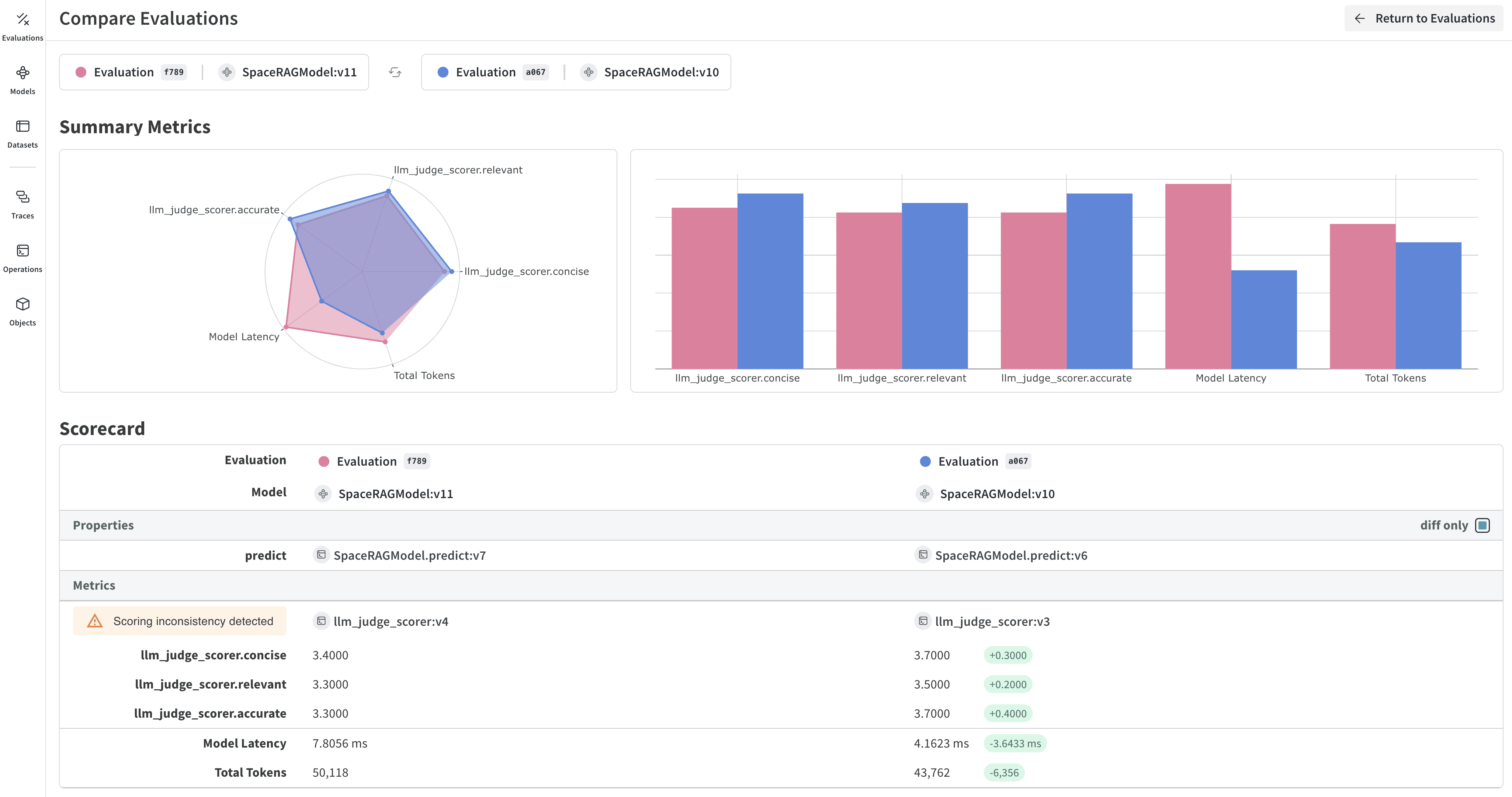
After the evaluation completes, you can review the results to compare how each model performed against your dataset and scorers. When the evaluation completes, the playground opens a report that displays metrics collected on each request made to your models.