

Get started
Follow these steps to open the Trace view for a project so you can begin inspecting traces:- Navigate to https://wandb.ai and select your project.
- In the project sidebar, select Traces to view all traces saved for your project.
- Select a trace to open the Trace Details view. The Trace Details view displays additional panels with a hierarchical breakdown of the trace execution.
Traces page overview
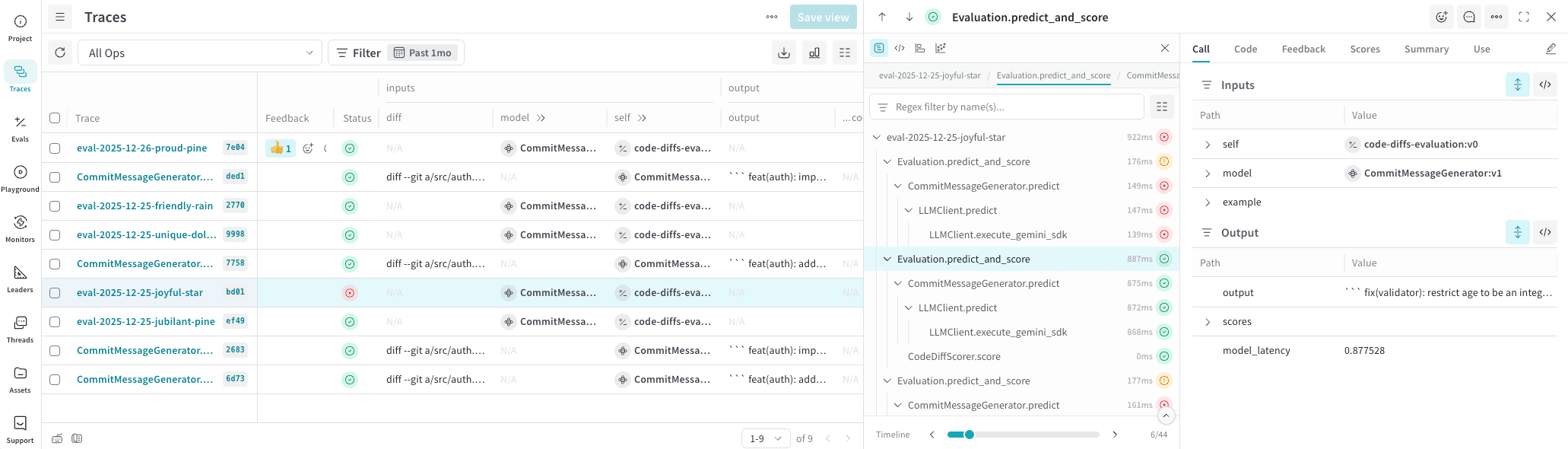
The Traces page is composed of three core panels:- Left panel: A sortable, paginated list of all traces for the project.
- This traces table includes additional data such as tokens, cost, and latency.
- Center panel: Interactive trace view for a selected trace. The trace tree shows a hierarchy of all the methods tracked within the trace.
- The trace tree displays ops, which are
@weave.op()-decorated functions that were called during the trace.
- The trace tree displays ops, which are
- Right panel: Details for a selected op within the selected trace.
Filter within a trace
You can filter the contents of a trace using the following controls:- Regex filter by name(s): Use the text field above the trace tree to filter ops by name or type, such as
tool,openai.response.create. - Metrics: Control whether to display the following data metrics when available: cost, tokens, and latency.
Navigate a trace
The trace tree shows a hierarchy of all the methods tracked within the trace. To move up or down the tree, useCmd (macOS) or Alt (Windows/Linux) + Up Arrow (↑) or Down Arrow (↓).
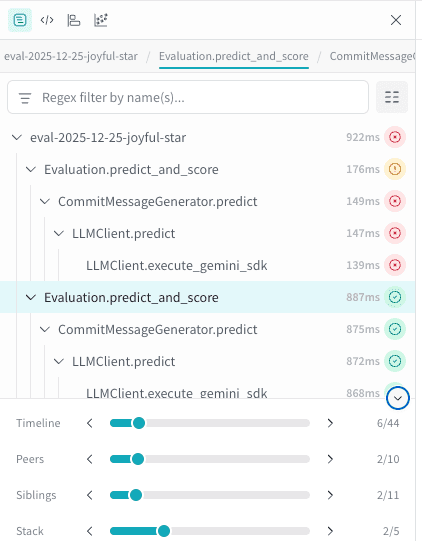
Several scrubbers below the trace tree provide rapid navigation across states within it. You can use the sliders to navigate through your trace.
Expand the panel to see all available scrubbers:
- Timeline: Chronological order of events within the trace.
- Peers: Ops sharing the same type. For example, if you’re examining details of a function called
predict, you can use this scrubber to immediately jump to the next execution ofpredictwithin the trace. - Siblings: Ops with the same parent. Use this scrubber to iterate over ops nested under the parent function call.
- Stack: Traverse up or down the call stack.
- Path: (Only available in code composition view) Iterate through all calls with the same code path as the selected call.
Alternative trace tree views
At the top of the panel, you can switch between multiple visual representations of the trace tree based on your debugging needs. Use code composition view to understand call logic, flame graph view to understand performance over time, and graph view to understand structure. The following sections describe each available view.Traces (default)
The default view of the trace tree shows stack hierarchy, cost per op (if available), execution time, and status indicators.Code composition view
In the code composition view, boxes represent ops and their nested calls. This is helpful for visualizing the flow of function calls. In this view, you can select a box to drill into that op and filter the call path.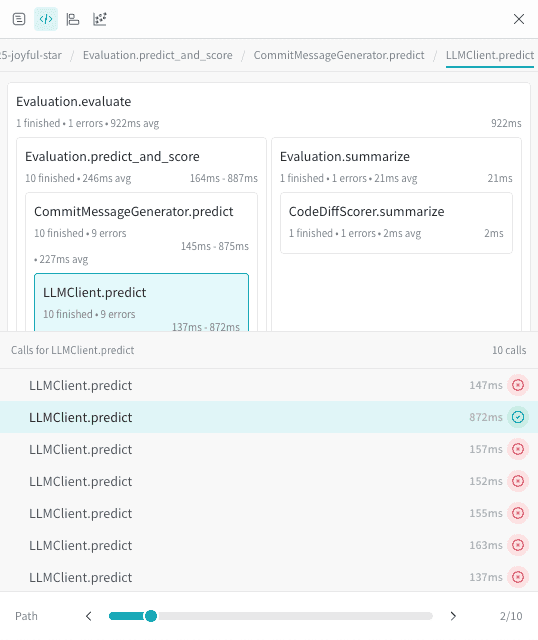
Flame graph
The flame graph view provides a timeline-based visualization of execution depth and duration. This is helpful when you want to understand performance diagnostics over time. You can select into frames to isolate sub-traces.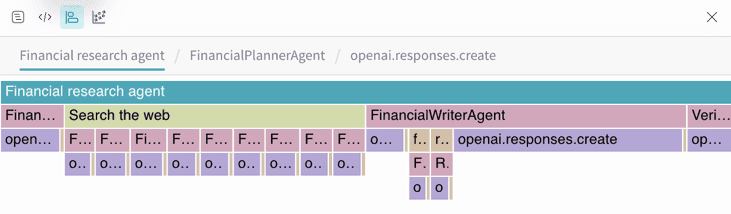
Graph view
The graph view shows hierarchical relationships between ops. This is helpful for understanding parent/child relationships.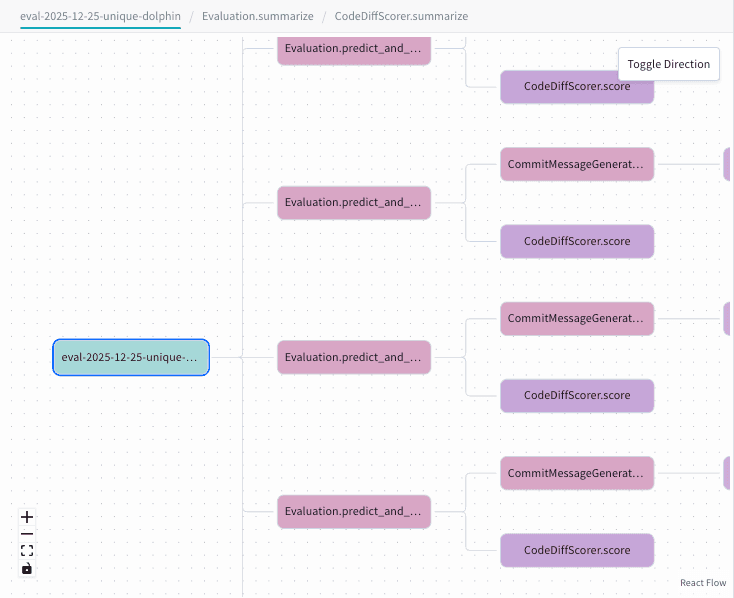
View details for a trace op
After you select an op in the trace tree, details for that op display in the next panel. These details are grouped into the following tabs:- Call: The input and output to the op execution.
- Code: The code that was used when the call was made.
- Feedback: Any available feedback for the op. You can provide feedback directly within Weave or through the API.
- Scores: Any available scores for the op. Calls are scored by running Evaluations.
- Summary: General information about the op.
- Use: Code snippets that you can use to programmatically retrieve the call and add reactions, notes, or feedback.